
10 Real-Time AI Translation Subtitle Services
When you work at a company where the official language is a foreign language, or your meetings with overseas members start to increase, you run into familiar problems like these:
"I can kind of follow the foreign language, but the moment people start speaking fast, I completely lose track."
"I miss important numbers because I just can't catch what's being said."
"When I take notes in English, I get left behind in the discussion."
Real-time AI translation captions are exactly the kind of technology that can solve these pain points in one shot.
However, in reality there are big differences between tools: some are better or worse suited to specific use cases, and translation quality can vary a lot by language, so it's easy to get stuck wondering which one to pick.
In this article, we at NanoHuman Inc. – who build AI services and, frankly, suffer through foreign-language meetings on a daily basis – have analyzed 10 AI translation services from the perspective of "how they actually feel to use in real meetings."
⚠️
This article is an independent summary by NanoHuman Inc. based on publicly available information and user feedback as of December 2025.
SuperIntern is our own product, but we describe its characteristics and pros/cons as objectively as possible, just like the other tools.
Table of contents
1. Translation features built into meeting platforms
① Zoom AI Companion (translated captions)
② Google Meet (translated captions & audio translation)
③ Microsoft Teams (live translated captions)
2. General-purpose real-time translation services
④ JotMe — An all-rounder for meeting translation + AI notes
⑤ Transync AI — A "voice-included" experience close to simultaneous interpreting
⑥ Immersive Translate — The best choice if you want everything in the browser
⑦ SuperIntern — Meeting translation + real-time notes, with no bots joining your calls
3. Conference / event-focused solutions
⑧ Wordly AI
⑨ KUDO
⑩ Interprefy
1. Translation features built into meeting platforms
① Zoom AI Companion (translated captions)
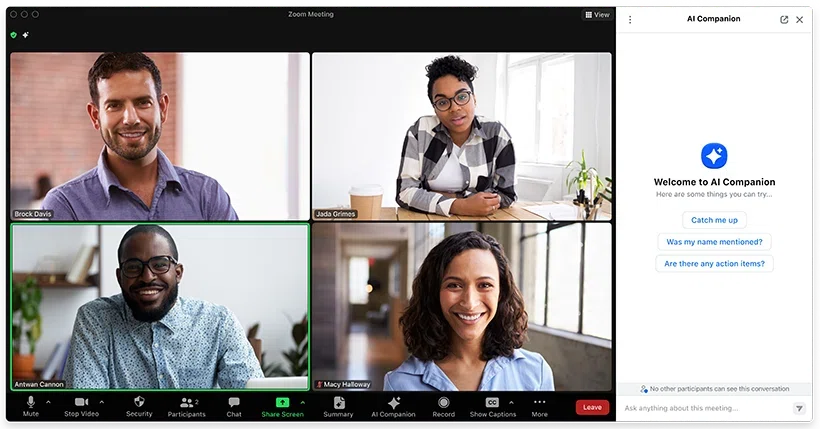
Within the Zoom AI Companion feature set, there is a translated captions function.
It automatically transcribes what speakers say and translates it into another language in real time, then shows that as captions.
What's good
- If your organization is centered around Zoom, you can use it without installing extra apps.
- Translation quality has improved a lot over the last few years; for everyday foreign-language × English meetings, it's generally good enough to follow what's being said.
What to watch out for
- You can only use it in Zoom. If you're meeting with a company that uses Teams or Google Meet, you'll need to combine it with some other setup.
- Using translated captions requires a certain level of paid plan; that becomes an extra cost for small teams that want to stay on the free tier only.
② Google Meet (translated captions & audio translation)
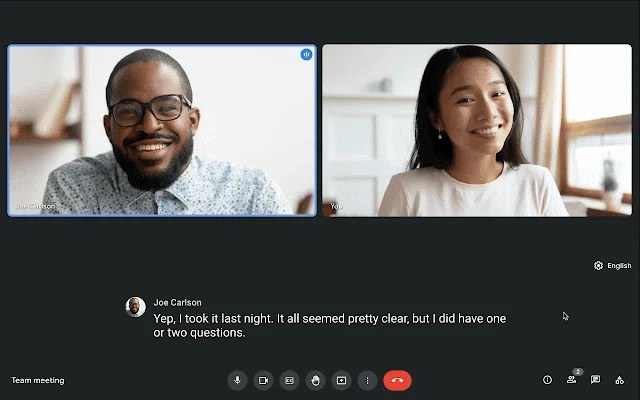
Google Meet also provides translated captions as a standard feature.
During a meeting, you just turn translated captions on in the settings and choose the spoken language and the language you want to see on screen.
More recently, Google has been rolling out real-time audio translation using Gemini (e.g., between a foreign language and Spanish), making it possible to have an experience where the other person's speech is effectively "dubbed" into another language.
What's good
- If your company already uses Google Workspace, there's no need for additional account management, and the UI is simple, so it's easy to roll out.
- As audio "dubbing" features expand, there's a high chance you'll eventually be able to handle both captions and audio entirely within Meet.
What to watch out for
- At the moment, the set of supported language pairs is still limited.
- More advanced Gemini-based translation features require higher-tier plans or add-on subscriptions.
- Captions only appear inside the Meet interface, so if you want to take notes in another window while glancing at subtitles, or pin captions to the corner of your screen, there are some layout constraints compared to dedicated tools.
③ Microsoft Teams (live translated captions)
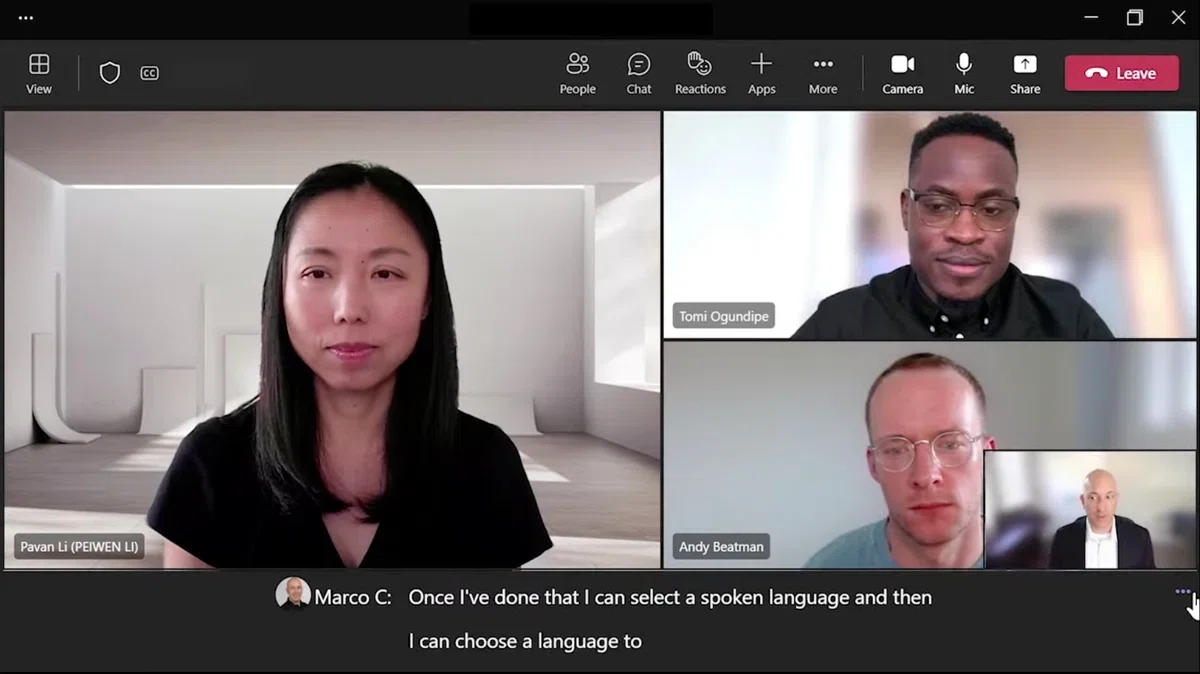
Microsoft Teams offers live captions and translated captions.
You configure events so that participants can choose from a predefined list of subtitle languages.
What's good
- If you already subscribe to Microsoft 365, you can often try it without any additional contracts.
- It works well together with chat and file sharing inside Teams, so you can stay entirely within the Microsoft ecosystem.
- It has settings geared toward large-scale webinars and live events.
What to watch out for
- Like Zoom and Meet, it's limited to Teams. If you're in a meeting with a company that also uses Zoom or Google Meet, you'll need to combine Teams with another solution.
- Compared to Zoom and Meet, more people report that the initial setup feels confusing, so if you don't test thoroughly beforehand, you may end up with "no captions in the live session" issues.
2. General-purpose real-time translation services
From here on, we'll look at AI translation caption tools that don't depend on any one meeting platform.
If your environment looks like this:
- "We use Teams internally, but our clients insist on Zoom."
- "People join webinars directly from their browser."
…then these tools are often more realistic in practice.
Because they can also translate from the microphone, they can be used not only for online meetings but also for offline meetings and events.
④ JotMe — An all-rounder for meeting translation + AI notes
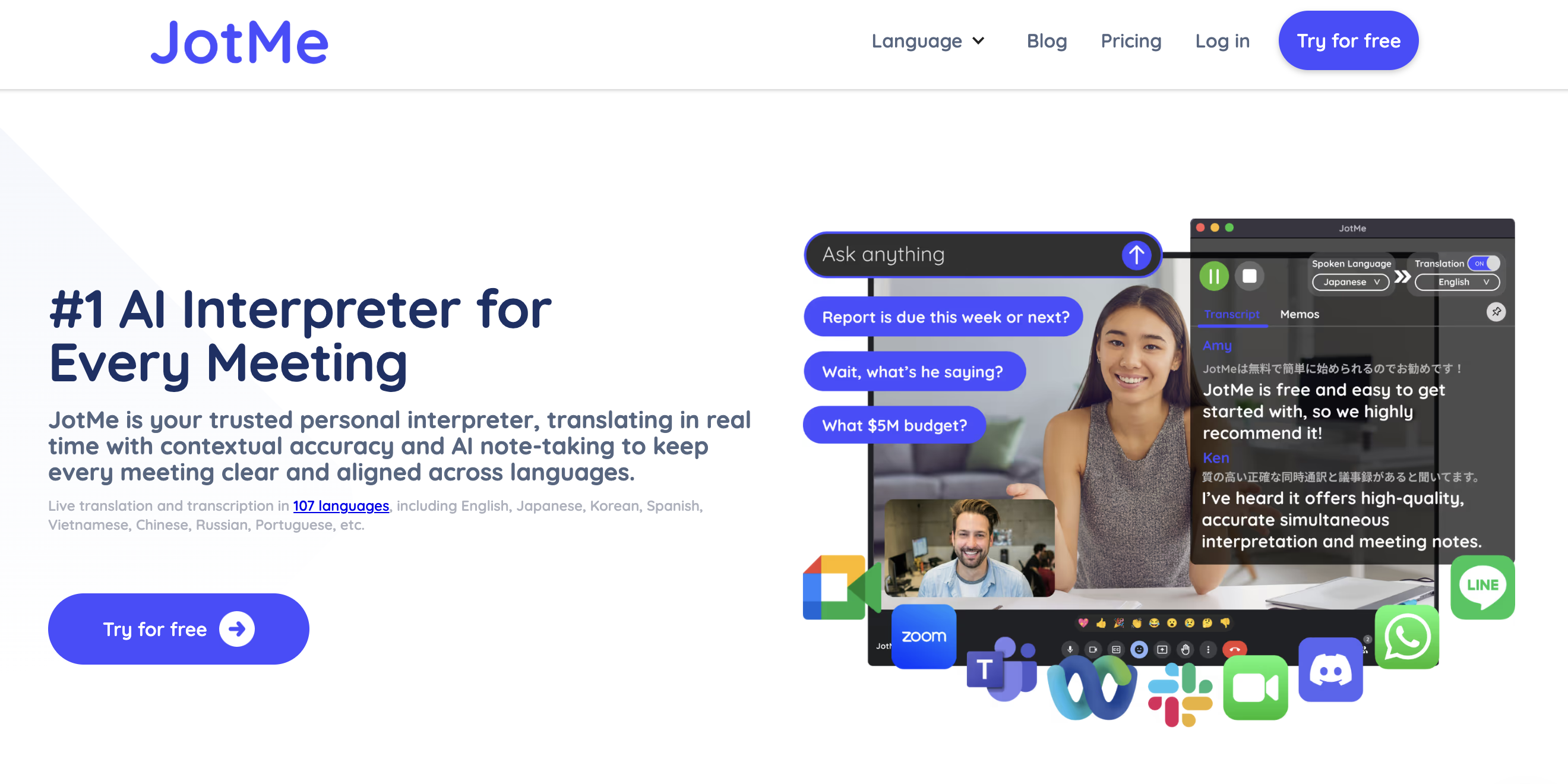
JotMe connects to your meetings via a Chrome extension or desktop app.
It displays real-time translated captions during the call and generates AI-organized notes afterwards.
What's good
- It works especially well with browser-based meetings, making it easy to roll out to heavy Google Meet users.
- It can handle not only translation during the meeting but also the translation of the meeting notes themselves, all in one place.
- You can chat with the AI during the meeting and ask questions on the fly.
What to watch out for
- Its translation quality into English is quite low.
- It does have a real-time summary feature, but the text is barely condensed; it often feels like plain transcription rather than a real summary.
⑤ Transync AI — A "voice-included" experience close to simultaneous interpreting
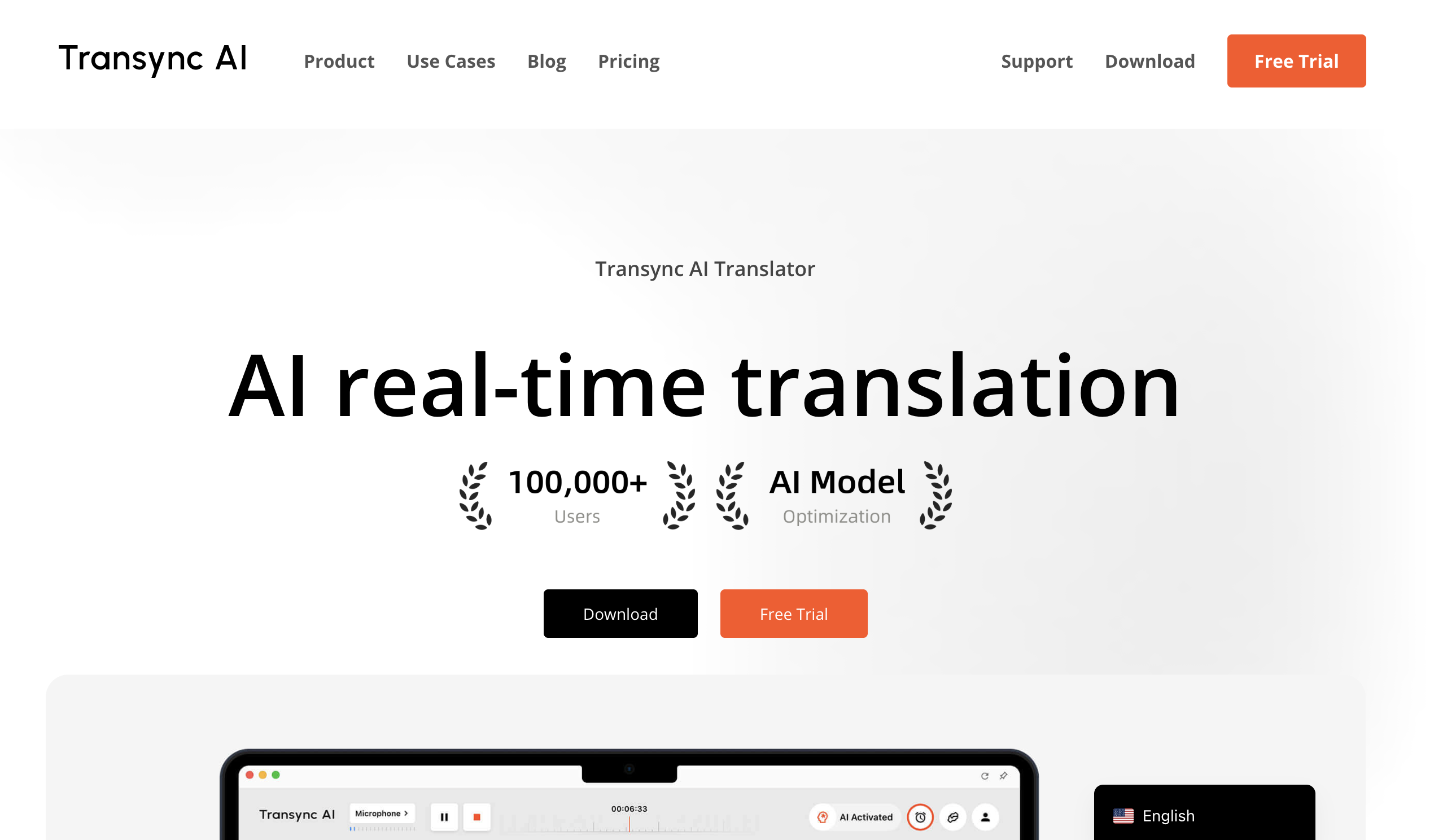
Transync AI is a mobile/desktop app marketed as a real-time AI interpreter.
It supports more than 60 languages and offers a two-pane bilingual display plus AI voice read-outs.
In meetings, it transcribes the speaker's voice in real time, displays the translation as subtitles, and can read the translation aloud via AI voice, providing an experience close to human simultaneous interpreting.
What's good
- For people who "can't keep up just by reading subtitles," the audio support is extremely helpful.
- There are relatively affordable plans, including student-oriented pricing.
- It also generates AI meeting notes and summaries after the call.
What to watch out for
- If you fully use the audio read-out, you almost have to use earphones. You end up juggling the original meeting audio, the interpreted audio, and your own thoughts — the information density can get very high.
- If you primarily use the smartphone app, you need to think in advance about how you'll arrange it relative to your PC screen; otherwise, your setup can get messy in real-world use.
⑥ Immersive Translate — The best choice if you want everything in the browser
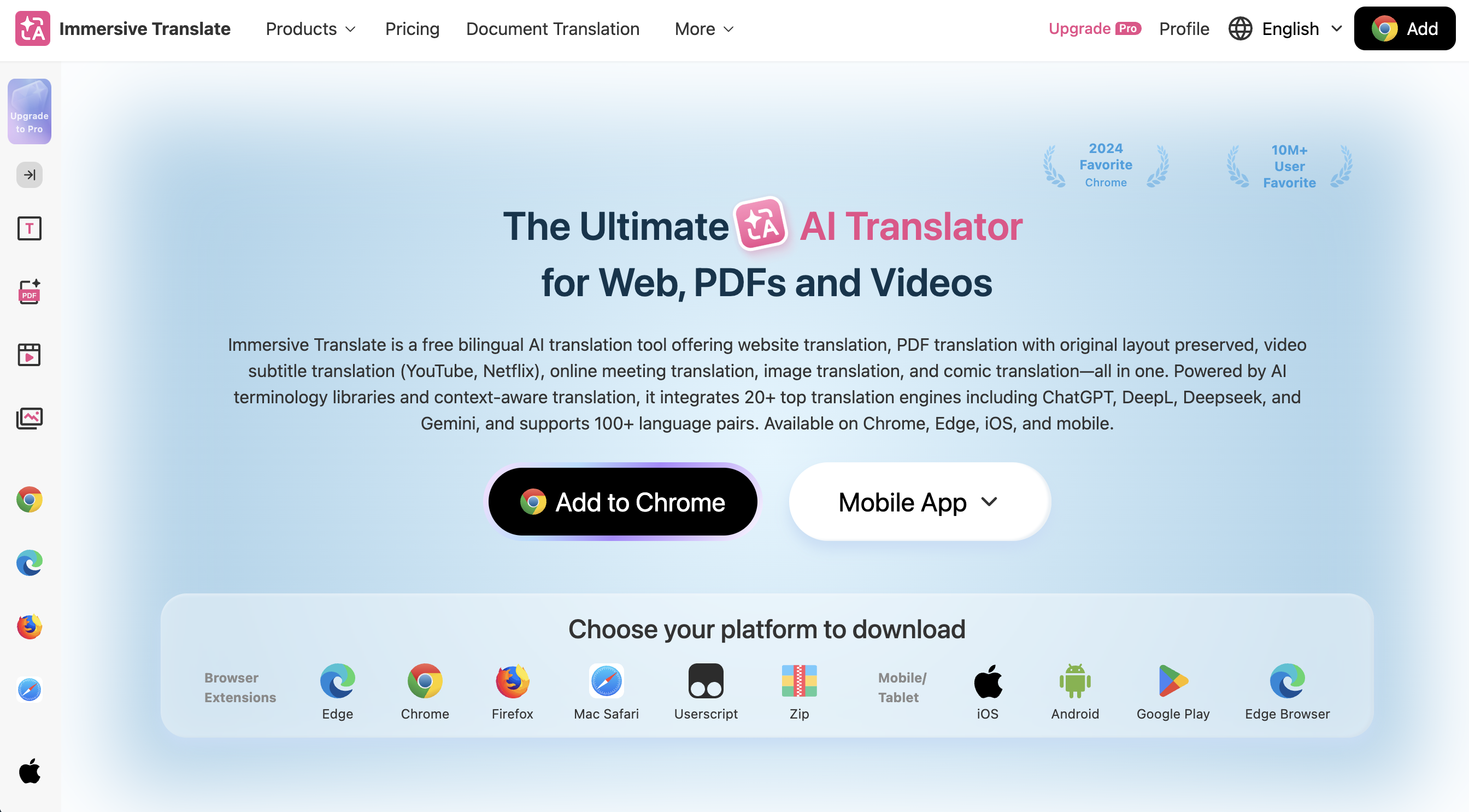
Immersive Translate started out as a service for dual-subtitle translation of web pages and videos, and later added support for online meeting translation.
Its signature use case is showing bilingual subtitles on more than 100 video platforms like YouTube and Netflix, but with the same feeling you can also overlay translation captions on online meetings you join from the browser.
What's good
- If you're already using Immersive Translate to watch videos, you can simply extend that workflow to meetings as well.
- You can customize the browser's display style very flexibly, so it's easy to build subtitle layouts that match your personal preferences.
- You can use it not just for meetings, but also for translating the web, PDFs, images, and more.
What to watch out for
- It basically assumes that you join meetings in the browser, so if your workflow is centered on the native Zoom/Teams apps, you won't be able to make full use of it.
- The richness of the settings is a double-edged sword: for light users, it can feel a bit overwhelming at first.
⑦ SuperIntern — Meeting translation + real-time notes, with no bots joining your calls
Lastly, we'd like to introduce our own product, SuperIntern.
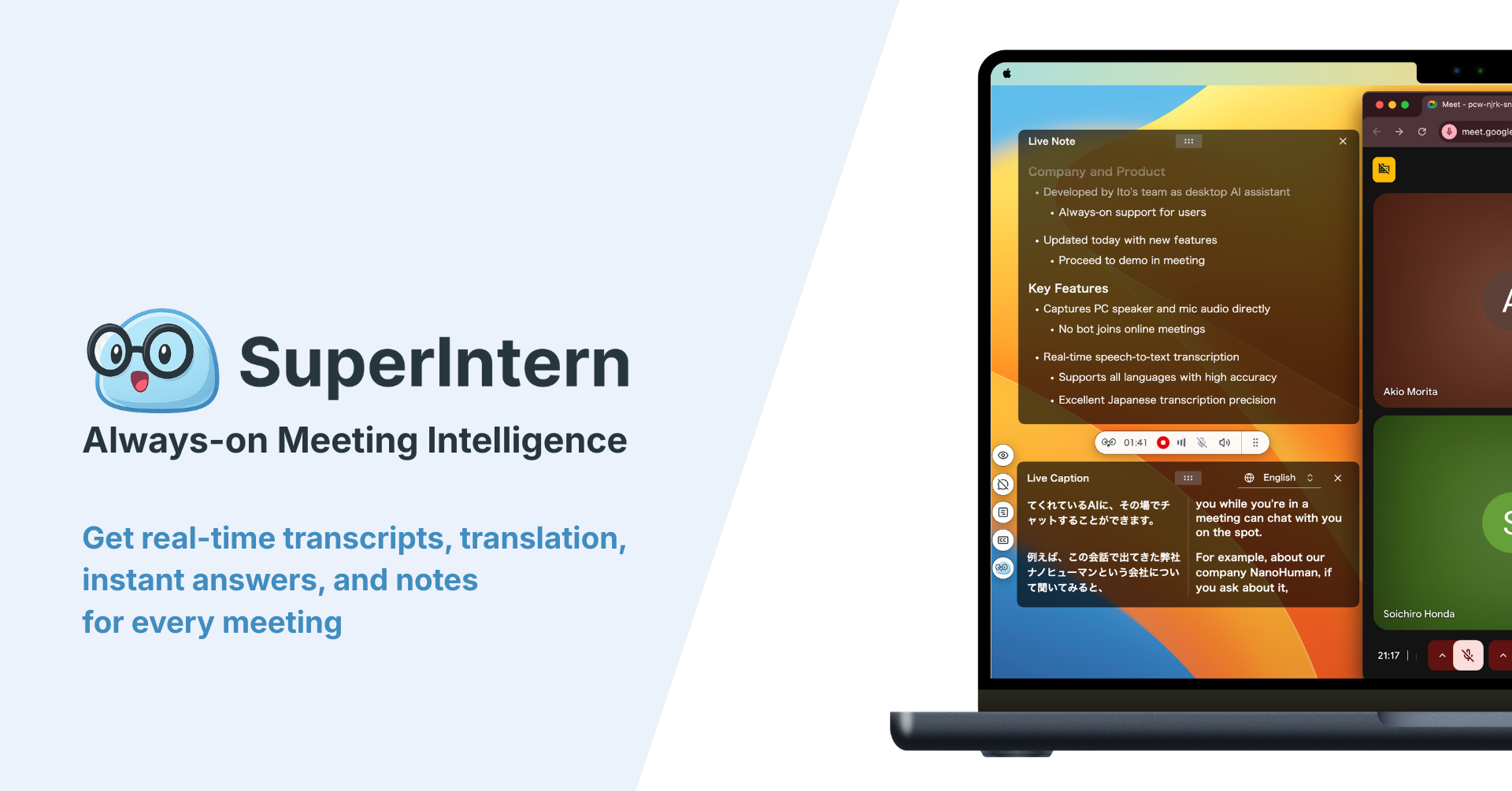
SuperIntern is designed as "meeting intelligence you can keep always-on," with the following features:
- Botless — no bots join your meetings
- Runs resident on your computer (Mac and Windows) and captures audio directly from the speaker + microphone
- Provides real-time translated captions in 50+ languages
- Generates real-time structured notes that update alongside the conversation
- Because it's not tied to any specific meeting platform, one computer covers Zoom / Google Meet / Teams / in-person meetings — notes are stored in one unified place
- Other participants won't see it.
- Includes a custom dictionary where you can register company names, product names, and internal terms.
Benefits we've felt in real use
- Compared to other translation tools, the translation accuracy is extremely high.
- Regardless of whether you're on Zoom, Meet, or Teams, once a meeting starts on your computer, you can just use it as-is — no need to think about switching tools.
- You can use it in the same way to translate content on YouTube, Netflix, and other video services.
- You can, for example, run the meeting in a foreign language, show subtitles in that foreign language + English, and generate the minutes in English, treating subtitle and summary languages separately.
- Registering internal jargon in the custom dictionary significantly reduces errors in proper nouns.
- Because no bots join the call, it feels much more comfortable to use even in 1-on-1s with external clients.
Current limitations
- For team plans or enterprise-grade security features, please contact us.
You can start using it for free and without registering a credit card, so feel free to give it a try.
3. Conference / event-focused solutions
From here, we'll look at services designed not for a "typical one-hour meeting," but for large-scale events.
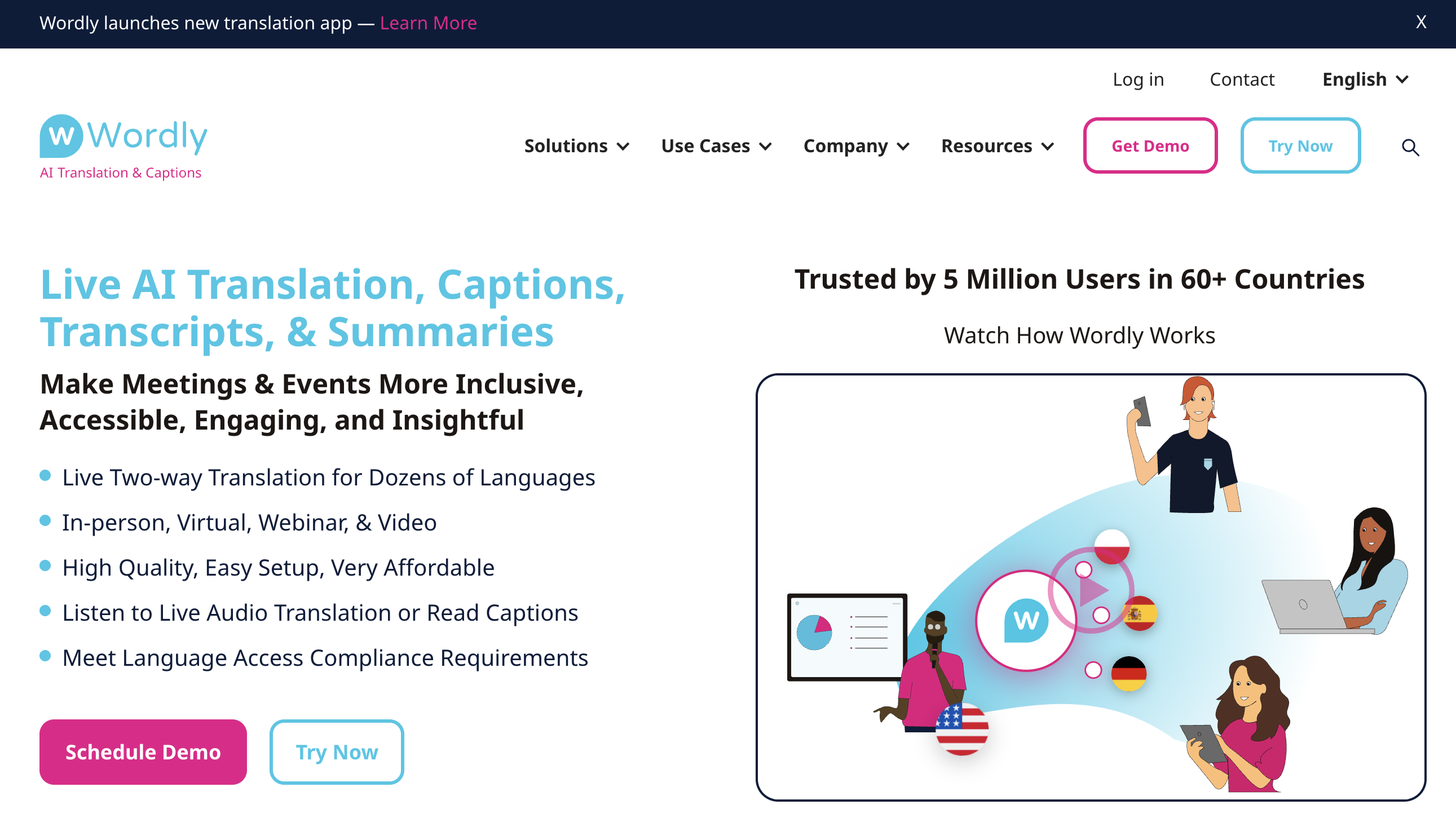
⑧ Wordly AI — Unified AI interpreting + captions + summaries
Wordly AI is a service known from relatively early on as an AI simultaneous interpreting platform.
It offers real-time translated audio, captions, same-language captions, text and audio transcripts, and summaries — all in one package.
It integrates with Zoom and other meeting tools, and participants can use their own devices to receive audio and subtitles in the language of their choice.
What's good
- It can significantly reduce cost and prep time compared to hiring human interpreters.
- Because audio, captions, and summaries are all processed by AI, it's easier to turn sessions into shareable materials after the event.
- For some platforms like Zoom, dedicated apps are available.
What to watch out for
- Pricing depends on event size, duration, and number of languages, so for a small startup that "also wants to use this for everyday meetings," it can feel a bit over-engineered.
- You need to design sessions, links, and overall flows in advance — there's some real work on the organizer side.
⑨ KUDO — A hybrid of AI and professional interpreters
KUDO is well known as a platform for bringing in professional simultaneous interpreters online, and in recent years it has added AI translation and AI captions as a hybrid offering.
It integrates with Zoom, Webex, Teams, and more, making it possible to do things like "use human interpreters only for critical sessions and rely on AI translation for everything else."
What's good
- It offers strong peace of mind for events in domains where you simply cannot afford to lose nuance — law, healthcare, finance, and so on.
- It has a long track record with large-scale conferences and deep know-how in event operations.
- You can flexibly combine human and AI, balancing cost and quality.
What to watch out for
- Costs are naturally higher than fully AI-based services.
- Outside of "mission-critical" events, cost-effectiveness tends to be lower.
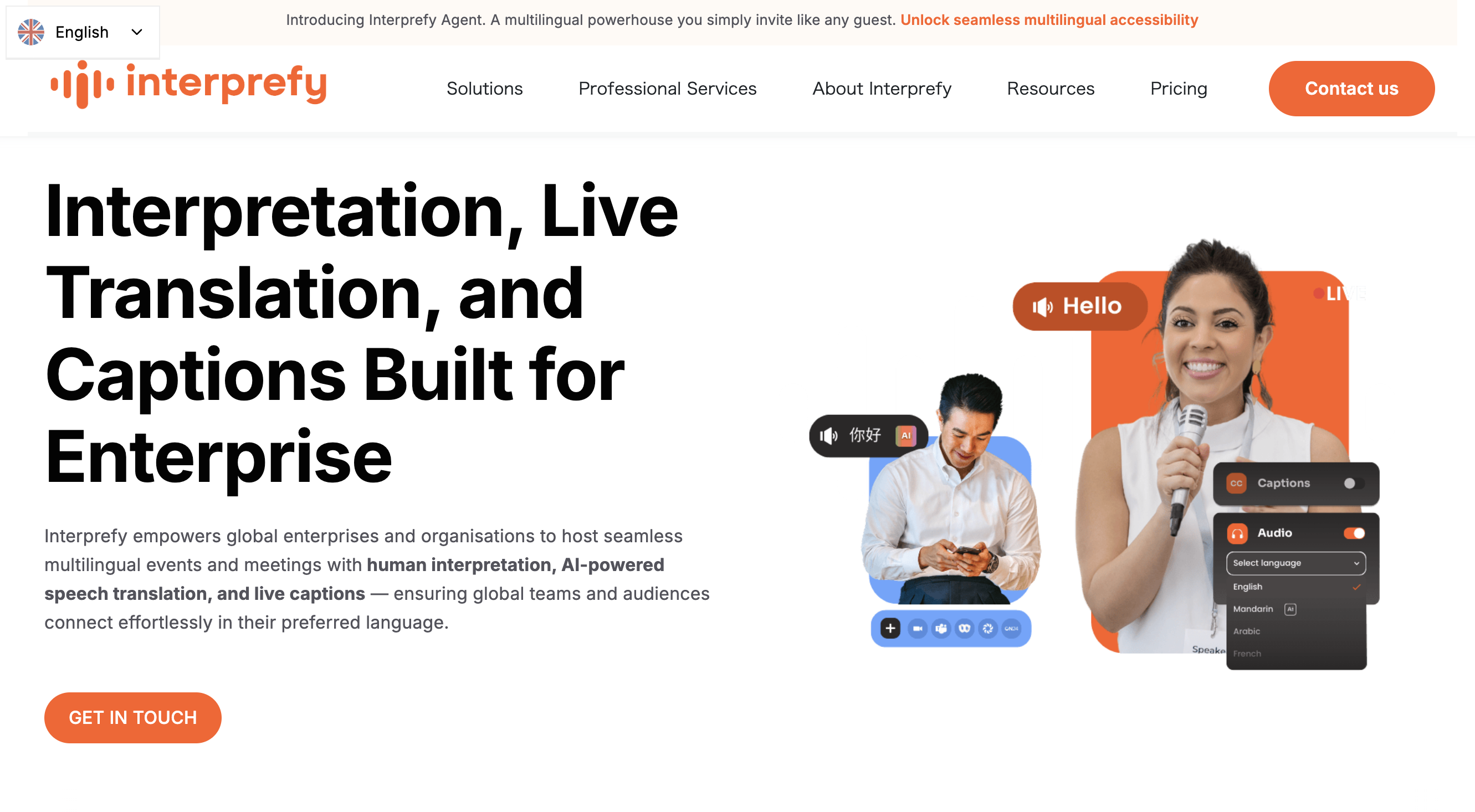
⑩ Interprefy — A multilingual event platform for enterprises
Interprefy is a multilingual event platform for global enterprises, offering remote simultaneous interpreting, AI speech translation, and live captions.
Participants access a web platform or mobile app via their browser and can choose their language from over 6,000 language combinations, receiving either audio or subtitles.
What's good
- It offers enterprise-level support, including complex simultaneous interpreting booth setups.
- It's designed with accessibility in mind, including features for participants with hearing impairments, not just AI subtitles.
What to watch out for
- Pricing is often via custom quotes based on event scale and requirements, making it less suited to small-scale use.
- It's targeted more at things like global all-hands or shareholder meetings than "let's just try this in our weekly internal meeting."
4. How to choose: different tools for different use cases
Finally, let's recap how to think about using these 10 services in different scenarios.
Pattern 1: You want to start without increasing costs
In this case, the straightforward approach is to:
- Turn on Zoom AI Companion
- Turn on Google Meet translated captions
- Turn on Microsoft Teams translated captions
…on each platform, and test how much accuracy and latency you get, and whether it's good enough for real work.
On the other hand, if you run into issues like:
- IT won't enable the feature for you
- Limitations around supported languages
- Lack of flexibility in layout
- Friction when using them in external meetings
…then it's time to move to the next step and consider dedicated tools.
Pattern 2: You regularly run multilingual meetings across Zoom / Meet / Teams
Here, tools that run entirely on the PC side are very powerful.
Browser extensions are convenient, but they lock you into browser-based meetings, so desktop apps are usually the better choice.
All of the services we've covered offer free tiers, so we highly recommend testing translation accuracy yourself and choosing the one that feels right to you.
If you:
- Want to handle everything on a single computer, regardless of platform
- Want to follow meeting flow by looking at real-time summaries
- Want to use high-accuracy real-time AI translation
…then SuperIntern will likely be a very strong fit, and we'd be honored if you'd give it a try.
👉 Try for free: SuperIntern Translation
Pattern 3: Events and conferences with hundreds or thousands of participants
At this scale, you're no longer just "running meetings" – you're in the world of event operations.
Roughly speaking:
- Want fully AI-based, low-cost multilingual support → Wordly AI
- Critical sessions with human interpreters, everything else with AI → KUDO
- Internal global conferences where you want full support while you run the event → Interprefy
In practice, though, the best choice depends heavily on event size, venue configuration (online/offline/hybrid), and required support level, and there are plenty of cases where desktop AI tools like Transync AI or SuperIntern (from Pattern 2) are sufficient.
The safest approach is to watch demos and decide after seeing them in action.
Summary
AI translation caption services all look similar at a glance, but once you categorize them by layer, they become much easier to compare:
- Built-in to meeting platforms (Zoom / Meet / Teams)
- General-purpose tools on the PC/browser side (JotMe / Transync AI / Immersive Translate / SuperIntern)
- Conference-focused solutions (Wordly / KUDO / Interprefy)
The most important practical question is:
"For which meetings, and whose burden do we want to reduce?"
Is it:
- Regular internal meetings where many members struggle with foreign languages?
- Cross-border sales calls and negotiations?
- Conferences with hundreds of attendees?
Depending on this, the required accuracy, operating costs, and support structure change completely.
If your team:
- Moves back and forth between Zoom, Meet, and Teams
- Runs its daily meetings in English, foreign languages, and other languages
- And wants both translation captions and real-time meeting notes
…then we'd be very happy if you'd consider SuperIntern as one of your options.
Once you can run "any meeting, on any platform" with the same experience from a single computer, you may be surprised by how much meeting-related stress you can remove.
👉 Try for free: SuperIntern Translation