
Weekly Update: audio file upload, Google profile detection, and more
We've just shipped 4 new features to SuperIntern 🎉
Each one chips away at the small frictions you hit before or after a meeting.
Here's a quick tour of this week's additions.
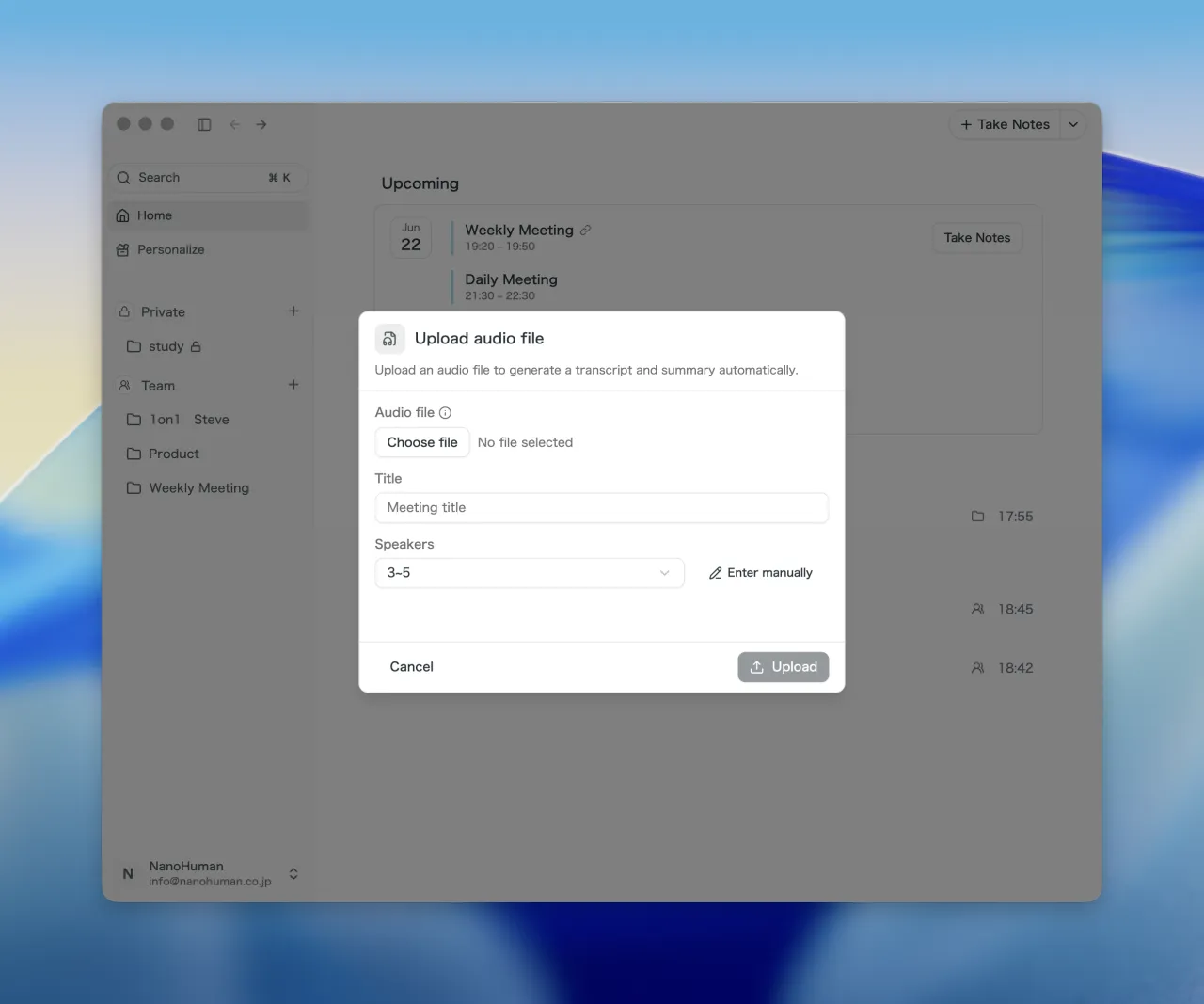

① Turn any existing audio file into a transcript + summary in one shot
Just upload an audio file (mp3 / m4a / wav, and more) and SuperIntern automatically generates the transcription, speaker diarization, summary, and AI Canvas notes for you.
Even when the recording didn't come from SuperIntern, audio from voice recorders, your phone, or other apps can all be funneled through the same AI minutes flow.
What this changes
- Forgot to start SuperIntern? You can still get minutes: As long as the audio was captured somewhere, upload it later and the transcription runs on its own.
- Bring in-person meetings and other apps' recordings under one roof: The recording method can vary, but the minutes still live and stay organized inside SuperIntern.
- Reach back into your audio data: Long-forgotten kickoff calls and customer interviews can be transcribed and added to your SuperIntern context.
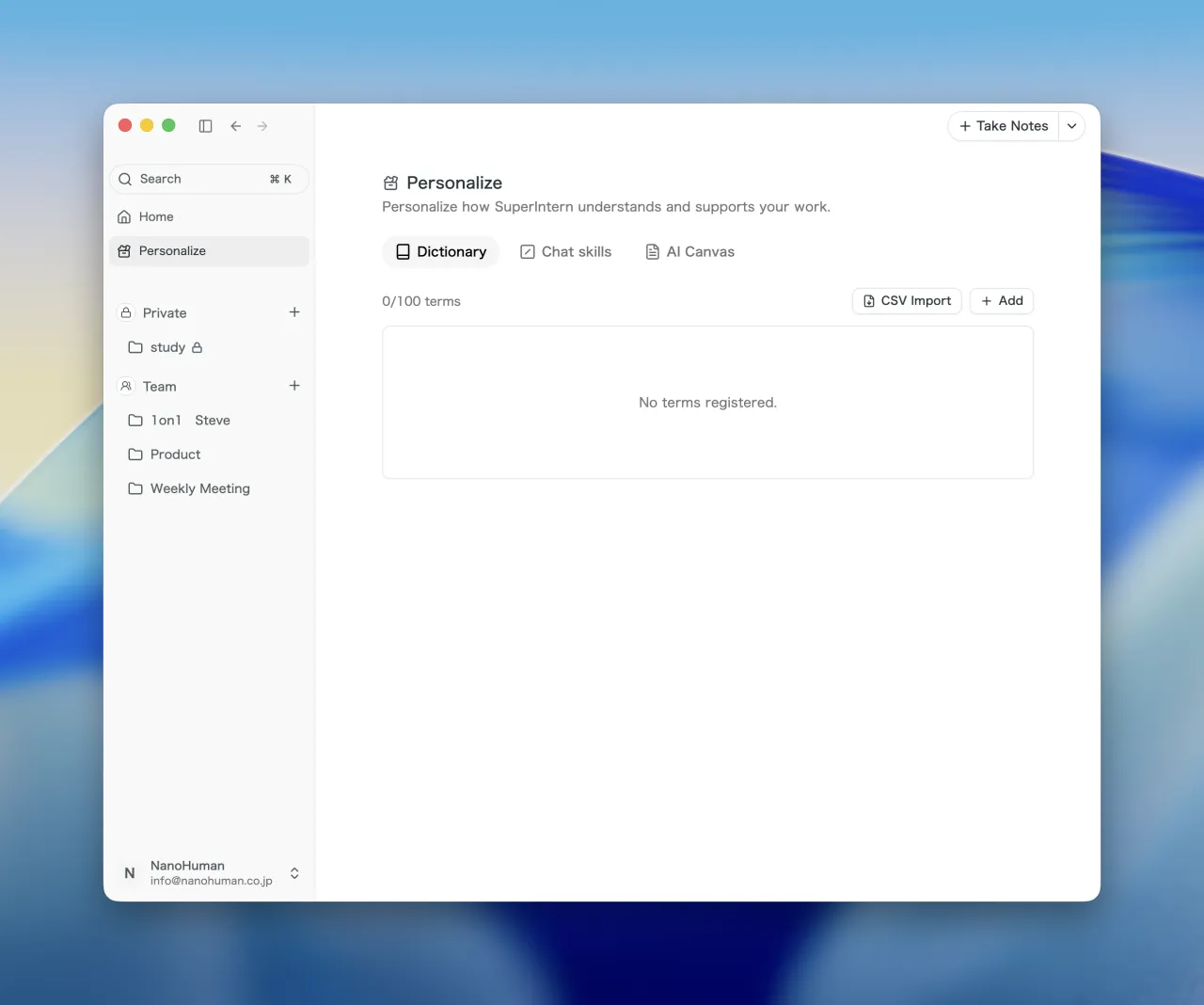
② A new "Personalize" page that brings all AI settings together
Dictionary, Chat Skills for AI chat, custom instructions for AI Canvas — SuperIntern has accumulated several ways to bend the AI to your own preferences.
We've gathered them into a single new Personalize page so tuning the AI no longer means hunting through settings.
The dictionary also now supports bulk CSV import, letting you register large batches of proper nouns at once.
What this changes
- Register dictionary terms in one go: Add tens to a hundred terms in a single CSV upload, and recognition accuracy improves from day one.
- Reuse the glossary your team already has: A glossary already living in your wiki or a spreadsheet just needs to be reshaped into a CSV and it's ready to use.
- Less inconsistency across your team's minutes: Hand out a shared dictionary CSV and every team member's minutes use the same vocabulary.
③ Auto-launch Google Meet in the Chrome profile that matches the meeting account
When you switch between multiple Google accounts in Chrome, opening a Meet link can land you in the wrong profile, forcing you to switch profiles to get in.
SuperIntern now picks the Chrome profile tied to the meeting's account automatically and opens Meet there.

What this changes
- No more account-switching tax: Chrome opens in the profile tied to the meeting's account.
- Bouncing between personal / company / client accounts gets smoother: Even when your day spans several accounts, the friction simply isn't there.
- Avoid running late: You stop losing minutes to rejoining under the right account.
- Works out of the box: SuperIntern matches the invitee with the right Chrome profile on its own — no manual mapping required.
④ Find any past meeting instantly with "Cmd+K"
Finding a past meeting used to mean scrolling the list or narrowing by date.
Now, just press Cmd+K (or Ctrl+K on Windows) from anywhere in SuperIntern, and a search palette pops up — type a meeting name and jump straight to it.
What this changes
- Past meetings surface instantly: Skip the scrolling — type part of the title and you're there.
- Hop between meetings without leaving the keyboard: No reaching for the mouse — pull up past minutes from any screen in a moment.
- Reference AI minutes much faster: When "wait, which meeting was that?" hits, you're at the right one in the fewest possible steps.
How to Update
For Mac users
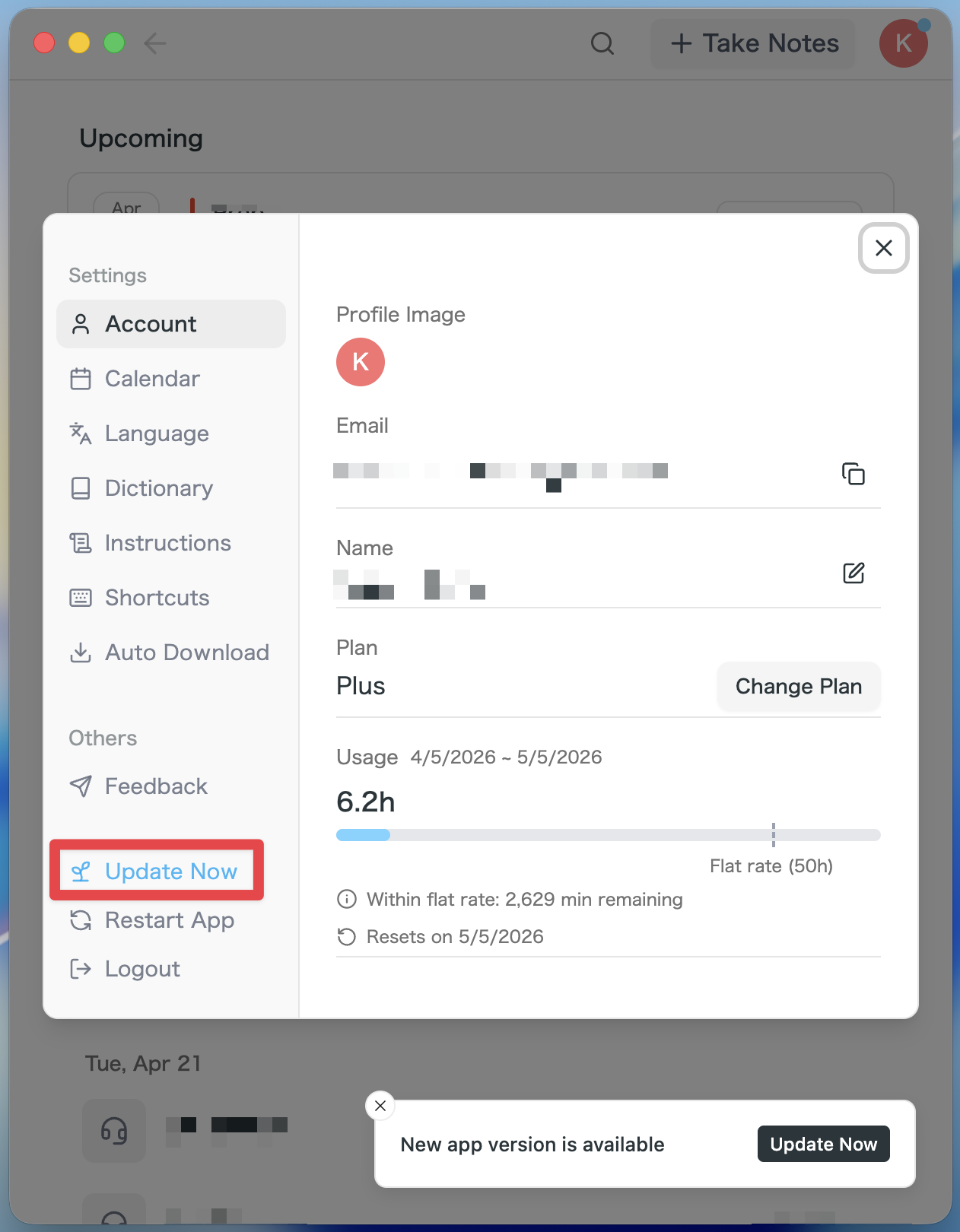
- If an update is available, the latest version is downloaded automatically after you launch the app.
- The Update Now button appears in the sidebar. Click it.
For Windows users
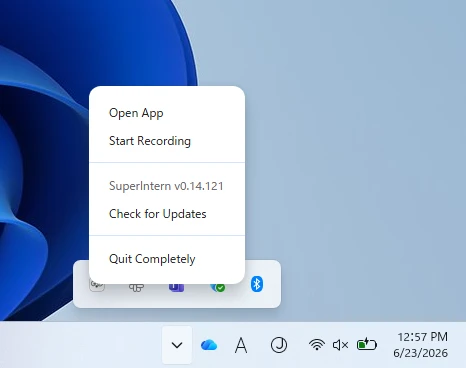
- Open the system tray at the bottom-right of your screen and right-click the SuperIntern app icon.
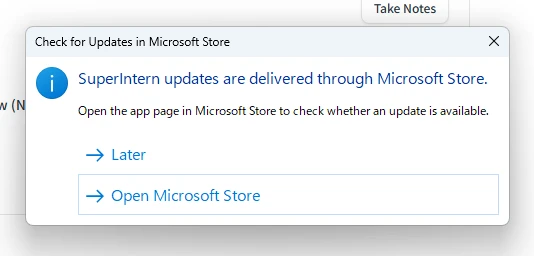
- Click Check for Updates.
- When the popup appears, click Open Microsoft Store.
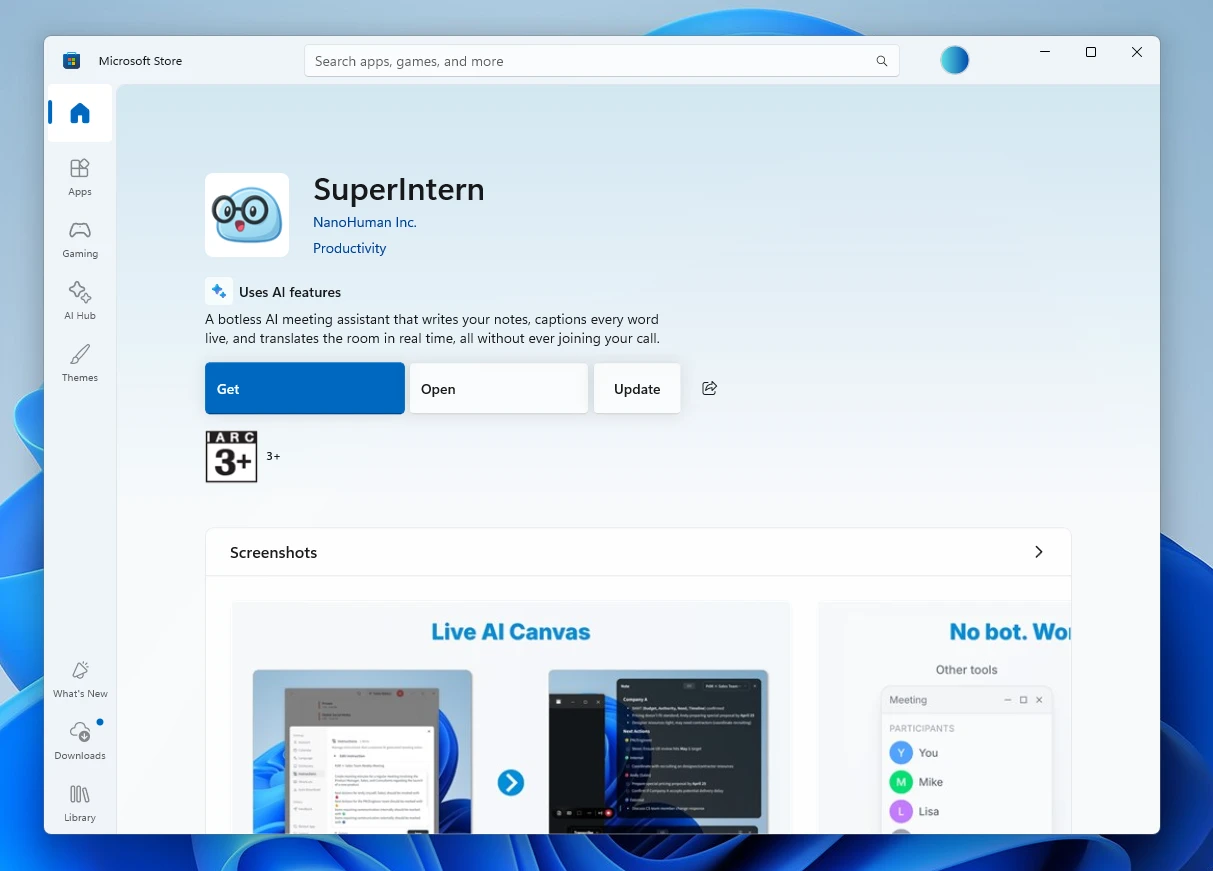
- Once Microsoft Store opens, click Update.
We'll keep updating SuperIntern to make it easier to use for everyone. Update to the latest version before your next meeting and give these features a try.