
Weekly Update: Make your projects and profile your own
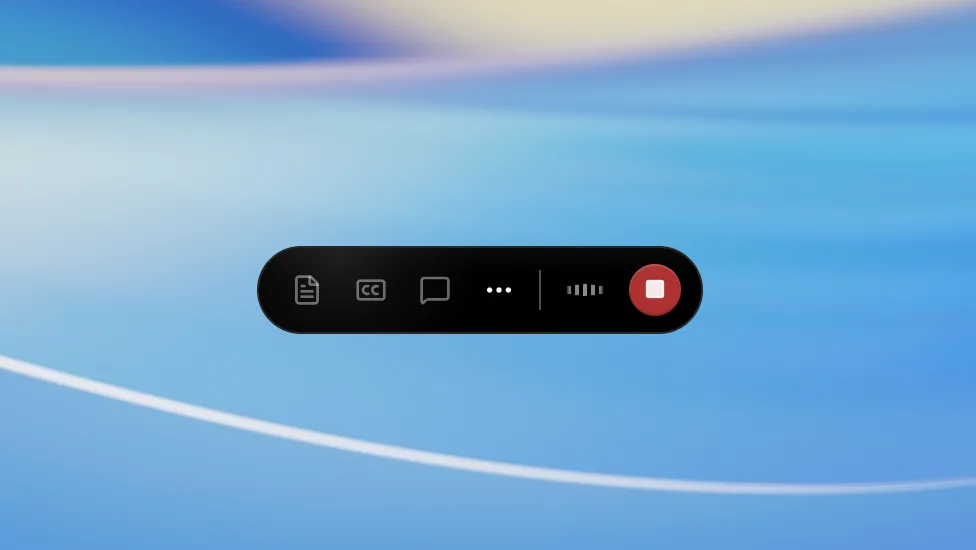
We've just shipped 4 new features to SuperIntern 🎉
This update is all about making your projects and profile feel more your own.
Here's a quick tour of this week's additions.
① Tell projects apart with icons and colors
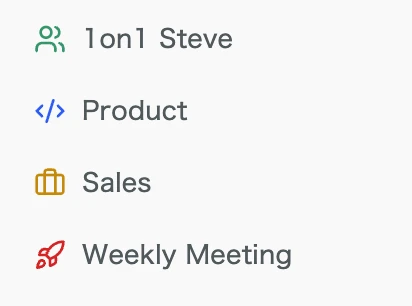
You can now pick from 24 icons × 9 colors for each project.
Projects in your sidebar become instantly recognizable by their icon and color, so even as the list grows you can reach the right one without hesitation.
What this changes
- Spot the right project at a glance: Even with similarly named projects side by side, color and icon let you tell which is which instantly.
- Organize by your own rules: Decide what your colors mean — by team, by client, by priority, whatever fits your workflow.
- Stay oriented as projects pile up: Icons make each project's purpose intuitive and keep your sidebar tidy.
② Live waveform while recording
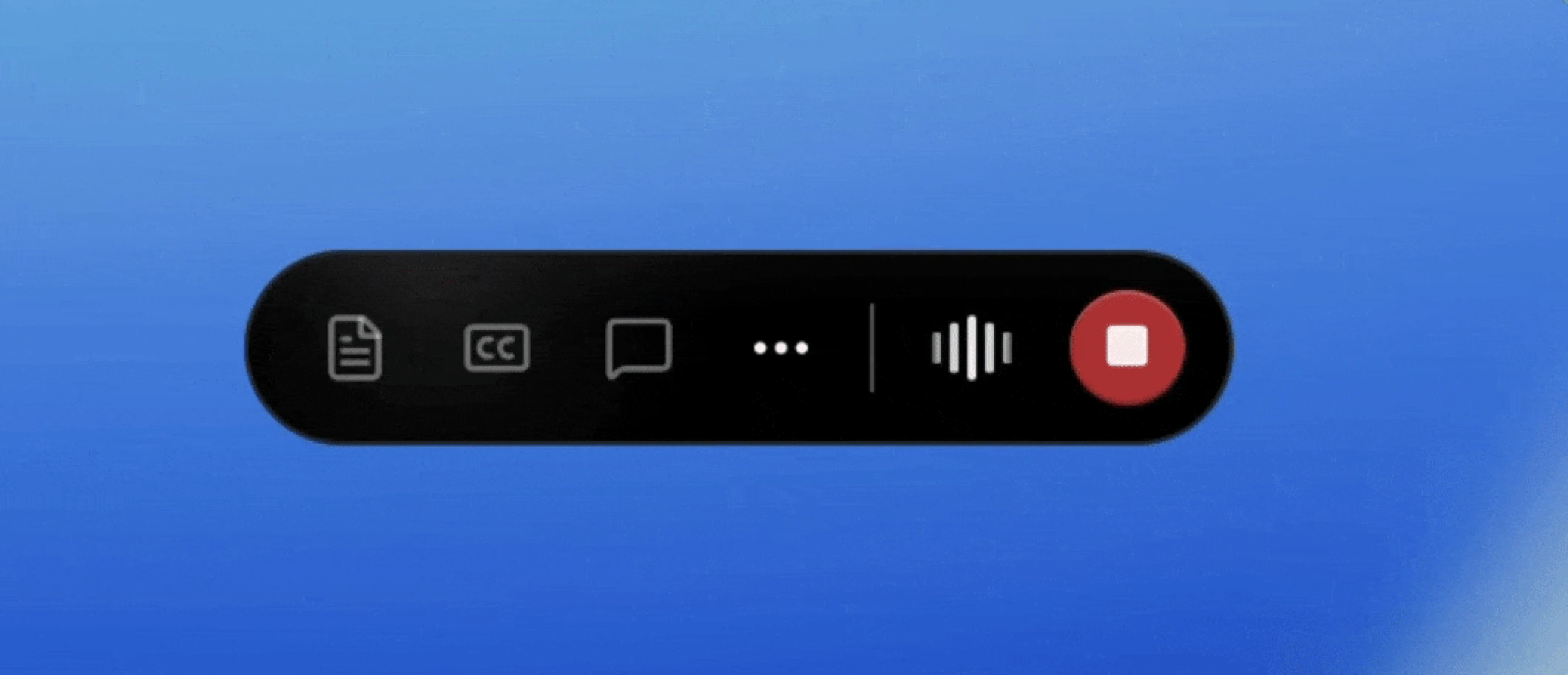
The recording control bar now shows a live waveform that reacts to your audio in real time.
You can confirm that sound is actually coming in just by glancing at the screen.
What this changes
- Know at a glance whether audio is going in: A moving waveform is proof your mic is picking things up.
- Record with peace of mind: No more wondering whether it's really capturing — just focus on the meeting.
③ Upload your own profile picture
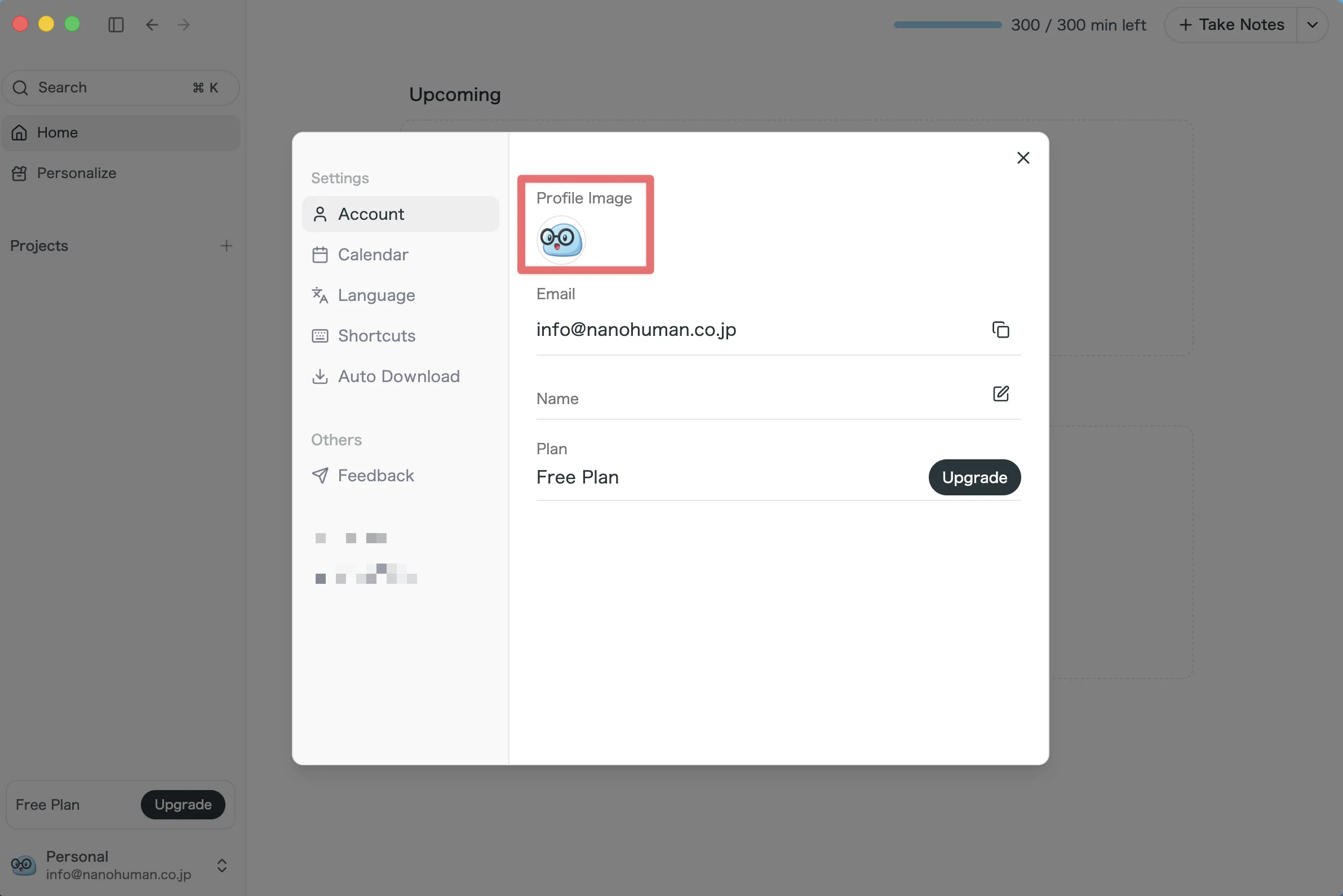
From the Account section of Settings, you can now set your own profile picture.
(PNG / JPEG / WebP, up to 2 MB)
What this changes
- Easier to tell whose meeting is whose when shared: A profile picture makes identifying people across the team smoother.
- Spot individuals in a workspace: Even as members grow, a photo or avatar makes everyone quick to recognize.
④ Delete meetings straight from the list
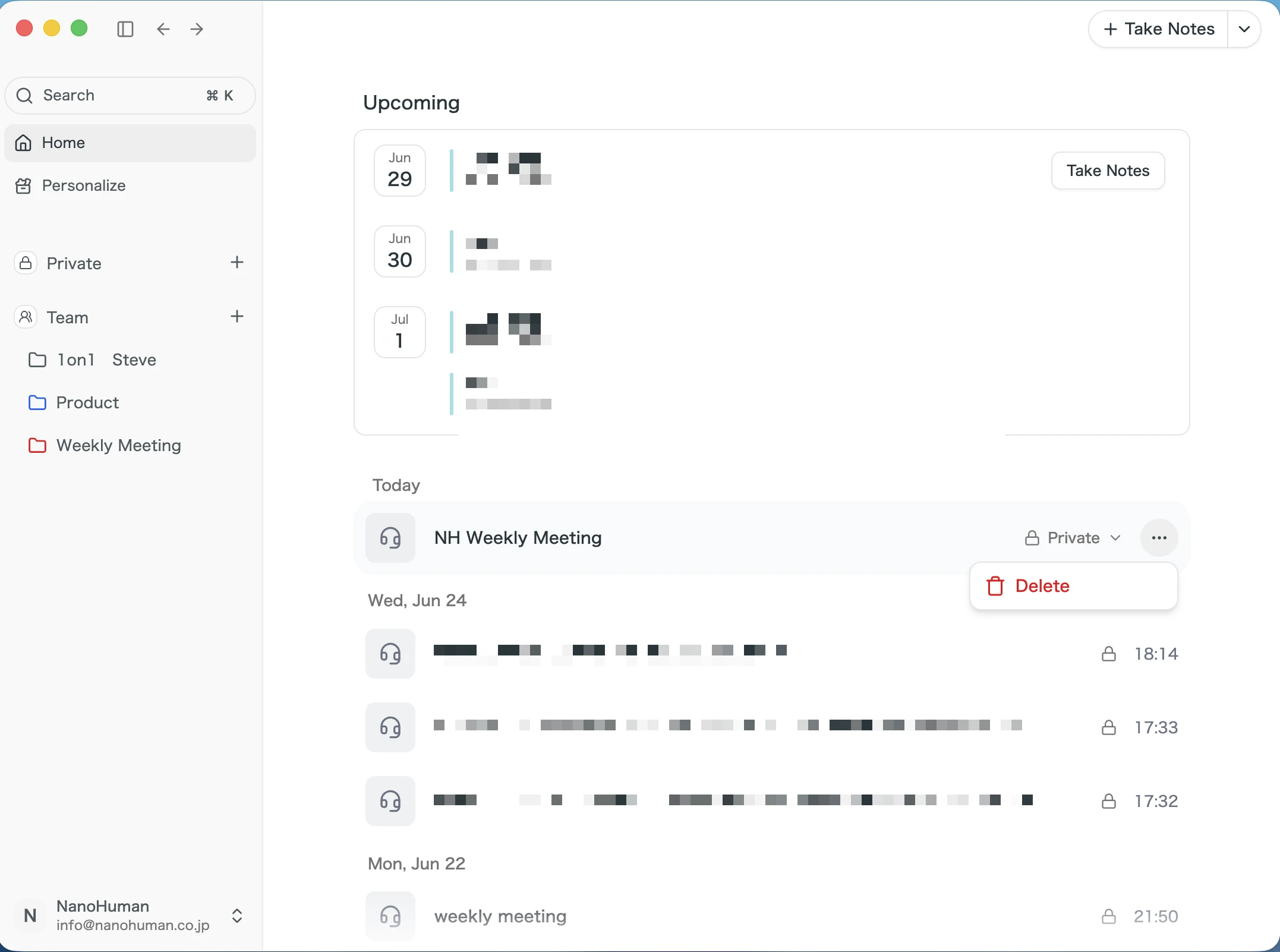
Hover over any item in your meeting list and a "⋯" menu now appears.
Without opening the meeting detail, you can delete the meeting right from the list.
What this changes
- Tidy up without opening meetings: Delete unneeded meetings right from the list, so cleanup goes a lot faster.
- Fewer steps to act: No more navigating into the detail page and back — everything happens on the list.
How to Update
For Mac users
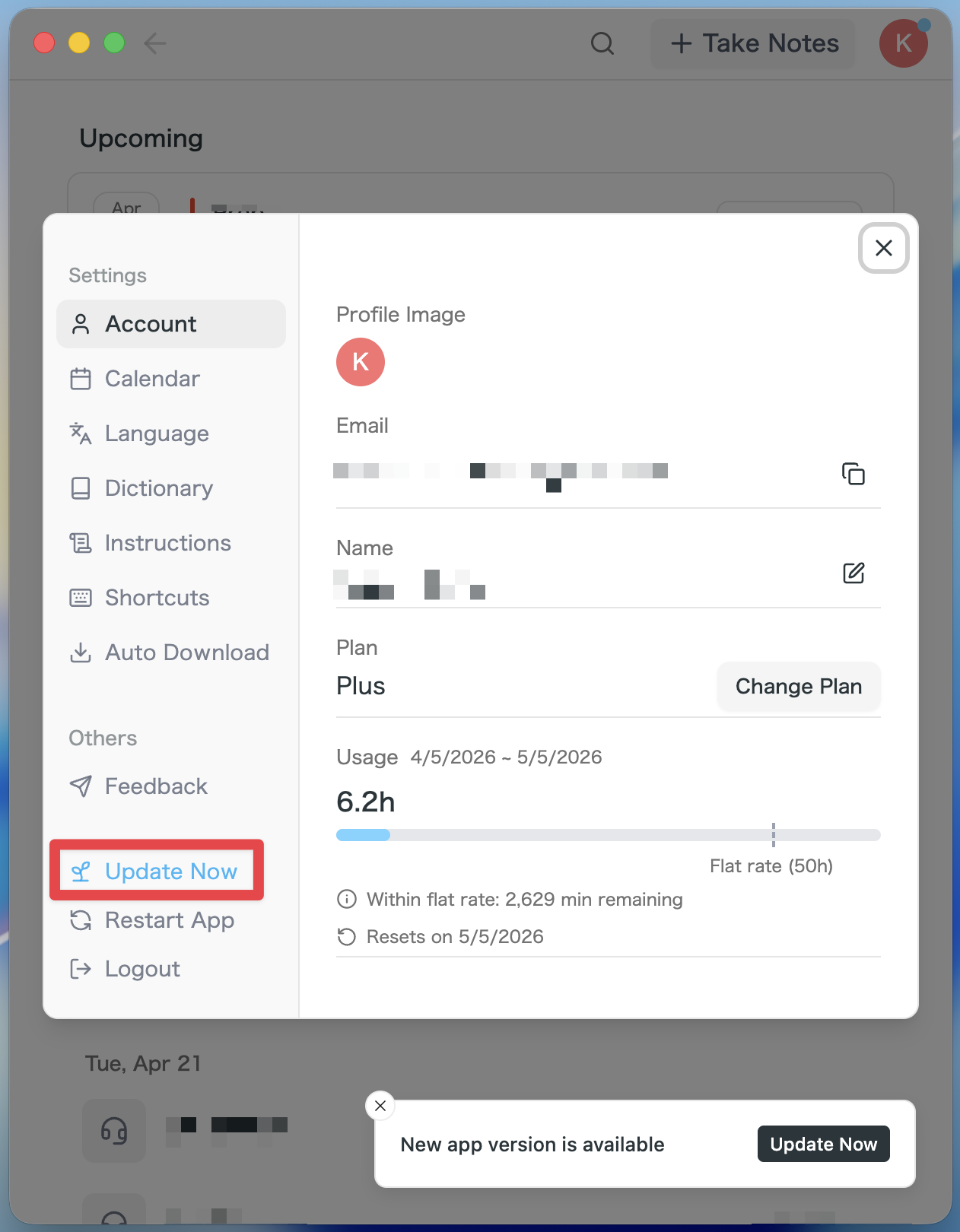
- If an update is available, the latest version is downloaded automatically after you launch the app.
- The Update Now button appears in the sidebar. Click it.
For Windows users
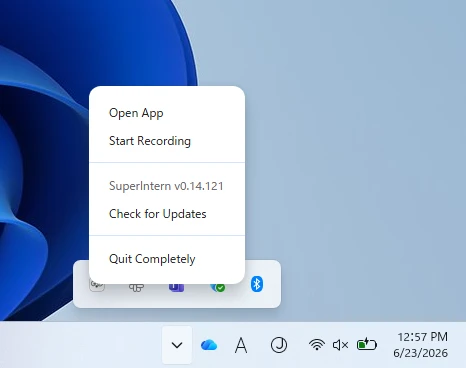
- Open the system tray at the bottom-right of your screen and right-click the SuperIntern app icon.
- Click Check for Updates.
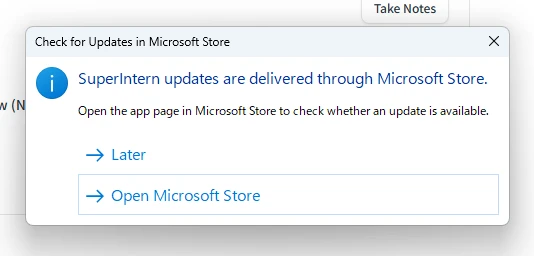
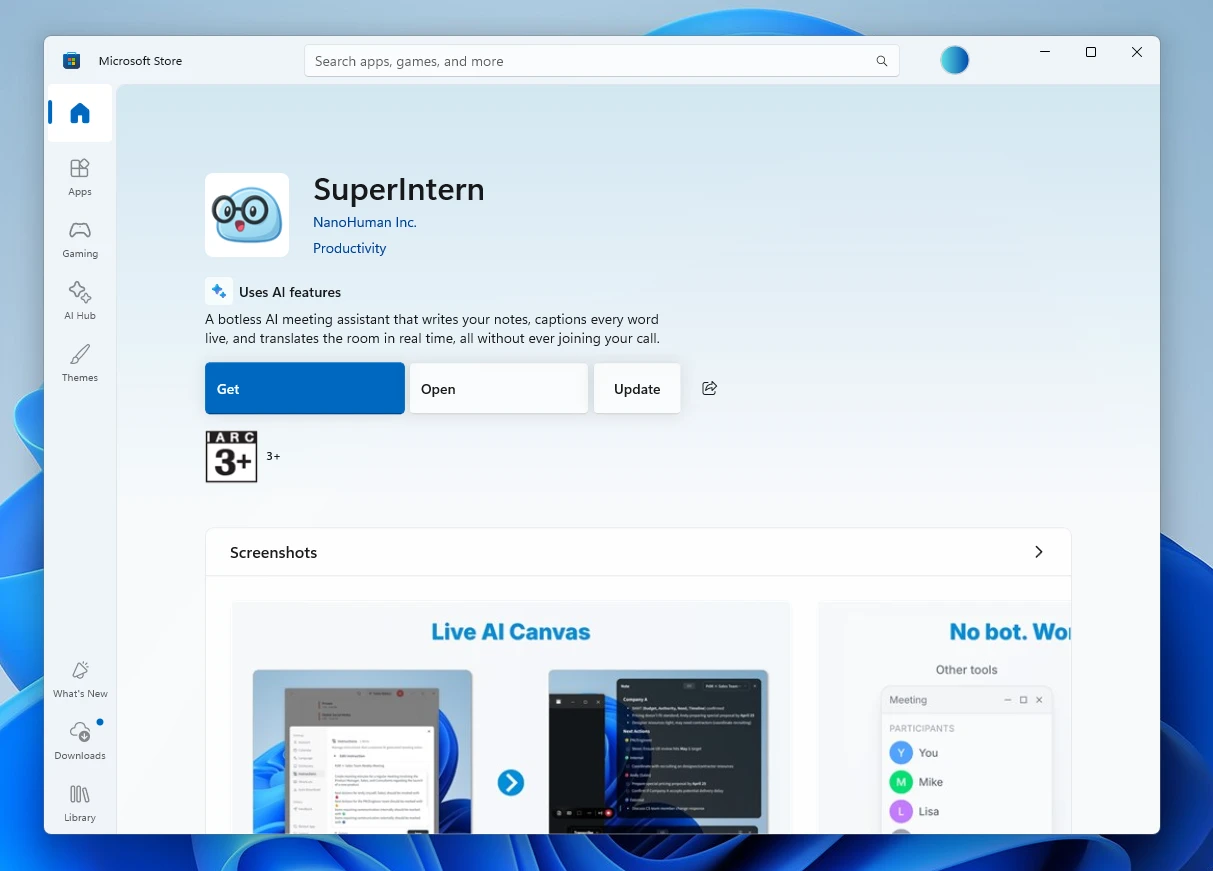
- When the popup appears, click Open Microsoft Store.
- Once Microsoft Store opens, click Update.
We'll keep updating SuperIntern to make it easier to use for everyone. Update to the latest version before your next meeting and give these features a try.