
Weekly Update: Sign in with Microsoft, and Outlook Calendar integration
We've just shipped 3 updates to SuperIntern 🎉
From a new way to sign in to smoother calendar and upload experiences.
Here's a quick tour of this week's additions.
① Sign in with your Microsoft account
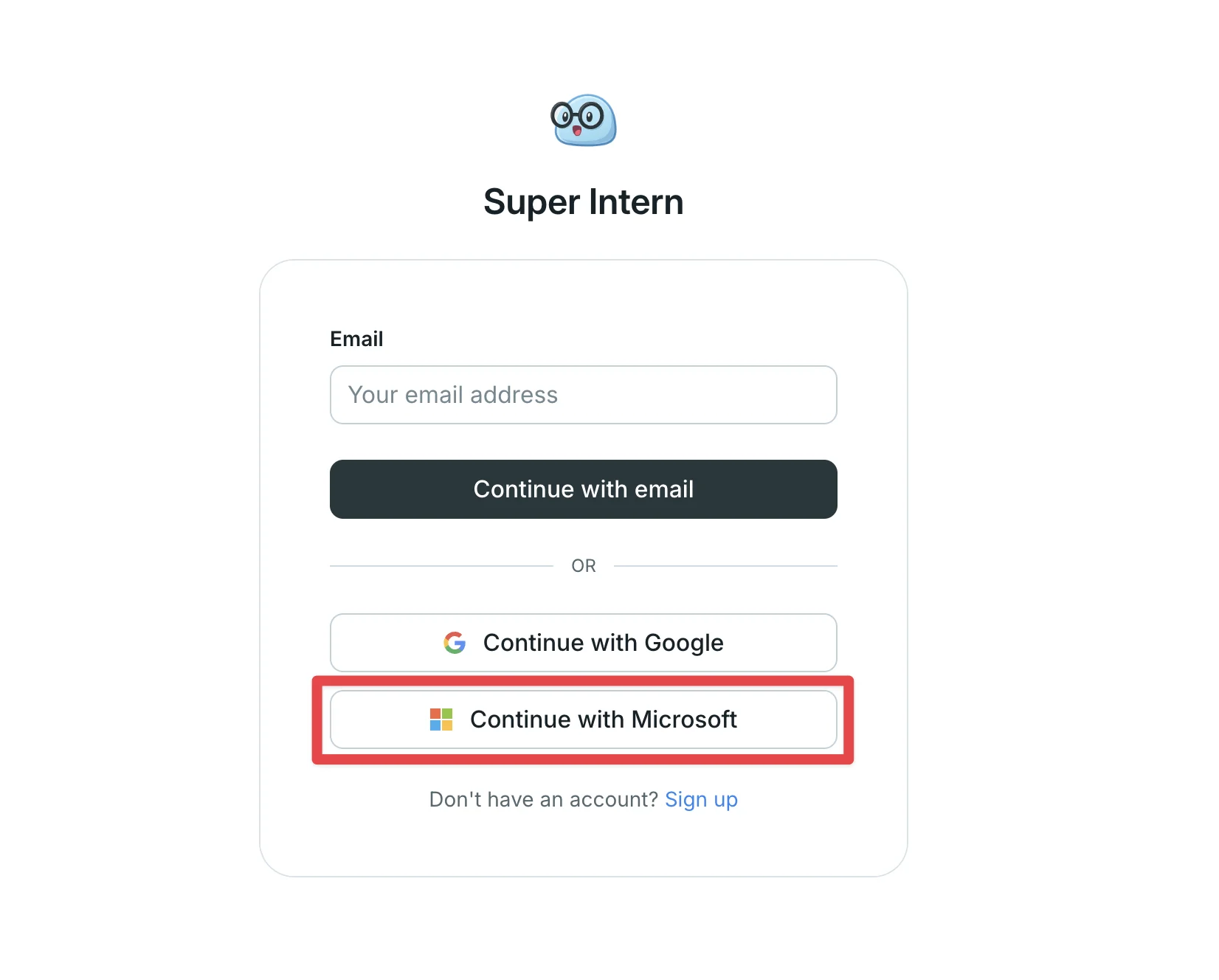
You can now sign in to SuperIntern or create a new account using your Microsoft account.
Use the work or school Microsoft account you already have to sign in to SuperIntern.
What this changes
- Start with the account you already use: Both sign-in and sign-up work straight from your everyday Microsoft account.
- Sign in in one step: Just pick your Microsoft account to authenticate and get started right away.
- Fits Microsoft-centric setups: Teams on Outlook or Microsoft 365 can onboard with familiar authentication.
② Outlook Calendar integration
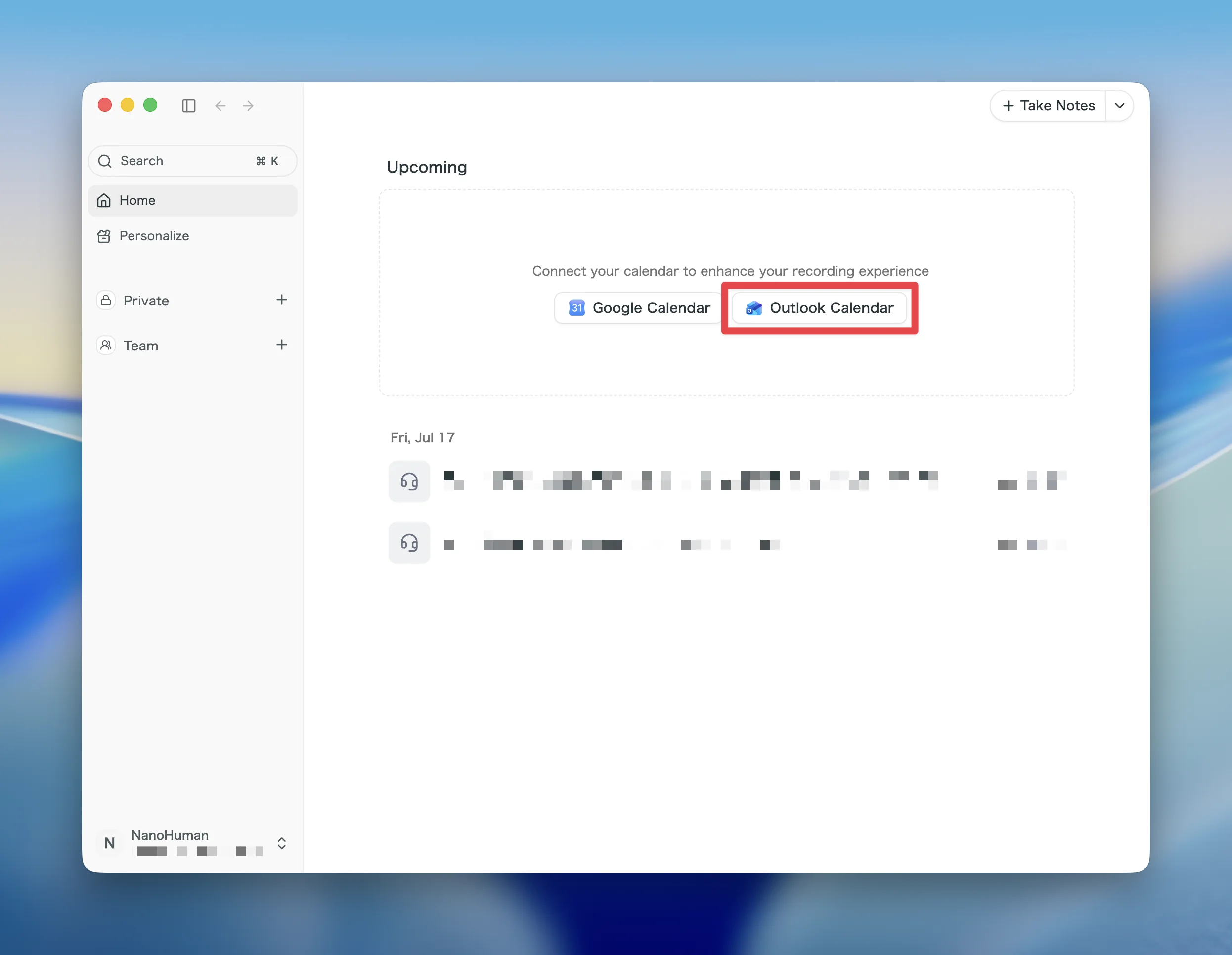
SuperIntern now supports Outlook Calendar integration.
Connect Outlook Calendar alongside Google Calendar to bring in your upcoming meetings, with a refreshed calendar settings screen.
What this changes
- Sync your events: Connect Outlook Calendar to SuperIntern and bring in your upcoming meetings.
- Manage everything in one place: A connection section at the top of settings lets you review both your Google and Outlook connections and which calendars are displayed.
- Connect without guesswork: Each provider clearly shows connected or not connected, so you can start a connection right there.
③ Uploaded meetings use the audio file's recording date
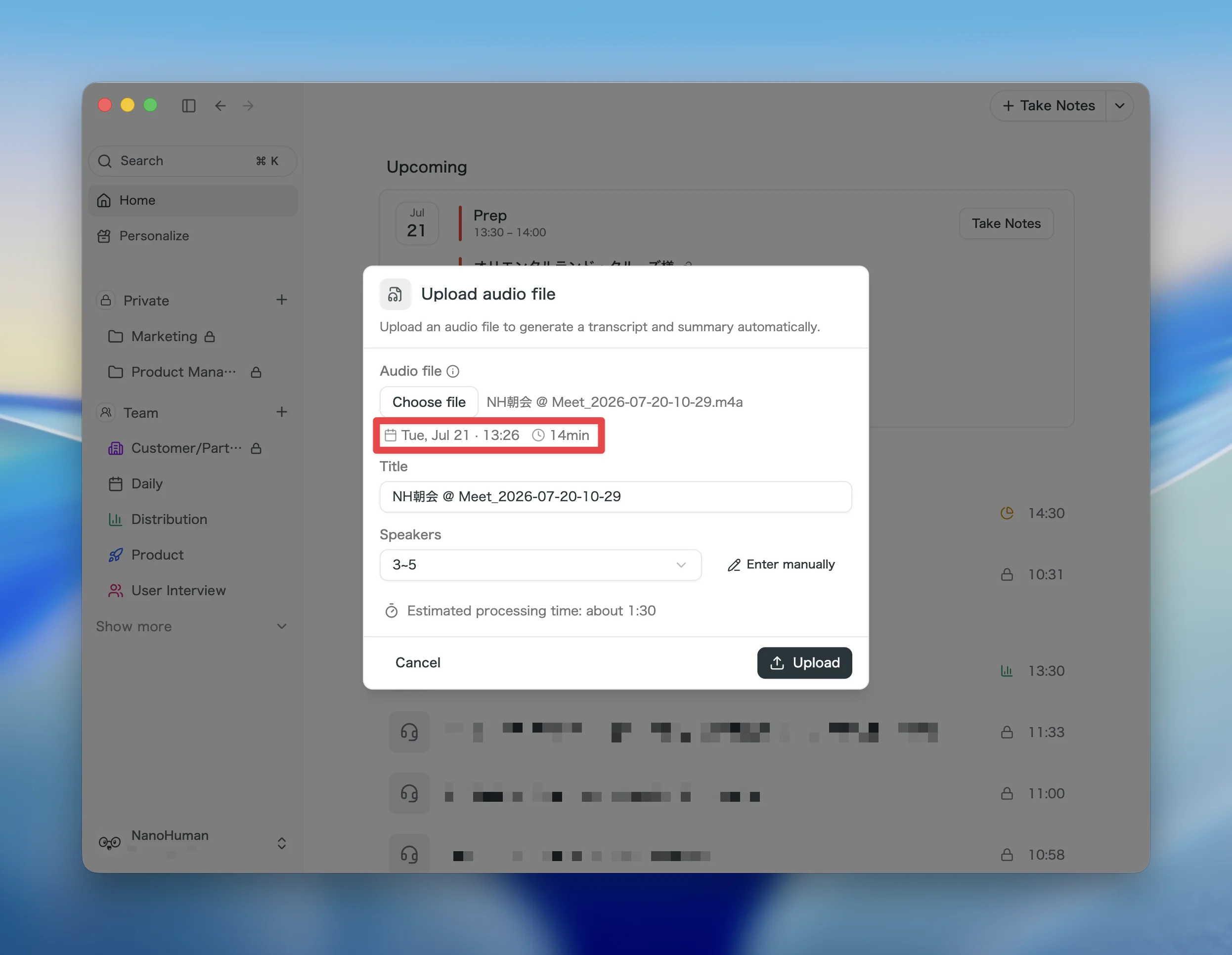
Meetings created from an uploaded audio file now automatically use the file's original recording date.
Previously the upload time became the meeting's date. When a file has an available creation date, SuperIntern now uses it as the meeting's start time, and shows it before you upload.
What this changes
- Sorted by the real meeting date: Upload a past recording and it lands in your meeting list on the actual date, in the right order.
- Easier to find by date: Search meetings by the file's recording date to get back to the recording you're looking for.
- Confirm before uploading: Check the date that will be applied before the upload starts.
How to Update
For Mac users
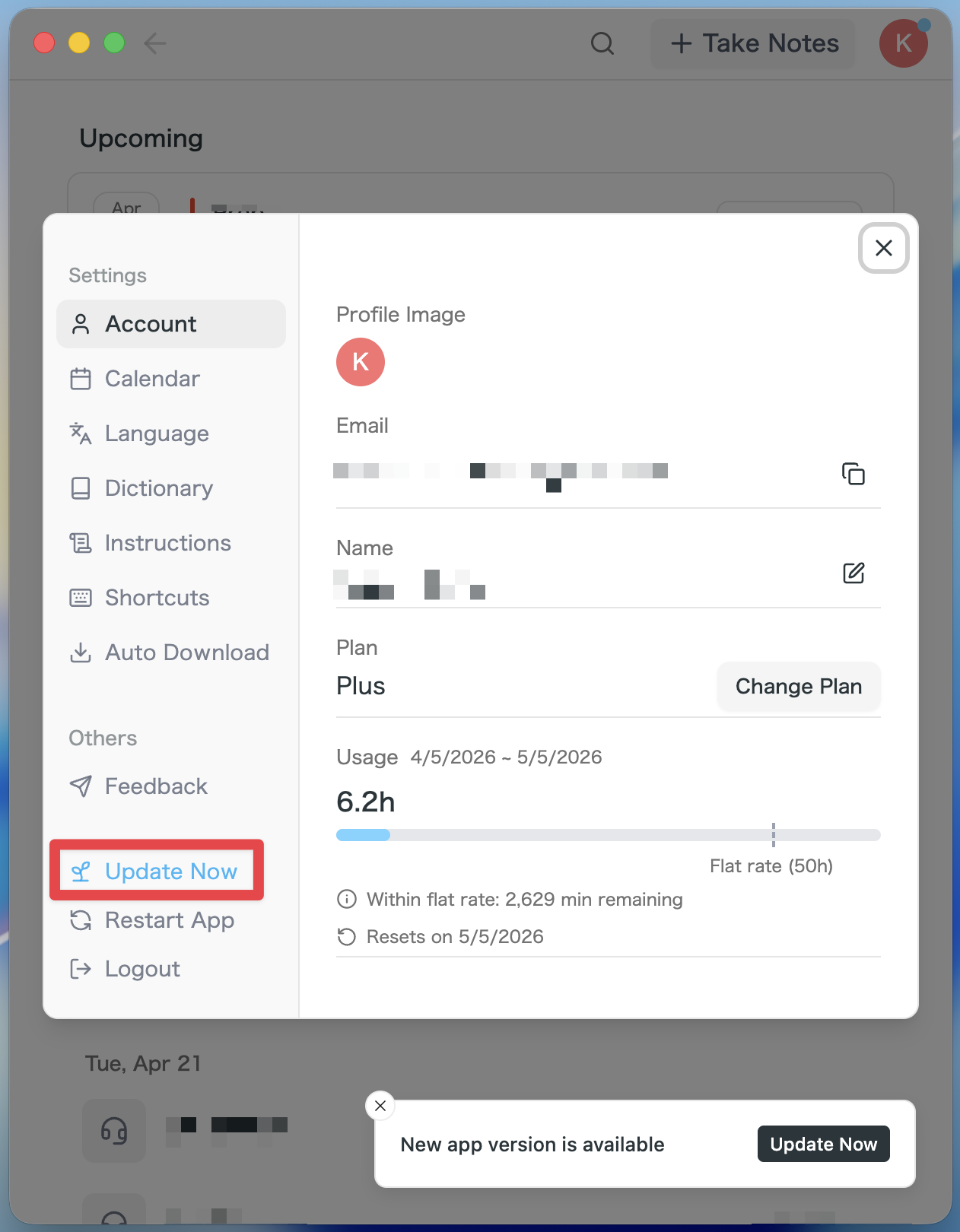
- If an update is available, the latest version is downloaded automatically after you launch the app.
- The Update Now button appears in the sidebar. Click it.
For Windows users
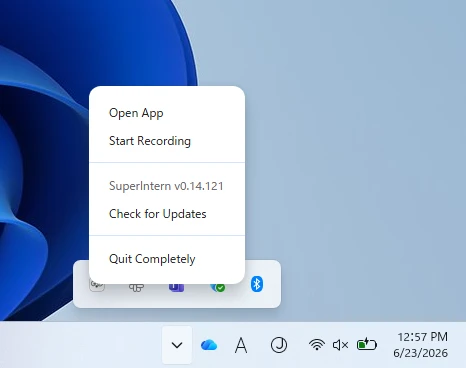
- Open the system tray at the bottom-right of your screen and right-click the SuperIntern app icon.
- Click Check for Updates.
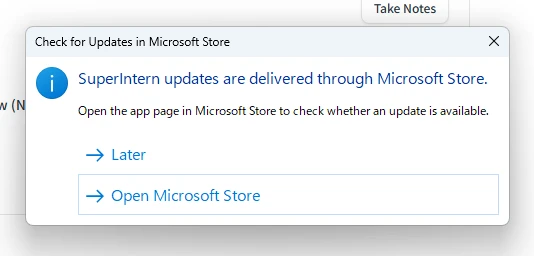
- When the popup appears, click Open Microsoft Store.
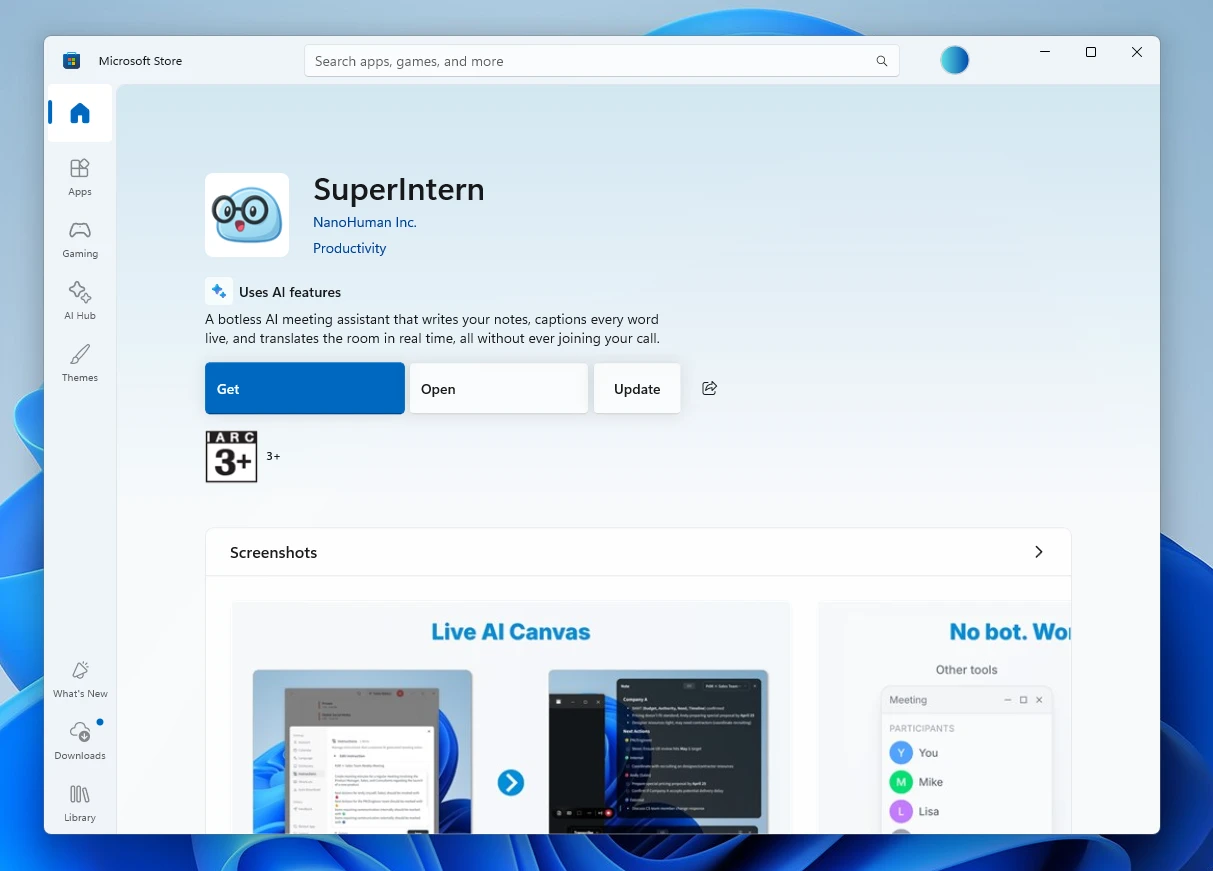
- Once Microsoft Store opens, click Update.
We'll keep improving SuperIntern to make it easier for everyone to use. Update to the latest version before your next meeting and give these a try.