
Weekly Update: Edit meeting summaries, replace repeated wording at once, and link calendar events

We've just shipped 3 updates to SuperIntern 🎉
You can now fix summaries where you read them, and apply a correction across the whole summary at once.
Here's a quick tour of this week's additions.
① Edit meeting summaries right where you read them
In the Summary tab on the Web and Desktop apps, you can now edit a generated summary directly.
Headings, bulleted lists, and tables are all editable without leaving the summary.
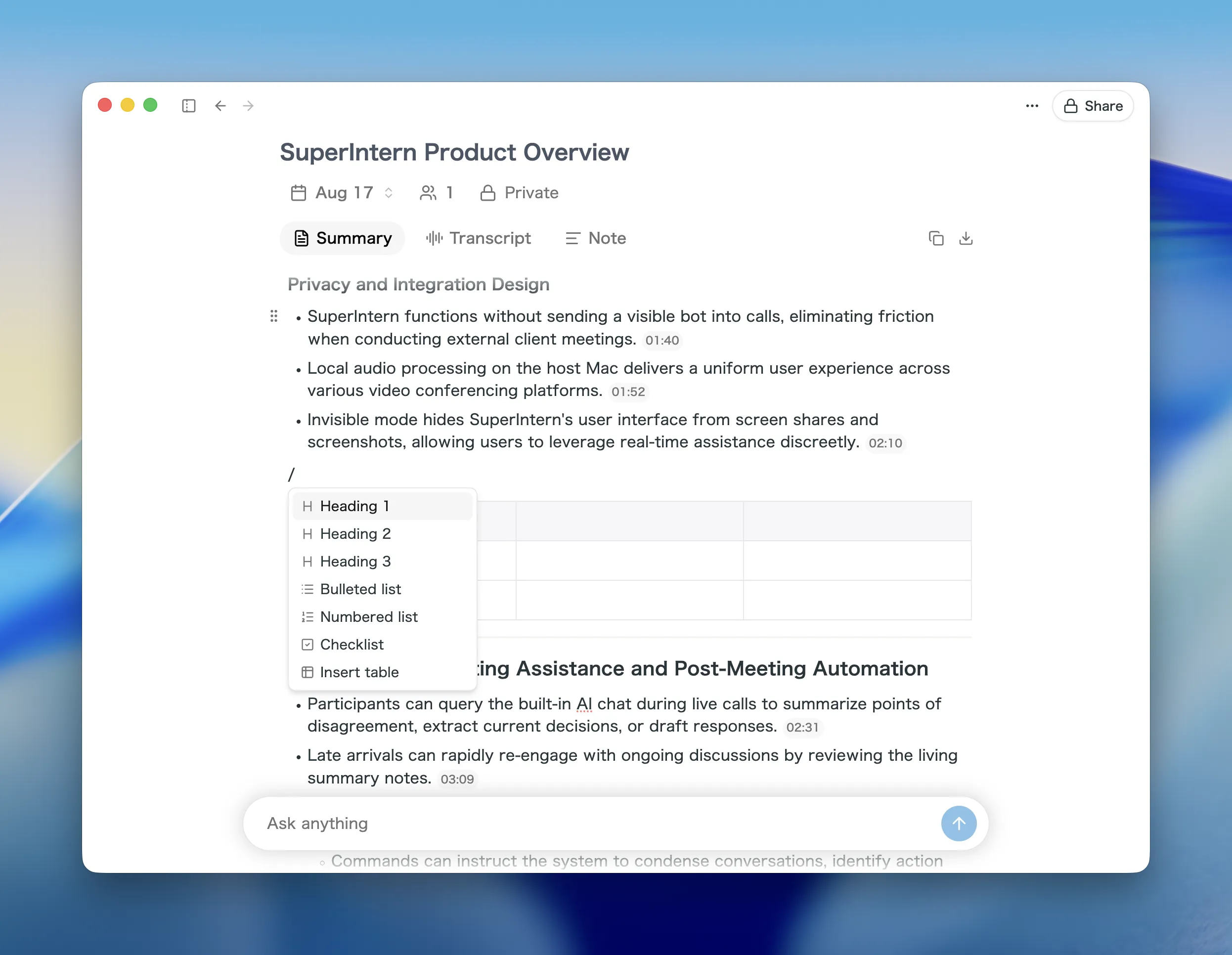
What this changes
- Post-generation tweaks stay in place: Fix a misspelled name or delete a stray line without moving the summary into another document.
- Your team can edit at the same time: Edits from anyone else viewing the meeting appear in real time, and avatars show who is currently editing.
- Tables are editable too: Handles along the top and left edges of a table let you insert, delete, and select entire rows and columns.
If a summary is regenerated or a speaker is renamed while you're editing, the result flows into the open editor.
② Replace repeated wording across the whole summary
When a company or product name comes out inconsistently, you can now replace every occurrence in one step.
Select the text in the summary, open Replace all in the toolbar that appears, type the correct wording, and press Replace. The number of matches is shown before you apply it.
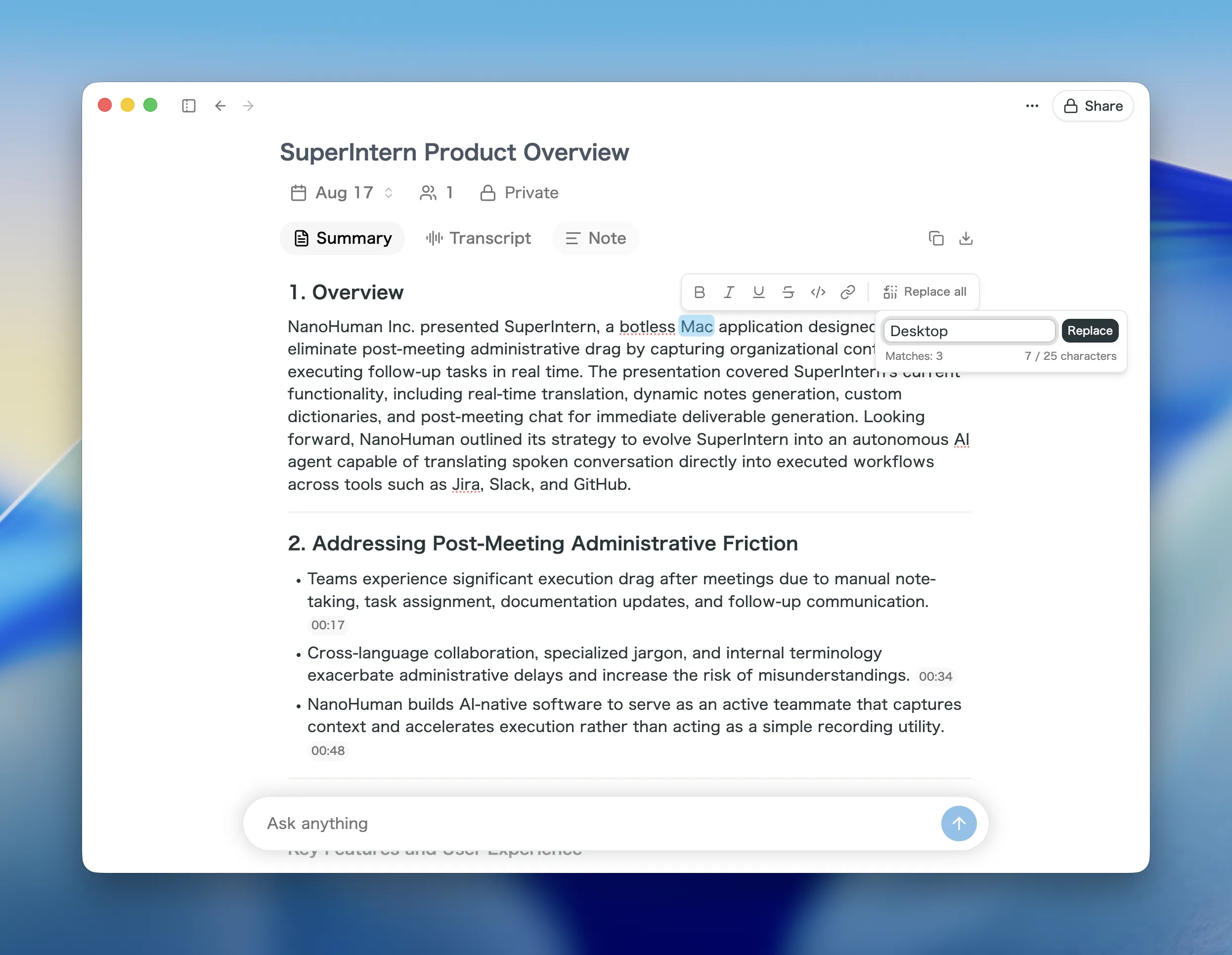
What this changes
- No more fixing one line at a time: A term that appears throughout the summary is corrected in a single action.
- You see the count first: The popover shows how many matches will change, so nothing is replaced by accident.
- Add the term to your dictionary: After replacing, SuperIntern offers to register the corrected term so future transcripts pick it up.
Once a term is in your dictionary, you no longer have to correct the same word after every meeting.
③ Link a calendar event from meeting details
On the Desktop app, you can now link a calendar event from the same day to a meeting from its detail page.
Meetings you started recording without picking an event can be connected to the right one afterwards.
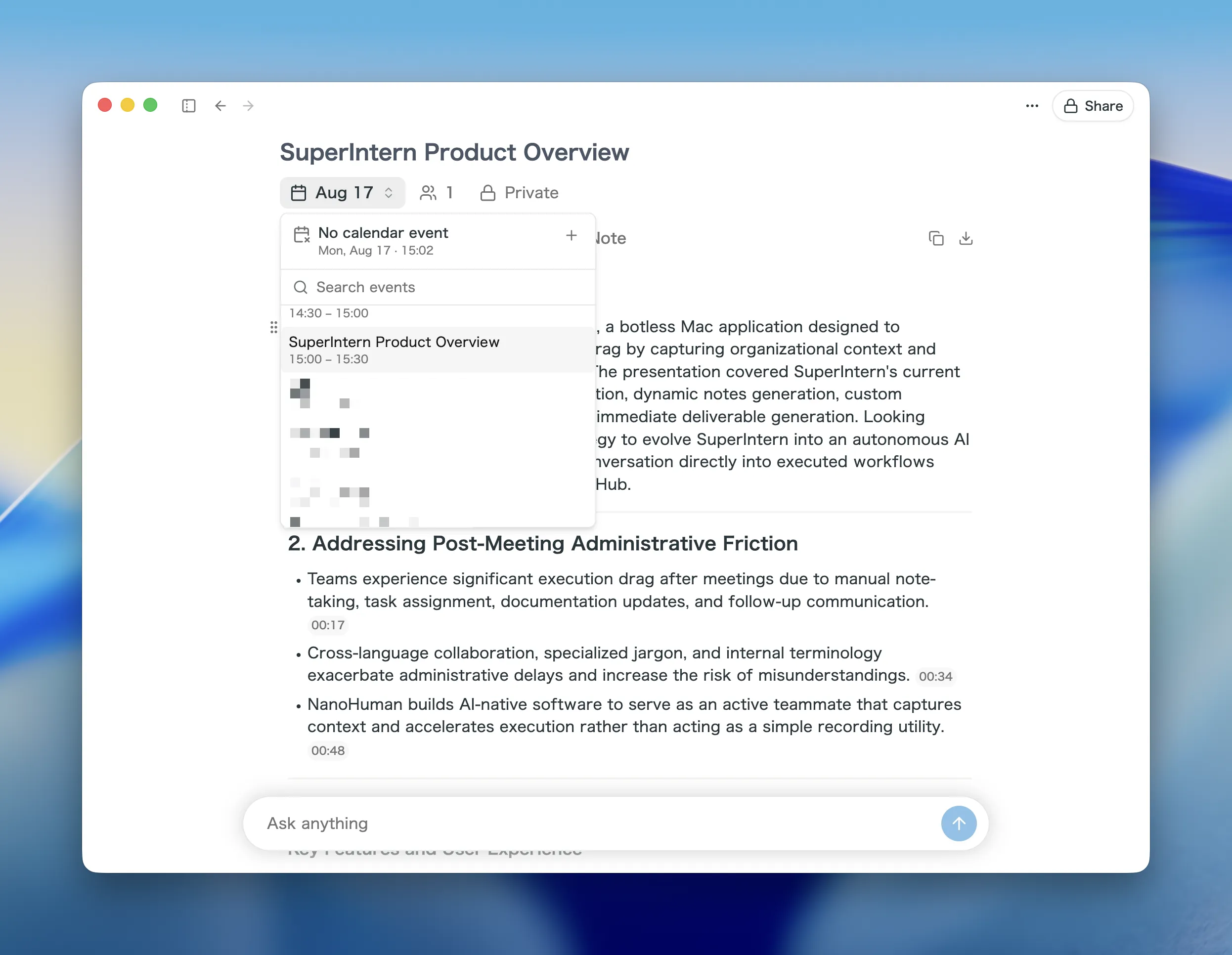
What this changes
- Link it after the fact: Open Calendar event in meeting details, choose Link calendar event, then search that day's events and pick one.
- Titles line up: The linked event's name is applied to the meeting title, and the meeting list updates to match.
- Change or remove it anytime: Switch to a different event, or clear it with Unlink calendar event.
If your calendar isn't connected yet, you can start the connection from the same menu.
How to Update
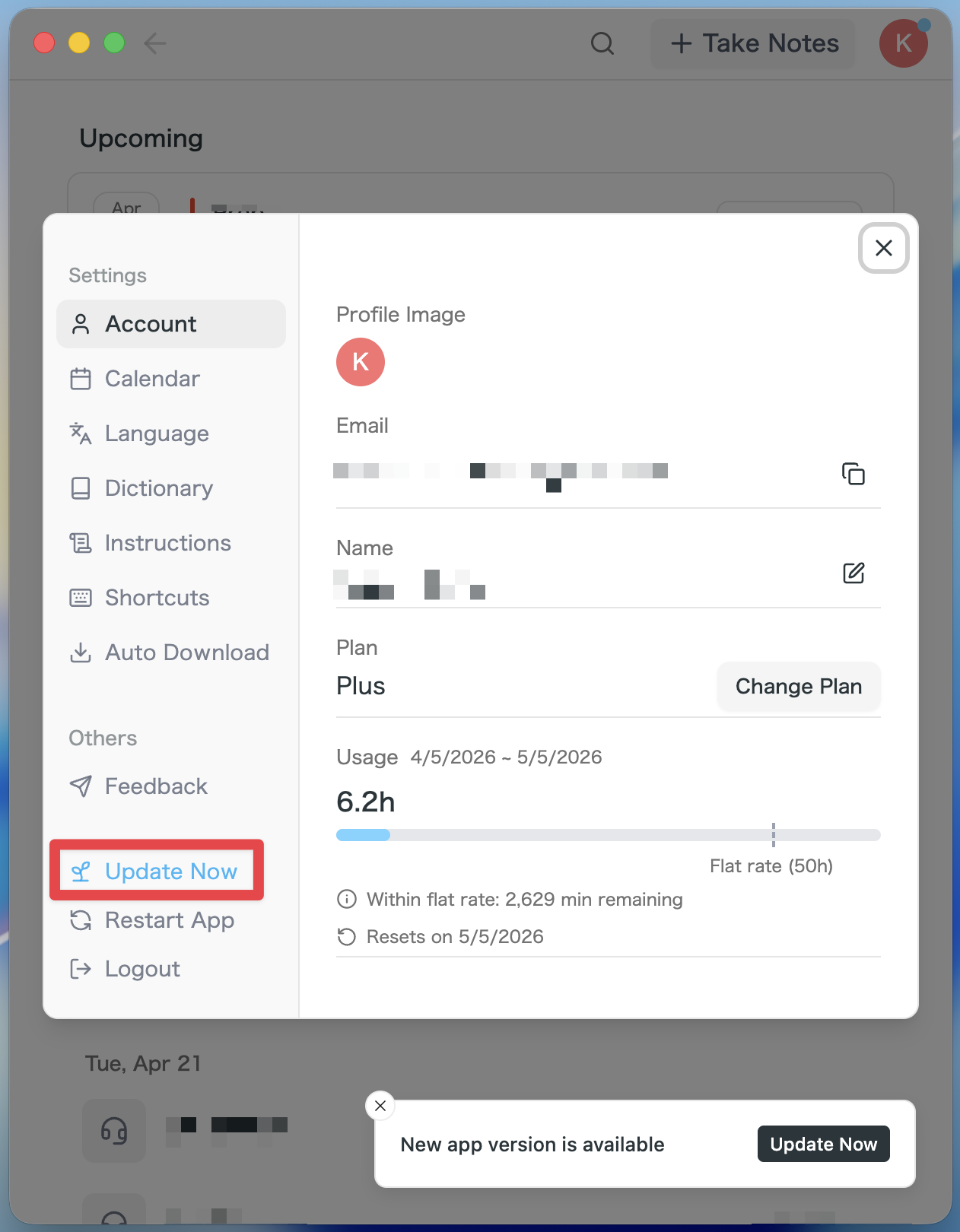
For Mac users
- If an update is available, the latest version is downloaded automatically after you launch the app.
- The Update Now button appears in the sidebar. Click it.
For Windows users
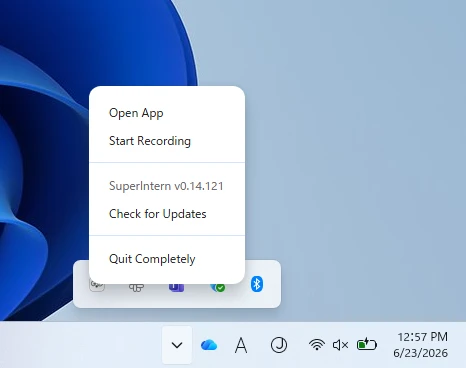
- Open the system tray at the bottom-right of your screen and right-click the SuperIntern app icon.
- Click Check for Updates.
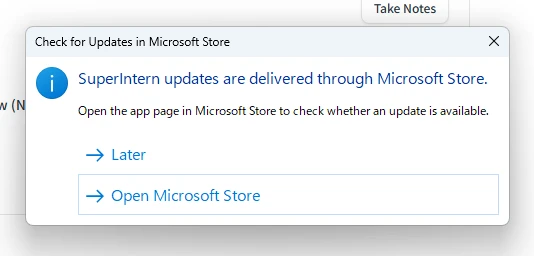
- When the popup appears, click Open Microsoft Store.
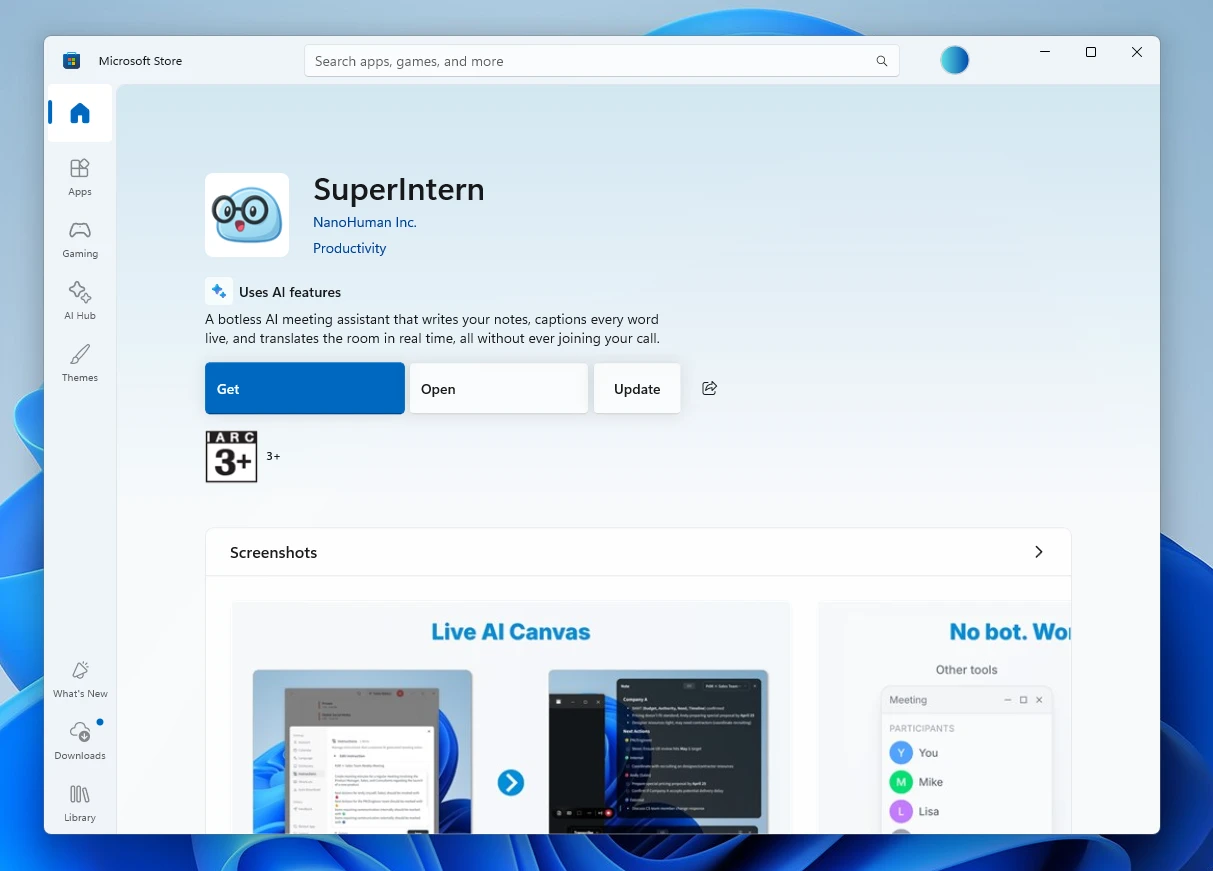
- Once Microsoft Store opens, click Update.
We'll keep improving SuperIntern to make it easier for everyone to use. Update to the latest version before your next meeting and give these a try.