
Weekly Update: Auto-add meetings to projects from calendar events, a project selector organized by space, and accurate speaker counts

We've just shipped 3 updates to SuperIntern 🎉
Set a project on a calendar event once, and the meetings you record from it are grouped for you.
Here's a quick tour of this week's additions.
① Set a project on a calendar event and meetings group themselves

In Upcoming on the Desktop app, you can now set a project on an individual event.
Meetings recorded from that event are placed in the project the moment they are created.
What this changes
- No more sorting after the fact: Pick a project under Add to project on the event, and meetings from it arrive already filed.
- Recurring events stay grouped: For a recurring event you choose between Just this one and Auto-add. With Auto-add, every future instance goes into the same project.
- You see the sharing change first: If the project sits in a different space, a confirmation shows who will be able to see the meetings created from then on.
Linking a calendar event from meeting details later applies the same project setting. Unlink the project and future instances stop being added.
② A project selector organized by space, and meetings you can return to Private
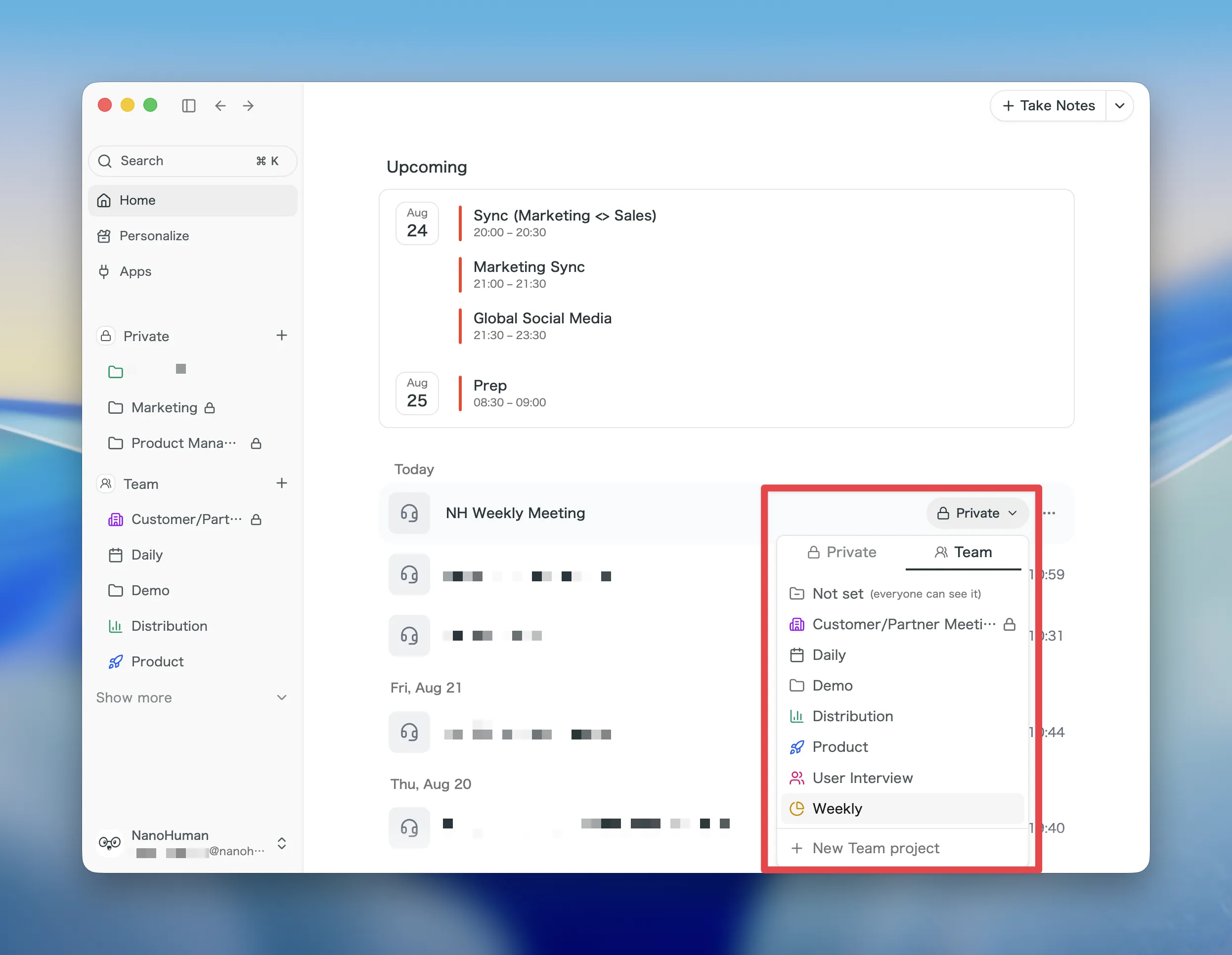
The project selector for meetings and calendar events has been rebuilt. Space tabs switch the list, and meetings shared to the team space can be returned to Private.
What this changes
- The project you want is one tab away: Team space and Private are separate tabs, so similarly named projects no longer sit side by side.
- "Not set" is always at the top: The option to clear the project is pinned to the top of the list, and in the team space it carries the note (everyone can see it).
- Return a meeting to Private: The creator of a meeting can move it out of the team space with Return to Private in the menu, leaving only themselves able to see it.
- Create in an empty space: A space with no projects yet lets you create one directly from the selector.
Moving across spaces asks for confirmation first, naming the destination and who will be able to see the meeting.
③ Speaker count now matches the number of people
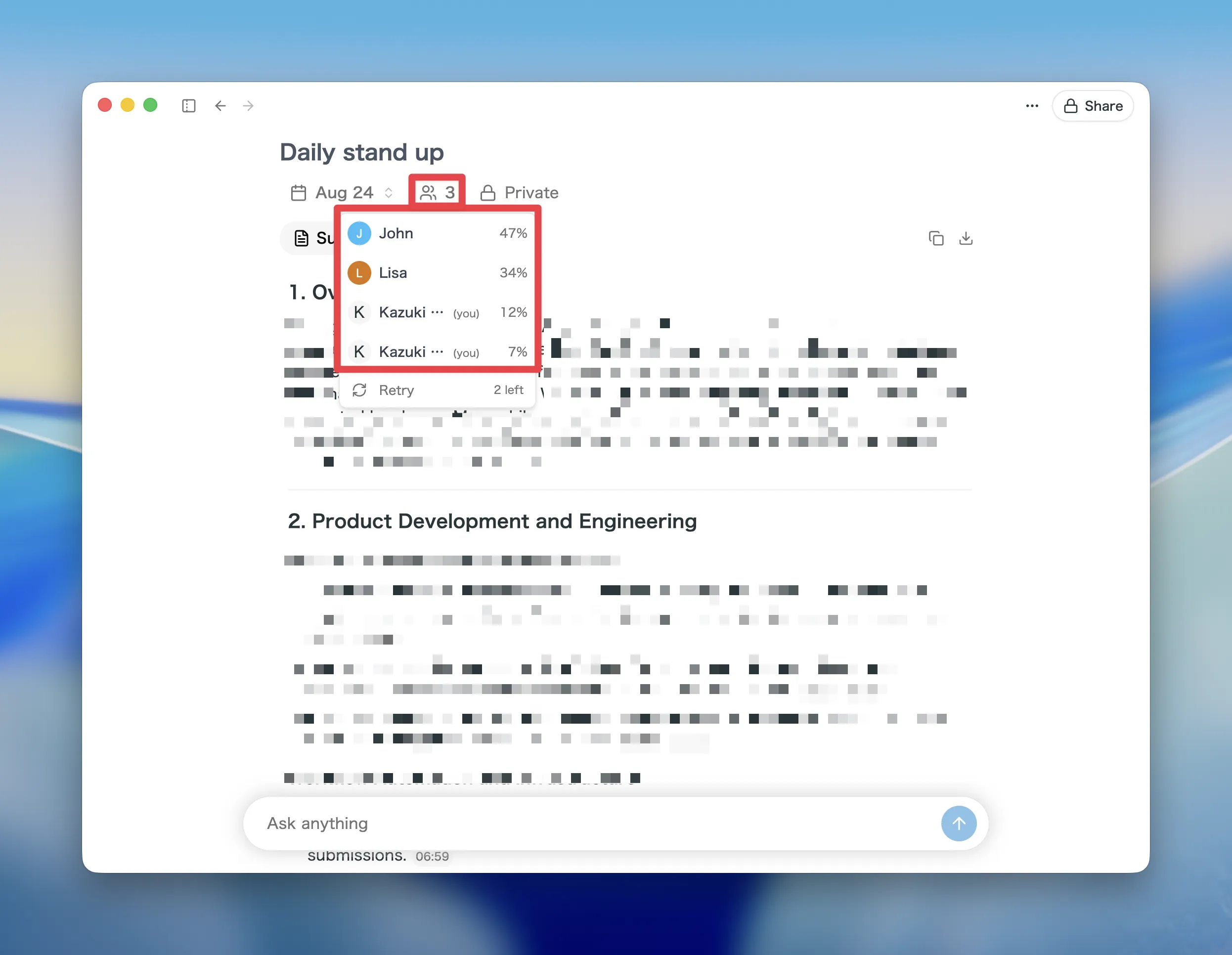
In the speaker list on meeting details, several speakers assigned to the same participant now count as one person. This applies to both the Web and Desktop apps.
What this changes
- The count reflects reality: If one person's speech is detected as several speakers, assigning them to a participant brings the count back to one.
- Unassigned speakers stay separate: Speakers with no participant assigned are still counted individually, as before.
- Shared pages hold up too: On publicly shared meeting pages, speakers without an assigned participant are never merged together.
How to Update
For Mac users
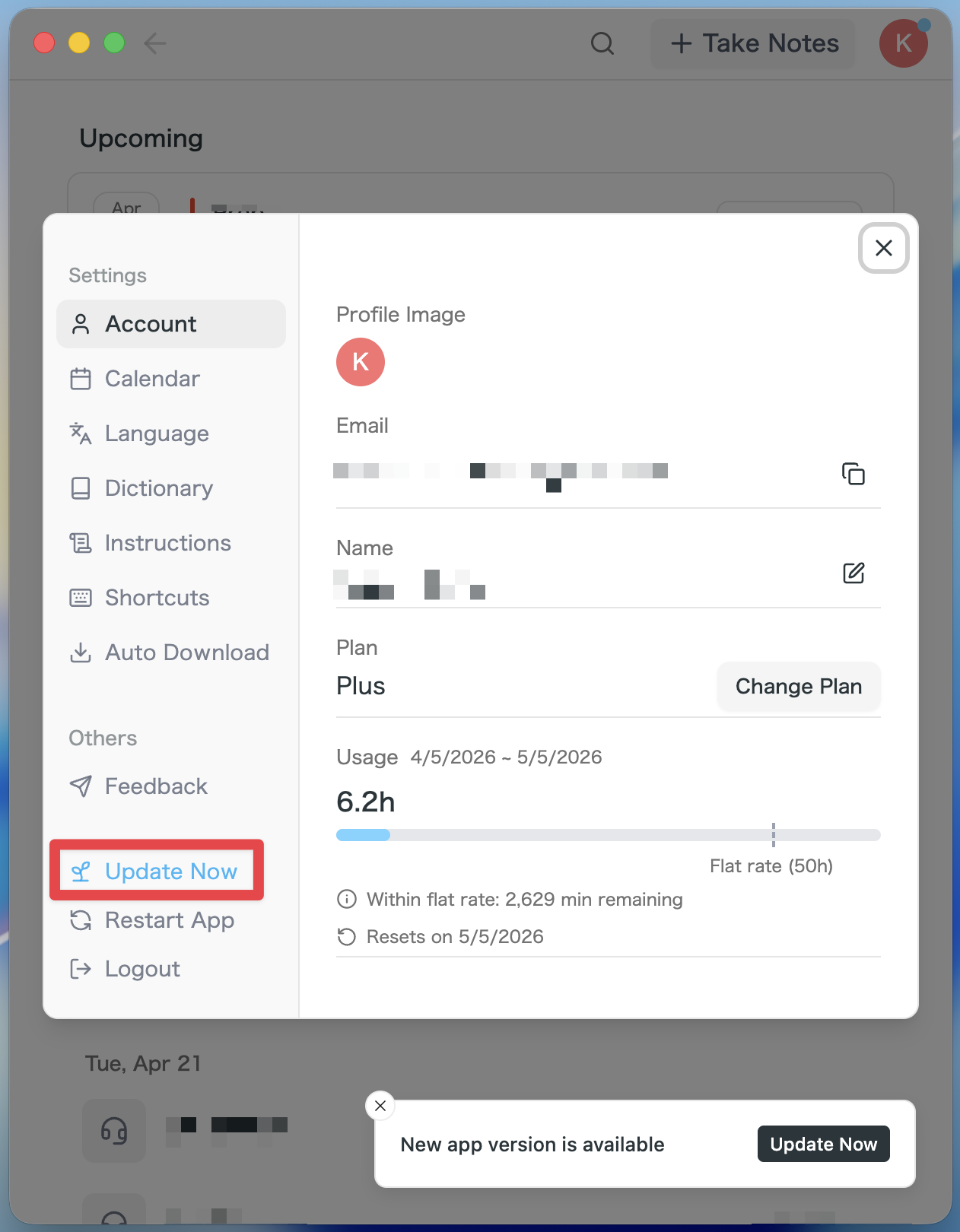
- If an update is available, the latest version is downloaded automatically after you launch the app.
- The Update Now button appears in the sidebar. Click it.
For Windows users
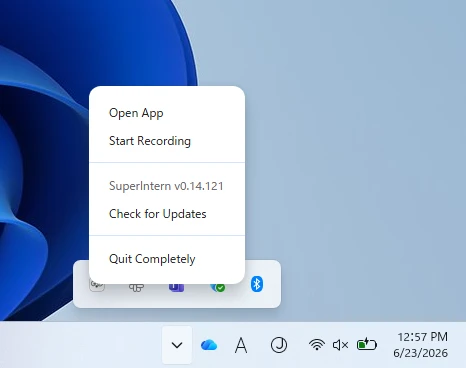
- Open the system tray at the bottom-right of your screen and right-click the SuperIntern app icon.
- Click Check for Updates.
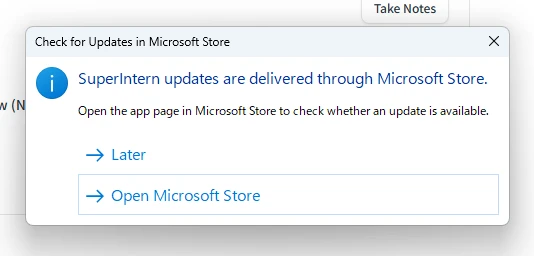
- When the popup appears, click Open Microsoft Store.
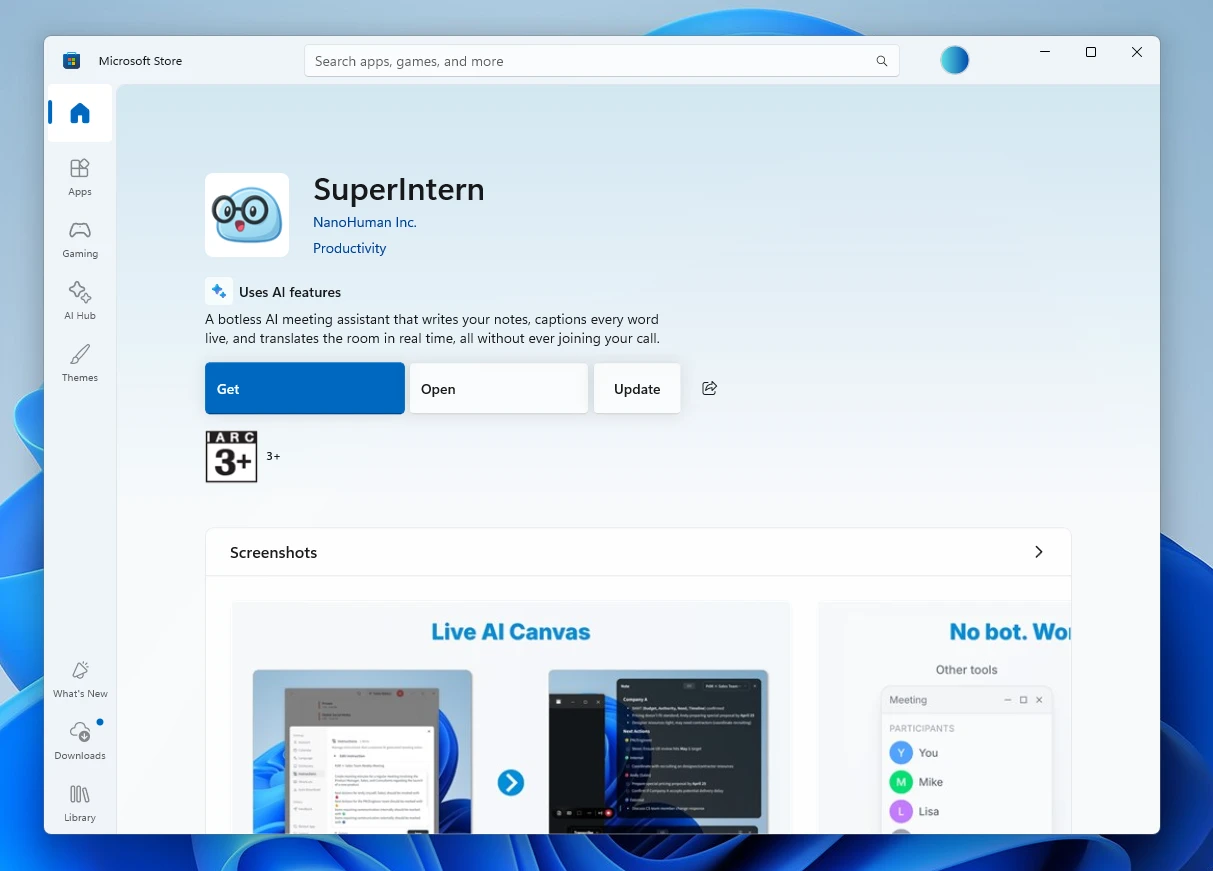
- Once Microsoft Store opens, click Update.
We'll keep improving SuperIntern to make it easier for everyone to use. Update to the latest version before your next meeting and give these a try.