
Weekly Update: add participants from your calendar, and play recordings sooner after a meeting

We've just shipped 2 updates to SuperIntern 🎉
You can now add people from your calendar events as meeting participants, and your recordings are ready to play sooner once a meeting ends.
Here's a quick tour of this week's additions.
① Add participants from your calendar
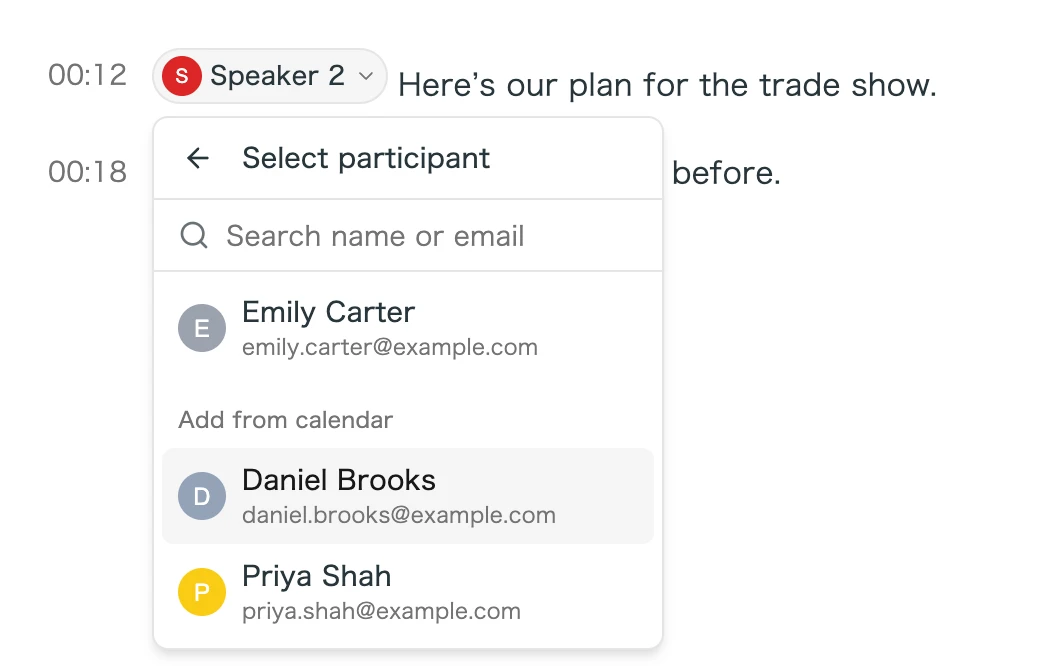
When you set a speaker name, you can now Add from calendar on the Select participant screen. Pick someone from a recent or upcoming event in your connected calendar, and SuperIntern adds them to the meeting and assigns them to that speaker. Available on the Desktop and Web apps.
What this changes
- Label people you've never met with before: Until now, the list only showed people who had appeared as participants in earlier meetings. Anyone on your calendar events is now available, including first-time contacts.
- Works for meetings without a linked event: Recorded an in-person meeting without linking a calendar event? You can still add participants from your recent and upcoming events.
- No email typing required: SuperIntern uses the address from your calendar, so a typo can't create the wrong person. Filter by name or email to find someone fast.
② Play recordings sooner after a meeting
The wait between the end of a recording and being able to play it back is now much shorter. Right after a meeting, you can jump back to the part you want to hear again.
What this changes
- Listen again right after the meeting: Recordings take less time to prepare, so you can start playback as soon as you open the meeting.
- Uploaded audio plays sooner too: When you upload an audio file, playback is prepared alongside transcription, so it's ready to play sooner.
- Speaker previews and downloads are ready sooner: Previewing a speaker's voice in the speaker list and downloading the recording are available shortly after recording ends.
How to Update
For Mac users
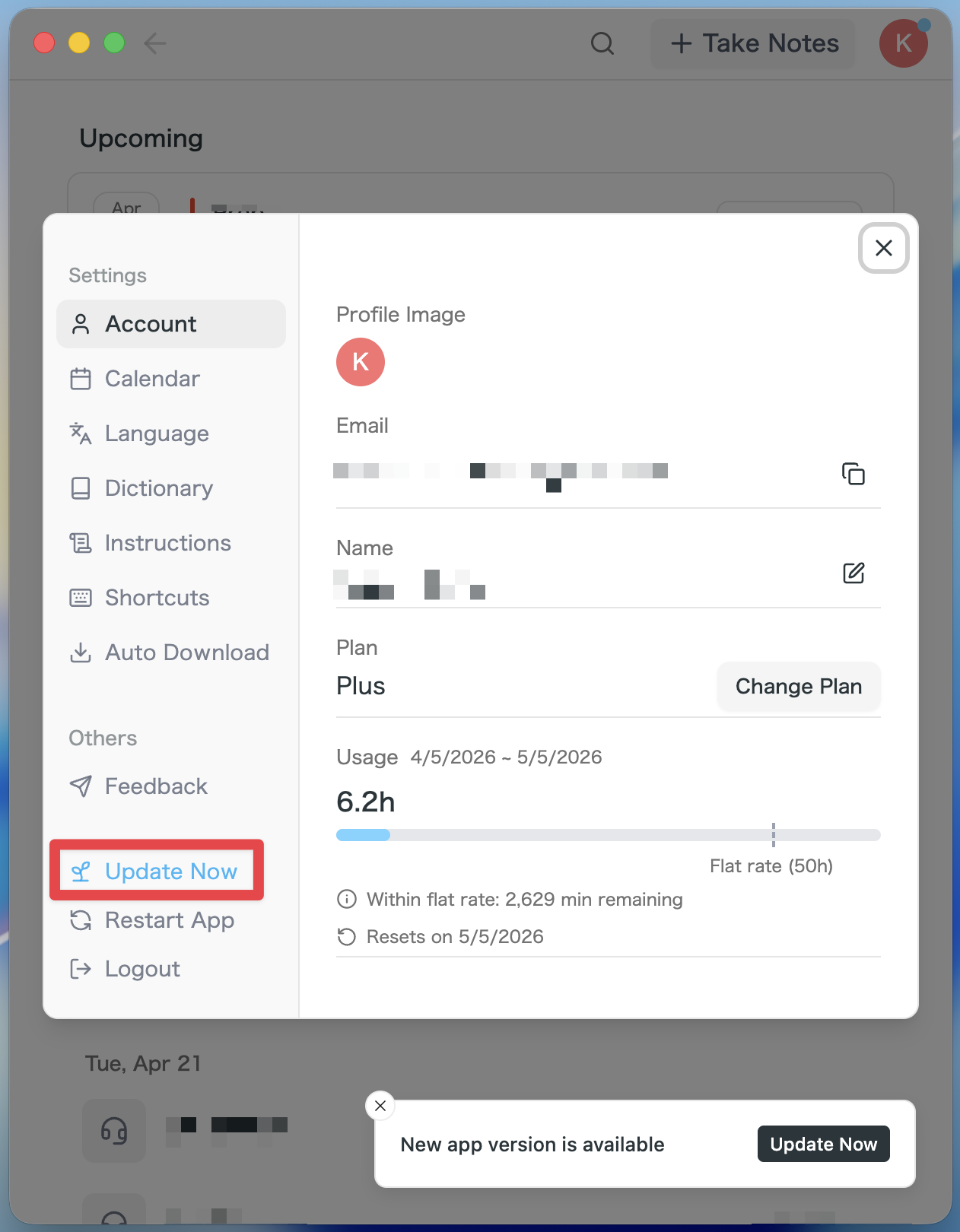
- If an update is available, the latest version is downloaded automatically after you launch the app.
- The Update Now button appears in the sidebar. Click it.
For Windows users
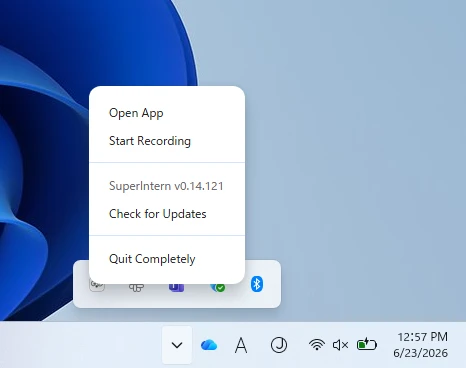
- Open the system tray at the bottom-right of your screen and right-click the SuperIntern app icon.
- Click Check for Updates.
- When the popup appears, click Open Microsoft Store.
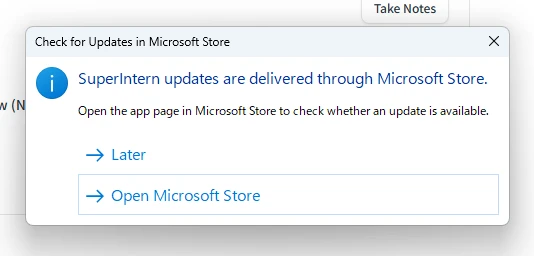
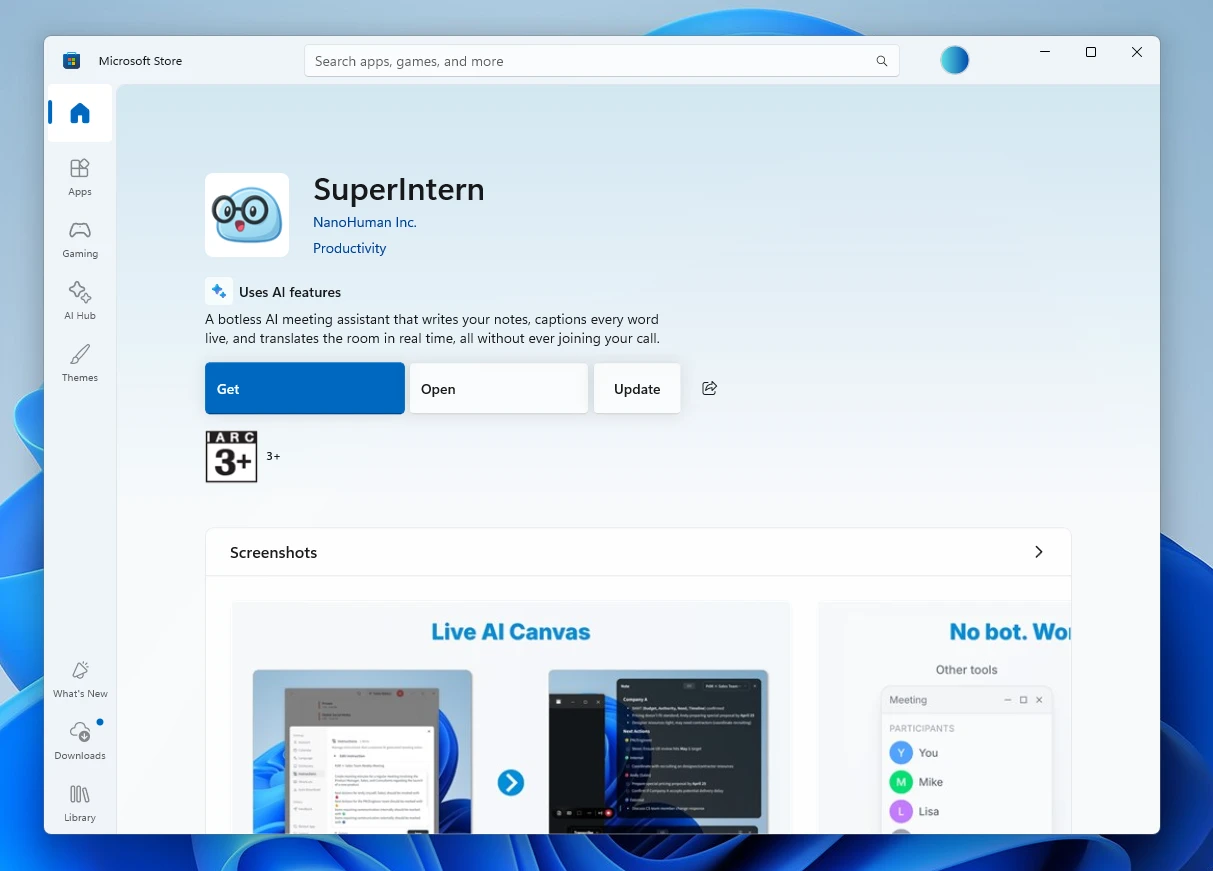
- Once Microsoft Store opens, click Update.
We'll keep improving SuperIntern to make it easier for everyone to use. Update to the latest version before your next meeting and give these a try.