
Weekly Update: move Personal Workspace meetings to your team, and set your recording devices once
We've just shipped 3 updates to SuperIntern 🎉
You can now bring your Personal Workspace meetings into a Team Workspace, and pick the audio devices SuperIntern uses for every recording.
Here's a quick tour of this week's additions.
① Move your Personal Workspace meetings to a Team Workspace
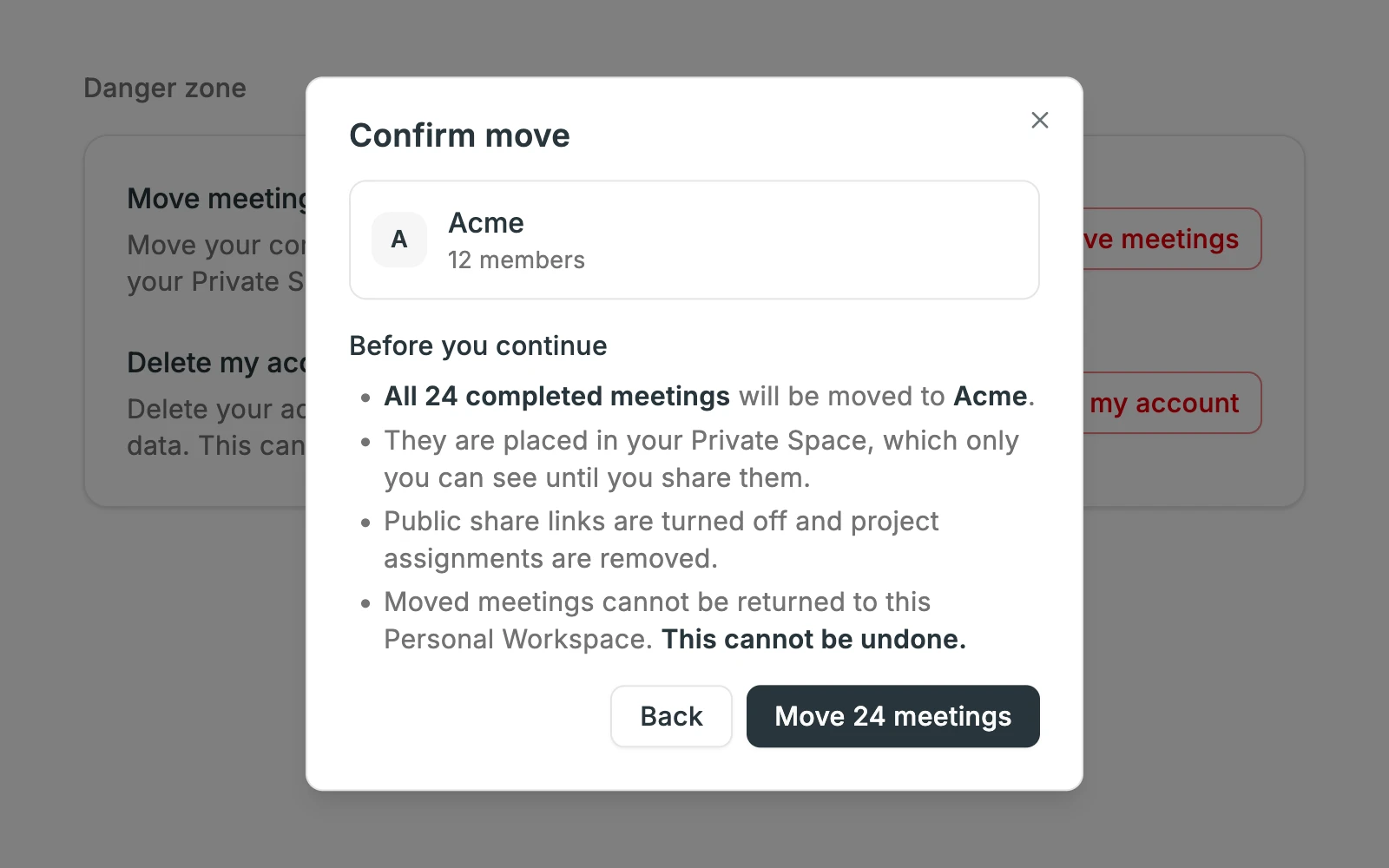
Recorded meetings in your Personal Workspace before your team started using SuperIntern? You can now move them into a Team Workspace you belong to. In the web app, open Settings, choose Move meetings under Danger zone, and pick the Team Workspace to move them to.
What this changes
- Your earlier meetings live alongside your team's: Find them in the same place as the rest of your Team Workspace meetings.
- Moved meetings stay private until you share them: They land in your own Private Space, so teammates can't see them until you choose what to share.
- All completed meetings move at once: No need to move them one by one. Moving can't be undone, so check the count and destination on the confirmation screen first. Public share links are turned off and project assignments are removed.
② Choose your microphone and system audio devices once
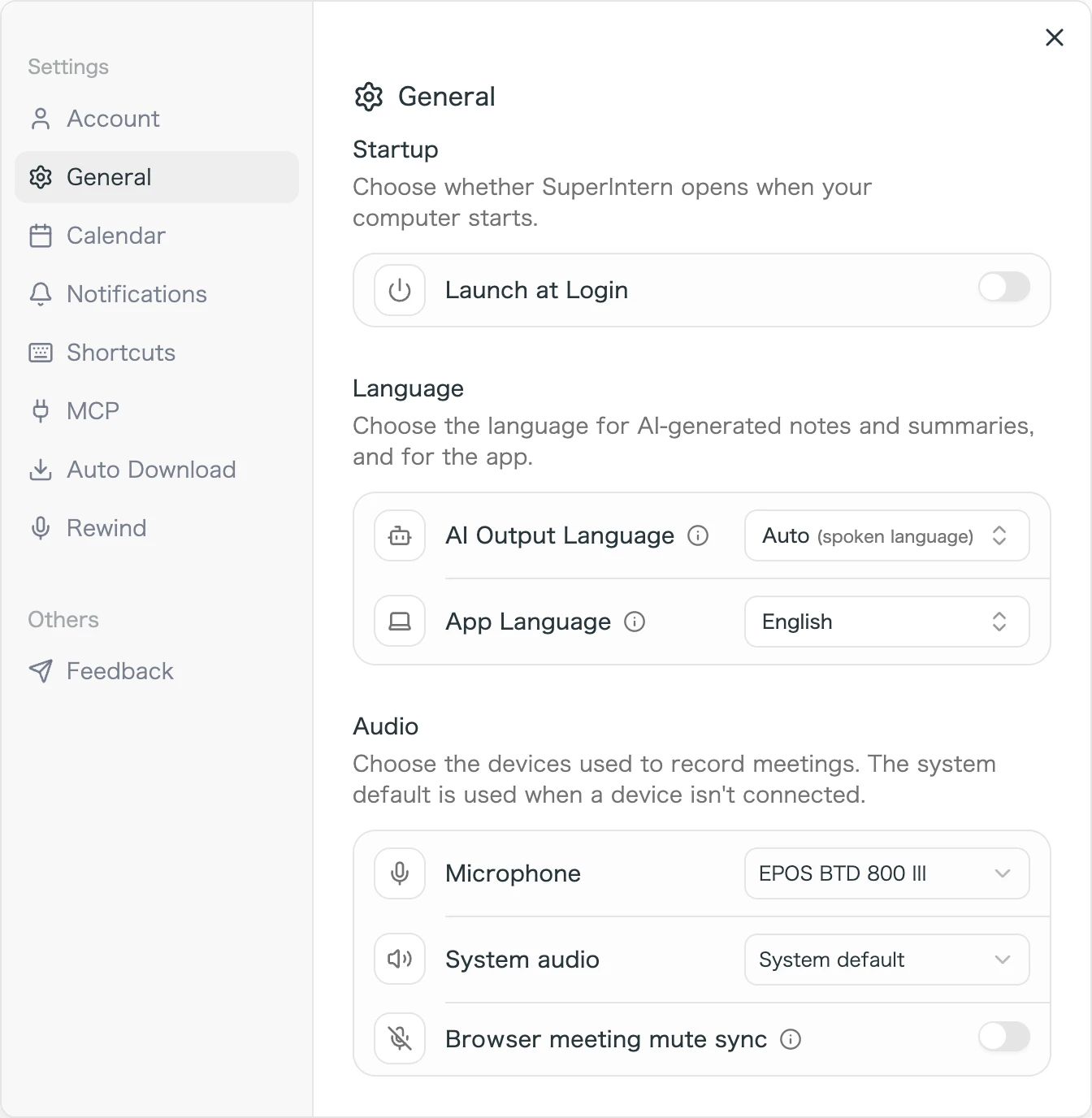
The General tab in the Desktop app's settings now has an Audio section where you pick the microphone and system audio devices used to record meetings. Every recording after that uses the devices you chose.
What this changes
- No more picking devices before each meeting: If you use an external mic or headset, set it once and every recording uses it.
- Recording keeps going if a device is unplugged: When a chosen device isn't connected, SuperIntern records with the system default instead.
- Mute sync lives in the same place: Browser meeting mute sync has moved into Audio, so all your recording settings are in one spot.
③ Shared meetings no longer land in a project twice
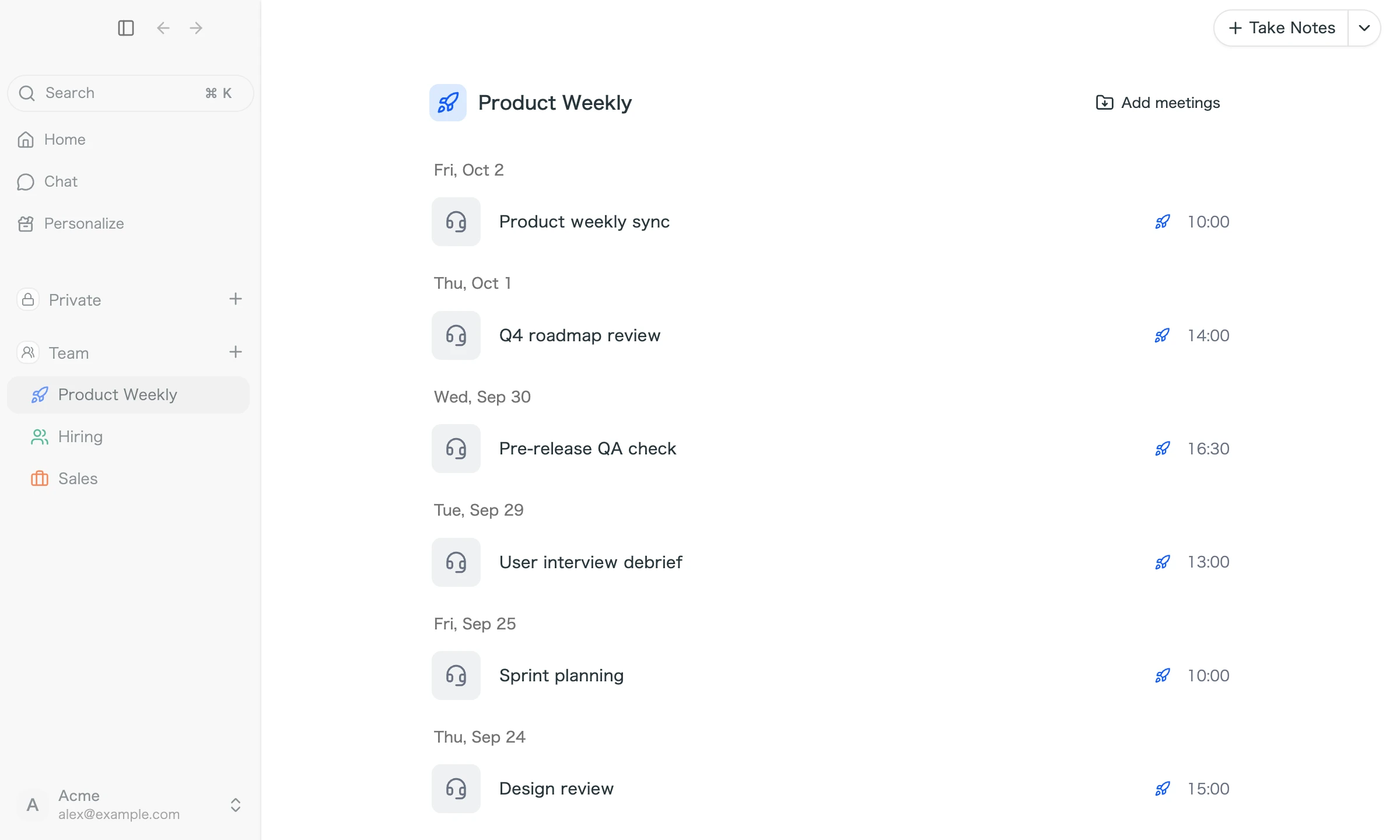
When you assign a project to a calendar event, meetings recorded from that event go into the project automatically. Until now, if several teammates recorded the same meeting, the project could end up with several copies of it. Now only the first recording is added to the project automatically.
What this changes
- A cleaner project meeting list: No duplicate entries for the same meeting, so it's easier to find what you need.
- Other recordings are kept: Recordings that aren't added to the project stay in each person's Private Space.
How to Update
For Mac users
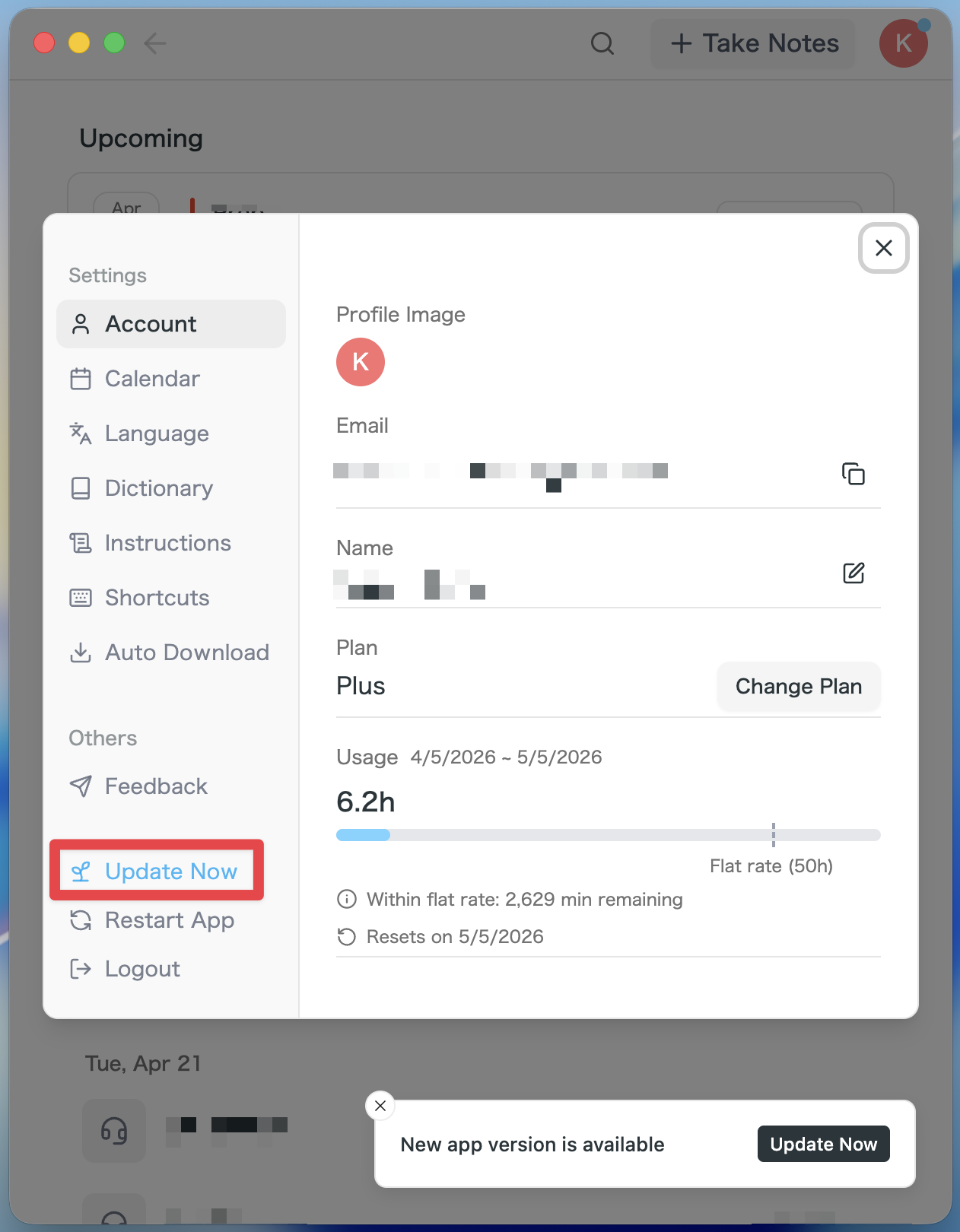
- If an update is available, the latest version is downloaded automatically after you launch the app.
- The Update Now button appears in the sidebar. Click it.
For Windows users
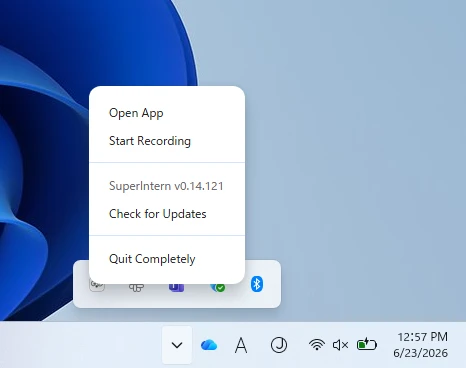
- Open the system tray at the bottom-right of your screen and right-click the SuperIntern app icon.
- Click Check for Updates.
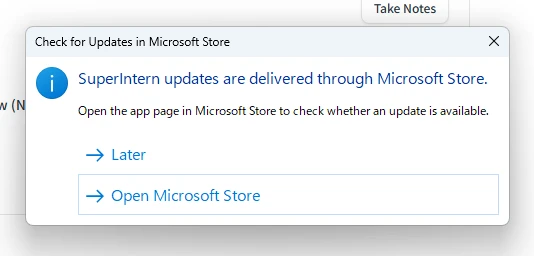
- When the popup appears, click Open Microsoft Store.
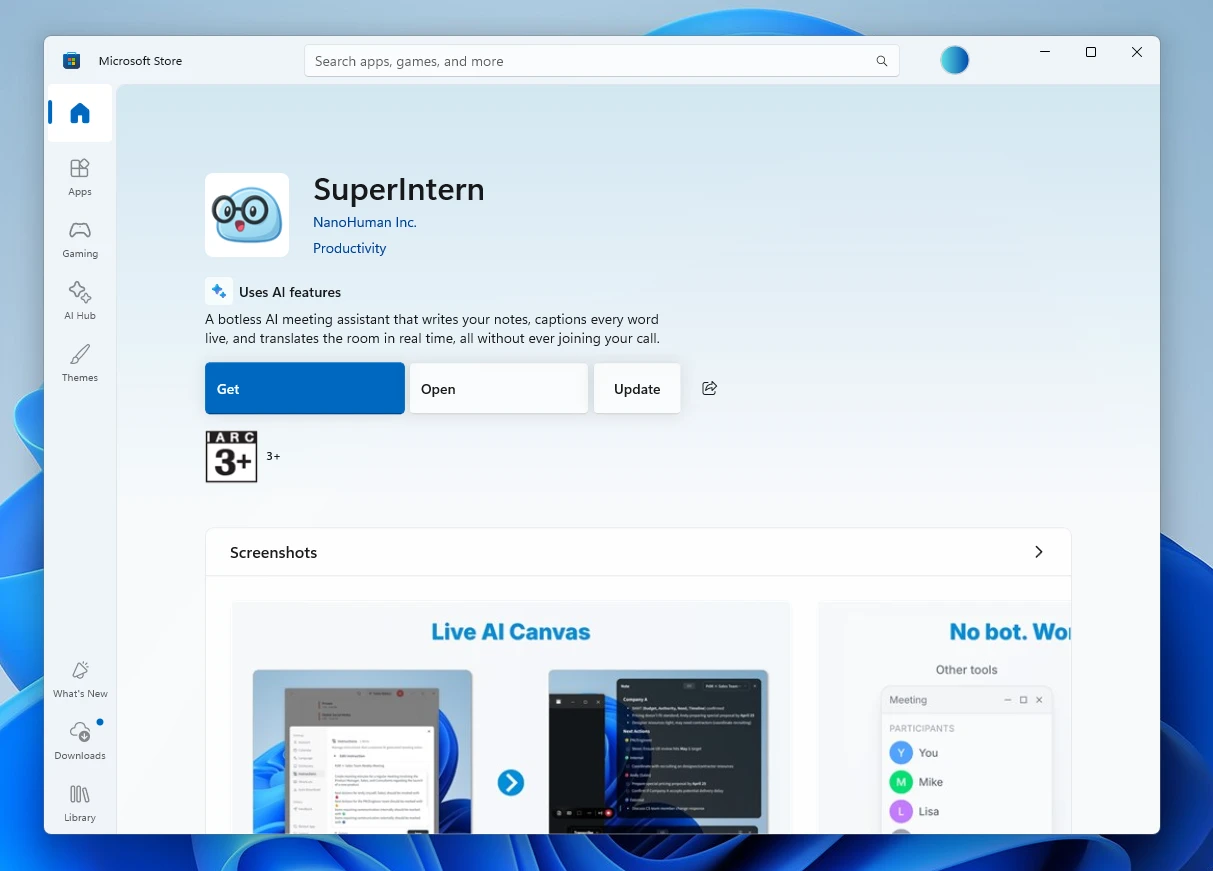
- Once Microsoft Store opens, click Update.
We'll keep improving SuperIntern to make it easier for everyone to use. Update to the latest version before your next meeting and give these a try.