
Weekly Update: app integrations with Slack, Notion, and Linear, and shared screens saved automatically

We've just shipped 3 updates to SuperIntern 🎉
AI chat can now find and update information in Slack, Notion, and Linear, and the screens shared in your meetings are kept for you automatically.
Here's a quick tour of this week's additions.
① App integrations with Slack, Notion, and Linear
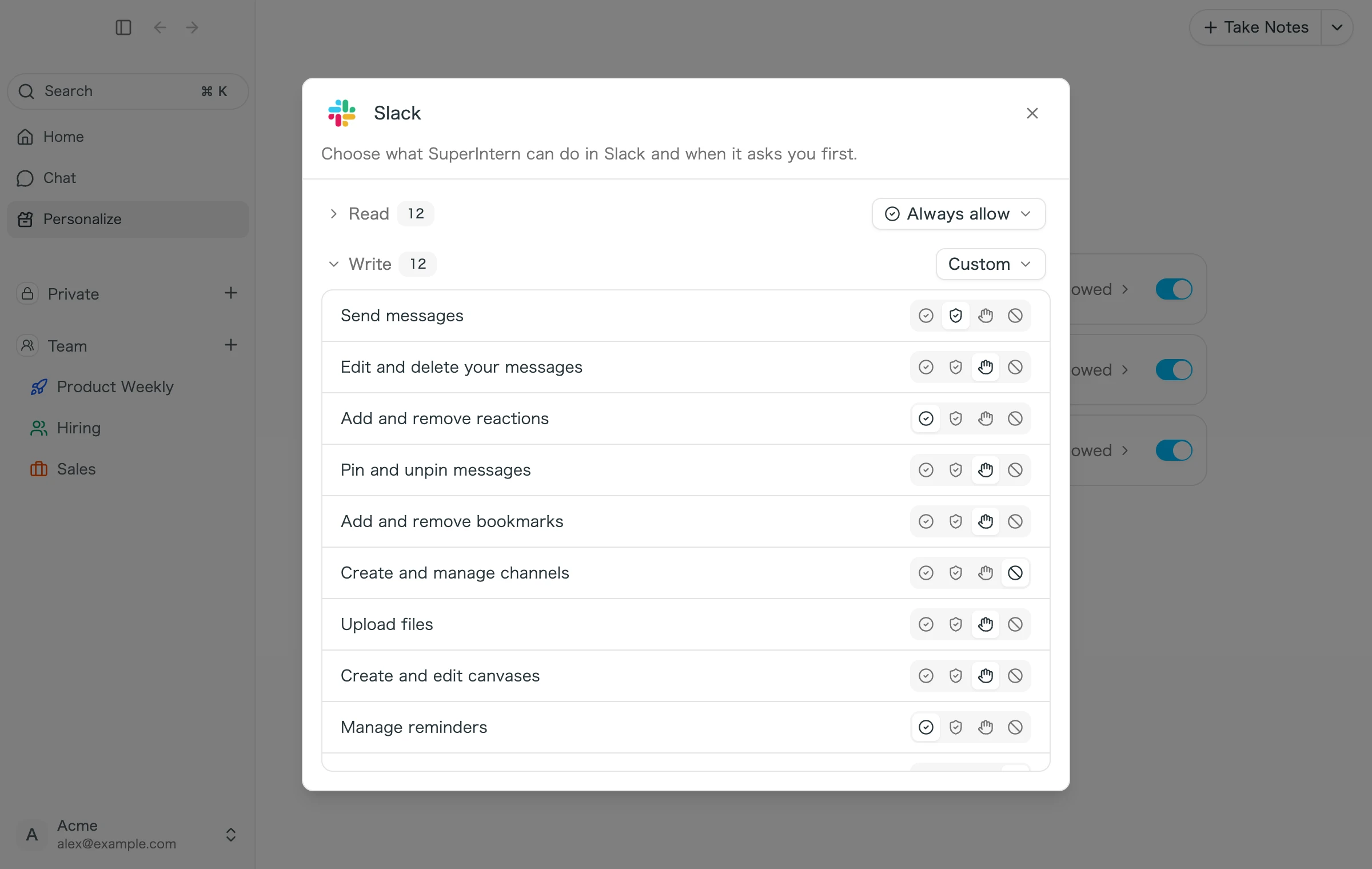
You can now connect Slack, Notion, and Linear from the Apps tab under Personalize in the Desktop app. Once connected, just ask AI chat something like "Summarize last week's discussion in #sales" or "Create Linear issues for the tasks we agreed on in this meeting", and it will look things up, post, or make updates in those apps for you.
What this changes
- Your meetings and your other tools in one answer: AI chat can bring together your meeting notes, Slack conversations, Notion docs, and Linear issues in a single reply.
- Choose a permission for each action: For actions like Send messages or Create issues, pick Always allow, Auto-review, Needs approval, or Don't allow. For example, let SuperIntern read freely but ask you before it writes anything.
- Admins set the rules for the whole workspace: On Team and Enterprise plans, admins can limit which apps members can connect and which permissions they can choose, from workspace settings in the web app.
② Shared screens saved automatically
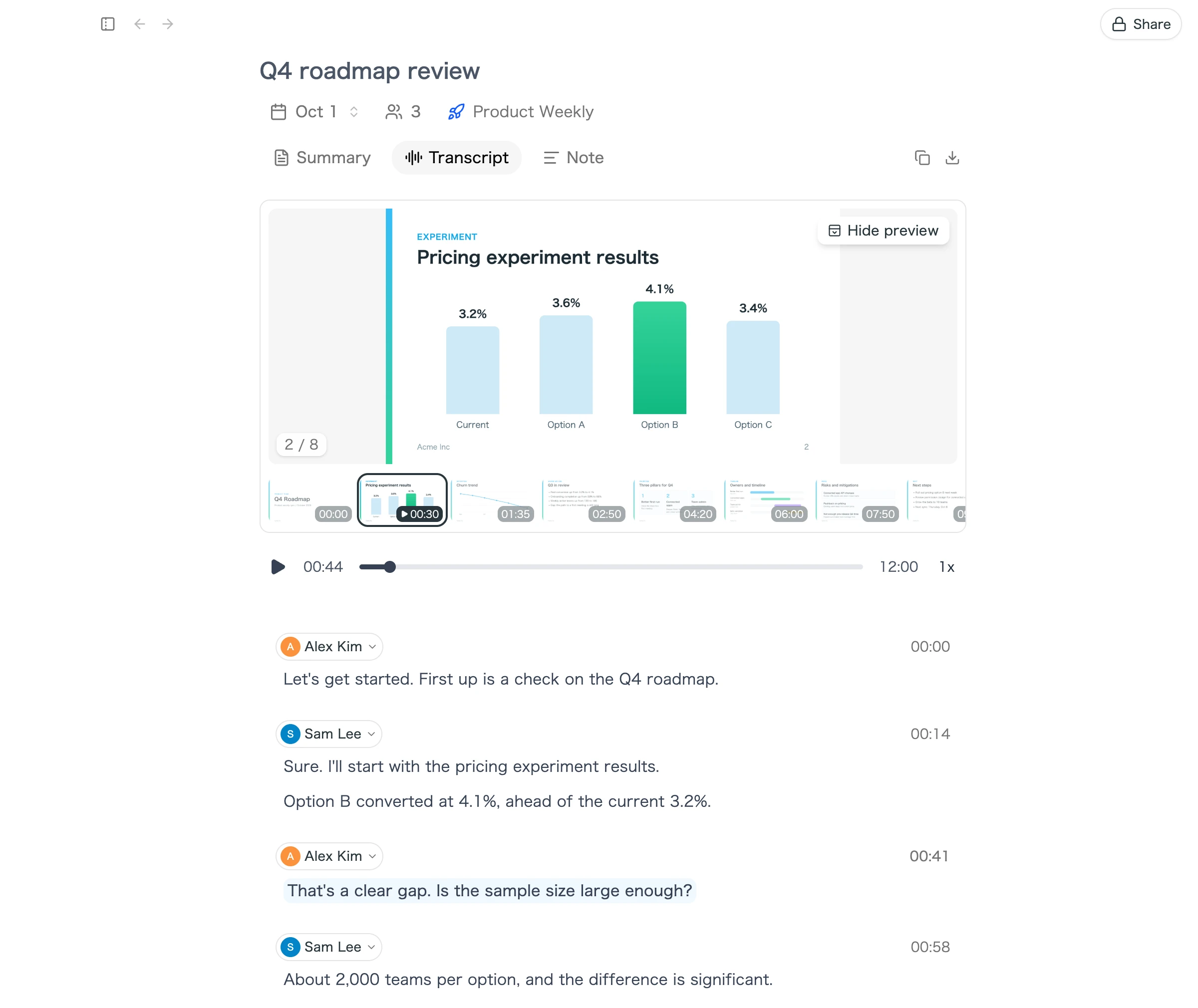
When you join a Google Meet, Teams, Zoom, or Webex meeting in the browser, SuperIntern now saves the shared screens that matter to the conversation. In the Desktop app, open a meeting and go to the Transcript tab to see them, synced to where you are in the recording.
What this changes
- Find "that slide" again: As you play back the recording, the slide or screen shown at that moment appears alongside it. Pick a thumbnail to see a screen and jump to that point in the meeting.
- Only the screens you need: Rather than saving every frame of a screen share, SuperIntern keeps the screens the conversation actually talks about, so they're easy to scan later.
- Reuse the images right away: Enlarge a saved screen, or copy or download it for your own docs.
Saving shared screens requires the SuperIntern browser extension, which works in Chrome, Edge, Dia, and Aside. Meetings you join in the Zoom, Teams, or Webex desktop apps are not supported.
③ Finish setup to reset your free credit
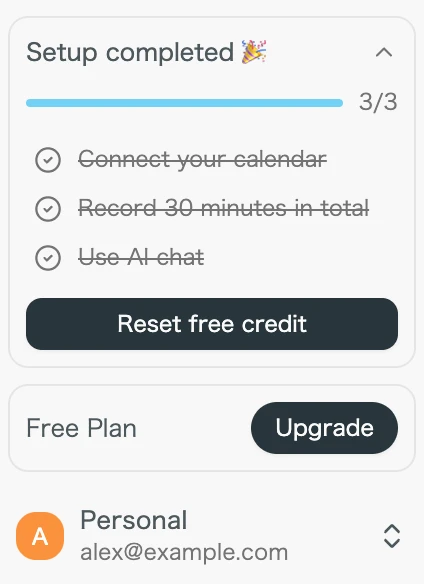
On the Free Plan, finish every task in Finish setting up in the Desktop app sidebar, and you can reset your free credit to its full amount once.
What this changes
- See what's left at a glance: The sidebar lists three tasks, Connect your calendar, Record 30 minutes in total, and Use AI chat, along with your progress. Each task has a button that takes you straight to it.
- Get back the credit you used while getting started: When every task is done, a Reset free credit button appears and your remaining free credit goes back to its full amount. You can reset only once, and not while recording.
How to Update
For Mac users
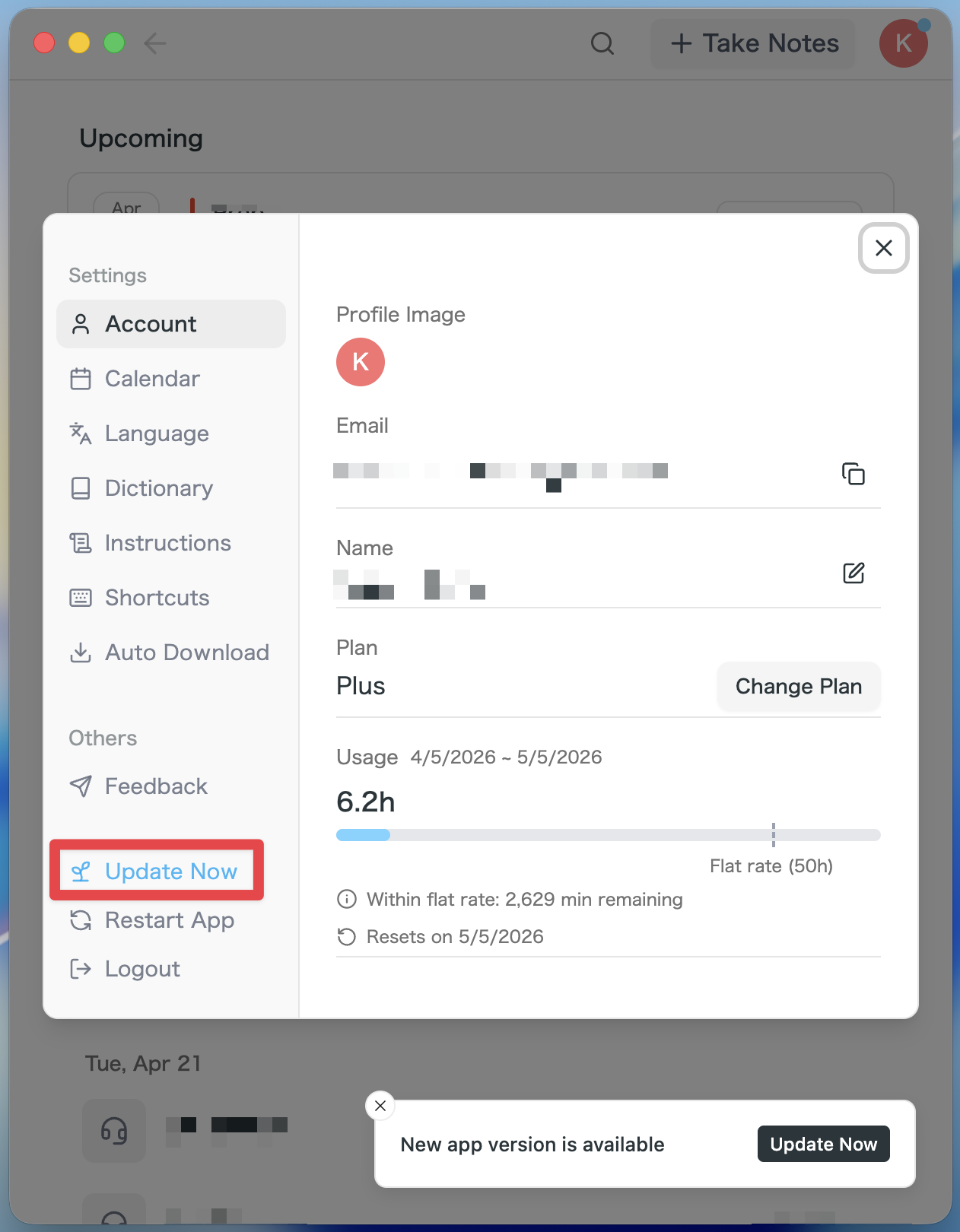
- If an update is available, the latest version is downloaded automatically after you launch the app.
- The Update Now button appears in the sidebar. Click it.
For Windows users
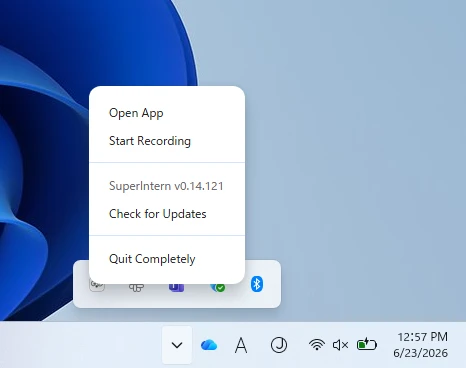
- Open the system tray at the bottom-right of your screen and right-click the SuperIntern app icon.
- Click Check for Updates.
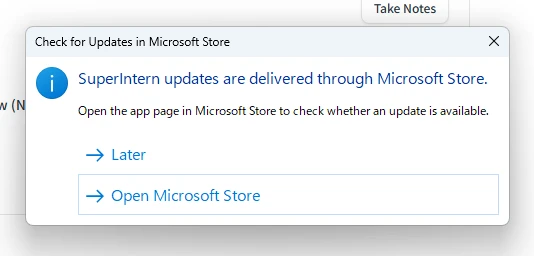
- When the popup appears, click Open Microsoft Store.
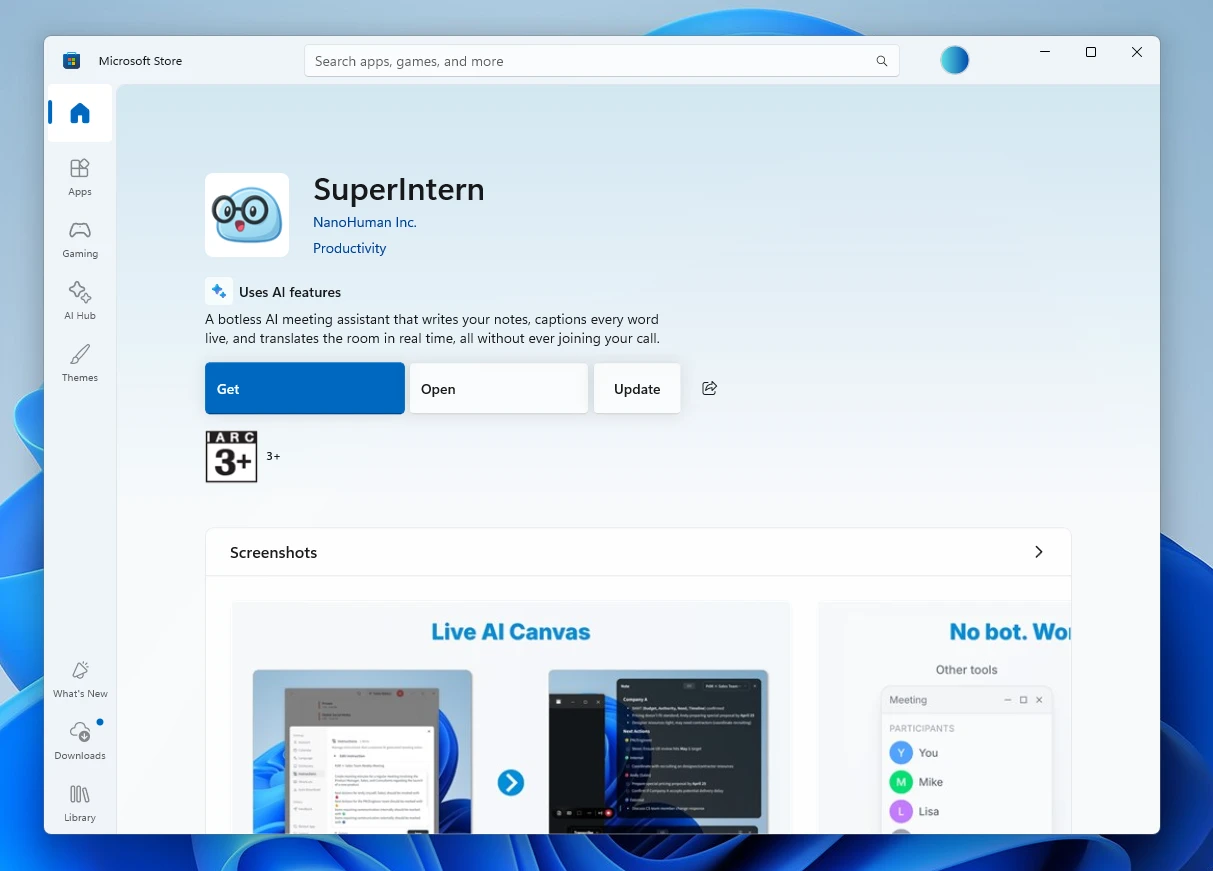
- Once Microsoft Store opens, click Update.
We'll keep improving SuperIntern to make it easier for everyone to use. Update to the latest version before your next meeting and give these a try.