
Weekly Update: dark mode, a choice of send key for AI chat, and an on/off switch for auto-stop when silent
We've just shipped 3 updates to SuperIntern 🎉
The Desktop app now comes in dark mode, and you can set the AI chat send key and the auto-stop for silent recordings the way you like.
Here's a quick tour of this week's additions.
① Dark mode
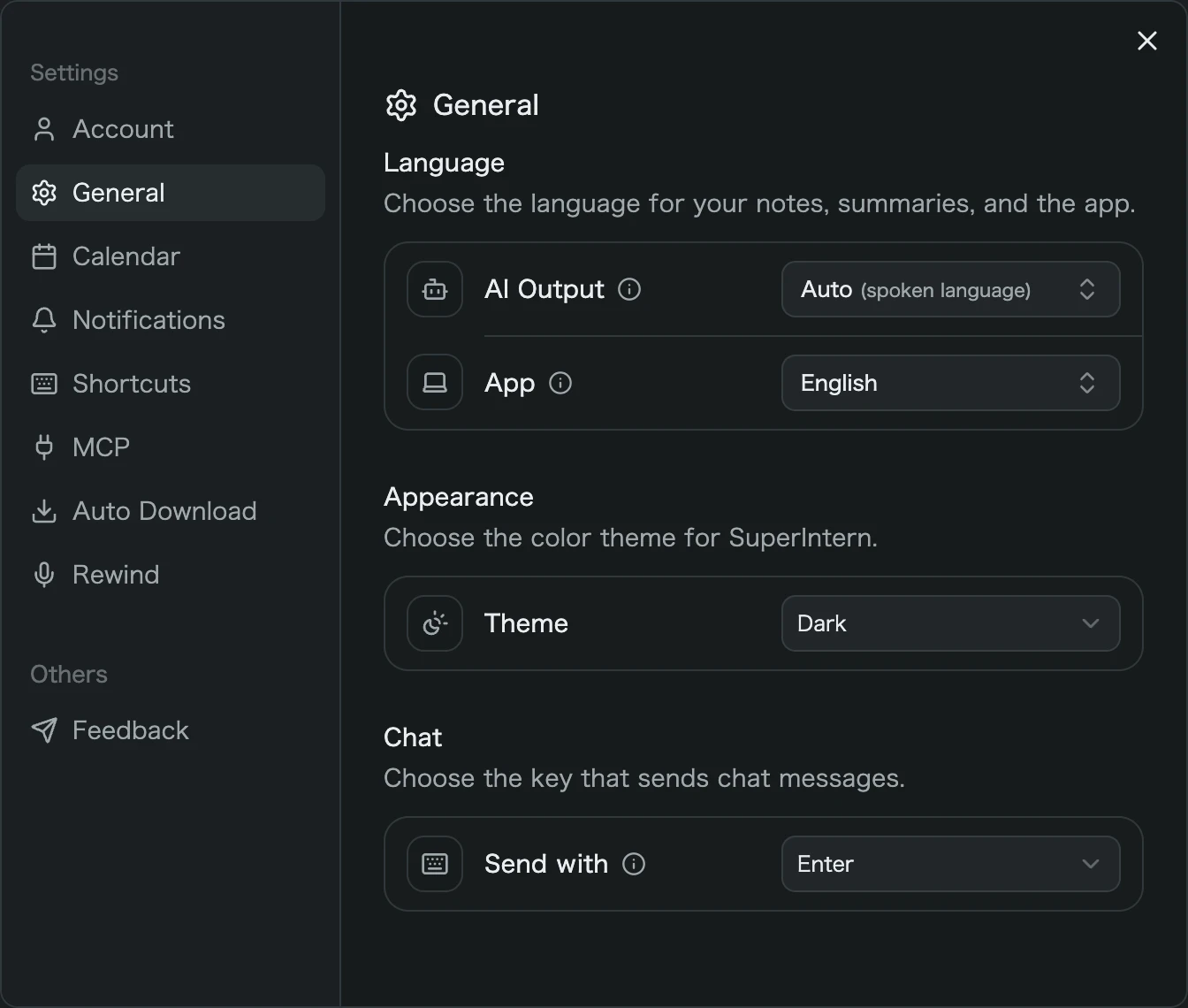
When your computer's appearance is set to dark, the Desktop app now displays in dark mode too. Under Appearance in General settings, you can also pick Light or Dark regardless of your computer's appearance.
What this changes
- Easier on the eyes at night: Opening notes or AI chat during an evening meeting no longer floods your screen with white.
- Follows your computer automatically: The default is System. If your OS switches appearance by time of day, SuperIntern switches with it.
- Set the app on its own: Keep your OS dark and SuperIntern light, or the other way around.
② Choose the send key for AI chat
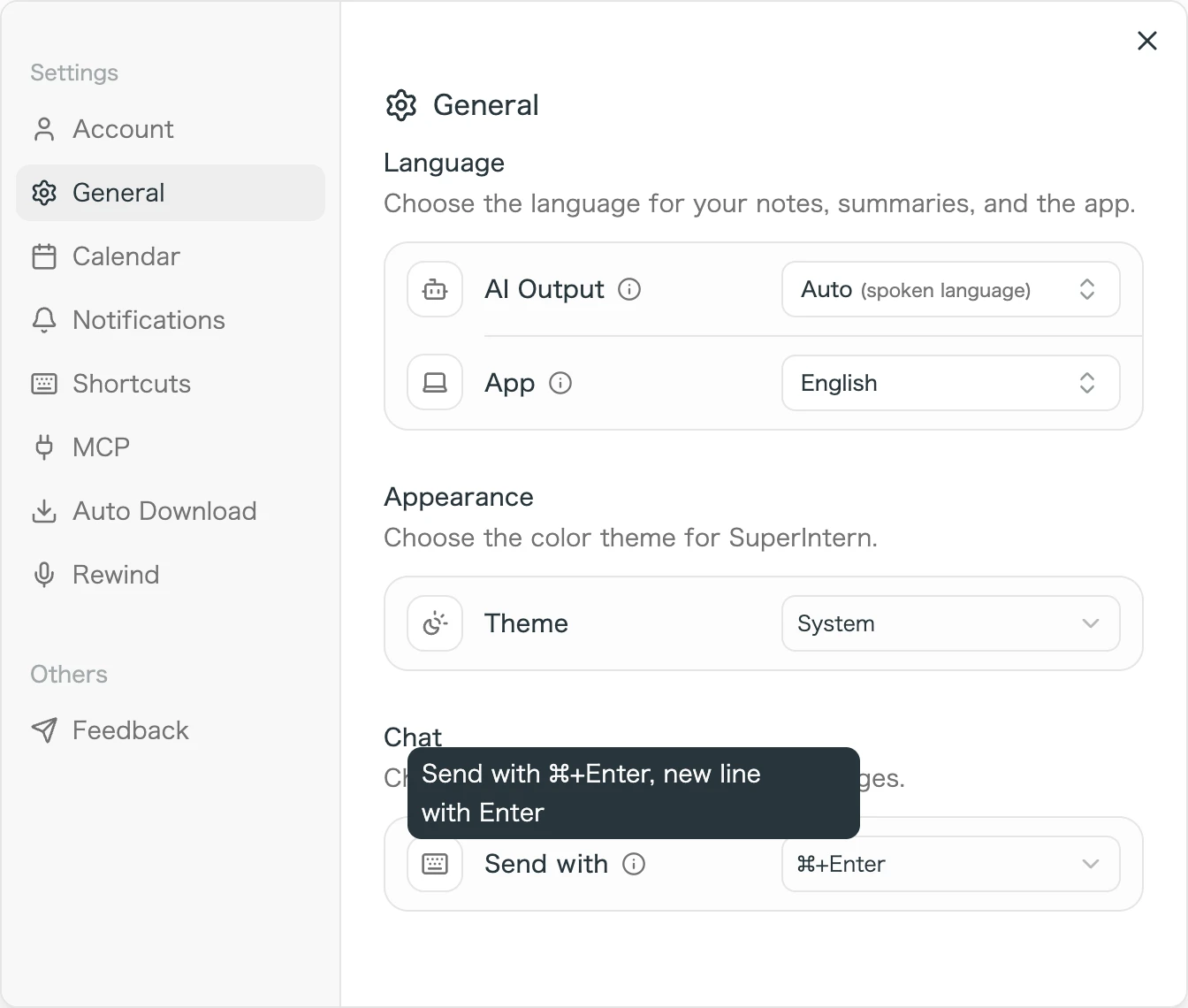
Under Chat in General settings, you can now choose whether AI chat sends with Enter or ⌘+Enter (Ctrl+Enter on Windows). With ⌘+Enter selected, pressing Enter adds a new line instead of sending.
What this changes
- Write longer prompts comfortably: Add line breaks for lists or multiple conditions without sending a half-written question.
- Safer with input method editors: If you type in a language that uses an IME, the Enter that confirms your text no longer sends the message.
- A one-time offer after an accidental send: If you send with Enter while using an IME and stop the response right away, SuperIntern asks once whether to switch to ⌘+Enter, so you can change it on the spot.
③ Turn auto-stop for silent recordings on or off
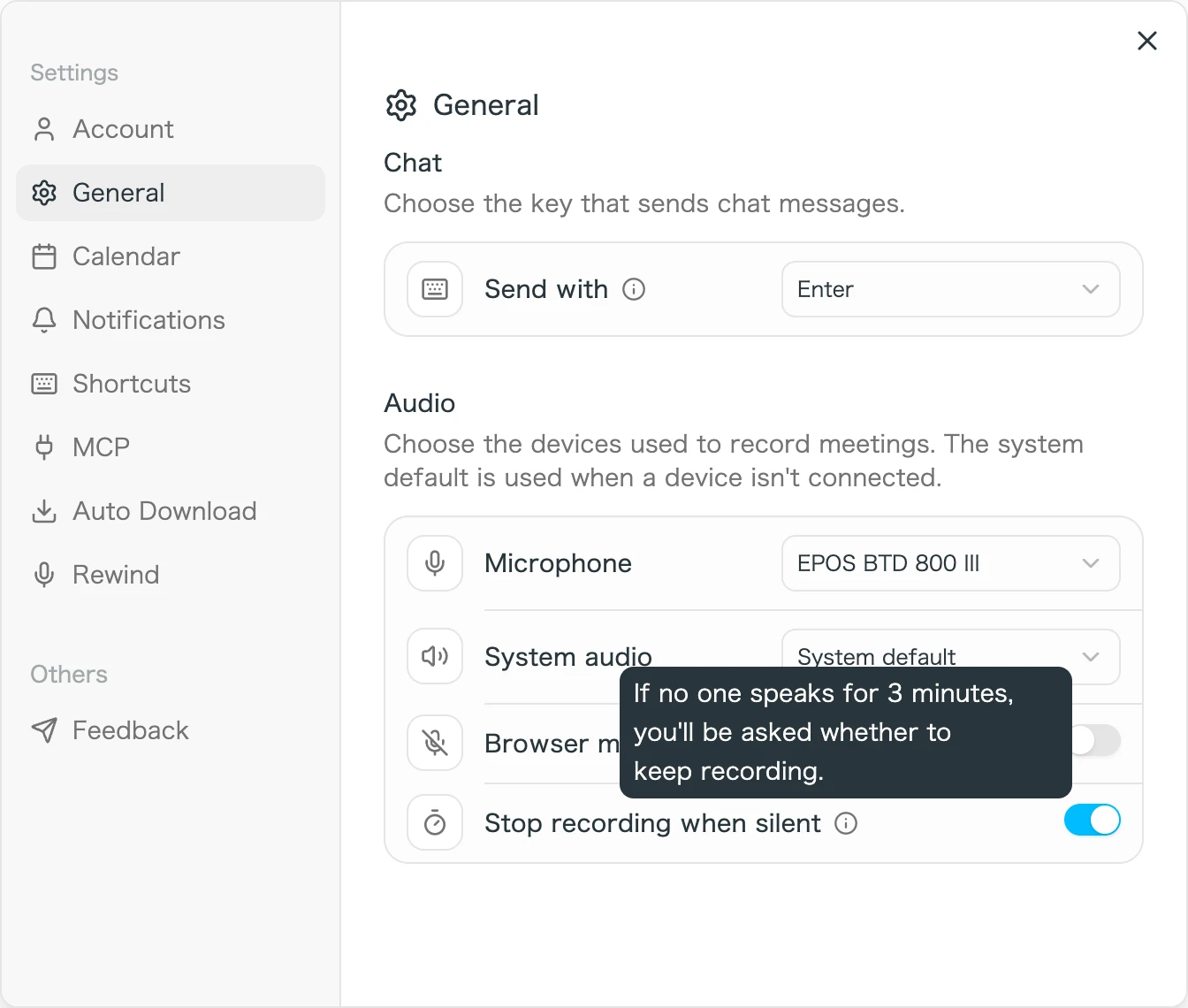
To keep recordings from running after a meeting ends, SuperIntern stops a recording automatically when no one has spoken for a while. After 3 minutes without speech, it asks Are you still there?, and if no one answers, the recording stops 3 minutes later. You can now turn this on or off with Stop recording when silent in General settings.
What this changes
- No cutoffs in meetings with long pauses: Turn it off for meetings that start with a wait for everyone to join, or that include quiet reading time.
- The safety net stays on by default: If you tend to forget to stop recording, nothing changes: recordings still end on their own.
- Takes effect right away: Switching it during a recording applies from that moment.
How to Update
For Mac users
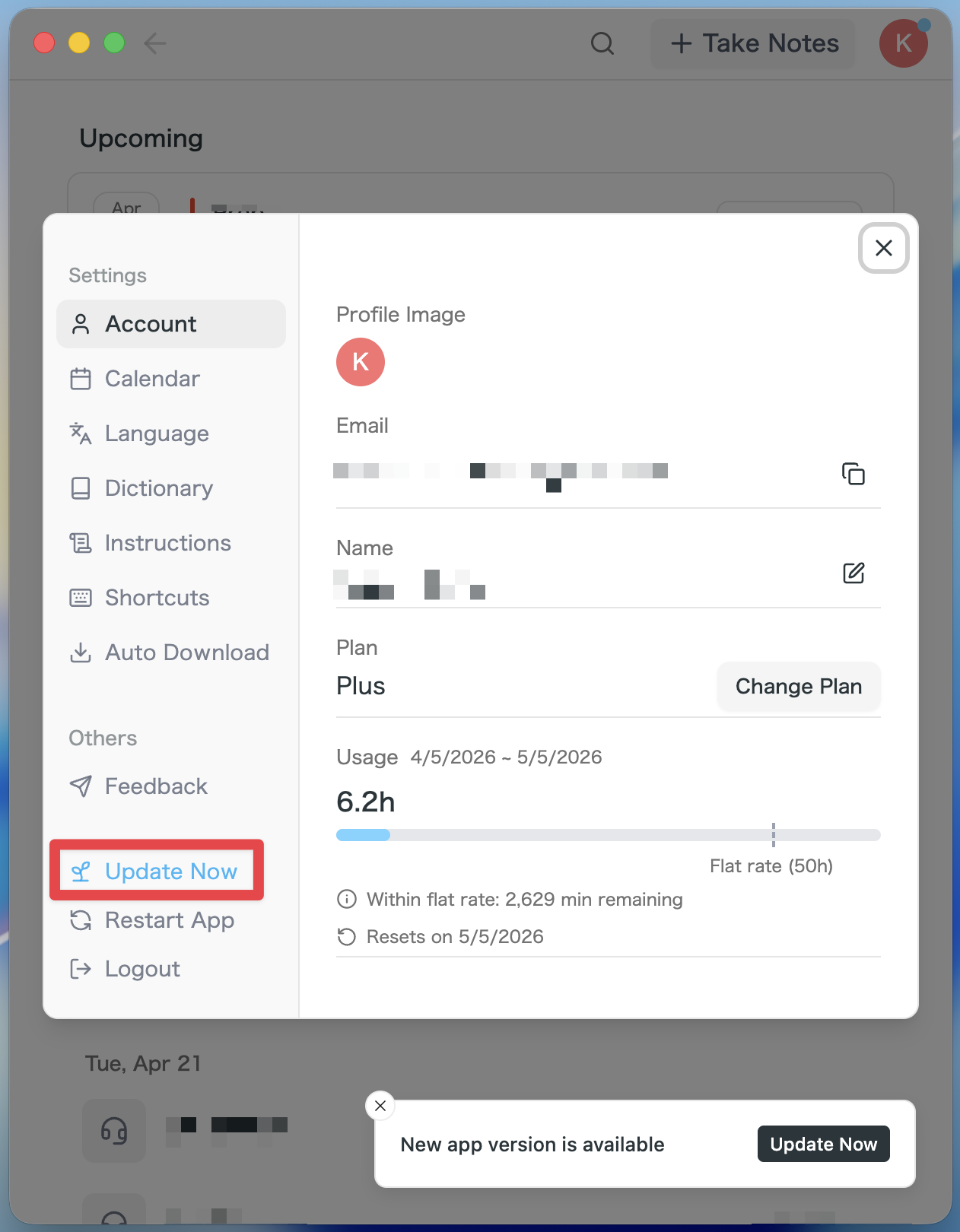
- If an update is available, the latest version is downloaded automatically after you launch the app.
- The Update Now button appears in the sidebar. Click it.
For Windows users
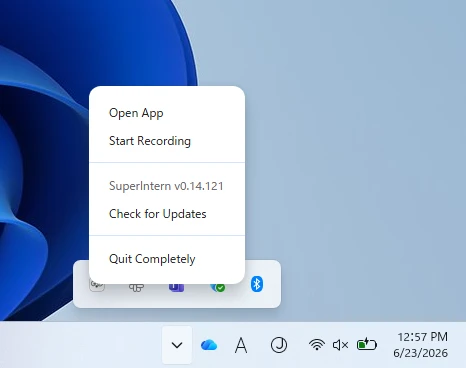
- Open the system tray at the bottom-right of your screen and right-click the SuperIntern app icon.
- Click Check for Updates.
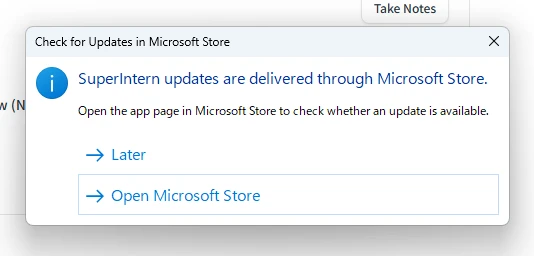
- When the popup appears, click Open Microsoft Store.
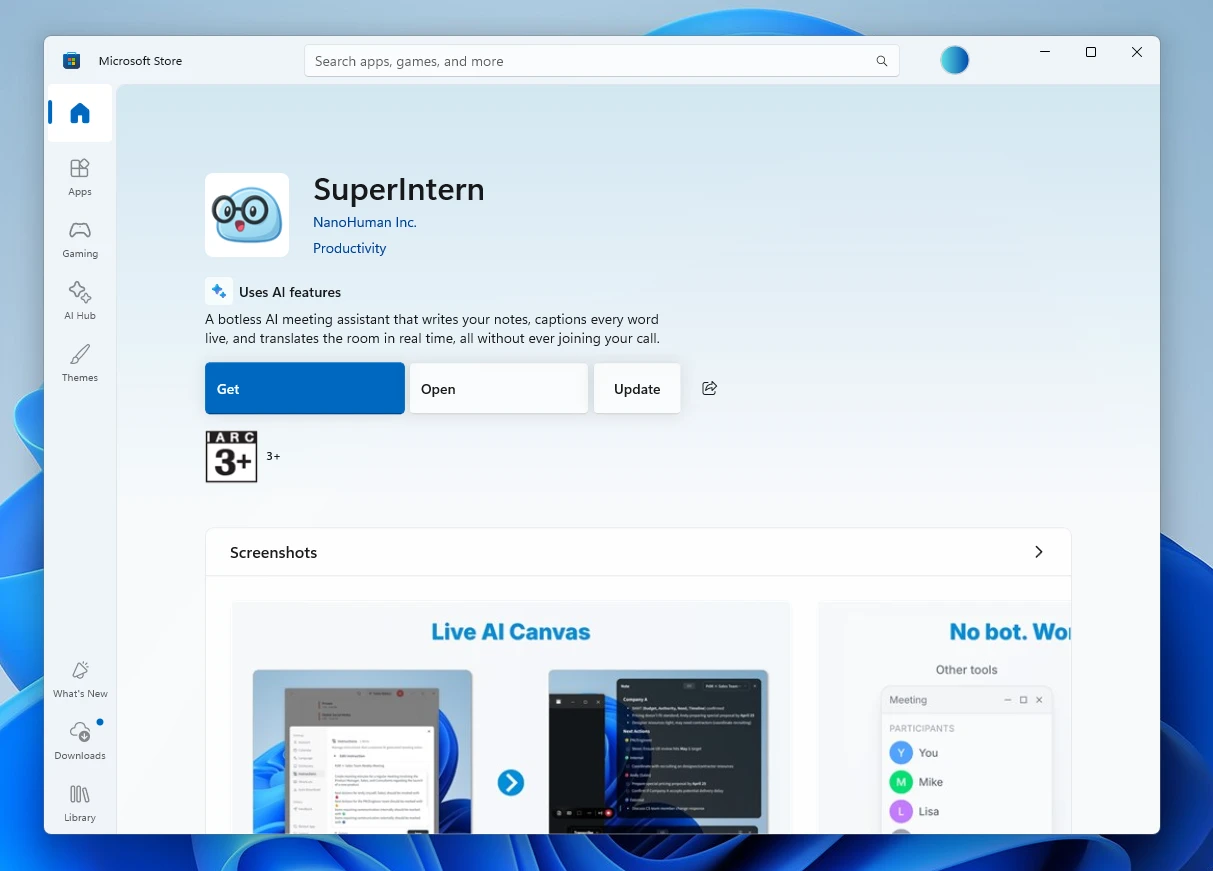
- Once Microsoft Store opens, click Update.
We'll keep improving SuperIntern to make it easier for everyone to use. Update to the latest version before your next meeting and give these a try.