
Weekly Update: clearer mic audio, automatic speaker names on the Free plan, and meeting details right after you stop recording

We've just shipped 3 updates to SuperIntern 🎉
Your mic now records clearer audio, and automatic speaker identification is available on the Free plan. Meeting details also open the moment you stop recording.
Here's a closer look at each of this week's additions.
① Clearer mic audio
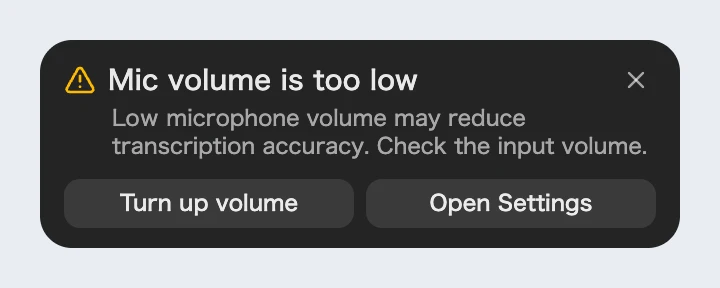
We rebuilt noise cancellation so that, even when several people talk in a meeting room and you record with your mic, it holds back background noise and picks up voices more cleanly. We also added a Turn up volume button to the warning that appears when your mic input is too quiet at the start of a recording.
What this changes
- Voices from across the room stay in: People sitting farther from the computer in a meeting room are much less likely to be filtered out as noise, so in-person recordings and transcripts keep everyone's words.
- Fix the volume in one click: Click Turn up volume in the warning and your mic input goes up right away, with no hunting through your OS sound settings. If you want to fine-tune it, use Open Settings.
- The warning closes on its own: However you raise the volume, the warning disappears once the level is back to normal.
② Automatic speaker identification on the Free plan
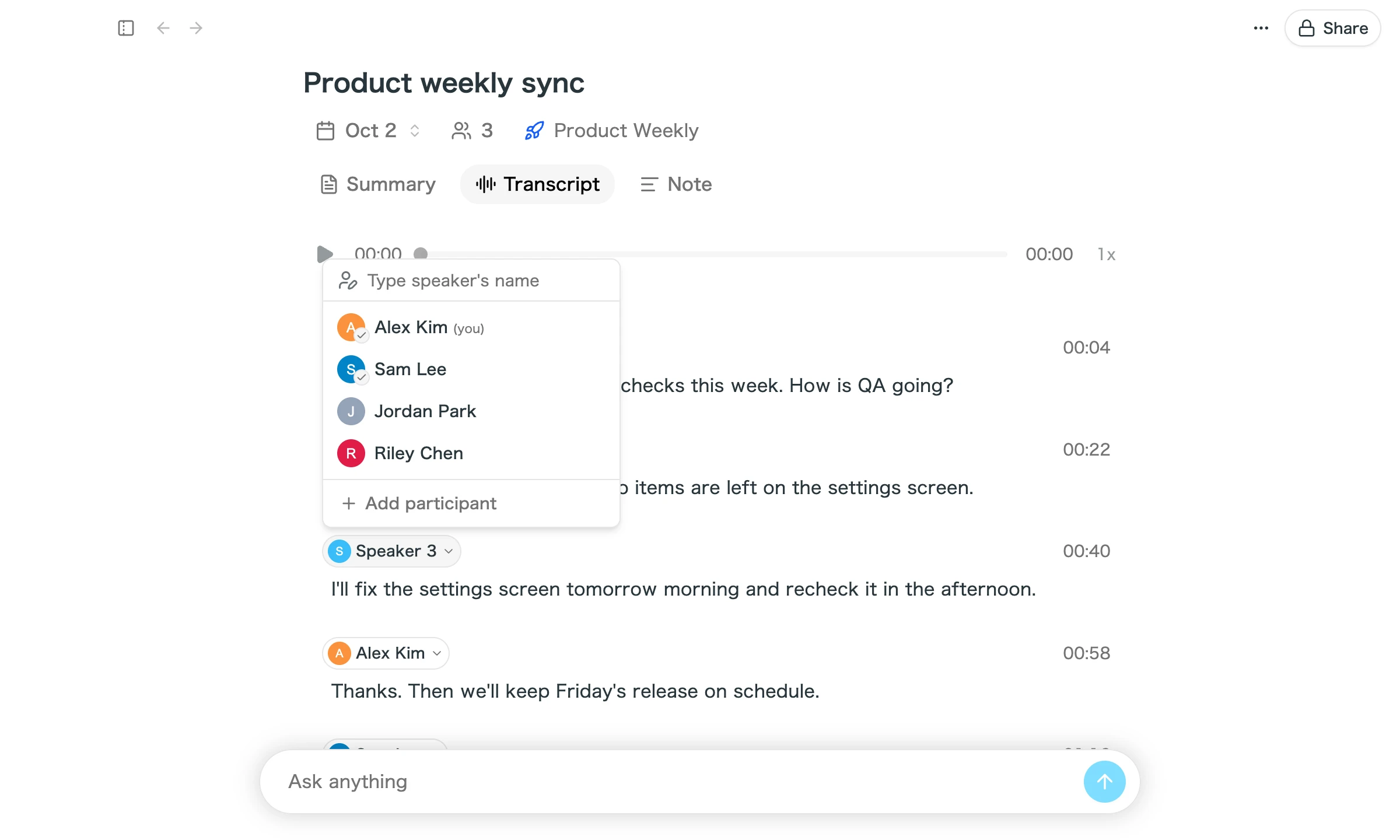
Automatic speaker identification, previously limited to paid plans, now works on the Free plan too. When you link a speaker in a transcript to a participant, SuperIntern registers that person's voice. In later meetings in the same workspace, their name appears automatically when they speak.
What this changes
- No more naming speakers every time: Once you link a participant, their name is filled in from the next meeting on. Recurring meetings with the same people benefit the most.
- See who said what at a glance: When you look back over a transcript or summary, you follow real names instead of "Speaker 1" and "Speaker 2."
- Free plan users, give it a try: Click a speaker name in the transcript and pick a participant from the list. If it wasn't available to you before, try it in your next meeting.
③ Meeting details right after you stop recording
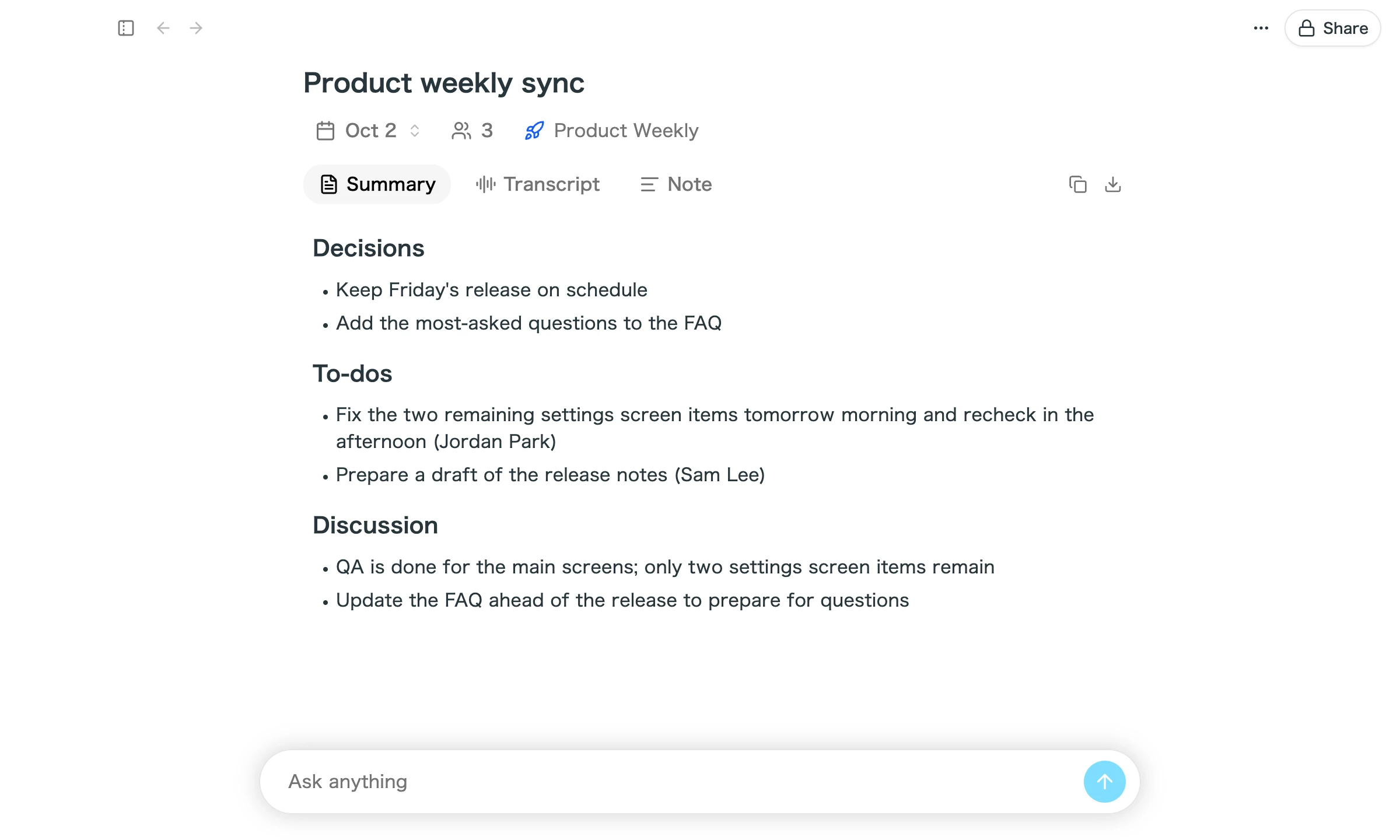
When you stop recording, the app now comes back right away and shows the meeting details without waiting for the audio upload to finish. The upload keeps going in the background.
What this changes
- Review the meeting immediately: Even on a shaky connection or after a long meeting, you no longer wait for the app window to return.
- Read the transcript right away: The Transcript tab is ready as soon as the meeting details open.
- No more interruptions: The app used to jump to the front when the upload finished. That no longer happens, so your screen won't suddenly switch while you're working on something else.
How to Update
For Mac users
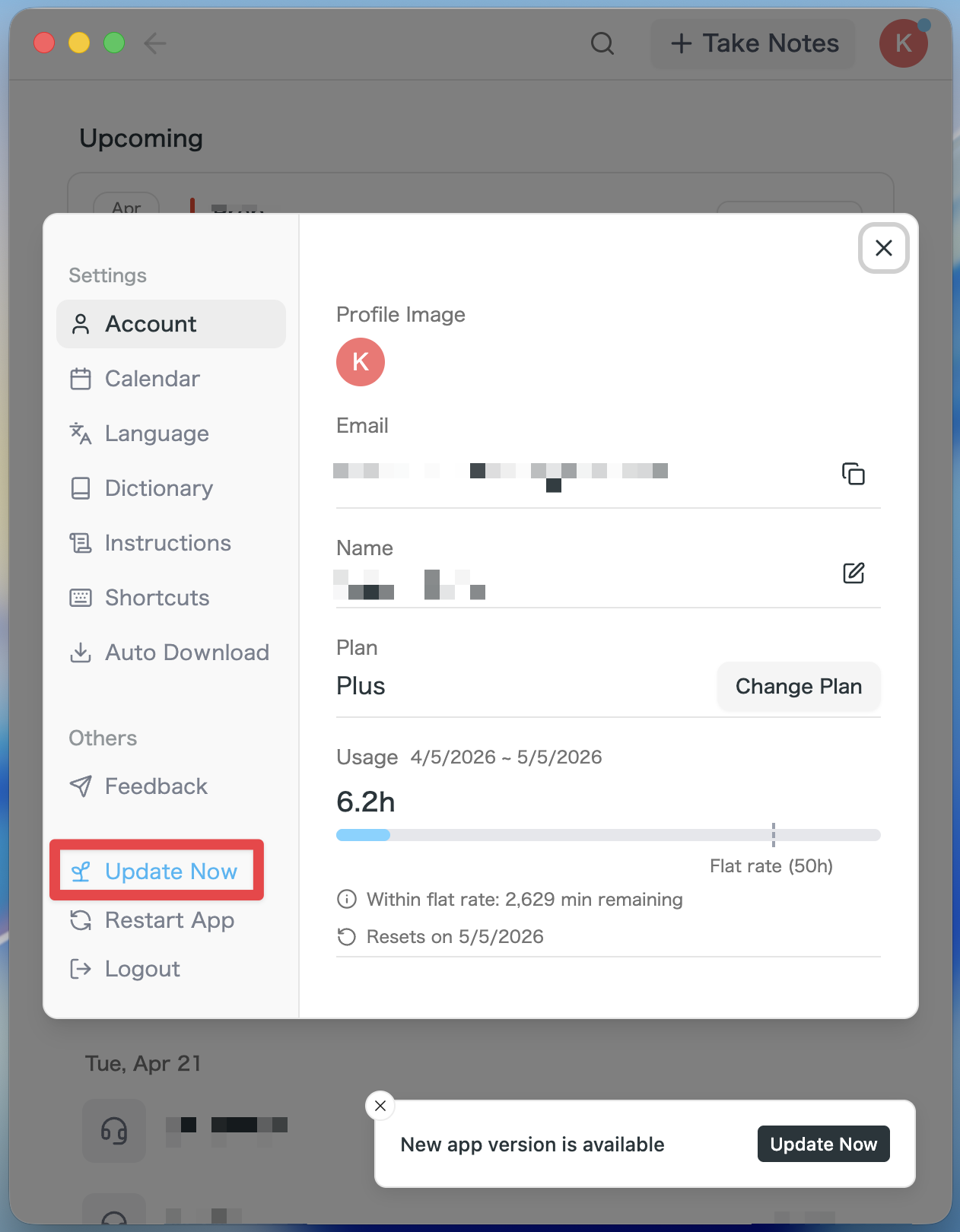
- If an update is available, the latest version is downloaded automatically after you launch the app.
- The Update Now button appears in the sidebar. Click it.
For Windows users
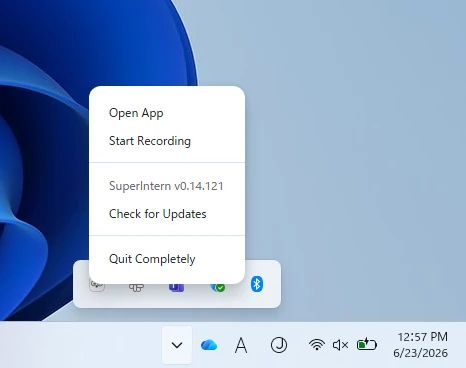
- Open the system tray at the bottom-right of your screen and right-click the SuperIntern app icon.
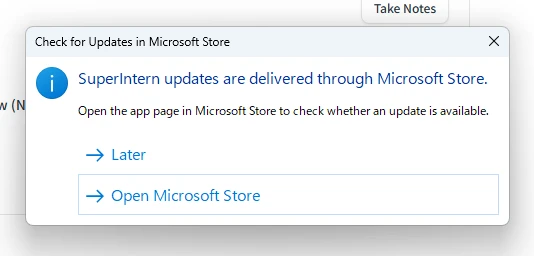
- Click Check for Updates.
- When the popup appears, click Open Microsoft Store.
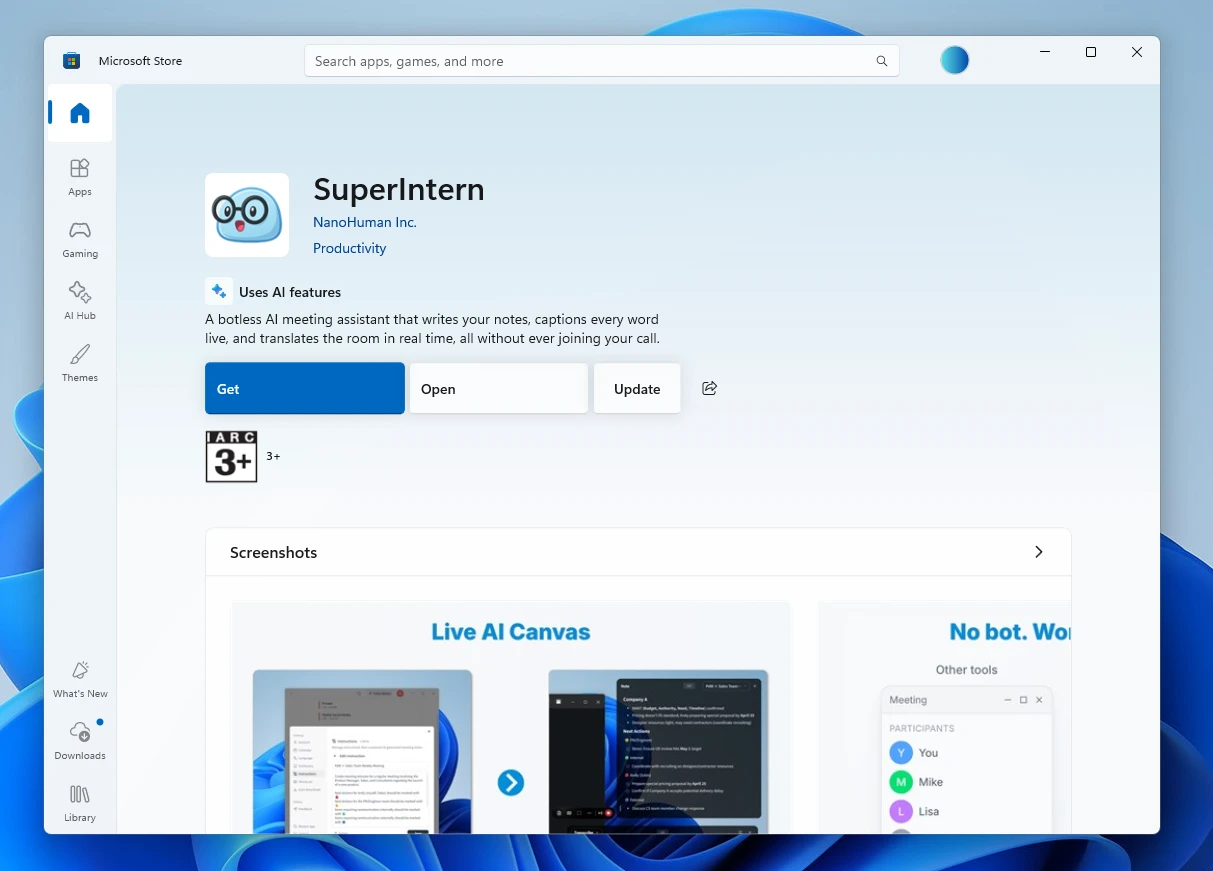
- Once Microsoft Store opens, click Update.
We'll keep improving SuperIntern to make it easier for everyone to use. Update to the latest version before your next meeting and give these a try.