
Weekly Update: search earlier remarks in Live Caption, a Back to playback button in transcripts, and your choice of when silent recordings stop

We've just shipped 3 updates to SuperIntern 🎉
You can now search Live Caption for something said earlier in the meeting, and find your place again in a transcript while a recording plays. You can also choose how long a silent recording runs before it stops on its own.
Here's a closer look at each of this week's additions.
① Search earlier remarks in Live Caption
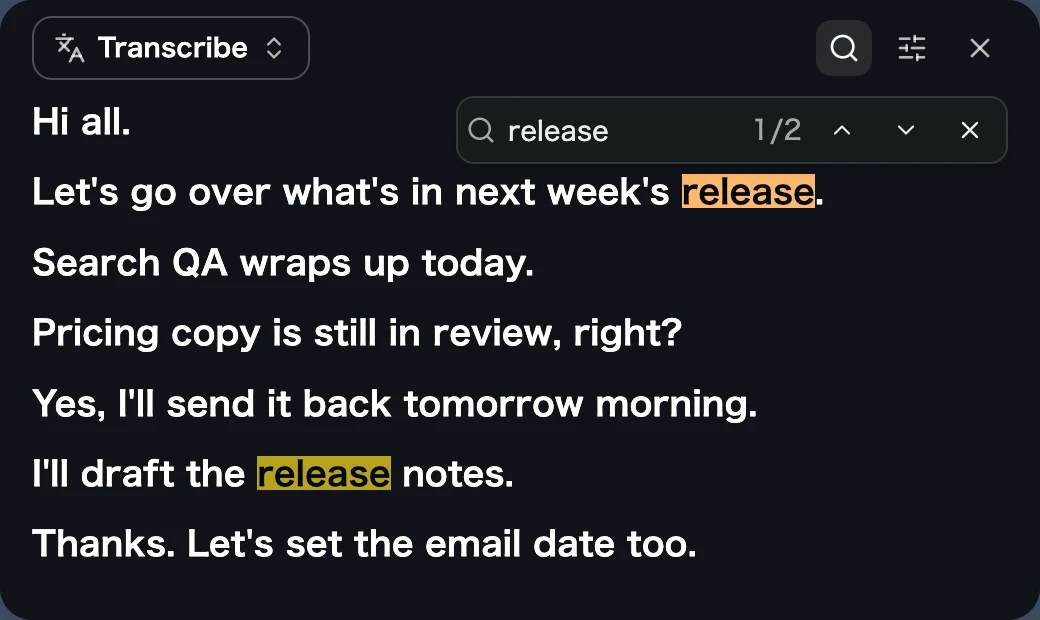
The Live Caption window now has search. Click the search icon in its header (or press ⌘+F, Ctrl+F on Windows, while the window is focused) to open the search bar, and every remark that matches your words is highlighted.
What this changes
- Check what was said without leaving the meeting: When you want to confirm something someone said a few minutes ago, find it right in the captions instead of opening the meeting details. Use the up and down arrows to step through the matches.
- The captions keep their space: The search bar floats over the top-right corner, so the caption area doesn't shrink. If the bar would cover the current match, it moves out of the way.
- Works with translation, too: Search covers the original remarks and the translation on screen. Close the search and the captions jump back to the latest line.
② A Back to playback button in transcripts
When you play a recording in the meeting details and scroll the transcript, an arrow button now appears near the bottom. Click it to scroll back to the line that is playing, and the transcript starts following playback again. It works in both the Desktop app and the web app.

What this changes
- Read around without losing your place: Keep the recording playing while you read earlier or later lines, then get back to what you're hearing in one click.
- The arrow shows the way: The arrow points up when the playing line is above you and down when it's below.
- Only there when you need it: The button appears only when the playing line has moved out of view, and disappears once you're back.
③ Choose when silent recordings stop
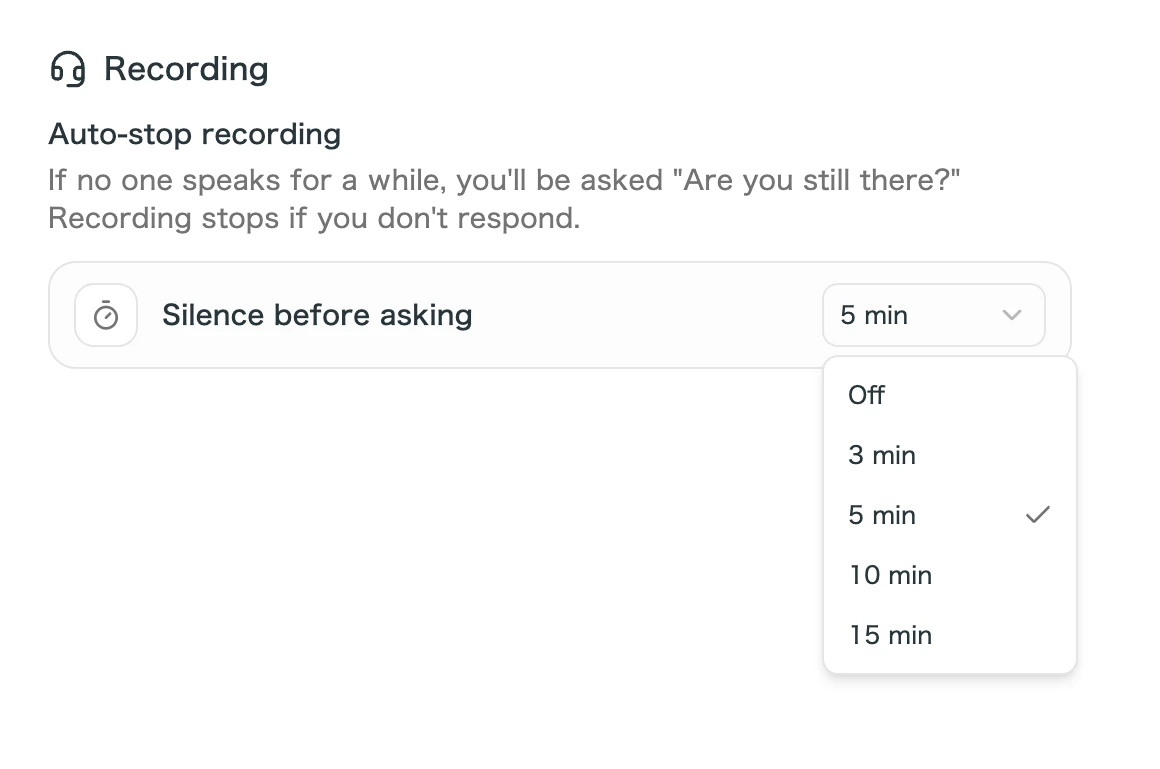
When no one speaks for a while, SuperIntern asks "Are you still there?" and stops recording if you don't respond. You can now choose how long that silence lasts before you're asked. Go to Recording in Settings and pick Off, 3, 5, 10, or 15 minutes under Silence before asking.
What this changes
- Fit it to your meetings: For meetings with quiet stretches, such as time to read a document or work on your own, a longer setting keeps the prompt from interrupting.
- Forgotten recordings still stop: If a meeting ends and you forget to stop recording, the prompt still appears after the time you chose, and the recording ends if no one responds.
- Your current setting stays: The default is still 3 minutes. If you had turned it off, it stays off.
How to Update
For Mac users
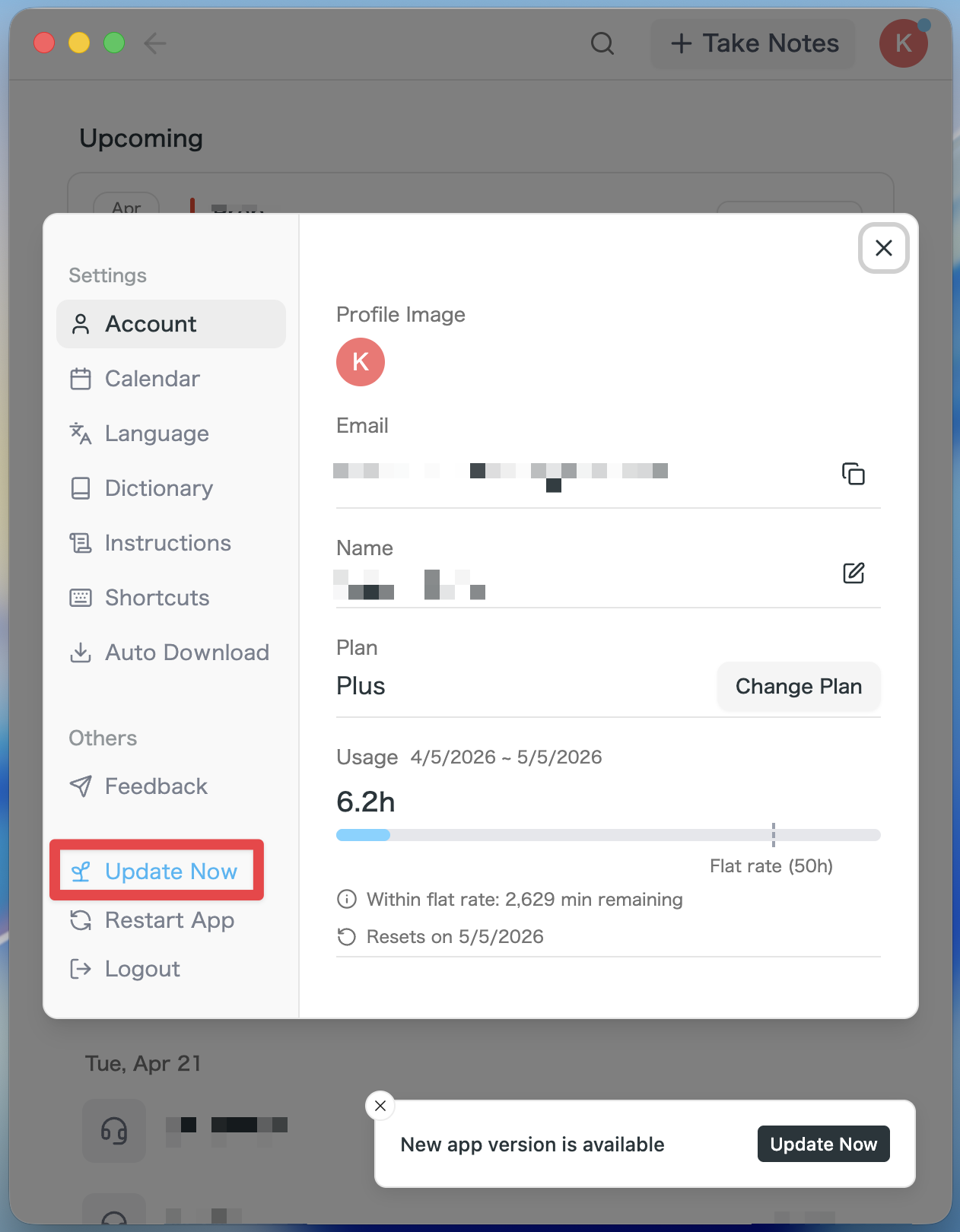
- If an update is available, the latest version is downloaded automatically after you launch the app.
- The Update Now button appears in the sidebar. Click it.
For Windows users
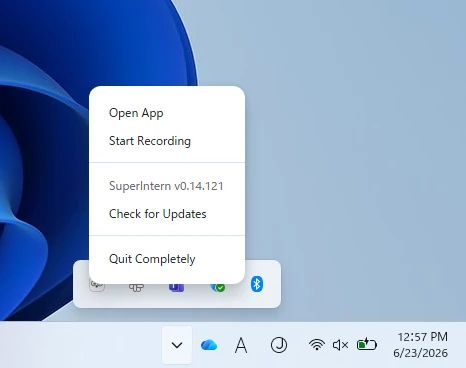
- Open the system tray at the bottom-right of your screen and right-click the SuperIntern app icon.
- Click Check for Updates.
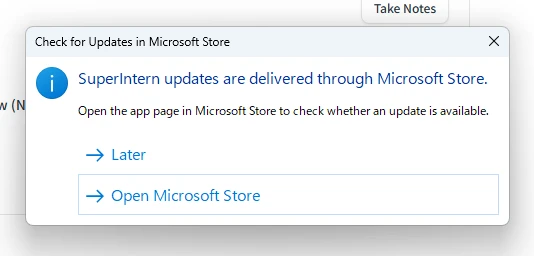
- When the popup appears, click Open Microsoft Store.
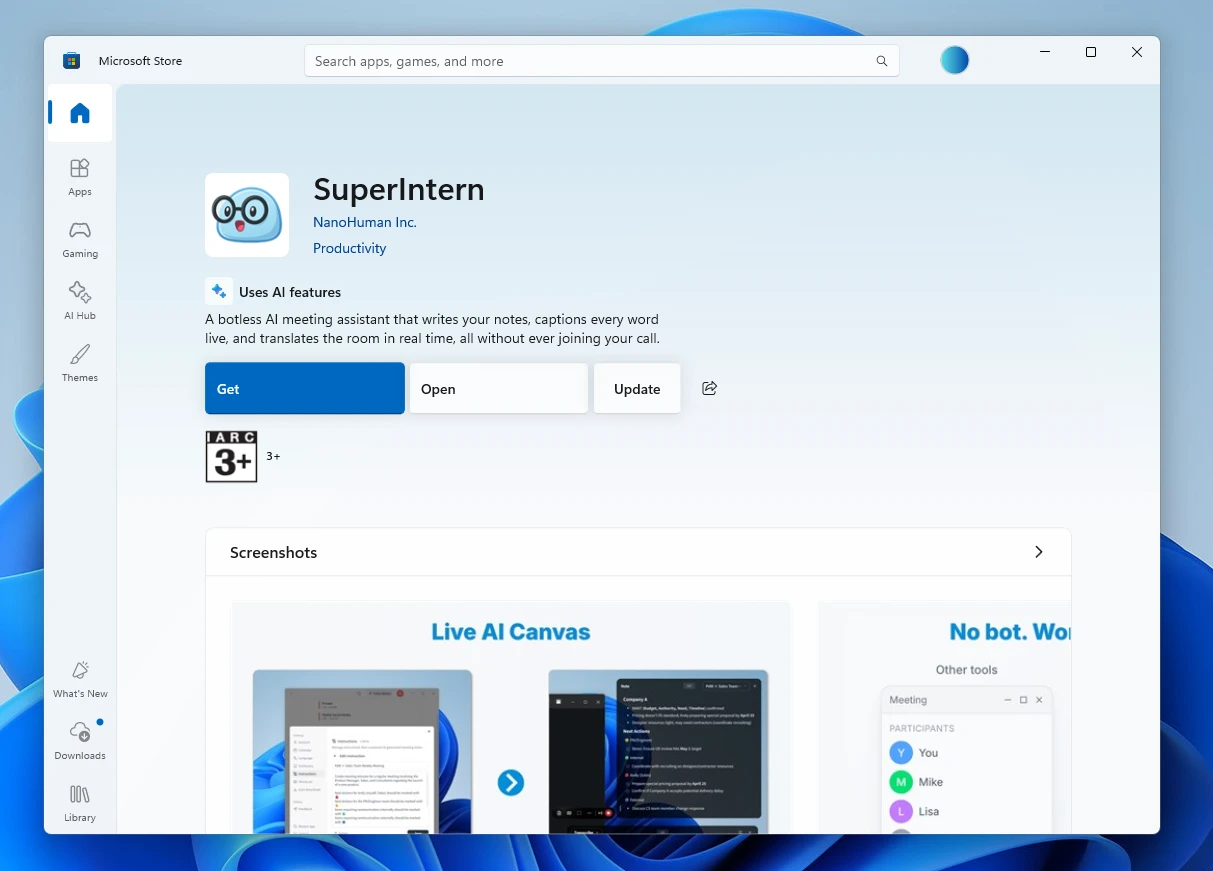
- Once Microsoft Store opens, click Update.
We'll keep improving SuperIntern to make it easier for everyone to use. Update to the latest version before your next meeting and give these a try.