
Language Settings Update: set multiple meeting languages, choose your note and summary language, and use SuperIntern in Traditional Chinese (Taiwan)

We've rebuilt SuperIntern's language settings 🎉
Transcription now holds up better in meetings where several languages are spoken, and you decide whether notes and summaries come out in your own language or in the language of the meeting. SuperIntern also now speaks Traditional Chinese (Taiwan).
Here's a closer look at what changed.
① Set up to 5 meeting languages
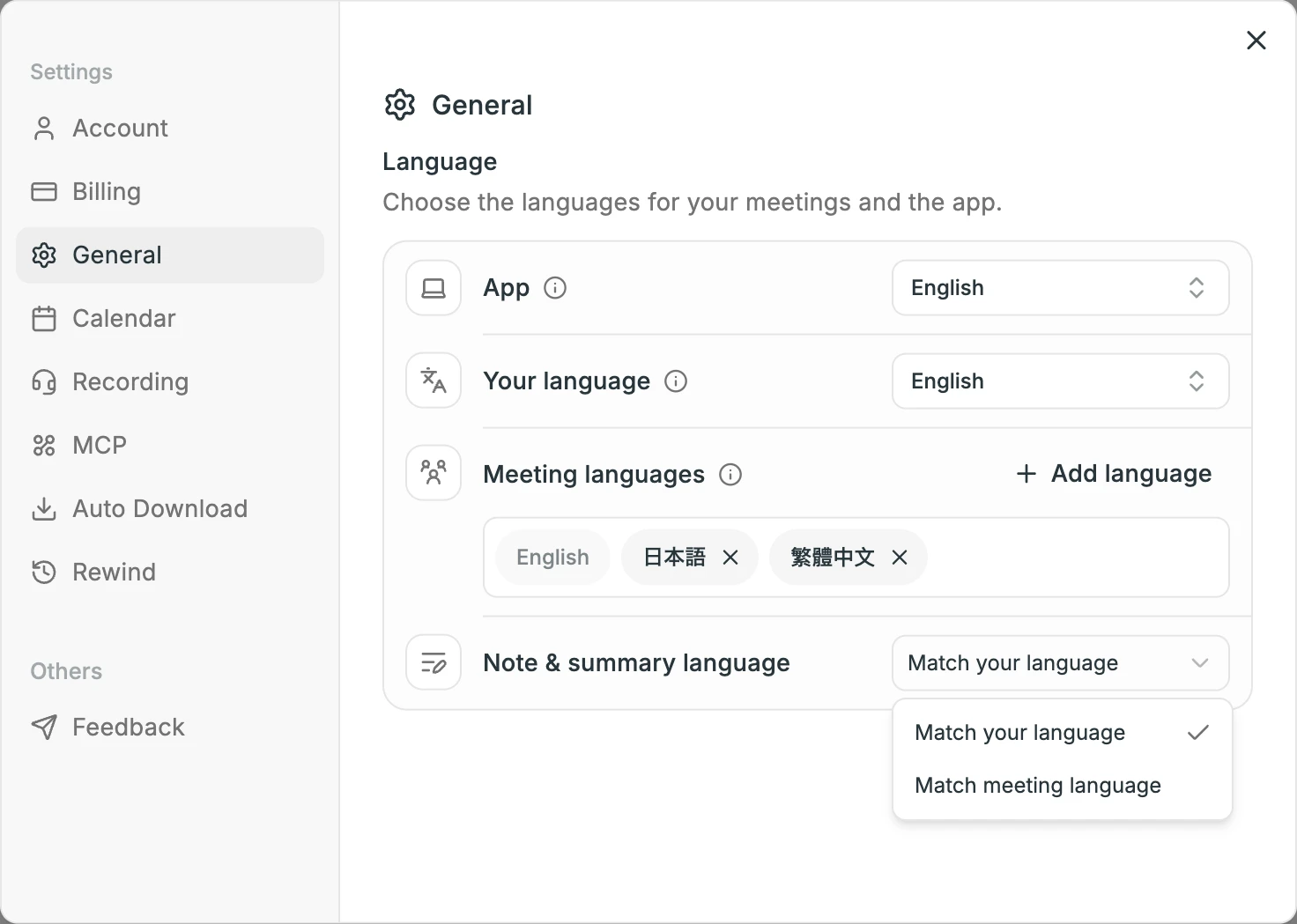
The Language group under Settings > General now includes Meeting languages, where you can register up to 5 languages spoken in your meetings. The first one is Your language, the language you usually speak, and you add the rest with Add language. SuperIntern uses these languages as hints to tell which language is being spoken during transcription.
What this changes
- Steadier recognition in multilingual meetings: When a meeting mixes, say, English and Japanese, telling SuperIntern ahead of time helps it follow each switch between languages.
- Set it once: Your choice carries over to every meeting that follows, so you don't pick languages again each time.
- A clear starting point: If your account doesn't have a language yet, SuperIntern asks for one when you open the app.
② Choose the language of your notes and summaries
With Note & summary language, you choose which language the AI uses for notes and summaries: Match your language or Match meeting language.
What this changes
- Review any meeting in your own language: With Match your language, a meeting held in Japanese or Spanish still gives you notes and a summary in English.
- Share as-is with the people in the room: With Match meeting language, notes and summaries are written in the language that was spoken, ready to send to everyone who attended.
- Separate from the app's display language: The app's interface language and your note and summary language are set independently.
③ Traditional Chinese (Taiwan) support
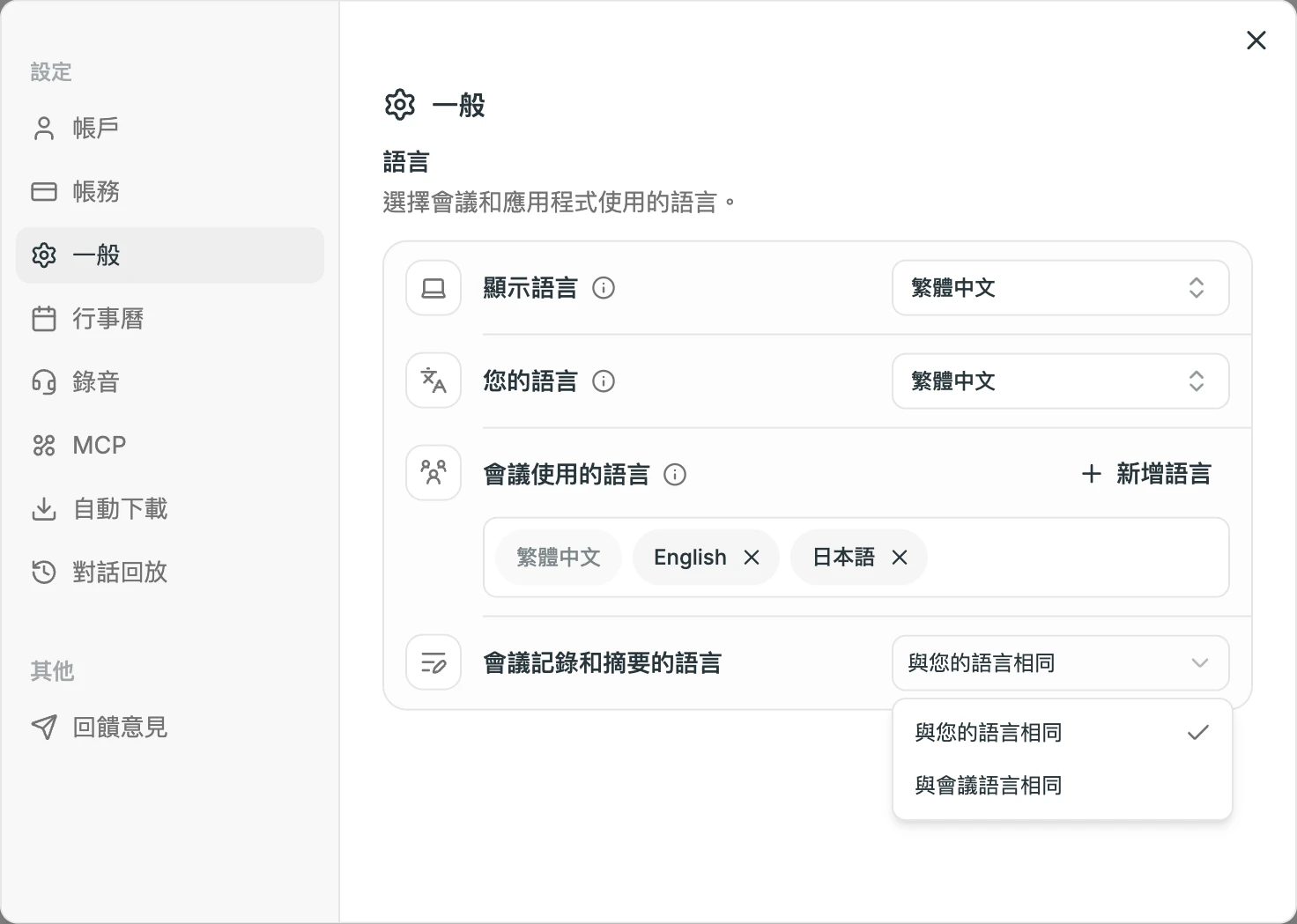
Traditional Chinese (Taiwan) is now available as an app language. In both the desktop app and the web app, text appears in Taiwanese typefaces with punctuation placed the way it is in Taiwan. Choose 繁體中文 in Meeting languages, and Chinese transcripts and Live Caption appear in Taiwan Traditional characters. Live Caption translation also offers both 简体中文 and 繁體中文 as targets.
What this changes
- Your Taiwan team works in its own language: Menus and settings appear in Traditional Chinese, which makes SuperIntern easier to roll out to teams in Taiwan.
- Read transcripts in Traditional characters: Transcripts and Live Caption for Chinese-language meetings appear in Taiwan Traditional characters instead of Simplified.
- Pick the right script for the reader: When translating Live Caption, switch between Simplified and Traditional Chinese to match who's reading.
How to Update
The new language settings are available once you update the desktop app to the latest version. After updating, open Settings > General and find the Language group.
For Mac users
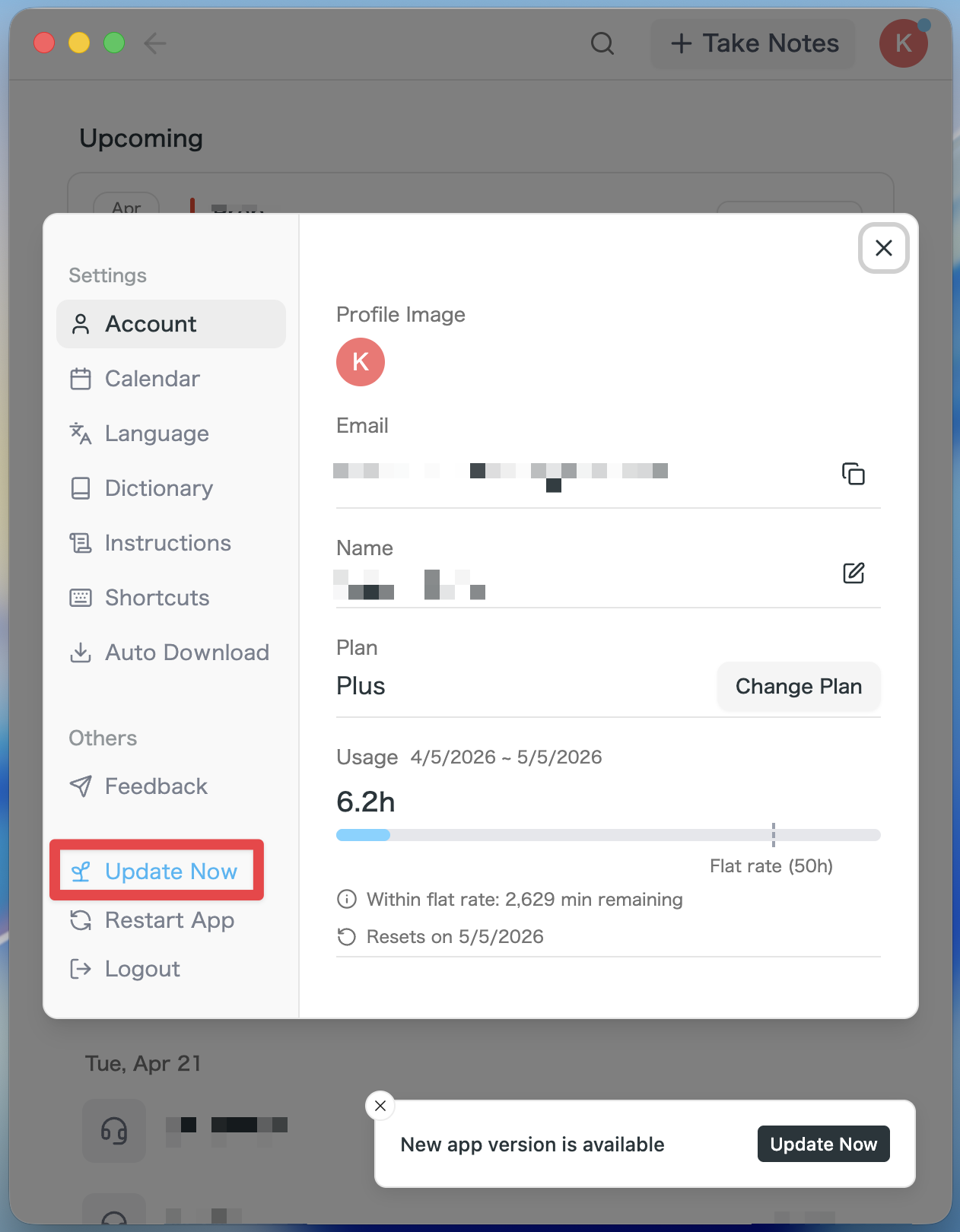
- If an update is available, the latest version is downloaded automatically after you launch the app.
- The Update Now button appears in the sidebar. Click it.
For Windows users
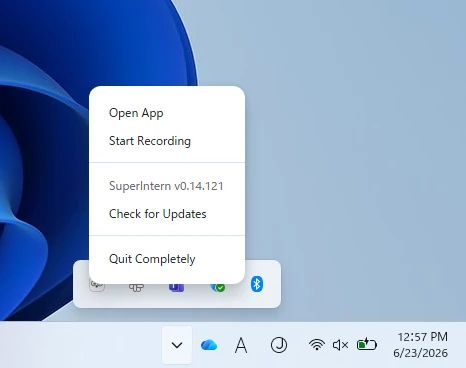
- Open the system tray at the bottom-right of your screen and right-click the SuperIntern app icon.
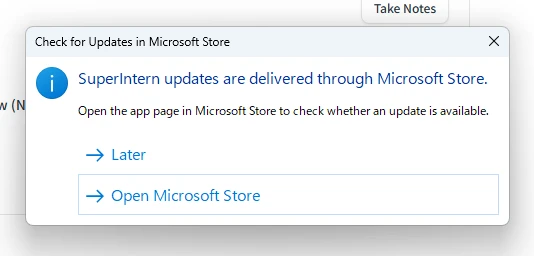
- Click Check for Updates.
- When the popup appears, click Open Microsoft Store.
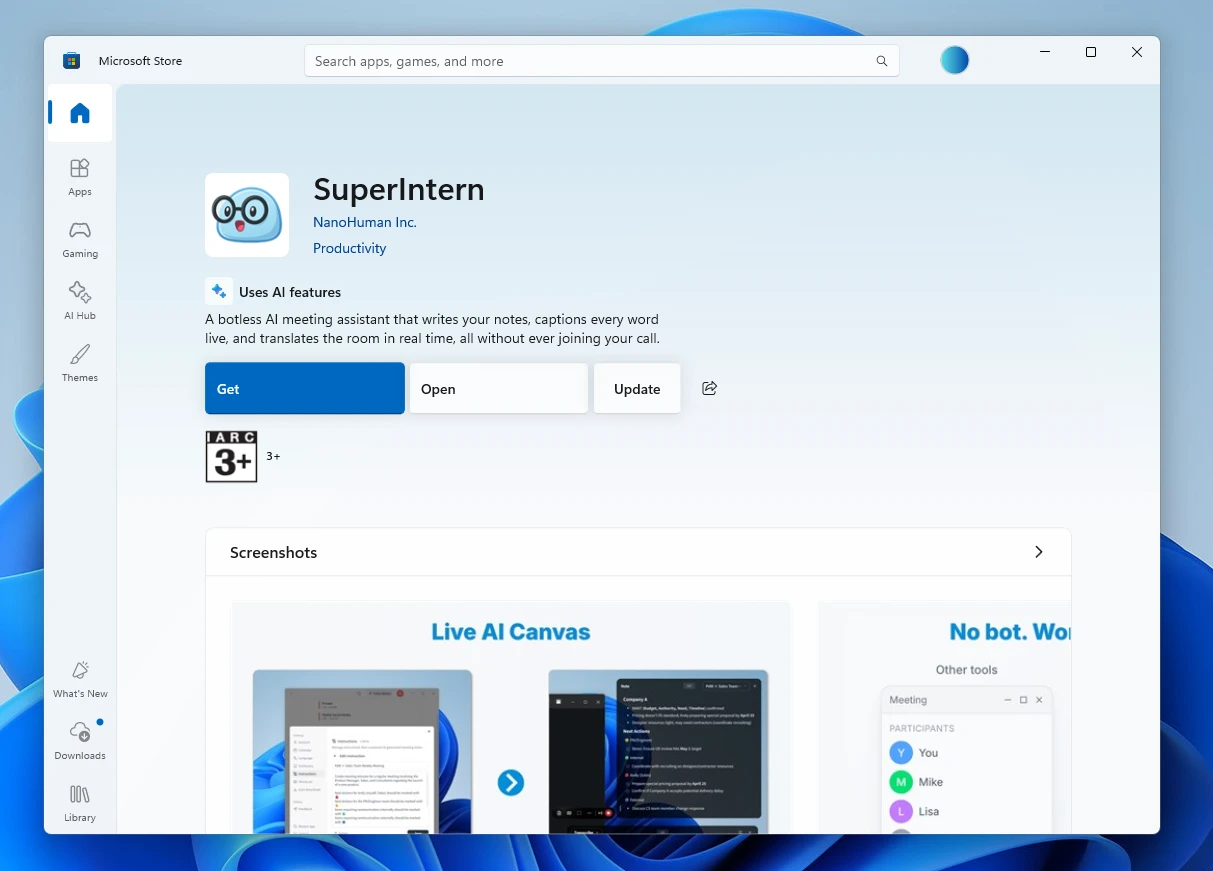
- Once Microsoft Store opens, click Update.
We'll keep improving SuperIntern to make it easier for everyone to use. Update to the latest version before your next meeting and give these a try.