
Weekly Update: auto-record Discord calls, download summaries and notes as Word files, and no more sleep while recording
We've just shipped 3 updates to SuperIntern 🎉
Discord calls can now be recorded automatically, just like Zoom and Teams meetings. Summaries and notes can leave SuperIntern as Word files, and a long meeting no longer gets cut short because your computer fell asleep.
Here's a closer look at each of this week's additions.
① Auto-record Discord calls
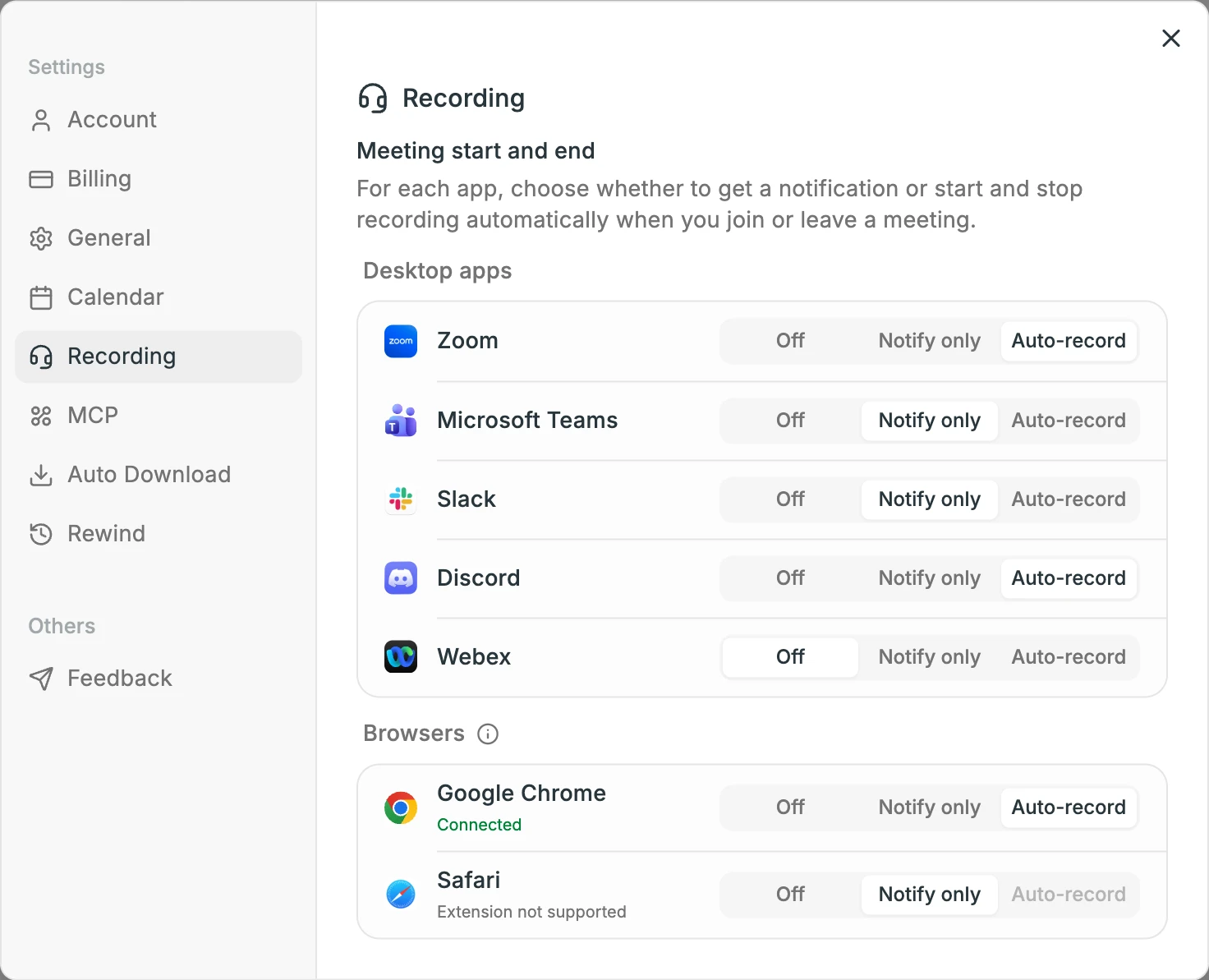
SuperIntern now detects calls in the Discord app. When you join a call, a notification lets you start recording in one click. Set Discord to Auto-record under Meeting start and end in Recording settings, and recording starts as you join the call and stops when you leave. It works on both Mac and Windows.
What this changes
- Keep a record of Discord meetings too: Community calls, game dev syncs, and team voice channels now get a transcript and summary like any other meeting.
- Same controls as your other meeting apps: Choose Notify only, Auto-record, or Off for Discord, just as you do for Zoom or Teams.
- Never forget to hit record: With Auto-record on, joining the call is all it takes.
② Download summaries and notes as Word files
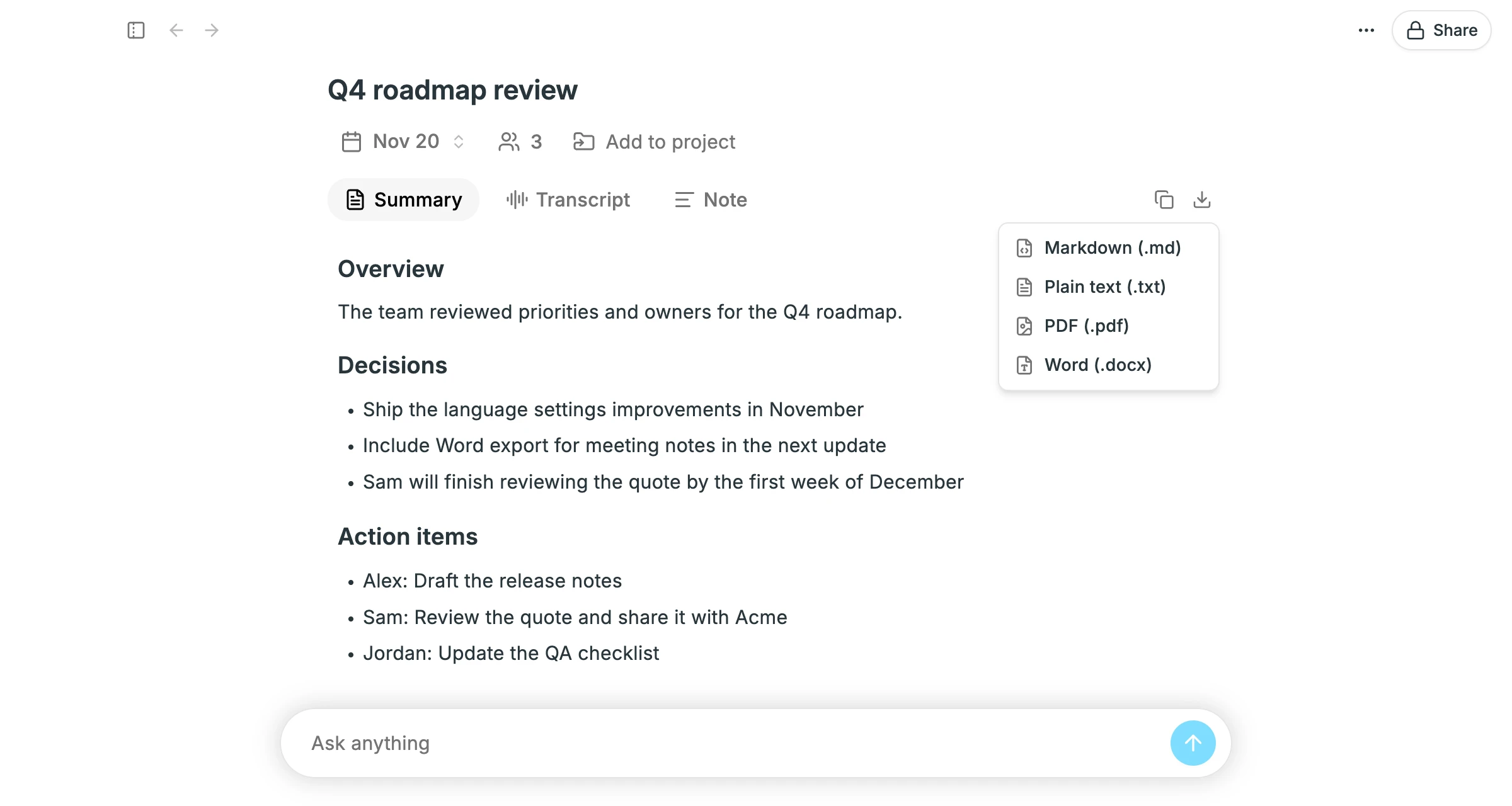
You can now download a meeting's summary and notes as a Word (.docx) file. Open the Download menu on the meeting detail page and choose Word (.docx). It works in both the desktop app and the web app.
What this changes
- Formatting comes with it: Headings, lists, and tables turn into Word formatting, so there's no cleanup after you paste.
- Ready for your report template: If your team files meeting minutes as Word documents, edit the downloaded file and send it on.
- Other formats are still there: Markdown, plain text, and PDF downloads work as before.
③ Your computer stays awake while you record
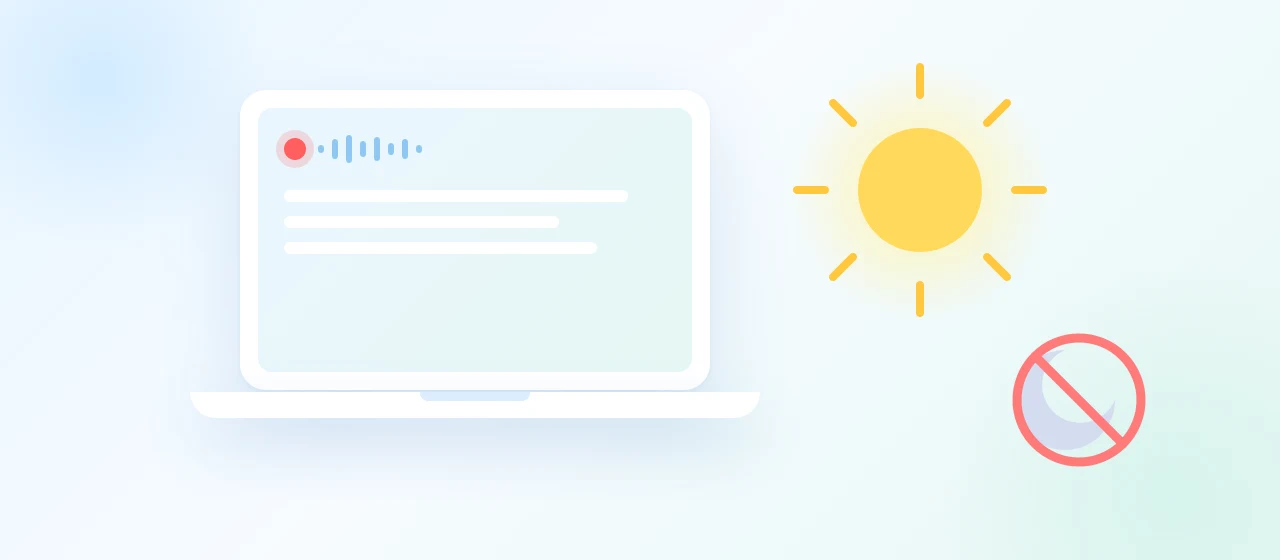
While SuperIntern is recording, your computer no longer goes to sleep when you leave it idle for a while. On Windows, the display stays on too. When recording ends, your usual power settings take over again.
What this changes
- Long meetings stay recorded: Even if you just listen and don't touch your computer for a long stretch, sleep won't stop the recording.
- No need to change power settings: You don't have to extend your sleep timer before every meeting.
- Captions and notes stay in view: On Windows the display stays on as well, so Live Caption and notes are there whenever you glance over.
How to Update
For Mac users
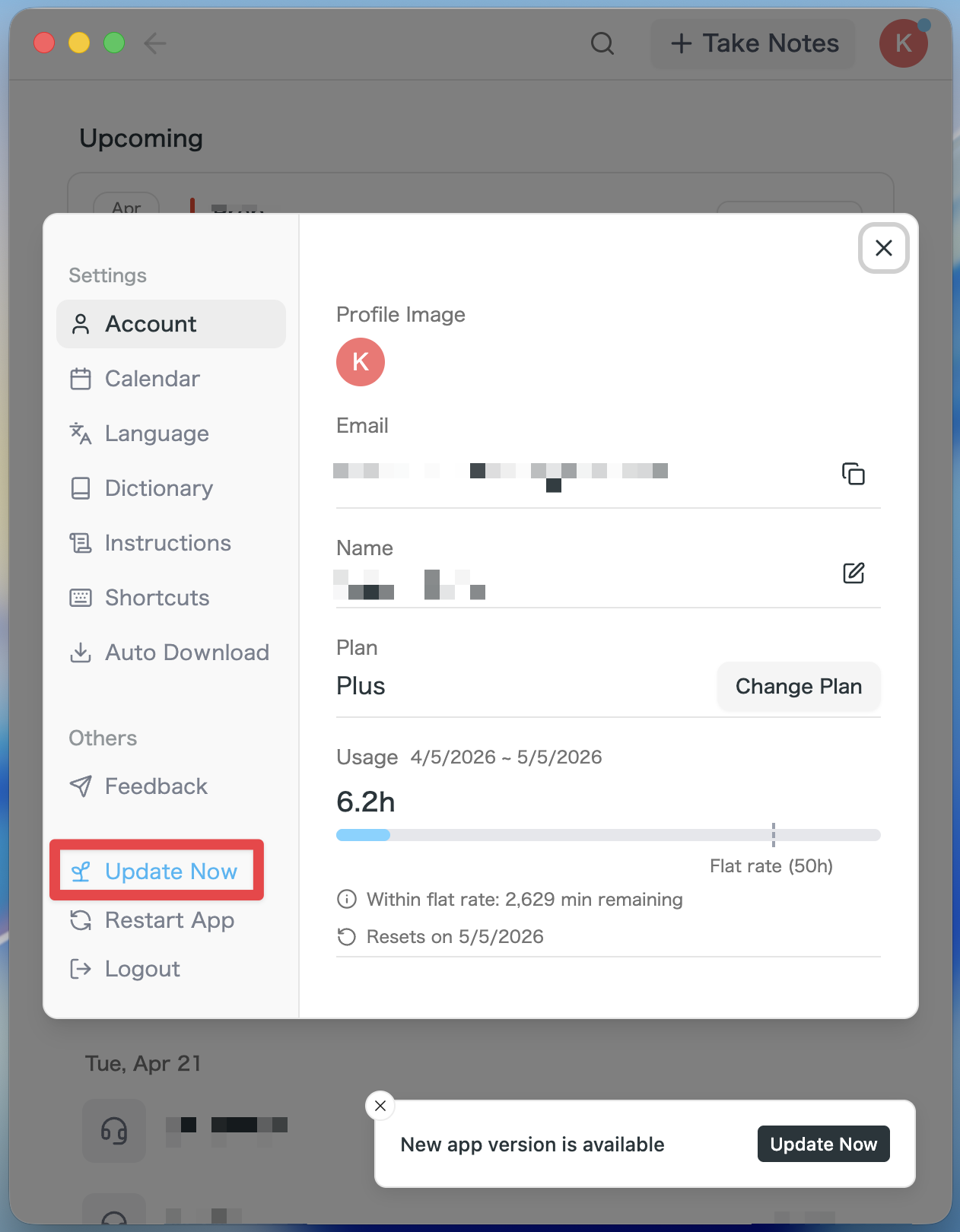
- If an update is available, the latest version is downloaded automatically after you launch the app.
- The Update Now button appears in the sidebar. Click it.
For Windows users
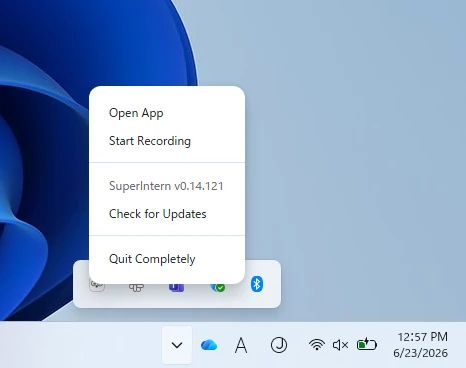
- Open the system tray at the bottom-right of your screen and right-click the SuperIntern app icon.
- Click Check for Updates.
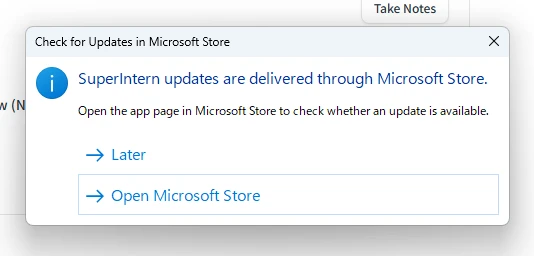
- When the popup appears, click Open Microsoft Store.
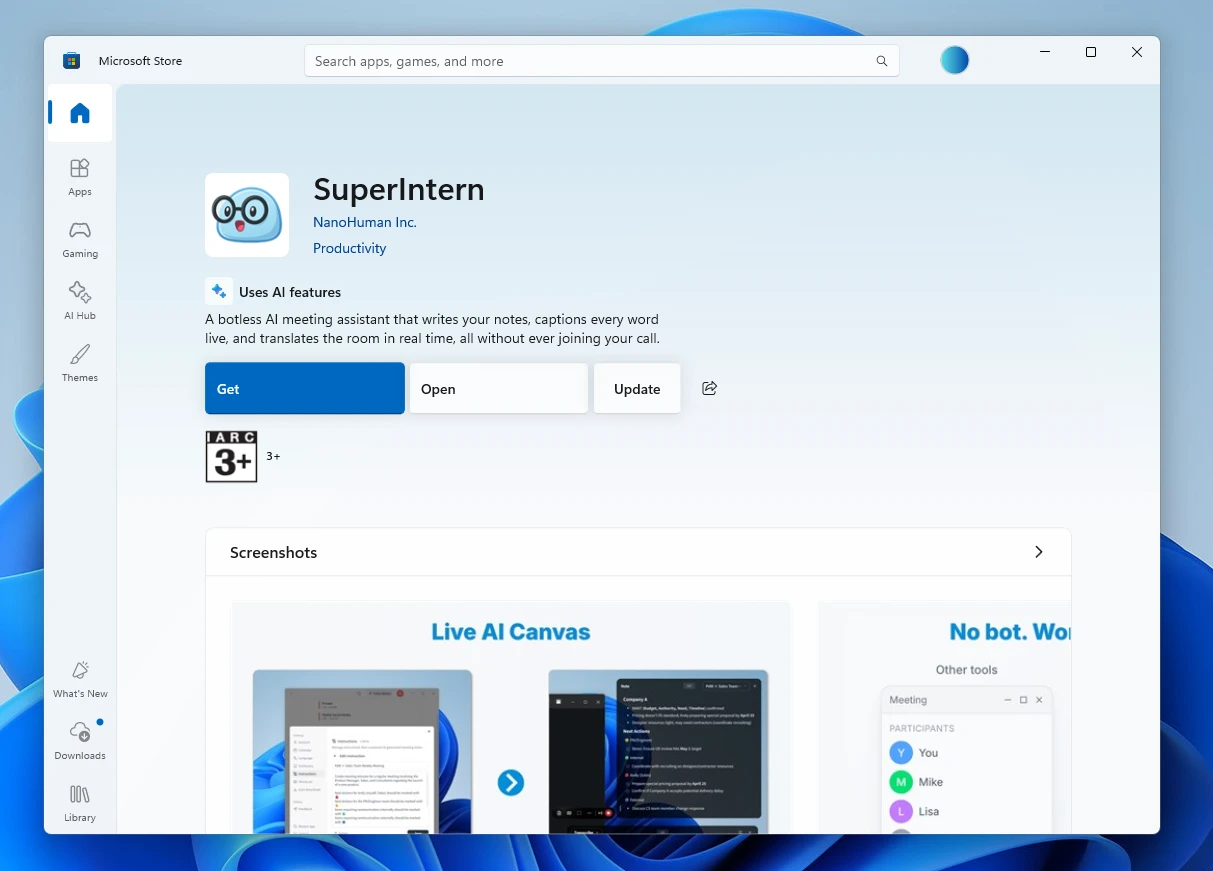
- Once Microsoft Store opens, click Update.
We'll keep improving SuperIntern to make it easier for everyone to use. Update to the latest version before your next meeting and give these a try.