How to Use an AI Notetaker: A Practical Guide for Every Meeting
You just finished a 45-minute strategy call. Someone asks, "Can you send the notes?" You stare at the three bullet points you scribbled down and realize half the decisions are already fuzzy.
This is the problem an AI notetaker solves. Instead of splitting your attention between listening and typing, you let an AI note taker handle the transcription, speaker identification, and summary — so you can focus on the conversation itself.
But how do you actually set one up? Which AI meeting notes tool fits your workflow? And what should you look for when comparing options?
This guide walks you through everything: what an AI notetaker is, who benefits most, how to get started step by step, and which tools lead the market in 2026.
Disclaimer: This article was independently compiled based on publicly available information and user feedback as of April 2026.
Table of Contents
- What Is an AI Notetaker?
- Who Benefits from AI Notetakers?
- How to Set Up and Use an AI Notetaker
- Key Features to Look For
- Top AI Notetakers Compared
- Tips for Getting the Most from Your AI Notetaker
- FAQ
- Conclusion
What Is an AI Notetaker?
An AI notetaker is software that listens to your meetings — live or recorded — and automatically produces a written record of what was said. Modern note taker AI tools go far beyond simple transcription. They identify who is speaking, extract action items, generate summaries, and even translate conversations in real time.
There are two main architectures:
- Bot-based notetakers send a virtual participant into your Zoom, Google Meet, or Teams call. Everyone in the meeting can see the bot in the participant list. Examples include Otter.ai and tl;dv.
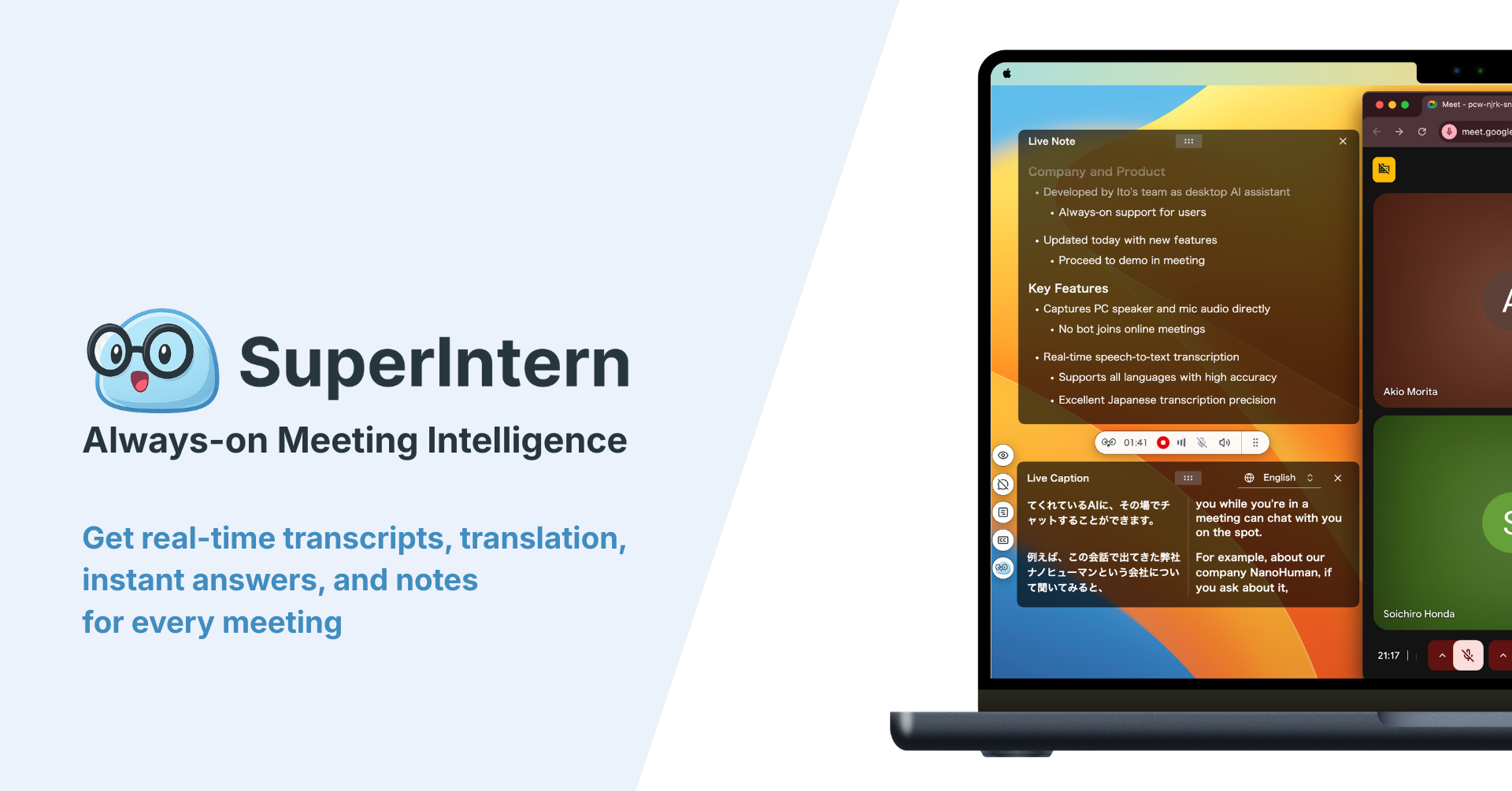
- Bot-free notetakers capture audio directly from your computer's speakers and microphone. No one knows the tool is running unless you tell them. SuperIntern and Granola use this approach.
The practical difference matters. Bot-based tools can make clients uncomfortable and are sometimes blocked by IT policies. Bot-free tools work invisibly on any platform — including Webex, Slack Huddles, Discord, and in-person meetings.
Regardless of architecture, the core value is the same: AI meeting notes replace manual note-taking, so nothing slips through the cracks.
Who Benefits from AI Notetakers?
Almost anyone who attends meetings regularly can save time with a notes AI tool. Here are the roles that benefit most:
Sales Teams
Sales reps live in back-to-back calls. An AI notetaker captures every objection, buying signal, and commitment — then feeds structured notes into your CRM. No more "I think they said they need it by Q3."
Product Managers
PMs juggle stakeholder feedback, sprint reviews, and customer calls. Meeting notes AI tools let them search across dozens of conversations to find exactly when a feature request was first raised or when a decision was made.
HR and Recruiters
Interview panels need consistent, searchable records. An AI note taker creates speaker-separated transcripts that help reduce bias and ensure every interviewer has the same information.
Executives and Team Leads
Leaders who attend 6-8 meetings a day cannot take detailed notes in all of them. AI meeting notes give them a reliable record of every discussion, with action items highlighted automatically.
Students and Researchers
Lectures, seminars, and research interviews generate hours of audio. An AI notetaker turns that audio into searchable text, making it easy to find specific quotes or concepts later.
How to Set Up and Use an AI Notetaker
Getting started with an AI notetaker takes less than five minutes with most tools. Here is a step-by-step guide:
Step 1: Choose the Right Tool
Consider three factors:
- Meeting platforms you use. If you only use Zoom, most tools will work. If you use a mix of platforms or have in-person meetings, choose a bot-free option like SuperIntern.
- Language needs. If your meetings involve multiple languages, look for real-time translation — not just transcription.
- Privacy requirements. Some organizations prohibit bots from joining calls. A bot-free note taker AI avoids this issue entirely.
Step 2: Install and Create an Account
Most AI notetakers offer a free plan to get started. For desktop apps like SuperIntern, download the app and create an account — no credit card required.
For browser-based tools, install the Chrome extension and grant the necessary permissions.
Step 3: Configure Your Settings
Before your first meeting, set up:
- Preferred language(s) for transcription and translation
- Audio source — system audio, microphone, or both
- Summary style — bullet points, narrative, or structured minutes
- Integrations — connect to Slack, Notion, or your CRM if the tool supports it
Step 4: Start a Meeting and Let It Record
With a bot-free tool like SuperIntern, simply join your meeting on any platform. SuperIntern detects the meeting audio and prompts you to start recording. During the call, you will see real-time captions and a live summary updating as the conversation progresses.
With bot-based tools, you typically schedule the bot to auto-join calendar events, or manually invite it to a specific meeting.
Step 5: Review and Share Your Notes
After the meeting ends, your AI meeting notes are ready within seconds. You can:
- Edit the transcript and summary for accuracy
- Export notes in Markdown, PDF, or plain text
- Share a link with your team
- Use the AI chat feature to draft follow-up emails or extract specific information
Key Features to Look For
Not all AI notetaker tools are created equal. Here are the features that separate great tools from mediocre ones:
Real-Time Transcription
The best tools transcribe speech as it happens — not after the meeting. This lets you glance at the transcript during the call to confirm you caught a key point, without interrupting the speaker.
Speaker Diarization
Speaker diarization means the AI identifies who said what. Without it, you get a wall of text with no attribution. With it, you get structured notes that are immediately useful for follow-ups.
AI-Powered Summaries
Raw transcripts are long. A good meeting notes AI tool condenses a 60-minute call into a concise summary with key decisions, discussion points, and action items — ready to paste into Slack or email.
Integrations
Look for tools that connect with your existing stack: Slack, Notion, Google Docs, Salesforce, HubSpot, or Jira. The less manual copying you do, the more time you save.
Multilingual Support
If your team spans multiple countries, you need an AI notetaker that handles multiple languages — ideally with real-time translation so everyone can follow along in their preferred language.
Privacy and Invisibility
A tool that is invisible to other participants (bot-free) and does not store raw audio gives you the strongest privacy posture. This matters especially for client-facing calls.
Top AI Notetakers Compared
Here are the leading AI note taker tools in 2026, with an honest look at strengths and limitations.
1. SuperIntern — Best Overall AI Notetaker

SuperIntern is a bot-free desktop app that captures system audio and microphone input without joining your meeting. It stands out for its real-time capabilities: live transcription, rolling summary, and translated captions — all visible during the call in an unobtrusive overlay.
Key strengths:
- Bot-free design — No participant added to the call, works on any platform
- Real-time live summary — Key points organized while the meeting is still happening
- Invisible Mode — Hides the UI from screen sharing and screenshots
- Post-meeting minutes with speaker separation, action items, and Markdown export — ready in 3 seconds
- AI Chat for drafting follow-up emails and extracting information from the meeting
- 50+ languages with real-time translation
Pricing: Free plan available (no credit card). Plus at $20/month for 100 hours.
2. Otter.ai — Best for English-First Teams
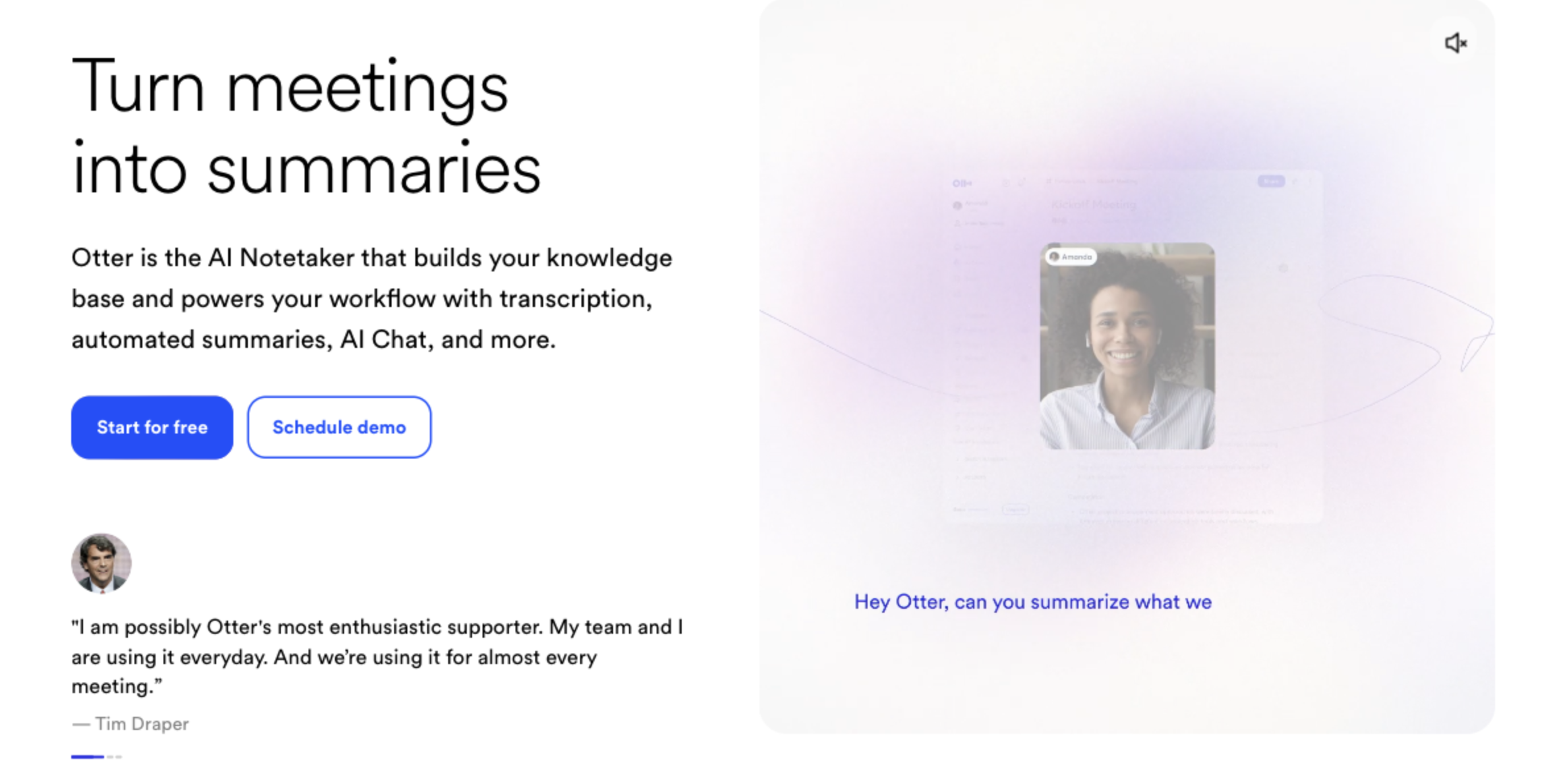
Otter.ai is one of the most established AI notetaker tools, known for strong English transcription accuracy. It uses a bot to join meetings on Zoom, Google Meet, and Teams.
Key strengths:
- High-accuracy English transcription with speaker identification
- Browser-based with file upload support
- Keyword and topic detection for quick searching
Limitations: Bot joins the meeting visibly. Limited non-English language support. Free plan capped at 300 minutes/month.
Pricing: Free (300 min/month). Pro at $16.99/month.
3. Notta — Best for Multilingual File Uploads
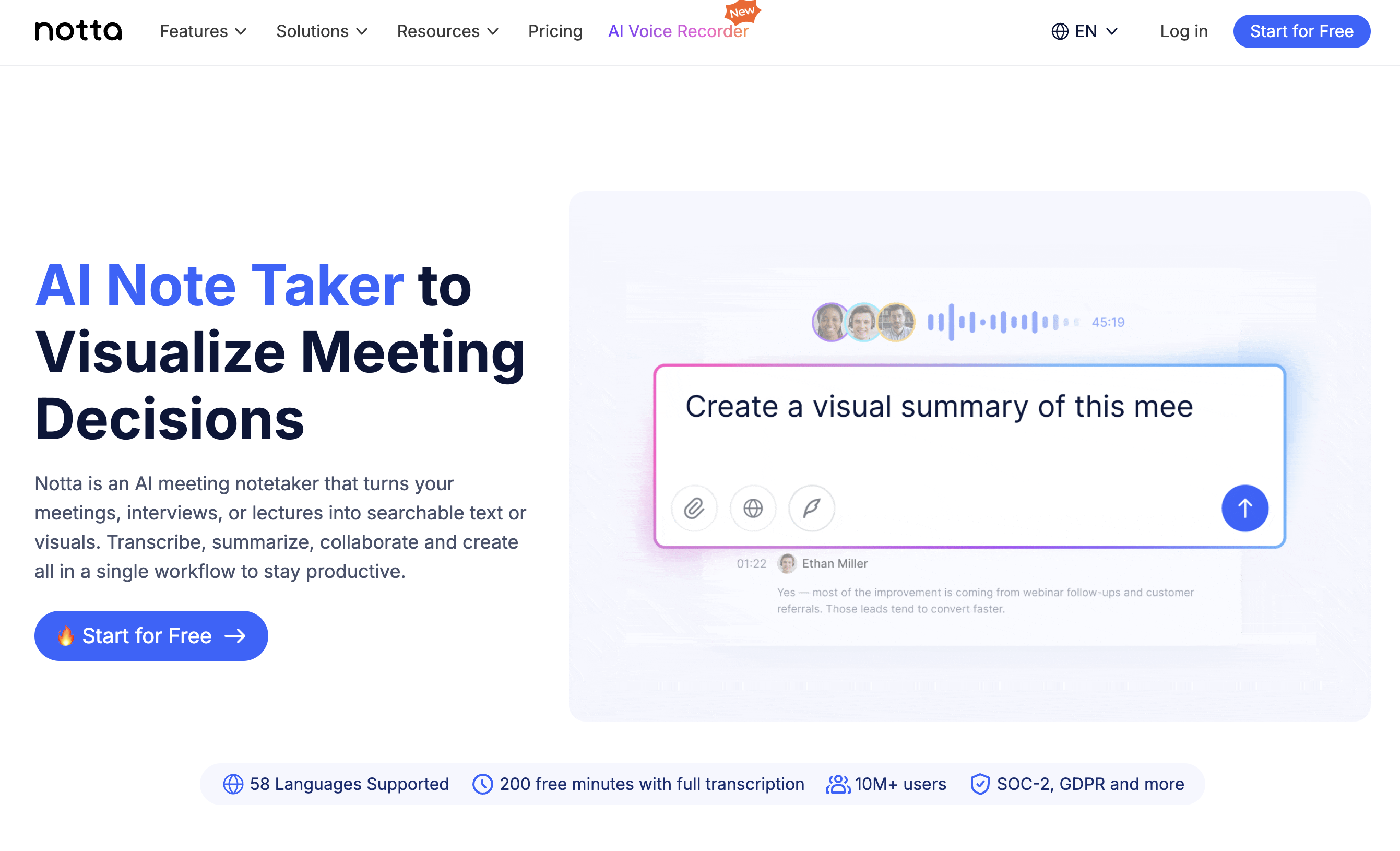
Notta supports 104 languages and offers both real-time transcription (via bot) and audio/video file upload. It is widely adopted in Japan and has a clean, straightforward interface.
Key strengths:
- 104-language support with strong non-English accuracy
- Upload audio or video files for transcription
- AI summary and action item extraction
- Desktop, web, and mobile apps
Limitations: Bot joins meetings for real-time transcription. Free plan limited to 120 minutes/month.
Pricing: Free (120 min/month). Pro at $14.99/month.
4. Fathom — Best Free Option for Zoom
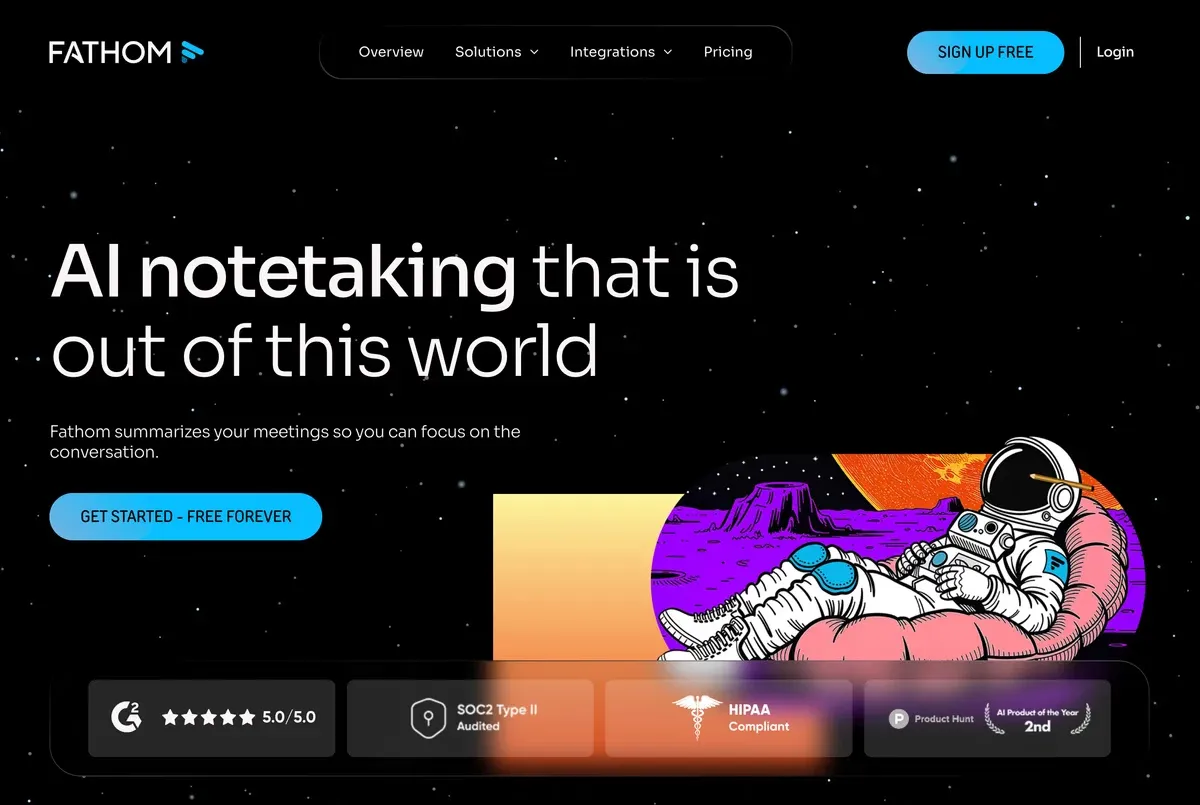
Fathom offers unlimited free recording and transcription for Zoom meetings. It uses a bot but has gained popularity for its generous free tier and clean summary output.
Key strengths:
- Unlimited free Zoom recording and AI summaries
- Highlight key moments during calls with one click
- CRM integrations with Salesforce and HubSpot
Limitations: Bot-based, visible to participants. Primarily focused on Zoom — limited support for other platforms. Advanced features require a paid plan.
Pricing: Free plan (unlimited Zoom). Pro at $19/month.
5. Granola — Best for Privacy-First Note Enhancement
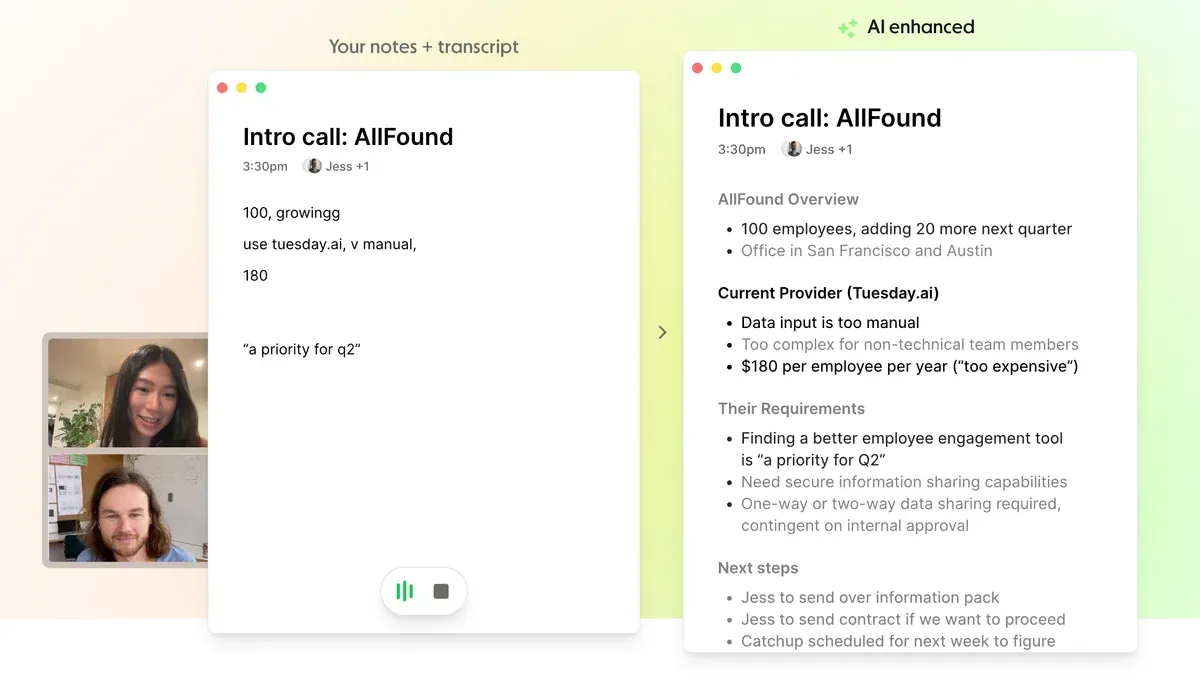
Granola takes a unique approach: you jot rough notes during the call, and after it ends, the AI enriches them using the full transcript. Audio is processed and immediately deleted.
Key strengths:
- No audio or video storage — strong privacy posture
- AI enhances your handwritten notes with transcript context
- Clean, minimal interface
Limitations: No real-time summary during the meeting. No audio playback. Free plan has limited meeting history.
Pricing: Free (limited history). Business at $14/user/month.
6. tl;dv — Best for Meeting Recording Libraries
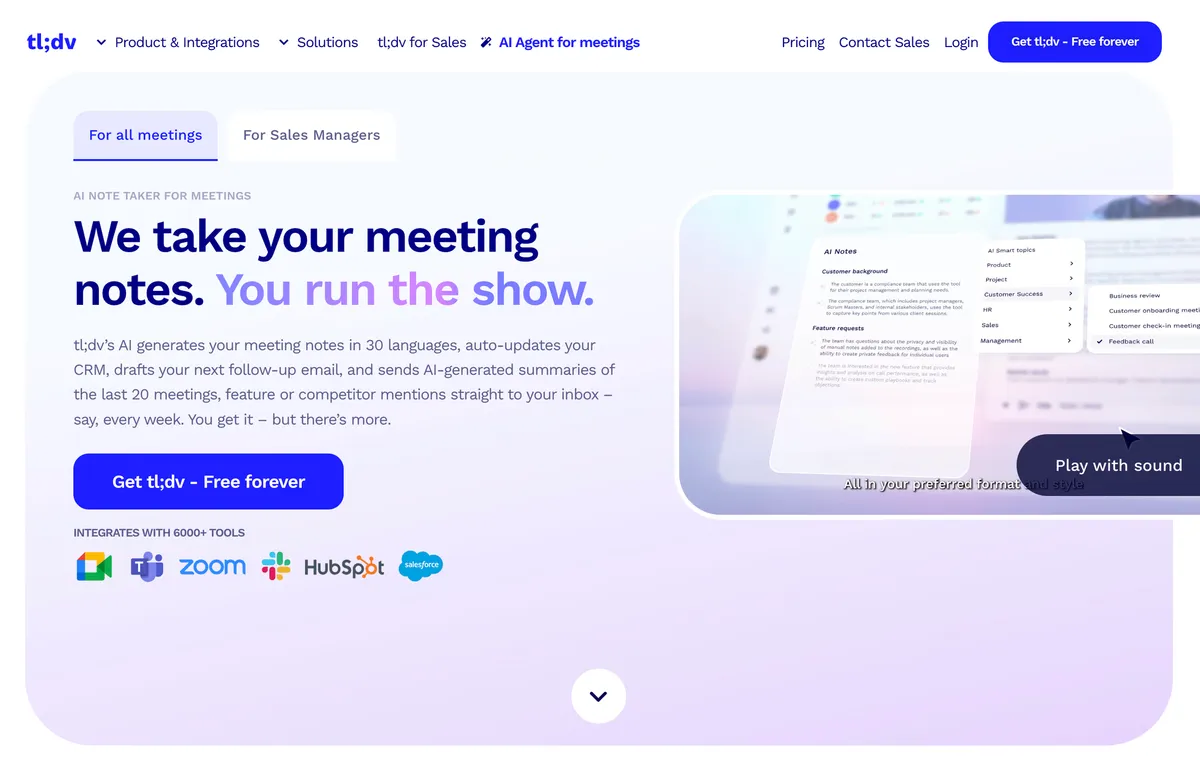
tl;dv records meetings via bot and creates a searchable library of past calls. It is popular with sales and customer success teams who need to revisit conversations.
Key strengths:
- Searchable video and transcript library
- AI-generated highlights and chapter markers
- Integrations with CRMs and project management tools
Limitations: Bot-based, visible to all participants. Free plan limits AI features. Platform support limited to Zoom, Meet, and Teams.
Pricing: Free plan available. Pro at $18/user/month.
Comparison Table
| Feature | SuperIntern | Otter.ai | Notta | Fathom | Granola | tl;dv |
|---|---|---|---|---|---|---|
| Bot-free | Yes | No | No | No | Yes | No |
| Real-time summary | Yes | No | No | No | No | No |
| Real-time translation | Yes (50+) | No | Limited | No | No | No |
| Speaker diarization | Yes | Yes | Yes | Yes | Yes | Yes |
| AI meeting notes | Yes | Yes | Yes | Yes | Yes | Yes |
| Invisible to screen share | Yes | No | No | No | No | No |
| Works on any platform | Yes | Zoom/Meet/Teams | Zoom/Meet/Teams | Zoom-focused | Yes | Zoom/Meet/Teams |
| Free plan | Yes | 300 min/mo | 120 min/mo | Unlimited (Zoom) | Limited history | Yes |
Tips for Getting the Most from Your AI Notetaker
Even the best AI note taker benefits from a few simple habits:
- Use a quality microphone. A USB headset or dedicated microphone dramatically improves transcription accuracy — especially for speaker diarization.
- Minimize background noise. Close windows, mute notifications, and choose a quiet room. AI handles background noise better than ever, but clarity still matters.
- Speak clearly and at a moderate pace. Rapid speech and crosstalk are challenging for any transcription engine.
- Review notes immediately after the meeting. Correct any errors while the discussion is fresh in your mind. Most tools let you edit the transcript directly.
- Use AI chat to extract action items. Instead of scanning the entire transcript, ask the AI: "What are the action items from this meeting?" or "Summarize what the client requested."
- Share notes with your team within 10 minutes. The faster you distribute meeting notes AI, the more likely your team will act on decisions while they are still top of mind.
FAQ
What is an AI notetaker?
An AI notetaker is software that automatically transcribes, summarizes, and organizes meeting conversations. It captures audio — either through a bot that joins the call or by recording directly from your device — and uses AI to produce structured notes with speaker labels, action items, and key decisions.
Is it legal to use an AI note taker in meetings?
Recording laws vary by jurisdiction. In most places, you need to inform participants that the meeting is being recorded. Whether you use a bot or a bot-free tool, always check your local regulations and company policies before recording.
Can AI meeting notes replace a human note-taker?
For most business meetings, yes. AI meeting notes are faster, more comprehensive, and more consistent than manual notes. However, for highly sensitive or legally binding discussions, you may still want human verification.
Do AI notetakers work with in-person meetings?
Bot-free AI notetakers like SuperIntern can record in-person meetings by capturing audio from your laptop's microphone. Bot-based tools cannot, since there is no virtual meeting for the bot to join.
How accurate is AI transcription in 2026?
With clear audio, modern AI notetakers achieve 90-98% accuracy. Factors like background noise, strong accents, and domain-specific jargon can reduce accuracy, but most tools improve over time as their models are updated.
Ready to stop scribbling notes and start focusing on conversations? Try SuperIntern for free — no credit card, no bot in your meetings, and your AI meeting notes are ready in seconds.