
AirPods Live Translation: Requirements, Languages, and Limits at Work (2026)
Since iOS 26, AirPods can translate a conversation straight into your ears. The person in front of you speaks Spanish, and a moment later you hear English. For travel, that is a big step forward. The question many professionals ask is whether it holds up at work: in a client visit, in a Teams call with headquarters, or in a workshop with a partner from Japan.
This guide covers what Live Translation with AirPods can do, which devices and languages you need, how a conversation actually flows, and where the limits are. At the end you will find a decision table for picking the right tool in each situation.
⚠️ This article was independently compiled based on publicly available information and user feedback as of November 2026.
Table of Contents
- What is Live Translation with AirPods?
- Requirements: which AirPods, which iPhone, which languages
- How a conversation with Live Translation works
- Live Translation in Phone, FaceTime, and Messages
- Where AirPods translation falls short at work
- AirPods, translator app, or meeting tool: the decision table
- For video calls and meetings: SuperIntern
- Quick check: are AirPods enough for your meeting?
- FAQ
- Conclusion
What is Live Translation with AirPods?
Live Translation is an Apple Intelligence feature. Your AirPods pick up what the other person says through their microphones. Your iPhone detects the language, translates the sentence, and plays the translation as a synthetic voice in your ears. At the same time, Active Noise Cancellation lowers the original voice so you can focus on the translation.
According to Apple, processing happens on the device. The conversation is not sent to a third-party translation service, which matters to many users.
Apple introduced the feature with iOS 26 in September 2025. Users in the EU had to wait: Apple cited the extra engineering work needed to comply with the Digital Markets Act. Live Translation on AirPods has been available in the EU since December 2025.
What the feature is not
AirPods translation is not an interpreter for an entire room. It is designed for two people talking face to face. It also does not automatically translate everything you hear through your AirPods, so it will not translate a YouTube talk or the audio of a Zoom meeting. That distinction matters if you plan to rely on it for work.

Requirements: which AirPods, which iPhone, which languages
You need three things: compatible AirPods, an iPhone that supports Apple Intelligence, and a supported language pair.
Compatible AirPods
| Model | Supported |
|---|---|
| AirPods Pro 3 | Yes |
| AirPods Pro 2 | Yes, with the latest firmware |
| AirPods 4 with Active Noise Cancellation | Yes |
| AirPods 4 without Active Noise Cancellation | No |
| AirPods Max 2 | Yes, per Apple's current support page |
| Older models (AirPods 3, first-generation AirPods Pro) | No |
Compatible iPhone
The feature requires an iPhone that runs Apple Intelligence: iPhone 15 Pro and 15 Pro Max, and every model from the iPhone 16 lineup onward, including iPhone Air. The iPhone needs the latest version of iOS with Apple Intelligence turned on. Apple also requires the device language and the Siri language to be set to the same supported language.
A standard iPhone 15 or 15 Plus is not enough. If you have an older iPhone, your AirPods keep working as headphones, but Live Translation is not available.
Supported languages
As of November 2026, Apple lists these languages for Live Translation with AirPods:
| Language | Variants |
|---|---|
| English | US, UK |
| French | France |
| German | |
| Spanish | Spain |
| Italian | |
| Portuguese | Brazil |
| Japanese | |
| Korean | |
| Chinese (Mandarin) | Simplified and Traditional |
That covers the major business languages of Europe and East Asia. If your partners speak Polish, Turkish, Dutch, Arabic, or Hindi, AirPods will not help yet. The list is much shorter than Google Translate's or the 50+ languages offered by meeting tools.
How a conversation with Live Translation works
How natural the experience feels depends mostly on whether the other person is also wearing compatible AirPods.
Both people wear AirPods
This is the ideal case, which Apple itself describes as seamless. Each person hears the translation in their own ears while noise cancellation softens the original voice. You speak normally, and short pauses between sentences are enough. It feels close to having an interpreter whispering beside you.
The other person does not wear AirPods
In everyday life, this is the more common case. You still hear the translation in your AirPods. The other person reads your replies as a live transcript in their language on your iPhone screen. In practice, you hold the iPhone between the two of you, much like a classic translator app.
That works well for short exchanges: a question at the hotel desk, a quick arrangement with a contractor, a chat at a trade show booth. In longer conversations, passing the screen back and forth gets tiring fast.
More than two people
When three or more people talk, sometimes over each other, the feature reaches its limit. It is built to listen to one person and translate their language. In a group with changing speakers and interruptions, it is easy to lose track of who said what. It also does not produce any notes.
An everyday example
A sales director from Chicago visits a client in Madrid. Over lunch with the head of procurement, who speaks little English, she uses AirPods translation: he speaks Spanish, she hears English and answers in English, and he reads her reply on the iPhone. For a relaxed lunch conversation, that is plenty.
In the afternoon comes the negotiation in a conference room with four people, including someone from legal who joins via Teams. An iPhone on the table barely helps now. She needs captions for every voice in the room and on the call, plus a written record of the terms they agree on.
Live Translation in Phone, FaceTime, and Messages
Beyond AirPods, Apple built Live Translation into its own communication apps:
- Phone: On calls, you hear the translation spoken aloud, and the other person hears your translated reply. Apple describes this as available for one-on-one calls.
- FaceTime: Video calls show translated live captions, also for one-on-one calls.
- Messages: Incoming and outgoing texts are translated automatically, with a longer list of languages.
These features also need a device with Apple Intelligence. For Phone and FaceTime, Apple lists the same languages as for AirPods.
What Apple's documentation does not mention is Zoom, Microsoft Teams, Google Meet, or Webex. Live Translation is tied to Apple's own apps. If your workday happens on those platforms, you need a different solution.
Where AirPods translation falls short at work
For personal travel, the feature is a genuine relief. In professional use, a few gaps appear that you should know about before an important meeting.
| Limit | What it means at work |
|---|---|
| Designed for two people | In meetings with several speakers, attribution gets lost |
| No translation of Zoom, Teams, or Meet audio | It does not help in a video call with international colleagues |
| About ten languages | Polish, Turkish, Dutch, and Arabic are missing |
| No transcript or summary | You have to record commitments, prices, and deadlines yourself |
| Spoken translation in your ears only | You cannot reread a number or a name |
| Apple ecosystem only | Colleagues on Android or a Windows laptop are left out |
The most important gap is the lack of documentation. In a sales conversation, understanding what is said is only half the job. Afterward you need to know which delivery date was mentioned and who took on which task. A translation that only happens in your ears leaves no trace.
The second gap is the spoken output. A synthetic voice saying "three hundred fifty" while the other person is already starting the next sentence is easy to miss. Captions, on the other hand, can be read twice and compared with the original.
AirPods, translator app, or meeting tool: the decision table
The fastest way to pick the right tool is to start from the situation.
| Situation | Best choice | Why |
|---|---|---|
| Travel: restaurant, taxi, hotel | AirPods translation or a translator app | Short sentences, no record needed |
| One-on-one conversation where both wear AirPods | AirPods translation | Hands-free, natural flow |
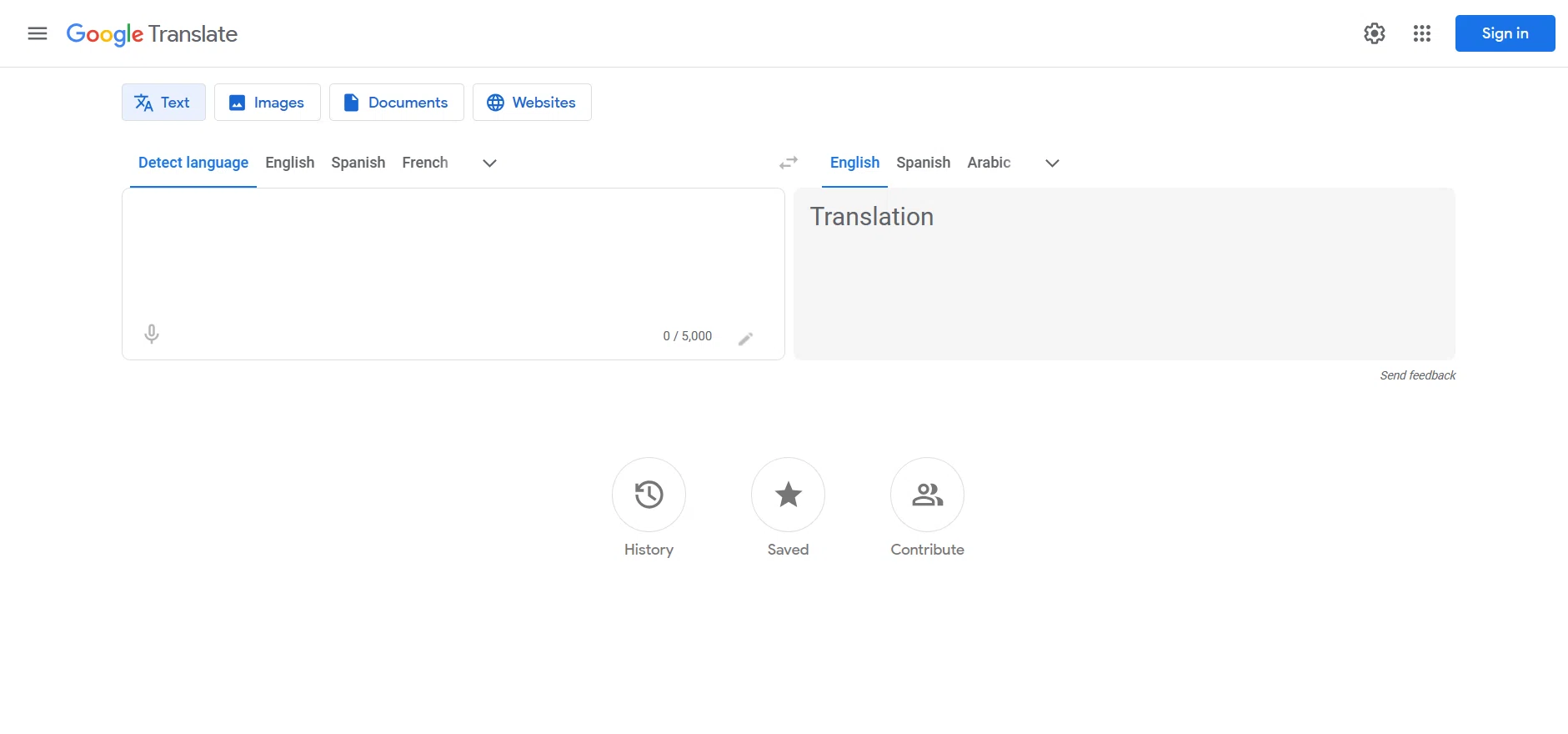
| A language outside Apple's list (for example Polish or Turkish) | Google Translate | Far more languages |
| Phone call with a supplier abroad | Live Translation in the Phone app | Works directly in the call |
| Video call in Zoom, Teams, Meet, or Webex | A meeting tool such as SuperIntern | Captures call audio and shows captions |
| In-person meeting with several people | A meeting tool on a laptop | Captions for every voice and a record |
| Negotiation where numbers and deadlines matter | A meeting tool with a transcript | Everything can be reread and verified |
Two questions settle the borderline cases:
- Do you need a record afterward? If so, AirPods and travel apps are out. They translate, but they do not save a transcript or create a summary.
- Does the conversation happen on a screen? As soon as Zoom, Teams, or Meet is involved, you need a tool that captures your computer's audio.
For video calls and meetings: SuperIntern
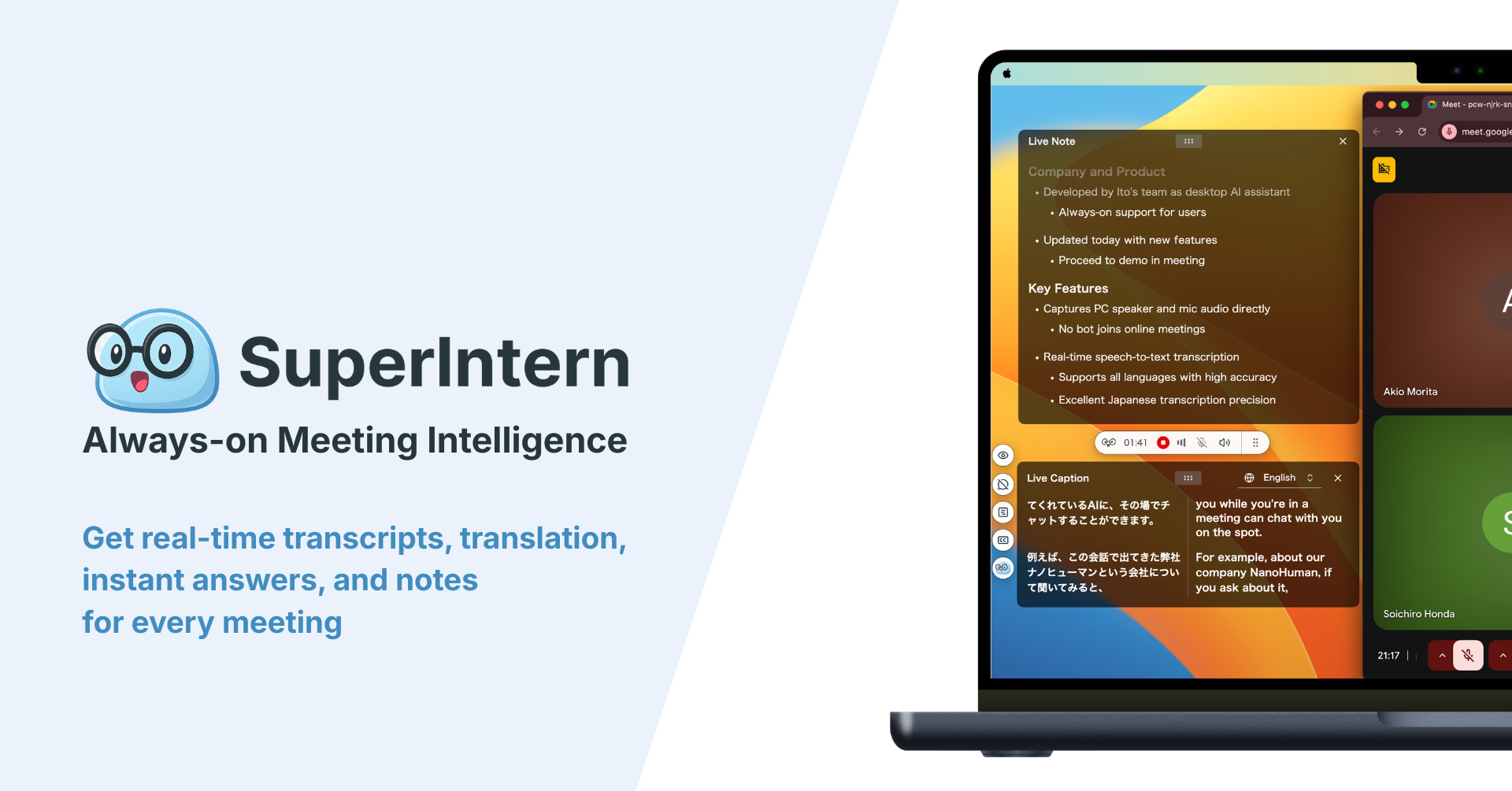
For work meetings where AirPods translation is not enough, we recommend SuperIntern. SuperIntern is a real-time AI meeting assistant. It transcribes what is said, translates it into more than 50 languages, and shows the translation as live captions next to the original. At the same time, it captures decisions and action items.
Works in any video call, with no bot
SuperIntern does not send a bot into your meeting. The desktop app for Mac and Windows captures system and microphone audio directly on your computer. That is why it works the same way in Zoom, Google Meet, Microsoft Teams, Webex, and Slack Huddles, even when a client invites you to their own meeting. No extra participant appears in the attendee list.
Captions you can reread
The translation appears as text while people are still speaking. If you missed a number or a name, just look again. With two-way translation, your own contribution is also rendered in the other person's language.
AI Canvas takes notes during the meeting
Following a translation while taking notes by hand is exhausting. AI Canvas organizes decisions, action items, and open questions in real time while the meeting runs. You decide which sections it fills and in what format.
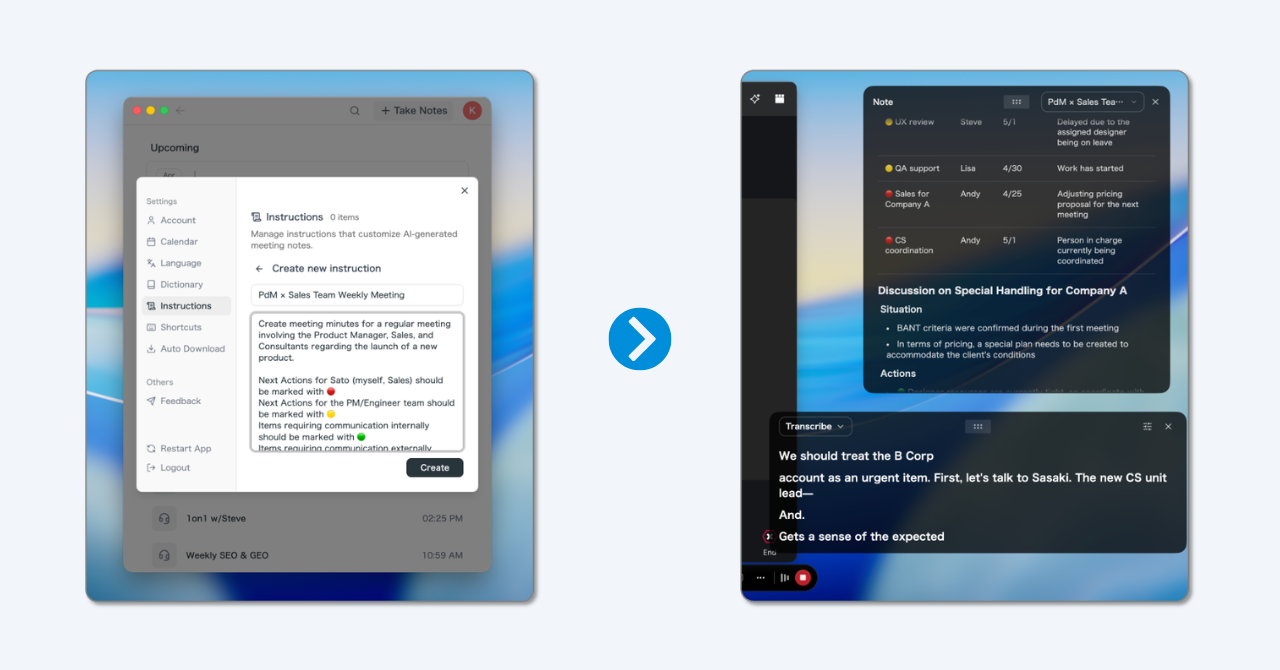
Notes in your language, whatever language was spoken
Even if the meeting was in Spanish, German, or Japanese, you get the summary and notes in English. With the speaker-labeled transcript, you can check later who committed to what. A custom dictionary teaches SuperIntern your product names, client names, and acronyms.
Start for free
The free plan lets you try translated captions and meeting notes right away. For heavier use, the Plus plan costs $20 per month for 100 meeting hours. An iOS app is coming soon, so you will also be able to use SuperIntern for in-person meetings on the go.
Combining AirPods and SuperIntern
The two tools are not mutually exclusive. Use your AirPods for dinner with a business partner. Open SuperIntern on your laptop for the video call the next morning and the negotiation in the conference room. That way you have the right tool for each situation, and still end up with complete meeting notes.
Quick check: are AirPods enough for your meeting?
Answer each question with yes or no. Every yes points toward a meeting tool rather than AirPods.
| Question | Yes or no |
|---|---|
| Does the conversation take place fully or partly in Zoom, Teams, Meet, or Webex? | |
| Will more than two people speak? | |
| Will prices, quantities, deadlines, or contract details come up? | |
| Do you need notes or a follow-up email afterward? | |
| Does the other person speak a language outside Apple's list? | |
| Do colleagues in the meeting use Android or Windows? | |
| Will the conversation last longer than 20 minutes? |
How to read your score:
- 0 to 1 yes: AirPods translation is usually enough.
- 2 to 3 yes: Use AirPods for the conversation, but write down the outcomes or add a meeting tool.
- 4 or more yes: Plan on a meeting tool with captions and a transcript from the start.
FAQ
How do I start Live Translation on AirPods?
Depending on your settings, start it from the Translate app (the Live tab), with Siri, from Control Center, or with the iPhone's Action button. On supported AirPods, you can also start it by pressing and holding both stems at the same time. Download the languages you need in the Translate app beforehand.
Is AirPods Live Translation available in the EU and the UK?
Yes. After a delay related to the Digital Markets Act, the feature has been available to users in the EU since December 2025. It has been available in the UK and the US since the iOS 26 launch.
Does Live Translation work offline?
Apple says translation is processed on the device. For that to work, the languages must be downloaded in advance. If you want to be sure before a trip, test it once in airplane mode.
Can I translate a Zoom or Teams call with AirPods?
Not with Apple's Live Translation. Apple only lists its own Phone, FaceTime, and Messages apps for that. For Zoom, Teams, Google Meet, or Webex, use a tool that captures your computer's audio, such as SuperIntern. You can keep using your AirPods as regular headphones while you do.
Does the other person need AirPods too?
No. Without AirPods, the other person reads your replies as a live transcript on your iPhone. The conversation is most comfortable, though, when both people wear compatible AirPods.
Is AirPods translation accurate enough for business conversations?
For small talk and simple arrangements, yes. For numbers, dates, and contract details, confirm the outcomes in writing, because the translation leaves no transcript you can check later.
What is the alternative for Android users?
Google Translate offers Conversation mode and Live translate for in-person conversations. Pixel and Galaxy phones also have their own translation features for phone calls. For video calls on a laptop, SuperIntern works regardless of which phone you use.
Conclusion
Live Translation with AirPods is one of the most useful features Apple has shipped in years. For travel and short one-on-one conversations, compatible AirPods and a recent iPhone are all you need.
Work is a different story. As soon as several people speak, a video call is involved, or commitments need to be documented, the feature reaches its limits. For that, you need a meeting tool that captures audio from any platform, shows captions, and produces notes.
If you need translation for work meetings, try SuperIntern for free and keep your AirPods for when you are on the move.