
Automate Meeting Notes with ChatGPT Record Mode
"AI can generate meeting notes now—but fine-tuning the output afterward is still harder than it should be."
"It's more efficient than before, but juggling separate tools for recording, transcription, and note generation is still a hassle."
These are common frustrations. In most cases, though, the problem isn't ChatGPT itself—it's the workflow.
What many people don't realize is that the ChatGPT macOS desktop app has a built-in Record mode that handles recording, transcription, summarization, and sharing all within a single app. Better yet, the generated notes include timestamp buttons that link directly to the corresponding moment in the audio, and you can keep refining the format through conversation after the output is generated—making it far more flexible than a simple summarization tool.
This article walks through an 8-step workflow using Record mode, with screenshots showing exactly what to do at each stage.
⚠️ This article is an independent analysis by NanoHuman Inc., based on publicly available information and user feedback as of May 2026.
What Is ChatGPT Record Mode?
ChatGPT Record mode is a feature in the macOS ChatGPT desktop app, available to Plus, Pro, Business, Enterprise, and Edu plan subscribers. It records meetings, brainstorms, or voice memos, auto-generates a transcript and summary, and saves the result as a Canvas that you can edit, reformat, and share.
The old pipeline—"recording app → transcription tool → paste into ChatGPT"—collapses into a single workflow inside one app.
That said, OpenAI itself acknowledges that ChatGPT, including its transcription, can make mistakes. Always have a human verify important information.
8-Step Workflow: Meeting Notes with Record Mode
Step 1: Launch Record Mode
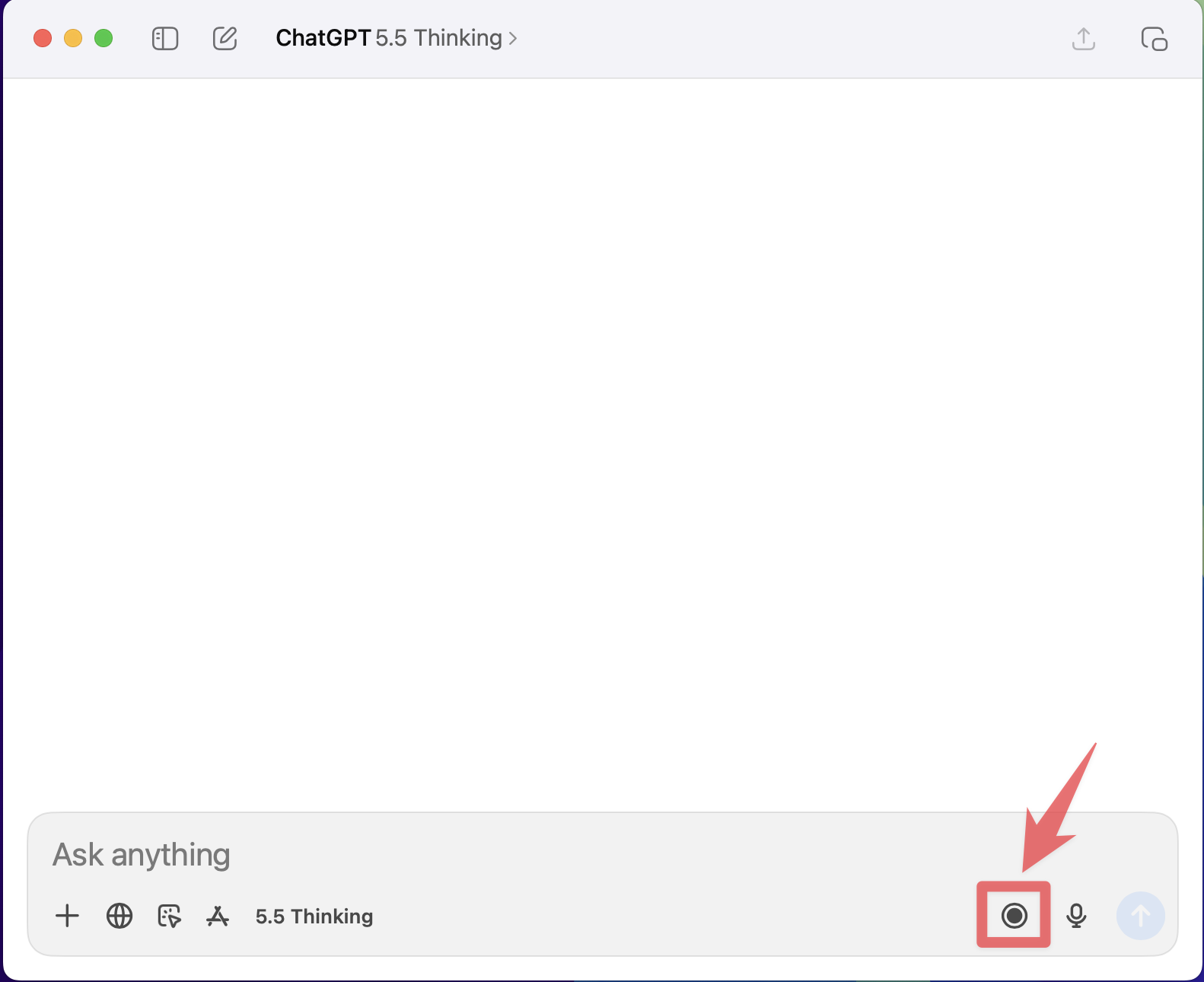
Open the ChatGPT desktop app and click the voice input (microphone) icon in the new conversation input field. This switches you to the Record mode screen.
Step 2: Give ChatGPT Context Before the Meeting
Before you start recording, type in the context: the meeting's purpose, attendees, agenda, and the format you want for the notes. With this context set in advance, ChatGPT produces notes tailored to the meeting's goal—not just a generic summary.
For a sales call:
I'm about to record a call with [Client Name].
The goal is to understand their challenges, timeline, decision-maker, budget, and next steps.

After the recording, please structure the notes as:

- Call overview
- Customer's challenges
- What they care most about
- Our proposal
- Their concerns
- Decisions made
- Next actions
- Questions to ask in the next call
For a job interview:
I'm about to record a candidate interview.
After the recording, please organize the notes by: experience, skills, motivations, concerns, assessment, and recommended next step.
Step 3: Record the Meeting

During the meeting, run Record mode. One technique that meaningfully improves output: narrate structure as you go. Briefly flagging key moments out loud gives ChatGPT clearer signals to work with.
"That's a decision." / "That's a follow-up for next time." / "This is still unresolved."
A small habit that makes the AI's job easier—and your notes more accurate.
Step 4: Stop Recording and Generate the Notes

When the meeting ends, click the stop button. ChatGPT processes the audio and generates a transcript and summary, saved as a Canvas for further editing.

Step 5: Verify with Timestamp Buttons
The generated notes include timestamp buttons next to each item. Click one and the transcript jumps to that exact moment in the audio, letting you listen back to the original recording.
"Did we actually decide that?" No need to replay the whole recording—just click the timestamp and go straight to the relevant moment.
Step 6: Adjust the Format for Your Meeting Type
Once the notes are generated, you can give ChatGPT additional instructions to reshape the format. The key advantage here is that you're not done once the output appears—you can keep refining it through conversation until it fits exactly what you need.
Convert these notes into a sales call summary.
Sections: Call overview / Customer challenges / Our proposal / Their concerns / Next actions / Items to confirm
Pull out just the decisions and next actions. Condense for Slack.
Draft a follow-up email to the client based on these notes.
Step 7: Turn Notes into Actions and Next-Meeting Prep
From these notes, extract only the action items that are mine to own.
Based on this sales call, generate 10 questions to ask in the next meeting.
Use these notes to draft the agenda for the follow-up meeting.
The notes stop being a record of what happened and start generating the work for what comes next.
Step 8: Share with One Click
Once the notes are finalized, copy the share link and send it to whoever needs it. ChatGPT's Canvas generates a shareable link in one click—easy to drop into email or Slack.

Why This Workflow Works Well
Audio and notes are connected
The timestamp buttons let you jump from any line in the notes directly to that moment in the audio. When something important was said but the written version loses context, you can verify it instantly—without replaying the whole recording.
Format stays flexible after the output
Once the notes are generated, you can keep giving instructions: "make it shorter," "bring this section to the top," "create an English version too." Changes happen through conversation—no need to start from scratch.
Sharing is simple
Canvas share links are one click. No account setup or permission configuration required on the other end—just send the URL and they can read it.
Where ChatGPT Record Mode Falls Short
This workflow covers most use cases well. But a few scenarios reveal where ChatGPT alone has limits.
When you need to know exactly who said what
ChatGPT's Record mode does perform speaker separation, but accuracy varies. In meetings with multiple participants or similar-sounding voices, attribution can be inconsistent. For sales calls where you need a clear record of what the customer said versus what you proposed, you may need to clean up attribution manually.
When you need real-time translation during the meeting
Record mode displays a live transcript as you record. What it cannot do is translate that transcript into another language in real time. If you need to follow a meeting in a language other than the one being spoken, ChatGPT alone can't do that. Transcription accuracy is also most reliable in English; accuracy for other languages can vary (per OpenAI).
When you meet the same people regularly and want past context to carry forward
ChatGPT's Reference record history lets you search past meeting transcripts across conversations. But retrieving that context is a manual step—you search, find the relevant transcript, and bring it in yourself. It doesn't surface automatically when you start a new meeting with the same people.
SuperIntern as an Alternative
SuperIntern is a desktop app built specifically for AI meeting notes and real-time translation. It addresses each of the scenarios above.
Higher-accuracy speaker separation
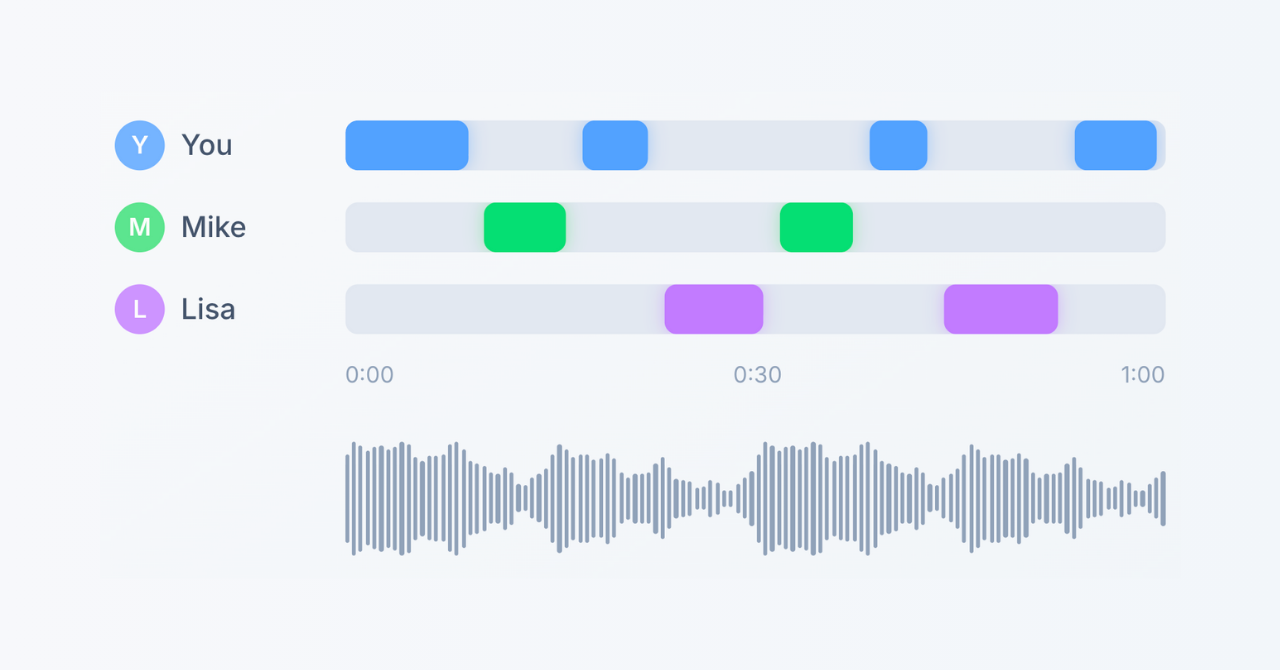
SuperIntern produces transcripts where each line is already labeled by speaker: "Speaker 1: ..." / "Speaker 2: ..." Sales calls show customer versus rep. Interviews separate interviewer from candidate. The transcript is immediately usable without manual cleanup.
Templates registered once, selected instantly
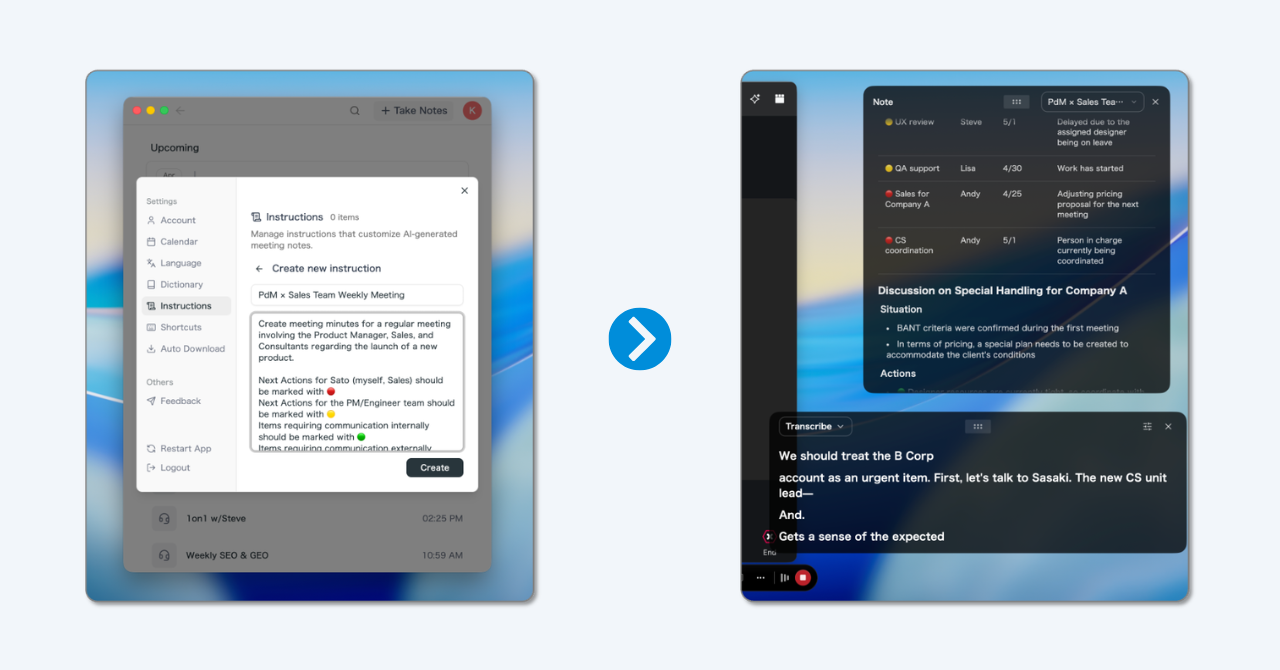
SuperIntern's AI Canvas feature lets you save templates—by meeting type, client, or project. Set up "sales call," "interview," and "team standup" formats once, then just select the right one at the start of the next meeting. No retyping prompts.
When retyping the same ChatGPT prompts every time starts to feel tedious, this is where SuperIntern makes the biggest difference.

Live translation during the meeting
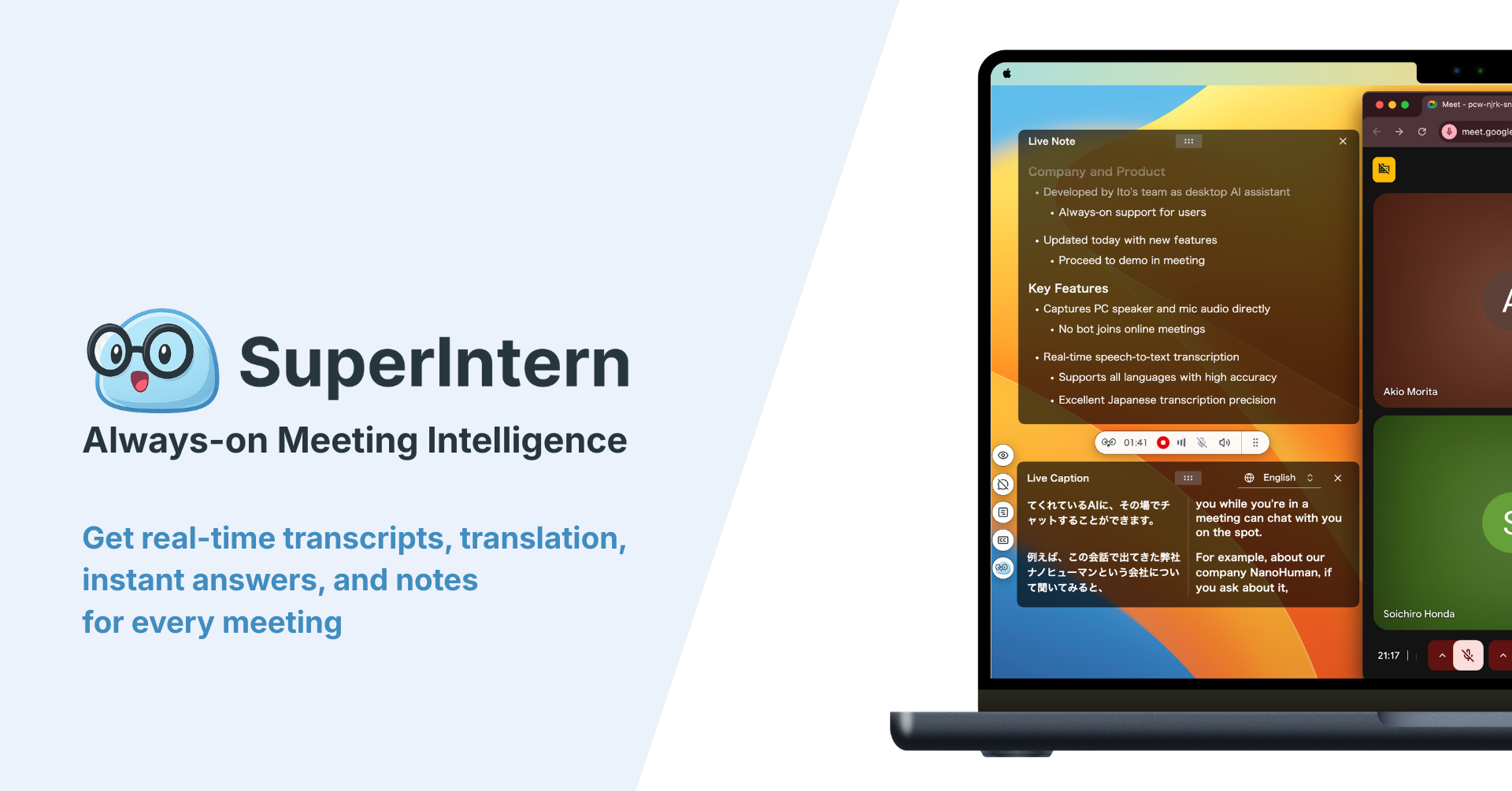
SuperIntern works without a bot and shows transcription and translation (50+ languages) in real time, while the meeting is happening.
ChatGPT Record mode also displays a live transcript as you record. What it doesn't support is real-time translation into another language. If you work across languages—following an English meeting in Japanese, or tracking a multilingual discussion as it happens—SuperIntern covers that.
Context that carries across meetings
SuperIntern accumulates context from past meetings and surfaces it automatically. If you're meeting the same client again, their previous challenges, open items, and concerns are already available without a manual search step.
ChatGPT's Reference record history lets you search past transcripts across conversations, but retrieving context is a manual step—you search, find the relevant transcript, and bring it in yourself. With SuperIntern, that retrieval step doesn't exist.
Share the full meeting package with your team
After the meeting, SuperIntern lets you share the complete package—speaker-separated transcript, summary, notes, and an AI chat with full meeting context—with teammates instantly. People who weren't in the meeting can read the summary or ask the AI questions like "What did Company A say about pricing in this call?"
ChatGPT's Canvas supports link sharing, but SuperIntern lets you send transcript, summary, and cross-meeting AI chat together in one package. Team- and project-level organization is coming soon.
FAQ
Is SuperIntern free to use?
There's a free trial with no credit card required. For plan details and pricing, visit the official website.
Does SuperIntern work with tools other than Zoom, Google Meet, and Teams?
SuperIntern works with Zoom, Google Meet, and Microsoft Teams, among other major video conferencing tools. It also works for in-person meetings.
Where is my meeting data stored?
Details on data handling are available in the official privacy policy. SuperIntern also includes an Invisible mode, reflecting a privacy-conscious design.
Can I use SuperIntern in meetings with external participants?
Yes. SuperIntern doesn't send a bot into the meeting, so there's no risk of external participants questioning an unknown account joining the call.
Can I use ChatGPT and SuperIntern side by side?
Yes. SuperIntern is a standalone Mac app that coexists with the ChatGPT app. A common approach: use ChatGPT Record mode for routine internal meetings and SuperIntern for client calls or English-language meetings.
Do I need to configure anything before using SuperIntern?
Just install the app and create an account—you can start recording right away without changing any settings in your meeting tools. AI Canvas templates are optional but add convenience once you set them up.
Used with the right workflow, ChatGPT's Record mode can dramatically reduce the time from meeting to polished notes. Start with these 8 steps. When you hit the edge cases—speaker attribution accuracy, real-time visibility, multi-meeting context, or team sharing—that's the right time to look at SuperIntern.