
[Case Study] "It Keeps the Conversation Even When I Never Hit Record": Why a Tech Founder Relies on SuperIntern Rewind
![[Case Study] "It Keeps the Conversation Even When I Never Hit Record": Why a Tech Founder Relies on SuperIntern Rewind](/_next/image?url=%2Fblog%2F2026-founder-rewind-customer-story%2Fcover.webp&w=3840&q=75&dpl=dpl_B3YsPkAtW6WgMvFgDoGDDZ8SvHcY)
An executive's day rarely follows the calendar. A team member stops by between meetings with a quick question. A courtesy visit turns into a conversation about the next deal. A meeting that officially ended keeps going at someone's desk. These are exactly the conversations you later want to check: what did we actually decide?
This case study looks at SuperIntern Rewind, a feature that a founder who runs a tech company described simply as "amazing". Rewind lets you go back to an in-person conversation you never started recording, listen to it again, and turn only the part you need into meeting notes. Below, we cover how it works, how it fits into a busy day, and what to keep in mind.
⚠️ This article was independently compiled based on publicly available information and user feedback as of October 2026.
Table of Contents
- "I don't even have to start it beforehand"
- For executives, the important conversations happen off the calendar
- How Rewind works
- A day with Rewind
- What changed
- Setting up Rewind
- Things to keep in mind
- FAQ
"I don't even have to start it beforehand"
A founder who uses SuperIntern every day sent the team this message:
I really like SuperIntern. Lately it just records on its own. I don't have to start anything beforehand: when my computer picks up an in-person conversation, it keeps it for 24 hours. That's amazing.
What this founder values is that there is nothing to start. For online meetings, SuperIntern can already begin recording from a calendar reminder or when it detects a meeting. In-person conversations are different. Nobody announces that they are starting, so you are usually deep into the topic before you think of pressing record. Rewind is built around that reality.
For executives, the important conversations happen off the calendar
Much of what executives and managers discuss never shows up on a calendar.
| Situation | How it usually goes | What goes wrong later |
|---|---|---|
| A question at your desk | Someone asks "Got a minute?" and it turns into a hiring or pricing discussion | You no longer remember exactly who you asked to do what |
| Hosting a visitor | A quick introduction ends with partnership terms on the table | You can't recall the figures or deadlines the other side mentioned |
| The meeting after the meeting | The official meeting ends, and the few people left behind make the real decision | It never reaches the official notes, so the reasoning is lost |
| An unplanned one-on-one | A conversation that starts unexpectedly in the office turns to performance or role changes | You can't confirm with the other person what you promised |
In every one of these cases, nobody is thinking about recording when the conversation starts. By the time you realize you should have, there is no way to get it back.
Taking notes is an option, but it is not realistic for an executive to write detailed notes while listening closely. The busier you are, the less attention you want to spend on record-keeping.
How Rewind works
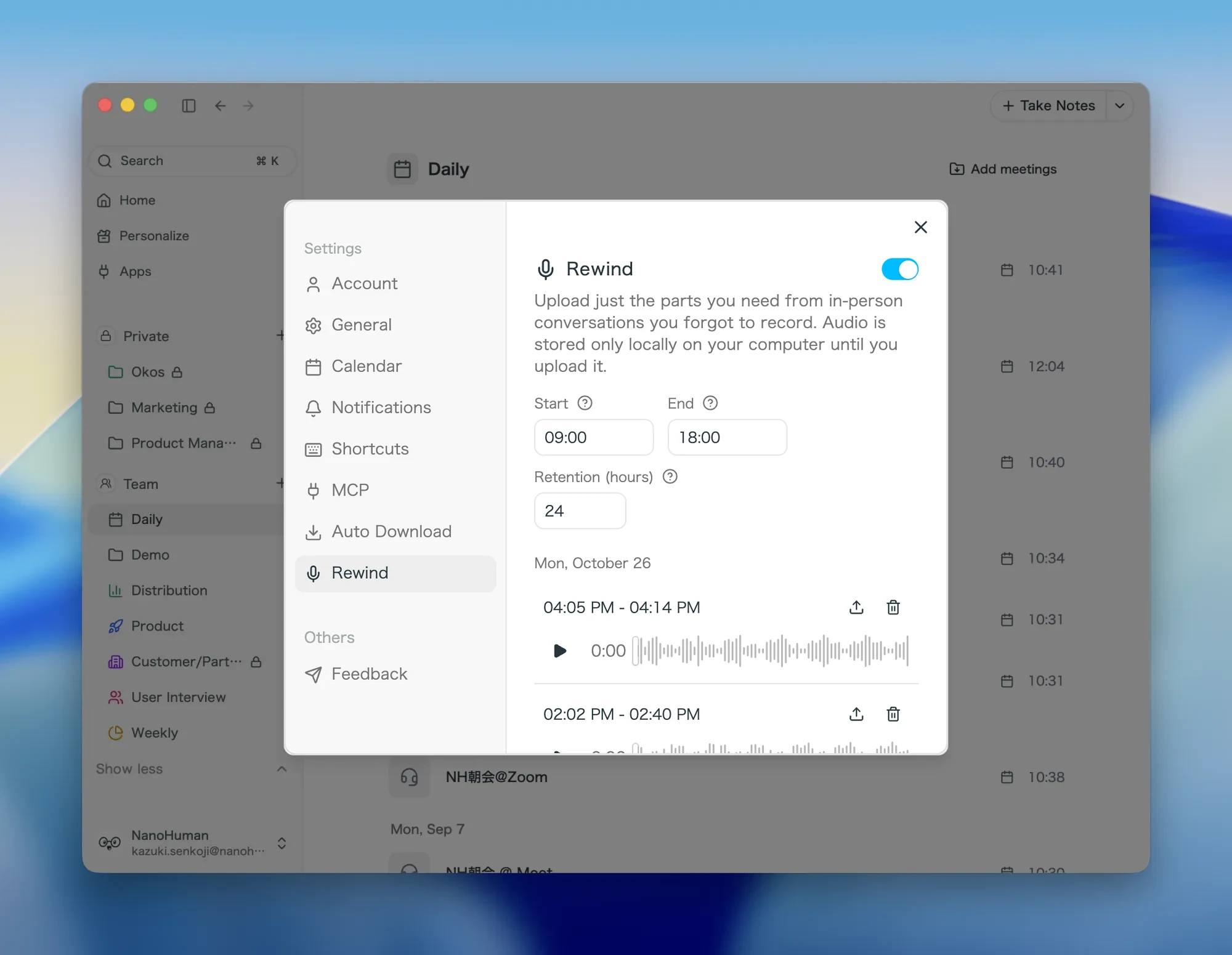
Rewind is part of the SuperIntern desktop app (macOS and Windows). Once it is turned on, it records conversations through your computer's microphone during the hours you choose and stores them temporarily on your computer.
| Item | Details |
|---|---|
| Recording hours | Daily start and end times you set (9:00 to 18:00 by default) |
| Conversation detection | Detects voices and saves each conversation separately |
| Conversations in the list | Those that lasted 5 minutes or longer |
| Retention | 1 to 72 hours (24 hours by default), then deleted automatically |
| Online meetings | Pauses automatically while SuperIntern is recording a meeting |
| Upload range | Select between 15 seconds and 5 hours |
| Where the audio lives | Only on your computer until you upload it |
| After upload | Transcript, speaker analysis, and summary, just like any recorded meeting |
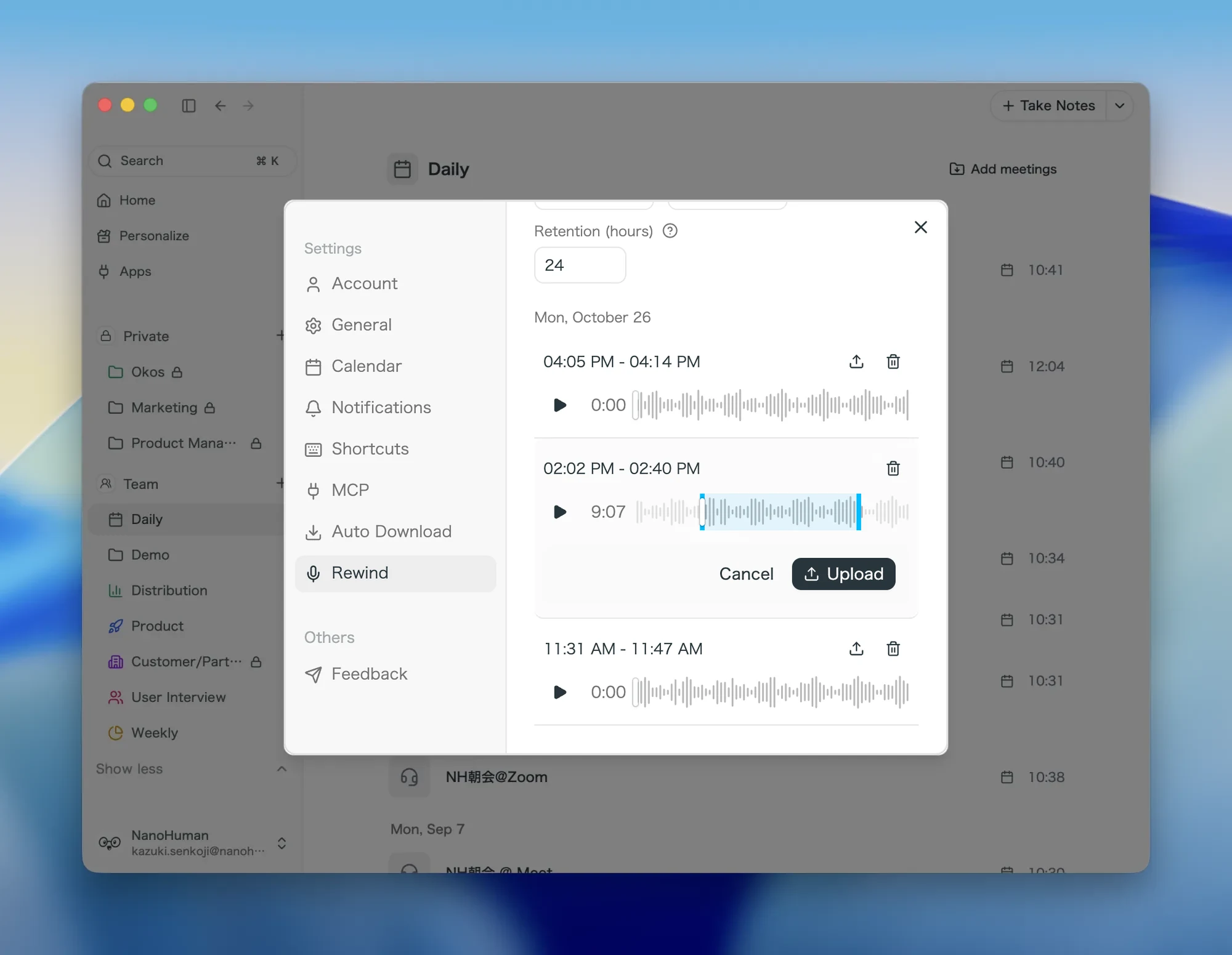
The key point is that recording stays on your computer, and you decide later whether a conversation becomes meeting notes. You play back a saved conversation, check it, and upload only the part worth keeping. Anything you don't upload is deleted from your computer once the retention period ends.
Usage counts only what you upload
Conversations stored by Rewind do not count toward your plan's hours. Only the audio you upload for transcription and summaries counts. If Rewind records all day and you turn one 30-minute conversation into notes, you use 30 minutes.
On the Free plan, uploaded audio uses credits. On the Team plan, it is recorded as the member's personal usage. The Plus plan ($20/month, up to 100 hours) works the same way. The usage display can take a little while to update after an upload.
A day with Rewind
Here is how a day might look for the head of a tech company with Rewind turned on.
9:00 Open the laptop
Rewind's recording hours begin and it starts listening. No action needed.
10:00 Weekly online meeting
While SuperIntern records the meeting, Rewind pauses on its own. The meeting notes are created as usual.
11:30 An engineer stops by your desk
"Can we push next month's release back a week?" turns into a 15-minute conversation that reshuffles priorities.
14:00 Hosting a visitor
You meet a referral contact in a meeting room with your laptop on the table. The conversation moves from introductions to the terms of a joint pilot.
17:30 Review saved conversations
In SuperIntern, open Settings and then Rewind. Today's conversations are listed under Saved conversations. You play back the 11:30 talk and the 14:00 visit, select the relevant ranges, and upload them.
18:00 Look back with the summary and chat
Uploaded conversations are summarized just like regular meetings. Ask the post-meeting chat "What numbers did they propose for the pilot?" and it finds the relevant statements.

The only recording-related step in this whole day was the review at 17:30. During the conversations themselves, you can give the other person your full attention.
What changed
Based on the founder's feedback, here is what Rewind changed.
- No more worrying about forgetting to hit record. Within your set hours, recording is already running when a conversation begins.
- Deciding later what to keep. You don't have to judge in the moment whether something is worth recording. You can listen back in the evening and decide then.
- Using hours only where it matters. Only uploaded conversations count, so leaving Rewind on all day doesn't waste your plan.
- Online and in-person records in one place. Uploaded conversations appear in your meeting list, next to the notes from online meetings.
For an executive, spending less effort on record-keeping means having more attention for the person in front of you. Rewind moves the decision to record from "in the moment" to "afterward".
Setting up Rewind
Setup takes a few minutes.
- Open the SuperIntern desktop app, go to Settings, and select Rewind.
- Turn on Enable Rewind (it is off by default).
- Allow microphone access when prompted.
- Set Start and End to the hours you are usually in the office.
- Set Retention (hours) to how long audio should stay on your computer. If you review in the evening, the default 24 hours is enough. To review after a weekend, you can extend it up to 72 hours.
To turn a saved conversation into notes, play it in Saved conversations on the same screen, select a range, and click Upload.
The SuperIntern desktop app needs to be running for Rewind to work. If you turn on Launch at Login under Settings > General, recording starts as soon as you open your laptop in the morning.
Things to keep in mind
Check notice and consent
Rewind records nearby conversations through your computer's microphone. Check your organization's rules and let people know you are recording. Take particular care with visitors and anyone from outside your company.
Talk where the microphone can hear you
Rewind only captures what your computer's microphone can pick up. If you step away from your laptop, that conversation is not recorded. When you host a visitor in a meeting room, bring your laptop and keep it nearby.
Review within the retention period
Conversations you don't upload are deleted automatically when the retention period ends. On days with important conversations, make a habit of reviewing them the same day.
Upload only what you need
Saved conversations can include small talk and personal topics. Play them back before uploading and select only the work-related part. Uploaded conversations follow your workspace's sharing settings.
FAQ
Q. Do I need to start recording each time?
A. No. Once Rewind is on, it records conversations automatically during your set hours. The desktop app does need to be running.
Q. Is the recorded audio sent to the cloud?
A. Not until you upload it. Audio stays on your computer, and only the range you upload is sent to SuperIntern for transcription and summaries.
Q. When does it count toward my plan's hours?
A. When you upload audio for transcription and summaries. Audio that is only stored on your computer does not count.
Q. Are short exchanges saved too?
A. The Saved conversations list shows conversations that lasted 5 minutes or longer. Exchanges that end within a few minutes are not included.
Q. Does Rewind record during online meetings?
A. While SuperIntern is recording a meeting, Rewind pauses automatically. The online meeting itself becomes notes through regular recording.
Q. Can I use Rewind on the Free plan?
A. Yes. Uploaded audio uses your credits. If you need more time, consider the Plus plan ($20/month, up to 100 hours).
Turn on Rewind and go about your day as usual. When you open your saved conversations in the evening, you will see how many conversations you would otherwise have lost.