
How to Use Gemini for Meeting Notes and Transcription (2026 Guide)
"I let Gemini take notes in a Google Meet and it was easier than expected. Then I joined a client call I did not host, and I could not use it."
"I wanted Gemini to transcribe a recording, but the file was too long and it cut off partway through."
Taking meeting notes with Gemini has become mainstream. Because it now works as a native Google feature, you can capture a meeting record without installing a dedicated tool.
At the same time, people keep running into the same walls: the feature that should have been available was not enabled on their account, or a recording transcribed fine but there was no way to follow the meeting live. In most cases the issue is not Gemini's quality. It is that there is no clear picture of which method fits which meeting.
This guide walks through the main ways to take meeting notes and transcribe audio with Gemini in 2026, how each one works, which meetings it suits, where the limits are, and a complementary workflow for the meetings Gemini alone cannot cover.
⚠️ This article was independently compiled based on publicly available information and user feedback as of July 2026.
The Main Ways to Take Meeting Notes with Gemini
There are three practical ways to create a meeting record with Gemini. The right one depends on whether the meeting is live or already recorded, and how long the audio is.
| Method | What it does | Best for |
|---|---|---|
| Google Meet "Take notes for me" | Gemini transcribes the live conversation and saves a summary with action items to a Google Doc | Google Meet calls you host (or that are on an eligible plan) |
| Upload audio to the Gemini app | Upload a recording to generate a transcript and summary | Short recordings (a few minutes up to around 10) |
| Process audio in Google AI Studio | Transcribe long audio files in a single pass | Long meetings, interviews, and seminar recordings |
Let's look at how each one works and what to watch for.
Method 1: Take Notes in Google Meet with "Take Notes for Me"
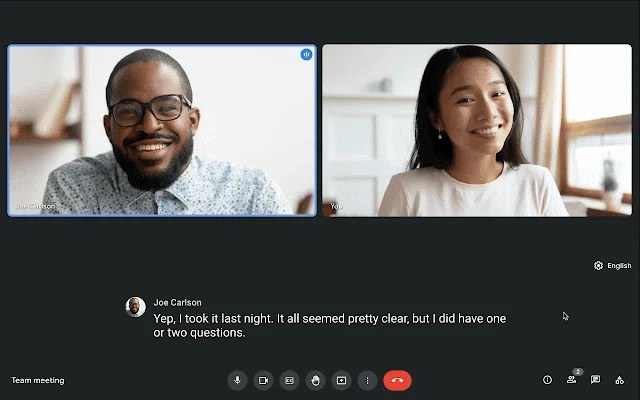
Google Meet includes a Gemini feature called "Take notes for me" that generates a meeting record automatically. As of 2026, it is available to Google AI Pro and Ultra subscribers, and it is included in several Google Workspace editions (such as Business Standard, Business Plus, Enterprise Standard, and Enterprise Plus).
How to use it
- Start or join a meeting in Google Meet.
- Open the "Activities" panel.
- Select "Take notes for me" and toggle it on.
- Gemini begins transcribing the conversation and drafting a summary.
- When the meeting ends, the summary and action items are saved as a Google Doc in the organizer's Drive and shared by email.
The 2026 updates added more structure. Alongside a summary of who said what and what happens next, Gemini now organizes a "Decisions" section that tracks outcomes with statuses such as Aligned, Needs Further Discussion, Disagreed, and Shelved, and a "Next Steps" section for follow-up. It also expanded to in-person meetings from mobile.
Meetings this method suits
- Internal syncs and team meetings you host yourself
- Organizations already standardized on Google Workspace with clear retention rules
- Meetings where a record you can read back later is enough
Method 2: Transcribe a Recording with the Gemini App
If you already have a recording, you can upload the audio file to the Gemini app (web and mobile) and have it transcribe. It supports common audio formats including MP3, WAV, M4A, and FLAC.
How to use it
- Open the Gemini app and drag your audio file into the chat.
- Tell Gemini what to do with a prompt.
Transcribe this audio verbatim with speaker labels and timestamps.
Format: [00:00:05] Speaker A: Thanks everyone for joining today.
- Then ask it to turn the transcript into structured notes.
Using the transcript above, produce meeting notes in this format:
- Overview
- Decisions
- Next actions (with owners)
- Open questions
The constraint to plan around
Audio processing in the Gemini app has a practical ceiling of around 10 minutes per file as of 2026. Dropping a full meeting in can get cut off partway, so this route suits short memos and quick calls. For longer recordings, Method 3 is the realistic option.
Method 3: Transcribe Long Audio in Google AI Studio
For recordings longer than an hour, such as extended interviews or seminars, Google AI Studio (aistudio.google.com) is the practical path. AI Studio and the Gemini API can process up to around 9.5 hours of audio in a single request.
How to use it
- Open Google AI Studio.
- Upload your audio file (MP3, WAV, FLAC, and similar) into the chat.
- Enter a prompt for transcription and note-taking.
Transcribe this meeting audio, organize it by speaker, and summarize it
into decisions, blockers, and next actions.
Because it handles long recordings in one pass, this route suits seminars, long sales calls, and multi-topic meetings that will not fit in Method 2. Note that this is still a way to process audio after the fact, not a way to follow a meeting live.
The Limits to Know Before You Rely on Gemini
Gemini is powerful, but it does not cover every meeting on its own. Here are the limits worth understanding up front.
1. Availability depends on plan and admin settings
Google Meet's "Take notes for me" depends on your plan and your organization's admin settings. On a Google Meet call hosted by a client, the feature may not be enabled on their account, so you cannot rely on it for your own record. If you frequently join external sales calls or interviews, this assumption matters.
2. No real-time translation
Gemini's notes are most useful as a record after the meeting. They are not built for following a call in another language live, seeing a translation on screen while an English-speaking counterpart talks. Transcription happens, but real-time translation into another language during the meeting is not the intended use.
3. Speaker separation on recordings varies
When you hand over a recording (Methods 2 and 3), the "who said what" separation depends on your prompt and the audio quality, and accuracy varies. When you need to preserve exactly what the customer said versus what you proposed in a sales call, you may end up cleaning it up manually.
4. Google Meet-centric, hard to extend across platforms
"Take notes for me" is a Google Meet feature. Real teams tend to mix platforms: sales in Zoom, interviews in Teams, quick internal syncs in Slack Huddles or Discord. Building the habit only around Google Meet leaves you with a different capture method for every tool.
5. Context does not carry across meetings automatically
Gemini's notes are largely independent per meeting. To carry forward what a customer said last month or what was decided in last week's sync, you have to find and paste the relevant document yourself.
By Use Case: Where Gemini Fits and Where It Does Not
| Meeting type | Is Gemini alone enough? | Notes |
|---|---|---|
| Internal syncs you host | Often yes | Google Meet-centric, record-focused is fine |
| Summarizing an existing recording | Yes, via Method 2 or 3 | Choose app vs AI Studio by length |
| Client-hosted sales calls and interviews | Limited | Depends on host settings; you need a local option |
| English calls that need live translation | Not a fit | Real-time translation needs another tool |
| Cross-platform across Zoom and Teams | Fragmented | A platform-agnostic capture method helps |
| Ongoing deals with the same account | Manual | Carrying prior context is a manual step |
Gemini is strong for "Google Meet calls you host" and "post-processing a recording." Once you need external-hosted calls, live translation, cross-platform consistency, or context carried across meetings, gaps appear that Gemini alone will not close.
Where SuperIntern Fits

One option for the meetings Gemini alone struggles with is SuperIntern, a desktop app focused on AI meeting notes and real-time translation that runs without a bot joining the call.

Botless, and works across every meeting tool
SuperIntern runs as a desktop app and captures device audio and microphone input, so no bot joins the meeting. You capture the same way in Google Meet, Zoom, Teams, Webex, or in person. Because it does not depend on the other side's account settings, you can keep your own record even in client-hosted sales calls and interviews.
Live transcription and translation during the meeting

SuperIntern shows transcription and translation (50+ languages) in real time from the moment the meeting starts. That directly covers the case where you want a translation on screen while an English-speaking counterpart talks.
Speaker-aware notes and templates you can use as-is
SuperIntern supports accurate speaker separation, so the transcript is organized as "Speaker A: ..." and "Speaker B: ..." from the start. With AI Canvas, you can register formats up front, such as sales call, interview, or internal sync, and then just pick a template so the notes fill in live during the meeting.
Context that carries across meetings, plus post-meeting AI chat

SuperIntern accumulates past meetings and references them automatically as context for the next call with the same account. After the meeting, you can ask an AI chat over the speaker-labeled transcript, summary, and notes, for example, "What did Account A say about cost in this meeting?"
An honest caveat
SuperIntern is a desktop app, so it is best for people who can install and run software on their work computer. And if your organization requires every meeting to live as an official Google Drive record, the native Google Meet feature may be the authoritative record in some cases. Using each where it fits is the practical approach.
Choosing Between Gemini and SuperIntern
| Aspect | Gemini (Google Meet / app / AI Studio) | SuperIntern |
|---|---|---|
| Live display during the meeting | Transcription-focused (Meet) | Transcription and translation in real time |
| Real-time translation | Not supported | 50+ languages |
| Platforms | Google Meet-centric plus recordings | Meet, Zoom, Teams, Webex, in person |
| Bot joining | None (Meet-native) | None (captured on desktop) |
| Speaker separation | Prompt-dependent on recordings | Accurate speaker separation |
| Context across meetings | Manual reference | Carried automatically |
| Conditions to use | Eligible plan and admin settings | Install the desktop app |
Gemini is strong for "Google Meet calls you host" and "post-processing recordings"; SuperIntern is strong for "external-hosted calls, real-time translation, cross-platform, and ongoing deals." Seeing them as complementary makes the choice easier.
FAQ
Can I take meeting notes with Gemini for free?
Google Meet's "Take notes for me" assumes an eligible plan. Audio transcription in the Gemini app can be tried on free tiers, but with a per-file length limit. For long recordings, you will likely look at Google AI Studio or the API. Always confirm current terms on Google's official pages.
Can I use Gemini notes on a Google Meet I do not host?
It depends on whether Gemini note-taking is enabled on the host side. For client-hosted meetings, keep a tool that works locally if you need to be sure you capture your own record.
How accurate is speaker separation on recordings?
Gemini can add speaker labels, but on recordings the accuracy depends on the prompt and audio quality and can vary. For sales calls and interviews where attribution matters, pairing it with a tool that is strong at speaker separation is a reasonable option.
Can I use SuperIntern alongside Gemini?
Yes. SuperIntern is a standalone app you install on your computer. Many people use Gemini's auto-notes for internal Google Meet calls and SuperIntern for external sales calls or English-language meetings.
Which meeting tools does SuperIntern support?
Google Meet, Zoom, Microsoft Teams, Webex, and other major web conferencing tools, plus in-person meetings. Because no bot joins the call, you can start using it without your counterpart wondering who the unknown participant is.
Do I need to set anything up before using SuperIntern?
Install the app, create an account, and you can start right away. No changes to your meeting tool settings are required. Registering AI Canvas templates is optional but makes it more convenient. There is a free plan and a paid plan (Plus); see the official site for details.
Gemini is a strong way to capture Google Meet auto-notes and transcribe recordings without a dedicated tool. Start by identifying whether your main use case is "Google Meet calls you host" or "post-processing recordings," then try Methods 1 through 3. From there, if you need external-hosted calls, real-time translation, cross-platform consistency, or context carried across ongoing deals, consider a botless option like SuperIntern.