
Google Meet Transcription: How to Capture Notes Without Rewatching Recordings

Google Meet transcription sounds simple until the meeting is already over: the organizer needs a record, the team needs the business context, and nobody wants to replay a full recording just to find one decision.
This guide explains the practical ways to transcribe Google Meet meetings in 2026, where the built-in transcript is useful, where it creates workflow gaps, and when a botless meeting assistant such as SuperIntern is the better fit.
Disclosure, May 2026: This article is an independent analysis by NanoHuman Inc. based on publicly available information. SuperIntern is a product of NanoHuman Inc.; we describe both its strengths and limitations honestly so readers can choose the right workflow.
Quick Recommendation
| Situation | Best approach |
|---|---|
| You are the meeting host and your Google Workspace edition supports transcripts | Use Google Meet transcripts for a simple saved text record |
| You need notes while the meeting is happening | Use a real-time assistant that shows transcript and structured notes live |
| You join external Google Meet calls where you do not control the host settings | Use a desktop, botless capture tool |
| You need the same workflow across Meet, Zoom, Teams, Webex, and in-person meetings | Use a platform-agnostic assistant |
| You need decisions, ownership context, and follow-up points, not just raw text | Use AI meeting notes alongside the transcript |
What Google Meet Transcription Does
Google Meet can generate a transcript for eligible meetings. In supported Workspace editions, the host can turn on transcripts during the call, and the transcript is saved to Google Drive after the meeting. Google also documents that participants can see when transcripts are active, so this is a visible meeting feature rather than a private personal note.
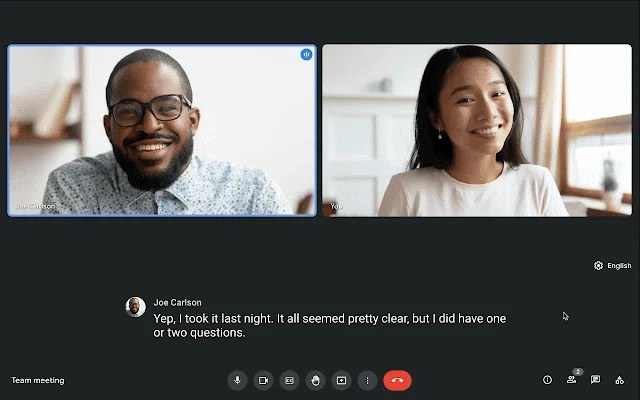
Built-in transcription is useful when the goal is a straightforward meeting record. It is especially convenient for internal calls where your organization already uses Google Workspace and has clear retention rules.
The friction starts when the meeting does not match that clean scenario.
The Main Limits to Plan Around
1. The transcript is usually a post-meeting artifact
Google Meet transcripts are helpful after the meeting, but they do not replace live working notes. If someone joins late, misses a point, or needs to confirm the current decision, a saved transcript is not enough. The team still needs a way to understand the conversation during the call.
2. Eligibility depends on account and admin settings
Transcript availability depends on Google Workspace edition, meeting type, language support, and admin controls. If you are joining a client meeting, you may not control whether the host allows transcripts.
3. Raw transcripts are not meeting notes
A transcript preserves words. A useful meeting record preserves meaning: decisions, blockers, owners, due dates, customer objections, and open questions. Teams often lose time turning the transcript into a readable summary.
4. Meet-only workflows break across platforms
Many teams do not live in one meeting tool. Sales calls may happen in Google Meet, recruiting interviews in Zoom, customer workshops in Teams, and quick internal syncs in Slack Huddles. A Meet-only transcription workflow creates separate habits for every platform.
Option Comparison
| Option | Strengths | Limitations | Best for |
|---|---|---|---|
| Google Meet transcript | Native, saved to Drive, easy for eligible internal meetings | Depends on Workspace settings; mainly post-meeting; Meet-only | Internal Google Workspace teams |
| Google Meet recording + later AI summary | Keeps video context; useful for audits | Requires recording, storage, processing, and review | Formal meetings where video evidence matters |
| Manual notes | High judgment and context | Distracts the note taker; easy to miss details | Small meetings with low documentation needs |
| Bot-based meeting assistant | Can join and process calls automatically | A visible bot may be awkward in external or confidential meetings | Teams comfortable with bots joining calls |
| Botless desktop assistant | Works across platforms and can capture live notes without a meeting bot | Requires a desktop app and local audio permissions | External calls, cross-platform teams, live note workflows |
Five Criteria for Choosing a Google Meet Transcription Workflow
Do not choose a transcription method only because it is available. In practice, the right workflow depends on who hosts the meeting, who needs the record, where the record is stored, and what the team expects to do with it afterward.
1. Whether you control the host settings
For internal calls, your Workspace administrator and meeting host can usually confirm whether transcripts are enabled. For client calls, candidate interviews, partner workshops, or investor conversations, you may not control the host account. If external meetings are common, keep a workflow that does not depend entirely on host-side settings.
2. Whether you need information during the call
A transcript is useful after the call. Live notes are useful while the call is still happening. Sales, recruiting, customer success, and product discovery meetings often benefit from seeing the current decision, open question, and next step before the meeting ends.
3. Who will read the output
A private personal note, a team-facing recap, and an official compliance record need different levels of detail. A customer follow-up rarely needs every utterance. It needs the decision, the agreed next step, the owner, the date, and any open risk.
4. How consent, storage, and security are handled
Transcription and recording should fit your organization policy. Whether you use Google Meet transcripts or an AI assistant, decide who can access the notes, where they are stored, and which meeting types are appropriate before the workflow becomes informal habit.
5. Whether the workflow must work outside Google Meet
Many teams start with Google Meet and later need Zoom, Teams, Webex, Slack Huddles, Discord, or in-person meetings. Separate transcription habits for each platform make records harder to find and harder to trust.
Context-Specific Considerations
Revenue conversations
In sales and customer discovery, the transcript is useful when it preserves the customer's language and the commercial context. The service should help the seller understand what changed in the account, not merely produce a long record.
Interviews
Interview records affect evaluation and may contain sensitive personal information. If a team uses transcription, participant notice, access control, and retention rules should be settled before the workflow becomes common practice.
Customer operations
Customer success meetings often mix product feedback, support history, renewal risk, and expansion signals. The transcript is useful context, but the operational value comes from making the next customer owner understand the situation without replaying the call.
Multilingual meetings
For multilingual calls, separate transcription, translation, and summary decisions. The conversation may happen in English, the team may need a Japanese internal recap, and the global follow-up may need to be in English again. Decide those output languages before the meeting starts.
Where SuperIntern Fits
SuperIntern is designed for the situations where a Google Meet transcript is too late, too platform-specific, or unavailable because you do not control the meeting settings.

It runs as a desktop meeting assistant and captures device audio and microphone input, so no bot joins the Google Meet call. During the meeting, SuperIntern can show live transcription, speaker-aware notes, AI Canvas / Live Notes, real-time translation, custom dictionary support, and post-meeting AI chat over the meeting content.
This matters most when you need to stay present in the conversation. Instead of waiting for a Drive transcript, you can see the useful working record while the meeting is still happening.
A Practical Google Meet Transcription Workflow
Step 1: Decide whether the meeting needs an official transcript
For internal meetings with compliance, training, or audit needs, use the native Google Meet transcript or recording workflow if your account supports it. Make sure participants understand the organization policy.
Step 2: Add live notes for operational meetings
For sales calls, interviews, customer success reviews, product syncs, and multilingual meetings, pair transcription with live structured notes. The value is not only the transcript; it is the ability to catch decisions and next steps before the call ends.
Step 3: Use a consistent cross-platform tool
If your team also uses Zoom, Teams, Webex, Slack Huddles, Discord, or in-person meetings, avoid building a process that only works in Google Meet. A desktop assistant keeps the habit consistent.
Step 4: Decide where the record should live
The output should not sit only in a downloads folder or private Drive file. Decide whether the record belongs in a CRM, project document, ticket, internal wiki, or personal research folder.
| Destination | Best suited for |
|---|---|
| Google Drive transcript | Official internal record for eligible Google Workspace meetings |
| CRM | Customer-facing context, account history, and commercial follow-up |
| Ticketing system | Support escalation, incident, or implementation context |
| Internal wiki | Product decisions, research synthesis, and cross-team context |
| Personal note | Private research or preparation that should not be broadly shared |
Risks to Plan Around
Transcript sprawl
Raw transcripts create a sense of safety, but long records often go unread. If every meeting generates another file with no destination, the team gains storage without gaining institutional memory.
Host dependence
Native Google Meet transcripts are strongest when your organization controls the meeting. External meetings can break that assumption, so teams that rely on client-hosted calls need a backup workflow.
Vocabulary drift
Product names, customer names, internal project names, and technical vocabulary are the easiest items to mistranscribe. Review them right after the call. If your tool supports a custom dictionary, add recurring terms before important meetings.
Language mismatch
A meeting may happen in English, but the recap may need to be shared in Japanese, German, or Spanish. Treat transcript language, summary language, and follow-up email language as separate choices, especially for global teams.
Governance Questions Before Rollout
| Area | Decision to make |
|---|---|
| Official record | Whether the native Meet transcript, recording, or another approved system is authoritative |
| Participant notice | How transcription or AI assistance is explained before or during the meeting |
| Access | Who can read the transcript, derived notes, and AI-generated summaries |
| Storage | Where each type of record belongs after the meeting |
| Retention | Which records should be kept, archived, or removed |
| Cross-platform use | Whether the same policy also covers Zoom, Teams, Webex, and in-person meetings |
When Not to Use a Botless Assistant
SuperIntern is not the right answer for every case. If your organization requires a centrally governed Google Drive transcript for every meeting, the native Meet transcript may be the official record. If you need video evidence, recording still matters. And because SuperIntern is a desktop app, it is best for people who can install and run software on their work computer.
FAQ
Does Google Meet have built-in transcription?
Yes, Google Meet offers transcript features for eligible accounts and meeting types. Availability depends on Workspace edition, language, and admin settings.
Is Google Meet transcription the same as meeting notes?
No. A transcript is the raw text of what was said. Meeting notes organize the conversation into decisions, blockers, ownership context, and follow-ups.
Can I transcribe Google Meet without a bot joining?
Yes. A desktop assistant such as SuperIntern can capture local device and microphone audio, so no meeting bot appears as a participant.
What should I use if I join meetings hosted by clients?
Use a workflow you control locally. Native transcripts may depend on the host account, while a desktop assistant can work from your own computer.
Is Google Meet transcription free?
Availability depends on Workspace edition, admin settings, meeting type, and supported language. Do not assume a free or personal account will support the workflow you need; test it with the actual account before an important meeting.
Should I put Google Meet transcripts into a CRM or internal wiki?
For sales, recruiting, customer success, and project meetings, yes, but usually not as a full raw transcript. A concise recap with customer needs, decisions, owners, deadlines, and open questions is easier for the next person to use.
Conclusion
Google Meet transcription is useful when you need a native transcript saved after an eligible meeting. But if your goal is to stay aligned during the call, preserve ownership context, support multilingual discussion, or use the same workflow outside Google Meet, raw transcripts are not enough.
SuperIntern is a practical fit when you want botless, real-time meeting transcription and structured notes that work across meeting platforms.