
Real-Time Translation Tools for Google Meet (Plus Notes and Speaking Support)
As globalization accelerates, multilingual communication on Google Meet has become an everyday reality. Meetings with overseas offices, project syncs with multinational teams, and sales calls with foreign clients keep raising the need for real-time translation in Google Meet.
In the middle of all this, you may have run into thoughts like these:
"I can't catch what foreign colleagues are saying on Google Meet, so I can't keep up with the meeting."
"I've heard Google Meet has a live translation feature, but I don't know how to set it up."
"I want real-time translation and meeting notes at the same time."
This article first walks through how to use Google Meet's built-in translated captions, then covers the cases where "an alternative tool is the better choice" along with a practical option you can actually use.
⚠️ This article is our independent summary based on public information and user feedback available as of January 2026.
Table of Contents
- When real-time translation is needed in Google Meet
- What is Google Meet's translated captions feature
- How to set up translated captions in Google Meet
- Where Google Meet's native feature falls short and when an alternative shines
- Recommended alternative: SuperIntern
- Summary
1. When real-time translation is needed in Google Meet
Situations where the demand for real-time translation in Google Meet rises fall into roughly three categories.
Recurring meetings with overseas offices
In global companies, meetings between headquarters and overseas subsidiaries, or across regional offices, are part of daily operations. English often becomes the common language, but not everyone speaks it at a native level. With real-time translation, each member can join while checking the content in their own language.
Project meetings with multinational teams
In project teams that include foreign members, accurately understanding the nuances of the discussion matters. For confirming specifications or sharing issues, where misalignment can lead to major problems, real-time translation becomes a powerful support tool.
Sales calls and negotiations with foreign clients or partners
In sales talks and negotiations with overseas companies, misreading the fine print can be fatal. When precise understanding is required, such as price negotiations or contract terms, having the translation displayed as captions lets you engage with confidence.
2. What is Google Meet's translated captions feature
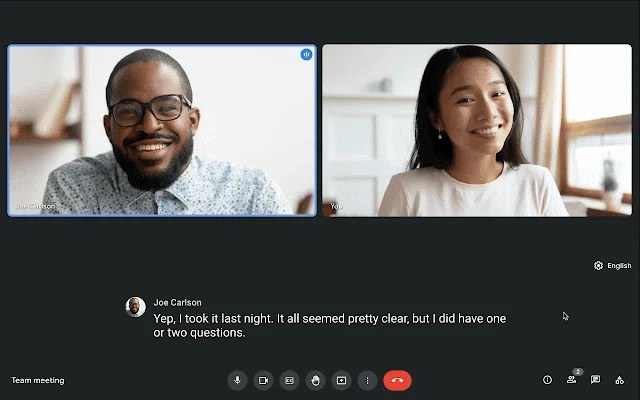
Google Meet has a feature called "Translated Captions" that translates spoken content during a meeting into another language in real time and displays it as subtitles.
Feature overview
The translated captions feature uses AI to perform speech recognition on what's said during the meeting, then translates it into the language you specify and shows it as captions. For example, even when the other person is speaking English, you can have Japanese (or another language) appear on your own screen.
Because each participant configures this for themselves, different people in the same meeting can see captions in different languages. Captions appear only on your screen and are not visible to other participants.
Supported languages
As of January 2026, Google Meet's captions support speech recognition in over 80 languages. Translated captions support 69 languages, covering most major business languages including English, Japanese, Chinese (Simplified and Traditional), Korean, German, French, Spanish, Italian, and Portuguese.
Eligibility and licensing
To use Google Meet's translated captions, you need one of the following Google Workspace editions.
Available editions
- Business Standard
- Business Plus
- Enterprise Standard
- Enterprise Plus
- Teaching and Learning Upgrade (for educational institutions)
- Education Plus (for educational institutions)
Things to note
- Free Google accounts cannot use translated captions
- Caption display (without translation) is available to all users
- Regardless of the host's license, each participant needs their own license
About speech translation
Separately from translated captions, Google Meet has also offered a "Speech Translation" feature since 2025. This converts spoken words into another language's audio and plays it back in real time, but as of January 2026 it is only supported between English and Spanish. Japanese and many other languages are not yet available.
3. How to set up translated captions in Google Meet
To use Google Meet's translated captions, follow these steps during a meeting.
Step 1: Turn on captions
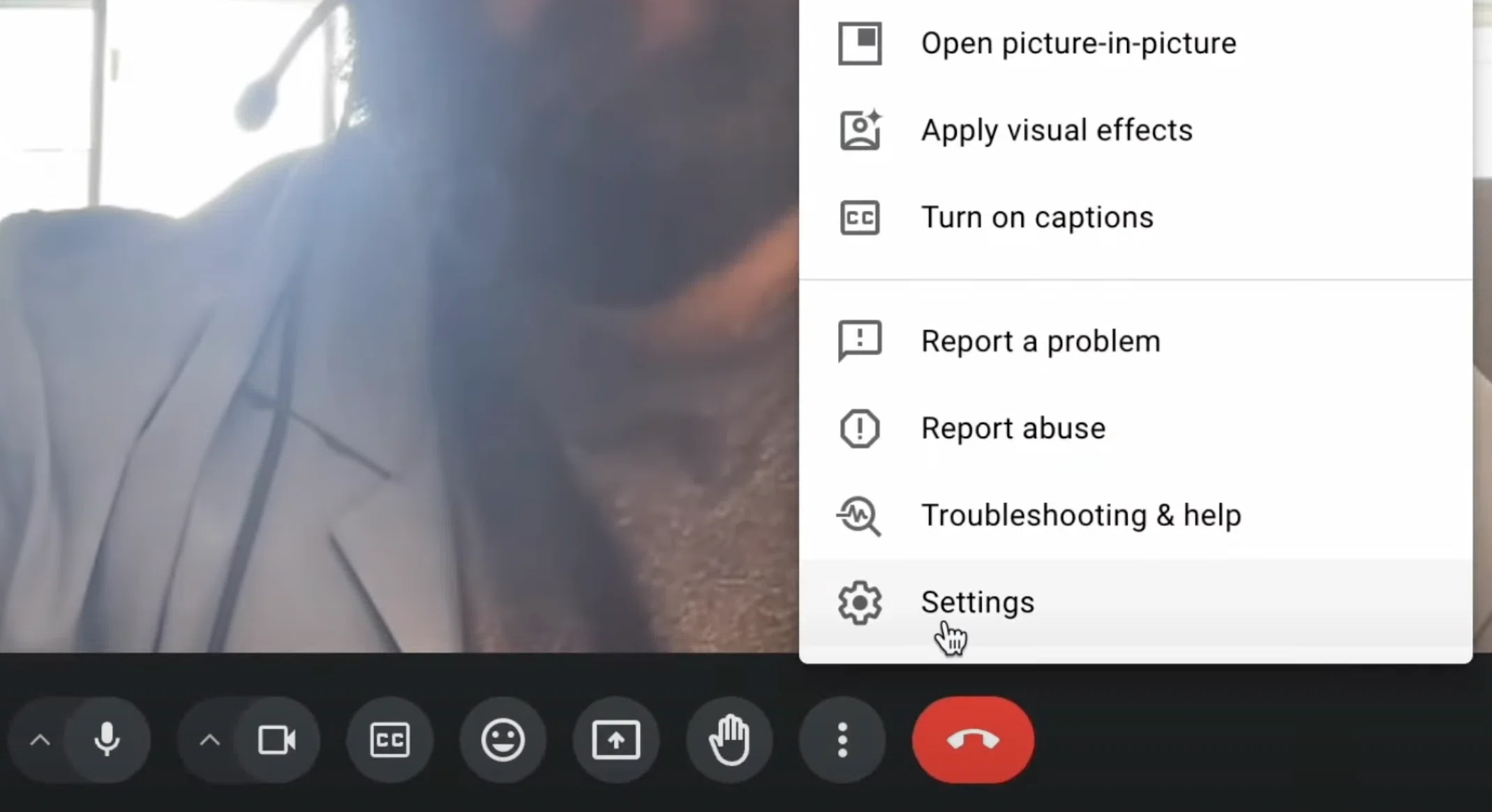
In the Google Meet meeting screen, click the "CC" icon (captions) in the toolbar at the bottom of the screen. This enables caption display.
Step 2: Open caption settings
Click the "︙" (More) icon next to the "CC" icon and select "Settings".
Step 3: Set the spoken language
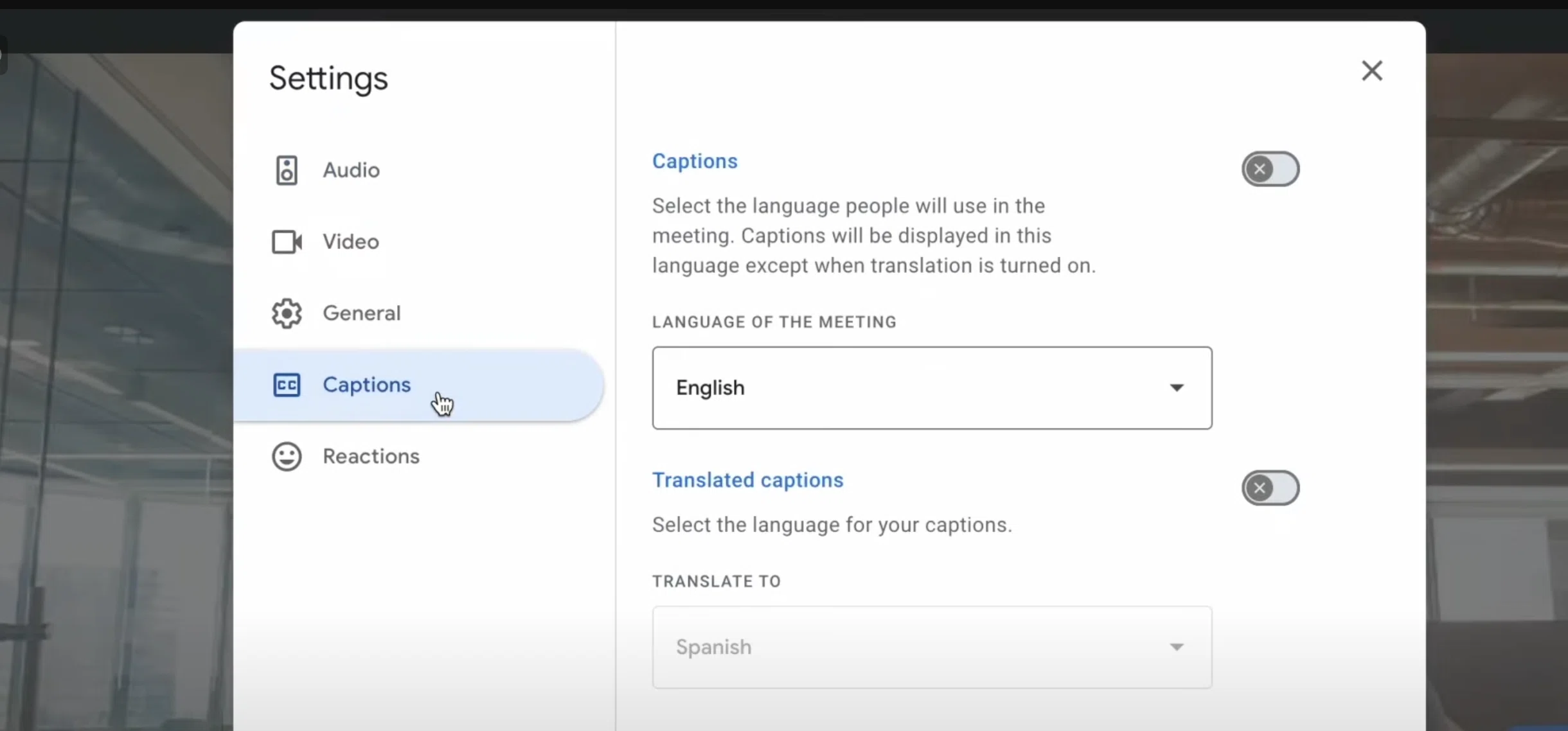
Under "Meeting language", set the language being spoken (e.g., English). This is the language targeted for speech recognition.
Step 4: Enable translation
Turn on "Translated captions" and select the language you want to display (e.g., Japanese).
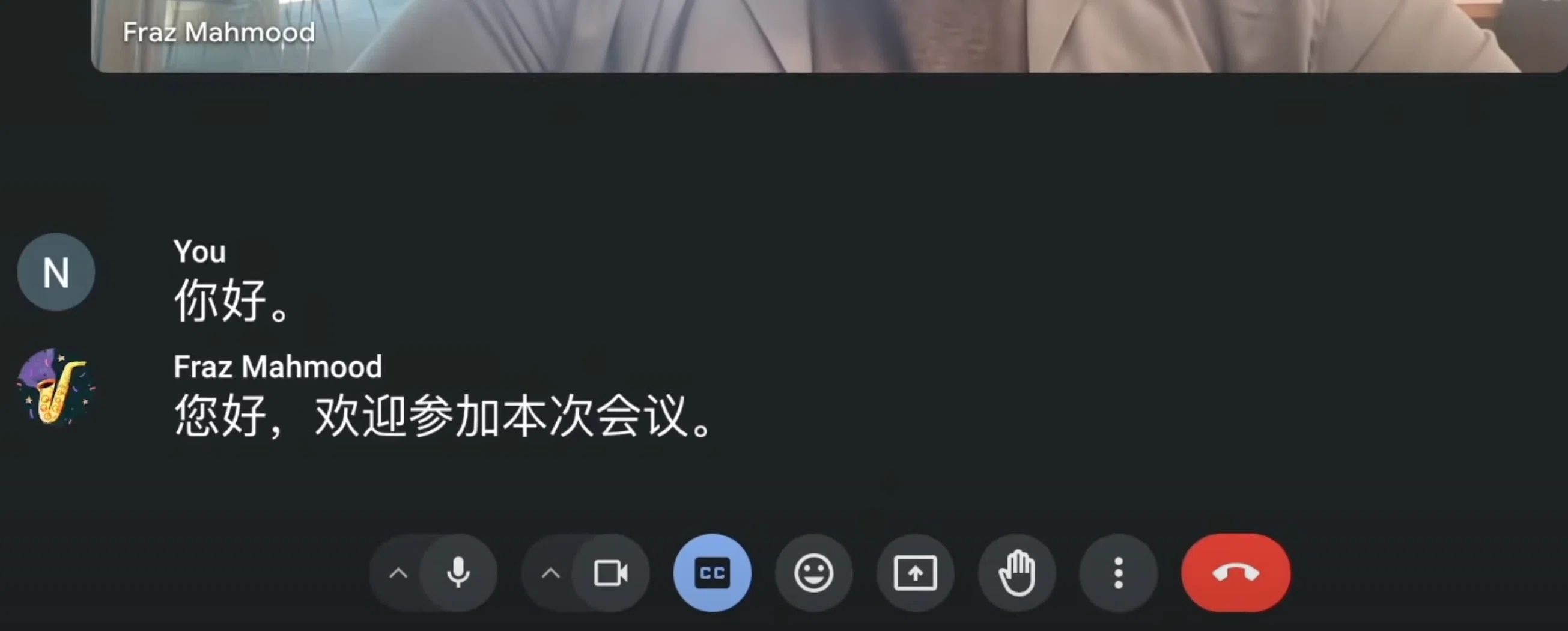
With this, when the other person speaks English, your screen will display real-time captions in your chosen language.
Things to keep in mind
- Captions are not saved. Caption data is not stored after the meeting ends. If you want to keep meeting notes, you'll need to use a separate recording or transcription feature.
- Accuracy is not perfect. Because translation is real-time, grammatical errors or mistranslations can occur.
- Quality depends on your network. When the connection is unstable, translation quality may degrade.
4. Where Google Meet's native feature falls short and when an alternative shines
Google Meet's native translated captions feature is convenient, but it's not the best fit for every scenario. In the following cases, it's worth considering an alternative tool.
Case 1: You don't have a paid Google Workspace plan
To use translated captions, you need a Google Workspace license of Business Standard or higher. Free Google accounts and consumer Google One plans are not eligible. Because each participant needs their own license, you can't use translation in a meeting hosted by an external party either, unless you personally have the license.
Case 2: Multiple languages are spoken during the meeting
In some meetings, English, Chinese, Japanese, and other languages are spoken simultaneously. Google Meet's translation is one-way translation from a configured language, so meetings where the language frequently switches can be hard to keep up with.
Case 3: You want the same experience outside of Google Meet
Translated captions are exclusive to Google Meet, so they can't be used in Microsoft Teams, Zoom, or in-person meetings. For people who move between multiple platforms, a platform-agnostic tool is more convenient.
Case 4: You want a summary during the meeting to help catch up
If a tool can generate a summary in your language in real time, even when you miss the captions you can look back at the summary to quickly catch up. Google Meet's native feature doesn't provide real-time summaries during the meeting.
Case 5: You want speaking support from your language into English
Google Meet's translated captions are a support feature for the "listening" side. Support for the "speaking" side, where what you say in your own language is translated into English for the other party, is currently limited. If you need help speaking up in an English-language meeting as a non-native speaker, it's worth looking at another tool.
Case 6: You don't want the other party to notice that you're recording
When you use Google Meet's recording feature, all participants are notified that recording is in progress. For external sales calls or confidential 1-on-1 meetings, there are times when you'd rather take notes without making the other party aware of any capture.
5. Recommended alternative: SuperIntern
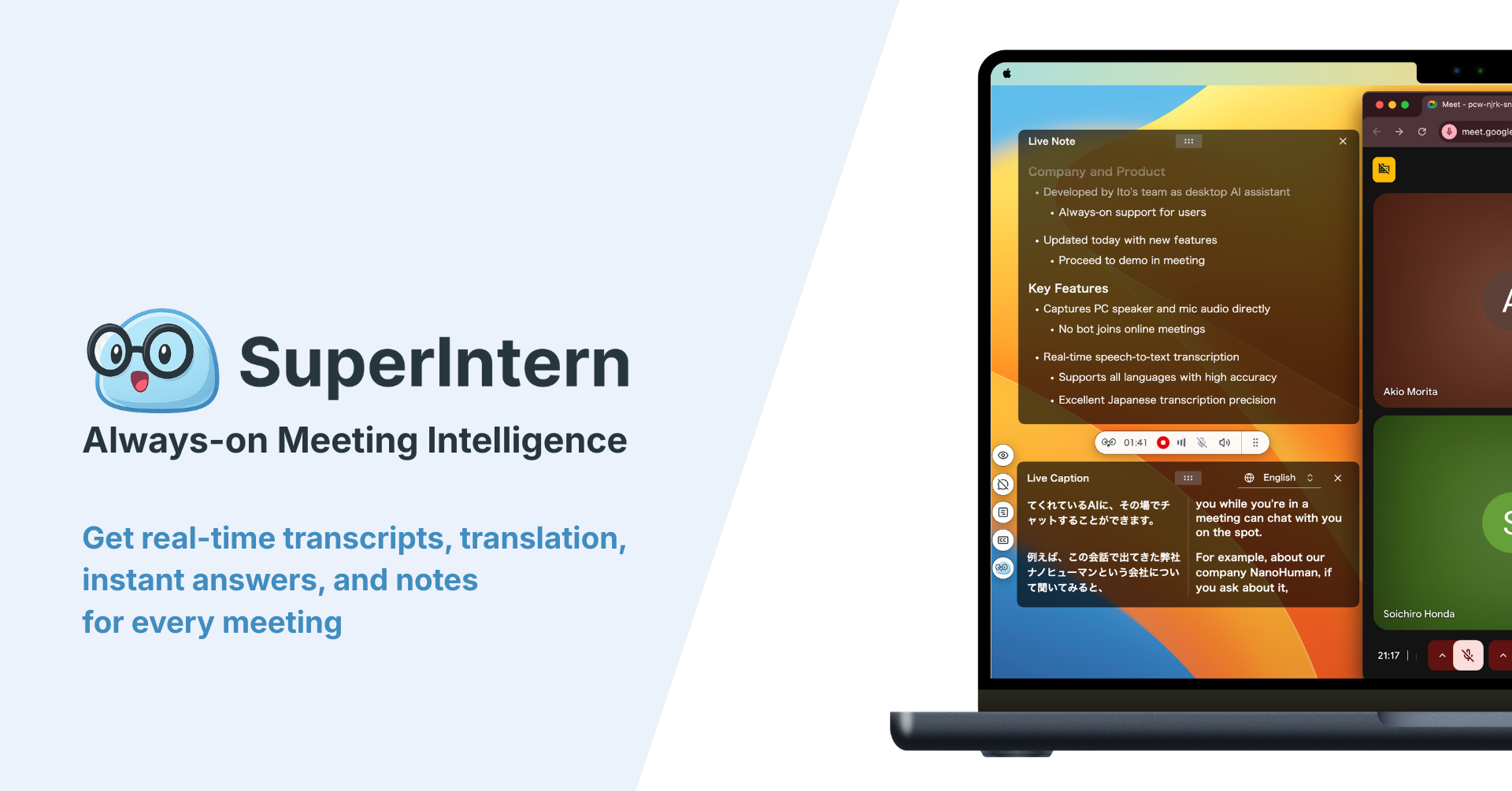
As a tool that addresses the issues above, we'd like to introduce SuperIntern, provided by us at NanoHuman Inc.
What is SuperIntern
SuperIntern is a meeting AI tool built on the concept of "making work more efficient, starting from the meeting." It offers real-time translation and AI meeting notes that work not just for Google Meet, but also Zoom, Microsoft Teams, and even in-person meetings.

Eight benefits of using SuperIntern with Google Meet
Benefit 1: Real-time translation without a special license
Because SuperIntern is an independent service, no Google Workspace license is required. No matter who hosts the meeting, as long as SuperIntern is installed on your PC, you can use the translation feature. It works even if you're joining Google Meet with a free Google account.
Benefit 2: Translates reliably even when multiple languages are mixed
Even when several languages are spoken during a meeting, SuperIntern automatically detects each language and translates consistently into your chosen language. You don't need to think about switching languages manually.
Benefit 3: Works the same way outside of Google Meet
Beyond Google Meet, SuperIntern works the same way in Zoom, Microsoft Teams, Webex, and in-person meetings. There's no need to switch tools, and every meeting gets consistent support.
Benefit 4: Auto-generates real-time meeting notes
While the meeting is going on, a structured summary in your language is updated in real time. When you ever wonder "wait, what did we just decide?", a quick glance at the summary gives you the answer. It also greatly reduces the work of writing up notes after the meeting.
Benefit 5: Speaking support helps you contribute in English meetings
SuperIntern includes a speaking-support feature that translates what you type in your own language into English for display. When you're not sure what to say in an English meeting, you can think it through in your own language and convert it into English to read aloud.
Benefit 6: Custom dictionary improves accuracy for specialized terms
You can register company names, product names, and industry jargon in a custom dictionary. This reduces misrecognized proper nouns and inconsistent translations, yielding more accurate captions and notes.
Benefit 7: No bot joins the meeting
Many meeting AI and translation tools work by having a bot join the call. SuperIntern uses a bot-less design, capturing audio on your own PC so it's invisible to other participants. Because the other side never sees that you're recording, you can use it freely in external sales calls and confidential meetings.
Benefit 8: Supports 50+ languages
Beyond major languages like English, Japanese, Chinese, Korean, German, French, Spanish, Italian, Portuguese, Russian, and Arabic, SuperIntern also covers languages such as Hindi, Swahili, and Basque.
SuperIntern pricing
- Free plan: Get started for free, no credit card required
- Plus plan: $20/month, up to 100 hours of usage
Compared with signing up for a Google Workspace Business Standard plan just for translated captions, SuperIntern offers excellent value when you factor in real-time meeting notes, speaking support, the bot-less design, and the custom dictionary.
Who it's best for
- People who want to make translation and meeting notes more efficient at the same time in Google Meet
- People in external sales calls who don't want the other party to be aware of any recording
- People who want one consistent tool across meeting platforms beyond Google Meet
- People who don't have a Google Workspace license but still want translation
- People who want support for speaking up in English meetings
6. Summary
As a way to use real-time translation in Google Meet, we first introduced Google Meet's native translated captions. The fact that it supports translation into 69 languages and can be used easily with a Business Standard or higher license is genuinely appealing.
On the other hand, if any of the following needs apply, an alternative tool like SuperIntern is worth considering.
| Need | Google Meet native | SuperIntern |
|---|---|---|
| Real-time translation | Yes | Yes |
| No special license required | No (paid Workspace plan needed) | Yes |
| Auto-detection and translation of multiple languages | Limited | Yes |
| Works outside of Google Meet | No | Yes (all platforms) |
| Custom dictionary | No | Yes |
| Real-time meeting notes | No | Yes |
| Speaking support | Limited (speech translation is EN/ES only) | Yes |
| No recording notification to the other party | No | Yes |
Real-time translation in Google Meet is shifting from "nice to have" to "must-have." Pick the tool that fits your use case and keep your global communication moving smoothly.
Start by trying SuperIntern on the Free plan and feel for yourself how much real-time translation plus meeting notes change meeting productivity.