
How to Record a Google Meet: Step-by-Step Guide and Fixes When You Can't (2026)

Google Meet can record meetings, but only some accounts get the Record button. Many people find this out halfway through an important call, when the option they expected is simply not in the menu.
This guide covers who can record a Google Meet, the exact steps on a computer and on Android, where the file ends up, what the recording leaves out, and how to fix the most common "why can't I record?" problems. It also explains your options when you join from a free Gmail account or attend a meeting hosted by another company.
⚠️ This article was independently compiled based on publicly available information and user feedback as of November 2026.
Table of Contents
- Can you record a Google Meet? The short answer
- Which Google accounts can record in Meet
- Who can start a recording during a meeting
- How to record a Google Meet step by step
- Where Google Meet recordings are saved
- What a Meet recording captures and what it misses
- Why can't I record my Google Meet? Causes and fixes
- Options when the Record button isn't available
- How to record Google Meet audio and notes with SuperIntern
- Comparison of recording methods
- Consent and recording etiquette checklist
- FAQ
- Conclusion
Can you record a Google Meet? The short answer
Yes, if three conditions are met at the same time:
- The meeting is hosted on a Google account or Workspace edition that includes recording.
- Your Workspace admin has allowed recording.
- Your role in the meeting lets you press Record.
If any one of them is missing, the Record option will not appear for you. Here is how that plays out in common situations.
| Your situation | Can you use Meet's built-in recording? | What to do |
|---|---|---|
| Company Workspace account (Business Standard or higher), your own meeting | Usually yes | Meeting tools > Recording > Start recording |
| Colleague's meeting in the same organization | Yes, if Host Management is off and the host has permission | Ask the host to turn off Host Management or to record |
| Customer or partner meeting (you are external) | Only if the host promotes you to co-host | Ask the host to record and share the file, or use another method |
| Free personal Gmail account | No | Use a screen recorder or a desktop meeting assistant |
| Google One subscription with 2 TB or more | Yes, for meetings you host | Record from a computer or Android device |
| Joined from the iPhone or iPad app | No | Switch to a computer or Android device |
The rest of this guide explains each condition in detail.
Which Google accounts can record in Meet
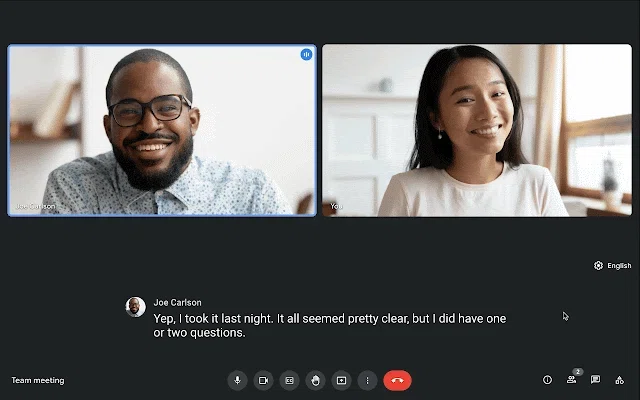
According to Google's recording help page, recording is available in these Google Workspace editions:
- Business Standard and Business Plus
- Enterprise Starter, Enterprise Standard, Enterprise Plus and Enterprise Essentials
- Essentials
- Education Plus (staff license) and Teaching and Learning Upgrade (license required)
- Workspace Individual
On the consumer side, Google lists Google One subscribers with 2 TB or more of storage.
Two groups are notably missing from that list:
- Free personal Gmail accounts. You can host and join meetings, but you cannot record them with Meet itself.
- Business Starter, Education Fundamentals and Education Standard. These editions are not on the list, so meetings they host cannot be recorded in Meet.
Even on an eligible edition, recording is an admin-controlled feature. If your company's Workspace admin has not allowed meeting recording for your organizational unit, the option stays hidden. Plans and eligibility change over time, so check Google's page before buying a plan just for recording.
Who can start a recording during a meeting
Having an eligible account is not enough. Meet also checks who you are in the meeting. Based on Google's help page, you can record if one of these applies:
- You are the host.
- You are in the host's organization and Host Management is off.
- You are outside the host's organization and the host has made you a co-host.
- You are a teacher or co-teacher in a meeting created from Google Classroom.
A key rule is easy to miss: if the host's account does not have recording permission, nobody in the meeting can record, even someone whose own account could.
There are a few more cases where recording is blocked:
- The host has turned on Host controls, so participants cannot change the recording or transcript status.
- You joined "only to present."
- You are an external participant, or you joined from the mobile app or a phone line. You are notified when recording starts, but you cannot control it.
How to record a Google Meet step by step
On a computer (browser)
- Open Google Meet and click Start or Join.
- At the bottom right, click Meeting tools, then Recording.
- Optionally, choose a language under captions if you want captions saved with the recording.
- Click Start recording.
- In the confirmation pop-up, click Start.
- Wait a few seconds until the recording indicator appears. Everyone in the meeting is notified.
To stop, open Meeting tools > Recording > Stop recording, then confirm with Stop recording. The recording also ends automatically when everyone leaves the meeting.
Recording has a hard limit: a single meeting can be recorded for a total of 8 hours, after which Meet stops it automatically.
On Android
Google states that you can only record a meeting on a computer or an Android device. The flow on Android follows the same idea: open the activities or meeting tools menu during the call and start recording. Menu labels on mobile can differ by app version, so look for the Recording entry rather than a specific icon.
On iPhone and iPad
The iOS app is not listed as a device that can start recordings. If you are on an iPhone, ask the host or a colleague on a computer to record, or rejoin from a laptop.
Recording automatically
On eligible editions, hosts can set a meeting to record automatically. Open the Calendar event, go to Video call options > Meeting records, and select Record the meeting. Admins can also make recording the default for new meetings.
Automatic recording only starts when the host or a co-host joins from the web, so a meeting where the host never shows up will not be recorded. Participants who join an auto-recorded meeting see a warning on screen.
Where Google Meet recordings are saved
Recordings are saved to the meeting organizer's Google Drive, not to the Drive of the person who clicked Record.
- They go into a folder named Google Meet, with a subfolder for each meeting.
- Older recordings that were in the "Meet Recordings" folder were renamed "Legacy Meet Recordings" and moved inside the Google Meet folder starting in July 2026. Existing links still work.
- An email with the recording link is sent to the organizer and to the person who started the recording.
- The link is also added to the Google Calendar event.
- Attendees in the organizer's organization get access automatically. People outside the organization need the file to be shared with them.
After the meeting, the file needs time to process. Until it is ready, Drive shows it as "Still processing." Saved captions can take a few more hours to become playable. If you need the content right after the call, plan for this delay.
Recording also requires Drive space. If your personal Drive quota or your organization's quota is full, you cannot start a recording, and Meet shows an alert.
What a Meet recording captures and what it misses
| Item | Included in the recording? | Notes |
|---|---|---|
| Active speaker video | Yes | Pinning someone does not change who is recorded |
| Presented screen | Yes | Up to 1080p, depending on the largest shared screen |
| Audio | Yes | |
| Captions | Optional | Only if you selected a caption language when starting |
| Chat | Partly | Saved as a separate .SBV file if continuous meeting chat is off |
| Other windows and notifications | No | |
| Summary, decisions, action items | No | You still have to write them or use another tool |
The last row matters most in practice. A recording is a long video. Finding "what did we agree on the budget?" means scrubbing through it. For many teams, the useful output is a transcript, a summary and a list of next steps, not the video itself.
Why can't I record my Google Meet? Causes and fixes
If the Record option is missing or greyed out, work through this table. The causes come from Google's help page and the most common situations we see.
| Cause | How to check | Fix |
|---|---|---|
| Free Gmail account | Look at the account you are signed in with | Upgrade to an eligible plan, ask an eligible host to record, or use another method |
| Edition not eligible (for example Business Starter) | Ask your admin which edition you have | Upgrade the edition or use another method |
| Admin has not allowed recording | The menu has no Recording entry at all | Ask your Workspace admin to enable meeting recording |
| You are external and not a co-host | You joined a customer's or partner's meeting | Ask the host to promote you to co-host, or to record and share |
| Host Management is on | Same-organization meeting hosted by a colleague | Ask the host to turn it off or to record |
| Host controls are on | The host locked recording | Ask the host |
| The host lacks permission | Even eligible participants cannot record | The host's account needs recording permission |
| You joined only to present | You used the "present" join option | Rejoin as a normal participant |
| Drive is full | Meet shows a quota alert | Free up Drive space or ask your admin about organization storage |
| You are on iPhone or iPad | You joined from the iOS app | Rejoin from a computer or Android device |
| Consent prompt not accepted | Your admin requires explicit consent | Click Start or Join on the consent prompt |
| macOS Chrome permissions | macOS Sequoia blocks screen or audio capture | Allow Chrome in System Settings > Privacy & Security |
Most problems fall into two groups: plan or admin settings, which only your admin or the host can change, and your role in the meeting, which the host can change in seconds if you ask before the call starts.
Options when the Record button isn't available
If Meet's built-in recording is not an option, you still have alternatives. Before using any of them, make sure the meeting participants know they are being recorded (see the checklist below).
1. Ask the host to record and share
This is the simplest option for customer and partner meetings. Send a short message before the call: "Would you mind recording today's session and sharing the link afterward?" The file stays in their Drive, so you depend on their sharing settings and how long they keep it.
2. Ask to be made a co-host
If you are external but the host's edition supports recording, the host can promote you to co-host. You can then start the recording yourself. The file will still land in the organizer's Drive, not yours.
3. Use your operating system's screen recorder
Both macOS and Windows include screen recording tools.
- macOS: press Shift + Command + 5 to open the Screenshot toolbar and choose a screen recording option. Check before an important call that the other participants' audio is actually captured, because system audio capture depends on your macOS version and settings.
- Windows: the Snipping Tool includes screen recording, and the Xbox Game Bar (Windows + Alt + R) can record an app window. Check the audio settings and run a short test first.
Screen recorders produce a large video file and nothing else. You still have to transcribe and summarize the meeting yourself.
4. Use a Chrome extension or a bot-based notetaker
Some Chrome extensions capture the Meet tab, and many AI notetakers send a bot that joins the call as a participant. Bots are visible to everyone, some organizations block them, and a bot usually needs to be admitted by the host. Check your company's policy on browser extensions and third-party meeting bots.
5. Use a botless desktop meeting assistant
A desktop assistant records the audio coming in and out of your own computer, so it works regardless of Meet's plan, admin settings or your role in the meeting. Nothing joins the call. This is the approach SuperIntern takes, covered in the next section.
How to record Google Meet audio and notes with SuperIntern
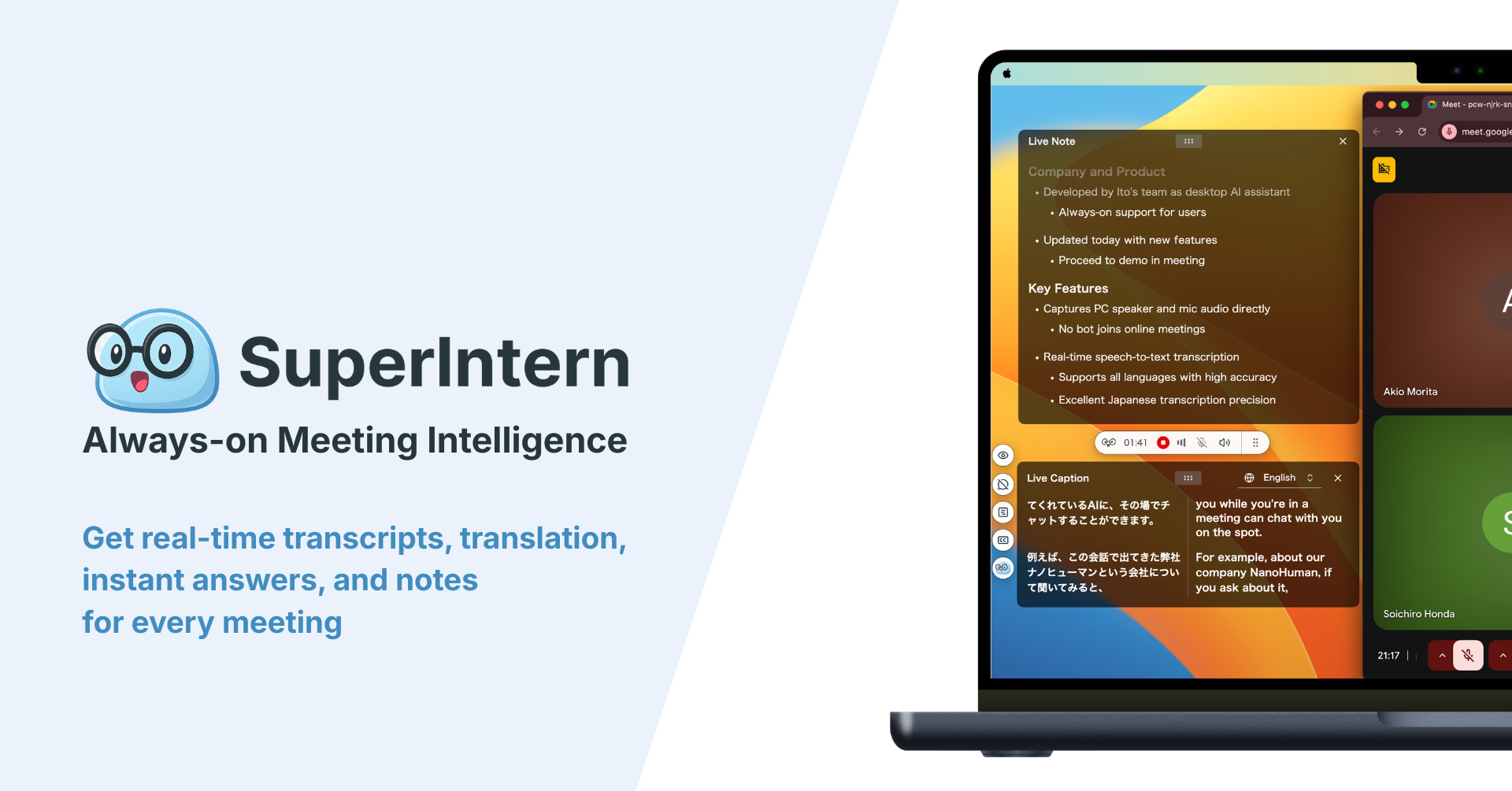
SuperIntern is a botless AI meeting assistant for macOS and Windows, built by NanoHuman Inc. It captures your computer's system audio and microphone, transcribes the conversation in real time and turns it into notes. Because it does not depend on Meet's recording feature, it works the same way on a free Gmail account, in a customer's meeting or in a colleague's call with Host Management on.
What you get
- An audio recording and a live transcript with speaker labels, which you can follow during the meeting.
- AI Canvas notes, structured meeting notes that update while people talk. You can customize the format, for example decisions, open questions and action items.
- Shared screens saved automatically. When you join Meet in a browser with the SuperIntern browser extension connected, SuperIntern keeps the shared screens that the conversation refers to and shows them in the Transcript tab, synced with the recording.
- A summary in any language, regardless of the language spoken, and real-time translation for multilingual meetings.
- AI chat after the meeting, so you can ask "What did we agree about the launch date?" instead of rewatching.
Setup in four steps
- Install the SuperIntern desktop app and grant the microphone and audio capture permissions.
- Install the SuperIntern browser extension for Chrome, Edge, Dia or Aside and connect it to the app.
- In notification settings, choose whether Meet calls in the browser should show a "start recording" notification or start and stop automatically.
- Join your Google Meet as usual. Recording, transcription and notes start, and nothing appears in the participant list.
Optionally, connect Google Calendar. When you start from a calendar event, its title becomes the meeting title and invitee names are suggested as speaker names.
What SuperIntern does not do
To set expectations clearly:
- It does not produce a video file of the meeting. You get audio, a transcript, notes and saved shared screens.
- Saving shared screens requires the browser extension and works for meetings joined in a browser.
- It requires the desktop app on macOS or Windows. It does not record from the Meet mobile app.
- It does not notify participants for you. Tell people you are recording, as you would with any other method.
A free plan is available without a credit card. Plus costs $20 per month and includes 100 hours of meetings.
Comparison of recording methods
| Criterion | Meet built-in recording | Ask the host | OS screen recorder | Bot-based notetaker | SuperIntern |
|---|---|---|---|---|---|
| Works on free Gmail | No | Depends on the host | Yes | Usually yes | Yes |
| Works in other companies' meetings | Only as co-host | Yes, if they agree | Yes | If the host admits the bot | Yes |
| Visible to participants | Recording notice | Recording notice | No notice | Bot in participant list | No bot; inform people yourself |
| Output | Video in organizer's Drive | Video shared with you | Large video file | Recording, transcript, summary | Audio, transcript, AI Canvas notes, shared screens |
| Notes during the meeting | No | No | No | Varies | Yes |
| Time until usable | Processing delay | Depends on the host | Immediately, but unedited | Usually after the meeting | During the meeting |
| Extra cost | Eligible Workspace or Google One plan | None | None | Varies by tool | Free plan; Plus $20/month |
A simple way to decide:
- You host internal meetings on an eligible Workspace edition: use Meet's recording. It is already paid for and the file stays in your company's Drive.
- You mainly need the video, for example a training session: use Meet's recording or a screen recorder.
- You join many customer or partner meetings, or use a free Gmail account: a botless desktop assistant avoids permission issues.
- You need decisions and action items, not a video: choose a tool that produces notes during the meeting so you are not rewatching later.
Consent and recording etiquette checklist
Recording rules depend on where you and the other participants are. In the United States, some states require consent from everyone on the call, while others require only one party. This is not legal advice; check your company's policy and local law.
- Tell participants at the start that the meeting is being recorded and why.
- For external meetings, mention recording in the invitation or ask at the start of the call.
- Follow your company's rules for storing and sharing recordings, especially for interviews, HR and customer calls.
- Decide who can access the file and how long to keep it.
- Do not record if a participant objects. Take notes manually instead.
- Before sharing a transcript or summary, check names, numbers and decisions.
Meet notifies participants when its own recording starts. Screen recorders, extensions and desktop tools do not do this automatically, so saying it out loud matters even more.
FAQ
Can I record a Google Meet with a free Gmail account?
Not with Meet's built-in recording. Free personal Gmail accounts do not include it. You can ask an eligible host to record, upgrade to a qualifying Google One or Workspace plan, or use a screen recorder or desktop meeting assistant with the participants' consent.
Does Google Meet notify others when you record?
Yes. When Meet's built-in recording starts or stops, every participant is notified. Screen recorders and desktop tools do not send a notification, so you need to tell participants yourself.
Where do Google Meet recordings go?
To the meeting organizer's Google Drive, in the Google Meet folder, with a subfolder for each meeting. The organizer and the person who started the recording receive the link by email, and the link is added to the Calendar event.
How long can a Google Meet recording be?
Up to 8 hours in total per meeting. After that, Meet stops the recording automatically.
Can I record a Google Meet on my phone?
On Android, yes, if your account and role allow it. On iPhone and iPad, the Meet app cannot start a recording, so join from a computer or ask someone else to record.
Can I record a Google Meet I don't host?
Sometimes. Same-organization participants can record when Host Management is off, and external participants can record if the host makes them a co-host. Otherwise, ask the host to record or use a method that captures your own computer's audio, with consent.
Can I get a transcript instead of a video?
Yes. Meet can save captions with the recording on eligible plans, and a separate transcript feature exists on some editions. A desktop assistant such as SuperIntern produces a live transcript and structured notes during the meeting, which is often more useful than a video when you need to follow up.
Conclusion
Recording a Google Meet is easy when you host the meeting on an eligible Workspace edition: Meeting tools > Recording > Start recording, and the file appears in your Drive after processing. It gets harder on a free Gmail account, in another company's meeting, or when the host's settings block you.
Before an important call, check three things: the host's plan, your role and your admin's settings. If any of them blocks you, ask the host, or use a method that records from your own computer, and tell participants either way. If what you really need is the decisions and action items, try SuperIntern on the free plan in your next Google Meet and compare the notes with what you would have written yourself.