
How to Record a Teams Meeting: Steps, Where Recordings Go, Downloads and Fixes (2026)

Microsoft Teams can record a meeting's audio, video and screen sharing in a couple of clicks. Whether you can use that button, though, depends on your license, your IT admin's policy and your role in the meeting. People usually discover this when they join a client's call and find Record locked, or when they go looking for a recording that was saved to someone else's OneDrive.
This guide covers who can record in Teams, the steps on desktop, web and mobile, where recordings are stored and for how long, how to download a recording when you're not the organizer, and why the Record button is sometimes unavailable. It ends with practical options for keeping a record when native recording isn't an option.
⚠️ This article was independently compiled based on publicly available information and user feedback as of November 2026.
Table of Contents
- Can you record a Teams meeting? The short answer
- Licenses and admin policies that control recording
- Who can start a recording during a meeting
- How to record a Teams meeting step by step
- Where Teams recordings are saved and how long they last
- How to download and share a Teams recording
- What a Teams recording captures and what it misses
- Why can't I record in Teams? Causes and fixes
- Options when the Record button isn't available
- How to record Teams audio and notes with SuperIntern
- Comparison of recording methods
- Consent and recording etiquette checklist
- FAQ
- Conclusion
Can you record a Teams meeting? The short answer
You can record a Teams meeting when all three of these are true:
- Both the organizer and the person starting the recording have a license that includes recording.
- Your IT admin has turned on meeting recording in the meeting policy for both of them.
- The person starting the recording belongs to the organizer's organization. Guests and external users can't record.
If the organizer has limited who can record in the meeting options, you also need to be in that group. Here is how common situations play out:
| Situation | Can you use Teams recording? | What to do |
|---|---|---|
| Your company Microsoft 365 account, your own meeting | Yes, if your admin allows it | More actions > Record |
| A colleague's meeting in the same organization | Usually yes | Ask the organizer if recording is restricted |
| A client's meeting (you're an external participant) | No | Ask the organizer to record and share, or use another method |
| You joined as a guest | No | Ask someone from the host organization to record |
| You joined anonymously without signing in | No | Sign in with a work account or ask for a recording |
| Microsoft Teams (free) personal account | Not on Microsoft's list of eligible licenses | Use a screen recorder or a desktop meeting assistant |
Internal meetings usually just work. The friction shows up in external meetings and in organizations where admins restrict recording. Each condition is explained below.
Licenses and admin policies that control recording
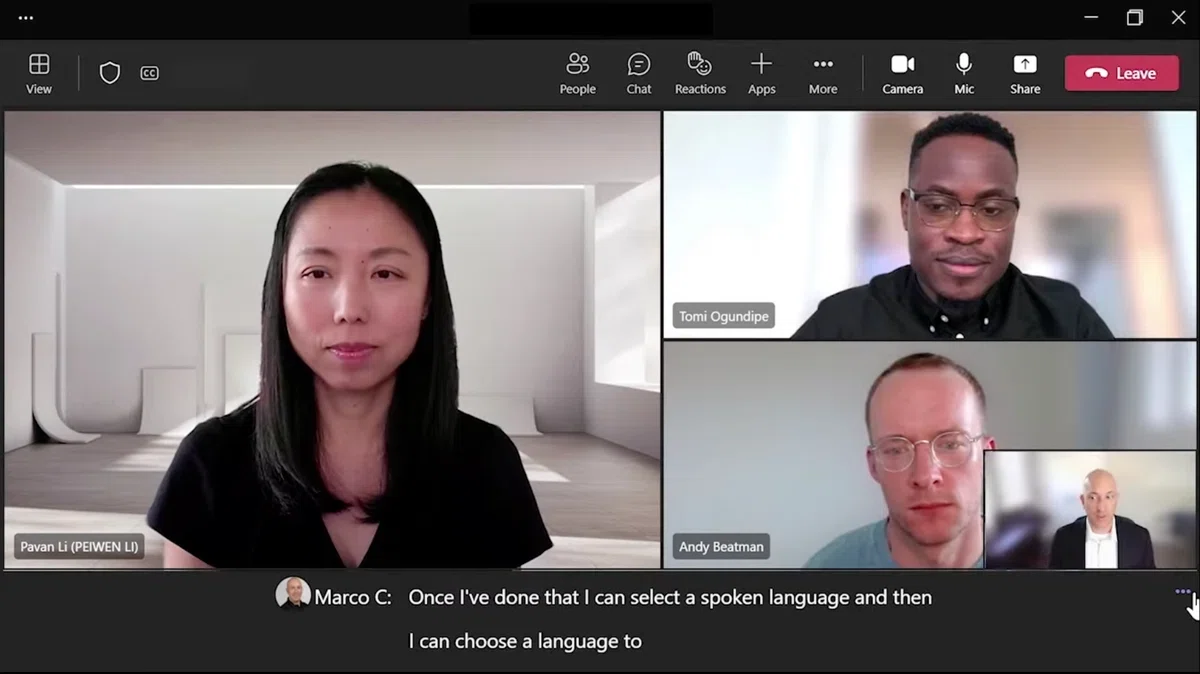
According to Microsoft's support article on recording, recording is available with these licenses:
- Office 365 Enterprise E1, E3 and E5
- Office 365 F3
- Education A1, A3 and A5
- Microsoft 365 Business plans (including Business Premium and what used to be Business Essentials)
Both the organizer and the person who clicks Record need an eligible license and recording permission. Your own license isn't enough if the organizer's account doesn't qualify. Microsoft Teams (free) for personal use is not on this list.
On top of licensing, the admin policy matters. In the Teams admin center, under Meetings > Meeting policies, the Meeting recording setting decides whether users can record. If it's off, you may still see the button, but it won't work. Policy changes can take a while to reach users.
A few other organization settings affect recording:
- Explicit recording consent. When enabled, a participant's audio and video aren't captured until they agree to be recorded.
- Recording expiration. Admins choose how many days new recordings are kept before they expire (more on this below).
- Copilot settings. If the organizer turns off "Allow Copilot" in the meeting options, recording and transcription are turned off too.
Who can start a recording during a meeting
Microsoft's support article lists recording rights by role:
| Participant type | Start recording | Stop recording |
|---|---|---|
| Meeting organizer | Yes | Yes |
| Someone from the same organization | Yes | Yes |
| Someone from another organization or company | No | No |
| Guest | No | No |
| Anonymous participant | No | No |
The organizer doesn't need to attend for someone else to record. If the person who started the recording leaves, the recording keeps going.
With Teams Premium or a Copilot license, organizers can set Who can record and transcribe in the meeting options to one of three values:
- Organizers and co-organizers
- Organizers, co-organizers, and presenters
- No one
If it's set to organizers and co-organizers, attendees from your own organization can't record. When someone on your team is responsible for recording, ask the organizer to make them a co-organizer before the meeting.
One more edge case: federated users from a connected organization can record calls, but not meetings.
How to record a Teams meeting step by step
On desktop or the web app
- Start or join the Teams meeting.
- In the meeting controls, select More actions (...) and then Record (some versions label it Record and transcribe).
- Choose the spoken language and what you want to record. To capture sound only, pick Audio only under "Choose what to record".
- Select Confirm. Recording doesn't start until you do.
- Everyone in the meeting gets a notification in Teams that recording has started.
To stop, open More actions again and choose the stop option. Teams asks whether to stop the recording (which also stops live transcription) or only the transcription. If you stop only the transcription, the recording continues.
Menu labels change between Teams versions. If you can't find the exact wording, look for the Record or Recording item rather than a specific icon.
On the Teams mobile app
During the meeting, tap More options and then Start recording. To stop, open the same menu and tap Stop recording. Participants are notified on mobile too.
Record meetings automatically
Organizers can turn on Record and transcribe automatically in the meeting options. Recording and transcription then begin as soon as the meeting starts, which is useful for recurring meetings you always want on file.
Webinars and town halls are recorded automatically by default.
If someone forgets to leave
Recording stops on its own when everyone leaves. If someone stays in the meeting, the recording ends and restarts automatically every four hours until the last participant leaves.
Where Teams recordings are saved and how long they last
The storage location depends on the type of meeting:
| Meeting type | Saved to | Folder |
|---|---|---|
| Regular (non-channel) meeting | Organizer's OneDrive | Recordings |
| Channel meeting | The channel's SharePoint site | Recordings folder in the document library |
| 1:1 or group call | OneDrive of the person who clicked Record | Recordings |
For regular meetings, the file goes to the organizer's OneDrive, not to the person who pressed Record, even if the organizer never joined. If the organizer has no OneDrive, Teams tries co-organizers, then the person who started the recording. If none of them can store it, the file goes to temporary storage and is deleted if nobody downloads it within 21 days.
You rarely need to browse OneDrive to find a recording:
- Meeting chat. The recording appears in the meeting chat after the meeting ends, or in the channel conversation for channel meetings.
- Recordings and Transcripts tab. Open the meeting in the Teams calendar to see its recording and transcript in one place.
Recordings expire after 120 days by default
Teams recordings have an expiration date. By default, recordings and transcripts expire 120 days after they're created. Admins can change that number or set recordings to never expire. Policy changes only apply to new recordings, not existing ones.
Organizers and co-organizers can change the expiration for an individual recording. Open the recording and select the expiration countdown under the video, then pick a new timeframe or choose Remove expiration.
When a recording expires, it moves to the recycle bin and the owner gets an email. It can be restored for up to 90 days. If you need a training session or a contract walkthrough for longer, extend the expiration early.
How to download and share a Teams recording
Who can view and who can download
For regular meetings, every invitee except external participants automatically gets a sharing link to the recording. External participants only get access if the organizer adds them. In channel meetings, all channel members can watch.
Downloading and deleting are a different story. By default, only organizers and co-organizers can download or delete a recording. Other people in your organization can play it but can't download or reshare it. For channel meetings, an admin setting can save recordings to a "View only" folder where members can't download them.
How to download a recording
If you're the organizer or a co-organizer:
- Open the recording from the meeting chat or from the Recordings and Transcripts tab.
- When the recording opens in your browser, select Download at the top of the page.
- If you don't see Download there, open the Recordings folder in OneDrive (or SharePoint for channel meetings), select the file and choose Download.
If you're not the organizer
Attendees can't download by default. Your options:
- Ask to be made a co-organizer. Co-organizers get the same edit permissions as the organizer.
- Ask the organizer to share the file. They can send a OneDrive link that allows downloading.
- Check your organization's rules. If an admin has blocked downloads, even the organizer may not be able to share a downloadable copy. Many companies also restrict external sharing.
Recording files are large and not well suited to external sharing. If you only need to tell a client what was decided, sharing meeting notes is faster than sharing a video.
What a Teams recording captures and what it misses
| Item | Included? | Notes |
|---|---|---|
| Audio | Yes | Choose Audio only to skip video |
| Participant video | Partly | Up to four video streams at a time |
| Screen sharing | Yes | |
| Transcript | Only if turned on | Captions appear on playback if transcription was running during recording |
| Whiteboards and annotations | No | |
| Shared notes | No | |
| Content shared through apps | No | |
| Videos or animations embedded in PowerPoint Live | No | |
| Summary, decisions and action items | No | You write them or use another tool |
Captions on playback depend on transcription being on at recording time. Moving or copying the file out of its original location can also break caption support.
The last row is the one that hurts in practice. To find out what was agreed on pricing in a one-hour recording, you scrub through the video. What most teams need afterwards isn't the video. It's the transcript, a summary and a list of next steps.
Why can't I record in Teams? Causes and fixes
If you hover over the Record button, Teams often tells you why it's locked. Based on Microsoft's support article, here are the common messages:
| Message | Cause | Fix |
|---|---|---|
| Only people in this org can start recording | You joined anonymously, as a guest or from another organization | Sign in with an authenticated account, or ask someone from the host organization to record and share |
| Unavailable for this meeting due to organization policy | Your admin hasn't enabled recording, or a recent policy change hasn't taken effect | Ask IT to check your meeting policy |
| Unavailable in this meeting | The organizer's policy doesn't allow recording | Ask the organizer's admin to check |
| Only meeting organizer and co-organizer can start recording | Who can record is set to organizers and co-organizers | Ask to be made a co-organizer or to change the setting |
| The meeting organizer has disabled recording | Who can record is set to No one | Ask the organizer whether recording is allowed |
| Only meeting organizers and presenters can start recording | You're an attendee, not a presenter | Ask to be made a presenter in the meeting options |
| Recording has already started | Someone else just started it | Wait a few seconds |
| Unavailable because Copilot is turned off | Allow Copilot is off in the meeting options | Ask the organizer to review the setting |
Wording varies by Teams version and language. Also note that if a recording fails before the "recording started" message appears, it can't be recovered. For important meetings, confirm on screen that recording has started before you get into the agenda.
Most causes fall into two groups. Licensing and admin policy can only be changed by IT. Your role in the meeting can usually be fixed in a minute if you ask the organizer before the meeting starts.
Options when the Record button isn't available
You can still keep a record when Teams recording is off the table. With every method below, tell participants you're recording. See the checklist later in this article.
1. Ask the organizer to record and share
For client meetings, this is the most reliable route. Before the meeting, ask: "Could you record today's call and share the link afterwards?" The file stays in their OneDrive, so they control sharing and retention.
2. Get made a co-organizer
In internal meetings where recording is restricted, being made a co-organizer lets you start the recording and download it yourself. External participants still can't record, even as co-organizers.
3. Use your operating system's screen recorder
Windows and macOS both include screen recording:
- Windows: Snipping Tool can record the screen, and Xbox Game Bar (Windows+Alt+R) can record the Teams window.
- macOS: Press Shift+Command+5 to open the screen recording toolbar. Depending on your macOS version and settings, other participants' audio may not be captured, so run a short test first.
Screen recording gives you a large video file and nothing else. You'll still have to write the transcript and summary yourself. Unlike Teams recording, nobody is notified automatically.
4. Use a bot-based notetaker
Some AI notetakers send a bot into the meeting as a participant to record and transcribe. The bot appears in the participant list, so everyone can see it. In external meetings, it only gets in if the organizer admits it, and some companies ban meeting bots outright. Check the rules on both sides first.
5. Use a botless desktop meeting assistant
A desktop meeting assistant captures the audio playing on your computer and your own microphone. Because it doesn't use Teams recording, it isn't affected by licenses, admin policies or your meeting role, and no bot joins the call. SuperIntern works this way, as described in the next section.
How to record Teams audio and notes with SuperIntern
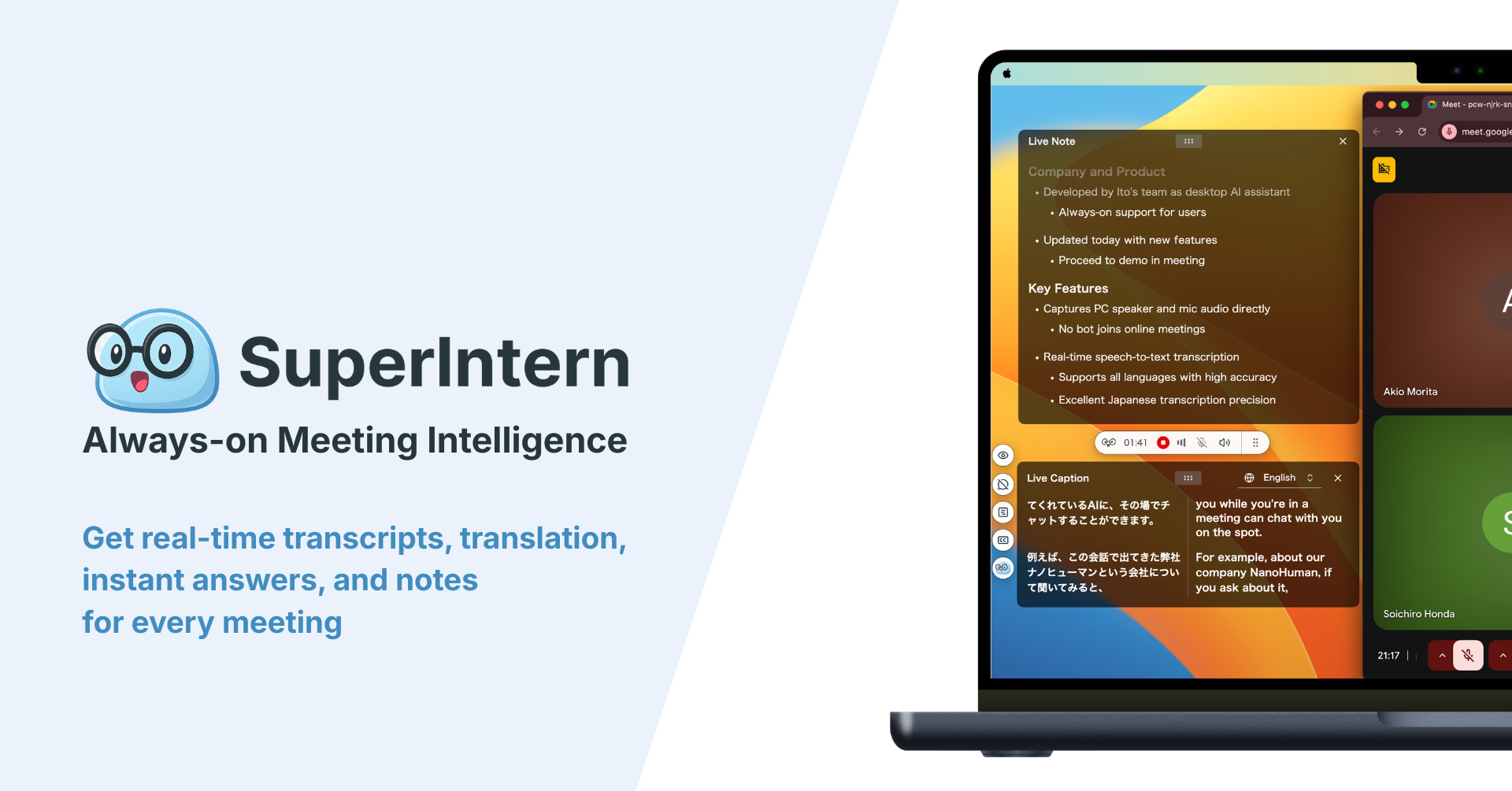
SuperIntern is a botless AI meeting assistant built by NanoHuman Inc. for macOS and Windows. It captures system audio and your microphone, transcribes the conversation in real time and turns it into structured notes. Because it doesn't depend on Teams recording, it works the same way in a client's meeting, as a guest, or in a meeting where recording is restricted.
What you get
- Audio and real-time transcription. A speaker-labeled transcript you can read during the meeting. Once you match a speaker to a participant, their name appears automatically in later meetings.
- AI Canvas notes. Structured notes that update as people talk. You decide the format: decisions, open questions, action items or your own template.
- Shared screen capture. With the browser extension connected and Teams running in your browser, screens that come up in the conversation are saved and shown in sync with the recording.
- Summaries in any language. Summarize the meeting in whatever language you need, no matter what was spoken. Real-time translation is available for multilingual meetings.
- Post-meeting AI chat. Ask "What did we decide about the delivery date?" instead of rewatching anything.
Save the screens that matter instead of the whole meeting
Most people who want to record a meeting really want to see the shared slides and screens again later. Recording an entire hour of video gives you a heavy file and a long search for the one slide you need.
SuperIntern doesn't record the whole meeting. It picks out the shared screens that the conversation actually refers to and saves only those key moments.
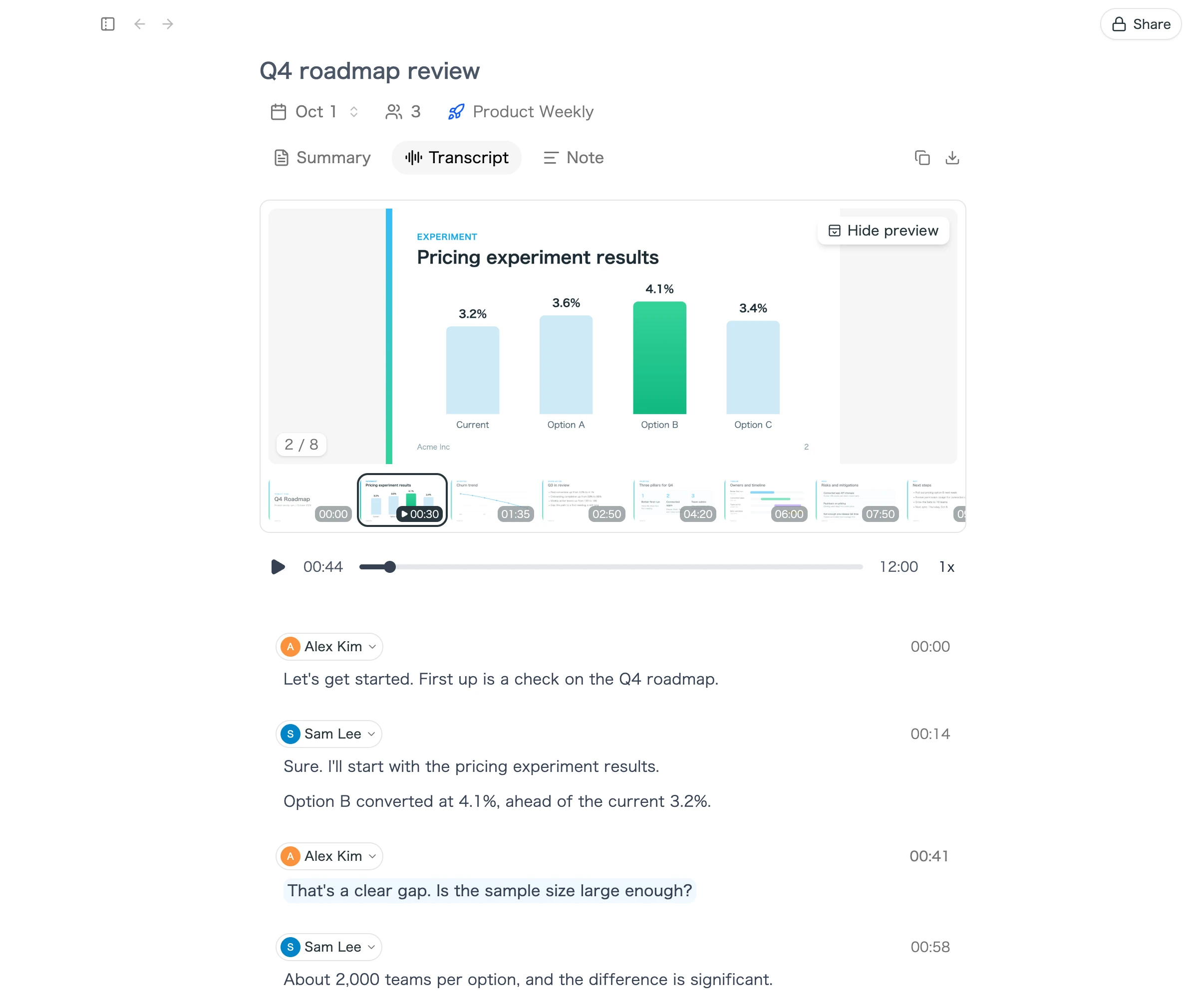
- Synced with the audio. When you play back the recording in the Transcript tab, the slide or screen that was on display at that moment appears alongside it.
- Jump straight to the moment. Pick a thumbnail and playback starts where people were talking about that screen.
- Reuse the images. Saved screens can be enlarged, copied or downloaded, so you can paste them straight into notes or a report.
To use it, connect the SuperIntern browser extension and join the meeting in Teams for the web.
Set up in four steps
- Install the SuperIntern desktop app and allow microphone and audio capture permissions.
- If you use Teams in the browser, install the SuperIntern browser extension for Chrome, Edge, Dia or Aside and connect it to the app.
- In notification settings, choose whether SuperIntern should show a notification or start and stop automatically when it detects a Teams meeting.
- Join your Teams meeting as usual. Recording, transcription and notes begin, and nothing appears in the participant list.
Connecting Outlook or Google Calendar helps: when you start from a calendar event, the event title becomes the meeting name and invitees are suggested as speaker names.
What SuperIntern doesn't do
- It doesn't create a video file. You get audio, a transcript, notes and saved shared screens.
- Shared screen capture covers meetings joined in the browser. In the Teams desktop app, you still get audio, the transcript and notes.
- It requires the macOS or Windows desktop app. It can't record from the Teams mobile app.
- It doesn't notify participants. As with any method, tell people you're recording.
A free plan is available without a credit card. Plus costs $20 per month and includes 100 hours of meetings.
Comparison of recording methods
| Factor | Teams recording | Ask the organizer | OS screen recorder | Bot-based notetaker | SuperIntern |
|---|---|---|---|---|---|
| Works in external meetings | No | If they agree | Yes | If the organizer admits the bot | Yes |
| Teams (free) personal accounts | Not eligible | Depends on organizer | Yes | Varies by tool | Yes |
| What participants see | Recording notice | Recording notice | Nothing | Bot in participant list | No bot; you announce recording |
| What you keep | Video in organizer's OneDrive | Shared video | Large video file | Audio, transcript, summary | Audio, transcript, AI Canvas notes, shared screens |
| Downloads | Organizers and co-organizers by default | Depends on sharing | Saved on your computer | Varies by tool | Managed in your account |
| Retention | 120 days by default | Organizer decides | You manage it | Varies by tool | Managed in your account |
| Live notes during the meeting | No | No | No | Varies by tool | Yes |
| Extra cost | Eligible Microsoft 365 license | None | None | Varies by tool | Free plan; Plus $20/month |
How to choose:
- You mostly host internal meetings: use Teams recording. There's no extra cost and files stay in your organization's OneDrive.
- You need the video itself, for training or demos: use Teams recording or a screen recorder, and extend the expiration if you need it beyond 120 days.
- You often join meetings hosted by clients: a botless desktop meeting assistant avoids permission problems.
- You need decisions and action items more than video: pick a tool that writes notes during the meeting so nobody has to rewatch it.
Consent and recording etiquette checklist
Recording rules depend on company policy and where participants are located. Some jurisdictions require every participant's consent. This article isn't legal advice. Check your internal policies and the laws that apply to you.
- Announce at the start that you're recording and why
- For external meetings, mention recording in the invite or get agreement at the start
- Follow internal storage and sharing rules for interviews, HR conversations and customer calls
- Decide who can access the recording and how long you'll keep it
- If anyone objects, don't record; take written notes instead
- Check names, numbers and decisions before sharing a transcript or summary
Teams recording notifies everyone automatically. Screen recorders and desktop tools don't, which makes saying it out loud even more important.
FAQ
Can someone other than the organizer record a Teams meeting?
Yes, if they're in the organizer's organization. It won't work if the organizer has set Who can record and transcribe to organizers and co-organizers, or to No one. External participants, guests and anonymous attendees can't record, so ask someone from the host organization.
Does Teams notify participants when recording starts?
Yes. When Teams recording starts, everyone sees a notification in the desktop, web or mobile app. Screen recorders and desktop tools don't send a notice, so tell participants yourself.
Where are Teams meeting recordings saved?
Regular meetings are saved to the Recordings folder in the organizer's OneDrive. Channel meetings go to the channel's SharePoint site, and 1:1 or group calls go to the OneDrive of the person who started recording. You can also open recordings from the meeting chat or the Recordings and Transcripts tab in the calendar.
How can I download a Teams recording if I'm not the organizer?
By default, only organizers and co-organizers can download. Ask to be made a co-organizer, or ask the organizer to share a link that allows downloads. If your admin has blocked downloads, even the organizer may not be able to share one.
How long do Teams recordings last?
By default, recordings and transcripts expire after 120 days and move to the recycle bin. Your organization may use a different number. Organizers and co-organizers can extend or remove the expiration for each recording.
Can I record only the audio of a Teams meeting?
Yes. When you start recording, choose Audio only under what to record. If audio, a transcript and notes are enough, a desktop meeting assistant like SuperIntern is another option.
Can I record meetings with Microsoft Teams (free)?
Teams (free) isn't on Microsoft's list of licenses that include meeting recording. If you need a record, use an eligible Microsoft 365 license, or use a screen recorder or desktop meeting assistant with everyone's consent.
Conclusion
For internal meetings, recording in Teams takes three clicks: More actions, Record, Confirm. The file lands in the organizer's OneDrive and shows up in the meeting chat and calendar. The limits show up elsewhere: external participants can't record, only organizers and co-organizers can download by default, and recordings expire after 120 days unless someone extends them.
Before an important meeting, check three things: licensing, admin policy and your role. If one of them blocks you, talk to the organizer or record on your own computer, and always tell participants you're recording. If what you really need is decisions and action items, try SuperIntern's free plan in your next Teams meeting and compare it with the notes you'd write yourself.