
How to Record a Zoom Meeting: Local vs Cloud, Where Files Go and Fixes (2026)

Zoom has a built-in recorder, and even the free Basic plan can use it from the desktop app. The catch is permission. By default only the host can start a recording, so when you join someone else's meeting as a participant, the Record button usually asks the host first. People tend to find this out at the worst moment: five minutes into a client call they meant to keep.
This guide explains Zoom's two recording types, the steps on desktop and mobile, where the files end up, how to record when you're not the host, whether other people are notified, and why recording sometimes isn't available. It finishes with options for keeping a record of meetings you can't record natively.
⚠️ This article was independently compiled based on publicly available information and user feedback as of November 2026.
Table of Contents
- Local recording vs cloud recording
- Who can record a Zoom meeting
- How to record a Zoom meeting on desktop
- How to record a Zoom meeting on mobile
- Where Zoom recordings are saved
- How to record a Zoom meeting when you're not the host
- Does Zoom notify others when you record?
- What a Zoom recording includes and leaves out
- Why you can't record in Zoom and how to fix it
- Five options when the Record button isn't available
- Recording Zoom audio and notes with SuperIntern
- Recording methods compared
- Consent and recording etiquette checklist
- FAQ
- Conclusion
Local recording vs cloud recording
Zoom offers two ways to record. Local recording (Zoom calls it "Record on this Computer") saves files to your own machine. Cloud recording ("Record to the Cloud") stores them in your Zoom account. They differ in who can use them and what you get afterwards.
| Local recording | Cloud recording | |
|---|---|---|
| Plans | All plans, including free Basic | Paid plans (Pro, Business, Education, Enterprise) |
| Devices | Desktop app on Windows, macOS and Linux | Desktop app, iOS, Android and Zoom Rooms |
| Where files go | Your computer (Documents/Zoom by default) | Your Zoom account, under Recordings & Transcripts |
| Transcript | Not included | Audio transcript available |
| Sharing | Upload and share the file yourself | Share a link from the web portal |
| Storage | Limited by your disk space | Limited by your plan's cloud storage |
According to Zoom's support documentation, local recording is not supported on iOS, iPadOS or Android. If you need to record from a phone, you need a paid plan and cloud recording.
A quick rule of thumb:
- Free plan, your own meeting: use local recording.
- You want to share the recording or record from your phone: use cloud recording on a paid plan.
- You mostly need decisions and next steps: pair either option with a transcription or note-taking tool so you don't have to rewatch the video.
Who can record a Zoom meeting
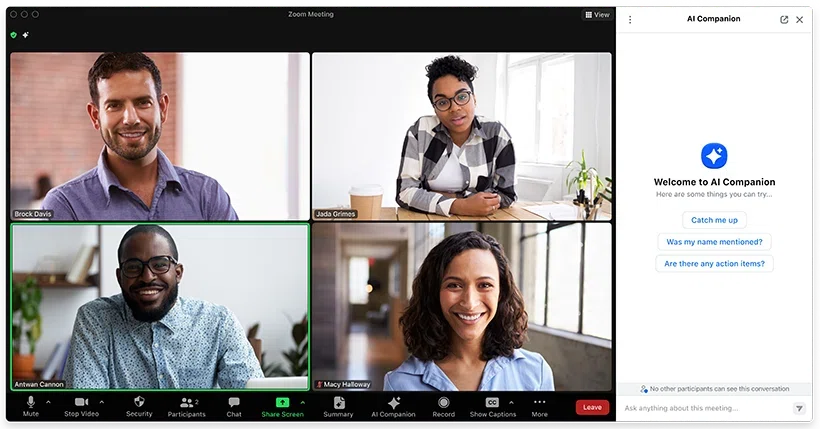
The host can always start a recording, subject to account settings. Everyone else needs permission. Here is how it breaks down:
| Role | Local recording | Cloud recording |
|---|---|---|
| Host | Yes | Yes, on a paid plan |
| Co-host | Depends on host and account settings | Saved to the host's account |
| Participant | Only after the host selects Allow Record | No |
| Joined from a browser or phone | No | No |
Admins matter too. On business accounts, owners and admins can turn local and cloud recording on or off at the account, group or user level. If a higher level locks the setting, the toggle appears greyed out in your own settings and you can't change it.
So if your company Zoom account doesn't show Record at all, the cause is often an admin policy rather than anything you did.
How to record a Zoom meeting on desktop
Local recording
- Start or join the meeting in the Zoom desktop app.
- Click Record in the meeting toolbar. If you don't see it, look under More.
- If a menu appears, choose Record on this Computer.
- A recording indicator appears in the top-left corner of the meeting window.
To pause, click Pause. To finish, click Stop Recording. Pausing and resuming keeps everything in one file, while stopping and starting again creates a separate file. If you want a single video, pause instead of stopping.
Labels can shift between Zoom versions and languages. If you can't find the button, look for the round record icon.
Cloud recording
If your paid account has cloud recording enabled, choose Record to the Cloud in step 3. Processing starts after the meeting ends, and the host gets an email when the recording is ready. Long meetings can take a while to process.
Automatic recording
To start recording as soon as a meeting begins:
- For one meeting: when scheduling, open Options and turn on Automatically record meeting.
- For all your meetings: in the web portal, go to Settings > Recording and turn on automatic recording.
On free Basic accounts, automatic recording works for local recording only and starts only when the host launches the meeting from the desktop app. For recurring meetings that you always want on file, it's a simple way to stop forgetting.
How to record a Zoom meeting on mobile
The Zoom mobile app can't record locally. On a paid plan you can use cloud recording:
- Start the meeting in the Zoom app.
- Tap More (...) in the meeting controls.
- Tap Record to the Cloud.
On the free plan there's no way to record from the Zoom mobile app itself. Join from the desktop app instead, or ask the host to record and share. Your phone's own screen recorder will capture the screen, but unlike Zoom's recorder it doesn't notify anyone, so get consent first (see the checklist below).
Where Zoom recordings are saved
Local recordings
Zoom's default save locations are:
| OS | Default folder |
|---|---|
| Windows | C:\Users\[Username]\Documents\Zoom |
| macOS | /Users/[Username]/Documents/Zoom |
| Linux | home/[Username]/Documents/Zoom |
Each meeting gets its own subfolder named with the date and meeting topic. Inside you'll typically find an MP4 file with video and audio, an M4A audio-only file and a text file of the chat.
You can change the folder in the desktop app under your profile picture > Settings > Recording. Zoom warns that network drives, external drives and cloud-synced folders can cause saving or conversion problems, so a local folder on your computer is the safest choice.
Conversion happens after the meeting
Local recordings are converted into MP4 and M4A after the meeting ends. If you close your laptop or quit Zoom during conversion, the files can be corrupted, so leave it running until it's done.
If conversion is interrupted, you'll find a file named something like double_click_to_convert_01.zoom in the recording folder. Don't rename it. Double-click it, or open Meetings > Recorded in the Zoom app, to convert it again. Low disk space is a common cause of failure, so check free space before a long meeting.
Cloud recordings
Sign in to the Zoom web portal and open Recordings & Transcripts > Cloud recordings. From there you can play, download and share recordings. If an audio transcript was generated, you can search what was said.
Cloud storage is capped by plan. When it's full, new cloud recordings can't be saved, although existing ones remain available. Admins may also set an auto-delete policy. Deleted recordings sit in the trash for 30 days before they're permanently removed. Download anything you need to keep long term.
How to record a Zoom meeting when you're not the host
As a participant, clicking Record typically prompts you to request permission from the host. You can only record once they approve.
How the host grants permission
During the meeting, the host:
- Clicks Participants in the toolbar.
- Hovers over your name and clicks More.
- Selects Allow Record.
You'll see a notification, and you can start a local recording. A recording icon appears next to your name while you record. The host can withdraw permission with Forbid Record.
Things to know
- Participants can only record locally. Cloud recording isn't available to participants.
- Admins can restrict requests. Some accounts only let internal participants or specific email domains request permission.
- Permission is per meeting. You'll need to ask again next time.
For client meetings, it helps to ask before the call: "Would it be OK if I record today's session for my notes?" That makes the in-meeting approval a formality. If the host would rather not grant permission, ask them to record and share the file afterwards.
Does Zoom notify others when you record?
Yes. When anyone uses Zoom's recorder, everyone in the meeting is notified. A recording indicator appears on screen, participants may see a consent prompt, and people who dialed in by phone hear an audio announcement. You can't use Zoom's own recorder without others knowing.
Zoom doesn't publish any mechanism for detecting OS-level or third-party screen recording, and answers on the Zoom Community say it isn't detected.
That doesn't make secret recording acceptable. Company policies and client contracts often prohibit it, and some jurisdictions require consent from everyone on the call. Whatever method you use, tell participants you're recording and get their agreement.
What a Zoom recording includes and leaves out
| Item | Local recording | Cloud recording | Notes |
|---|---|---|---|
| Audio | Included | Included | An audio-only M4A file is also created |
| Participant video | Included | Included | Cloud recording can save active speaker and gallery views separately |
| Screen sharing | Included | Included | |
| Chat | Saved as a text file | Saved as a text file | Depends on chat saving settings |
| Transcript | Not included | Audio transcript available | |
| Separate audio per participant | Optional setting | Depends on settings | |
| Summary, decisions, action items | Not included | Not included | Write them yourself or use another tool |
The last row is where most of the pain is. To confirm what you agreed on the delivery date in a one-hour recording, you have to scrub through the video. What people need after a meeting is usually a transcript, a summary and a list of next steps, not the video itself.
Why you can't record in Zoom and how to fix it
| Symptom | Likely cause | Fix |
|---|---|---|
| No Record button | Your admin turned off local recording | Ask your Zoom admin to check recording settings |
| Clicking Record asks the host | You're not the host | Ask the host for Allow Record |
| No Record to the Cloud option | Free plan, or cloud recording is disabled | Use local recording, or check your plan and settings |
| Can't record on your phone | Local recording isn't supported on mobile | Use cloud recording on a paid plan, or join from desktop |
| Can't record in the browser | Local recording needs the desktop app | Rejoin from the desktop app |
| Recording toggle is greyed out | A higher-level admin locked the setting | Ask the admin to change it |
| File missing after the meeting | Conversion was interrupted | Reconvert the double_click_to_convert file |
| Conversion fails | Low disk space, or saving to an external or synced drive | Free up space and save to a local folder |
| Meeting and recording stop at 40 minutes | Free Basic plan time limit | Use a paid plan, or split the meeting |
Meetings hosted on a free Basic account end after 40 minutes when at least one other participant is present. If you need a longer recording, check the host's plan in advance.
An outdated desktop app can also cause recording problems. When in doubt, update Zoom and try again.
Five options when the Record button isn't available
You can still keep a record when Zoom's recorder isn't an option. Whichever you pick, tell participants you're recording.
1. Ask the host for permission
This is the most direct route when you're a participant. Ask at the start of the meeting and you can record locally right away.
2. Ask the host to record and share
If permission isn't possible, ask the host to record and send you the cloud link or file afterwards. The file stays under their control, so they decide who can see it and for how long.
3. Use your operating system's screen recorder
Windows and macOS include screen recording:
- Windows: Snipping Tool can record the screen, and Xbox Game Bar (Windows+Alt+R) can record just the Zoom window.
- macOS: press Shift+Command+5 to open the screen recording toolbar. Depending on your macOS version and settings, other participants' audio may not be captured, so run a short test first.
You end up with a large video file and nothing else. Any transcript or summary is up to you, and nobody is notified automatically.
4. Use a bot-based note taker
Some tools send an AI bot into the meeting as a participant to record and transcribe. The bot shows up in the participant list, and hosts can keep it in the waiting room or block bots entirely.
5. Use a botless desktop meeting assistant
A desktop meeting assistant records the audio playing on your computer plus your microphone. It doesn't depend on the host's permission, your Zoom plan or admin settings, and no bot joins the meeting. SuperIntern works this way, as the next section explains.
Recording Zoom audio and notes with SuperIntern
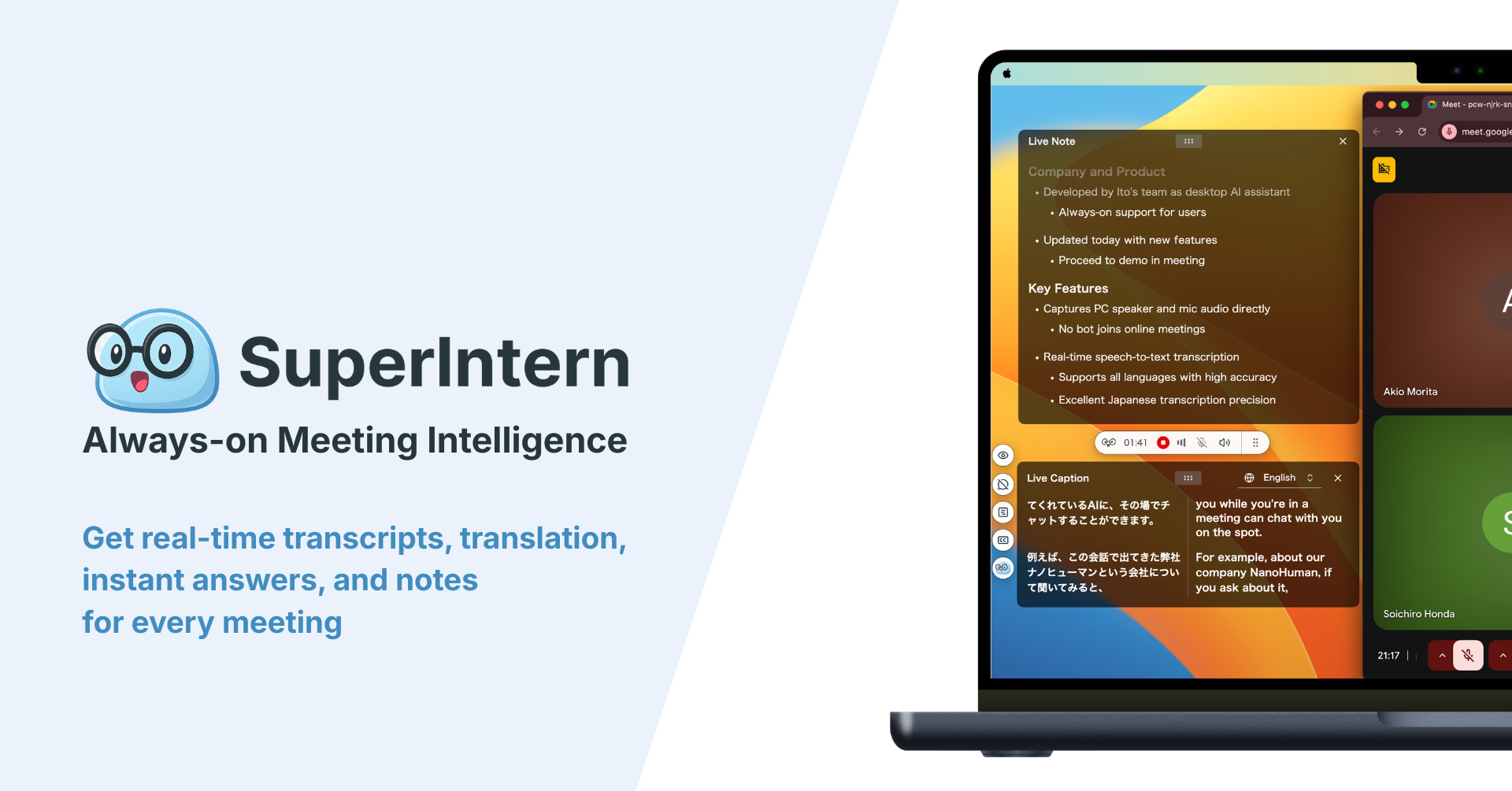
SuperIntern is a botless AI meeting assistant from NanoHuman Inc. for macOS and Windows. It captures your computer's system audio and microphone, transcribes the conversation in real time and turns it into structured notes. Because it doesn't use Zoom's recorder, it works the same way whether you're the host or a participant, and whether the meeting runs on a free or paid Zoom plan.
What you get
- Audio and live transcription. See a speaker-labelled transcript during the meeting. Once you match a speaker to a person, their name appears automatically in future meetings.
- Notes in AI Canvas. Structured notes that update as the conversation unfolds. You decide the format: decisions, open questions, action items or your own template.
- Shared screens saved automatically. Connect the browser extension and join Zoom in your browser, and SuperIntern saves the shared screens that came up in conversation, synced to the audio timeline.
- Summaries in any language. Summarize in the language you prefer, regardless of the language spoken. Real-time translation is available for meetings with international teams.
- AI chat after the meeting. Ask "What did we agree on pricing?" instead of scrubbing through a recording.
Key screens instead of a full video
Most people want a recording so they can look at the slides again later. A full video of a one-hour meeting is heavy, and finding the right slide takes time.
SuperIntern doesn't record the whole meeting as video. It saves the shared screens that were actually discussed.
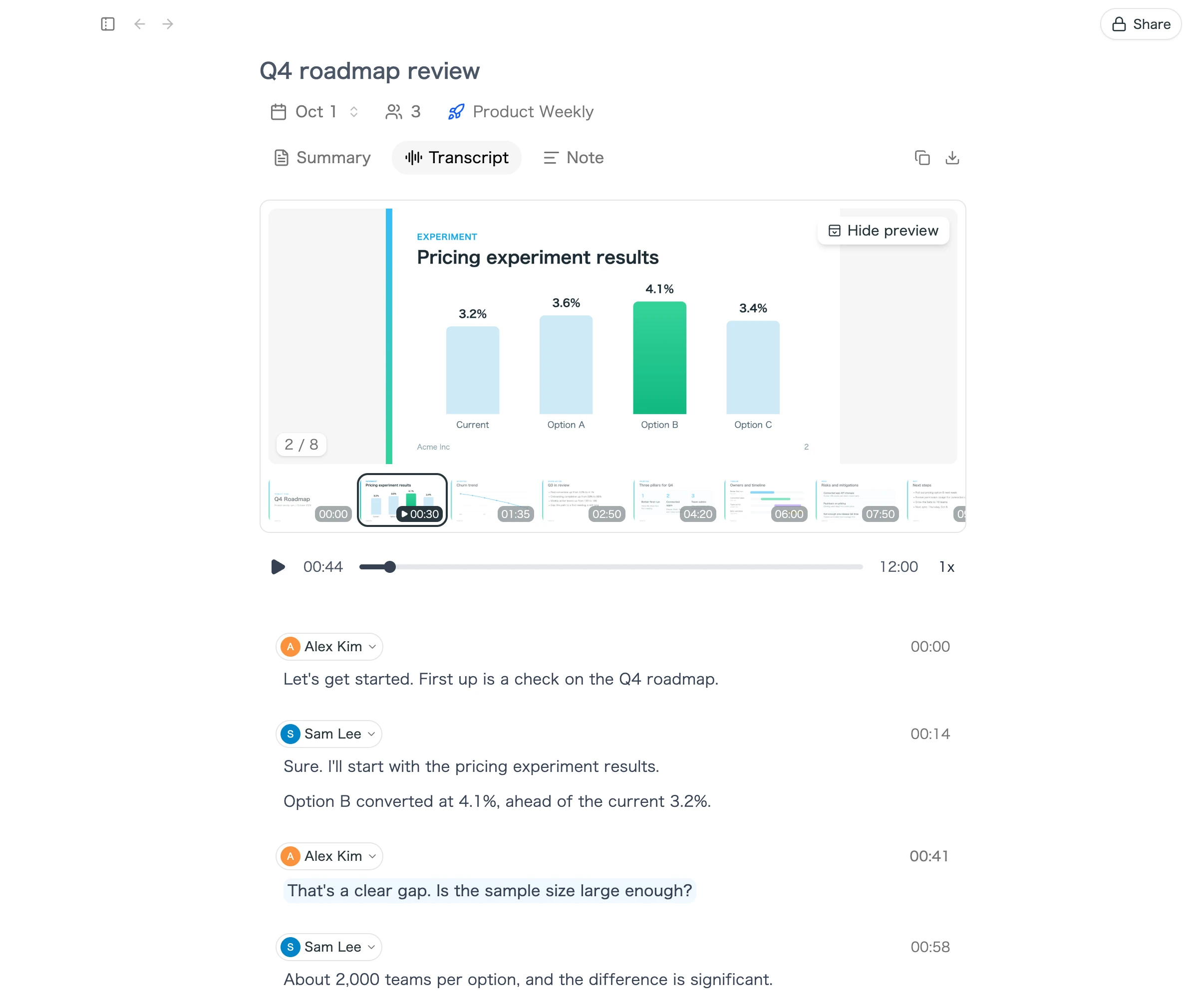
- Synced with the audio. Play back the recording in the transcript tab and you'll see the slide or screen that was showing at that moment.
- Jump from a thumbnail. Pick a screen to play back from the point where it was being discussed.
- Ready to reuse. Enlarge, copy or download saved screens and paste them straight into notes or reports.
Setup in four steps
- Install the SuperIntern desktop app and allow microphone and audio capture permissions.
- If you use Zoom in the browser, install the SuperIntern extension for Chrome, Edge, Dia or Aside and connect it to the app.
- In notification settings, choose whether SuperIntern should show a prompt or start and stop automatically when it detects a Zoom meeting.
- Join your Zoom meeting as usual. Recording, transcription and notes start, and nothing appears in the participant list.
Connecting Google Calendar or Outlook helps too. When you start from a calendar event, the event title becomes the meeting name and invitees are suggested as speaker names.
What SuperIntern doesn't do
- It doesn't create a video file. You keep the audio, transcript, notes and saved shared screens.
- Shared screens are saved only for Zoom meetings joined in the browser. In the Zoom desktop app you get audio, transcript and notes.
- It requires the macOS or Windows desktop app. It can't record from the Zoom mobile app.
- It doesn't notify participants. As with any method, tell people you're recording.
The free plan doesn't require a credit card. Plus costs $20 per month and includes 100 hours.
Recording methods compared
| Zoom local recording | Zoom cloud recording | OS screen recorder | Bot-based note taker | SuperIntern | |
|---|---|---|---|---|---|
| Works on free Zoom | Yes | No | Yes | Depends on tool | Yes |
| Works if you're not the host | With host permission | No | Yes | If the host admits the bot | Yes |
| Mobile | No | Yes | Via the phone's screen recorder | Depends on tool | No |
| What others see | Recording notice | Recording notice | Nothing | A bot in the participant list | No bot; you tell them |
| What you keep | Video, audio, chat | Video, audio, transcript | A large video file | Recording, transcript, summary | Audio, transcript, AI Canvas notes, shared screens |
| Notes during the meeting | No | No | No | Depends on tool | Yes |
| Extra cost | None | Paid Zoom plan | None | Depends on tool | Free plan; Plus $20/month |
How to choose:
- You host the meeting and want video: use Zoom's local or cloud recording. It costs nothing extra and participants are notified automatically.
- You need to distribute a training or webinar video: cloud recording on a paid plan makes sharing easy.
- You often join meetings hosted by clients: ask for permission, or use a botless desktop assistant to avoid permission issues.
- You need decisions and action items more than video: pick a tool that writes notes during the meeting so you don't have to rewatch anything.
Consent and recording etiquette checklist
Recording rules depend on your company's policies and where participants are located. Some jurisdictions require every participant's consent. This article isn't legal advice, so check your internal policies and applicable law.
- Say at the start that you're recording and why
- For external meetings, mention recording in the invite or get agreement at the start
- Follow your company's storage and sharing rules for interviews, HR conversations and customer calls
- Decide who can access the recording and how long you'll keep it
- If someone objects, don't record and switch to written notes
- Check names, numbers and decisions before sharing a transcript or summary
Zoom's recorder notifies everyone automatically. Screen recorders and desktop tools don't, which makes saying it out loud all the more important.
FAQ
Can I record a Zoom meeting on the free plan?
Yes. Free Basic accounts can record locally from the desktop app. Cloud recording requires a paid plan. Meetings hosted on a free account end after 40 minutes, so recordings stop there too.
Where are Zoom recordings saved?
Local recordings go to C:\Users\[Username]\Documents\Zoom on Windows and /Users/[Username]/Documents/Zoom on macOS by default. Cloud recordings are in the Zoom web portal under Recordings & Transcripts.
Can I record a Zoom meeting if I'm not the host?
Yes, if the host selects Allow Record for you, which lets you record locally. Without permission, participants can't use Zoom's recorder. Ask the host to record and share, or, with everyone's agreement, use a tool that records on your own computer.
Does Zoom notify others when I record?
Zoom's recorder notifies everyone in the meeting. Zoom doesn't publish any mechanism for detecting OS screen recording. Either way, tell participants you're recording.
Can I record Zoom on my phone?
Only with cloud recording on a paid plan. Local recording isn't available on mobile. On the free plan, join from the desktop app to record.
What should I do if my recording didn't convert?
Look for a file starting with double_click_to_convert in the recording folder and double-click it without renaming it. You can also reconvert from Meetings > Recorded in the Zoom app. Low disk space and external or synced drives are common causes of failure.
Can I record audio only?
Local recording creates an audio-only M4A file alongside the video. If audio, a transcript and notes are all you need, a desktop meeting assistant such as SuperIntern is another option.
Conclusion
If you're the host, recording a Zoom meeting is one click on Record. Free accounts can record locally to the Documents/Zoom folder, and paid accounts can also record to the cloud. Local files are converted after the meeting ends, so don't close your laptop until that finishes.
As a participant, you need the host's permission. Before an important meeting, check three things: your role, the host's plan and your admin's settings. Whatever method you use, tell people you're recording. And if what you really need is decisions and action items, try SuperIntern's free plan in your next Zoom meeting and compare the notes with your own.