
How to Stop Forgetting to Record Meetings: Meet, Teams, Zoom, PLAUD and SuperIntern Compared (2026)
The meeting ends, you go to check a decision, and there is no recording. An AI note-taker cannot help if nobody started it. A reminder or an automatic recording setting can save you from having to piece the conversation together afterwards.
This guide compares built-in recording in Google Meet, Microsoft Teams and Zoom, dedicated recorders such as PLAUD, and SuperIntern’s desktop reminders and automatic recording. The right choice depends on whether you host the meeting, join someone else’s call or meet in person.
⚠️ This article was written by the team behind SuperIntern using public information and product specifications available in September 2026. Prices and eligibility requirements may change.
Table of Contents
- Why meetings go unrecorded
- Option 1: Auto-recording in Google Meet, Teams and Zoom
- Option 2: Carrying a recorder like PLAUD
- Option 3: An AI assistant that detects meetings and pops up
- Side-by-side comparison
- Setup checklist to reduce missed recordings
- Common failures and how to fix them
- FAQ
- Conclusion
Why meetings go unrecorded
Here are some common situations where a meeting goes unrecorded.
| Pattern | Typical situation | Why it happens |
|---|---|---|
| Forgot to press record | Recurring stand-ups, one-on-ones | The conversation starts immediately and the record button never gets clicked |
| Permission or plan restrictions | A customer’s Meet or an external Teams call | Recording depends on the host’s subscription, settings and your role in the meeting |
| Unscheduled or in person | Slack huddles, a conversation that starts unexpectedly in the office, a walk-in visitor | There is no calendar event, so nobody thinks of it as a "meeting" to record |
| Noticed halfway through | Late in a sales call, once the discussion heats up | Recording from that point loses the first half, which is usually the context |
Start with the cause. Reminders help when you forget to press record. Missing permissions call for a conversation with the host. For impromptu or in-person discussions, you may need a different way to capture audio.
Option 1: Auto-recording in Google Meet, Teams and Zoom
Check the recording options in the meeting tool you already use. If your plan includes them, you may not need another subscription. Availability depends on the plan, admin policy and your meeting role.
Google Meet
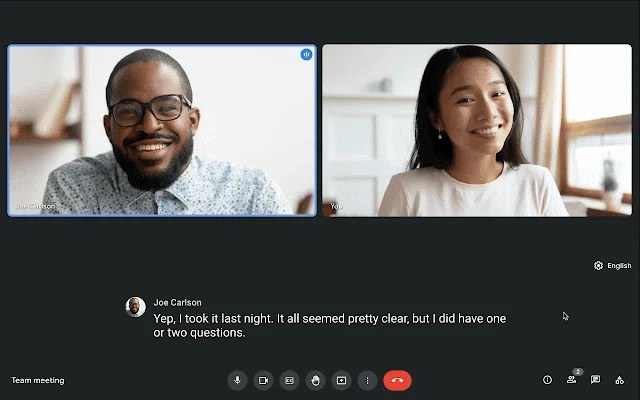
Google Meet recording is available with eligible Workspace editions, including Business Standard and Business Plus. See Google’s recording requirements.
A few details to check:
- External participants can record if they are made co-hosts.
- Recording can only be started from a computer or an Android device.
- Ordinary recordings are stored in the organizer’s Google Drive. Access through a shared link can change if the owner deletes the file or changes sharing permissions.
- Admins can require explicit participant consent for recording and transcription.
Microsoft Teams
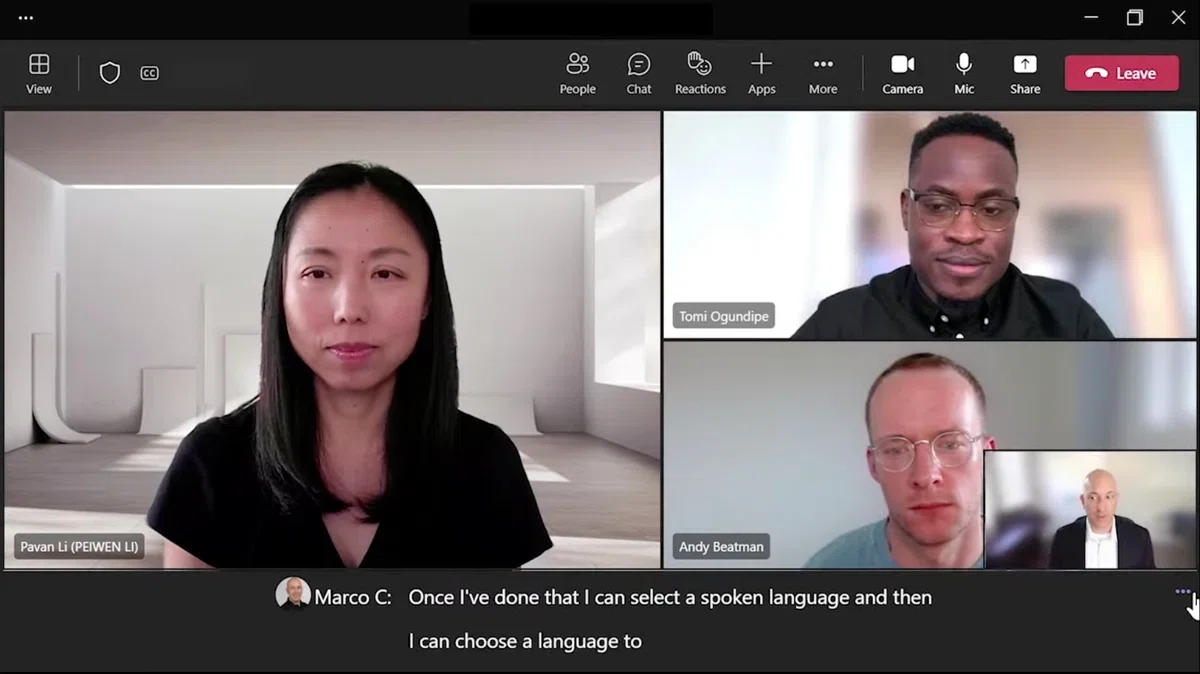
Teams shows the "Record and transcribe automatically" option when the organizer’s meeting policy allows it.
For regular meetings, the option defaults to Off even when the policy allows it. The organizer needs to enable it in the meeting options. A custom template can lock it on, but using assigned templates requires Teams Premium.
Zoom
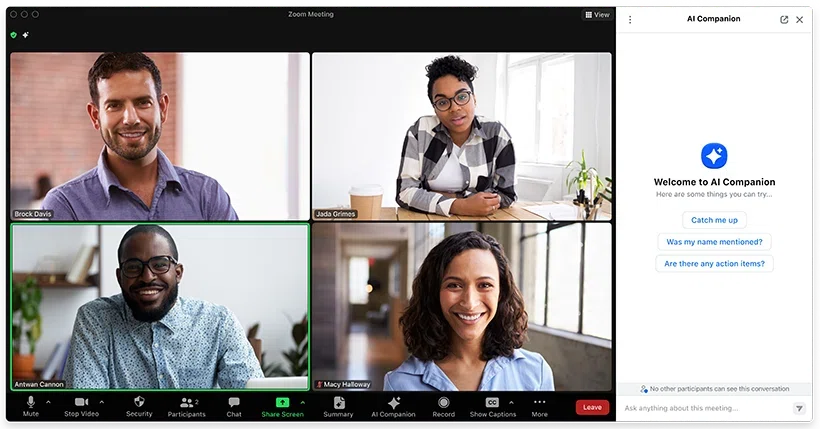
In the Zoom web portal, open Settings, go to Recording and enable "Automatic recording". This sets the default for meetings you schedule afterwards. You can also enable it for an individual meeting.
The conditions people miss:
- Changes to your account settings do not carry over to existing meetings or your Personal Meeting ID (PMI).
- Free (Basic) accounts can only auto-record locally. Cloud recording requires a paid plan.
- Local recording only starts if the host joins from the desktop app. Join from the browser and it may not start.
- As an invited participant, you cannot freely change the host’s recording settings. Ask the host to set up recording and share the file.
The shared limitation
Built-in recording depends on the host’s plan and settings, and on your role. It may work for a customer-hosted call too, so check with the host first. Conversations that take place without a meeting app need a separate recording method.
Option 2: Carrying a recorder like PLAUD

A small recorder such as the PLAUD Note or NotePin can be useful for in-person meetings and customer visits. Depending on the model, you attach it to a phone or clip it to your clothing, then press the button to record. The app handles transcription and summaries afterwards.
The list prices are $189 for the PLAUD Note Pro, $159 for the NotePin and $179 for the NotePin S. Binding a device activates the Starter plan, with 300 transcription minutes per month. If you need more, you can buy extra minutes or upgrade, so a paid subscription is not required (prices may change, so check the official site for the latest).
A small recorder is convenient when you do not want to open a laptop. Before relying on one, consider how you will use it:
- You still need to start the recording, so forgetting to press the button remains possible.
- You need to bring the device and keep it charged.
- For a video call recorded through speakers, placement and background noise affect the result. If you wear headphones, check how the recorder will capture the other person’s voice.
- Running out of transcription minutes does not stop recording. You can wait for the monthly reset, buy extra minutes or change plans. See PLAUD’s explanation of transcription minutes.
PLAUD Desktop also captures online meetings. If you want to use it without buying a device, check the eligible plan conditions on the official site.
Option 3: An AI assistant that detects meetings and pops up
If most of your meetings happen on a computer, you can use a desktop app for reminders and recording. Here is how that works in SuperIntern.

SuperIntern captures system audio and microphone input on your computer without sending a bot into the call. It can record audio from Meet, Zoom, Teams, Webex and Slack huddles, as well as nearby conversations picked up by the microphone. It does not rely on the meeting app’s recording permission. You still need to follow your organization’s recording rules and obtain any required participant consent.
There are three ways to start recording from a meeting reminder or detection.
1. A reminder before a calendar meeting
Connect Google Calendar or Outlook to receive a reminder before an event that has a meeting link. The pop-up shows the event name and time. Clicking "Join Meeting" opens the link and starts recording.
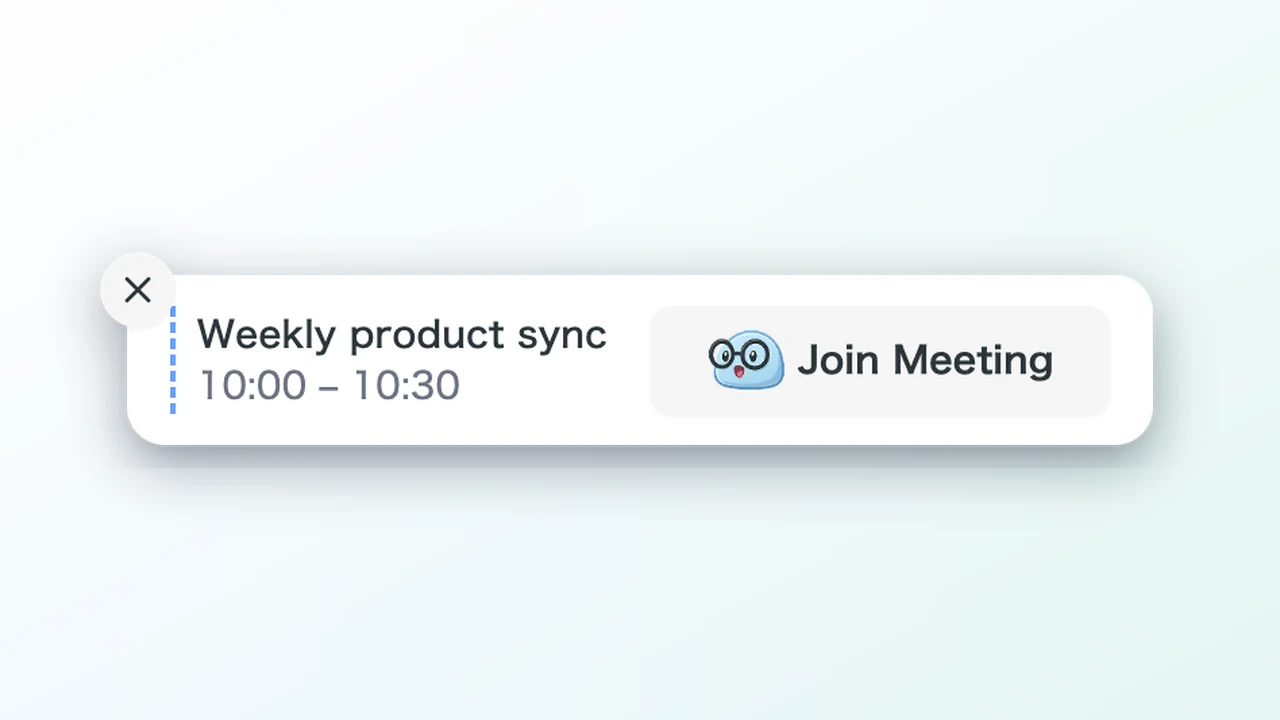
Illustration using the English notification UI. The window and button widths were adjusted for this image; the shipped app may truncate the labels. The meeting-detected image below uses the same adjustment.
Choose the reminder timing in notification settings. When you start from a calendar event, its title becomes the meeting title and invitees’ names are used as speaker-name suggestions. That makes the recording easier to find later.
2. A reminder when a meeting is detected
When SuperIntern detects a meeting in a supported app such as Zoom, Teams or Slack, it can show a "Meeting detected" notification even without a calendar event. Click "Take Notes" to start. A "Meeting finished?" notification lets you stop when the call is detected as over.
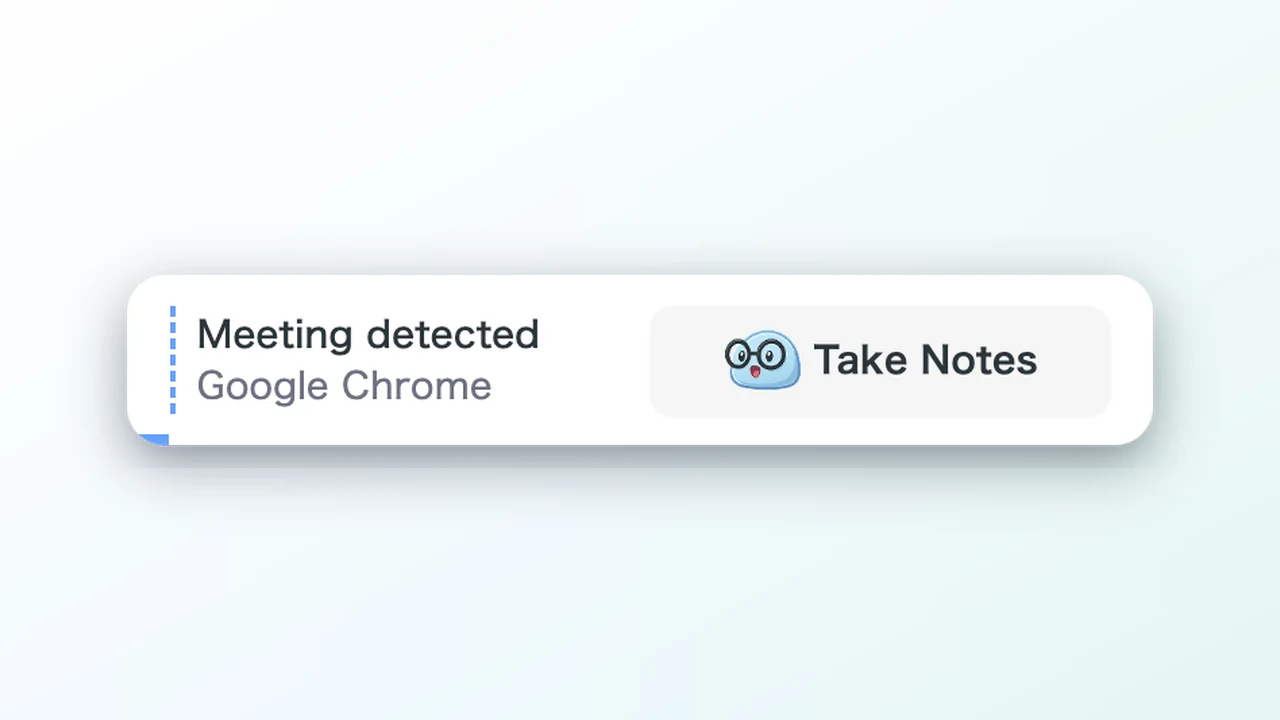
The reminder gives you a place to start recording as the call begins. In notification mode, you still need to click the button.
3. Automatic start and stop with the browser extension
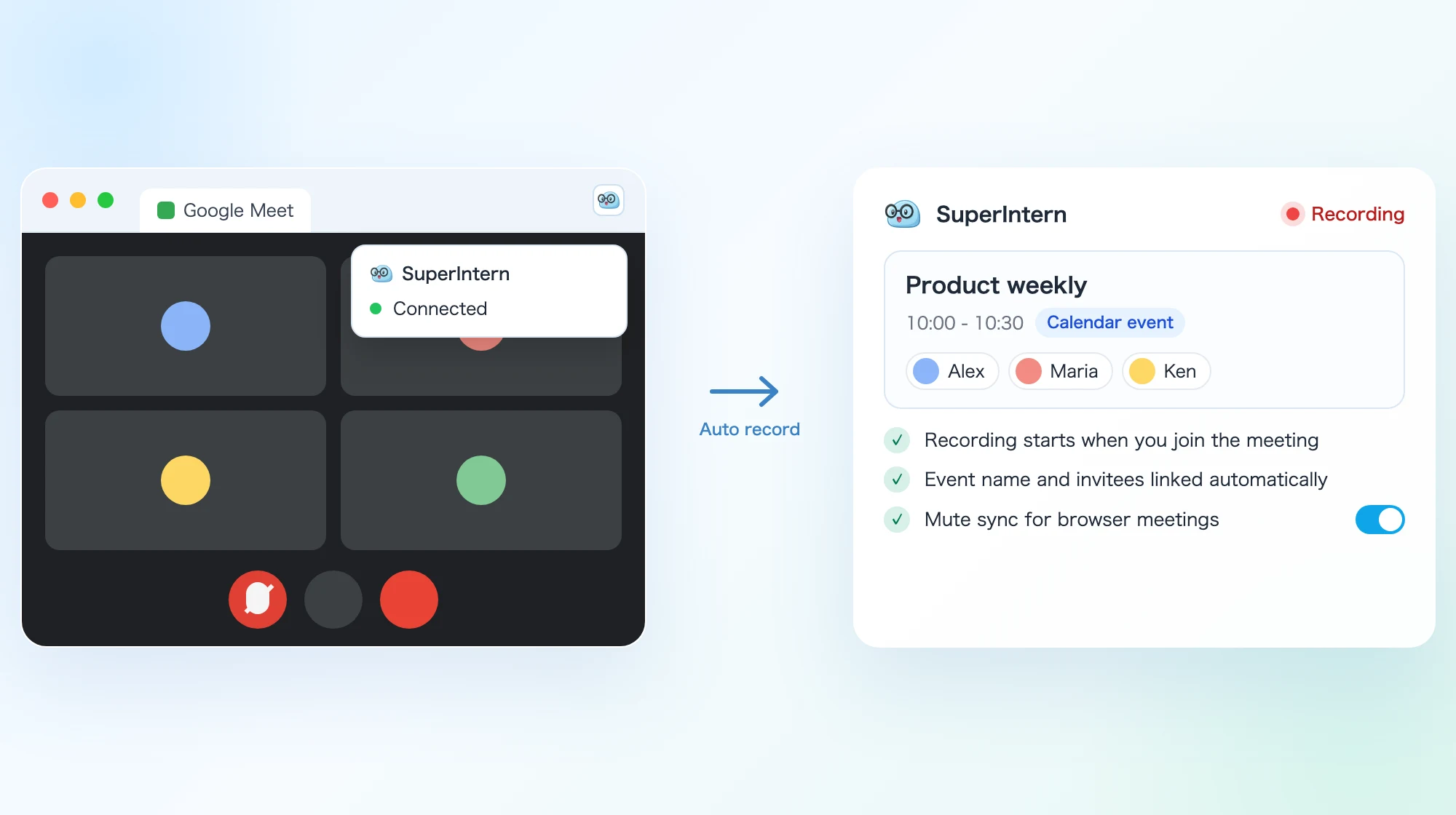
For supported Meet, Zoom and Teams calls in Chrome, Edge or Dia, connect the extension and select "start and stop automatically" in notification settings. Connecting the extension alone does not enable automatic recording. Once configured, it follows joining and leaving the call and links a matching calendar event when available. Microphone mute syncing is a separate setting you can enable.
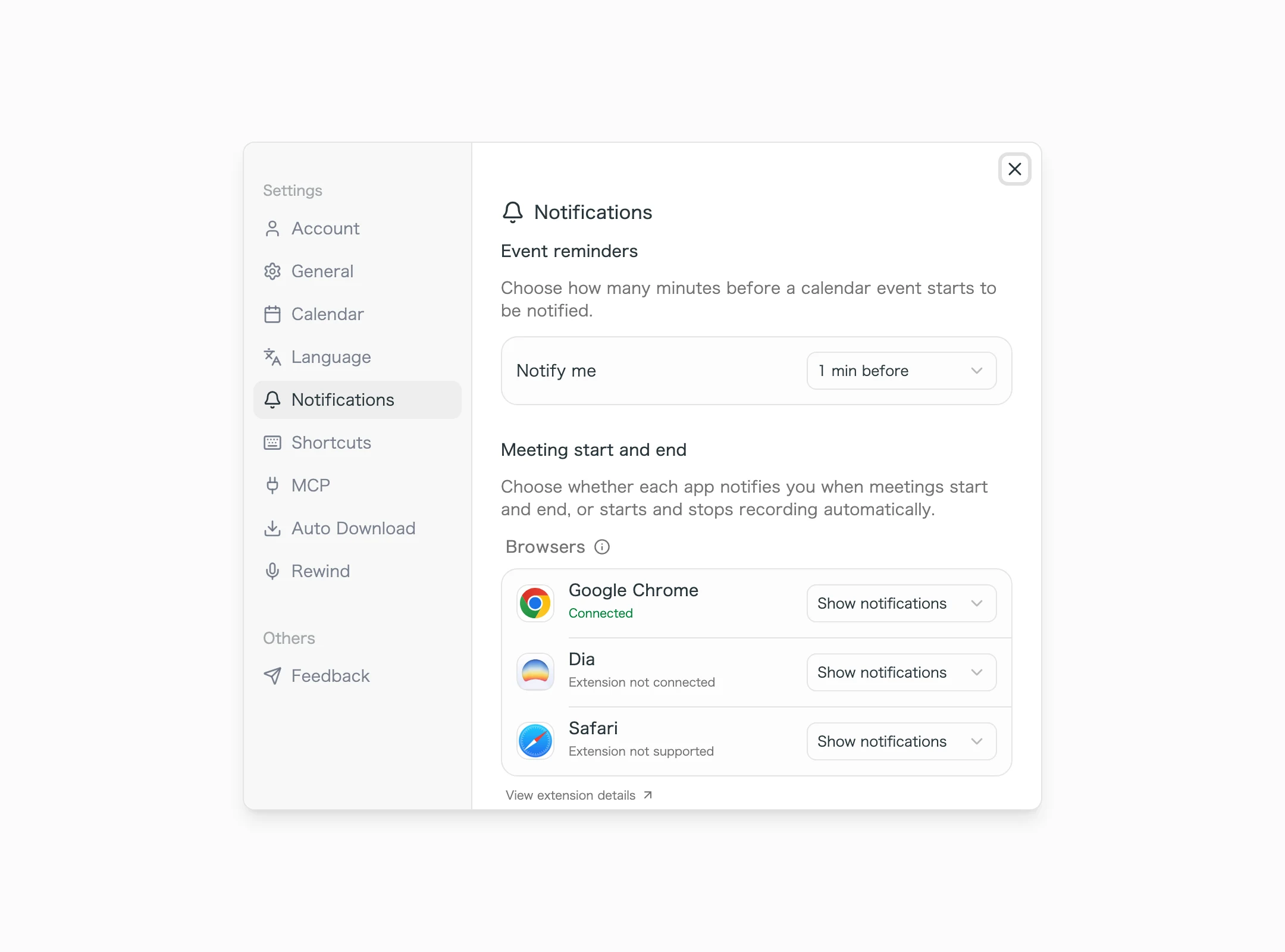
In the notification settings you decide per app whether to "show a notification" or "start and stop automatically", so a setup such as "Chrome fully automatic, Zoom desktop app notify only" is possible. Supported browsers are Chrome, Edge and Dia.
In-person conversations: catch them afterwards with Rewind
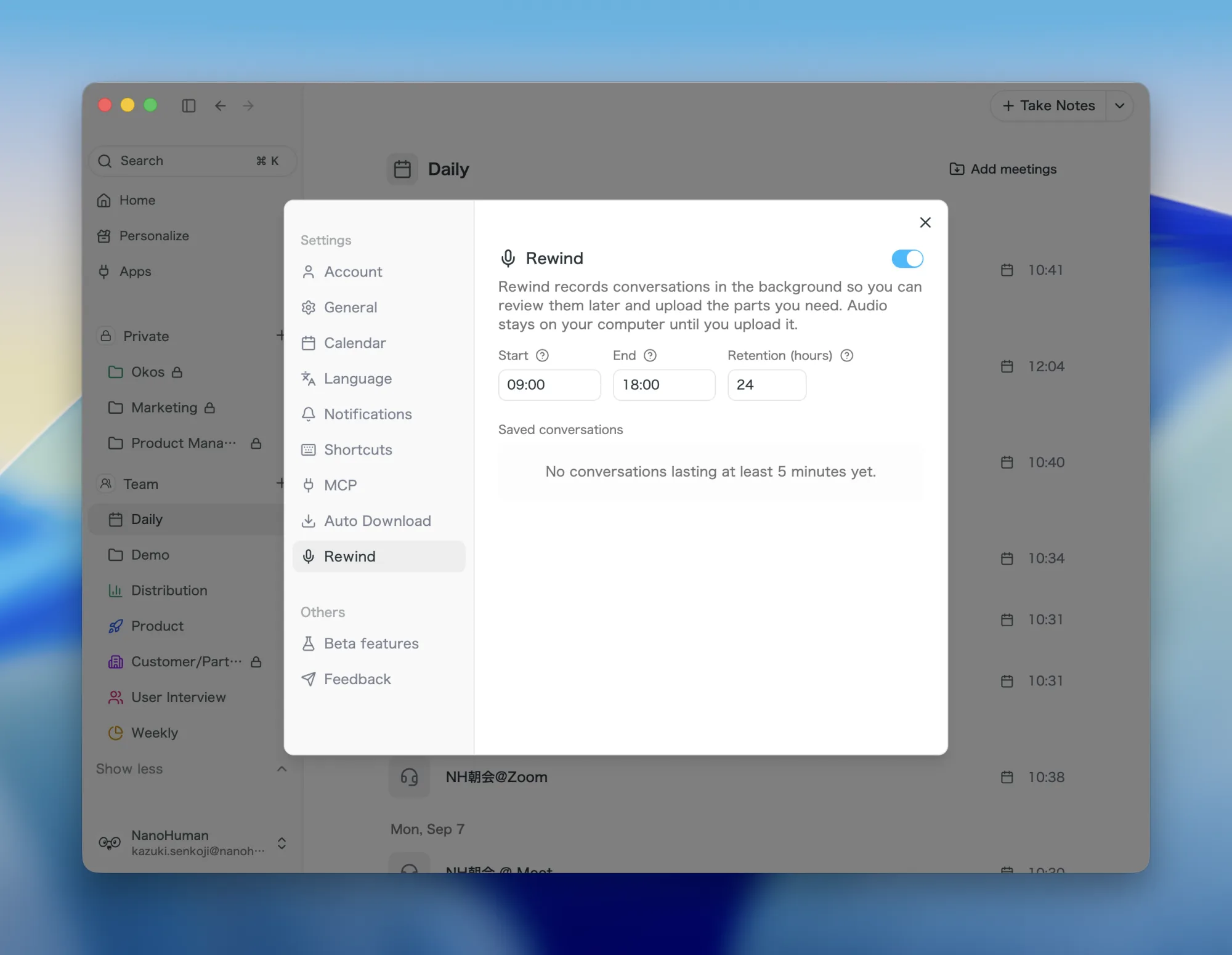
Enable Rewind before an in-person conversation to capture microphone audio locally during your chosen hours. Afterwards, select the part you want to upload. You can recover only audio that was actually captured and is still within the retention period. It stays on your computer until you upload it and is deleted automatically when it expires.
From recording straight to notes
During a recording, you can follow the live transcript and notes in AI Canvas. Afterwards, use the summary to review decisions and action items, or ask questions about the meeting in chat. Check names, numbers and decisions before sharing the notes.

A free plan is available without a credit card. Plus costs $20 per month and includes 100 hours. Recording this way requires the macOS or Windows desktop app and permission to capture audio.
Side-by-side comparison
| Criterion | Meet / Teams / Zoom auto-record | Recorder such as PLAUD | SuperIntern (pop-up + auto record) |
|---|---|---|---|
| Meetings you do not host | Depends on role, permissions and host settings | Can capture audio | Can capture audio |
| Unscheduled meetings | Depends on the app and meeting settings | Start manually | Detects meetings in supported apps |
| In-person meetings | Not covered | Strong | Recordable, plus Rewind for catching up afterwards |
| Help with remembering | Configure automatic recording beforehand | Start the recording yourself | Start from a reminder or configure automatic recording |
| Calendar linking | Depends on the meeting tool | Depends on the app and plan | Links supported matching events |
| Visibility to participants | Recording indicator | A recording device | No meeting bot; inform participants separately |
| Extra cost | Eligible plan and admin settings | Device plus metered minutes | Free plan; Plus $20/month |
| What you need | Eligible license and recording permissions | A charged device | Desktop app and audio permissions |
For recurring calls you host, try built-in recording first. A portable recorder may suit meetings where you leave the laptop closed. A desktop tool is worth considering if you use several meeting apps on the same computer.
Setup checklist to reduce missed recordings
Once you have chosen your approach, configure things in this order.
- Turn on auto-recording in the meeting tool for the recurring meetings you host. In Zoom, enable "Automatic recording". In Teams, ask your admin to enable
-AutoRecordingand then choose "Record and transcribe automatically" in the meeting options. In Meet, ask your admin about "recorded by default". - Connect your calendar and choose a reminder time. In SuperIntern settings, connect Google or Outlook. A reminder one minute before the meeting gives you time to click "Join Meeting" and start recording as you join.
- Connect the extension and select "start and stop automatically". Try a short meeting afterwards and check that a recording was saved.
- Choose how desktop meeting apps should behave. Use notification mode if you want to confirm each recording, or configure automatic recording for a supported app.
- Enable Rewind before an in-person conversation. Set the hours you need and keep the computer within microphone range.
- Once a month, reconcile your calendar with your meeting list. Look for events without a recording, find the pattern, and adjust the settings.
Common failures and how to fix them
"I turned on auto-recording and it still didn't record"
Check the individual Zoom meeting or personal room settings. Changing the account default does not update an existing event or PMI, but you can edit either without recreating the meeting. Zoom’s guide explains how. For regular Teams meetings, the option defaults to Off even when the policy allows it.
"It was the customer's Meet, there was no record button"
Ask whether the host has recording enabled and can make you a co-host. They may also be able to record and share the file themselves. A desktop audio recorder is another option, subject to your organization’s rules and any required participant consent.
"I left the recorder on my desk" or "the battery was dead"
For calls on your computer, a desktop recorder avoids the need for a separate device. For in-person meetings, check that your recorder is packed and charged before you leave.
"I closed the pop-up by accident"
If you dismiss a reminder, you can still start recording from the recording window or a shortcut. For browser calls, check that the extension is connected and automatic mode is enabled if you want recording to start without a click.
"I have the recording but I don't know which meeting it belongs to"
Starting from a calendar event carries over its title and invitee information. For files from a recorder or phone, adding a meeting name on the same day makes them easier to find later.
FAQ
Can Google Meet record automatically?
Yes, on eligible plans. Hosts can select automatic recording in meeting settings, and admins can set a default for new meetings. For someone else’s meeting, check the host’s plan and your role. External co-hosts can record when the requirements are met.
What do I need to auto-record Teams meetings?
Your IT admin has to enable auto recording in the Teams meeting policy, after which "Record and transcribe automatically" appears in your meeting options. You still switch it on per meeting, and locking it through a meeting template requires Teams Premium.
Why isn't Zoom's automatic recording working?
The account default does not update existing meetings or your PMI. Enable recording in those settings separately. Free accounts support automatic computer recording only, which requires the host to start from the desktop app.
Is there a way to record meetings I don't host?
Yes, depending on the platform and permissions. Meet allows eligible external co-hosts to record, and you can ask the host to record and share a copy. Desktop audio capture is another option where your organization’s rules and participant consent allow it.
How is a recorder like PLAUD different from SuperIntern?
A recorder suits in-person meetings where you do not use a laptop, but it needs charging and a manual start. SuperIntern detects meetings on your computer and either notifies you or records automatically, depending on your settings. Rewind lets you select audio captured earlier while it was enabled.
When does the SuperIntern pop-up appear?
Before calendar events with meeting links, and when supported apps detect a meeting starting or ending. You can change the reminder timing. A connected browser extension set to automatic mode starts recording without requiring a click on the notification.
Who can see my recorded meetings?
Access depends on your sharing settings. In addition to people with workspace access, anyone with an enabled public link can view the content included in that link. Transcripts and recordings can be included, so check the settings before sharing. Rewind audio stays on your computer until you upload it.
Conclusion
Start with the meetings you actually attend. If you usually host them, a recording setting may be enough. For customer calls or in-person discussions, check permissions and decide how you will capture the audio before the conversation begins.
With SuperIntern, you can start by setting up calendar reminders or your most-used meeting app. Add automatic browser recording or Rewind if they fit your routine. Try a short meeting on the free plan and check the recording and notes afterwards.