
Real-Time Voice Translator: How to Choose an App, Earbuds, or a Meeting Tool (2026 Guide)
Search for "real-time voice translator" and you get a confusing mix: free apps, $400 earbuds, pocket gadgets, and features already built into Google Meet or Teams. They all promise translation while people talk, but they solve different problems. The translator that works perfectly for asking directions in Lisbon can be useless in an hour-long negotiation over Zoom.
This guide sorts the market by situation, not by brand. You will see how these translators work, which type fits which scenario, how to test one before you depend on it, and where the limits still are in 2026.
⚠️ This article was independently compiled based on publicly available information and user feedback as of November 2026.
Table of Contents
- What is a real-time voice translator?
- Four types of real-time voice translator
- Which voice translator to choose for each situation
- The most useful options in 2026, by type
- Comparison table
- How to test a voice translator before an important meeting
- Common mistakes with voice translation
- Privacy: what happens to what you say
- FAQ
- Conclusion
What is a real-time voice translator?
A real-time voice translator listens to someone speaking one language and delivers a translation while that person is still talking, instead of waiting until they finish. The output is either spoken (a synthetic voice in your ear) or written (captions on a screen).
Under the hood, nearly every tool follows the same three-step chain:
- Speech recognition. The audio becomes text in the original language.
- Machine translation. That text runs through a translation model, which in 2026 is almost always based on generative AI.
- Delivery. The result is read aloud or shown as a caption.
What separates a good translator from a frustrating one is how well it handles each step. If recognition fails on your accent, the translation fails no matter how good the model is. If delivery lags by five seconds, you lose the thread of the conversation.
Simultaneous versus consecutive
Professional interpreters distinguish between simultaneous interpretation (the interpreter speaks while the speaker talks) and consecutive interpretation (the speaker pauses and the interpreter translates that chunk). Many apps marketed as "simultaneous" actually work consecutively: you speak, you wait, and the app translates the full sentence. For ordering coffee, it does not matter. For a work meeting where several people interrupt each other, the difference is huge.
Voice or captions
Spoken translation is convenient when you cannot look at a screen, for example while walking around a city. Captions are better when you need accuracy: you can reread a number, check it against the original, and you do not depend on a synthetic voice pronouncing a name correctly. In work meetings, most professionals end up preferring text.
Four types of real-time voice translator
Before comparing brands, it helps to know which category you are shopping in.
1. Phone translation apps
Google Translate, Apple's Translate app, Samsung Interpreter, and similar apps. They are free or built into the phone and designed for short face-to-face conversations: you hold the phone between two people and each speaks in turn.
- Strengths: zero cost, always in your pocket, many languages.
- Limits: work better turn by turn than simultaneously, struggle with overlapping voices, and cannot capture audio from a video call.
2. Translator earbuds
AirPods with Apple's Live Translation, Timekettle earbuds, and other dedicated models. You hear the translation in your ear almost as the other person speaks.
- Strengths: hands-free, the closest experience to having an interpreter beside you.
- Limits: depend on a compatible phone, dedicated models cost hundreds of dollars, and the other person also needs an earbud or a speaker to hear your side.
3. Handheld devices
Pocketalk, Vasco, and similar gadgets: a small unit with a microphone, a speaker, and bundled mobile data.
- Strengths: do not drain your phone's battery or data, easy for less technical people, and some include international connectivity for years.
- Limits: one more device to buy and charge, and the interaction is clearly consecutive.
4. Meeting and call tools
Built-in features in Google Meet, Microsoft Teams, or Zoom, plus standalone desktop apps such as SuperIntern, JotMe, or DeepL Voice. They capture the meeting audio and show translated captions (or, in some cases, a translated voice) as people speak.
- Strengths: designed for long conversations with several people, and many keep the transcript and generate notes.
- Limits: built-in features depend on your platform plan, and standalone tools usually need a computer.
Which voice translator to choose for each situation
The fastest way to decide is to start from the context, not the feature list.
| Situation | Recommended type | Why |
|---|---|---|
| Travel: restaurant, taxi, hotel | Phone app | Free, fast, short turn-by-turn phrases |
| Long walking tour or site visit | Translator earbuds | Hands-free, no need to look at a phone |
| Older or less technical traveler | Handheld device | One button, no app setup |
| Phone call with an overseas supplier | Call translation on your phone (Pixel, Galaxy, iPhone) | Works inside the call itself |
| Work video call in Meet, Teams, or Zoom | Meeting tool | Captures every participant and keeps a record |
| In-person business meeting with several people | Meeting tool on a laptop or phone | Readable captions for the group and notes afterward |
| Event, conference, or webinar with an audience | Event captioning platform | Distributes translation to many attendees at once |
Two questions sharpen the choice:
- Do you need a record afterward? If the conversation creates commitments (prices, deadlines, tasks), choose something that saves the transcript and a summary. Travel apps do not.
- How many people are talking? With two people, any type works. With five people talking over each other, only meeting tools keep track of who said what.
The most useful options in 2026, by type
We start with SuperIntern, our top recommendation for work meetings, and then cover the reference products in each category.
SuperIntern (our top pick for meetings)
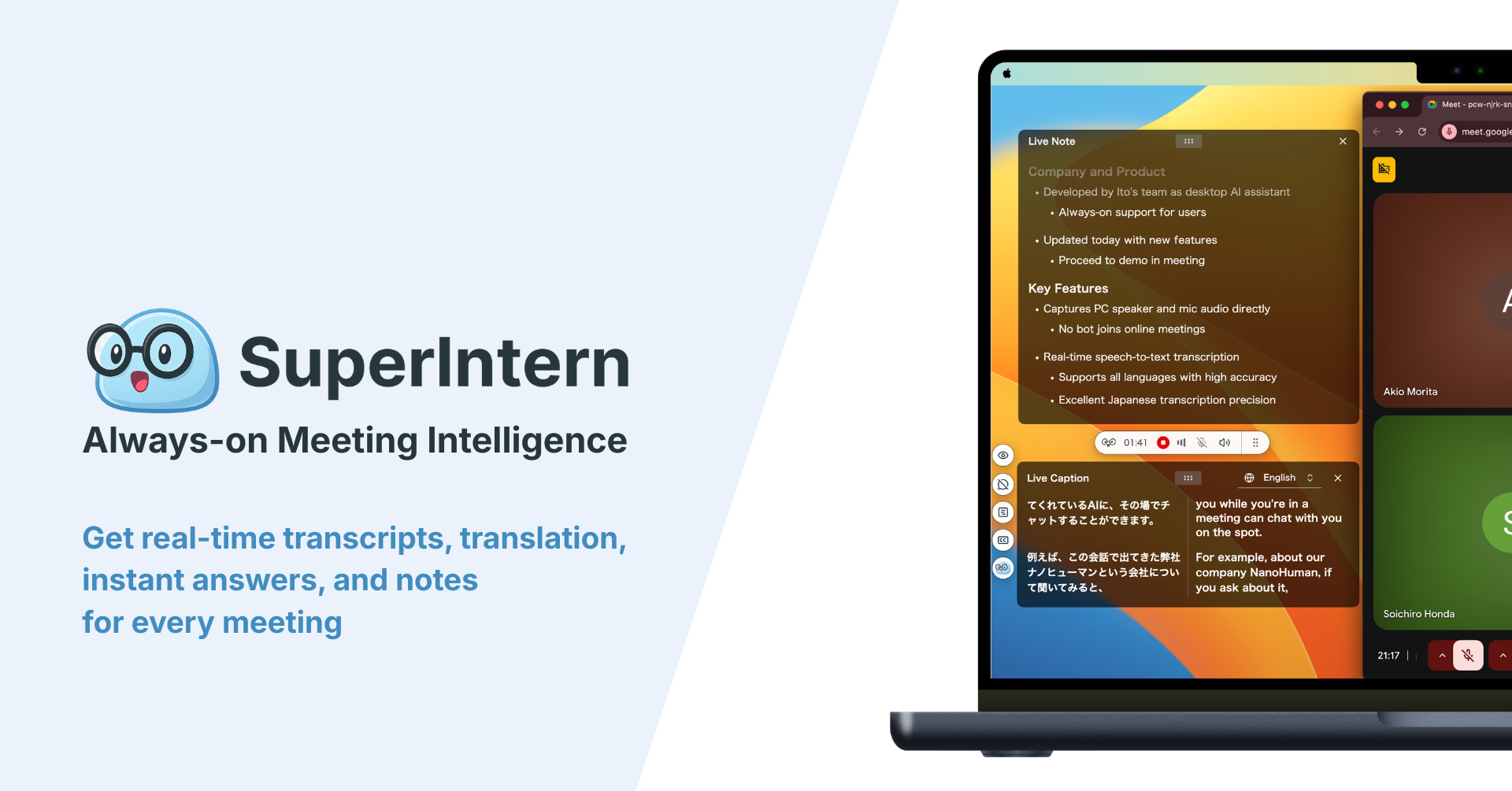
If you need voice translation for work meetings, SuperIntern is the tool to try first. It is a real-time meeting assistant that transcribes what people say, translates it into more than 50 languages, and shows it as live captions. Because decisions and tasks are organized for you while you follow the translation, you can focus on the meeting itself instead of the language barrier.
SuperIntern is available today as a desktop app for Mac and Windows, and an iOS app is coming soon. Once it launches, you will be able to use SuperIntern on your phone too, not only for online meetings but also for in-person sales meetings and conversations on business trips. Sign up for SuperIntern for free now and we will let you know as soon as the iOS app is available.
Why SuperIntern works so well as a meeting AI
1. It works in any meeting, as is
SuperIntern never sends a bot into your meeting. It captures system and microphone audio directly on your computer, so it works the same in Zoom, Google Meet, Microsoft Teams, Webex, and Slack Huddles. When a customer invites you to their meeting, you do not depend on the host's settings or plan, and no bot shows up in the participant list.
2. Original and translation side by side
Translations appear as captions while people are still talking, with the original text right next to them. If you miss a number or a name, you can check the original on the spot. Two-way translation also turns what you say into the other person's language.
3. AI Canvas takes notes for you during the meeting
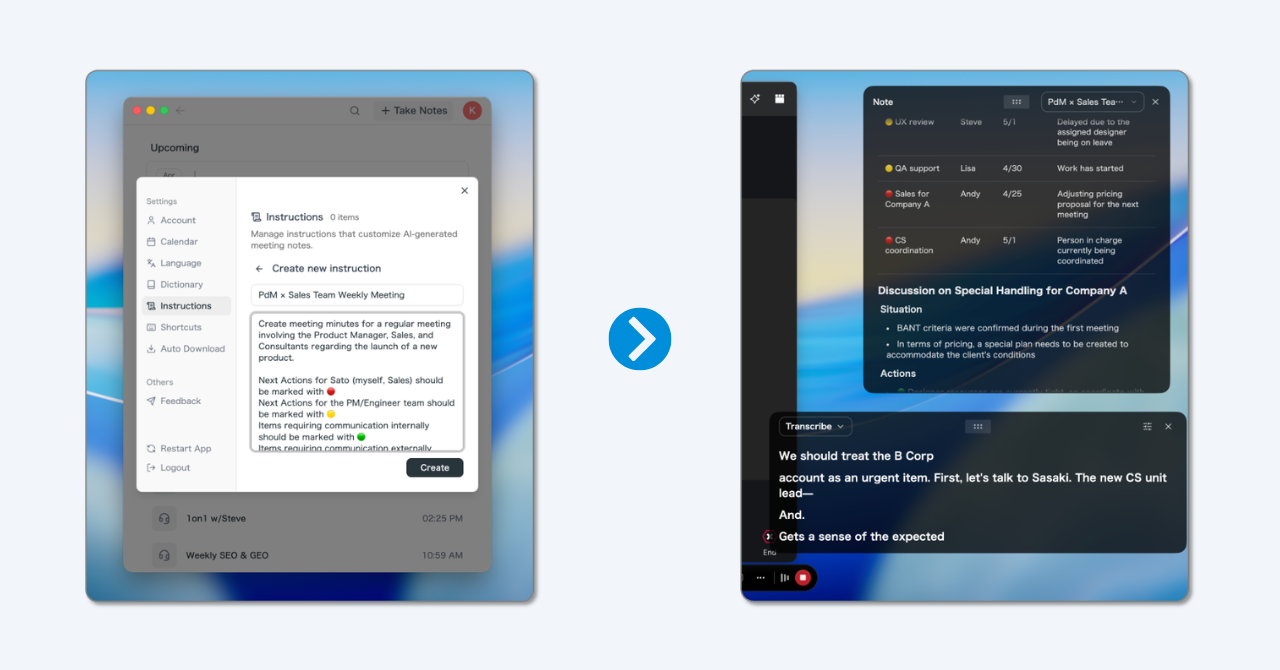
Following a translation while taking notes by hand is exhausting. SuperIntern's AI Canvas organizes decisions, tasks, and open questions in real time as the meeting unfolds, and you decide which sections it fills in and in what format.
4. Notes in your language, whatever language the meeting was in
Even when a meeting runs in Spanish or Japanese, you get the summary and notes in English. The speaker-labeled transcript lets you confirm later exactly who committed to what.
5. Better recognition of jargon and names
Add product names, customer names, and internal acronyms to the custom dictionary to improve recognition and translation. The more industry-specific the conversation, the bigger the difference.
6. Ask the AI about anything you missed
During and after the meeting, you can ask the AI chat questions such as "What delivery date did they just mention?" or "Summarize the customer's three main concerns." It can also draft a follow-up email based on the conversation.
7. Free to start
The free plan lets you try translated captions and meeting notes right away. When you are ready for more, the Plus plan costs $20 per month for 100 hours of meetings.
Google Translate (conversation mode and Live translate)
Google Translate is still where most people start. Beyond the classic conversation mode, Google launched Live translate in August 2025 for fluid back-and-forth conversations: the app detects pauses, reads the translation aloud, and shows a transcript in both languages. It launched first in the United States, India, and Mexico with more than 70 languages.
- Best for: travel and short face-to-face conversations.
- Keep in mind: it is not built to capture video call audio or to save meeting notes.
Apple Live Translation with AirPods
With iOS 26, Apple added Live Translation to AirPods. You need AirPods 4 with Active Noise Cancellation or AirPods Pro 2 or later, plus an iPhone that supports Apple Intelligence (iPhone 15 Pro or later). Supported languages include English, Spanish, German, Japanese, Korean, and Chinese.
- Best for: iPhone users who travel or host overseas visitors.
- Keep in mind: it only works inside Apple's ecosystem, and the other person hears your translation through the iPhone speaker unless they also wear compatible AirPods.
Call translation on Android (Pixel and Galaxy)
Pixel 10 phones include Voice Translate for phone calls. It runs on-device and tries to keep the speaker's voice, and it covers English paired with about ten languages, with availability that varies by country. Samsung offers Live Translate for calls and the Interpreter app for face-to-face conversations on supported Galaxy devices, using language packs downloaded to the phone.
- Best for: phone calls with customers or suppliers abroad.
- Keep in mind: reviewers agree these work best on short calls; long conversations can lose segments.
Timekettle (dedicated earbuds)

Timekettle is the best-known translator earbud brand. Its 2026 lineup includes the W4 Pro, with a simultaneous interpretation mode and a mode for listening to meetings, and the WT2 Edge, focused on two-person conversation. Timekettle advertises around 40 online languages plus some offline pairs. List prices run roughly $350 to $450 depending on the model, with frequent discounts.
- Best for: frequent business travelers who want a hands-free experience.
- Keep in mind: it is a significant expense if you only use it a few times a year.
Pocketalk and Vasco (handheld devices)
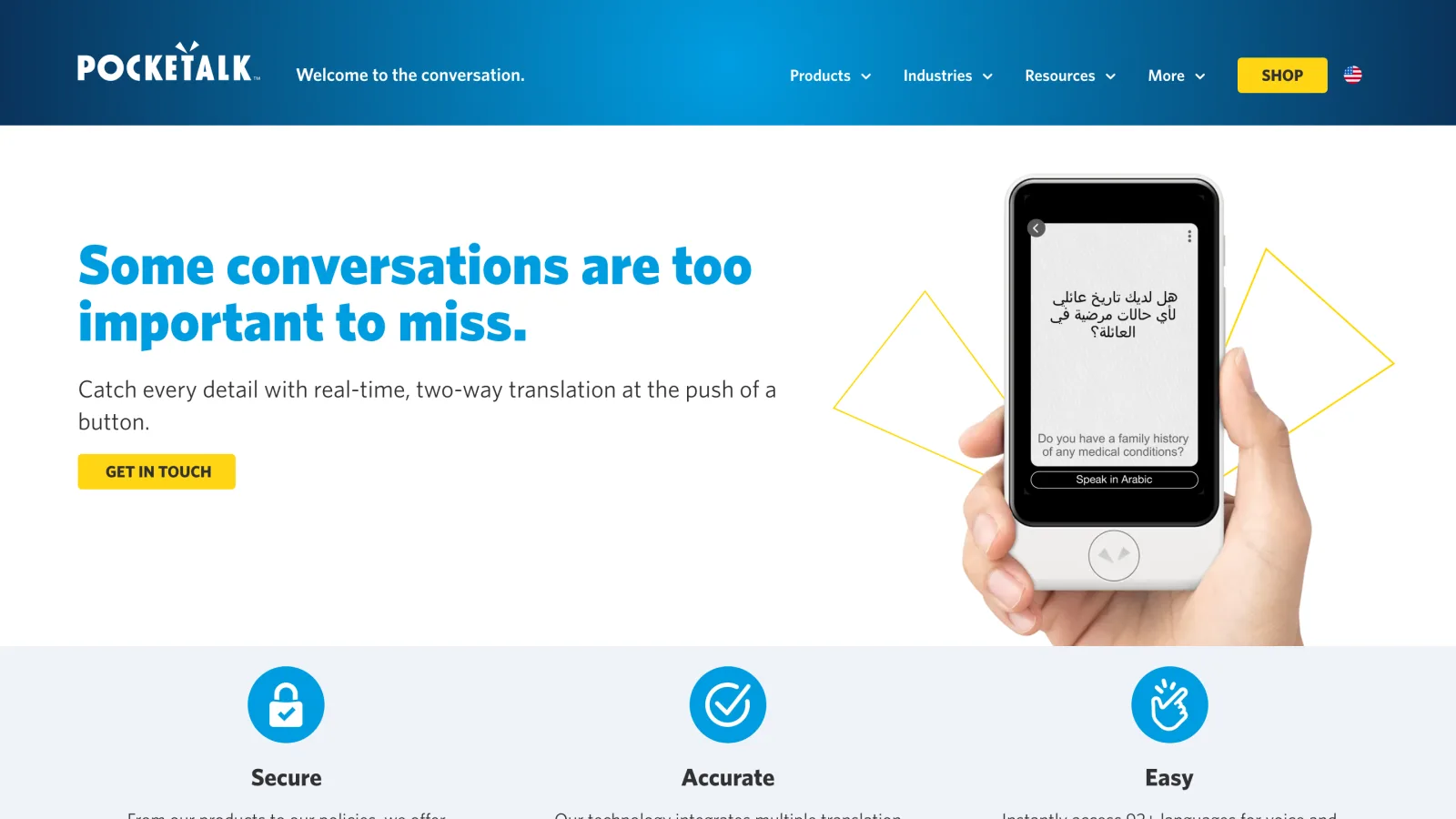
Pocketalk (S2 and S2 Plus) and Vasco (for example, the V4) are physical translators with bundled data. Pocketalk charges no subscription and includes a multi-year data plan; Vasco advertises more than 100 languages and lifetime internet. Prices run roughly $300 to $450 depending on the model and retailer.
- Best for: travelers who do not want to rely on their phone and people who prefer a simple device.
- Keep in mind: they work turn by turn and do not help with video calls.
Built-in features in Google Meet, Teams, and Zoom
Video platforms made major progress in 2026:
-
Google Meet offers AI speech translation, which plays what you say in another language in a voice similar to yours. It is available on Google Workspace plans such as Business Standard and above and on Google AI Pro and Ultra, and since October 2026 it supports 63 languages with automatic detection. Free Gmail accounts do not get it.
-
Microsoft Teams includes the Interpreter agent, which requires a Microsoft 365 Copilot license and covers nine major languages.
-
Zoom announced a voice translator in beta in 2026, alongside translated captions on its paid plans.
-
Best for: teams that already pay for the right plan and hold all their meetings on one platform.
-
Keep in mind: each feature only works inside its own platform. If a customer invites you to their Zoom and your company uses Meet, your translation stays behind.
Desktop meeting tools
Desktop meeting tools capture audio on your own computer, so they work on any meeting platform. Here are the main options.
JotMe
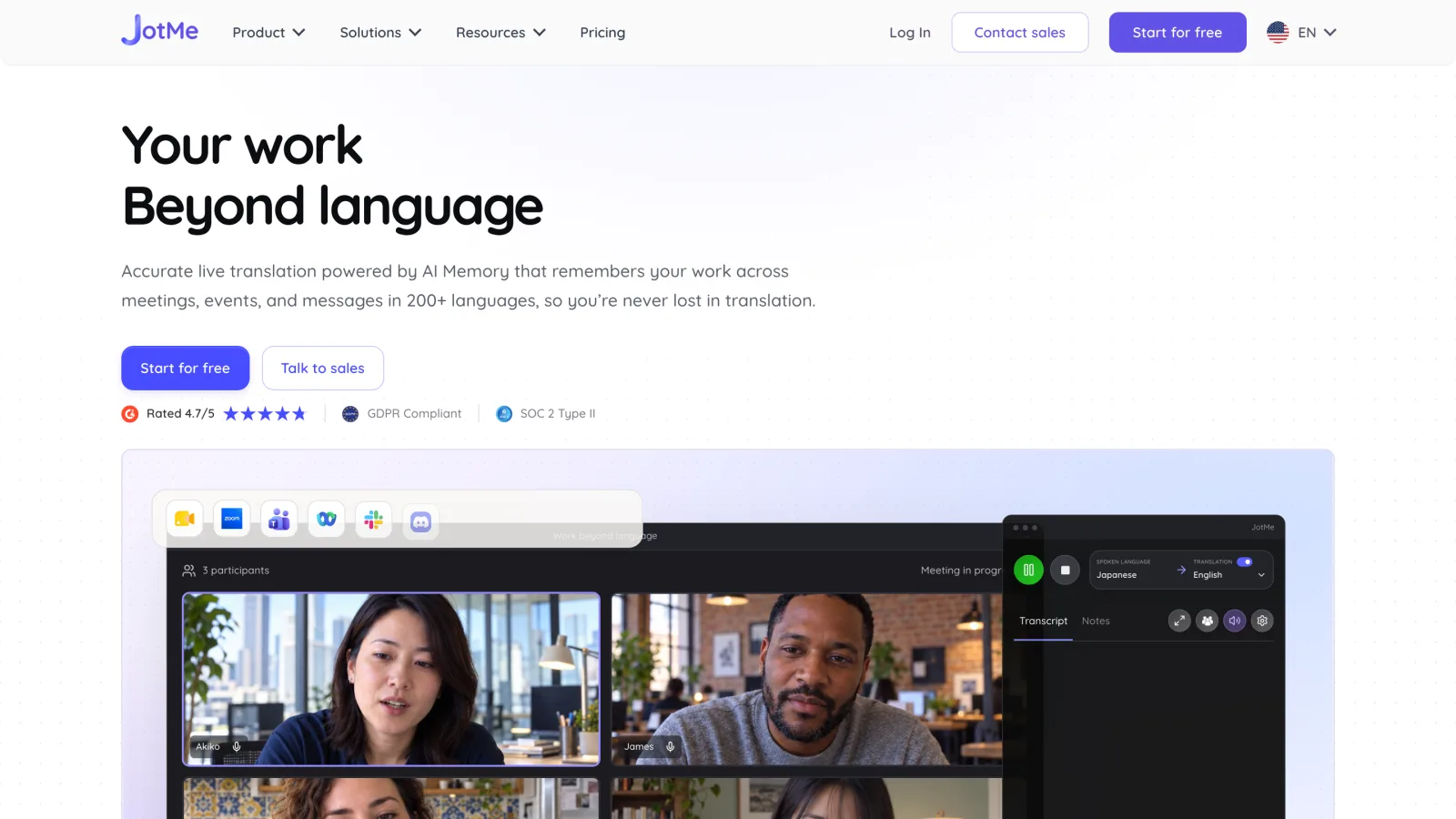
JotMe is a meeting translation tool available as a desktop app and a Chrome extension. It translates meeting audio in real time without adding a bot to the call.
DeepL Voice
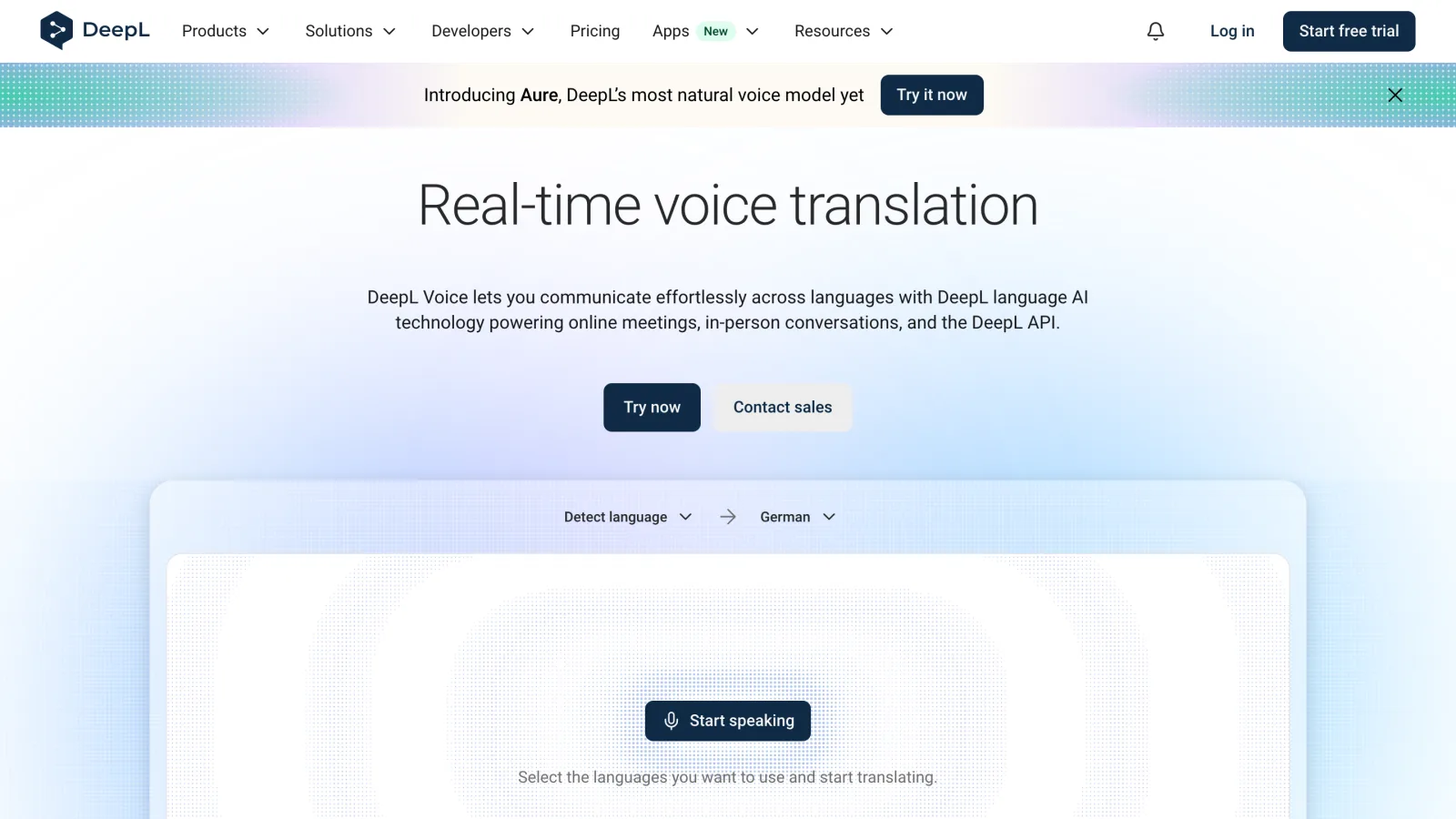
DeepL Voice is the business voice translation offering from DeepL, with products for online meetings and in-person conversations. Pricing is available on request.
SuperIntern
As introduced above, SuperIntern is a botless meeting assistant that works on any meeting platform. Real-time translated captions in more than 50 languages, AI Canvas notes during the meeting, summaries in your language, and AI chat all come together in one app, with an iOS app coming soon.
A note on Microsoft Translator: for years it was the free option for multi-device conversations joined with a room code. Several sources report that the feature was retired in mid-2026, so check inside the app before planning an event around it.
Comparison table
| Criterion | Phone app | Earbuds | Handheld device | Built into Meet or Teams | Desktop meeting app |
|---|---|---|---|---|---|
| Typical cost | Free | $150 to $450 | $300 to $450 | Included in higher plans | Free and paid plans |
| Output | Voice and text | Voice | Voice and text | Voice or captions | Captions |
| Actual mode | Turn by turn, sometimes fluid | Near simultaneous | Turn by turn | Simultaneous | Simultaneous |
| Several speakers | Weak | Weak | Weak | Good | Good |
| Works in video calls | No | Limited | No | Own platform only | Any platform |
| Transcript and notes | No | No | Basic history | Depends on plan | Yes |
| Best use | Travel | Travel and long visits | Travel without a phone | Single-platform teams | Multilingual work meetings |
How to test a voice translator before an important meeting
Demos always work. Your real meeting does not always. Before you rely on a tool, spend half an hour on this test:
- Use your own audio. Record or play a clip from a real meeting in your industry, with its vocabulary and accents. Do not test with a news video.
- Check numbers and names. Read sentences aloud such as "the order of 1,250 units arrives in Monterrey on March 14." Numbers, dates, and proper nouns are where translators fail most.
- Simulate interruptions. Ask a colleague to talk over you. Watch whether the tool merges sentences or drops one voice.
- Measure latency. Count the seconds between the end of a sentence and the translation appearing. Beyond three or four seconds, conversation becomes awkward.
- Test the real environment. If the meeting will be in an echoey room or a noisy trade show, test there. The microphone matters as much as the model.
- Check what remains afterward. Can you export the transcript? Is the summary in your language even if the meeting was in Spanish?
A sample test sentence
A useful sentence for testing a Spanish meeting translated into English:
"Podemos enviar las primeras 500 unidades antes de que termine el segundo trimestre si Compras da el visto bueno antes del viernes."
A good translation should read something like: "We can ship the first 500 units before the end of the second quarter if Procurement signs off before Friday." If the tool mangles "da el visto bueno" or the department name, you know where trouble will come from.
Common mistakes with voice translation
- Choosing by language count. A tool that lists 100 languages tells you nothing about how well it handles your colleague's accent. Test your real language pairs.
- Trusting a synthetic voice with critical data. If a price or date is agreed, confirm it in writing in the transcript or a follow-up email.
- Forgetting the other side. With earbuds or travel apps, you understand, but what about the other person? Plan how they will receive your translation.
- Relying on a feature that does not exist in the customer's meeting. Your platform's built-in translation does not follow you when someone invites you to theirs.
- Not saying anything. In work meetings, mention at the start that you are using translated captions. It helps others speak more clearly and avoids misunderstandings.
- Skipping vocabulary prep. Product names, internal acronyms, and surnames are recognized far better if the tool supports a custom dictionary.
Privacy: what happens to what you say
Voice translation processes conversations that are often confidential. Before using a tool at work, check:
- Where audio is processed. Some phone features (such as Pixel call translation or Galaxy AI language packs) work on-device. Meeting tools usually process in the cloud.
- What is stored and for how long. Is the recording kept, only the transcript, or nothing?
- Whether it trains models. Look for an explicit policy.
- Who can see the notes. In team tools, confirm the default permissions.
For customer meetings, negotiations, or HR topics, apply the same policy your company uses for recording or taking notes in meetings.
FAQ
What is the best free real-time voice translator?
For face-to-face conversations, Google Translate with Live translate and Apple's Translate app are the most complete free options. For work meetings, several desktop tools, SuperIntern included, have free plans with real-time translated captions.
Is there a voice translator that truly translates simultaneously?
Yes, with caveats. Dedicated earbuds, Google Meet speech translation, and desktop meeting tools translate while people talk, with a few seconds of delay. Many phone apps still work turn by turn.
Can I translate a Zoom or Teams call in real time?
Yes. You can use the platform's built-in feature if your plan includes it, or a desktop app that captures system audio and works on any platform, such as SuperIntern or JotMe.
Are voice translators reliable for business meetings?
For following the conversation and understanding context, yes. For numbers, dates, contract terms, or legal and medical terminology, check the original transcript and confirm agreements in writing.
Do I need internet to use a voice translator?
Most need it. Some earbuds and handheld devices offer offline language pairs, and certain phone features run on-device after you download language packs, but quality is usually higher online.
Will other participants notice I am using a translator?
It depends on the type. Built-in features that play a translated voice are obvious. A botless desktop app that shows captions only on your screen adds no extra participant. Even so, mentioning it in work meetings is good practice.
Conclusion
There is no single best real-time voice translator, only the right one for each situation. For travel, start with the free app on your phone and add earbuds if you will use them often. For phone calls, try your phone's built-in call translation. For multilingual work meetings, where numbers, commitments, and records matter, choose a meeting tool that works on any platform.
If you are looking for voice translation for work meetings, start by trying SuperIntern for free. The iOS app is coming soon.
Whatever you choose, test it with your own audio before the day that counts.