
Connect Your Meeting Data to Claude, ChatGPT, and Cursor with SuperIntern's MCP [Setup Guide]
![Connect Your Meeting Data to Claude, ChatGPT, and Cursor with SuperIntern's MCP [Setup Guide]](/_next/image?url=%2Fblog%2F2026-remote-mcp-connector-guide%2Fcover.webp&w=3840&q=75&dpl=dpl_9y8xLAVwxmyaL4JDfqatGY2R3Rkz)
With SuperIntern's MCP support, AI clients such as Claude, ChatGPT, and Cursor can access the meeting data stored in SuperIntern (transcripts, AI minutes, meeting notes, and more) in read-only mode.
This guide covers what MCP is and how to set it up, client by client.
Table of Contents
- 1. What is MCP
- 2. What MCP can do
- 3. Plan availability
- 4. How to set it up
- 5. Managing MCP access in your workspace (Enterprise plan only)
- 6. Use cases
- 7. Security design
- 8. FAQ
1. What is MCP
MCP (Model Context Protocol) is an open standard that lets AI assistants connect securely to external tools and data sources. Since Anthropic released it in 2024, Claude, Cursor, and a rapidly growing list of AI tools have adopted it, making it the de facto standard for wiring AI into external services.
SuperIntern has started offering an MCP server that speaks this protocol. There is no server to run and no API key to manage. You add the connection URL to your AI client, sign in with your SuperIntern account, grant access, and you are done.
2. What MCP can do
Once connected, your AI client can access the following:
| Tool | What it does |
|---|---|
| Account context | Returns the signed-in user, workspace, and plan information |
| List projects | Lists the projects you can view |
| List meetings | Returns meeting metadata, newest first, with optional date range and project filters |
| Meeting details | Title, start time, attendees, and associated projects for one meeting |
| Get transcript | The full meeting transcript (paginated for long meetings) |
| Get live transcript | The transcript of a meeting still in progress, retrieved in real time (supports incremental fetches) |
| Get AI summary | The AI-generated meeting summary (minutes) |
| Get meeting notes | The meeting note in Markdown format |
The key point: every tool is read-only. AI clients cannot modify or delete anything in SuperIntern.
Access is also strictly scoped: the AI client can only see meetings and projects the signed-in user can already view in SuperIntern. Meetings in restricted projects stay invisible to members without access, MCP or not.
3. Plan availability
Availability depends on your workspace type and plan:
| Workspace | Requirement |
|---|---|
| Personal workspace (Free plan) | Not available. Upgrade to Plus required |
| Personal workspace (Plus or higher) | Available |
| Team workspace (Team plan) | Available |
| Team workspace (Enterprise plan) | Available once an admin turns on "MCP access" |
- MCP is not available on the Free plan. Individual users need Plus or higher
- Enterprise workspaces have it OFF by default. Members can only connect after an admin explicitly enables it (steps below)
4. How to set it up
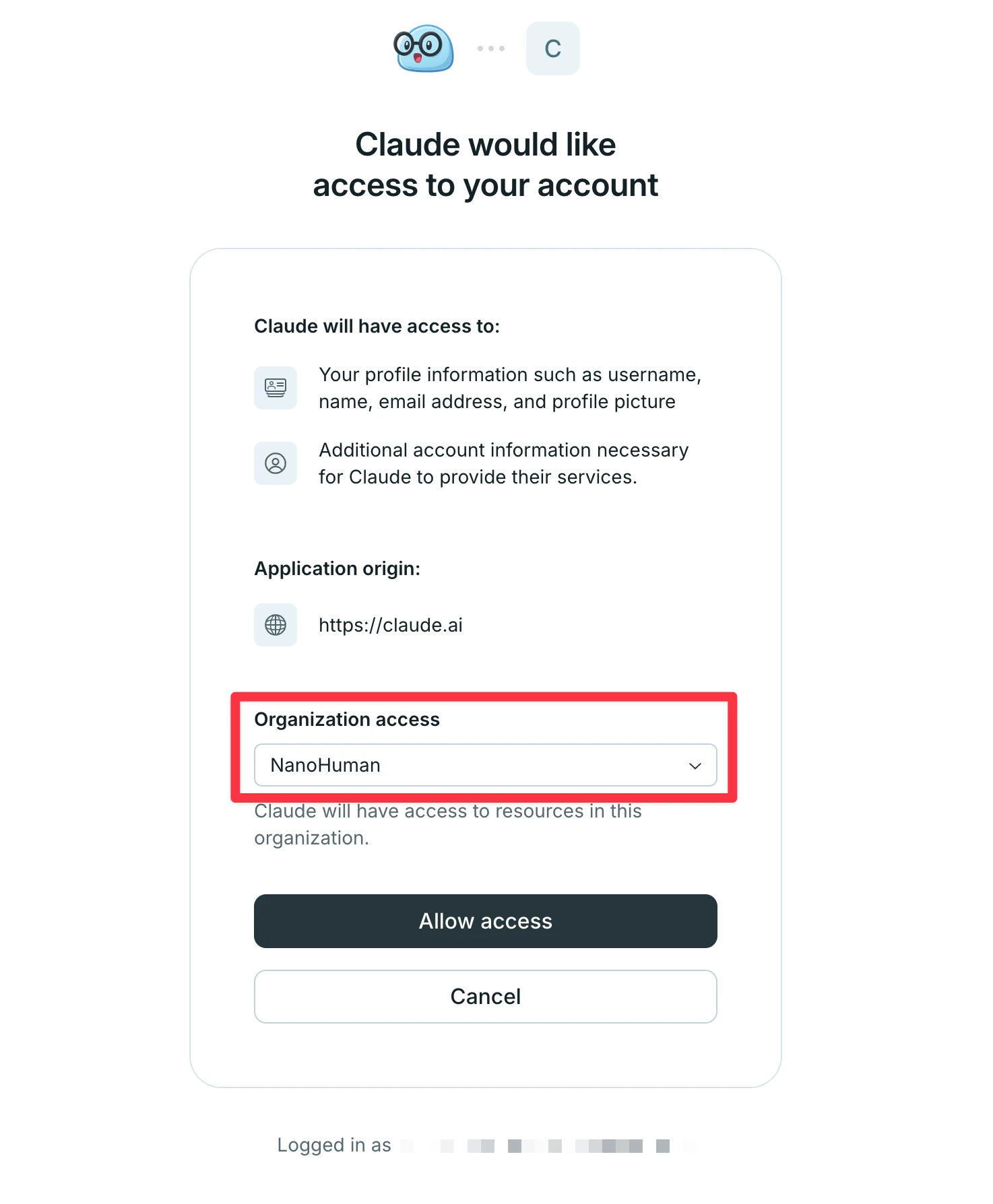
⚠️ During setup, make sure the workspace you want to connect is selected correctly.
Connecting Claude Code
Run this in your terminal:
claude mcp add --transport http superintern https://mcp.app.super-intern.com/mcp
Then run the /mcp command inside Claude Code, select superintern, and authenticate (a browser opens for the SuperIntern sign-in).
Connecting Claude
Here is how to connect Claude (claude.ai and the Claude desktop app). Adding connectors is available on Claude's paid plans.
The easiest way: SuperIntern is listed among Claude's connectors, so there is no connection URL to enter.
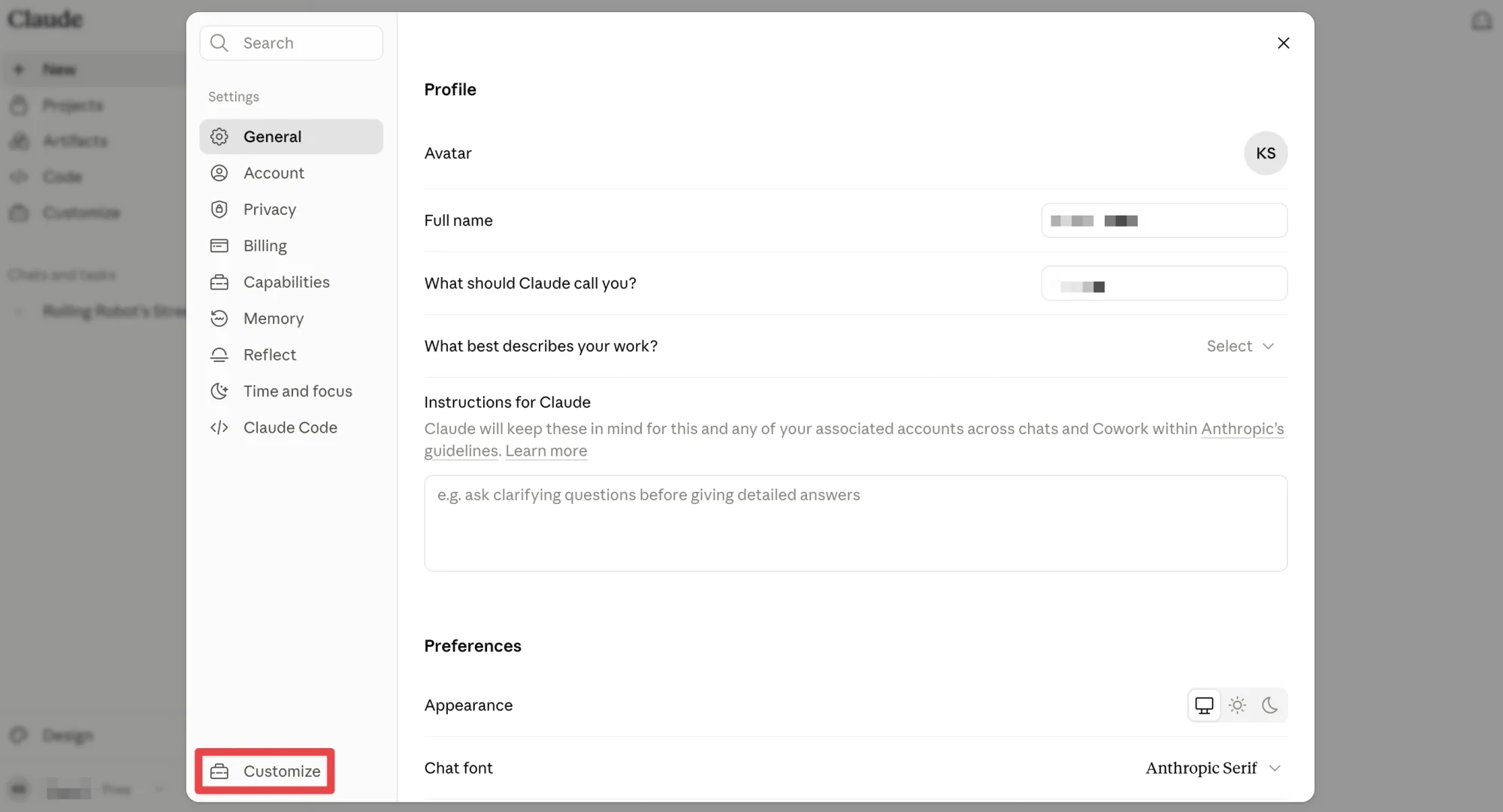
- In Claude, open Settings and go to Customize at the bottom left.
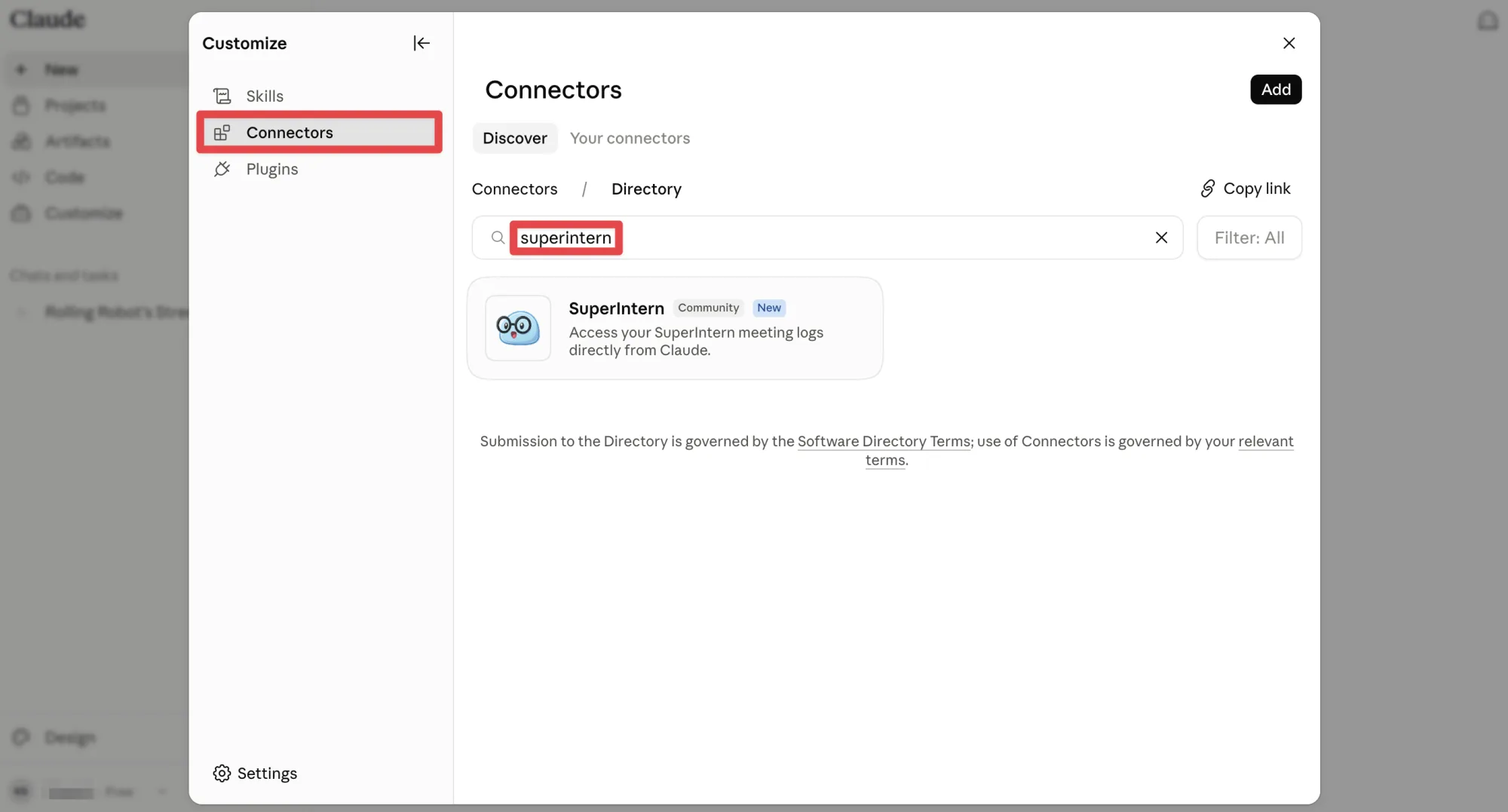
- Open Connectors, search for "SuperIntern", and select it in the results.
- Choose Connect, sign in with your SuperIntern account, and allow access.
If you prefer to add the connector manually instead:
- In Claude, go to Settings, open Connectors, and from the Add toggle in the upper right, choose Add custom connector.
- Enter
https://mcp.app.super-intern.com/mcpas the connection URL and give it a recognizable name such as "SuperIntern". - A SuperIntern sign-in page opens. Log in with the account you normally use and grant access.
Connecting ChatGPT / Codex
ChatGPT (the web version, the desktop app, and the mobile app) and the Codex app connect the same way. SuperIntern is listed in ChatGPT's plugin directory, so there is no connection URL to enter.
- Open Plugins in the ChatGPT or Codex sidebar and type "superintern" into the search box.
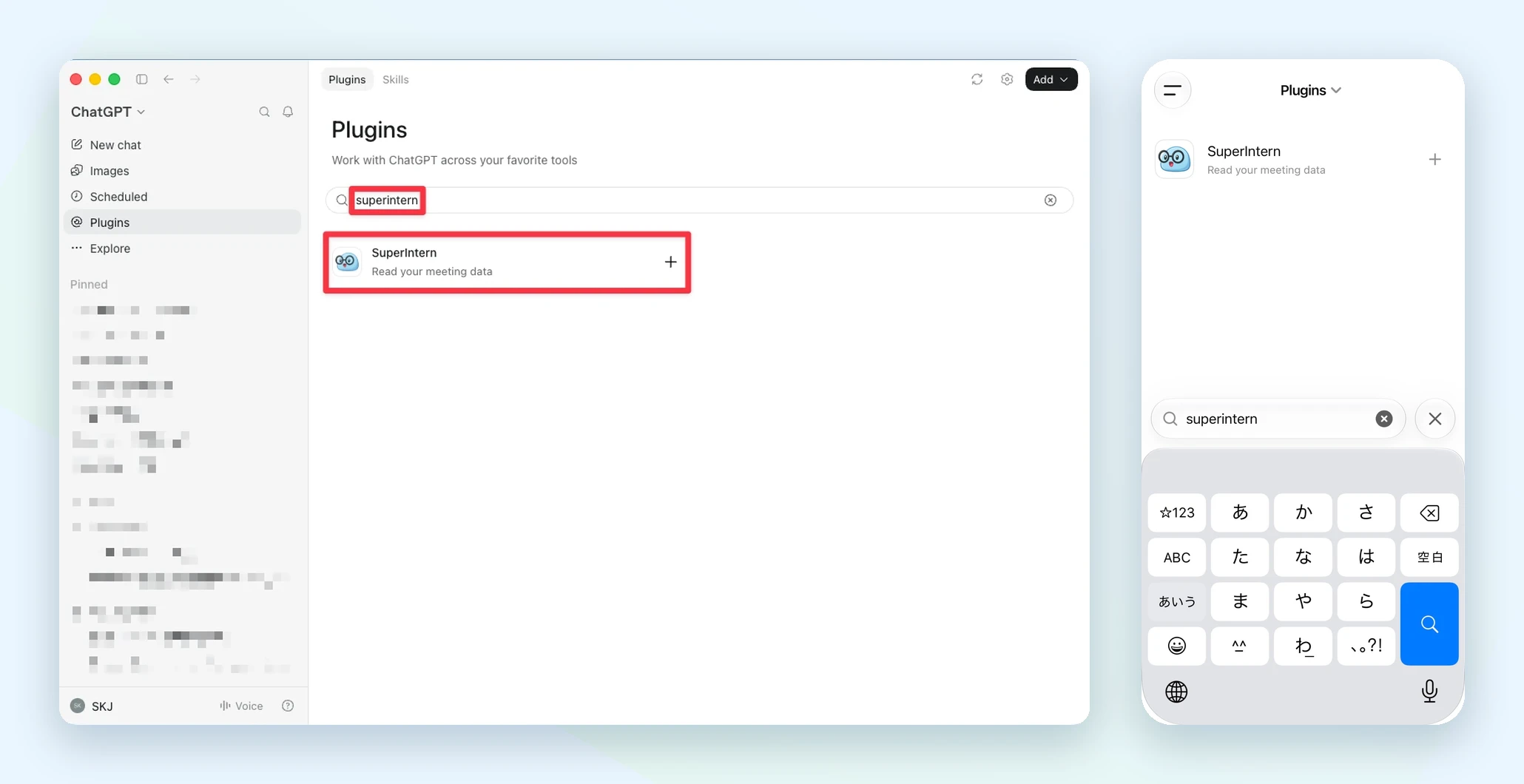
- Open SuperIntern in the results and click Install plugin. In the mobile app, tap + next to the result; a popup asks you to confirm signing in to SuperIntern, so tap Continue.
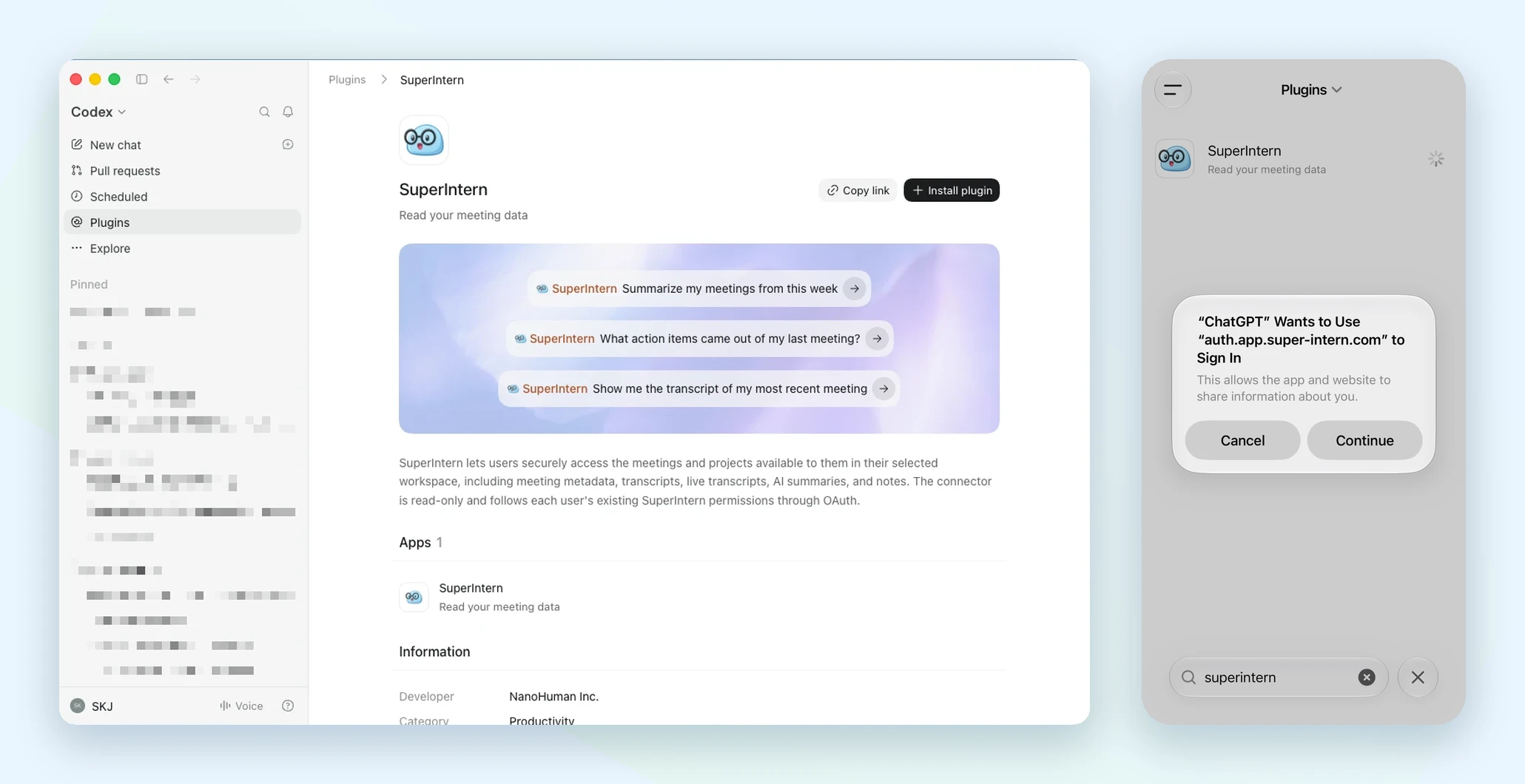
- A SuperIntern sign-in page opens. Log in with the account you normally use and grant access.
Once connected, mention the plugin in a chat, for example "@SuperIntern Summarize my meetings from this week".
Connecting Cursor
Add this entry to your MCP settings (mcp.json):
{
  "mcpServers": {
    "superintern": {
      "url": "https://mcp.app.super-intern.com/mcp"
    }
  }
}
After saving, Cursor starts the OAuth flow; sign in to SuperIntern in the browser and approve.
Any other MCP client that supports Streamable HTTP with OAuth authentication can connect using the same URL. Check your tool's MCP documentation for where the settings live.
Verify the connection
Once connected, try asking your AI client:
List my 5 most recent meetings in SuperIntern
If it returns meeting titles and dates, you are connected. From there, natural-language requests like "Summarize the AI minutes from yesterday's standup" or "Extract the action items from this week's sales calls" just work.
5. Managing MCP access in your workspace (Enterprise plan only)
In Enterprise workspaces, admins control whether members can use MCP at all. It is OFF by default, so an admin has to enable it first:
- Sign in to the SuperIntern web app.
- Open the settings of the target workspace.
- In the Security section, switch on "MCP access".
Only admins with workspace settings permissions can operate this toggle.
Conversely, switching the toggle OFF immediately revokes existing connections (OAuth grants). If members had already connected Claude or other clients, their MCP access is cut off at that moment. Nothing is irreversible, so a cautious rollout, enabling it for a trial period first, works well.
6. Use cases
Once your meeting data is visible to your AI client, workflows like these become one-liners:
Auto-drafting weekly reports
Ask "Fetch the summaries of every meeting I attended this week and draft my weekly report for the team." The AI pulls the meeting list, collects the summaries, and assembles the report.
Sales follow-ups
"From yesterday's call with Acme, extract the customer's concerns and next steps, then write a follow-up email." One request, done. It also works well as a pre-CRM cleanup step.
Searching across past discussions
"Summarize everything we discussed about pricing changes in this project's meetings over the past month." Filter by project and date range, and review discussions across multiple meetings at once.
Repurposing meeting minutes
Pull the AI summary or notes and have your AI client reformat them: convert them for your internal wiki, or rewrite them as an executive summary for leadership.
Spec checks for engineering teams
With Claude Code or Cursor connected, you can ask "What API behavior did we agree on in last week's spec review?" right from your editor, without switching tools.
7. Security design
Meeting data is often confidential, so MCP was designed conservatively:
- Read-only: every MCP tool is for reading. No create, update, or delete operations exist
- OAuth 2.0: connections authenticate through the user's own SuperIntern account. There are no shared API keys that could leak
- Scoped to your permissions: you can only access meetings and projects you can already view in SuperIntern
- Instant revocation: when an Enterprise admin switches the toggle off, previously granted connections are revoked at the same time
- Rate limiting: built-in rate limits protect against excessive access
- Prompt-injection notice: because transcripts contain user-generated text, MCP tool responses include an explicit instruction for AI clients to treat meeting content as data, not as instructions
8. FAQ
Is MCP available on the Free plan?
No. Personal workspaces need Plus or higher. Team workspaces on the Team plan have it included, and Enterprise workspaces can use it once an admin enables it in the workspace settings.
Can AI clients modify my SuperIntern data?
No. All MCP tools are read-only. Creating, editing, or deleting meetings and notes can only be done in SuperIntern itself.
Do I need to create or manage API keys?
No. Authentication is handled by OAuth, and the only thing you register in your AI client is the connection URL (https://mcp.app.super-intern.com/mcp).
Can I see other team members' meetings through MCP?
Only meetings you can view in SuperIntern are accessible. Meetings in restricted projects remain hidden unless you are a member of that project.
How do I disconnect?
Remove the connector in your AI client. In Enterprise workspaces, an admin can also switch off "MCP access" to revoke all grants across the workspace at once.
Can I retrieve meeting audio or video through MCP?
No. Only text data is available: meeting metadata, transcripts, live transcripts, AI summaries, and notes.
Put your SuperIntern meeting data to work in the AI assistants you already use.