
Real-Time Translation for Microsoft Teams: Tools Compared
"I can't catch what the non-native speakers are saying in our Teams meeting, and I keep losing the thread of the discussion."
"I know Teams has translated captions, but the setup steps are confusing."
"I want real-time translation and meeting notes at the same time."
As more teams go global, multilingual conversations inside Microsoft Teams are becoming the norm. Meetings with overseas offices, standing calls with international teammates, sales conversations with foreign partners: the moments where real-time translation matters keep growing each year.
This article first walks through Microsoft Teams' built-in live translated captions, then explains the cases where an alternative tool is the better fit and which tool we recommend.
This article is an independent summary by NanoHuman Inc. based on publicly available information and user feedback as of January 2026.
Table of Contents
- When Real-Time Translation Matters in Teams Meetings
- What Teams' Live Translated Captions Actually Do
- How to Set Up Translated Captions in Teams
- Where Teams' Built-In Feature Falls Short
- Recommended Alternative: SuperIntern
- Summary
1. When Real-Time Translation Matters in Teams Meetings
The situations where real-time translation becomes critical in Teams meetings tend to fall into three broad buckets.
Standing Meetings With Overseas Offices
Global companies hold regular calls with offshore subsidiaries and regional branches. English is often the shared language, but not everyone speaks it at a native level. Real-time translation lets each participant confirm the discussion in their own language while staying engaged.
Project Meetings With Multinational Teams
When a project team includes members from different countries, picking up on the small nuances of a discussion matters. For spec reviews, issue tracking, and other places where misunderstandings can compound, real-time translation gives everyone a stronger safety net.
Sales Calls With Overseas Partners or Clients
In negotiations with overseas companies, misreading a single condition can be costly. Pricing discussions, contract terms, and other precise topics are far less stressful when translated captions are right there on the screen.
2. What Teams' Live Translated Captions Actually Do
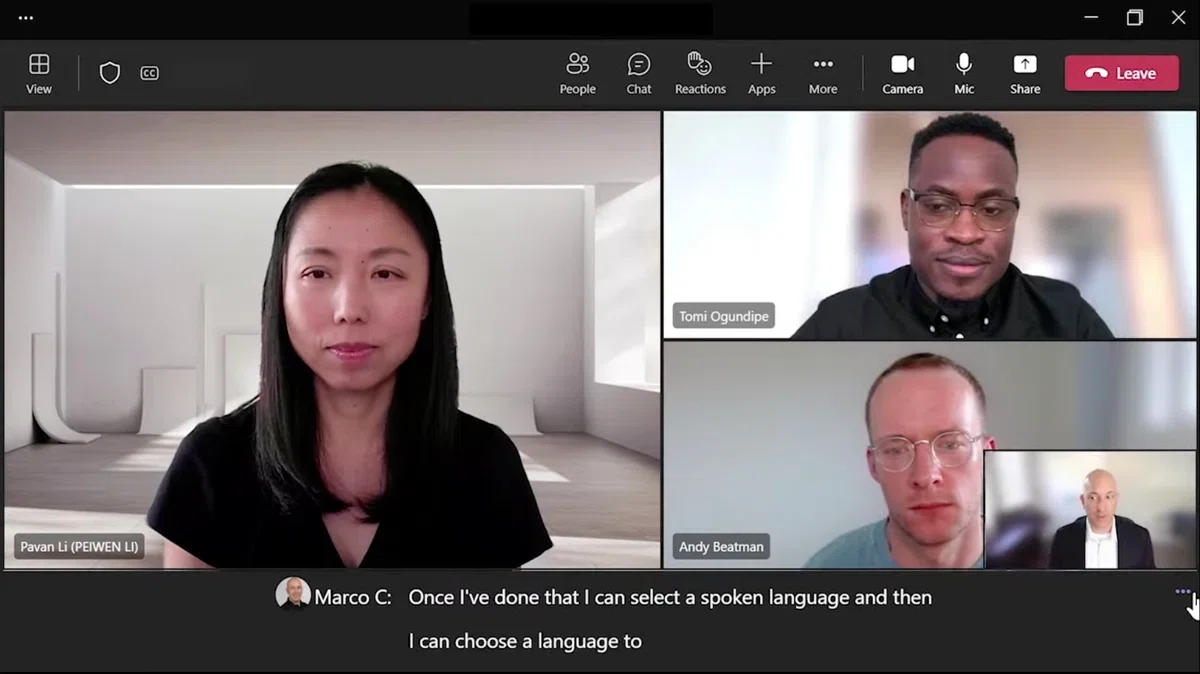
Microsoft Teams includes a "live captions" feature that displays spoken content as subtitles during the meeting. With the right paid license, those captions can also be translated into another language: this is the "live translated captions" feature.
Feature Overview
Live translated captions use AI to recognize meeting audio and display it as translated subtitles in the language you choose. Even if the other side is speaking English, your screen can show captions in your preferred language.
Each participant configures captions for themselves, so different people in the same meeting can read captions in different languages. The captions appear only on your screen; the other participants don't see them.
Supported Languages
As of January 2026, Teams' live captions cover more than 50 spoken languages. For translation targets, the major business languages are essentially all covered: English, Japanese, Chinese (Simplified and Traditional), Korean, German, French, Spanish, Italian, Portuguese, Russian, Arabic, and more.
License Requirements
Teams' live caption feature splits into two tiers.
Live Captions (no translation)
- Displays captions in the same language as the speaker
- Available with standard Teams licenses
Live Translated Captions
- Translates captions into a different language
- Requires a Teams Premium or Microsoft 365 Copilot license
If the meeting organizer (host) has Teams Premium or Copilot, participants can use translated captions without holding the license themselves.
Things to Watch Out For
A few caveats apply when using live translated captions.
- Captions are not saved: Captions are not retained after the meeting ends. If you want a record, you also need to use the transcription feature.
- Accuracy is not perfect: Speakers who don't enunciate clearly may not be recognized. Treat captions as a helpful reference rather than a 100% reliable source.
- Desktop app only: Available only in the Windows and Mac apps.
3. How to Set Up Translated Captions in Teams
Using Teams' live translated captions takes both admin-side preparation and in-meeting configuration.
Admin Setup
Step 1: Sign in to the Teams admin center
Sign in to the Microsoft Teams admin center (admin.teams.microsoft.com) with an account that has administrator privileges.
Step 2: Enable the feature in your meeting policy
- From the left menu, choose "Meetings" then "Meeting policies"
- Click the policy you want to edit
- Set "Live captions" to "Not enabled but the user can override"
This makes live translated captions available to users in your organization.
In-Meeting Steps (For Participants)
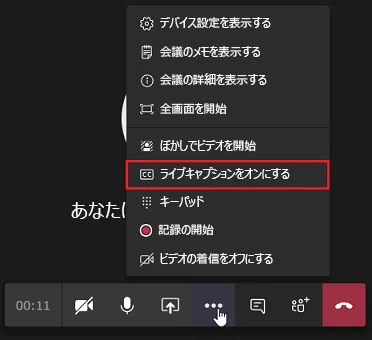
Step 1: Turn on live captions
In the meeting toolbar, click "More" (...), then choose "Language and speech" then "Turn on live captions." A captions area appears at the bottom of your screen.
Step 2: Set the spoken language
Click the "..." in the top right of the captions area and choose "Change spoken language." Pick the language the other person is speaking (for example, English).
Step 3: Set the translation language
From the same menu, select "Caption language" and pick the language you want to read (for example, your native language). The other person's spoken language will now appear translated, in real time, as captions on your screen.
4. Where Teams' Built-In Feature Falls Short
Teams' built-in live translated captions are convenient, but they aren't the right fit for every situation. The cases below are where it's worth looking at an alternative tool.
Case 1: You Don't Have a Teams Premium / Copilot License
Translated captions require a Teams Premium or Microsoft 365 Copilot license. If the meeting host has the license, attendees can use the feature, but if a partner or external host runs the meeting, translation may simply not be available.
Case 2: Multiple Languages Get Spoken in the Same Meeting
Some meetings flow between English, Chinese, Japanese, and other languages depending on the participants. Teams' translation runs one-way from the language you configure, so it can struggle when speakers switch back and forth frequently.
Case 3: You Want the Same Setup Outside of Teams
Teams' translated captions are Teams-only. They don't work in Google Meet, Zoom, or in-person meetings. If you bounce between platforms, a platform-agnostic tool is much easier to live with.
Case 4: You Want a Live Summary to Catch Back Up
A tool that builds a real-time summary in your language lets you catch up quickly if you missed something in the captions. Teams' built-in feature doesn't provide a live, structured summary during the meeting.
Case 5: You Don't Want the Other Side to Know You're Recording
Teams' built-in transcription notifies every participant when recording and transcription start. For external sales conversations or sensitive 1:1s, you may want to take notes without making the other side feel they're being recorded.
5. Recommended Alternative: SuperIntern
To address these gaps, here's SuperIntern, the meeting AI tool we build at NanoHuman Inc.
About SuperIntern

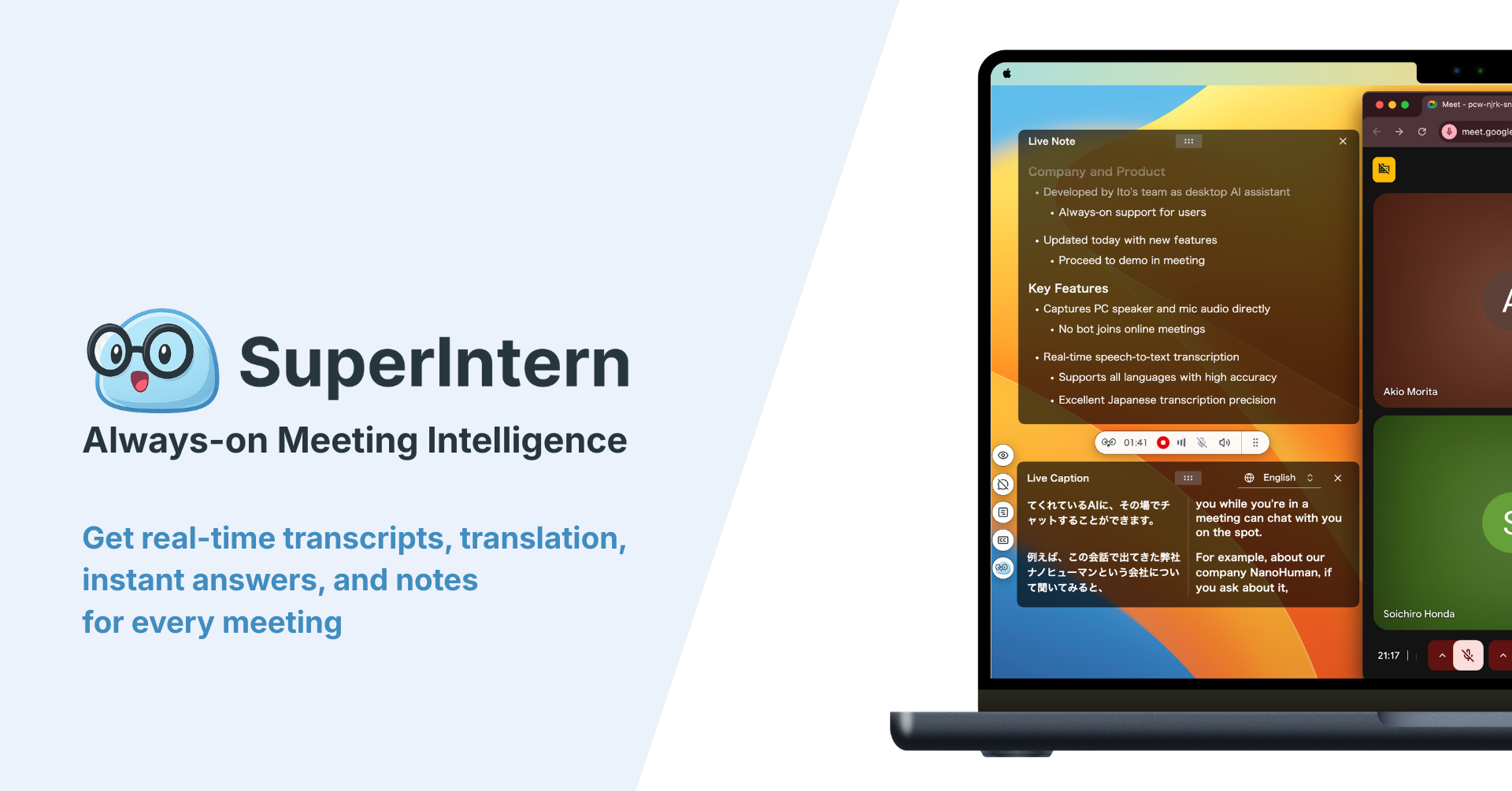
SuperIntern is a meeting AI tool built around the idea of using meetings as the starting point for getting work done. It provides real-time translation and AI meeting notes that work in Microsoft Teams, Zoom, Google Meet, and even in-person meetings.
Eight Reasons SuperIntern Works Well for Teams Meetings
Reason 1: No special license required for translation
Because SuperIntern is its own service, you don't need Teams Premium or Copilot. As long as SuperIntern is installed on your machine, you can use translation regardless of who is hosting the meeting.
Reason 2: Handles meetings with multiple spoken languages
Even when more than one language is spoken in the same meeting, SuperIntern automatically detects the language and produces a stable translation in your target language. You don't need to think about switching settings.
Reason 3: Works the same way outside Teams
Beyond Teams, SuperIntern works the same way in Zoom, Google Meet, Webex, and in-person meetings. You don't need to switch tools, so every meeting gets the same level of support.
Reason 4: Auto-generates real-time meeting notes
While the meeting is running, a structured summary in your chosen language updates in real time. When you find yourself thinking "wait, what did we just agree to?", the summary is right there. The amount of post-meeting writeup also drops sharply.
Reason 5: Custom dictionary for domain-specific accuracy
Register company names, product names, and industry terms in your custom dictionary. Proper noun misrecognitions and inconsistent translations both go down, and your captions and notes become noticeably more accurate.
Reason 6: No bot joins the meeting
Most meeting AI and translation tools join meetings as a bot. SuperIntern is botless by design: it captures audio on your own device, so the other participants never see it. Since there's no signal that you're capturing the meeting, you can use it comfortably in external sales calls or sensitive conversations.
Reason 7: 50+ languages supported
Beyond the major business languages (English, Japanese, Chinese, Korean, German, French, Spanish, Italian, Portuguese, Russian, Arabic), SuperIntern also covers Hindi, Swahili, Basque, and many others.
Reason 8: Works with video content too
Because SuperIntern captures system audio directly, it also translates YouTube videos and similar content, which is helpful for watching overseas webinars or training recordings.
SuperIntern Pricing
- Free plan: Start free, no credit card required
- Plus plan: $20/month for 100 hours of usage
Compared with a Teams Premium add-on at around $10/user/month, SuperIntern's real-time meeting notes, botless design, and custom dictionary make for a strong cost-to-value ratio.
Who SuperIntern Is For
- Anyone who wants to handle translation and meeting notes for Teams meetings in one step
- Anyone who doesn't want the other side to feel they're being recorded during external calls
- Anyone who wants the same tool across Teams and other meeting platforms
- Anyone who wants translation but doesn't have a Teams Premium license
6. Summary
We covered how to use real-time translation in Microsoft Teams meetings, starting with Teams' built-in live translated captions. With recognition for more than 50 spoken languages and translation into many target languages, it covers a lot of ground.
That said, for the needs below, an alternative tool like SuperIntern is usually a better fit.
| Need | Teams Built-In | SuperIntern |
|---|---|---|
| Real-time translation | Yes | Yes |
| No special license required | No (Premium/Copilot required) | Yes |
| Auto-detection across multiple languages | Limited | Yes |
| Works outside Teams | No | Yes (all major platforms) |
| Custom dictionary | No | Yes |
| Real-time meeting notes | No | Yes |
| No recording notification to the other side | No | Yes |
| Translate video content too | No | Yes |
Real-time translation in Teams is moving from "nice to have" to "essential." Pick the tool that fits how you actually meet, and keep global communication moving.
Start by trying SuperIntern on the Free plan and see how much smoother your meetings get when translation and notes happen at the same time.