
Teams Transcription: Turn Microsoft Teams Transcripts into AI Notes
Microsoft Teams transcription is useful because it captures what people said.
But most teams do not need another long transcript.
They need a short record of decisions, action items, risks, customer quotes, and follow-up messages they can actually use.
⚠️ This article is based on publicly available information and user feedback as of May 2026.
This guide explains how Teams transcription works, where it fits, where it becomes a workflow bottleneck, and when a botless AI meeting assistant such as SuperIntern is the better layer on top.
Quick Recommendation
Use native Teams transcription when every meeting happens in Microsoft Teams and you only need the transcript.
Use an AI meeting assistant when you need live notes, summaries, multilingual output, reusable note templates, or coverage across Zoom, Google Meet, Webex, Slack Huddles, Discord, and in-person meetings.
| Need | Recommended path |
|---|---|
| Capture a Teams meeting transcript | Native Teams transcription |
| Review who said what later | Native transcript with speaker labels |
| Create action items and decisions | AI meeting notes workflow |
| Take notes during the meeting | Live Notes or AI Canvas |
| Avoid a visible notetaker bot | Botless desktop assistant |
| Support non-Teams meetings | Platform-agnostic audio capture |
| Summarize in another language | Realtime translation and chosen-language summaries |
What Teams Transcription Does
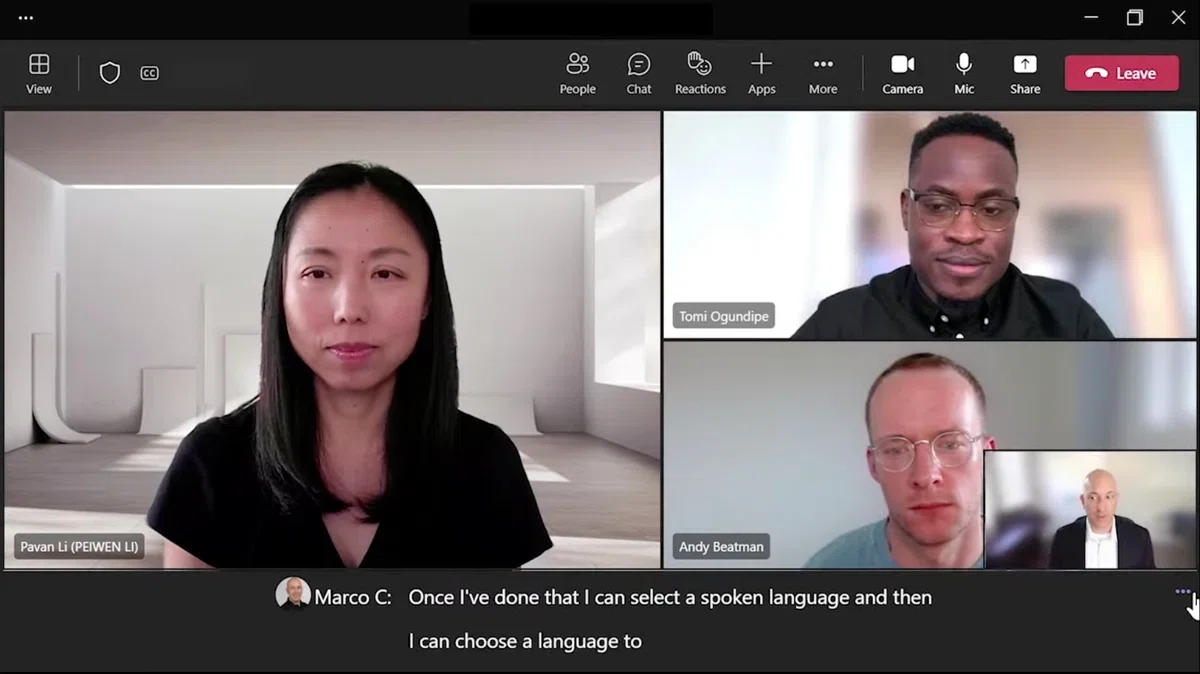
Teams transcription turns meeting speech into written text.
In a typical Teams meeting, it can include:
- real-time transcript text
- speaker names where available
- timestamps
- access to the transcript after the meeting
- spoken-language settings
- participant notification that transcription is running
That is valuable infrastructure.
It is not the same as a useful meeting note.
A transcript is chronological.
A note is structured.
A transcript says, "Alex discussed pricing, then Maya asked about security."
A note says, "Decision: send security documentation before Friday. Owner: Alex. Risk: procurement will delay signature if DPA is not approved."
How to Start Teams Transcription
The exact controls can change by Teams version and admin policy.
The usual desktop flow is:
- Join or start the Teams meeting.
- Open More actions in the meeting controls.
- Choose Record and transcribe.
- Select Start transcription.
- Confirm the spoken language.
- Continue the meeting while the transcript appears in real time.
After the meeting, the transcript is typically available from the meeting chat or recap area, depending on your organization's settings.
Before relying on it, confirm:
- who can start transcription
- who can download transcripts
- how long transcripts are retained
- whether external guests can access them
- what happens when the spoken language changes
- whether Copilot or recap features require transcription for your use case
What Teams Handles Well
Teams is a strong choice when the meeting already lives inside Microsoft 365.
| Strength | Practical value |
|---|---|
| Native experience | No additional app for Teams-first teams |
| Speaker and time context | Easier to verify what happened |
| Meeting chat continuity | Transcript remains near the meeting record |
| Admin controls | IT can manage policies centrally |
| Participant notification | Everyone can see that transcription is active |
For recurring internal meetings, training sessions, and straightforward status updates, this may be enough.
Where Teams Transcription Stops Short
Most friction appears after the meeting ends.
1. The Transcript Is Too Long
A one-hour meeting can create pages of text.
Few teammates will read that transcript from top to bottom.
They want the operational layer:
- decisions
- action items
- owner and due date
- open questions
- risks
- customer language worth quoting
- follow-up draft
2. Notes Still Need Manual Work
Many teams copy transcript excerpts into ChatGPT, a CRM, a project doc, or a weekly update.
That creates inconsistent output.
One person asks for a short summary.
Another asks for detailed action items.
Another forgets to include risks.
The transcript is the same, but the final notes differ.
3. Teams Only Covers Teams
Real meeting calendars are mixed.
Customer calls may happen on Zoom.
Partner calls may happen on Google Meet.
Internal standups may happen in Teams.
Quick design reviews may happen in Slack Huddles.
Some interviews or workshops happen in person.
If your process only works inside Teams, your meeting history becomes fragmented.
4. Multilingual Work Needs More Than Captions
Live captions help people follow a conversation.
After the meeting, teams often need:
- an English meeting summarized in Japanese
- a German meeting summarized in English
- Spanish follow-up email from a bilingual call
- terminology consistency for product names
- a concise executive brief in the reader's preferred language
That is not just transcription.
It is translation, summarization, and workflow design.
5. Visibility Can Matter
Teams' native transcription is part of the meeting platform.
Many third-party notetakers join as visible bots.
That can be acceptable for internal calls.
It can feel awkward in sales, legal, recruiting, investor, or executive conversations.
A botless desktop assistant avoids adding another participant tile to the meeting.
Decision Matrix: Native Teams or AI Meeting Assistant?
Use this table before changing your workflow.
| Question | Native Teams transcription is enough | AI assistant is better |
|---|---|---|
| Are all meetings in Teams? | Yes | No, multiple platforms |
| Do you only need a transcript? | Yes | No, structured notes |
| Do notes need to update live? | Rarely | Often |
| Are meetings multilingual? | Rarely | Regularly |
| Do you need custom templates? | No | Yes |
| Are visible bots sensitive? | No | Yes |
| Do you run in-person meetings? | No | Yes |
| Do you need AI chat after the meeting? | No | Yes |
A Better Workflow for Teams Transcripts
The goal is not to archive more words.
The goal is to convert meetings into decisions and execution.
Step 1: Choose the Note Shape Before the Meeting
Different meetings need different output.
| Meeting type | Useful note fields |
|---|---|
| Sales discovery | Pain, impact, buyer, next step, blocker |
| Product review | Feedback, bug, priority, decision, owner |
| Hiring interview | evidence, concern, score, follow-up question |
| Executive sync | decision, risk, owner, escalation |
| Customer success call | health signal, request, next action, renewal risk |
If you wait until after the call, the transcript becomes harder to interpret.
Step 2: Start Transcription Cleanly
At the beginning, check:
- transcription permission
- spoken language
- guest notification
- who owns the final note
- where the final note will live
- whether the meeting should be excluded from transcription
Step 3: Extract Signals Instead of Reading Everything
Look for high-signal language:
- "we decided"
- "next step"
- "by Friday"
- "I will own"
- "blocked by"
- "legal needs"
- "customer asked"
- "we are not ready"
These phrases usually contain the work.
Step 4: Convert to a Reusable Template
A useful AI note template may include:
| Section | Purpose |
|---|---|
| Executive summary | What happened in 5 lines |
| Decisions | What is now true |
| Action items | Owner, date, next step |
| Risks | What may block progress |
| Customer voice | Exact wording worth preserving |
| Follow-up | Message draft ready to send |
Step 5: Verify While Context Is Fresh
The best time to correct an AI note is during the meeting.
If a live note says "approved" but the group only discussed an option, someone can correct it immediately.
That is much harder the next day.
How SuperIntern Fits
SuperIntern is designed for teams that need more than a transcript.
It is a botless desktop meeting assistant that captures microphone and system audio from the device, so it can work across Teams, Zoom, Google Meet, Webex, Slack Huddles, Discord, and in-person meetings.

For Teams transcription workflows, the important parts are:
- Botless capture: no extra meeting participant joins the call.
- AI Canvas: structured notes are written during the meeting in the format you specify.
- Realtime transcription: follow important points as they are spoken.
- Automatic language detection: detects the spoken language automatically, reducing accuracy loss from incorrect manual language settings.
- Realtime translation: support multilingual conversations in the moment.
- Chosen-language summaries: summarize an English call in Japanese, German, Spanish, or another working language.
- Custom dictionary: improve handling of product names, acronyms, customer names, and technical terms.
- Post-meeting AI chat: ask targeted questions after the meeting.
- Invisible Mode: designed to avoid showing the app during screen sharing.

Example: Turning a Teams Sales Call into a CRM Update
Imagine a sales team runs a 40-minute Teams discovery call.
The native transcript captures every sentence.
The CRM needs only:
- pain
- business impact
- buyer role
- competitor mention
- security concern
- next step
- close risk
With a reusable AI note template, the output can become:
| CRM field | Meeting-derived note |
|---|---|
| Pain | Handoff between support and account teams is slow |
| Business impact | Renewal conversations require manual status checks |
| Buyer | VP Operations owns workflow; IT reviews security |
| Concern | No visible external bot should join customer calls |
| Next step | Send security overview and trial workspace link |
| Risk | Legal approval may delay pilot start |
That is a usable note.
The raw transcript is only the source material.
Privacy and Compliance Checklist
Any transcription workflow needs explicit rules.
Before rolling it out, answer:
- Who can start transcription?
- Who can stop it?
- Are external guests notified?
- Where are transcripts stored?
- How long are they retained?
- Who can download or share them?
- Are HR, legal, or executive meetings excluded?
- Is audio stored or only processed?
- Are meeting contents used for model training?
- Can users delete transcripts?
- What is the approval path for customer calls?
The best tool choice depends on these answers as much as on feature lists.
Common Mistakes
Mistake 1: Treating Transcript as Output
A transcript is not the deliverable.
The deliverable is the decision record, action plan, or follow-up.
Mistake 2: Forgetting the Spoken Language
Bad language settings reduce transcript quality.
Confirm them before the meeting gets important.
Mistake 3: Summarizing Too Late
Waiting until tomorrow creates ambiguity.
Live notes preserve context.
Mistake 4: Using a Teams-Only Workflow for a Mixed Calendar
If half your calls happen outside Teams, the process will break.
Choose a workflow that matches the calendar, not the platform preference.
Mistake 5: Ignoring the Social Cost of Bots
Some meetings are fine with visible notetaker bots.
Some are not.
Choose intentionally.
FAQ
Is Teams transcription the same as meeting notes?
No. Teams transcription captures what was said. Meeting notes organize decisions, tasks, risks, and follow-up information.
Can Teams transcription identify speakers?
Teams can include speaker context when the meeting environment and settings support it. Accuracy can vary by setup, device, and speaker recognition conditions.
Does Teams transcription work outside Microsoft Teams?
No. Native Teams transcription is for Teams meetings. A botless desktop assistant can capture device audio across multiple meeting platforms.
Can I use Copilot with Teams transcripts?
Microsoft Teams and Microsoft 365 Copilot can use meeting context for summaries and questions when the relevant settings, licenses, and policies allow it. Check your current tenant configuration.
Why would I use SuperIntern if Teams already transcribes?
SuperIntern is for people who already use Teams and want to make meetings more efficient with botless transcription, translation, Live Notes, post-meeting AI chat, and reusable meeting structures.
Is botless capture automatically more private?
Not automatically. Privacy depends on data handling, storage, access control, and policy. Botless capture helps avoid adding another visible participant and can fit meetings where a bot would feel disruptive.
What should I do with a transcript after the meeting?
Convert it into a short record: summary, decisions, action items, risks, and follow-up. Do not ask teammates to read the whole transcript unless they need exact wording.
Conclusion
Teams transcription is a good first layer.
It records what happened.
But the real productivity gain comes from turning the transcript into work:
decisions, owners, risks, summaries, and follow-up.
If your team lives entirely in Teams and only needs transcripts, the native feature may be enough.
If your calendar spans platforms, languages, and sensitive conversations, SuperIntern adds the missing workflow layer with botless capture, Live Notes, AI Canvas, realtime translation, and post-meeting AI chat.