
Set Up Live Translation in Microsoft Teams in 3 Steps
You're preparing for a Teams meeting with international colleagues. The discussion will switch between English, Japanese, or another language—and you need to follow along without constantly asking "Can you repeat that?" Real-time translation is the answer, but setting it up in Teams isn't always straightforward.
This guide walks you through enabling live translation in Microsoft Teams step by step, explains what the native features can and can't do, and helps you decide when a dedicated translation app without bot might serve you better.
How Microsoft Teams Translation Works
Teams offers several ways to bridge language gaps during meetings. Understanding your options helps you choose the right approach.
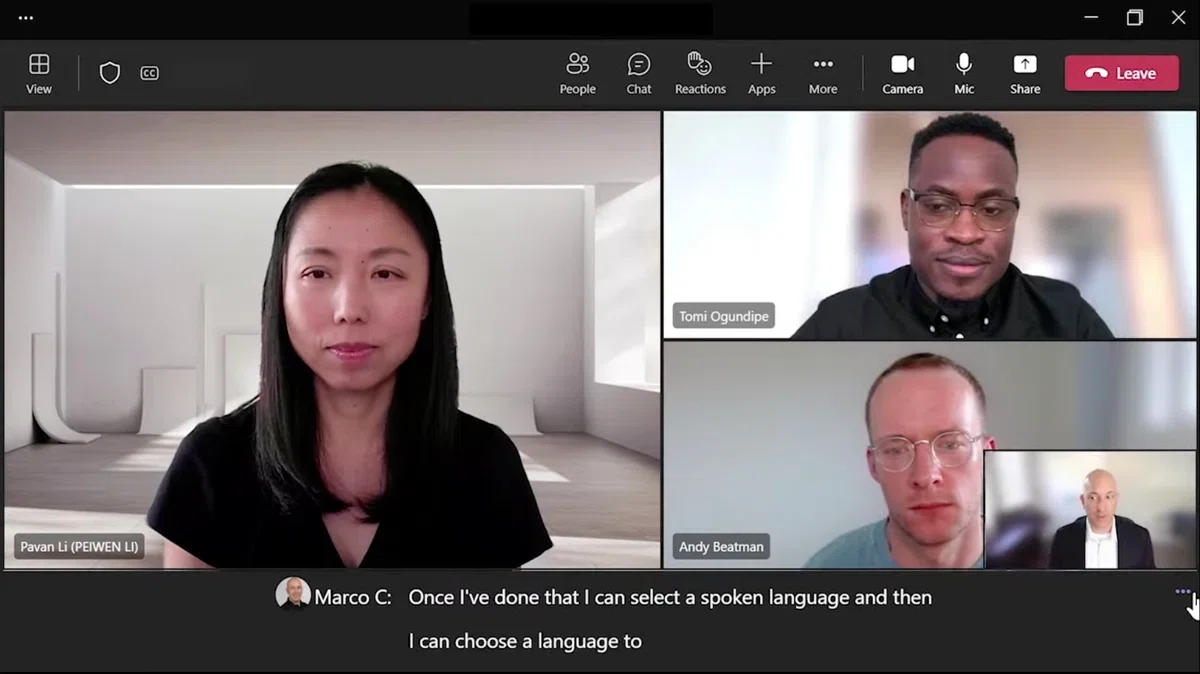
Live Captions with Translation display real-time transcription of spoken words, translated into your preferred language. The captions appear at the bottom of your screen—visible only to you, not other participants.
Interpreter Agent is a newer AI-powered feature that goes beyond captions. It creates a translated audio track that speaks the translation aloud, mimicking the original speaker's voice characteristics. Think of it as having an AI interpreter in your ear.
Multilingual Speech Recognition (MSR) automatically detects when speakers switch languages mid-conversation, ensuring captions and transcripts stay accurate regardless of which language someone is speaking.
The catch? These features require specific Microsoft 365 licenses. Basic Teams accounts only get same-language captions—no translation.
Step 1: Check Your License and Enable Admin Settings
Before you can use translated captions, your organization's Teams administrator needs to enable the feature.
For IT Administrators:
- Open the Microsoft Teams admin center
- Navigate to Meetings > Meeting policies
- Select the policy that applies to your users (or create a new one)
- Find Live captions and set it to "Off, but users can turn on" or "On for everyone"
- Save the policy changes
If you don't have admin access, contact your IT department to confirm that live captions are enabled for your account.
Verify Your License:
Translated captions require the meeting organizer to have one of these licenses:
- Teams Premium ($10/user/month) — Adds translated captions for up to 50 languages
- Microsoft 365 Copilot ($30/user/month) — Includes Interpreter Agent with AI voice translation
Standard Microsoft 365 Business Basic, Standard, or Premium plans include live captions but not translation. You'll see your own language transcribed but won't have the option to translate to another language.
Step 2: Enable Live Captions During a Meeting
Once admin settings are in place, turning on captions takes just a few clicks.
During your Teams meeting:
- Click the More actions button (three dots "...") in your meeting controls
- Select Language and speech > Turn on live captions
- Captions will appear at the bottom of your meeting window
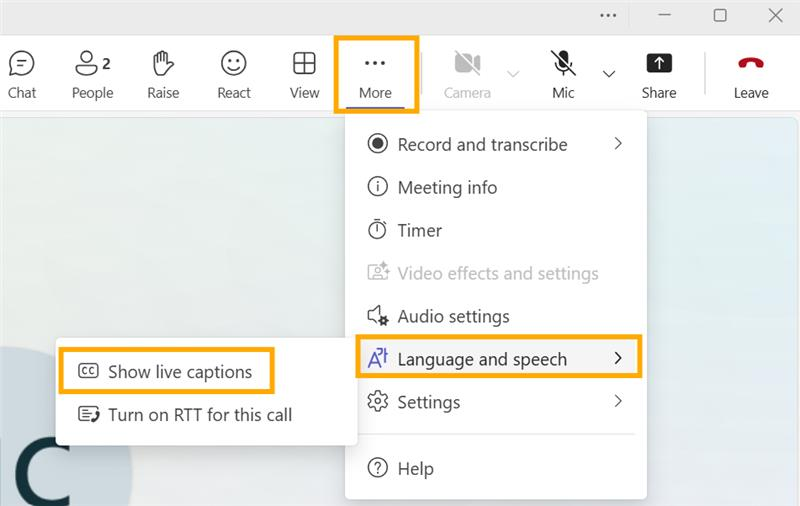
At this point, you're seeing same-language transcription. The spoken words appear as text, but they're not yet translated.
Step 3: Set Your Translation Language
Now comes the translation part.
To translate captions to your preferred language:
- With captions already on, click the More actions button again
- Go to Language and speech > Caption settings
- Find Translate captions and toggle it On
- Select your desired translation language from the dropdown
- Captions will now display in your chosen language
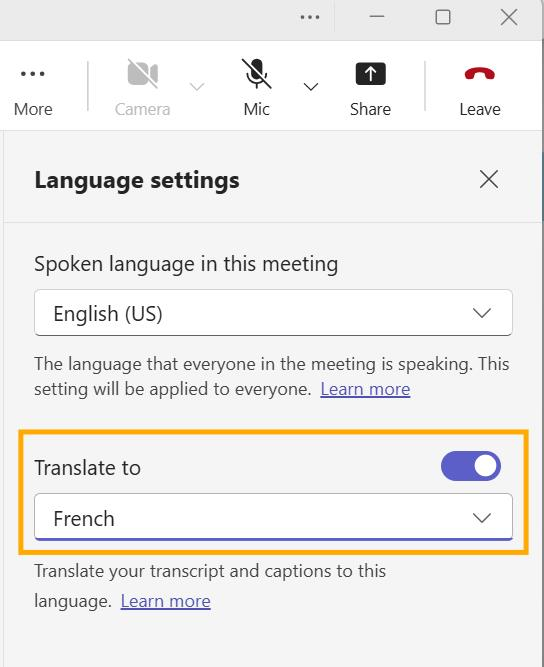
You can change this setting at any time during the meeting without disrupting others. The translated captions appear only on your screen.
For Town Halls and Live Events:
If you're organizing a webinar or live event, you can pre-configure translated captions for attendees:
- Open your scheduled event in Teams Calendar
- Click Meeting options
- Under Translate attendee captions, select which languages to make available
- Participants can then choose their preferred translation during the event
Where Teams Translation Falls Short
Once you've enabled live translation, you'll likely hit limitations that matter for serious professional use. The native features work, but several gaps tend to show up in real workflows:
- License costs add up. Translated captions require Teams Premium at minimum, $10/user/month on top of your existing Microsoft 365 subscription, which becomes expensive at scale, especially when only some team members regularly need translation.
- Locked to Teams. If your client prefers Zoom or your partner uses Google Meet, Teams translation won't help, and you'll need a separate solution for those conversations.
- No custom terminology. Teams doesn't let you register company names, product names, or industry jargon, so proper nouns and specialized terms often get mistranslated, which can cause confusion in technical or business discussions.
- Narrow Interpreter Agent language coverage. AI voice translation currently works with only 9 languages (Chinese, English, French, German, Italian, Japanese, Korean, Portuguese, Spanish), even though translated captions support 50+.
- Caption-only display. Translations stay inside the Teams interface, making them hard to read while sharing your screen or using other applications.
- Limited post-meeting translation. Recordings and transcripts remain in the original spoken language rather than your translated one.
- No bot-free option for client calls. Some translation tools join meetings as a "bot" participant, which can make clients uncomfortable or violate organizational policies. If discretion matters, you need a solution that works invisibly.
- No combined notes. Following a foreign-language conversation while taking notes is cognitively exhausting, and Teams won't generate translated meeting notes for you.
If you work across multiple platforms, handle client calls where bot presence is awkward, deal with specialized vocabulary, or want translation paired with automatic meeting notes, a dedicated tool is worth considering.
SuperIntern: A Better Alternative for Professional Settings

SuperIntern approaches meeting translation differently. Instead of integrating with one platform, it runs as a resident application on your computer (Mac and Windows), capturing audio directly from your speakers and microphone. No bot joins your call. Other participants have no idea you're using translation assistance.
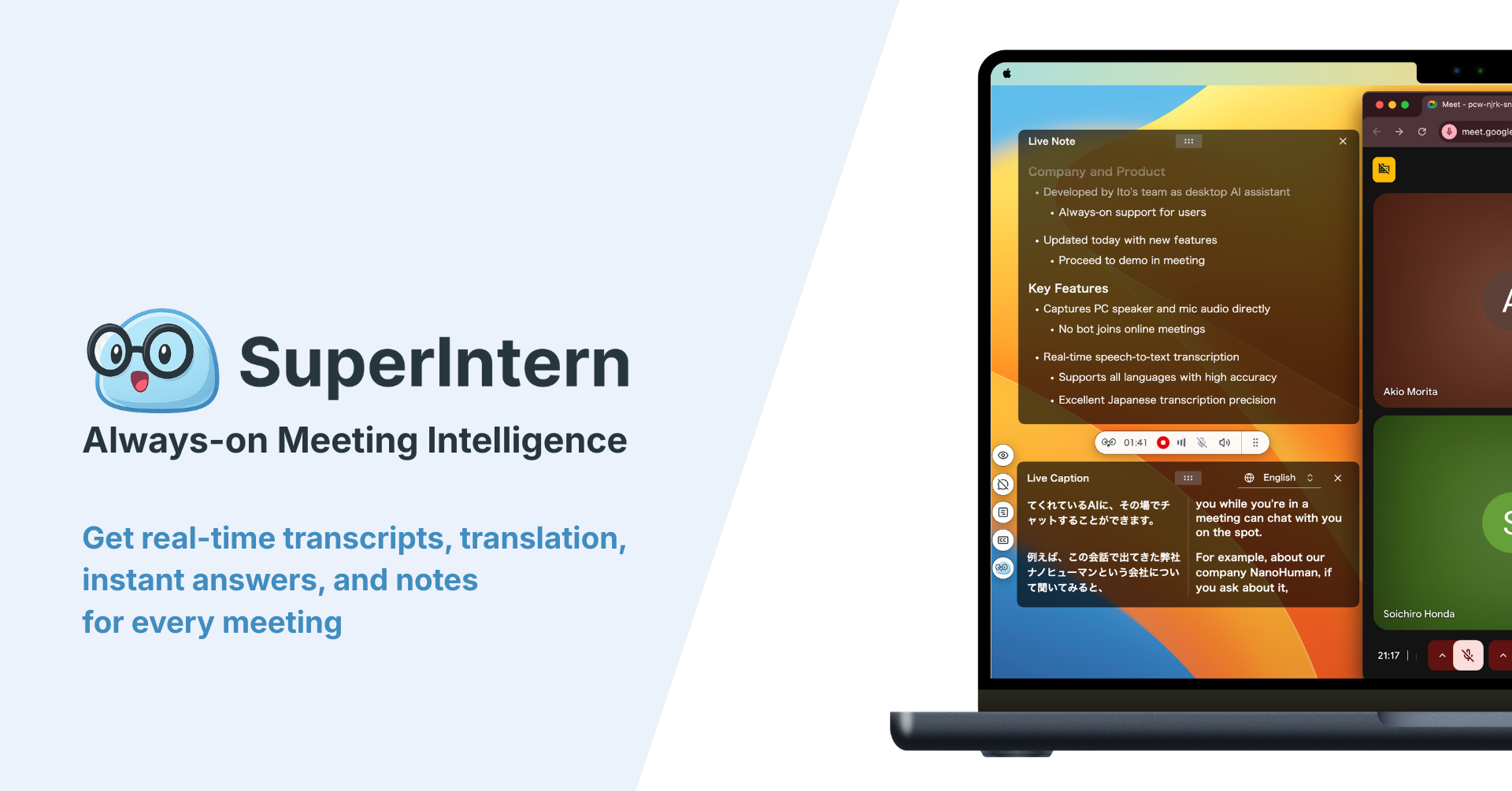
Why teams choose SuperIntern over native Teams translation:
- Platform-agnostic — Works with Teams, Zoom, Meet, Webex, or any audio source including in-person meetings
- No bot presence — Captures audio invisibly; no "AI Notetaker" appearing in participant lists
- Custom dictionary — Register company names, product names, and technical terms to improve accuracy
- 50+ languages with translation optimized for business contexts
- Real-time structured notes — Automatically generates organized meeting notes as the conversation happens
- Flexible language settings — Set different languages for subtitles vs. summaries (e.g., Japanese audio → Japanese + English subtitles → English summary)
Pricing: Free trial available; paid plans start at $20/month including 100 hours of meeting time.
👉 Try SuperIntern Free — No Credit Card Required
Quick Comparison: Teams Native vs. SuperIntern
| Feature | Teams Translation | SuperIntern |
|---|---|---|
| License required | Teams Premium ($10/mo) or M365 Copilot ($30/mo) | $20/mo (100 hours included) |
| Works with other platforms | No | Yes (any audio source) |
| Bot joins meeting | No | No |
| Custom dictionary | No | Yes |
| Languages supported | 50+ (captions), 9 (voice) | 50+ |
| Real-time meeting notes | No | Yes |
| Post-meeting summary | Transcript only (original language) | Customizable language summary |
| Free trial | No | Yes |
Getting Started
If you're deciding between Teams native translation and a dedicated tool, here's a practical approach:
Start with Teams if you meet these criteria:
- Your organization already has Teams Premium or M365 Copilot
- Most of your multilingual meetings happen within Teams
- You don't need specialized terminology support
- Translation is needed by just a few team members
Consider SuperIntern if:
- You meet with people across different platforms (Teams, Zoom, Meet)
- You need translation for external meetings where bot presence matters
- Your work involves specialized vocabulary or proper nouns
- You want both translation and automatic meeting notes
- You prefer a consistent experience regardless of meeting tool
Test both if possible. Teams' translated captions are already available if you have the right license—try them in a real meeting. SuperIntern offers a free trial without a credit card, so you can compare accuracy and workflow fit before committing.
Whatever you choose, the goal is the same: removing language barriers so you can focus on the conversation, not the technology.