
How to Transcribe Video to Text: Best AI Tools in 2026
You have a video sitting on your drive: a recorded meeting, a webinar, a class, or an interview. You need the text, not to rewatch the whole thing, but to search for a line, quote a number, or turn it into notes and captions.
Transcribing one hour of video can take up to four hours by hand. But today, AI can transcribe video to text in minutes. Which tool works best depends on the kind of video you want to transcribe.
This guide maps the landscape: it explains the three methods to convert video to text, then walks through the best tools of 2026 by use case.
⚠️ This article was independently compiled based on publicly available information and user feedback as of July 2026. Third-party pricing and features can change, so always confirm on the official pages.
Why transcribe a video to text?
Not every transcript is created for the same reason, and that reason decides which tool fits:
- Meeting and video-call recordings: Turn a Zoom, Teams, or Google Meet recording into notes with action items and decisions, without rewatching 60 minutes.
- Marketing content: Repurpose a YouTube video or webinar into a blog post, show notes, social posts, or captions.
- Classes and training: Students and learning teams want a searchable written record they can review without scrubbing back.
- Interviews and research: Journalists, product teams, and HR need the verbatim transcript, with speakers labeled, to quote and analyze.
- Accessibility and captions: Synced text makes a video usable for deaf viewers, in silent environments, or in another language.
The point when choosing: for meetings you almost always want actionable notes and summaries; for published content you want clean, complete text. Hold onto that distinction, because it returns in the tools section.
How to transcribe video to text: 3 methods
Method 1: Platform auto-captions
If the video already lives on YouTube or in your meeting platform's cloud, there's often an auto-generated caption track you can download. It's free and needs nothing.
Best for: a quick, rough transcript of a public YouTube video.
Limit: punctuation and speaker labels are usually weak, language support is uneven, and you get no summary or action items.
Method 2: Extract the audio and use an AI tool
The most versatile method. You upload the video file (or its audio track as mp3, m4a, or wav) to an AI transcription tool and get the text in minutes, with punctuation, timestamps, and, in the better ones, speaker separation.
Best for: most cases, especially prerecorded content, interviews, and classes. It's the go-to when you need to transcribe a video to text accurately.
Tip: if your tool only accepts audio, pull the track with a free converter and upload the mp3. The text is identical; the audio is far lighter and processes faster.
Method 3: Real-time capture (for meetings and video calls)
For live meetings, the most efficient flow isn't record-then-transcribe, it's capturing the audio as the conversation happens. When the call ends you already have the transcript and AI-generated notes, with no file to upload.
Best for: professionals who want minutes with zero post-work. This is where SuperIntern shines, and it also lets you upload an existing recording when you forgot to start capture.
Best tools to transcribe video to text in 2026
1. SuperIntern: Best for meeting and video-call recordings
SuperIntern starts from a different premise: if your video is a meeting, you don't just want the text, you want useful minutes. It captures your meeting audio in real time, with no bot joining the call, and it also lets you upload an existing recording (mp3, m4a, wav, and more) to run through the same AI flow.

Strengths:
- Bot-free by design: Captures system audio straight from your computer. No "notetaker bot" shows up in the participant list.
- Real-time transcription with speaker diarization: See who said what as the conversation moves.
- Upload prerecorded files: Forgot to start capture? Upload the recording's audio (extracted from the video if needed) and get transcription, diarization, and summary automatically.
- AI Canvas and AI-generated minutes: Summary, key points, and action items seconds after you finish, in customizable notes.
- 50+ languages with real-time translation and a post-meeting AI chat to ask about what was said.
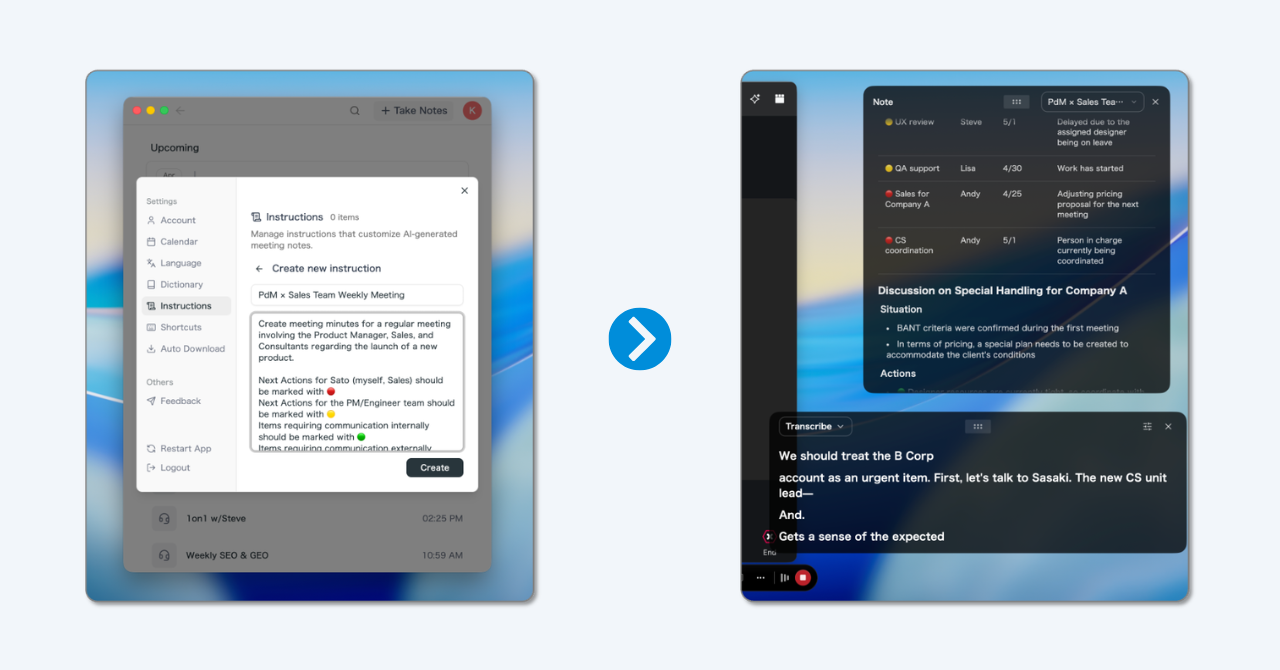
Limitations: Desktop app (Mac and Windows). It's optimized for meetings and video calls; for a generic YouTube video, you play it while SuperIntern captures the audio.
Pricing: Free plan available (no card). Plus plan at $20/month for 100 hours.
2. TurboScribe: Best for transcribing many long videos
TurboScribe is built on Whisper and focuses on one thing: upload audio or video and return accurate text. Its Unlimited plan is popular with anyone processing long or batched recordings.
Strengths:
- Audio and video transcription at Whisper-level accuracy.
- 98+ spoken languages, plus translating the transcript or subtitles into 134+ languages.
- Speaker recognition for meetings, interviews, and podcasts.
- Exports to TXT, SRT, VTT, and more.
Limitations: It's a pure transcriber: no live meeting capture, no action-oriented minutes built for team follow-up. The free plan caps you at roughly 3 transcriptions a day of 30 minutes each.
Pricing: Free plan (~3 files/day). Unlimited at $10/month billed annually or $20/month monthly (as of July 2026).
3. Descript: Best if you'll also edit the video
Descript combines transcription and video editing in one tool: it transcribes, then you edit the video by deleting text as if it were a document. It's a favorite among content creators.
Strengths:
- Transcription baked into a full video and podcast editor.
- Auto-captions with customizable styles.
- Edit the video by removing or reordering words in the transcript.
Limitations: Language support for transcription is narrower (around 25-30 languages). It's more a content-production tool than a meeting-minutes tool. The free plan includes only a few hours a month.
Pricing: Free plan (~1 hour/month). Paid plans from around $16/month per user billed annually (as of July 2026).
4. OpenAI Whisper: Best for technical users at zero cost
Whisper is OpenAI's open-source speech recognition model. You extract the video's audio, process it locally, and get an excellent transcript in 99 languages, free.
Strengths:
- Open source and free to run on your own machine.
- Excellent multilingual accuracy (99 languages).
- No usage caps: process as many videos as your hardware allows.
Limitations: Requires technical setup (Python, command line). No graphical interface or meeting features. No real-time transcription.
Pricing: Free (open source). Access via the OpenAI API is billed by usage.
Comparison table
| Feature | SuperIntern | TurboScribe | Descript | Whisper |
|---|---|---|---|---|
| Upload video directly | Via audio | ✅ | ✅ | Via audio |
| Real-time transcription | ✅ (no bot) | ❌ | ❌ | ❌ |
| Speaker diarization | ✅ | ✅ | ✅ | ❌ (only with extensions like WhisperX) |
| AI minutes / summary | ✅ | Partial | ❌ | ❌ |
| Video editing | ❌ | ❌ | ✅ | ❌ |
| Translation | ✅ (50+) | ✅ (subtitles) | Limited | English only |
| Languages | 50+ | 98+ | ~25-30 | 99 |
| Free plan | ✅ | ✅ (~3/day) | ✅ (~1 hr) | ✅ (open source) |
How to choose by use case
There's no single "best tool" in the abstract; there's the best one for what's in front of you:
- The video is a meeting or call and you want minutes → SuperIntern. Live bot-free capture, and if you already recorded it, upload the audio for a transcript and actionable summary.
- You have many long recordings and just want the text → TurboScribe. High volume, flat price, and SRT/VTT export.
- You'll edit the video after transcribing → Descript. Transcript and editing in the same tool.
- You're technical and prioritize zero cost and control → Whisper. Top accuracy for free, at the cost of setting it up yourself.
A useful pattern: if the outcome you need is a decision or a follow-up (meetings, customer interviews), prioritize tools that generate minutes. If the outcome is publishable content (blog, captions), prioritize pure transcribers and editors.
Tips to improve accuracy
Whatever the tool, these habits raise transcript quality:
- Start from good audio. A transcript is never better than its source. A video with clean audio and no loud background music transcribes far better.
- Upload the audio track, not the heavy video. If the tool allows it, extract the mp3/m4a: same text, faster processing, fewer upload errors.
- Register proper nouns. Brands, products, and acronyms transcribe poorly by default. A custom dictionary (like SuperIntern's) improves recognition from minute one.
- Double-check numbers and names. Even at 95% accuracy, numeric data and surnames are where a human pass pays off most.
- Pick the right language. If the video is multilingual, use a tool with real support for that language instead of forcing a monolingual model.
Frequently asked questions
How do I transcribe a video to text for free?
You can download YouTube's auto-generated captions, use OpenAI Whisper (open source), or use the free plans of SuperIntern or TurboScribe. For meetings, SuperIntern transcribes in real time on a free plan with no card required.
How accurate is AI video transcription in 2026?
For clear audio in supported languages, typical accuracy runs from 90% to 98%. It drops with loud background music, heavy accents, technical jargon, or overlapping speakers. Registering proper nouns and starting from good audio helps a lot.
Can I transcribe a YouTube video?
Yes. If it's public, many tools accept the link or the downloaded file; the platform's auto-captions also exist. For better accuracy and punctuation, extract the audio and run it through an AI tool.
Do I need to extract the audio before transcribing?
It depends on the tool. TurboScribe and Descript accept the video file directly. Others, like SuperIntern's upload flow, work from the audio track (mp3, m4a, wav), so it's worth extracting it; the resulting text is the same.
What's the fastest way to transcribe a recorded video meeting?
If you haven't recorded it yet, capture it live with a real-time tool like SuperIntern and you'll have the text as you hang up. If you already have the video, upload its audio to SuperIntern or a batch transcriber and get the transcript in minutes.
Can AI identify who's speaking in the video?
Yes. Most tools in this guide offer diarization (speaker identification), especially useful in meetings and interviews with several people.
Conclusion
Transcribing video to text no longer takes hours of manual work. The trick isn't finding "the best" tool, but the right one for your goal: clean text to publish, or actionable minutes to decide.
If your videos are mostly meetings and calls, SuperIntern offers the shortest path from recording to value: real-time bot-free capture, uploads of existing recordings, AI minutes, and multilingual support. Try it free today.
