
How to Transcribe Voice Memos: 5 Methods From iPhone's Built-In Feature to AI Meeting Notes (2026)
You recorded a meeting, an interview, or a burst of ideas in the Voice Memos app, and now you need it in writing. Typing it out by hand takes twice as long as the recording itself, sometimes longer.
The good news: in 2026, transcribing a voice memo is almost entirely automated, and several of the best options are free. The catch is that the right method depends on what you actually need at the end: a raw text file, or polished meeting notes with speakers, decisions, and action items.
This guide walks through five ways to transcribe voice memos, what each one costs, how accurate it is, and when to use it. It also covers the step most articles skip: turning the transcript into notes you can actually share.
⚠️ This article was independently compiled based on publicly available information and user feedback as of August 2026.
Table of Contents
- Quick Comparison Table
- Method 1: iPhone's Built-In Voice Memos Transcription
- Method 2: Google Docs Voice Typing
- Method 3: Upload to an AI Transcription Service
- Method 4: Whisper for Free Local Transcription
- Method 5: Android Recorder Apps
- How to Move Voice Memos to Your Computer
- Comparing All Five Methods
- Recording Tips That Improve Accuracy
- From Raw Transcript to Meeting Notes
- Common Mistakes to Avoid
- FAQ
- Conclusion
Quick Comparison Table
If you are in a hurry, start here.
| What you need | Best method |
|---|---|
| Stay entirely on your iPhone | Method 1: built-in Voice Memos transcription |
| Free text, no new accounts | Method 2: Google Docs voice typing |
| Speaker labels, summary, and meeting notes | Method 3: upload to an AI service |
| Keep audio off the cloud entirely | Method 4: Whisper (local) |
| You are on Android | Method 5: recorder app transcription |
For a personal memo, methods 1 and 2 are plenty. For meetings, sales calls, and interviews where several people talk and the output goes to colleagues or clients, method 3 is the realistic choice.
Method 1: iPhone's Built-In Voice Memos Transcription
Since iOS 18, the Voice Memos app can display a transcript of your recordings. No extra app, no upload.
Here is how it works:
- Open the recording in the Voice Memos app
- Tap the transcript icon (the quote bubble) in the recording's detail view
- Read, copy, or share the text from the share menu
Three limitations to know before you rely on it:
- Language and device support varies. Transcription availability depends on your iOS version, device model, and language settings, so check whether the icon appears in your setup (as of August 2026).
- No speaker labels. The transcript comes out as one continuous block, with no indication of who said what.
- No summary or notes. You get verbatim text, nothing more.
For a solo idea memo, this is often all you need. For a recorded meeting, it is a starting point at best.
Method 2: Google Docs Voice Typing
Google Docs includes a free voice typing tool that can double as a transcription workaround.
The steps:
- Open a Google Doc in Chrome on your computer
- Go to Tools, then Voice typing
- Click the microphone icon, then play your voice memo out loud through your speakers
The microphone picks up the playback and types what it hears in real time.
The trade-offs are significant:
- It takes as long as the recording. A one-hour memo takes one hour to transcribe.
- No punctuation or paragraphs. You will spend real time cleaning up the output.
- Audio quality suffers. Re-recording playback through a microphone degrades accuracy, so you need a quiet room.
It costs nothing, which makes it worth knowing. But for long recordings or multi-speaker conversations, it does not hold up.
Method 3: Upload to an AI Transcription Service
If the transcript is for work, uploading the audio file to an AI transcription service is the method that actually saves time. You get speaker separation, a summary, and structured notes in one pass.
Here are three options worth knowing.
SuperIntern: From Audio File to Finished Meeting Notes
SuperIntern is a botless desktop meeting assistant. Alongside live, real-time transcription during meetings, it accepts uploaded audio files.

Upload an mp3, m4a, or wav file, and SuperIntern automatically produces the transcript, speaker separation, a summary, and structured notes in AI Canvas. iPhone voice memos are saved as m4a, so they upload as-is.
- Speaker separation: each line is attributed to a speaker
- Automatic summary and notes: decisions and action items come out organized, not buried in a wall of text
- Custom dictionary: reduces misrecognition of company names, product names, and jargon
- AI chat on the transcript: ask "what were the action items?" and get an answer grounded in the recording
- 50+ languages: transcribe an English recording and read the summary in another language, or vice versa
There is a free plan to start with, and a Plus plan at $20 per month for heavier use (as of August 2026).
Notta: Mobile-First Workflows
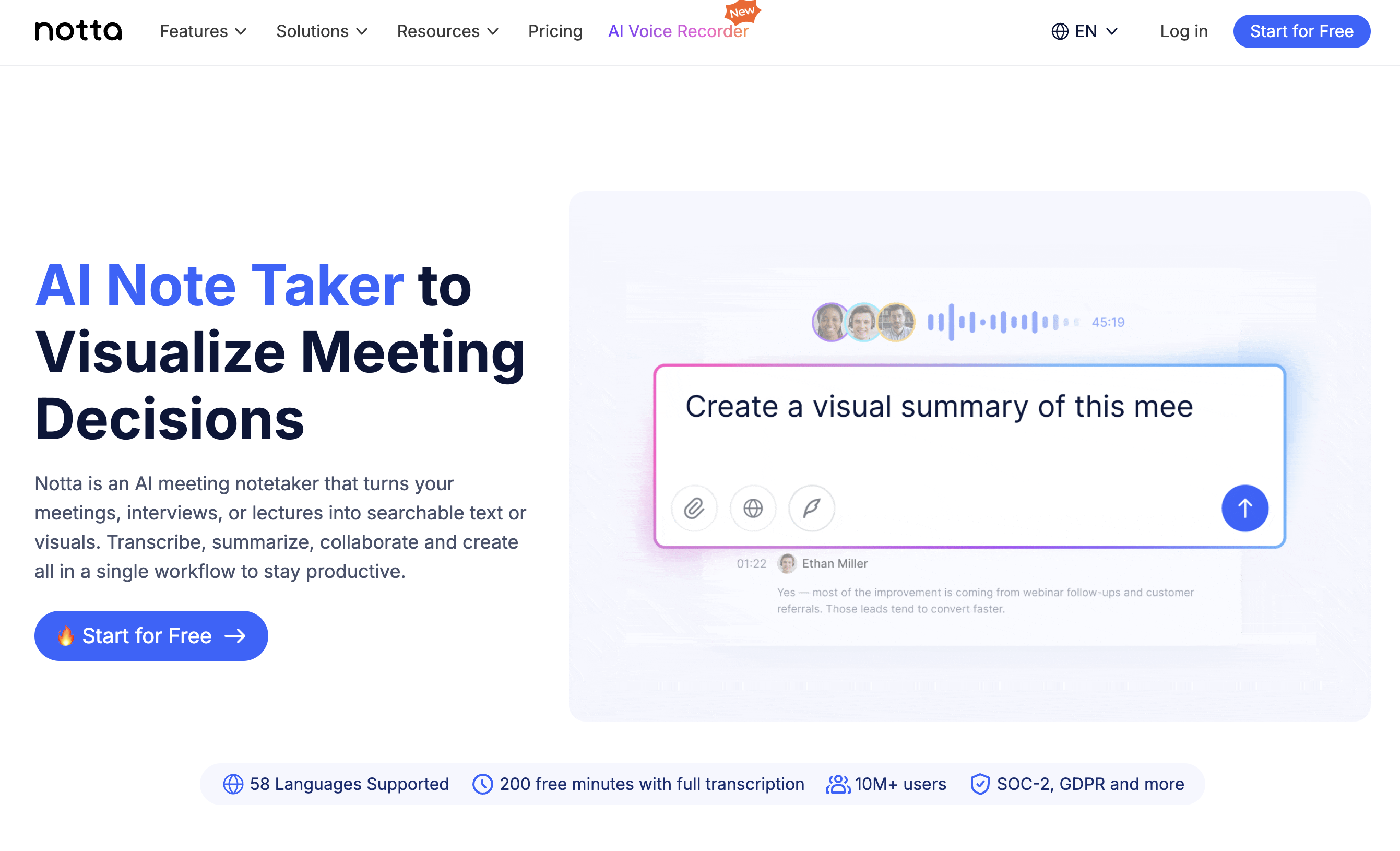
Notta runs as a mobile app and in the browser, and imports recordings from your phone easily. The free plan caps transcription minutes (as of August 2026).
Browser Upload Tools: Fast and Minimal
A number of lightweight web tools transcribe a short uploaded file with little or no signup. They are handy for one-off jobs, but speaker separation and summaries are usually limited or absent (as of August 2026).
Method 4: Whisper for Free Local Transcription
Whisper is OpenAI's open-source speech recognition model, and it is free.
Its standout property: everything runs on your own machine. If your recordings contain material you cannot send to a cloud service, Whisper is the strongest option. Accuracy is high across many languages.
The barriers are practical:
- You set up the runtime environment (typically Python) yourself
- Processing speed depends on your hardware
- Speaker separation and summaries are not included out of the box
It is the right tool for engineers and researchers who are comfortable with a command line, and the wrong first stop for everyone else.
Method 5: Android Recorder Apps
On Android, the Recorder app on Pixel phones is the best-known option. In supported languages, it transcribes in real time as you record.
On other Android devices, Google Docs voice typing (method 2) and AI upload services (method 3) work exactly the same way. If your team mixes iPhone and Android, standardizing on an upload service keeps output quality consistent regardless of who recorded.
How to Move Voice Memos to Your Computer
Methods 3 and 4 need the file on a computer. Three ways to get it there:
| Route | Steps | Best for |
|---|---|---|
| AirDrop | Share the memo from Voice Memos via AirDrop to a Mac | Mac users |
| iCloud sync | Enable Voice Memos sync in iCloud settings, open the memo in the Mac app | All-Apple setups |
| Share menu | Send the m4a via email, messages, or cloud storage | Windows users |
Voice memos are stored as m4a files. Nearly every AI transcription service accepts m4a directly, so you almost never need to convert the format.
Comparing All Five Methods
| Method | Cost | Speaker labels | Summary and notes | Accuracy | Best for |
|---|---|---|---|---|---|
| 1. iPhone built-in | Free | No | No | Good (supported languages) | Personal memos |
| 2. Google Docs | Free | No | No | Environment-dependent | Short, free jobs |
| 3. AI upload service | Free tier | Yes | Yes | High | Meetings, calls, interviews |
| 4. Whisper | Free | Not built in | No | High | Engineers, sensitive audio |
| 5. Pixel Recorder | Free | Device-dependent | Device-dependent | Good (supported languages) | Android personal use |
The dividing line is simple: do you want text, or do you want notes? If text is enough, the free methods work. If you need something a colleague can read in two minutes, an AI service gets you there fastest.
Recording Tips That Improve Accuracy
No transcription method can rescue a bad recording. A few habits make every method work better:
- Put the phone close to the speakers. The middle of the table beats the edge.
- Avoid air conditioning and fans. Steady background noise is the top cause of recognition errors.
- One voice at a time. Overlapping speech degrades every engine's output.
- Say the meeting name and participants at the start. It makes files findable later.
- Register jargon in a custom dictionary. Services that support it will stop mangling your product names.
For meetings specifically, there is a structural fix: a tool that captures your computer's meeting audio directly will always sound better than a phone on the table, because nothing is re-recorded through the air.
From Raw Transcript to Meeting Notes
Most people searching for voice memo transcription do not actually want a transcript. They want the meeting notes that come after it.
A verbatim transcript of a one-hour meeting runs thousands of words. Nobody reads it. To be useful at work, it has to become decisions, owners, deadlines, and open questions.
SuperIntern automates that step too.

- Uploaded audio comes back as a speaker-separated transcript plus a summary
- AI Canvas lets you customize the note format to match how your team writes minutes
- After transcription, AI chat handles requests like "list the decisions" or "draft a follow-up email for the client"
And there is a bigger shift available: with SuperIntern, the next meeting does not need a voice memo at all. As a desktop app, it captures your computer's meeting audio directly and builds the transcript and notes live during the call, whether that call runs on Zoom, Google Meet, Microsoft Teams, or in person. No bot joins the meeting, which makes it comfortable to use in external calls.
"Record now, transcribe later" and "notes are done when the meeting ends" are very different workflows. If the first one is wearing you down, the second one is worth a look.
Common Mistakes to Avoid
Sharing the full transcript instead of notes
A one-hour meeting produces a transcript nobody will read. Share the summary, decisions, and action items; keep the transcript as backup. Choosing a service that generates the summary automatically removes this step entirely.
Hopping between free tools until you give up
Free tools have time caps and feature limits. A common failure pattern is burning an afternoon trying three of them, then typing it out by hand anyway. If you transcribe recordings regularly, pick one service with a free tier and standardize on it.
Uploading sensitive audio without checking policies
Meeting recordings contain client names, numbers, and unreleased plans. Check how a service handles your data before uploading, and follow your company's rules. For audio that cannot leave your machine, local Whisper (method 4) is the answer.
Recording without consent
For external meetings and interviews, tell participants you are recording and why, and get their agreement first. This comes before any tooling question.
FAQ
Can I transcribe voice memos for free?
Yes. The iPhone's built-in transcription (where supported), Google Docs voice typing, and Whisper are all free. Most AI services also offer a free tier. Speaker separation and summaries usually require a paid plan.
Can the iPhone transcribe voice memos by itself?
On iOS 18 and later, in supported languages and on supported devices, the Voice Memos app shows a transcript. It has no speaker labels and no summary, so it works for personal memos but falls short for meeting records.
Can I upload the m4a file directly?
Yes. iPhone voice memos are m4a files, and major AI transcription services, including SuperIntern, accept m4a without conversion.
Does it work for long recordings?
Upload-based AI services handle recordings over an hour. Check the per-file length and monthly minute limits on your plan if you record long sessions often.
Will the transcript show who said what?
Only with a service that supports speaker separation. SuperIntern separates speakers even for uploaded files. The iPhone's built-in feature and Google Docs do not.
Can I read an English recording's summary in another language?
With a multilingual service, yes. SuperIntern supports 50+ languages and can summarize a recording in a different language than it was spoken in.
Is there a way to skip the recording step entirely?
Yes. A desktop meeting assistant like SuperIntern captures meeting audio from your computer and produces the transcript and notes in real time during the meeting, which removes the record-then-transcribe workflow altogether.
Conclusion
Choose the method by what you need at the end, not by what is trendy:
- For personal memos, the iPhone's built-in transcription or Google Docs voice typing is enough, and free
- For meetings, calls, and interviews, an AI upload service with speaker separation and summaries is the fastest path to something shareable
- For audio that cannot leave your machine, Whisper runs locally
And if voice memos have become your meeting workflow, consider retiring them: SuperIntern handles both uploaded recordings and live meetings, so you can clear the backlog first, then let the next meeting transcribe itself.