
Webex Transcription: How to Capture Meeting Notes Without a Bot
Webex transcription is useful when you need a record of what was said in a Cisco Webex meeting.
But the real question for busy teams is not only "Can Webex create a transcript?"
It is "Will that transcript help us make decisions, follow up, and keep context without replaying the meeting?"
This guide explains the practical Webex transcription options in 2026, where the built-in workflow is enough, where it creates gaps, and when a botless AI meeting assistant such as SuperIntern is a better fit.
⚠️ This article was independently compiled based on publicly available information and user feedback as of July 2026.
Quick Recommendation
| Situation | Best approach |
|---|---|
| You host internal Webex meetings and need a saved record | Use Webex's native transcript or recording workflow if your plan and admin settings support it |
| You need notes while the meeting is still happening | Use a real-time meeting assistant with live transcription and structured notes |
| You join Webex calls you do not control | Use a desktop, botless capture tool that runs on your own machine |
| You need one notes workflow across Webex, Zoom, Meet, Teams, and in-person meetings | Use a platform-agnostic assistant |
| Your Webex meetings are multilingual | Pair transcription with real-time translation and a translated summary |
| You need follow-up quality, not just verbatim text | Pair transcription with decisions, owners, action items, risks, and summaries |
Native Webex transcription is convenient when your team controls the meeting, the license, and the site administration.
For external calls, multilingual conversations, or teams that move between meeting tools, a botless desktop workflow is often easier to operate.
What Webex Transcription Means
Webex transcription can refer to several related features, and they are not the same thing.
It may mean live closed captions during the meeting, a transcript attached to a cloud recording, a downloaded transcript file, or an AI-generated summary from the Webex AI Assistant on eligible plans.
Those features solve different jobs.
| Job | What the team actually needs |
|---|---|
| Accessibility during the meeting | Live captions or a running transcript while people speak |
| Review after the meeting | A searchable transcript or a recording-linked text |
| Operational follow-up | Decisions, owners, deadlines, objections, and open questions |
| Multilingual collaboration | Translation or a summary in a language different from the spoken one |
| External call coverage | A workflow that still works when the host controls the Webex site |
The mistake is treating all of those as one requirement.
A raw transcript helps with review.
It does not automatically create a useful meeting record.
Native Webex Transcription Is Useful, but Context-Bound
Webex's built-in transcript features are a sensible first choice for many internal teams.
They keep the workflow inside Webex, align with the license and site settings, and can be managed by the host or the site administrator.
As of July 2026, whether captions, recording transcripts, and AI summaries are available depends on the plan, the host's controls, the site administrator's configuration, and the languages supported. Treat every capability below as something to confirm for your own Webex site.
Native transcription is a good fit when:
- Your organization hosts the meeting and owns the Webex site.
- The relevant plan, license, and admin settings support the transcript workflow.
- Participants understand that transcription or recording may be active.
- The team mainly needs a saved record after the meeting.
- The transcript can live in the same place as the recording and other Webex assets.
The issue appears when the meeting is not fully under your control.
A customer may invite you into their Webex site.
A partner may keep recording and transcription switched off.
An interview may require a more careful consent and storage policy.
A sales rep may need the action items before the call ends, not the next day.
In those cases, the built-in transcript is only one part of the answer.
The Webex Transcription Workflows
There are four broad ways teams get text and notes out of a Webex meeting.
| Workflow | Strength | Limitation | Best for |
|---|---|---|---|
| Native Webex transcript or recording transcript | Low setup when your license enables it | Depends on host rights, plan, site admin, and language support | Internal Webex meetings you host |
| Manual notes beside Webex | High human judgment | Distracts the note taker and misses exact wording | Small, low-risk meetings |
| Bot-based AI notetaker | Can join scheduled calls and process recordings | A visible bot may feel awkward, or be blocked by the host or admin | Teams comfortable with meeting bots |
| Botless desktop assistant | Captures local device audio and microphone without joining the call | Requires a desktop app and clear consent practice | External calls, cross-platform teams, live note workflows |
This comparison is less about accuracy alone.
Most teams should evaluate workflow control.
Can the person who needs the record reliably turn the workflow on?
Can the notes be used during the meeting?
Can the same process survive when the next call happens in Zoom or Microsoft Teams?
When Native Webex Transcription Is Enough
Native transcription is often enough for internal calls where the goal is a shared historical record.
Examples include:
- A recurring team meeting where the company controls the Webex site and license.
- A training session that is already recorded to the Webex cloud.
- A webinar where the host manages recording, access, and retention.
- A compliance-sensitive meeting where the organization has defined the official Webex record.
In these cases, do not overcomplicate the workflow.
Use the platform feature, document who can access the transcript, and decide how long the record should be retained.
Then add AI summarization only if people actually read the output.
Where Webex-Only Workflows Break
Host and license dependence
If you are not the host, or your plan does not include the feature, you may not control recording, captions, transcript availability, or the AI summary.
As of July 2026, these features generally require host rights and the right license. A guest or attendee who does not administer the Webex site usually cannot turn them on.
That matters for sales calls, customer interviews, recruiting, investor meetings, and partner discussions. The person who needs the notes is often not the person who controls the Webex site.
Post-meeting timing
A transcript after the meeting is useful for review.
It is less useful when the team needs to catch a missing owner, clarify a decision, or adapt the follow-up while the conversation is still active.
Live notes change the meeting behavior because the user can confirm details before the call ends.
Raw text overload
Webex transcription preserves words.
Workflows require meaning.
Someone still has to identify decisions, next steps, risks, quotes, deadlines, and unanswered questions.
If the output is a long transcript that nobody reads, the team has storage rather than knowledge.
Multi-platform reality
Few teams live in Webex only.
Webex is strong in enterprise and public-sector organizations, which means many of your calls are external and cross-org, where you do not control the host settings.
A single week may include Webex, Zoom, Google Meet, Microsoft Teams, Slack Huddles, Discord, phone calls, and in-person meetings.
If each platform has a different transcription habit, records become inconsistent.
Where SuperIntern Fits
SuperIntern is designed for the situations where Webex transcription is too late, too license-specific, or unavailable because you do not control the host settings.
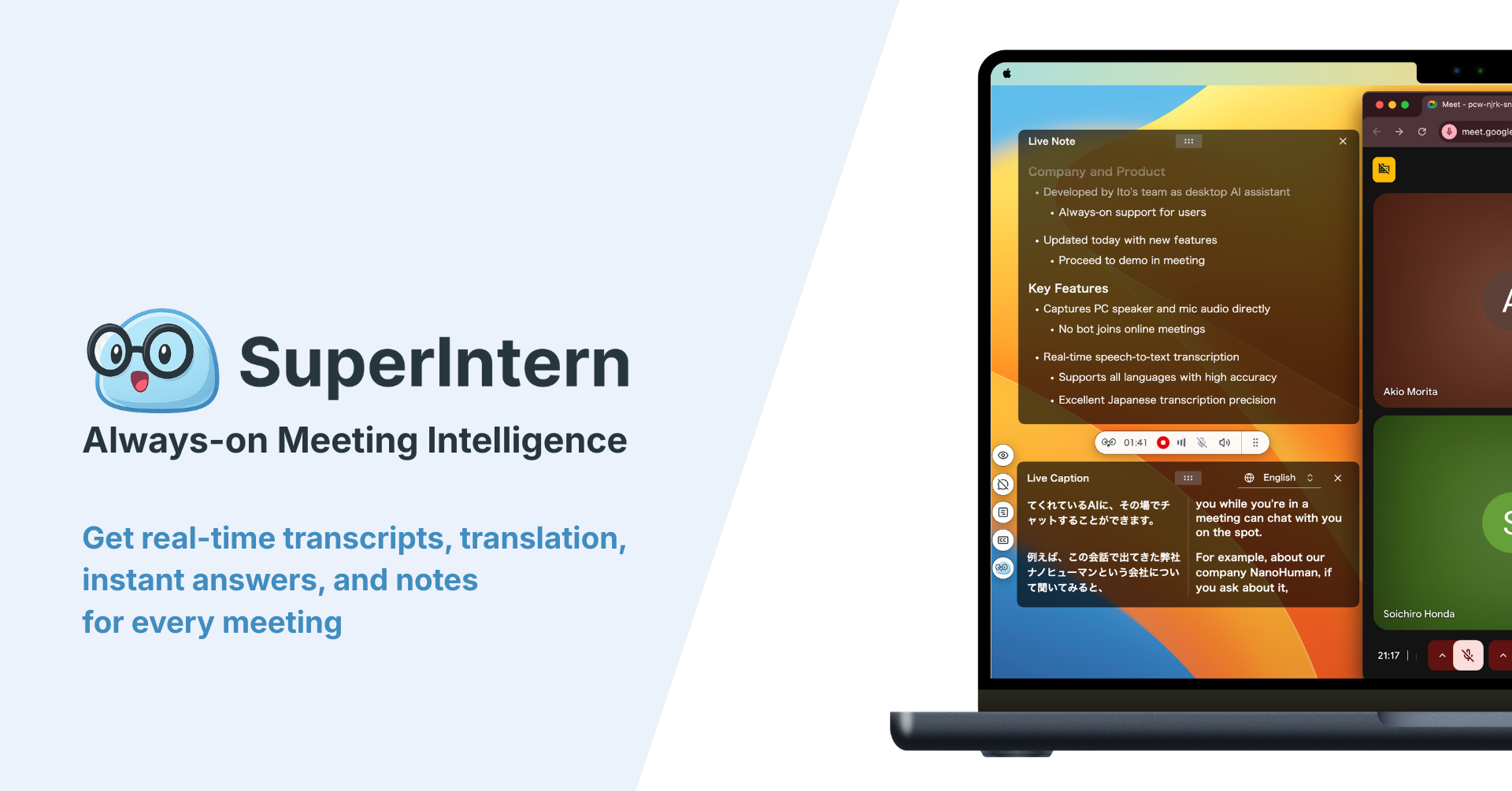
SuperIntern runs as a desktop meeting assistant.
It captures device and system audio plus your microphone, so no meeting bot joins the Webex call. Because it works from your own machine, it can create notes even when you are a guest on someone else's Webex site.

During the meeting, it can show live transcription, speaker-aware notes, AI Canvas and Live Notes, real-time translation, custom dictionary support, Invisible Mode for screen sharing, and post-meeting AI chat over the meeting content.
That combination matters when you need to stay present.
Instead of waiting for a transcript file, you can see the useful working record while the meeting is still happening.
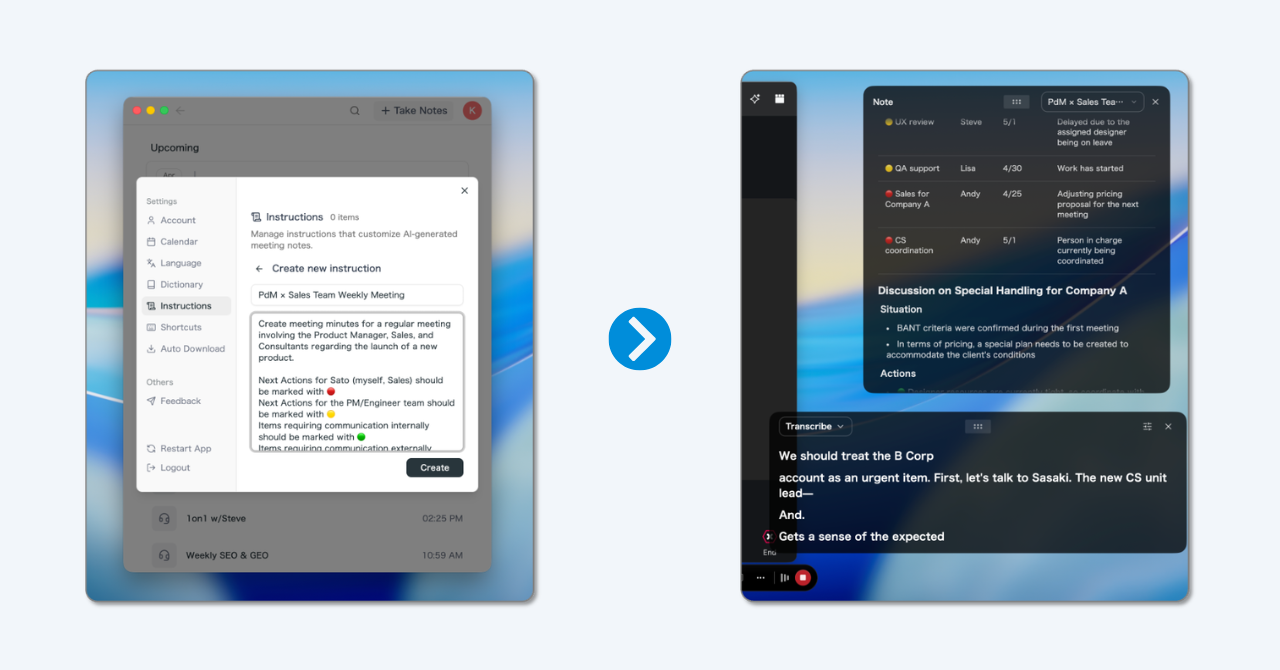
AI Canvas gives you customizable, real-time meeting notes, and Live Notes keep a structured record that updates as the conversation moves. Because the capture is platform-agnostic, the same workflow follows you from Webex to any other call.
Multilingual Webex Meetings
Webex is common in cross-border and cross-org settings, so many meetings are not held in a single language.
SuperIntern provides real-time translation and live captions across 50+ languages, and it can produce a summary in a language you choose regardless of the language actually spoken.

That means a globally distributed team can follow a Webex call in near real time and still receive a clean, translated summary afterward, without depending on which caption languages a particular Webex site has enabled.
Decision Matrix
| Need | Native Webex transcript | Bot-based notetaker | SuperIntern |
|---|---|---|---|
| Simple internal Webex record | Strong | Usually works | Works, but may be more than needed |
| External or guest calls where the host controls settings | Limited | Depends on bot admission | Strong |
| No visible meeting bot | Native feature, but not private to you | Weak | Strong |
| Live structured notes | Limited | Varies by tool | Strong |
| Cross-platform coverage | Webex only | Usually limited to major platforms | Webex, Zoom, Meet, Teams, Slack Huddles, Discord, browser calls, and in-person contexts |
| Multilingual support | Depends on the Webex feature and license | Varies | Real-time translation and translated summaries |
| Custom vocabulary | Limited workflow control | Varies | Custom dictionary support |
| Screen-share discretion | Not relevant for native transcript | Bot remains visible in the participant list | Invisible Mode is designed to avoid accidental on-screen exposure |
Practical Setup for Webex Meeting Notes
Step 1: Decide the official record
If the meeting needs a formal record, define whether the official source is Webex's transcript, a cloud recording, a CRM note, a project document, or an approved internal system.
Do this before people start saving private transcript files everywhere.
Step 2: Separate transcript from notes
A transcript is the source material.
Meeting notes are the business artifact.
For most operational meetings, the final note should include:
- Purpose of the meeting.
- Decisions made.
- Action items with owners.
- Dates, blockers, and unresolved questions.
- Customer or stakeholder quotes worth preserving.
- Follow-up message draft or next-meeting agenda.
Step 3: Use live notes for high-value calls
Sales, customer discovery, recruiting, executive, and product decision meetings benefit from live structure.
If an action item has no owner, the user can ask while everyone is still present.
If a transcript mistranscribes a product name, the user can correct the vocabulary before the next call.
Step 4: Keep the workflow consistent outside Webex
If your team also uses Zoom, Meet, Teams, Slack Huddles, or in-person discussions, standardize the note structure rather than the meeting platform.
The meeting tool may change.
The record format should not.
| Output field | Why it matters |
|---|---|
| Decision | Prevents the same topic from reopening |
| Owner | Makes follow-up actionable |
| Deadline | Turns vague agreements into commitments |
| Risk | Preserves the reason a decision may fail |
| Quote | Keeps customer language or interview evidence |
| Next question | Makes the next meeting easier to run |
Data Protection, Consent, and Retention
Transcription is not only a productivity feature.
It creates a business record, and often a record that contains personal data.
Before rolling out Webex transcription or an AI assistant, decide how you will handle privacy and consent under whatever framework applies to you (GDPR-style rules are a common baseline):
- How participants will be informed when transcription, recording, or AI note assistance is used.
- Which meeting types should not be transcribed at all.
- Who can read the transcript and the derived notes.
- Whether summaries can be shared outside the original attendee group.
- How long transcripts and notes should be retained, and when they are deleted.
- How sensitive topics should be redacted.
Botless capture reduces participant-list friction, because no extra bot identity appears in the meeting.
It does not remove the need for responsible notice and policy alignment. Whoever runs the notes is still accountable for informing participants and following the organization's data-protection rules.
When SuperIntern Is Not the Best Fit
SuperIntern is strongest for live meetings where the user wants real-time understanding, notes, translation, and follow-up across platforms.
It may not be the best choice if:
- Your organization requires every official record to be created inside Webex.
- You need the video recording as the primary artifact.
- You need large-batch processing of old recordings.
- The user cannot install a desktop application.
In those cases, use the official Webex workflow or a dedicated post-production transcription service.
FAQ
Does Webex have built-in transcription?
Yes. As of July 2026, Cisco Webex offers cloud and local recording, and cloud recordings can include a transcript. Live closed captions are available during meetings, and the Webex AI Assistant can provide summaries or highlights on eligible plans. Availability depends on the plan, the host's controls, the site administrator's settings, and language support.
Is Webex transcription the same as meeting notes?
No. Webex transcription captures words. Meeting notes organize the conversation into decisions, owners, deadlines, blockers, and follow-up context. A transcript is source material, while notes are the artifact your team actually acts on.
Can I transcribe a Webex meeting without a bot, or when I am not the host?
Yes. A botless desktop assistant such as SuperIntern captures local device audio and microphone audio, so no separate meeting bot appears in the participant list. Because it runs on your own machine, you can create notes even when you are a guest and do not control the host settings.
Do I need a special Webex license or plan?
For native transcripts, captions, and AI summaries, usually yes. As of July 2026 these features generally require host rights and the right license, and a guest or attendee who does not administer the site often cannot enable them. Confirm the exact plan and admin settings before you depend on them for an important call.
Does it support multilingual Webex meetings?
SuperIntern provides real-time translation and live captions across 50+ languages, and it can produce a summary in a language you choose regardless of the language spoken. This is useful for cross-border Webex calls where you cannot rely on a specific site's caption languages.
Is Webex transcription relevant for data protection?
Yes. A transcript is a business record that often contains personal data, so it falls under privacy and consent rules such as GDPR-style frameworks. Decide how participants are informed, who can access the notes, and how long records are retained. Botless capture avoids adding a bot identity, but it does not remove your duty to give notice and follow policy.
Conclusion
Webex transcription is a useful starting point for internal meetings where your team controls the site, the license, and the retention policy.
But if your team needs live notes, reliable coverage on calls you do not host, multilingual support, or one workflow across several meeting platforms, a raw Webex transcript is not enough.
SuperIntern is a practical fit when you want botless, real-time meeting transcription and structured Webex meeting notes that work well beyond Webex. A free plan and a paid Plus plan are available, so you can test the workflow before you standardize on it.