
Zoom AI Companion: What It Does, Pricing, and When You Need an Alternative (2026)
Zoom AI Companion is the first meeting AI most Zoom users ever touch.
It is built into the client, included with paid plans, and one click away during a call. For many teams, that makes it the default answer to "should we use AI for meeting notes?"
The default answer is not always the right one. AI Companion works well inside Zoom, but most calendars are not Zoom-only. Client calls arrive as Google Meet links, partners live in Teams, and interviews sometimes happen across a physical table.
This guide explains what Zoom AI Companion actually includes in 2026, what it costs, how to switch it on and off, where it runs out of road, and when a botless, platform-independent assistant such as SuperIntern is the better operational choice.
⚠️ This article was independently compiled based on publicly available information and user feedback as of August 2026.
Table of Contents
- Quick Answer: Who Should Look Beyond AI Companion
- What Is Zoom AI Companion?
- Key Features of Zoom AI Companion
- Zoom AI Companion Pricing
- How to Turn Zoom AI Companion On
- How to Turn Zoom AI Companion Off
- Where AI Companion Falls Short
- SuperIntern: A Botless Alternative That Works Everywhere
- Zoom AI Companion vs SuperIntern: Feature Comparison
- Decision Guide
- Practical Scenarios
- FAQ
- Conclusion
Quick Answer: Who Should Look Beyond AI Companion
Use Zoom AI Companion if your meetings happen almost entirely in Zoom, you are the host most of the time, and your admin has already enabled it. It is included with paid Zoom plans, so trying it costs nothing extra.
Look at an alternative if your meetings are spread across Zoom, Google Meet, Microsoft Teams, Webex, and in-person conversations, if you often join meetings you do not host, or if you need live translation while the conversation is still happening.
| Situation | Better fit | Why |
|---|---|---|
| Zoom-only team, you host your own meetings | Zoom AI Companion | Native, included with paid plans, no extra tool |
| Mixed calendar across Zoom, Meet, Teams, Webex | SuperIntern | Captures device audio, so the platform does not matter |
| You are usually a guest, not the host | SuperIntern | No dependency on host or admin settings |
| You need live translation and captions | SuperIntern | Real-time translation in 50+ languages |
| You want notes structured your way during the call | SuperIntern | AI Canvas builds live, customizable notes |
| You want AI across Zoom Chat, whiteboards, and email | Zoom AI Companion | Deep integration inside the Zoom suite |
| Free Zoom plan | SuperIntern | AI Companion is tied to paid plans, SuperIntern has a free plan |
The rest of this article explains the details behind that table.
What Is Zoom AI Companion?
Zoom AI Companion is Zoom's built-in AI assistant, rolled into the Zoom Workplace apps. It started as a meeting summary feature and has grown into a suite-wide assistant covering meetings, chat, whiteboards, email drafting, and document generation.
The headline promise is simple: since your meetings already happen in Zoom, the AI is already there. No extra installation, no additional vendor, and no separate bill for the core features if you are on a paid plan.
Three things define how it works in practice.
First, it is host-and-admin centric. An account admin has to enable AI Companion features, and during a meeting the host controls whether the summary runs. Participants see a notification that AI Companion is active.
Second, it lives inside Zoom. Summaries, transcripts, and AI answers are generated for Zoom meetings and delivered through the Zoom ecosystem.
Third, it is evolving fast. Through 2025 and 2026 Zoom has pushed AI Companion toward agentic features, added a paid customization add-on, and in mid-2026 introduced a higher agentic tier. The feature list you evaluated last year is probably out of date.
Key Features of Zoom AI Companion
Meeting summary
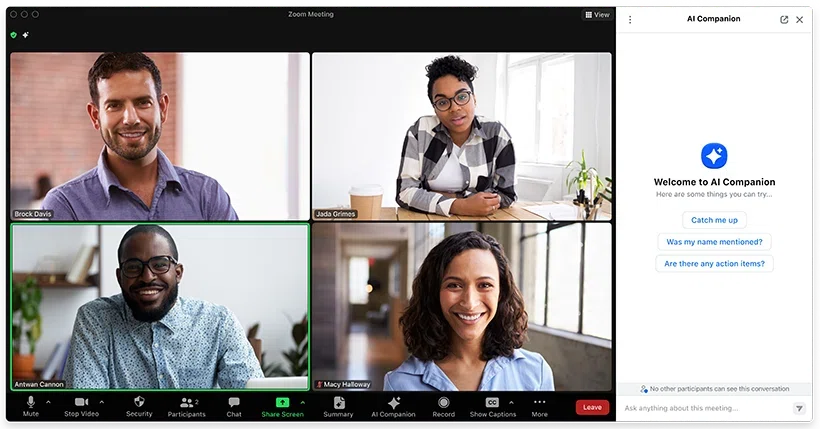
The most used feature. When the host starts AI Companion, it generates a post-meeting summary with key points and next steps, delivered by email or in the Zoom web portal after the call ends.
In-meeting questions
Participants can ask AI Companion questions during the call, such as "what did I miss?" after joining late, and get answers based on the conversation so far.
Smart recording
For cloud recordings, AI Companion can split the recording into chapters, highlight key moments, and surface action items from the recorded content.
Suite-wide assistance
Beyond meetings, AI Companion drafts Zoom Team Chat replies and emails, summarizes chat threads, helps with whiteboard content, and generates documents from meeting content in Zoom Docs.
Customization and agentic tiers
A paid Custom AI Companion add-on lets organizations connect their own knowledge sources, use custom dictionaries and templates, and tune the assistant to company vocabulary. In mid-2026, Zoom introduced a higher-priced agentic tier that can execute multi-step tasks with monthly AI credits.
It is a genuinely useful feature set. The catch is that all of it assumes the meeting happens inside Zoom, on an account where these features are enabled.
Zoom AI Companion Pricing
Pricing, as of August 2026, breaks down into three layers. Always confirm current pricing on Zoom's official pages before purchasing, because Zoom has changed this structure several times.
| Layer | Price (US, as of Aug 2026) | What you get |
|---|---|---|
| AI Companion on paid Zoom plans | Included at no additional cost | Meeting summary, in-meeting questions, chat and email drafting, smart recording features |
| AI Companion on the free Basic plan | Not meaningfully available | Zoom has experimented with very limited monthly allowances, but real use requires a paid plan |
| Custom AI Companion add-on | About $12 per user per month | Custom knowledge sources, dictionaries, templates, and personalization on top of the included features |
| Agentic tier (introduced mid-2026) | From about $20 per user per month | Agentic task execution with monthly AI credits, built on top of the add-on capabilities |
Two practical notes.
The "included at no additional cost" line is real, but it is included with a paid Zoom plan. If you are on the free plan, the actual cost of AI Companion is the cost of upgrading your whole team to a paid plan.
The add-on pricing multiplies per user. A 20-person team that wants the customization layer pays roughly $240 per month on top of existing Zoom licenses.
How to Turn Zoom AI Companion On
Search interest for enabling AI Companion is high, and the steps are not obvious the first time. The exact menu names change with Zoom updates, so treat this as the general path and check Zoom's support pages if a menu has moved.
- Sign in to the Zoom web portal (not the desktop app).
- Open Settings, then find the AI Companion tab.
- Enable the features you want, such as Meeting Summary and AI Companion Questions.
- If the toggles are locked, your account admin controls them. Ask your admin to enable AI Companion at the account or group level.
- In a meeting you host, click the AI Companion icon in the toolbar to start the summary or ask questions.
The key limitation sits in step 4 and step 5: the account admin decides whether the features exist, and the host decides whether they run in a given meeting. If you join someone else's meeting as a guest, you cannot bring AI Companion with you.
How to Turn Zoom AI Companion Off
The reverse is just as common a search, usually for privacy or policy reasons.
- Sign in to the Zoom web portal.
- Open Settings, then the AI Companion tab.
- Turn off the features you do not want, such as Meeting Summary.
- Admins can disable AI Companion account-wide and lock the setting so hosts cannot re-enable it.
- During a meeting, the host can stop an active summary from the AI Companion controls. Participants who object can ask the host to stop it, or leave the meeting.
Participants always see a notice when AI Companion is active in a meeting, which is good transparency. The flip side is that as a participant, the on/off decision is never yours.
Where AI Companion Falls Short
AI Companion is a solid default inside Zoom. These are the five gaps teams most often hit in real use.
1. It only works in Zoom meetings
This is the structural one. AI Companion does not follow you into Google Meet, Microsoft Teams, Webex, Slack huddles, or a conference room without a Zoom call running.
Most teams do not control where meetings happen. Customers, candidates, and partners pick their own platforms. The result is a coverage gap: Zoom meetings get AI notes, everything else gets manual notes or nothing.
2. Hosts and admins hold the keys
If your company has not enabled AI Companion, you cannot use it. If you are a guest in someone else's meeting, you cannot use it. If the host forgets to start the summary, there is no summary.
An individual contributor who wants consistent AI notes across every meeting cannot get that from a host-controlled feature.
3. The value arrives mostly after the meeting
Meeting summaries are delivered when the call ends. In-meeting questions help, but the model is fundamentally recap-oriented: you find out what the AI understood after the conversation is over.
Live notes change how you run the meeting itself. Seeing decisions, open questions, and action items appear while people are still in the room lets you fix misunderstandings immediately instead of in a follow-up thread.
4. Multilingual meetings need more than a summary
Zoom has translated captions for certain plans and language pairs, but AI Companion's core flow is not built around live cross-language comprehension.
If part of your team follows the meeting in another language, they need real-time translated captions and final notes in their own language, not an English recap they have to translate later.
5. Your meeting intelligence gets tied to one vendor
Summaries, transcripts, and AI answers all live inside the Zoom ecosystem. That is convenient while every meeting is a Zoom meeting, and limiting the day your company adds a second platform or switches.
Meeting notes are long-lived assets. It is worth asking where they accumulate and how portable they are.
SuperIntern: A Botless Alternative That Works Everywhere
SuperIntern, built by NanoHuman Inc., approaches the same problem from the opposite direction. Instead of living inside one meeting platform, it is a desktop app for macOS and Windows that captures your computer's audio and your microphone directly.
That single design decision removes the platform question entirely.

Because the audio comes from your device, SuperIntern works the same way in Zoom, Google Meet, Microsoft Teams, Webex, Slack huddles, Discord, and in-person conversations your laptop can hear. No bot joins the call, and nothing depends on what the host enabled.
The core workflow looks like this.
- Install the desktop app and sign in. There is a free plan.
- Join your meeting in whatever tool the host chose.
- Start SuperIntern. It transcribes in real time with speaker recognition.

- Watch Live Notes and AI Canvas build structured notes while the conversation happens.
- If the meeting is multilingual, turn on real-time translation with support for 50+ languages.
- After the call, ask the AI questions about what was said, or pull the content into summaries and follow-ups.
A few features matter specifically for people comparing against AI Companion.
AI Canvas is a live, customizable note surface. You decide the structure, for example a sales call format with objections and next steps, and the AI fills it in during the meeting rather than after.

Real-time translation shows translated captions while people speak, so multilingual meetings stay understandable in the moment.
Invisible Mode keeps SuperIntern hidden when you share your screen, so your notes stay private.
A custom dictionary protects product names, customer names, and domain jargon in the transcript, on the individual plan rather than as an enterprise add-on.
SuperIntern has a free plan, and the paid Plus plan is $20 per month for 100 hours of meetings. Since it needs the desktop app running during the meeting, it is built for live meetings first, with audio file upload available for recordings you already have.
Zoom AI Companion vs SuperIntern: Feature Comparison
| Evaluation point | Zoom AI Companion | SuperIntern |
|---|---|---|
| Works in Zoom | Yes, natively | Yes, via device audio |
| Works in Google Meet, Teams, Webex | No | Yes |
| Works for in-person meetings | No | Yes, through the laptop microphone |
| Needs host or admin enablement | Yes | No, runs on your own device |
| Usable when you are a guest | Only if the host runs it | Yes |
| Live notes during the meeting | Partial, mainly in-meeting Q&A | Yes, Live Notes and AI Canvas |
| Real-time translation | Limited, plan and language dependent | Yes, 50+ languages |
| Custom note structure | With paid add-on | Yes, AI Canvas on the standard product |
| Custom dictionary | With paid add-on | Yes, included |
| Post-meeting AI chat | Yes, within Zoom | Yes, across your meeting history |
| Suite features (chat, email, docs, whiteboard) | Yes, across Zoom Workplace | Focused on meetings |
| Free option | Tied to paid Zoom plans | Free plan available |
| Paid price | Included with paid Zoom, add-ons from ~$12/user/month | Plus plan $20/month for 100 hours |
The honest summary: AI Companion wins on Zoom-suite depth, SuperIntern wins on coverage, independence, and live meeting help.
Decision Guide
Answer these questions with your last two weeks of real meetings, not your ideal calendar.
| Question | If yes | If no |
|---|---|---|
| Were more than 90% of your meetings in Zoom? | AI Companion can cover you | You need a platform-independent tool |
| Were you the host in most meetings? | AI Companion works | Host dependency will bite you |
| Is AI Companion already enabled by your admin? | Try it first, it is included | Factor in the internal approval effort |
| Do you need to follow meetings in another language, live? | Prioritize real-time translation | Recap-only tools stay viable |
| Do you need notes in a specific format during the call? | Look at AI Canvas style live notes | Post-meeting summaries may be enough |
| Do external participants host you on Meet or Teams? | You need device-level capture | Zoom-native is fine |
| Are you on the free Zoom plan? | A free-plan tool is cheaper to start | Included AI Companion is attractive |
If your answers split down the middle, run both for two weeks. AI Companion costs nothing extra on a paid Zoom plan, and SuperIntern's free plan makes the comparison cheap. Score them on how many of your actual meetings each one captured.
Practical Scenarios
A sales rep whose customers pick the platform
Prospects send Zoom links, Meet links, and Teams links in roughly equal measure. AI Companion covers a third of that calendar at best, and only when the rep hosts. SuperIntern captures every call the same way, and AI Canvas keeps a consistent sales note format with objections, budget signals, and next steps across all of them.
An internal-meetings-only operations team
Every standup, review, and planning call is an internal Zoom meeting, hosted by the team, on a Business plan with AI Companion enabled. Here the built-in option is genuinely hard to beat: no new vendor, no new app, summaries just appear. This team should use AI Companion and revisit only if the calendar changes.
A bilingual product team
Engineering discussions happen in Japanese, stakeholder updates in English. The pain is live: people need to follow the discussion as it happens, not read a translated recap the next morning. SuperIntern's real-time translated captions plus summaries in each reader's language fit this directly, and it works whether the call is on Zoom or Meet.
A job seeker or consultant joining other people's meetings
Interviews and client calls are almost always hosted by the other side. AI Companion is never available to a guest unless the host runs it. A botless desktop assistant is the only reliable way to get consistent notes, and no bot appears in the participant list to raise questions mid-interview. Consent rules and local recording laws still apply, so be transparent about note-taking.
FAQ
Is Zoom AI Companion free?
It is included at no additional cost with paid Zoom plans. It is not meaningfully available on the free Basic plan, so for free-plan users the real cost is a paid Zoom upgrade. The Custom AI Companion add-on and the agentic tier introduced in 2026 are paid extras.
How do I turn on Zoom AI Companion?
Sign in to the Zoom web portal, open Settings, then the AI Companion tab, and enable the features you want. If the settings are locked, your account admin needs to enable them. During a meeting you host, start it from the AI Companion icon in the toolbar.
How do I turn off Zoom AI Companion?
The same path in reverse: disable the features in the web portal settings, or stop the summary from the in-meeting controls as the host. Admins can disable and lock it account-wide.
Can I use AI Companion in someone else's meeting?
No. As a guest you depend entirely on the host having AI Companion enabled and started. If you need notes in meetings you do not host, you need a tool that runs on your own device, such as SuperIntern.
Does Zoom AI Companion work with Google Meet or Microsoft Teams?
No. It is built into Zoom and works for Zoom meetings. For a mixed-platform calendar you need either a bot-based recorder for each platform or a botless desktop assistant that captures device audio.
Is SuperIntern a Zoom bot?
No. SuperIntern is a desktop app that captures your computer audio and microphone locally. Nothing joins the meeting, nothing appears in the participant list, and it works identically across meeting platforms. You should still follow consent rules and internal policy when transcribing meetings.
Can I use Zoom AI Companion and SuperIntern together?
Yes, and some teams do. AI Companion handles hosted internal Zoom meetings and Zoom Chat assistance, while SuperIntern covers external calls, other platforms, guest meetings, and multilingual meetings.
Conclusion
Zoom AI Companion is a strong default if your meeting life happens inside Zoom, on a paid plan, with you as the host. It is included, integrated, and improving quickly.
It is the wrong single answer if your calendar is mixed, you often join as a guest, or your meetings cross languages. Those are exactly the cases where a botless, device-level assistant is structurally better placed.
SuperIntern gives you the same core value, transcripts, live structured notes, translation, and post-meeting AI chat, in every meeting you attend, regardless of platform or host. The free plan makes it easy to test against AI Companion on your own real calendar for two weeks and let the coverage numbers decide.