
Real-Time Translation Tools for Zoom Meetings (With Live Meeting Notes)

"I can't follow what foreign colleagues are saying in Zoom meetings."
"I've heard Zoom has a translation feature, but I'm not sure how to set it up."
"I want real-time translation AND a written record of the meeting."
As globalization accelerates, multilingual Zoom meetings have become routine. Negotiations with overseas clients, regular check-ins with multinational teams, interviews with international candidates: the situations that call for real-time translation in Zoom keep multiplying.
This article walks through how to use Zoom's built-in real-time translation feature, then explains the cases where an alternative tool fits better, and introduces tools you can actually use today.
Note: This article reflects publicly available information and user feedback as of January 2026, compiled independently by NanoHuman.
Table of contents
- When you need real-time translation in Zoom
- What Zoom's translated captions feature does
- How to set up Zoom translated captions
- Where Zoom's built-in feature falls short, and when an alternative tool helps
- Recommended alternative: SuperIntern
- Summary
1. When you need real-time translation in Zoom
Demand for real-time translation in Zoom meetings tends to cluster around three scenarios.
Negotiations with overseas clients and partners
In English or Chinese negotiations, misreading subtle nuances can be costly. When you're discussing pricing, contract terms, or any detail that demands precise understanding, real-time translation removes a lot of the pressure.
Internal meetings with multinational teams
In teams that include non-native speakers, not everyone can communicate fluently in one shared language. The ideal setup lets every member confirm key decisions and discussion points in their own native language.
Hiring interviews and onboarding for international staff
Real-time translation also shines in interviews with candidates who aren't yet fluent in your local language, and in the training or orientation sessions that follow once they join.
2. What Zoom's translated captions feature does
Zoom offers a real-time translation feature called Translated Captions.
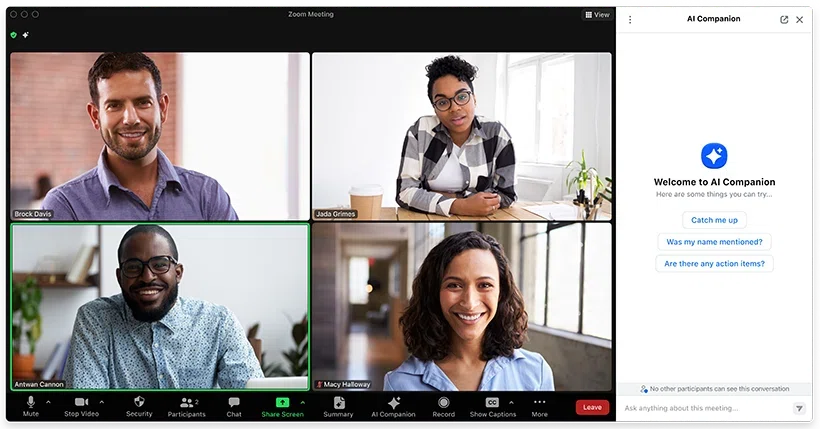
What it does
Translated Captions uses AI to transcribe what's spoken in a meeting and display the translation on screen as captions. Even when the speaker is using English, you can see Japanese, Spanish, or another target language on your own screen.
Supported languages
As of January 2026, Zoom's translated captions cover more than 35 languages, including English, Japanese, Chinese, Korean, German, French, Spanish, and Italian. Most major business languages are well represented.
Eligibility and pricing
To use translated captions, you need to meet one of the following conditions:
- A Zoom One Business Plus or Zoom One Enterprise Plus plan
- A paid Zoom account with the Translated Captions add-on (around $5/user/month)
Free plans and paid plans below Business Plus do not include translated captions unless you purchase the add-on separately.
3. How to set up Zoom translated captions
Using Zoom's translated captions requires both administrator configuration in advance and a few clicks during the meeting itself.
Admin setup (in advance)
Step 1: Sign in to the Zoom web portal
Sign in to the Zoom web portal (zoom.us) as an account owner or administrator.
Step 2: Enable translated captions
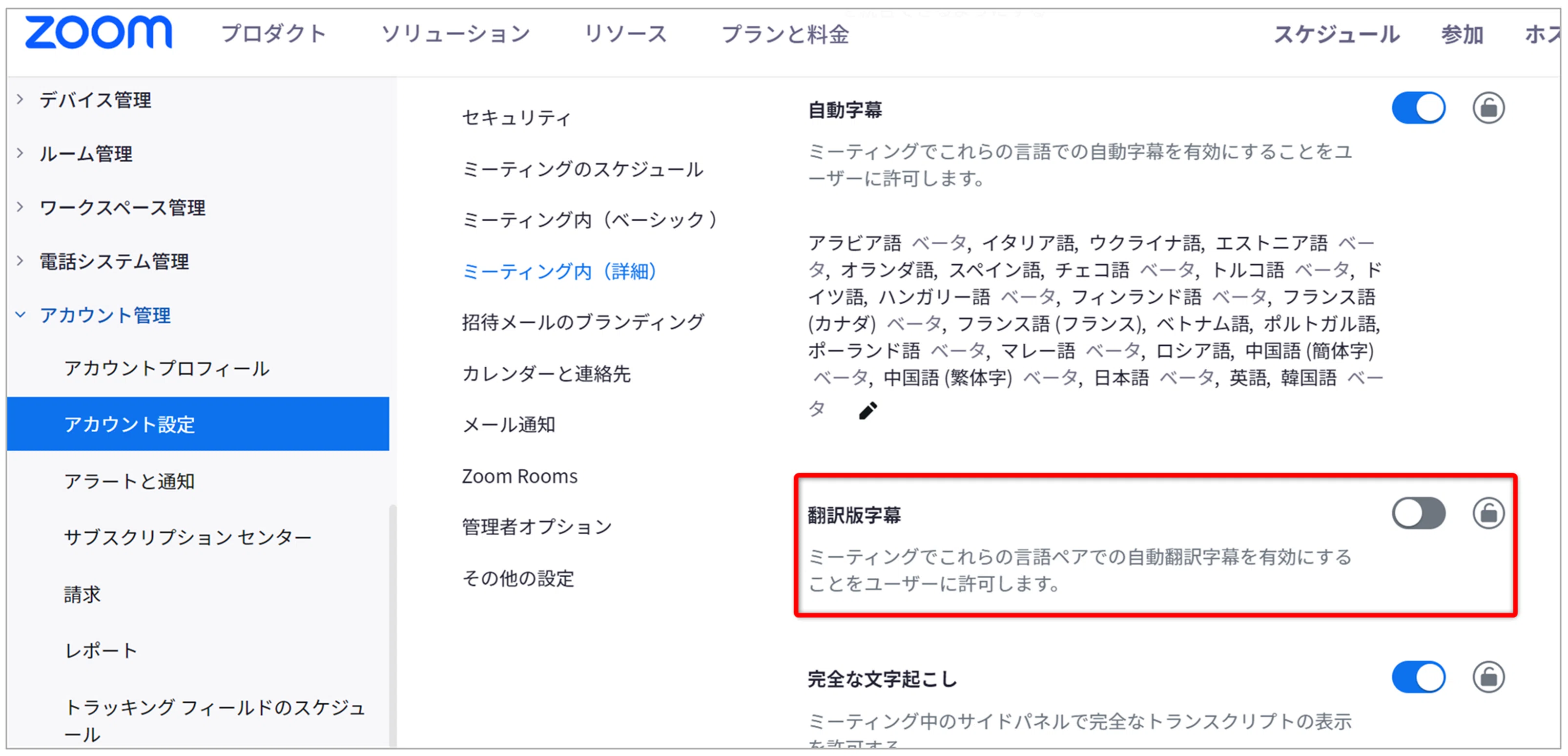
- From the left menu, choose Account Management > Account Settings
- Click the Meeting tab
- Scroll to the In Meeting (Advanced) section
- Toggle Translated Captions on
In-meeting steps (for participants)
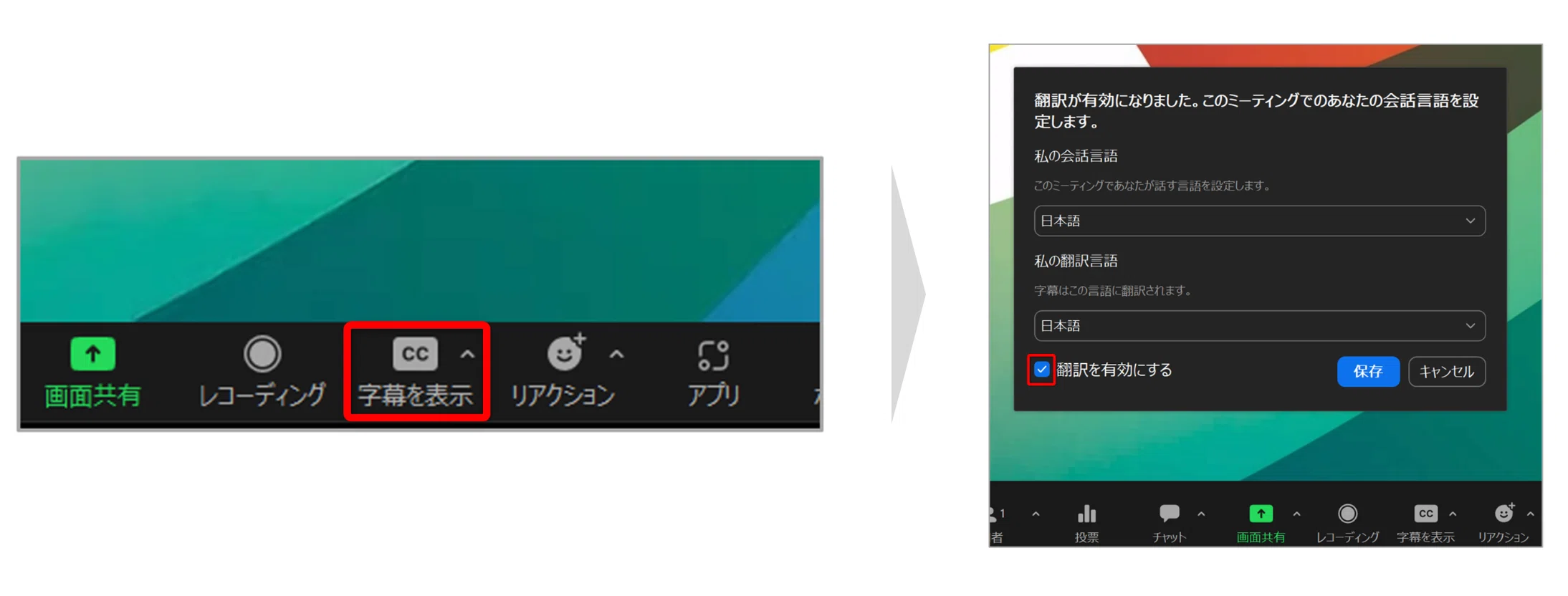
Step 1: Turn captions on
In the toolbar at the bottom of the meeting window, click the Show Captions icon.
Step 2: Turn translation on
Click the caret (^) next to the captions icon to open the captions menu, then toggle Translation on.
Step 3: Set the languages
- Set Speaking Language to whatever the other party is speaking (for example, English)
- Set Translation Language to what you want to see on your screen (for example, Japanese)
From here, the other speaker's voice is translated in real time and displayed as captions.
4. Where Zoom's built-in feature falls short, and when an alternative tool helps
Zoom's translated captions are convenient, but they aren't a perfect fit for every situation. In the following cases, an alternative tool may serve you better.
Case 1: Multiple languages are spoken in the same meeting
Some meetings switch back and forth between languages. Zoom's translation only flows in one direction per session, which becomes a real problem when speakers are mixing two or three languages.
Case 2: You want the same experience in tools other than Zoom
Zoom's translated captions are Zoom-only. They don't help in Google Meet, Microsoft Teams, or in-person meetings. If you move across platforms during the day, a platform-agnostic tool tends to be more useful.
Case 3: You want higher translation accuracy
Zoom's built-in translation is fine for general business conversation, but in industries with heavy jargon or negotiations where nuance matters, you may want a higher-grade translation engine.
Case 4: You don't want to miss moments in the meeting
A tool that also produces a live summary in your language lets you catch up instantly if a caption slips by. Instead of scrambling to remember what was just said, you glance at the summary and you're back in the conversation.
5. Recommended alternative: SuperIntern
To address those gaps, we'd like to introduce SuperIntern, the meeting AI tool we build at NanoHuman.
What SuperIntern is
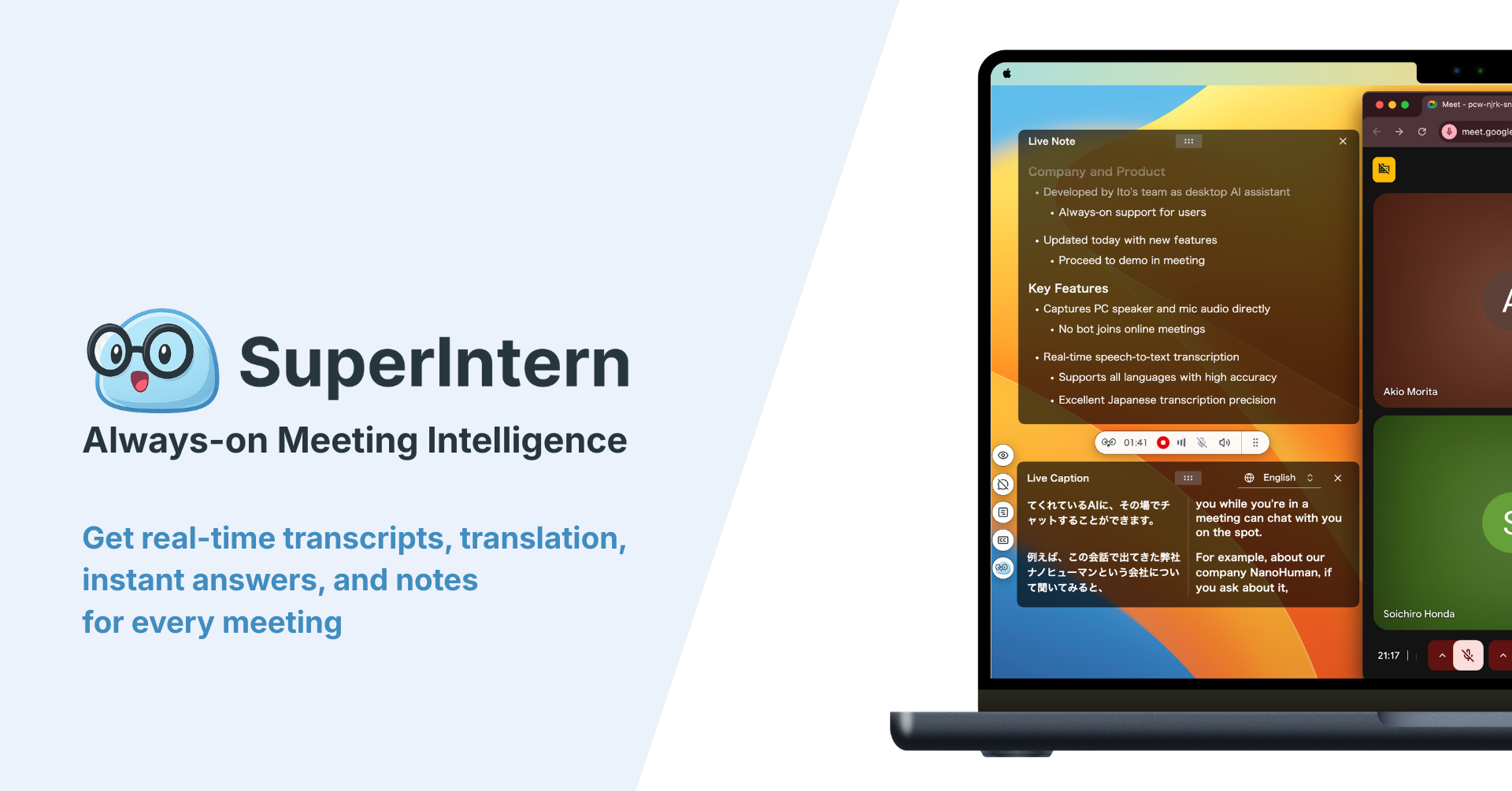
SuperIntern is a meeting AI tool built around the concept of "making meetings the engine of your work." It provides real-time translation and AI-generated notes for Zoom, Google Meet, Microsoft Teams, and even in-person meetings.

Six benefits of using SuperIntern in Zoom meetings
Benefit 1: Stable translation even when multiple languages are mixed
Even when the meeting jumps between languages, SuperIntern detects each language automatically and translates everything into your target language reliably.
Benefit 2: The same experience outside Zoom
It works the same way in Google Meet, Microsoft Teams, Webex, and in-person meetings. You don't need to switch tools depending on the platform, so every meeting gets consistent support.
Benefit 3: Better accuracy on specialized terms via a custom dictionary
You can register company names, product names, and industry-specific terms in a custom dictionary. That reduces recognition mistakes on proper nouns and stops translations from drifting, so captions and notes both come out cleaner.
Benefit 4: Live meeting notes generated automatically
A structured summary in your chosen language updates live during the meeting. The moment you think "wait, what did we just decide?", a quick look at the summary brings you back. Post-meeting note-taking work drops dramatically too.
Benefit 5: 50+ languages supported
SuperIntern covers more than 50 languages for real-time translation, beyond Zoom's 35. That helps with partners across Asia, Europe, Latin America, and other regions.
Benefit 6: No bot in the meeting
Most meeting AI and translation tools work by sending a bot into the call. In external negotiations or 1-on-1s, an unfamiliar bot showing up tends to raise eyebrows on the other side.
SuperIntern uses a botless design: it captures audio on your PC and stays invisible to other participants. You can use it in external meetings without second-guessing yourself.
SuperIntern pricing
- Free plan: start for free, no credit card required
- Plus plan: $20/month for up to 100 hours
Compared with Zoom's translated captions add-on (around $5/user/month), once you factor in real-time meeting notes, botless capture, and 50+ language support, the cost-performance is strong.
Who this fits
- Anyone who wants to combine translation and meeting notes in Zoom meetings
- Anyone who doesn't want a bot showing up in external meetings
- Anyone who wants the same tool across non-Zoom platforms
- Anyone in a jargon-heavy industry who needs higher translation accuracy
6. Summary
For real-time translation in Zoom, the first stop is Zoom's built-in translated captions: 35-plus languages, around $5/user/month as an add-on, and genuinely easy to start with.
But when any of the following matter to you, an alternative like SuperIntern is worth a serious look.
| Need | Zoom built-in | SuperIntern |
|---|---|---|
| Real-time translation | Yes | Yes |
| Auto-detection and translation across multiple languages | No | Yes |
| Works outside Zoom | No | Yes (all platforms) |
| Custom dictionary | No | Yes |
| Live meeting notes | No | Yes |
| Languages supported | 35 | 50+ |
| Botless capture | Yes | Yes |
Real-time translation in Zoom is shifting from "nice to have" to essential. Pick the tool that matches how you actually work, and keep your global conversations moving.
Start with the free plan of SuperIntern and feel for yourself how producing translation and meeting notes at the same time changes the productivity of every call.