
How to Change Your Email Address or Delete Your SuperIntern Account (Free and Plus Plans)
This guide explains how to change the email address on a SuperIntern personal account (Free or Plus) and how to delete an account.
Both actions are done from Account settings in the web app. They are not available in the desktop app, so open the web app in your browser.
On a Team or Enterprise plan?
This guide covers personal plans only. If you are on a Team or Enterprise plan, please contact the user who is set as an Admin in your Workspace.
Table of Contents
- Changing your email address
- Deleting your account
- When the email address you want is used by another account
- FAQ
Changing your email address
To change your email address, SuperIntern sends a verification code to the new address and confirms the change once you enter it. After the change, sign in with the new email address.
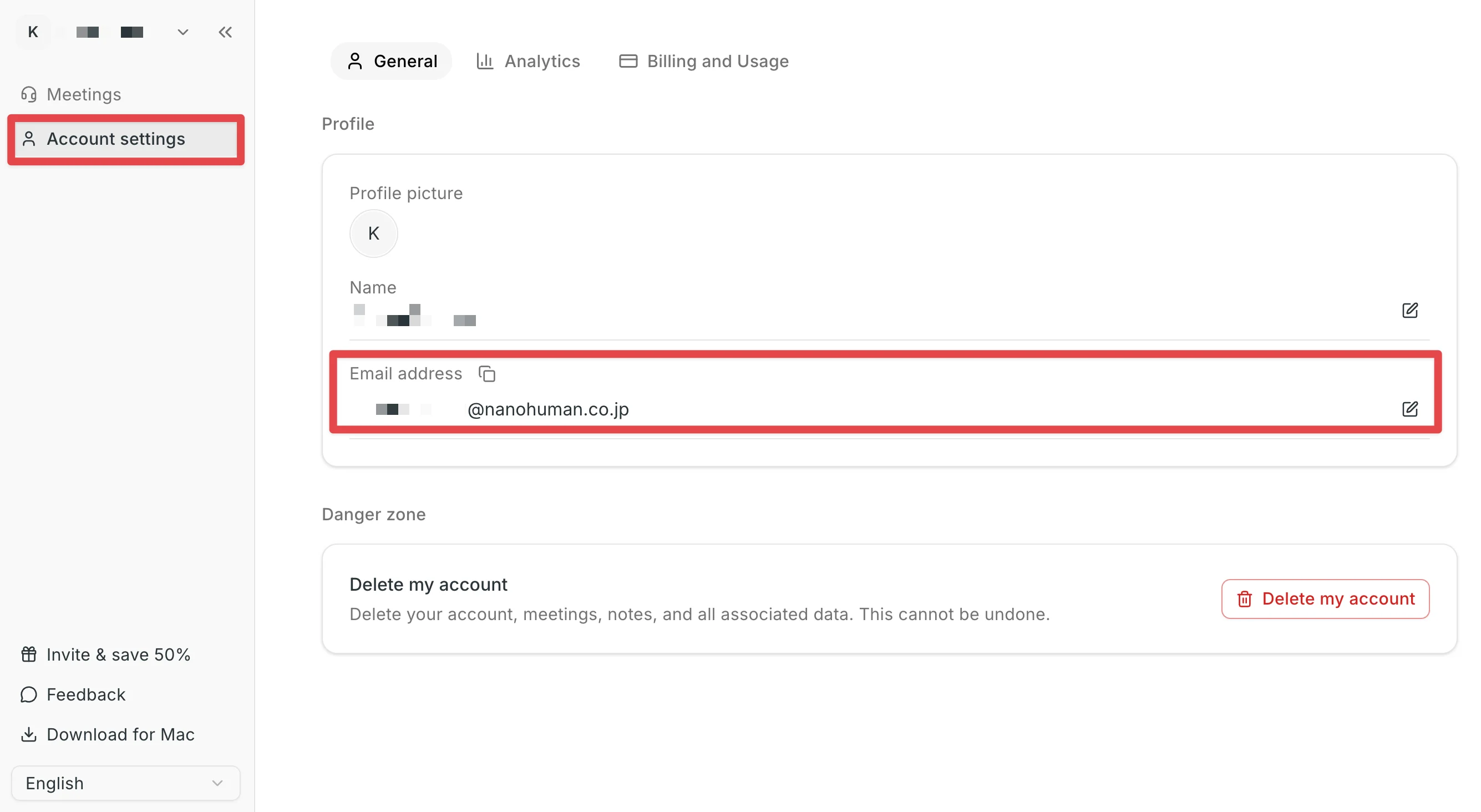
Step 1: Open Account settings
- Sign in to the web app.
- Click Account settings in the left sidebar.
- On the General tab, your current email address is shown under Profile.
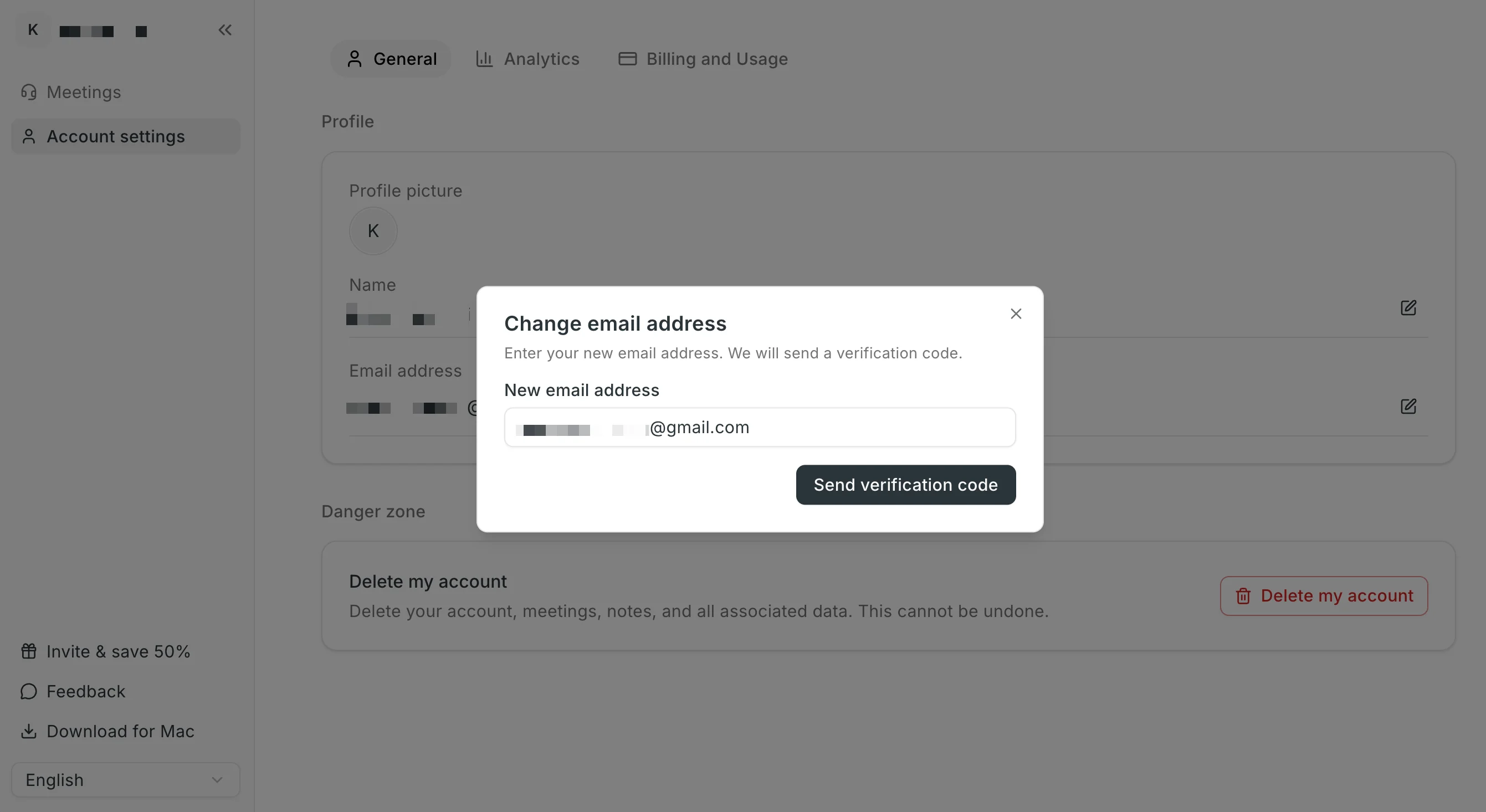
Step 2: Enter the new email address
- Click the pencil icon to the right of your email address.
- Enter the new address in New email address.
- Click Send verification code.
The verification code cannot be sent in the following cases. Check what you entered.
- The new address is the same as your current one.
- The new address is already used by another SuperIntern account (you will see "This email address is already in use.").
If the address you want is already used by another account, see When the email address you want is used by another account later in this guide.
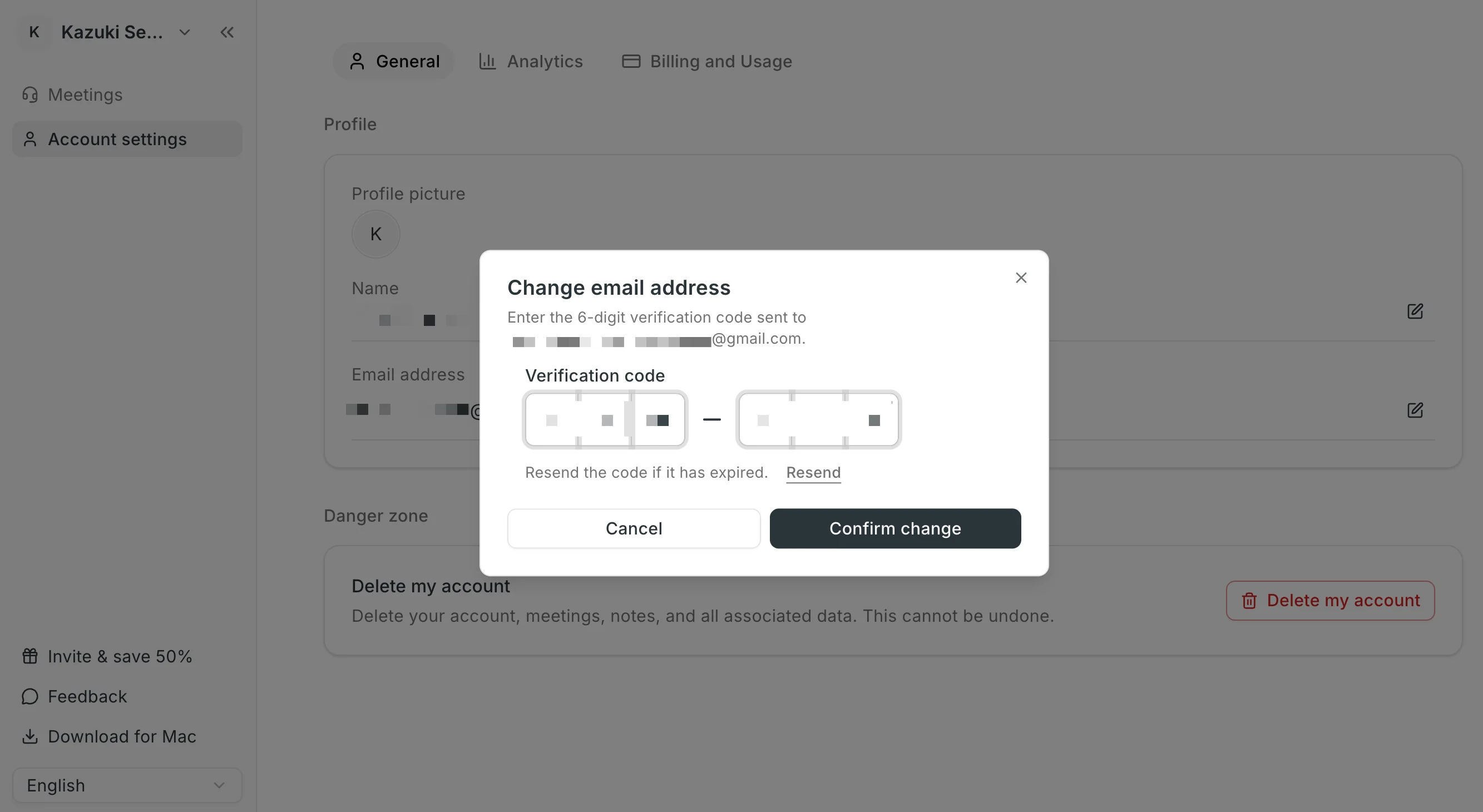
Step 3: Enter the verification code and confirm
- A 6-digit verification code arrives in the inbox of the new email address.
- Enter the code in the dialog and click Confirm change.
When you see "Your email address has been changed.", the change is complete. Check that the new address is shown in your profile.
If the code does not arrive, check your spam folder, then click Resend to get a new code. Do the same if the code has expired.
Deleting your account
Deleting your account permanently deletes your meetings, notes, chats, calendar integrations, and all associated data. This cannot be undone.
If there are meetings or notes you want to keep, copy or export them before deleting the account.
Before you delete
The account cannot be deleted while any of the following is true. Finish or stop the relevant process first.
- A meeting is being recorded: Stop the meeting in progress.
- An uploaded audio file is being transcribed: Wait for the transcription to finish.
- Speaker identification is running: Wait for it to finish.
- You belong to a Team plan Workspace: Leave that Workspace first.
If you are on the Plus plan, your subscription is cancelled as part of the account deletion and you will not be billed again. You do not need to cancel it separately.
Step 1: Open Account settings
- Sign in to the web app.
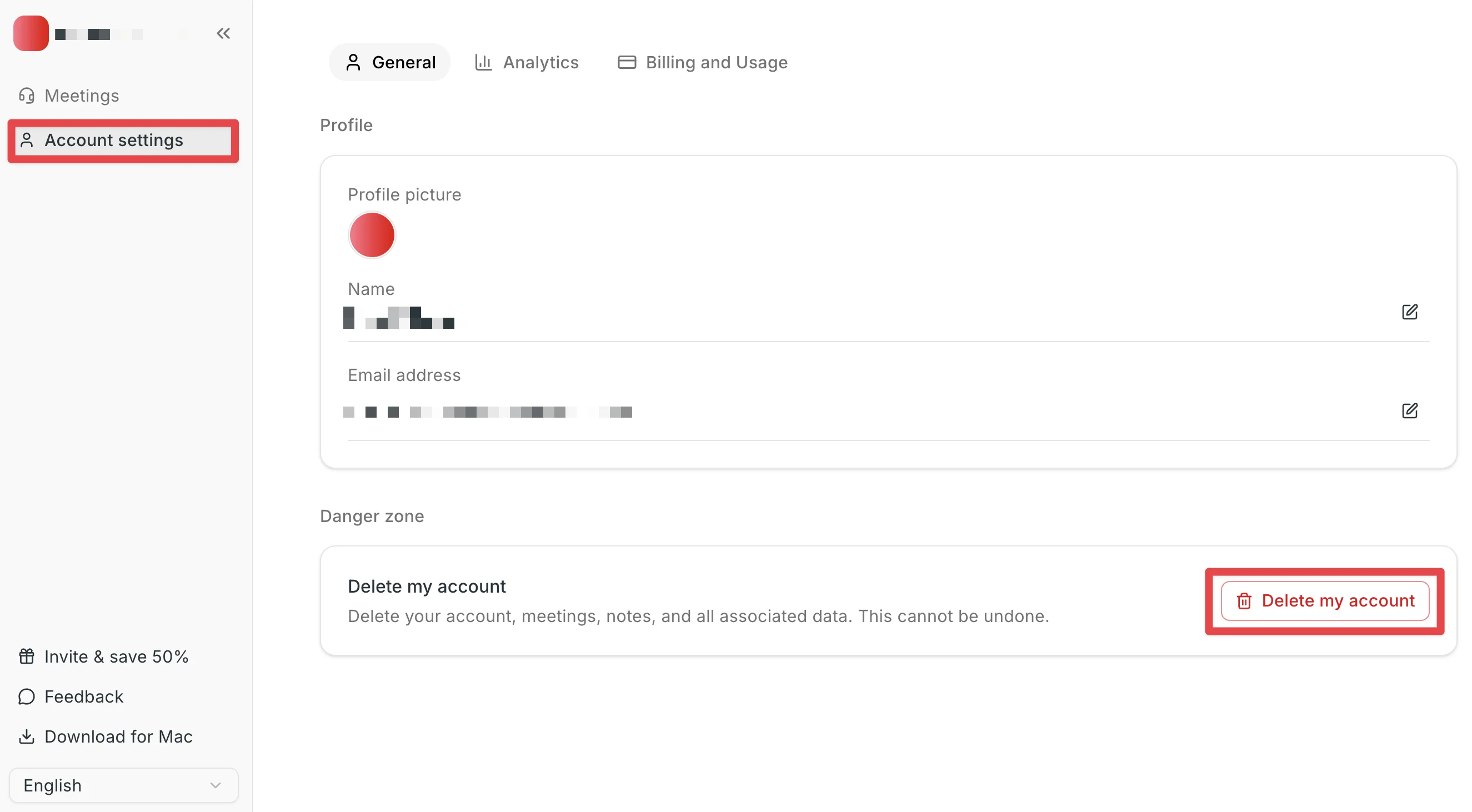
- Click Account settings in the left sidebar.
- Scroll down the General tab and click Delete my account in the Danger zone.
Step 2: Enter your email address to confirm
A confirmation dialog opens.
- Review what will be deleted.
- Under Type your email address to confirm, enter the email address of the account you are currently signed in to.
- Once the address matches, the Delete my account button becomes active. Click it to delete the account.
You are signed out automatically when the deletion is complete. The email address of the deleted account can be used again for a new sign-up.
When the email address you want is used by another account
We often hear from people who created two SuperIntern accounts, one with email address A and one with email address B, and want to keep account B but switch it to email address A.
One email address cannot be used by more than one SuperIntern account at the same time. So the order is: first delete the account you no longer need (A) to free up the address, then change the email address of the account you are keeping (B) to A. If you do it the other way round, the change on B fails with "This email address is already in use."
Note
The meetings recorded in the deleted account (A) are gone once it is deleted. If you want to move meetings recorded in A to the account you are keeping (B), download the audio file of each meeting from A first, then upload those audio files in B.
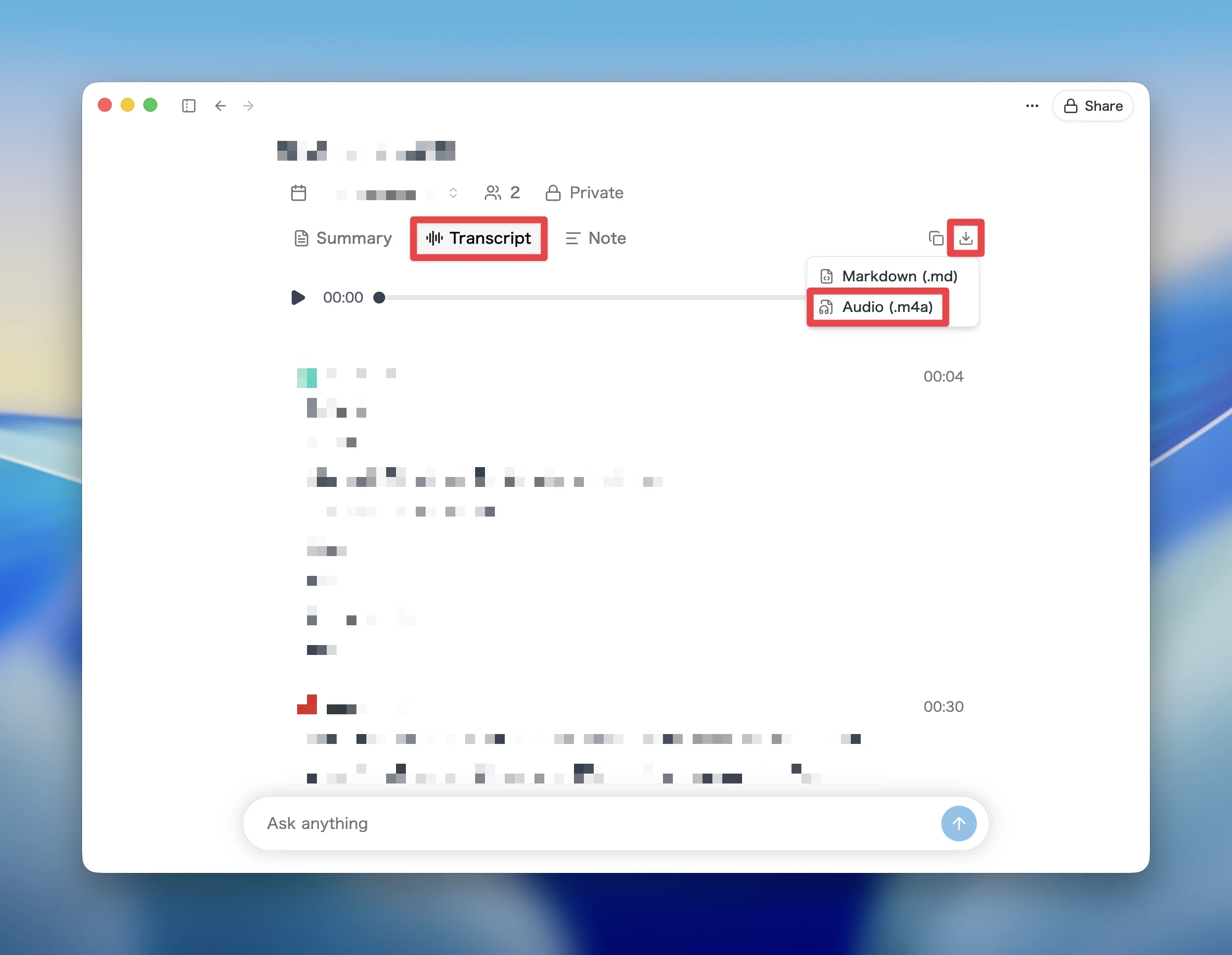
To download the audio, open the meeting, go to the Transcript tab, click the download button at the top right, and choose Audio (.m4a).
How to proceed
- Decide which account to keep and which to delete
Meetings and notes cannot be moved from the account you delete (A) to the account you keep (B). We recommend keeping the account that holds more data. If there are meetings in A you want to keep, download their audio files first as described in the note above. - Sign in to the account with email address A and delete it
Follow the steps in Deleting your account. Once the deletion is complete, email address A is free to use with another account. - Sign in to the account with email address B and change its email address to A
Follow the steps in Changing your email address. The verification code is sent to the inbox of email address A.
If you are on the Plus plan
A Plus subscription is tied to the account and cannot be transferred to another account.
- If the account you delete (A) is on Plus: The subscription is cancelled as part of the deletion and you will not be billed again. If you want Plus on the account you keep (B), subscribe again from B.
- If the account you keep (B) is on Plus: The subscription continues as is after the email address change.
FAQ
Can I change my email address or delete my account from the desktop app?
No. Open the web app in your browser and use Account settings.
Do I need to do anything in the desktop app after changing my email address?
Use the new email address the next time you sign in.
Can a deleted account be restored?
No. Meetings, notes, and other data cannot be recovered either, so save anything you need before deleting.
Can I sign up for SuperIntern again with the email address of a deleted account?
Yes. You can sign up as a new account after the deletion, but the previous data is not carried over.
What should I do if my account is on a Team or Enterprise plan?
Please contact the user who is set as an Admin in your Workspace.
If you follow these steps and the problem is still not resolved, please contact us through the feedback form in the app.