
Weekly Update: Automatic speaker identification, bulk-add and search for dictionary terms, one-click connection from Claude's connector list, and an open-at-login setting

We've just shipped 4 updates to SuperIntern 🎉
Name a speaker once and the next meeting recognizes them, and dictionary terms now go in by pasting them.
Here's a quick tour of this week's additions.
① Label a speaker once, and the next meeting recognizes them
When you assign a participant's name to a speaker in a transcript, SuperIntern remembers that person's voice. From the next meeting on, their lines arrive already labeled with their name.

What this changes
- No more re-labeling every meeting: A participant you have named once shows up under their own name instead of "Speaker 1" next time.
- Nothing new to learn: Assigning a participant to a speaker is the only step. There is no setting to turn on.
- Your corrections win: If you reassign an automatically applied name, later meetings follow the correction.
- Who can use it: Personal workspaces need the Plus plan or above, and team workspaces need the Team plan.
Voice memory starts in the background right after you assign a name, so it kicks in from the following meeting. It works in both the Web and Desktop apps.
② Bulk-add dictionary terms, and search them by keyword
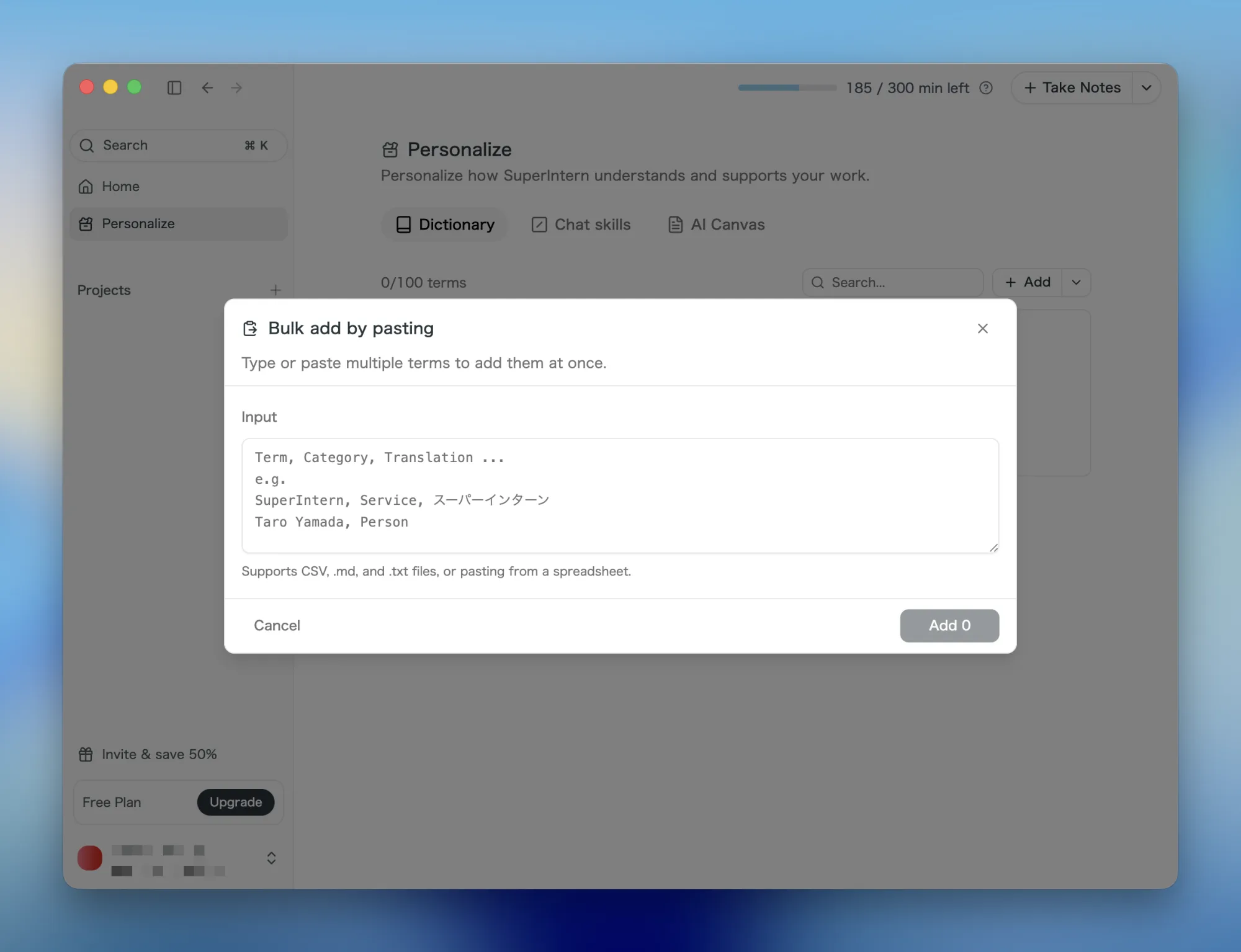
The dictionary in Personalize now has bulk add and a search field.
You can paste from a spreadsheet, CSV, or Markdown table, or edit the CSV template and upload it.
What this changes
- Pasting is enough: Copy a range from your spreadsheet and paste it, and terms, categories, and translations are sorted into columns for you.
- Fix things before they're saved: Edit a term or its translation, or drop rows you don't want, right in the preview.
- Find terms as the list grows: The search field on the Dictionary tab filters registered terms and their translations by keyword.
- Delete straight from the row: A trash icon on each dictionary, chat skill, and AI Canvas row removes it without opening the edit dialog.
Loading in your internal jargon, product names, and people's names keeps their spelling consistent across transcripts.
③ Connect SuperIntern from Claude's connector list
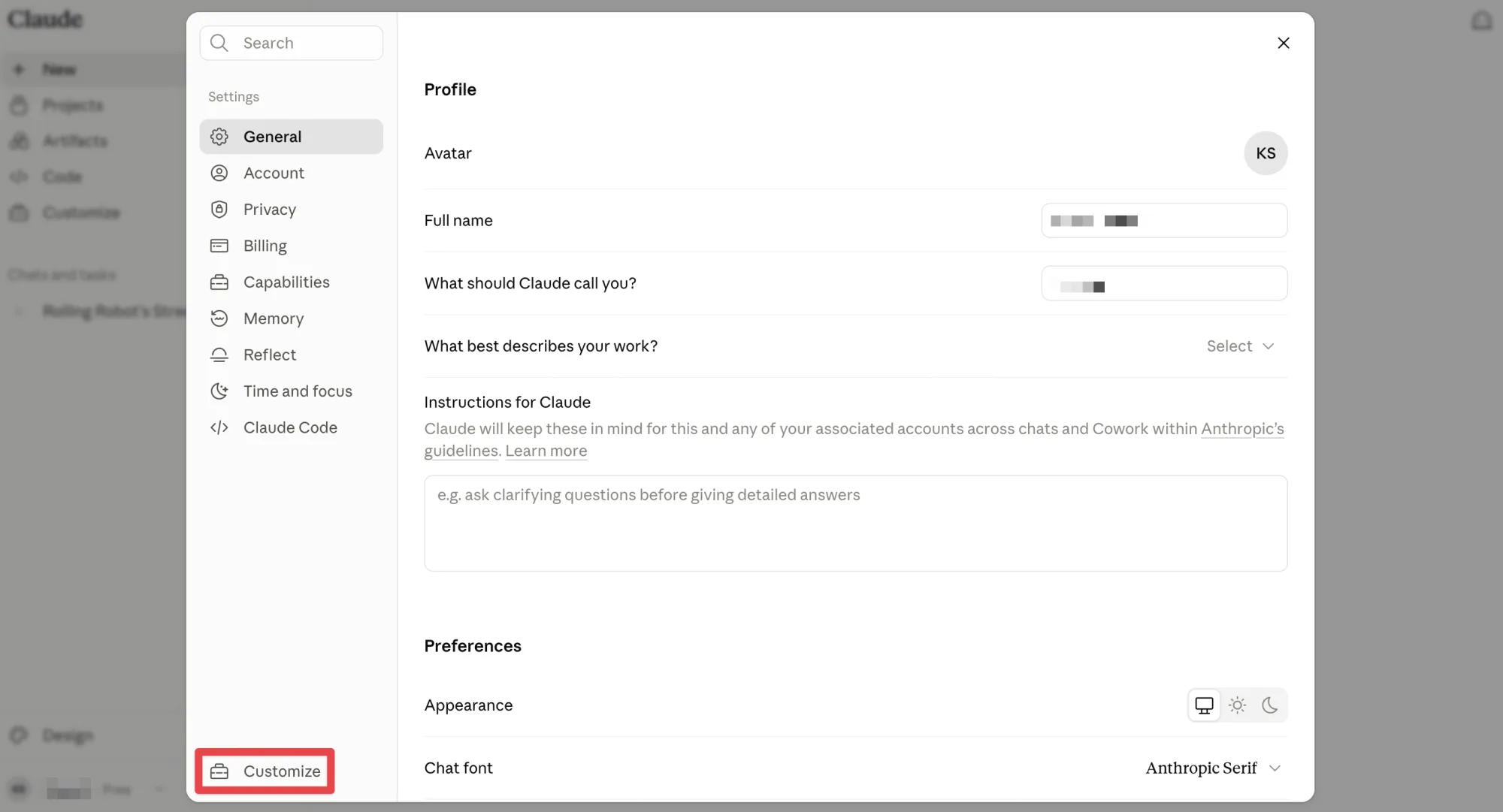
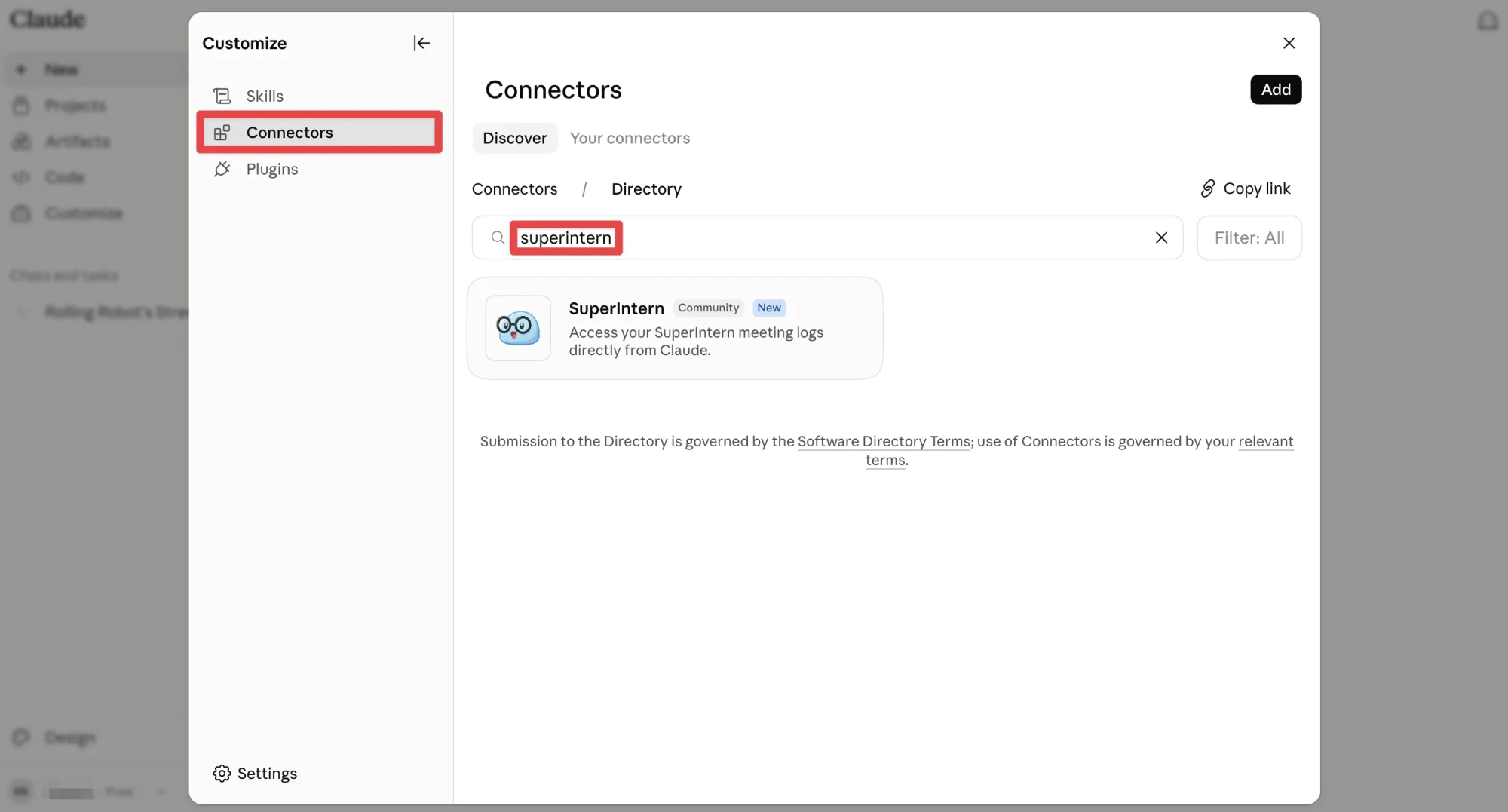
SuperIntern is now listed among Claude's connectors. Open Settings in Claude and go to Connectors under Customize at the bottom left.
Search for "SuperIntern" and pick it from the results.
What this changes
- No connection URL to type: Select SuperIntern from the search results, sign in with your SuperIntern account, and you're connected.
- Your meetings, from the agent you already use: Pull transcripts, summaries, and notes into a conversation with Claude.
- Who can use it: Personal workspaces need the Plus plan or above, team workspaces need the Team plan, and on Enterprise an admin has to turn MCP access on.
For the full walkthrough, see How to connect SuperIntern to Claude and Codex.
④ Choose whether SuperIntern opens at login
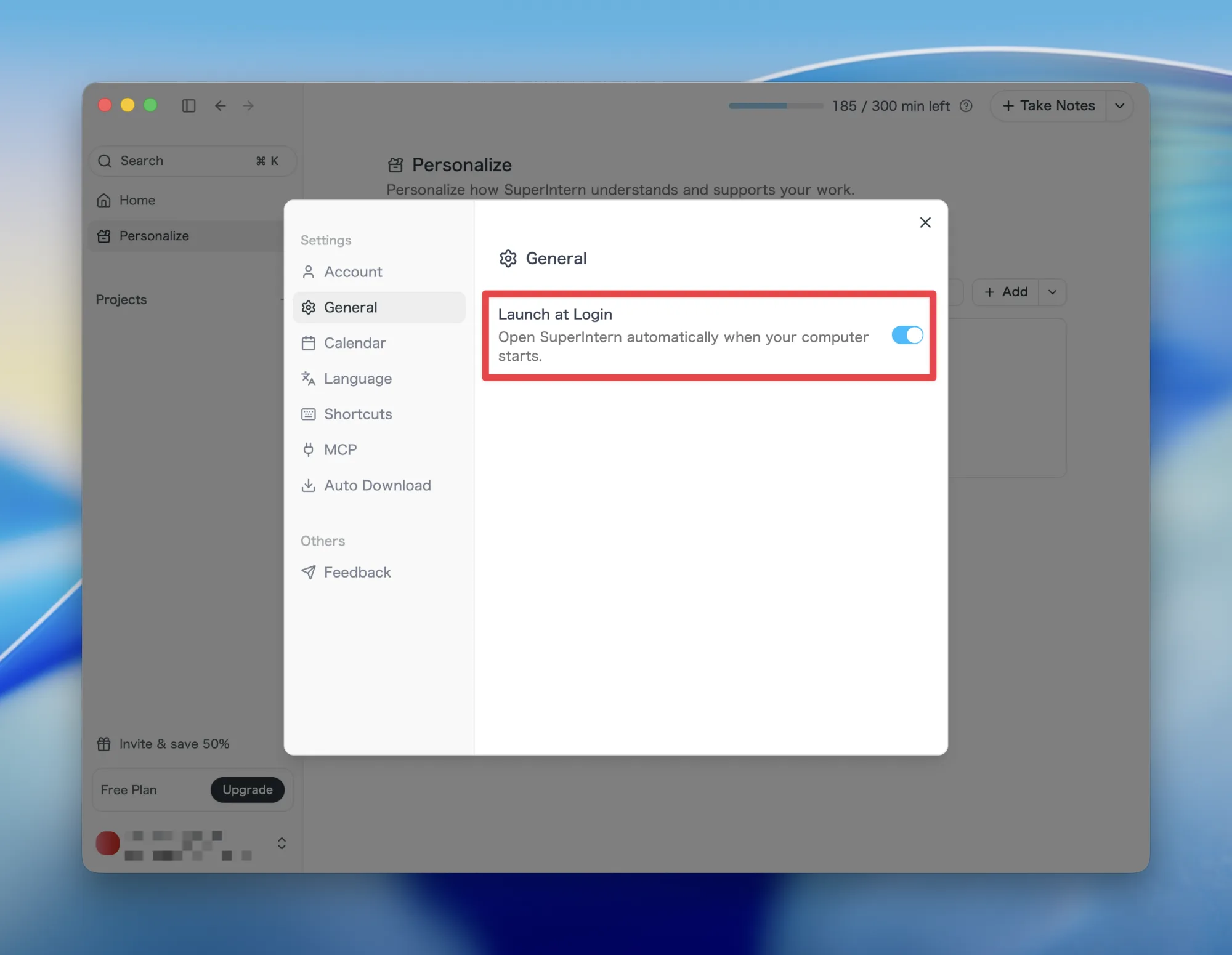
General settings now let you decide whether SuperIntern Desktop launches when your computer starts. This one is macOS only: because the Windows app ships through the Microsoft Store, turn SuperIntern on or off under Settings > Apps > Startup in Windows instead.
What this changes
- Ready before your first meeting: Leave it on and SuperIntern is already waiting when you sit down.
- Off stays off: Turning it off, or removing SuperIntern from your OS login items, now survives an app restart.
- No disagreement with your OS: The setting reflects the actual state of your login items.
How to Update
For Mac users
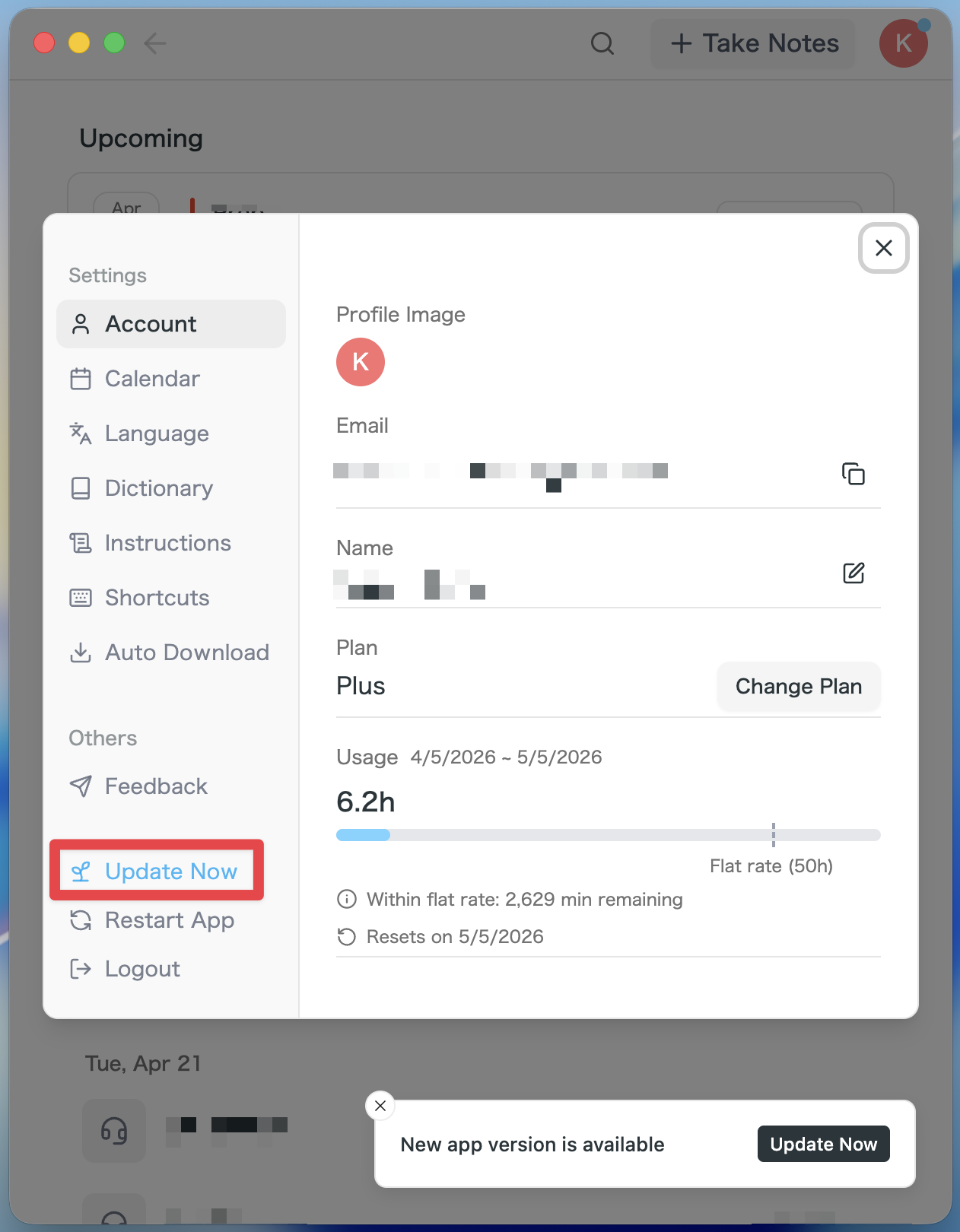
- If an update is available, the latest version is downloaded automatically after you launch the app.
- The Update Now button appears in the sidebar. Click it.
For Windows users
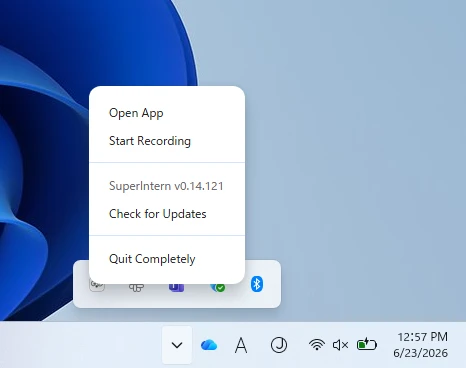
- Open the system tray at the bottom-right of your screen and right-click the SuperIntern app icon.
- Click Check for Updates.
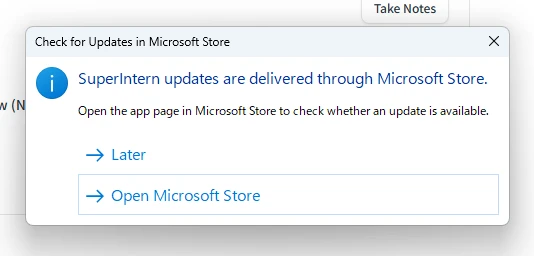
- When the popup appears, click Open Microsoft Store.
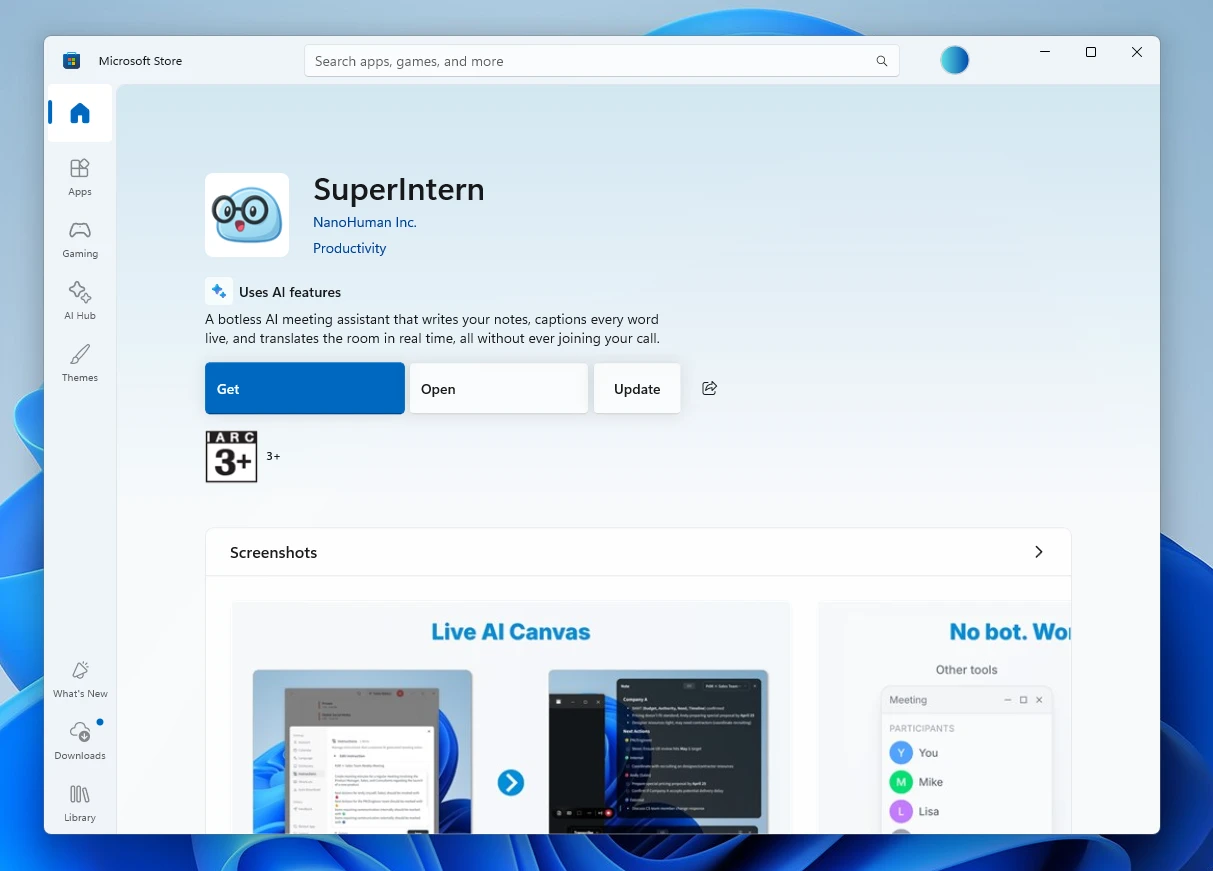
- Once Microsoft Store opens, click Update.
We'll keep improving SuperIntern to make it easier for everyone to use. Update to the latest version before your next meeting and give these a try.