
Weekly Update: Rewind for in-person conversations, summaries that know who spoke, and chat that reads your edited summary

We've just shipped 3 updates to SuperIntern 🎉
Rewind turns conversations you never hit record on into meeting notes, and summaries now arrive knowing who said what.
Here's a quick tour of this week's additions.
① Rewind: capture in-person conversations after the fact
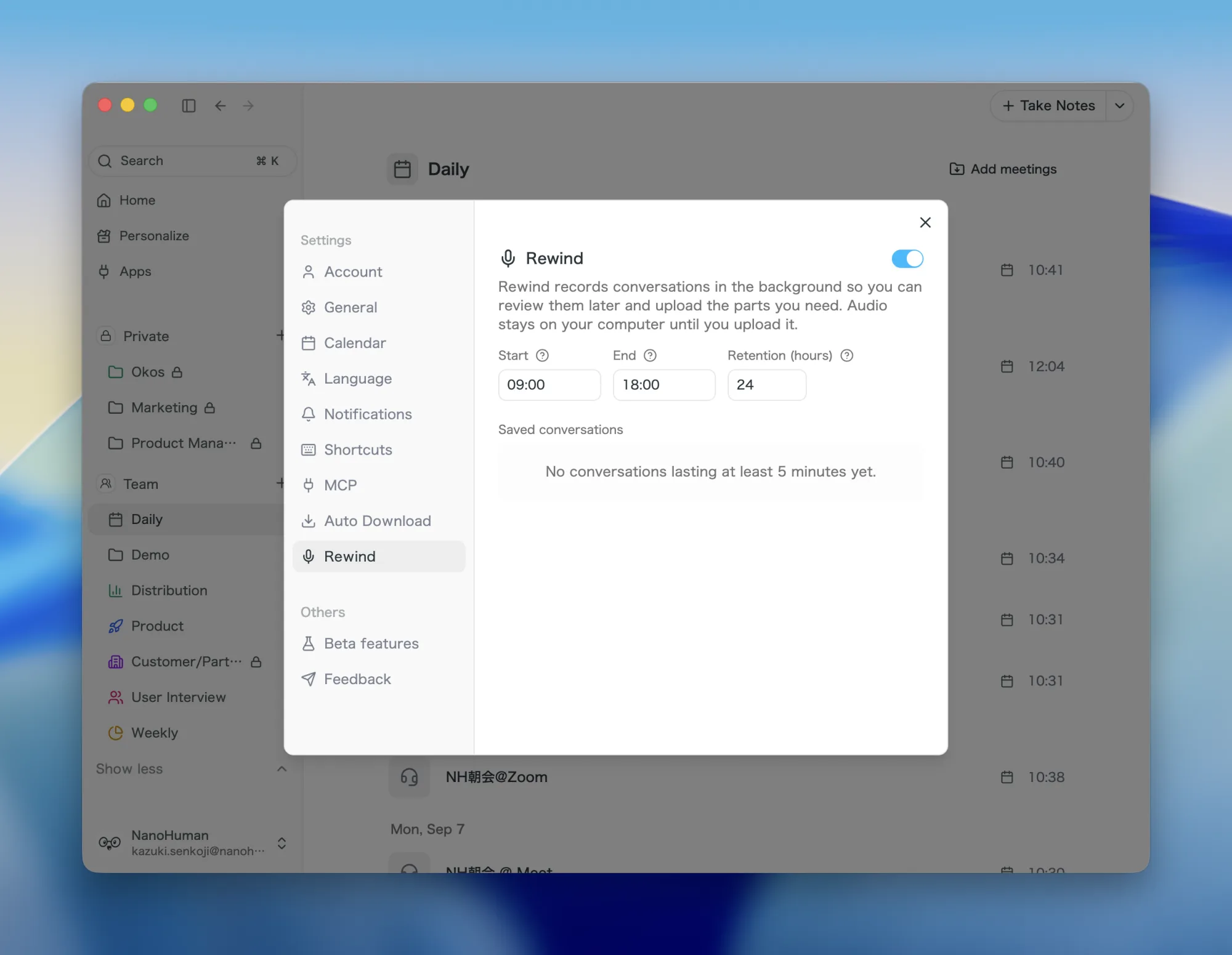
Say hello to Rewind. It records audio in the background during hours you choose, so you can listen back later and upload only the parts worth keeping. That hallway conversation, or the meeting where nobody pressed record, can still become meeting notes.
What this changes
- Nothing slips away: Recording runs automatically during your daily time window and pauses itself while you're recording a meeting.
- Upload only what matters: Conversations of 5 minutes or longer appear under Saved conversations, where you can play them back and select just the range you need.
- Uploads become regular meeting notes: Uploaded audio gets the same transcription, speaker analysis, and summary as any recorded meeting.
- Audio stays on your computer: Nothing leaves your machine until you upload it, and recordings are deleted automatically after the retention period you set.
Turn it on under Rewind in the Desktop app settings (macOS and Windows; it's off by default). The recording hours and retention period live on the same screen.
② First summaries now reflect speaker analysis
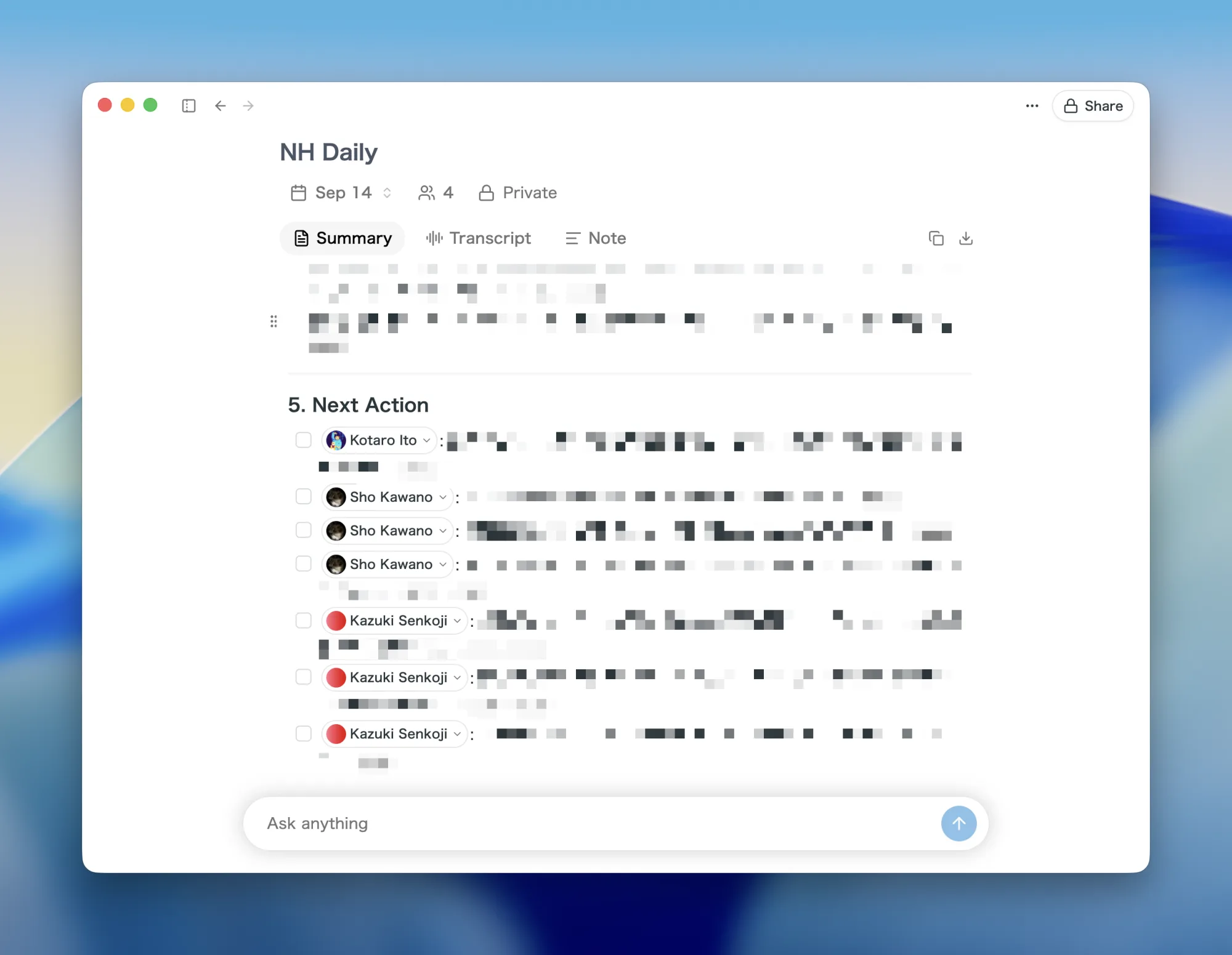
For meetings recorded in Desktop and uploaded audio, the first summary is now generated after speaker analysis finishes. Your summary arrives already knowing who said what.
What this changes
- Speakers are in from the start: After you stop recording, the summary tab shows "Analyzing speakers", and the summary is generated as soon as the analysis completes.
- Decisions have owners: Action items and decisions are organized with who actually said them in mind.
- Relabeled a speaker? Regenerate: After changing speaker names, use Regenerate on the summary to pull in the latest speaker information.
Combined with last week's automatic speaker identification, stopping the recording is all it takes to get a name-labeled transcript and a speaker-aware summary.
③ Post-meeting chat now reads your edited summary
Post-meeting chat now references the saved summary alongside the transcript. Correct a name or a detail in the summary, start a new chat, and the answers build on your corrections.
What this changes
- Your corrections carry over: Fix company names, people's names, or decisions in the summary, and chat treats them as the ground truth.
- Both sources, one answer: Chat draws the big picture from the summary and the details from the transcript.
- The summary is snapshotted when a chat starts: Edits made after a chat begins don't affect that chat. Start a new one to pick them up.
Available in both the Desktop and Web apps.
How to Update
For Mac users
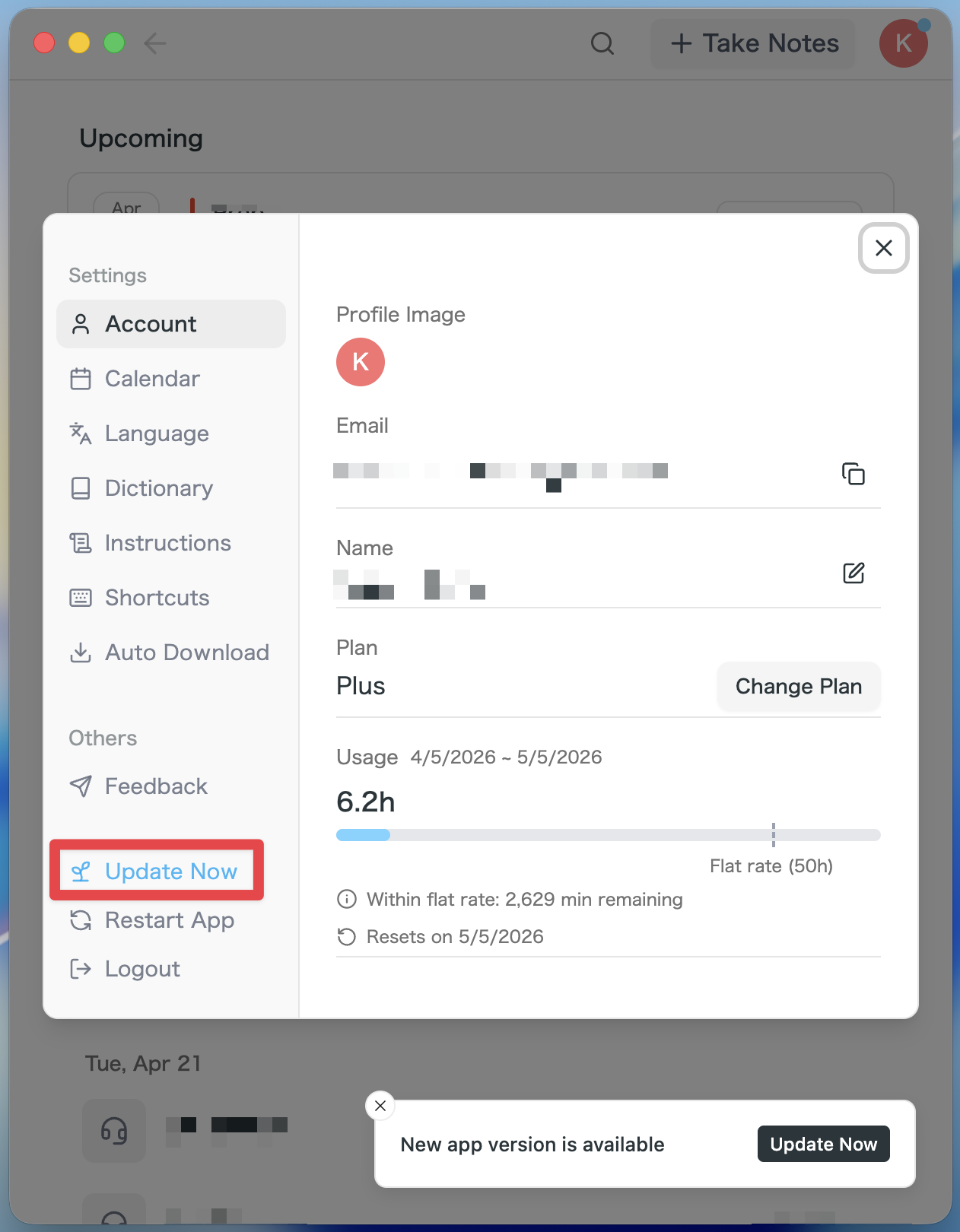
- If an update is available, the latest version is downloaded automatically after you launch the app.
- The Update Now button appears in the sidebar. Click it.
For Windows users
- Open the system tray at the bottom-right of your screen and right-click the SuperIntern app icon.
- Click Check for Updates.
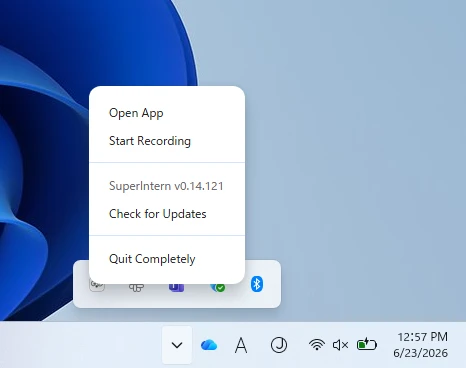
- When the popup appears, click Open Microsoft Store.
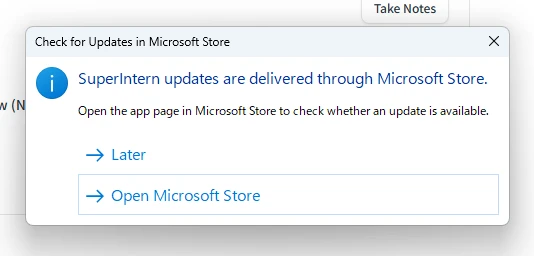
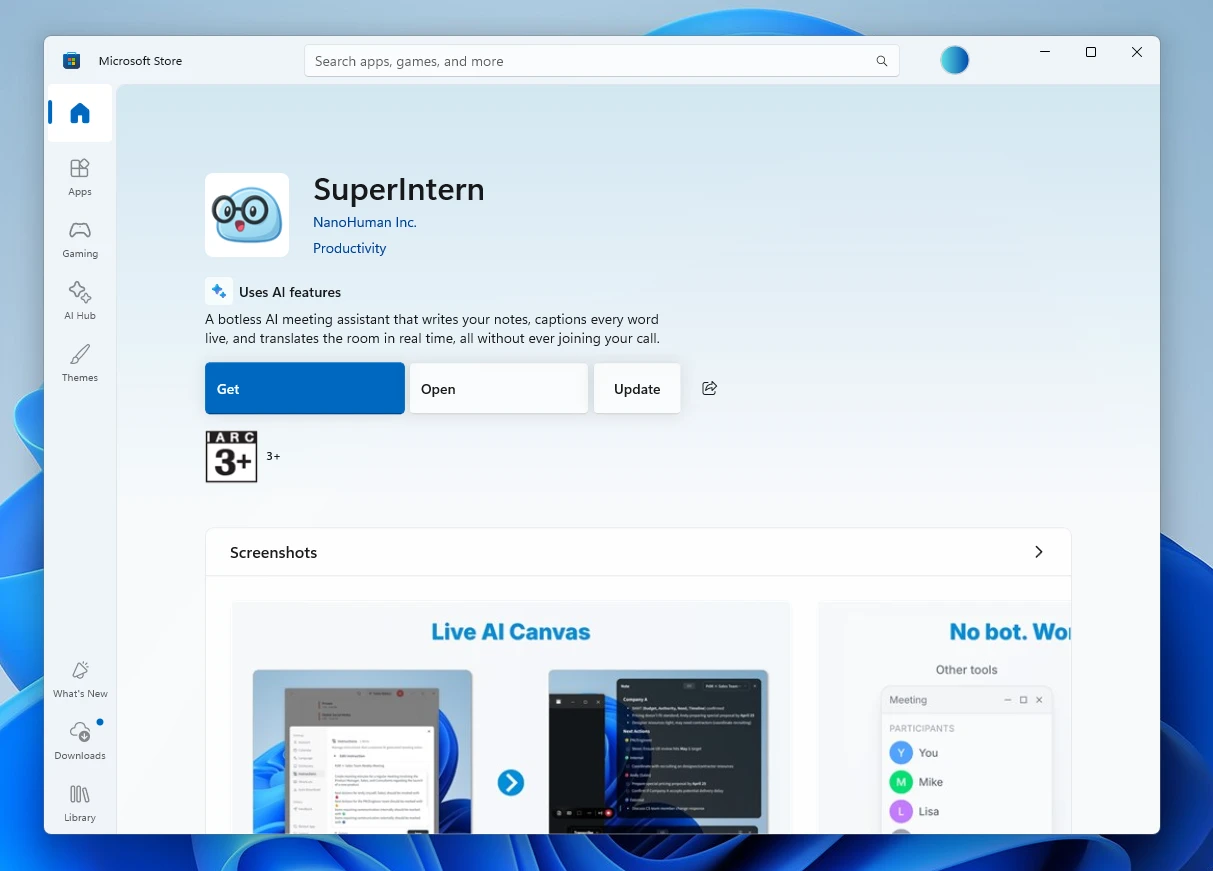
- Once Microsoft Store opens, click Update.
We'll keep improving SuperIntern to make it easier for everyone to use. Update to the latest version before your next meeting and give these a try.