
Weekly Update: SuperIntern plugin for ChatGPT, a new Chat page for questions across meetings, and automatic recording for browser meetings

We've just shipped 3 updates to SuperIntern 🎉
ChatGPT can now read your meetings through the new SuperIntern plugin, and a new Chat page answers questions across meetings while a new browser extension records web meetings automatically.
Here's a quick tour of this week's additions.
① SuperIntern plugin for ChatGPT: bring your meeting data into ChatGPT
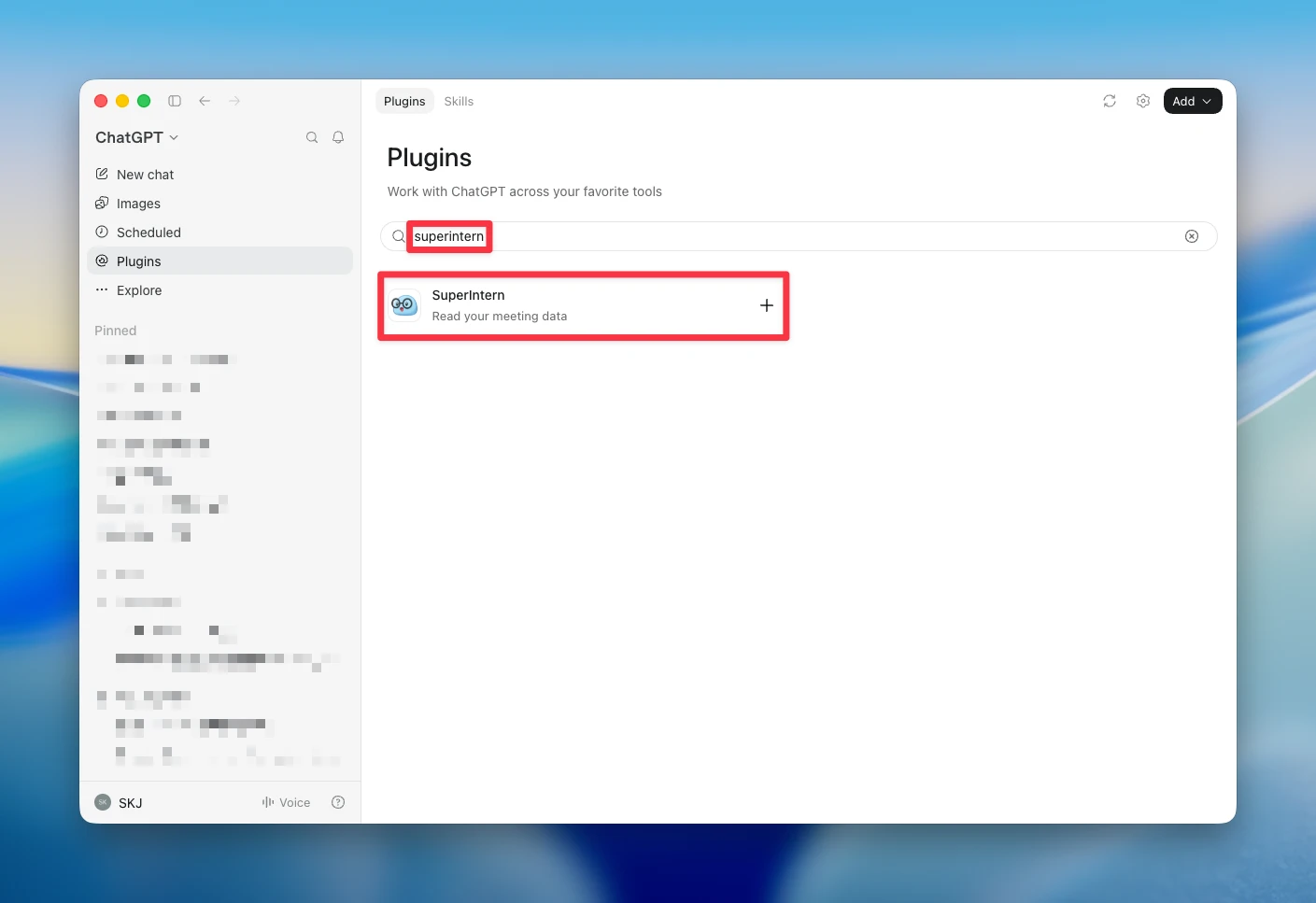
SuperIntern is now listed in the ChatGPT plugin directory. From a ChatGPT conversation, you can pull up your meeting list, transcripts, AI summaries, and notes stored in SuperIntern.
What this changes
- Review meetings without leaving ChatGPT: Ask "Summarize my meetings from this week" or "What action items came out of my last meeting?", and ChatGPT answers from your SuperIntern data.
- Meetings in progress are covered too: Alongside transcripts, summaries, and notes, the plugin can read the live transcript of a meeting that is still running.
- Read-only by design: The plugin cannot change or delete anything in SuperIntern, and it only sees the meetings you can already view when you sign in.
To get started, open Plugins in the ChatGPT sidebar, search for "SuperIntern", click Install plugin, and sign in with your SuperIntern account. You can also open the plugin listing directly.
Plan requirements are the same as for MCP integrations: Plus and above for personal workspaces, Team for team workspaces, and Enterprise when an admin has turned on MCP access.
② Meet the Chat page: ask across meetings, resume from history
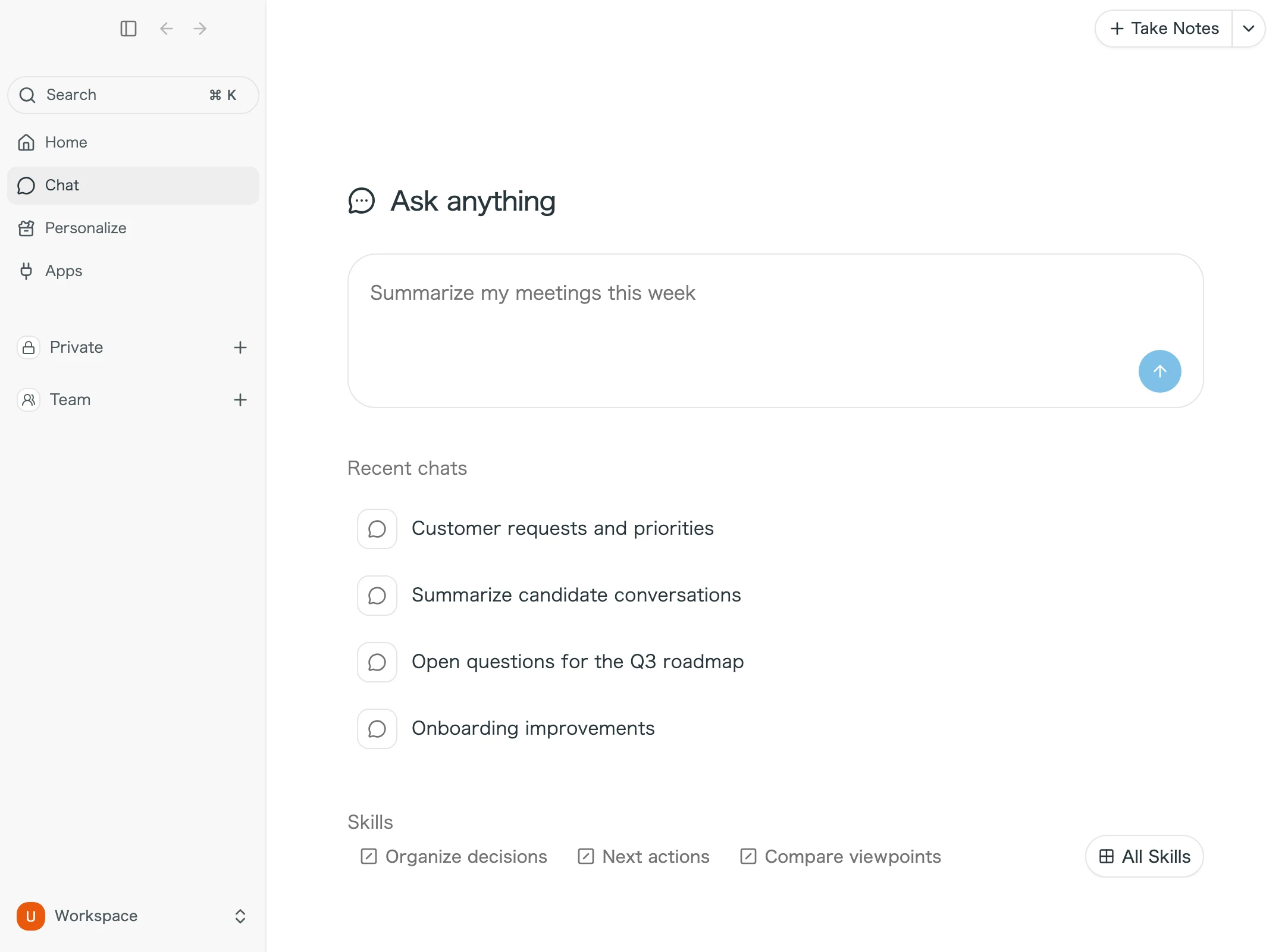
Say hello to the new Chat page, where you ask questions without picking a meeting first and resume past conversations from your history. Open it from Chat in the sidebar of the Desktop and Web apps.
What this changes
- Ask without opening a meeting: Start questions that span several meetings, like "Summarize my meetings this week", straight from Chat. Your recent meetings are pulled in as context automatically.
- Pick up where you left off: Conversations are grouped by date in your history, ready to continue. Rename or delete them from the same list.
- Skills are one click away: Your saved skills sit right above the input, and selecting one runs it immediately.
Answers now come with citation chips
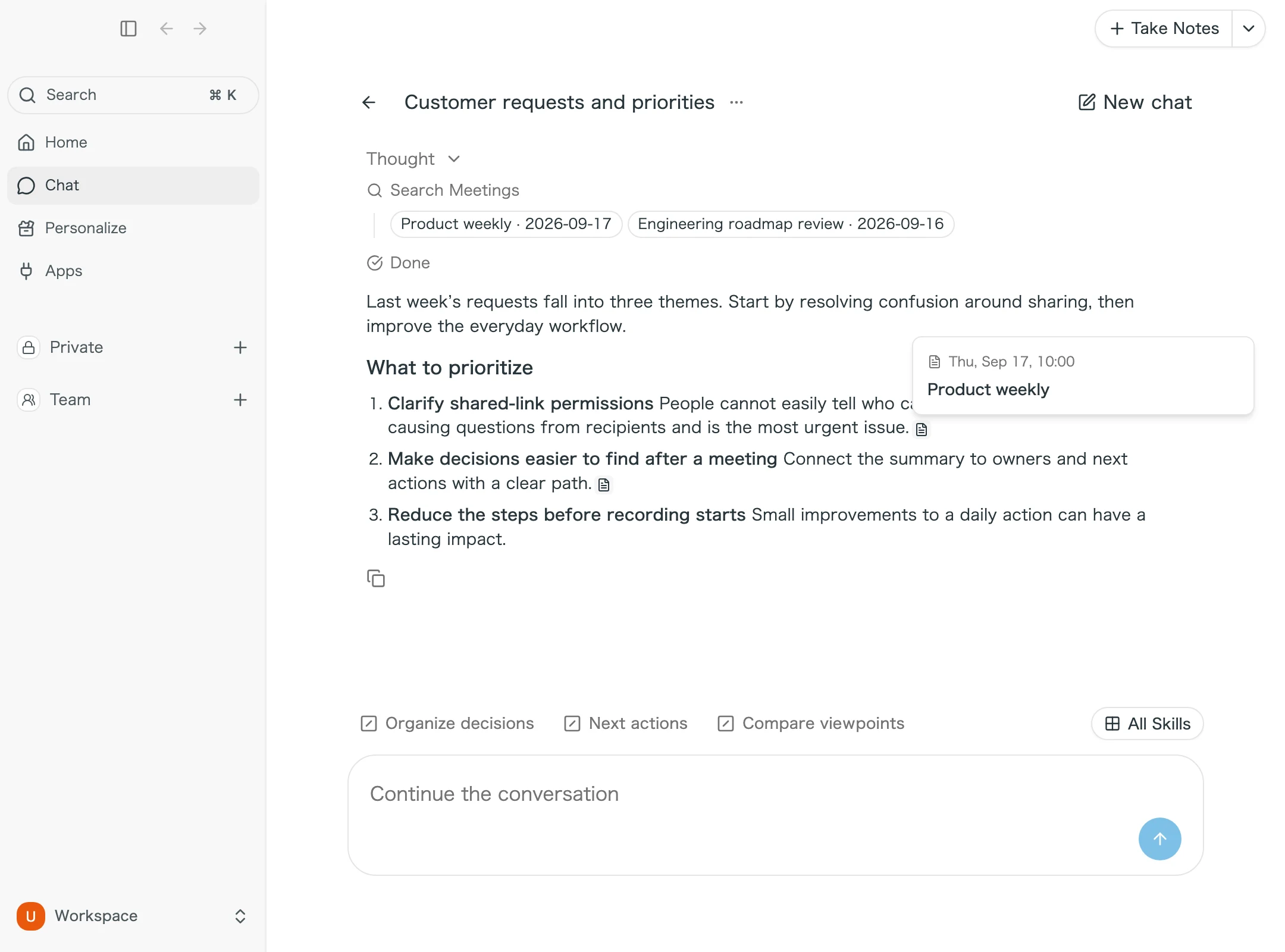
Chat answers now show citation chips for the meetings and web sources behind each statement. Hover a chip to see the meeting title and date, and click it to open that meeting. In the Desktop app, the meeting opens right inside the app.
③ New browser extension: recording starts and stops with your web meetings
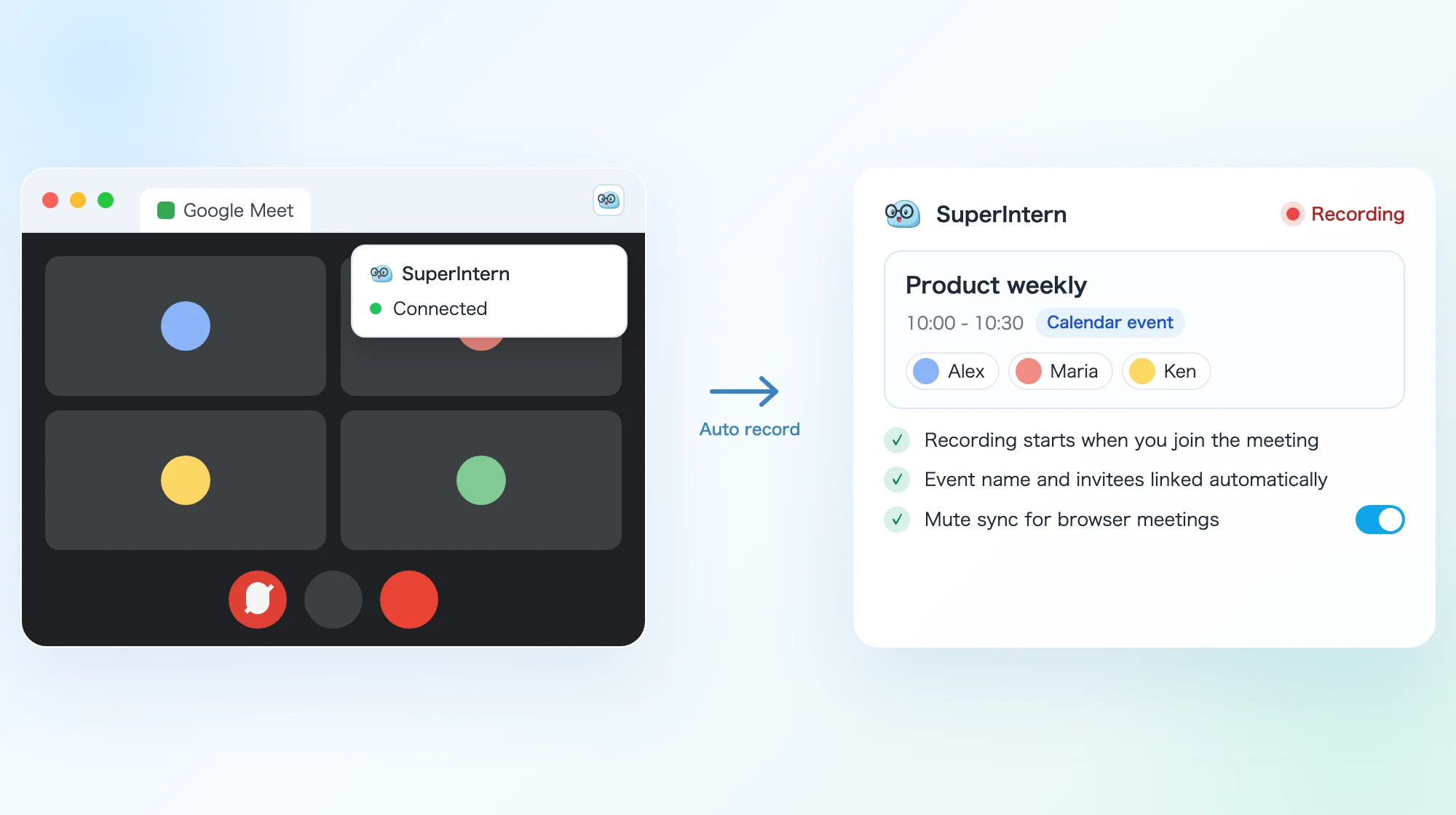
The new browser extension starts and stops recording as you join and leave Google Meet, Zoom, and Microsoft Teams in Chrome or Edge. It also links calendar events automatically and keeps your recording in step with the meeting's mute button.
What this changes
- Choose the behavior in Notification settings: The Desktop app gains Notification settings, where you choose when calendar reminders arrive and, for each app, whether to show a notification or start and stop recording automatically. Automatic recording in browsers requires the extension to be connected.
- Calendar events link automatically: Meetings that start recording through the extension now link to the calendar event with the same meeting URL. The event name becomes the meeting title, and invitee-based speaker labeling is ready as soon as recording ends.
- Mute follows the meeting: Muting your mic in a browser meeting also mutes the recording. If you'd rather keep them separate, turn off Mute sync for browser meetings in Notification settings.
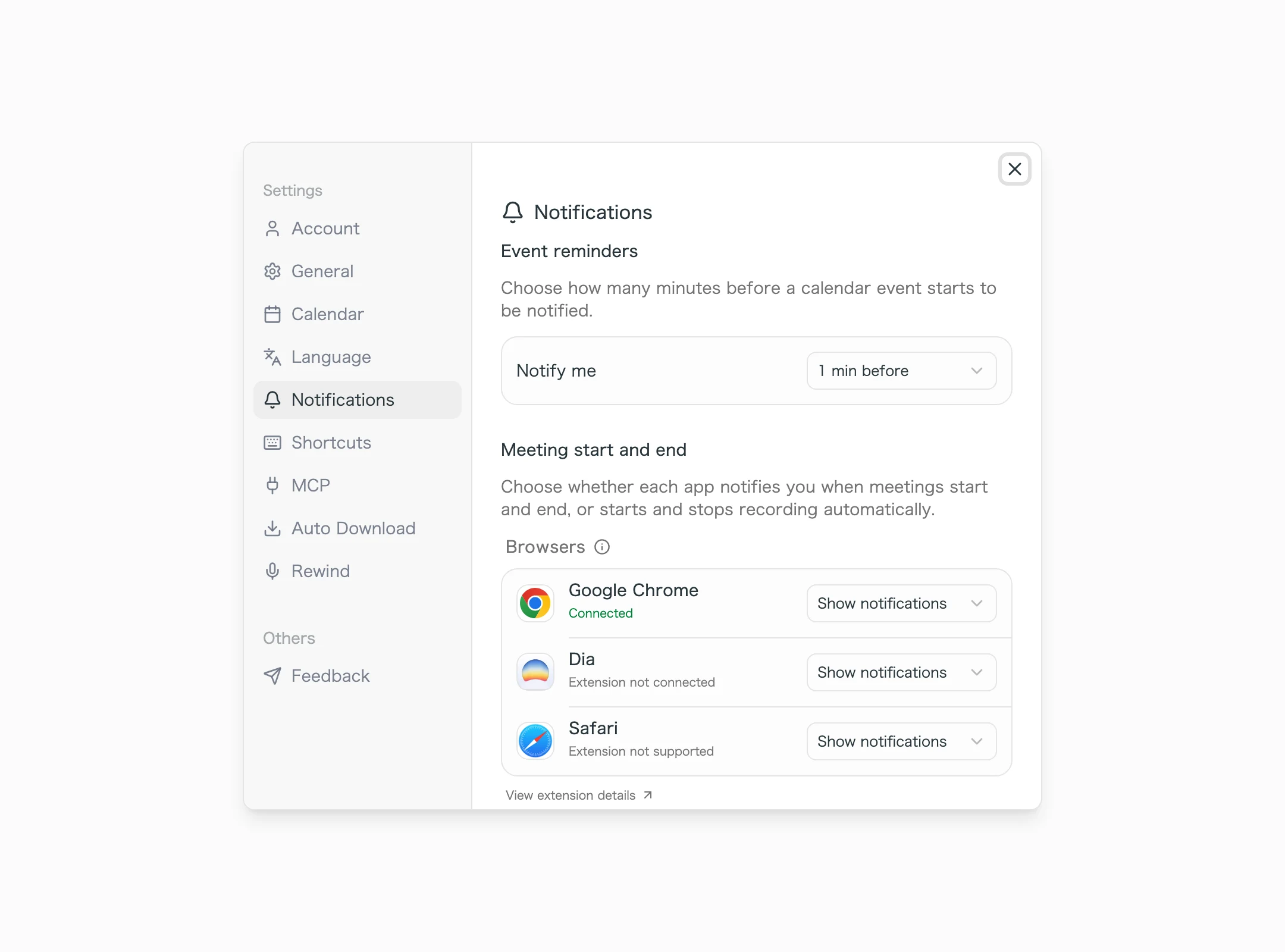
Install the extension from Learn more about the extension in the Browsers section of Notification settings. Chrome, Edge, and Dia are supported.
How to Update
For Mac users
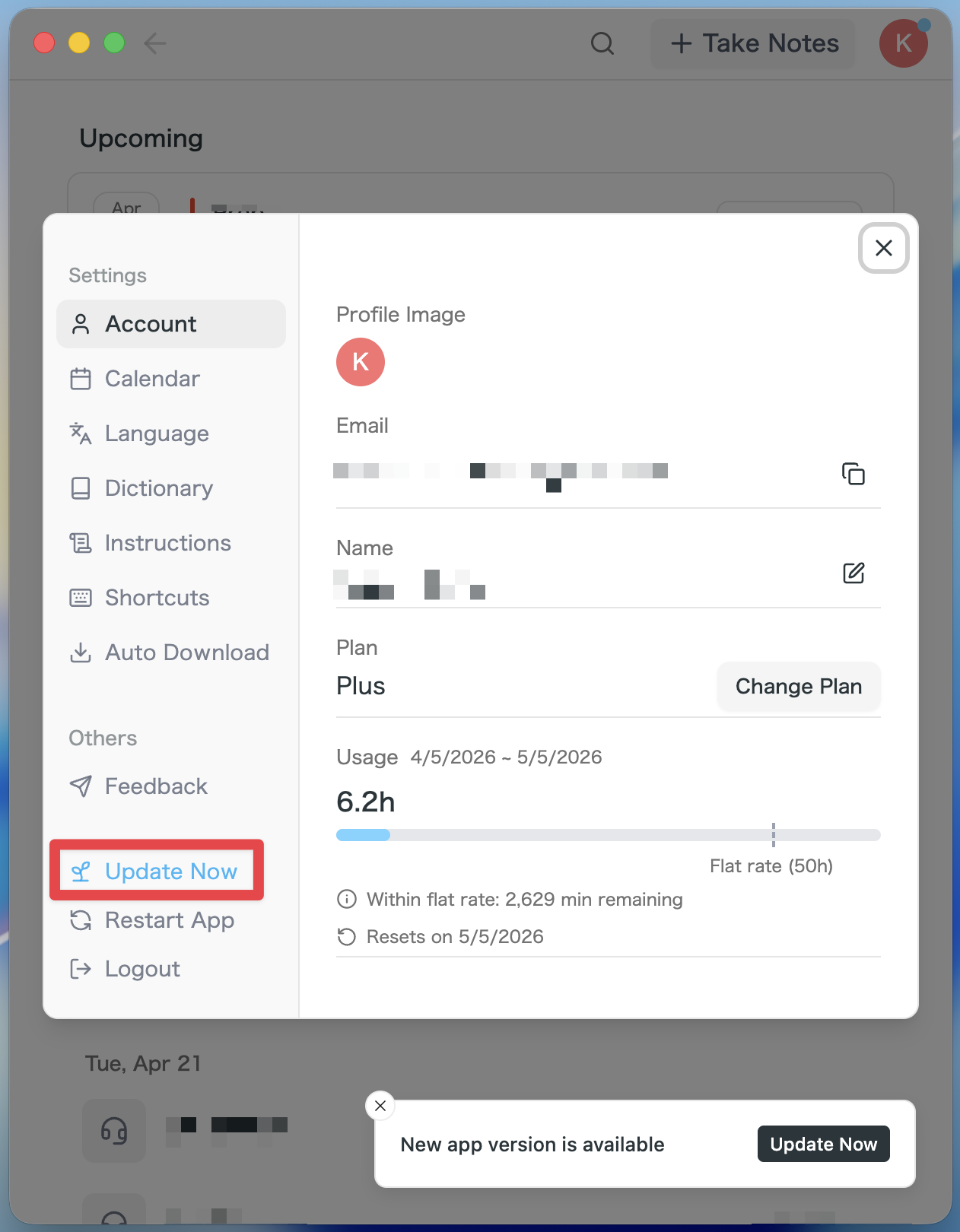
- If an update is available, the latest version is downloaded automatically after you launch the app.
- The Update Now button appears in the sidebar. Click it.
For Windows users
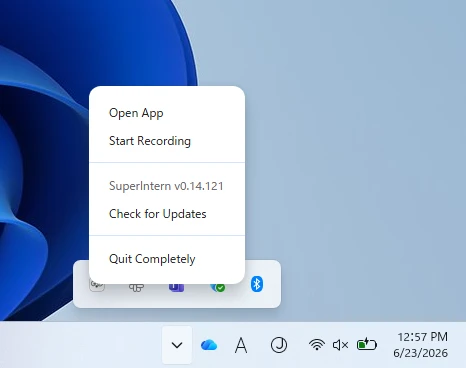
- Open the system tray at the bottom-right of your screen and right-click the SuperIntern app icon.
- Click Check for Updates.
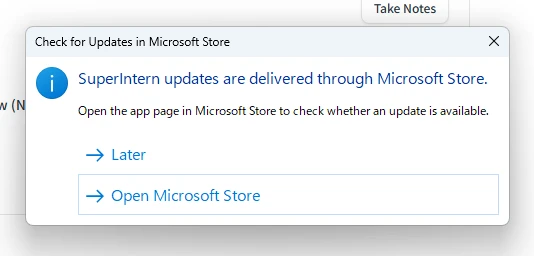
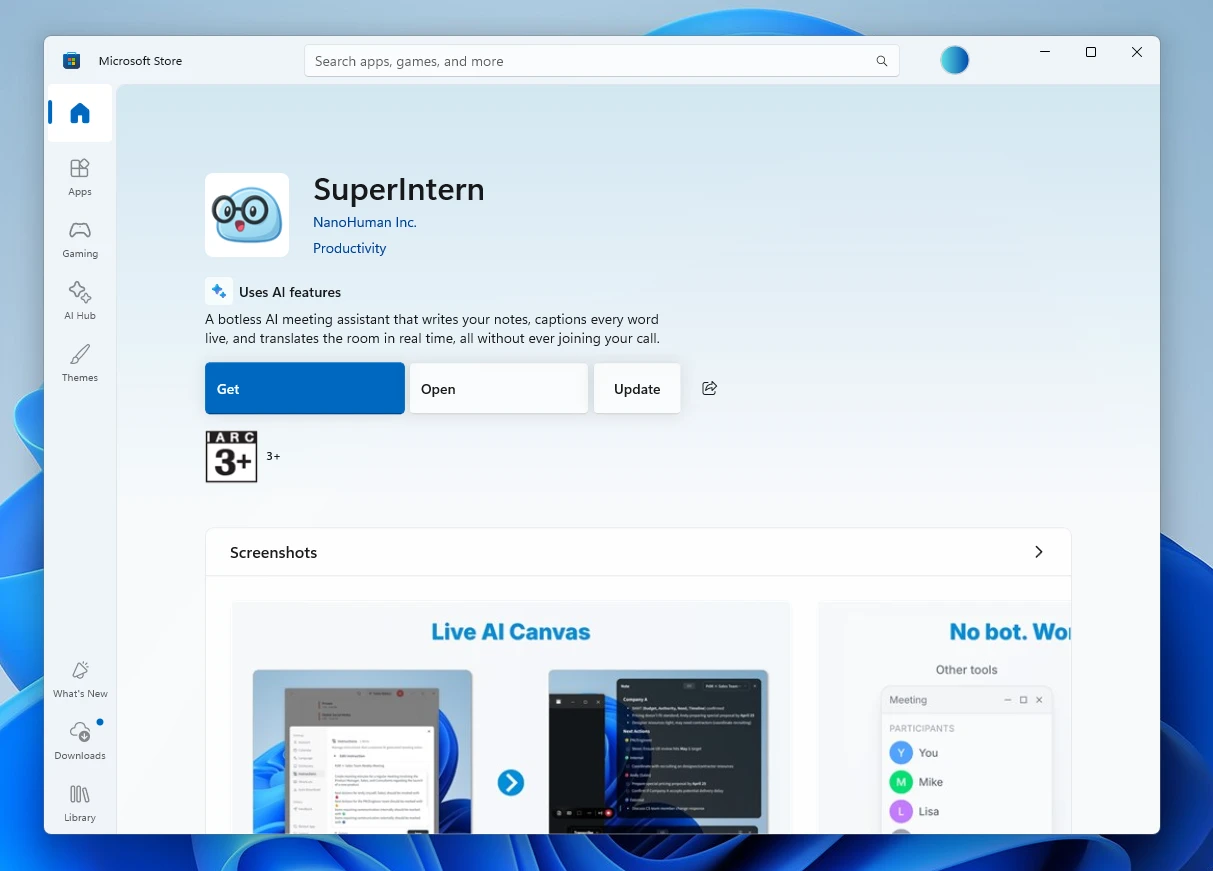
- When the popup appears, click Open Microsoft Store.
- Once Microsoft Store opens, click Update.
We'll keep improving SuperIntern to make it easier for everyone to use. Update to the latest version before your next meeting and give these a try.