
SuperIntern MCP Update: edit your dictionary and chat skills from Claude or ChatGPT, and send us feedback

We've added 2 updates to SuperIntern MCP 🎉
Until now, SuperIntern MCP let Claude, ChatGPT, and other AI tools read your meeting summaries and transcripts. Starting today, those tools can also edit your dictionary and chat skills and send feedback to SuperIntern. You can check what was said in a meeting and get ready for the next one in the same conversation.
Here's a closer look at each addition.
① Edit your dictionary and chat skills from your AI tool
Through SuperIntern MCP, you can now view, add, edit, and delete your SuperIntern dictionary terms and chat skills. Ask your AI tool something like "Add the product names from this meeting to my dictionary" or "Create a chat skill that tidies up my meeting notes," and the change is saved to SuperIntern.
What this changes
- Fix misheard words on the spot: When you spot a company name or technical term transcribed wrong, add it to your dictionary without leaving the conversation. Your next meeting gets it right.
- Build chat skills by talking them through: Work out the instructions you reuse most with your AI tool, then save them as a SuperIntern chat skill.
- Review changes before they happen: With its default settings, Claude asks for your approval before it changes your dictionary or chat skills.
② Send feedback to SuperIntern from your AI tool
You can now send feedback to SuperIntern from a conversation with your AI tool. Ask it to "send this feedback to SuperIntern," whether it's a bug report or a feature request, and it reaches the SuperIntern team.

What this changes
- Speak up the moment you notice something: Share a thought while you review a meeting, without switching apps.
- Get your point across clearly: Sort out what happened with your AI tool first, then send feedback that's easy to act on.
- Sent only when you ask: Feedback goes out only when you ask for it. Your AI tool never sends it on its own based on meeting content.
How to Get Started
SuperIntern MCP connects SuperIntern to Claude, ChatGPT, and the other AI tools you already use. Once connected, you can pull up meeting summaries and transcripts in the middle of a conversation, and use this update's dictionary and chat skill editing and feedback too.
SuperIntern MCP is available on paid plans. In the desktop app or web app settings, connect Claude or ChatGPT in one click. For Claude Code, Cursor, and other MCP-compatible tools, add the MCP server URL shown in settings.
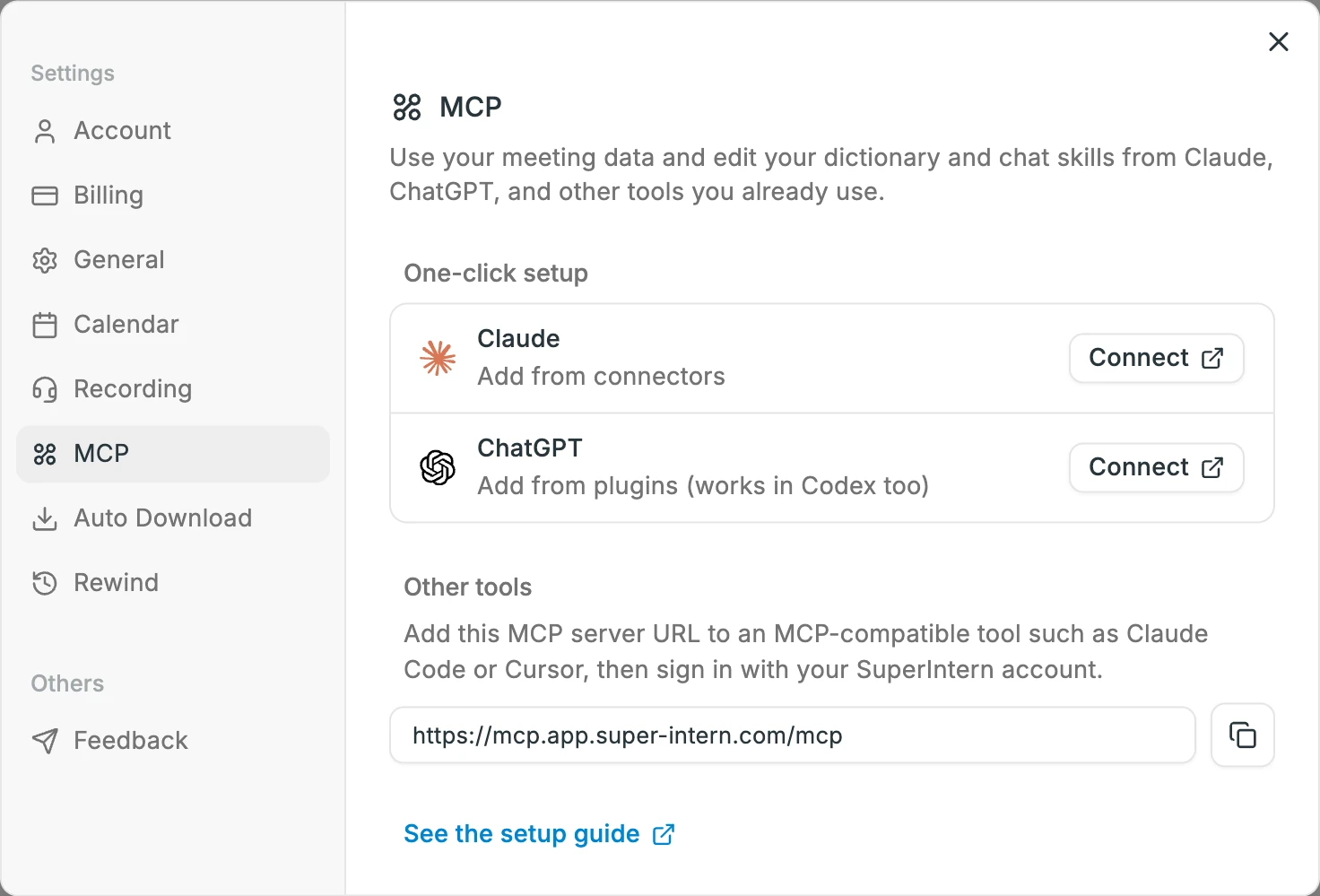
If you're already connected, these features work right away with no extra setup. For step-by-step instructions, see the SuperIntern MCP setup guide.
We'll keep improving SuperIntern to make it easier for everyone to use. Try the new SuperIntern MCP features from the AI tools you already use.