
How to Transcribe Audio to Text: A Step-by-Step Guide to Every Method (2026)
You have a one-hour recording, a long voice memo, or a meeting you need in writing, and typing it out by hand would eat half your afternoon. The good news: in 2026 there are several ways to transcribe audio to text almost instantly, and most of them are free.
The real question isn't "can it be done?" but "which method fits my case?" Transcribing a two-minute voice memo isn't the same job as capturing a one-hour multilingual meeting. This guide walks through every method, when to use each one, and exactly how to do it on Windows, Mac, iPhone, Android, and online.
⚠️ This article was independently compiled based on publicly available information and user feedback as of July 2026.
When do you need to transcribe audio to text?
Turning speech into text has become an everyday task, not just something for journalists or professional transcribers. Here are the most common scenarios:
- Meetings and work calls: so you have a searchable record, can assign action items, and don't rely on memory.
- Interviews: research, press, or hiring, where quoting accurately matters.
- Lectures and classes: students who want complete notes without losing the thread of the explanation.
- Voice memos: ideas you dictate while walking or driving and later need as text.
- Content: podcasts, videos, or webinars you want to repurpose as articles, captions, or summaries.
Each case has an optimal method, and the key is telling apart recorded audio (a file you already have) from live audio (a conversation happening now). That's exactly where many people pick the wrong tool.
How to transcribe audio to text: the methods
There are three main ways to transcribe audio to text, from most hands-on to most automatic: use the dictation your system already ships with, upload the file to an online converter, or let an AI meeting assistant capture it live. The first two suit text you dictate or files you already have; the third is built for live conversations.
Method 1: Built-in dictation and voice typing
Your computer and phone already include free speech recognition. These tools transcribe what's said live through the microphone, so they work beautifully for dictating, and more poorly for recorded files (you'd have to play the audio out loud near the mic, which hurts accuracy).
- Windows — Voice typing: press
Win + Hin any text field and start speaking. - macOS — Dictation: enable it in System Settings and trigger it with the dictation shortcut in any app.
- Google Docs — Voice typing: in Chrome, go to Tools → Voice typing, click the microphone, and dictate straight into the document.
- Microsoft Word — Dictate: the Dictate button on the Home tab turns speech into text in the document.
They're free and surprisingly accurate with clear speech, but they aren't designed to transcribe long recordings or to separate multiple speakers.
Method 2: Online converters and apps
When you already have a file of audio or video, an online converter or transcription app is the most convenient path: upload the file and get the text within minutes. Many offer a free plan with a monthly minute limit.
This approach is ideal for podcasts, recorded interviews, or voice memos. When choosing one, check three things: supported languages, whether it separates speakers, and what it does with your files afterward (privacy). If you want specific options, we have dedicated comparisons of free tools to convert audio to text and of free AI transcription.
Method 3: AI meeting assistants (live audio)
This is where most guides fall short. The methods above are built for files, but a huge share of the audio we need as text happens in real time: meetings, sales calls, interviews. Recording first and transcribing later adds a wait and a manual step.
An AI meeting assistant solves this by transcribing as you speak. SuperIntern does both. Just like the previous method, you can upload a pre-recorded audio file — and beyond transcribing it, SuperIntern separates speakers and generates a summary automatically. On top of that, it transcribes live meetings in real time: a bot-free desktop app that captures system and microphone audio directly from your computer, without adding any participant to the call.

Because it doesn't rely on a bot, it works on any platform — Zoom, Google Meet, Microsoft Teams, Webex, Slack Huddles, Discord, and even in-person meetings — since it simply listens to your device's audio. During the call you see a live transcript with speaker identification and a summary that updates on its own.
Its notes canvas, AI Canvas, is customizable: you define what you want to capture (decisions, tasks, a client's objections) and the notes are structured in real time to that format.
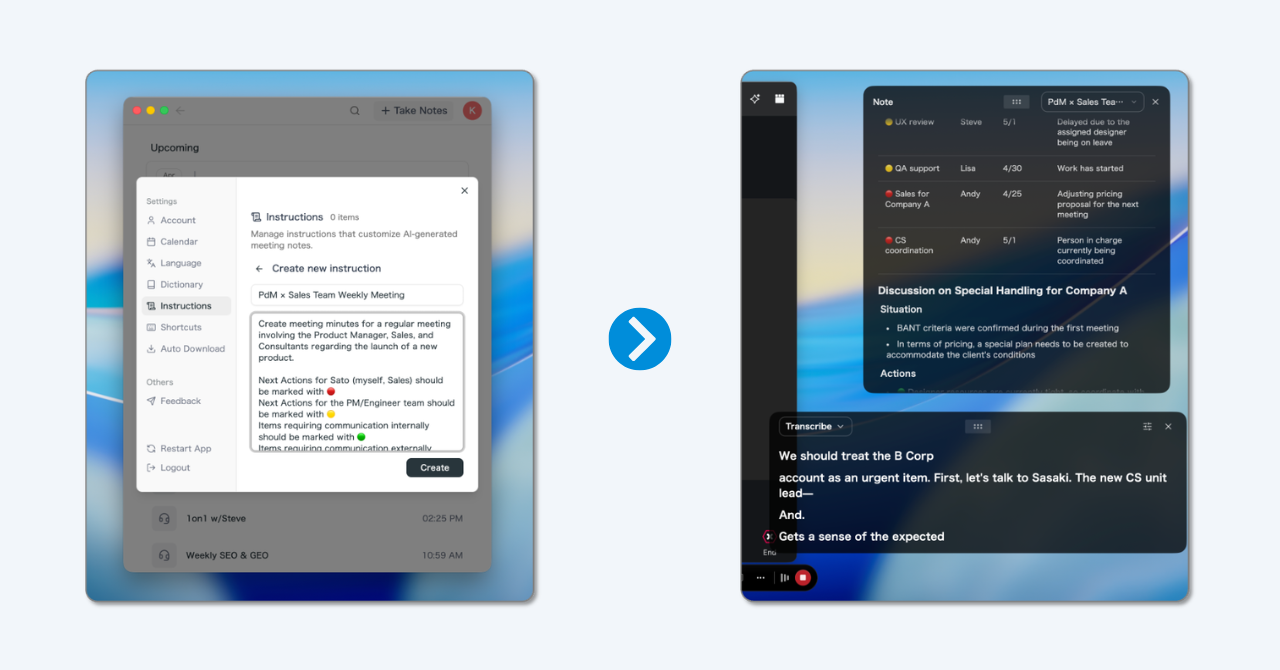
When the call ends, you have a full transcript in seconds, a set of minutes with action items, and the option to ask an AI chat ("summarize the decisions," "what did the client ask for?"). As of July 2026 there's a free plan (no credit card) and a Plus plan at $20/month with 100 hours. Since any pricing detail can change, it's worth confirming on the official site.
Which method to choose
| Method | Best for | Accuracy | Cost | Real time | Multiple speakers |
|---|---|---|---|---|---|
| Built-in dictation | Dictating new text | High with clear speech | Free | Yes (mic) | No |
| Online converters | Recorded files | High | Free/paid | No | Tool-dependent |
| AI meeting assistant | Meetings and calls | High | Free/paid | Yes | Yes |
Rule of thumb: to dictate, use built-in tools; for files, use a converter; for live meetings, use an AI meeting assistant.
How to transcribe audio to text by device
On Windows
For live dictation, Win + H in any text field. For meetings and calls, install a bot-free assistant like SuperIntern and let it capture system audio. For recorded files, you can upload them to SuperIntern, or use an online converter or transcription app.
On Mac
Enable Dictation in System Settings → Keyboard to transcribe live speech. For meetings, the desktop version of an AI assistant captures macOS audio without a bot. Recorded files are handled just like on Windows — upload them to SuperIntern, or use an app or online service.
On iPhone and Android
Both systems include native dictation via the microphone icon on the keyboard, perfect for quick notes. Many voice-memo apps now offer automatic transcription of the recordings you make on your phone.
On Google Docs
Tools → Voice typing (Chrome only) transcribes your speech directly into the document. It's the fastest free way to dictate a long text without installing anything.
How to get better results
No method is 100% right with bad audio. These habits make the difference:
- Use a good microphone. A headset mic or a USB microphone improves transcription far more than any software setting, especially for separating speakers.
- Reduce background noise. Close windows, mute notifications, and find a quiet spot.
- Speak clearly and at a moderate pace. Very fast speech and cross-talk are still the biggest challenge for any engine.
- Set the right language. If the tool lets you fix the audio language, do it: you'll avoid auto-detection errors.
- Review right afterward. Fix proper nouns and jargon while the conversation is fresh; most tools let you edit the transcript.
And avoid the most common mistakes: relying on the laptop's built-in mic in a large room, picking the method by habit rather than by case (live dictation for a file, or a converter for a live meeting), leaving language auto-detection on for strong accents, forgetting speaker identification when several people take part, or postponing the review until you no longer remember what was said.
Transcribing audio in multiple languages
If your meetings or interviews mix languages, plain transcription isn't enough: you also need translation. Built-in tools transcribe one language at a time, whereas an AI meeting assistant can transcribe and translate in real time.

SuperIntern offers captions and translation in more than 50 languages during the call, and can generate the summary in whatever language you prefer, regardless of the language spoken. That's the difference between text only the original speaker understands and notes that work for an entire international team.
Privacy and legal considerations
Transcribing usually means recording, and recording has rules. In many countries you must inform participants that the conversation is being recorded; some jurisdictions require the consent of all parties. Always check local law and your company policy before recording a call or meeting.
On the data side, check what each tool does with your audio: whether it stores it, where, and for how long. Bot-free options that don't store raw audio offer the strongest privacy posture, especially on client calls or with confidential data.
Conclusion
Transcribing audio to text is no longer a tedious chore: you just have to pick the right method. To dictate, use your system's built-in tools or Google Docs. For recorded files, an online converter. And for the audio that's hardest to capture — live meetings and calls — an AI meeting assistant saves you the separate steps of recording, transcribing, and summarizing.
If a lot of your audio starts in meetings, try a tool built for that moment. Try SuperIntern Free: no bot, no credit card, and transcript, translation, and minutes ready in seconds.
