
Share Meeting Updates to Slack Automatically with SuperIntern MCP: A Practical Guide

A meeting ends, and a second, smaller job begins: telling everyone else what happened.
You tidy up the notes, post the key points to a couple of Slack channels, DM the people who missed it, and rewrite the decisions so they make sense as an announcement. On a busy day the relaying takes longer than the meeting did. The meeting content sits in SuperIntern, the people who need it sit in Slack, and until now the only thing connecting the two has been someone copying and pasting.
This guide walks through connecting SuperIntern's MCP and Slack to an AI agent such as Claude or ChatGPT, so that getting meeting content to the right people, in a form they can use, takes one prompt. That includes posting updates from a meeting that hasn't finished yet.
⚠️ This article was independently compiled based on publicly available information and user feedback as of July 2026.
Table of contents
- What we're building: before / after
- How it works: three roles
- Setup
- Demo 1: Stream key points from a live meeting into Slack
- Demo 2: Tailored recaps for each audience after the meeting
- Demo 3: A weekly digest of decisions
- Tips and caveats
- Going further: the same pattern, other tools
- FAQ
What we're building: before / after
Before: After each meeting you open the notes, rewrite the highlights for Slack by hand, and post them one channel at a time. If someone asks for a status update while the meeting is still going, you stop listening so you can type a reply.
After: You ask your agent once, for example "summarize the decisions from today's kickoff and post them to the project channel," and it takes care of it. This works mid-meeting too.
Most of the groundwork is already done by SuperIntern itself. It's a botless desktop meeting assistant, so nothing joins your call as a participant, and transcripts and AI summaries build up in the background while you talk. You don't operate anything during the meeting, and guests aren't looking at a recording bot in the participant list. By the time you want to share something, the meeting data already exists. The only step left is delivery, and that's what you hand to the agent.

How it works: three roles
Three pieces work together.
| Role | Player | What it does |
|---|---|---|
| Provide meeting data | SuperIntern MCP | Serves transcripts, live transcripts, AI summaries, and meeting notes, strictly read-only |
| Judge and write | AI agent (Claude, ChatGPT) | Reads the data, then summarizes, tailors, and drafts for each purpose |
| Take action | Slack (connector/MCP) | Posts messages to channels and threads, searches conversations |
MCP (Model Context Protocol) is an open standard for connecting AI assistants to external tools in a controlled way. SuperIntern's MCP server gives AI clients read-only access to your meeting data. Searching Slack and sending messages is handled by Slack's own official integration for each agent, such as Claude's official Slack integration. So the post in Slack comes from your agent, never from SuperIntern. The agent can't change anything in SuperIntern, and it can only see the meetings you already have access to there. Those two limits are why we're comfortable recommending that you connect meeting data to an AI at all.
Setup
You'll connect two services to your agent, SuperIntern and Slack. Both are listed in the official directories for Claude and ChatGPT, so you won't need to paste a connection URL or an API key. Use whichever agent your team already works in. The prompts in this guide work in both, with one caveat for ChatGPT: posting to Slack from ChatGPT may be restricted by your Slack workspace's admin settings or by your ChatGPT plan.
1. Connect SuperIntern
- Claude: Open Settings, go to Connectors under Customize, search for "SuperIntern", and select it. You can also open SuperIntern in Claude's connector directory directly. Adding connectors requires a paid Claude plan.
- ChatGPT: Open Plugins in the sidebar, search for "superintern", open SuperIntern, and click Install plugin. The SuperIntern plugin page takes you there directly. The Codex app connects the same way.
Either way, a SuperIntern sign-in page opens. Log in and grant access. Our MCP setup guide covers the SuperIntern-side requirements (personal workspaces need the Plus plan or above, and Enterprise workspaces need an admin to turn on MCP access) along with setup for Claude Code, Cursor, and other clients.
2. Connect Slack
Slack publishes an official integration for both agents.
- Claude: In the same Connectors screen, search for "Slack" (Made by Slack), connect it, and approve the sign-in for your workspace. It's available on Claude's Pro and Max plans and above. On Team and Enterprise, an admin has to enable it first.
- ChatGPT: In Plugins, search for "Slack", open the Slack app, click Install plugin, and connect your workspace.
For Claude Code and other MCP clients, register Slack's official remote MCP endpoint instead:
https://mcp.slack.com/mcp
Once connected, both agents can search and read your channels. Claude can also post messages. In ChatGPT, whether a post goes through can depend on your Slack workspace's admin settings (action controls) or your ChatGPT plan, and the exact conditions aren't clearly documented. If posting is blocked, ask your Slack admin to check the workspace settings. Slack's official guide lists the current conditions as of July 2026.
To confirm both connections work, try:
List my 3 most recent SuperIntern meetings and the latest message in #general
If you get both back, you're set.
Demo 1: Stream key points from a live meeting into Slack
The most useful part of SuperIntern's MCP here is live transcript access for meetings in progress. The agent doesn't have to wait for the meeting to end. It can read what's being said right now, and because fetching is incremental, it can pick up where it left off on the next request.
Say you're in a long meeting where decisions are being made, and most of the team couldn't make it:
Fetch the live transcript of the "Product Sync" meeting in progress.
Summarize the decisions so far and the point currently under discussion
in 3 bullets, and post it to #proj-product as "🔄 Mid-meeting update".
The agent reads the live transcript and posts something like this:
🔄 Mid-meeting update • New onboarding flow: option B confirmed, design starts this week • Pricing change: postponed, competitive research needed first • Currently debating: release on Jul 31 vs Aug 7
You keep following the discussion while the update goes out, and nobody has to pull you aside for a status check. Later you can ask it to "post the latest developments to the same thread," and the agent fetches only the part of the transcript it hasn't seen yet.
If you want to review before anything is posted, add "show me the draft before posting" and the agent will wait for your go-ahead. That's a sensible default for the first few weeks.
Demo 2: Tailored recaps for each audience after the meeting
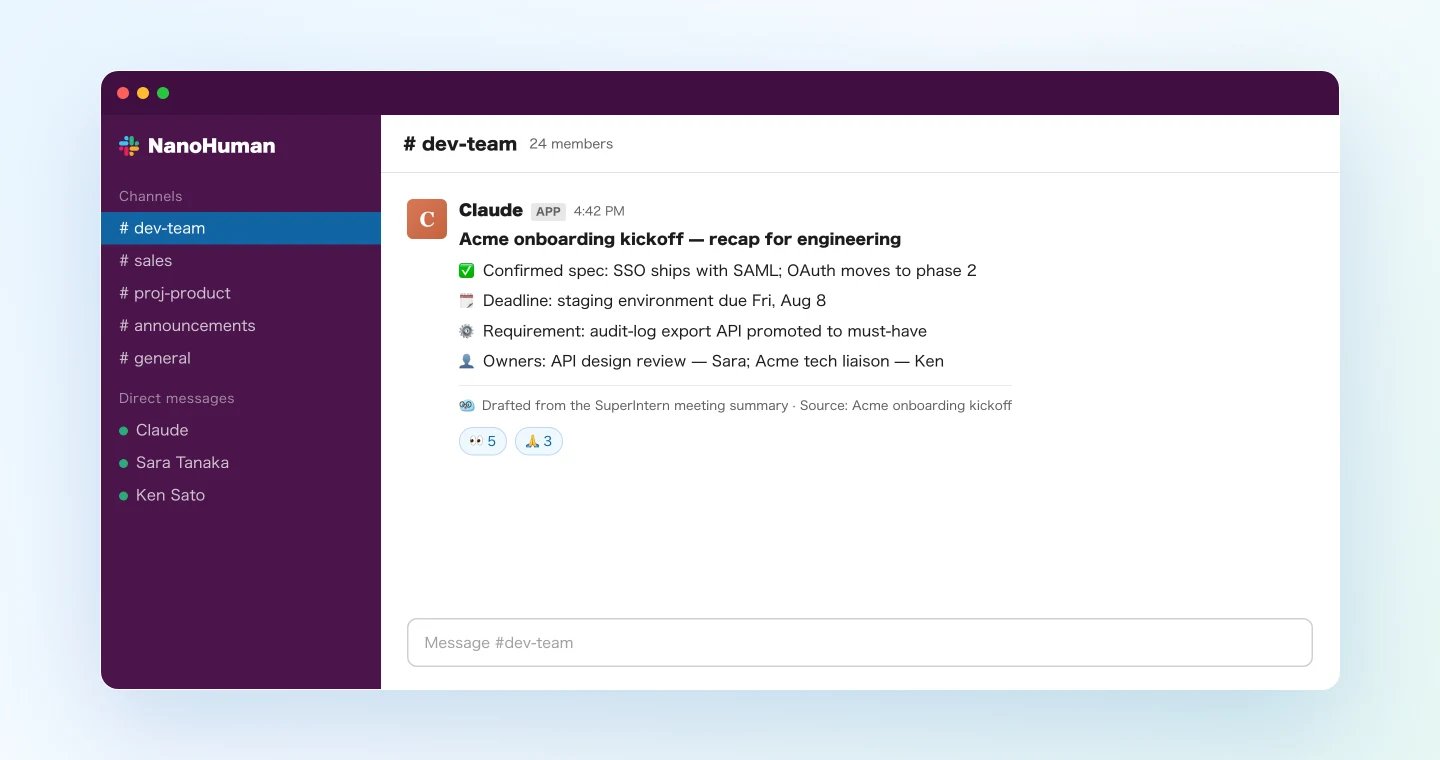
Follow-up is tedious mostly because each group needs a different slice of the same meeting. Engineering wants the spec decisions, sales wants the customer impact, and your manager wants the open risks. Writing that up three times is a real chunk of work, and it's the kind of rewriting an agent handles well.
Fetch the AI summary of today's "Acme onboarding kickoff" meeting
and create three write-ups, then post them in order:
1. For #dev-team: technical requirements, confirmed specs, deadlines
2. For #sales: Acme's interests and concerns, homework before the next call
3. As a DM draft to me: risks and decisions I should escalate to my manager
The agent works from the one summary and produces three messages, each pitched at a different level of detail. SuperIntern's AI summaries already separate out decisions and action items, so the agent isn't guessing at what was agreed.
Permissions matter here too. The agent can only read meetings that you can see in SuperIntern, so a restricted project's discussion won't reach the wrong team through MCP. Picking the right destination channel is still your call, though (more on that in the tips below).
Demo 3: A weekly digest of decisions
MCP also lets the agent work across several meetings. The meeting list can be filtered by date range and project, which means your weekly announcement can come from a single prompt.
Fetch all meetings from the "Product Team" project this week.
From each meeting's AI summary, extract only the decisions,
and post them to #announcements as "📌 Decided this week",
noting which meeting each decision came from.
Run it every Friday and the week's decisions end up in one place. Each one names the meeting it came from, so anyone who wants the context can open that meeting in SuperIntern.
It works for personal weekly reports as well. Send the output to a DM to yourself and ask for "a draft of my weekly report," and you have a first draft to edit instead of a blank page.
Tips and caveats
Start with review-before-post. For the first few runs, add "show me the draft first" so you can see how your agent summarizes. When the level of detail looks right, save the prompt as a snippet and reuse it.
Pin down destination, purpose, and format. Output gets consistent once a prompt specifies all three, for example "for #proj-x", "as a mid-meeting update", and "in 3 bullets". When a prompt works well, share it with your team.
Name channels explicitly. "Post it to the relevant channels" leaves the agent guessing. "#dev-team and #sales" doesn't. For sensitive meetings, check who can see a channel before you send content there.
Start with clean transcripts. Summaries are only as good as the transcript they come from. If you add product names and internal terms to SuperIntern's custom dictionary, every workflow in this article benefits.
Writes happen only on the Slack side. MCP can't change anything in SuperIntern, so an agent can't overwrite or delete your meeting notes. That makes this setup low-risk to experiment with.
Going further: the same pattern, other tools
The same arrangement (SuperIntern MCP supplies the data, the AI agent decides what to do with it, and another tool receives the result) works well beyond Slack:
- Task management: turn action items from a meeting summary into assigned issues in Linear or Jira
- CRM: pull customer concerns and next steps from a sales call transcript and update the deal notes
- Your editor: in Claude Code or Cursor, ask "implement what we agreed in last week's spec review" with the meeting as context
We'll cover more of these combinations in this series, one workflow per article, with the actual prompts.
FAQ
Is SuperIntern MCP available on the free plan?
No. Personal workspaces need the Plus plan or above. Team plan workspaces can use it without extra setup. On Enterprise, an admin has to enable "MCP access" in workspace settings.
Does SuperIntern post to Slack directly?
No. Your AI agent (Claude or ChatGPT) posts to Slack through Slack's own integration. SuperIntern MCP only provides meeting data, read-only, and SuperIntern never writes to external tools.
Can the AI modify my meeting notes or transcripts?
No. Every SuperIntern MCP tool is read-only. There are no create, update, or delete operations.
Could meeting content become visible to people without access?
Through MCP, the agent sees only the meetings the connected user can view in SuperIntern. Once something is posted to Slack, though, anyone who can see that channel can read it, so choosing the destination is still up to you.
How real-time is the live sharing?
SuperIntern MCP can read the live transcript of a meeting in progress and fetch it incrementally. If you send a prompt mid-meeting, the agent summarizes everything said up to that point.
Which AI agents does this work with?
Claude and ChatGPT both work, and SuperIntern and Slack are listed in each one's official directory. Reading channels and messages works the same in both. Claude can also post, while in ChatGPT posting may be limited by your Slack workspace's admin settings or your ChatGPT plan, so check with your admin if a post doesn't go through. SuperIntern MCP also works with other MCP-capable clients, including Claude Code, Codex, and Cursor.
SuperIntern already takes care of capturing your meetings. Let your agent take care of sharing them.