
v0.14 Follow-up Update: 6 new features, including Projects to classify meetings and a Personalized Dictionary to boost transcription accuracy
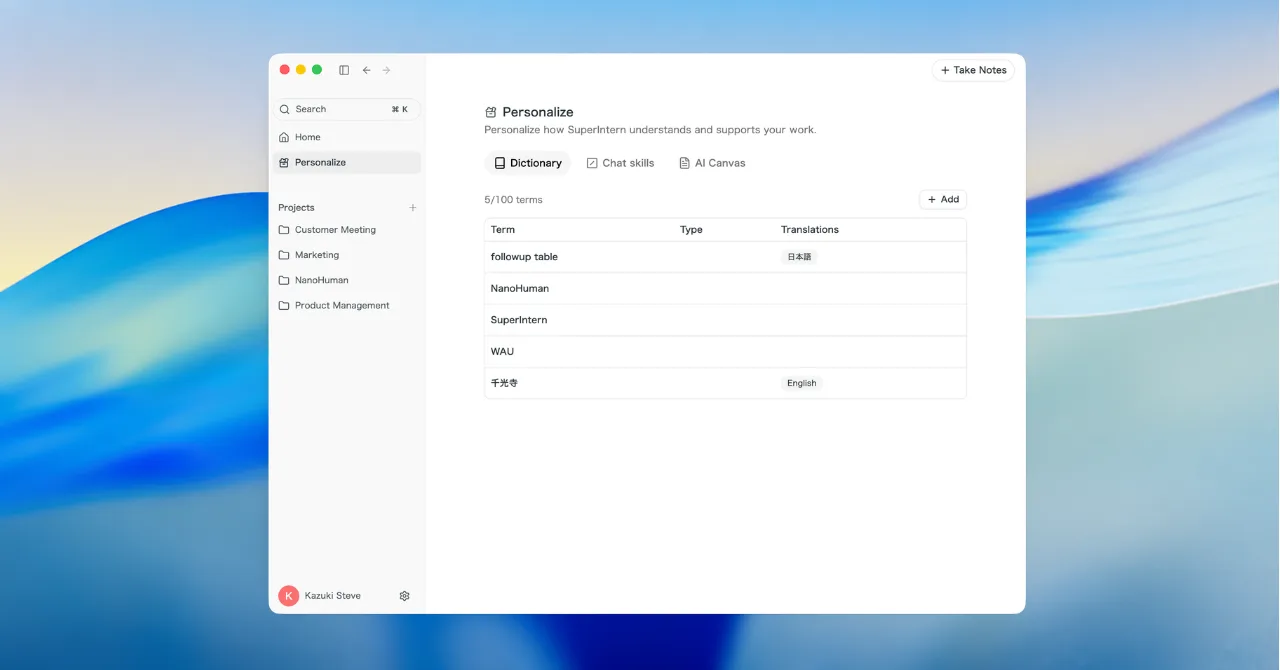
Since we shipped v0.14, a steady stream of new features has landed in SuperIntern.
Here are the biggest updates added since our last release (v0.14 Update).
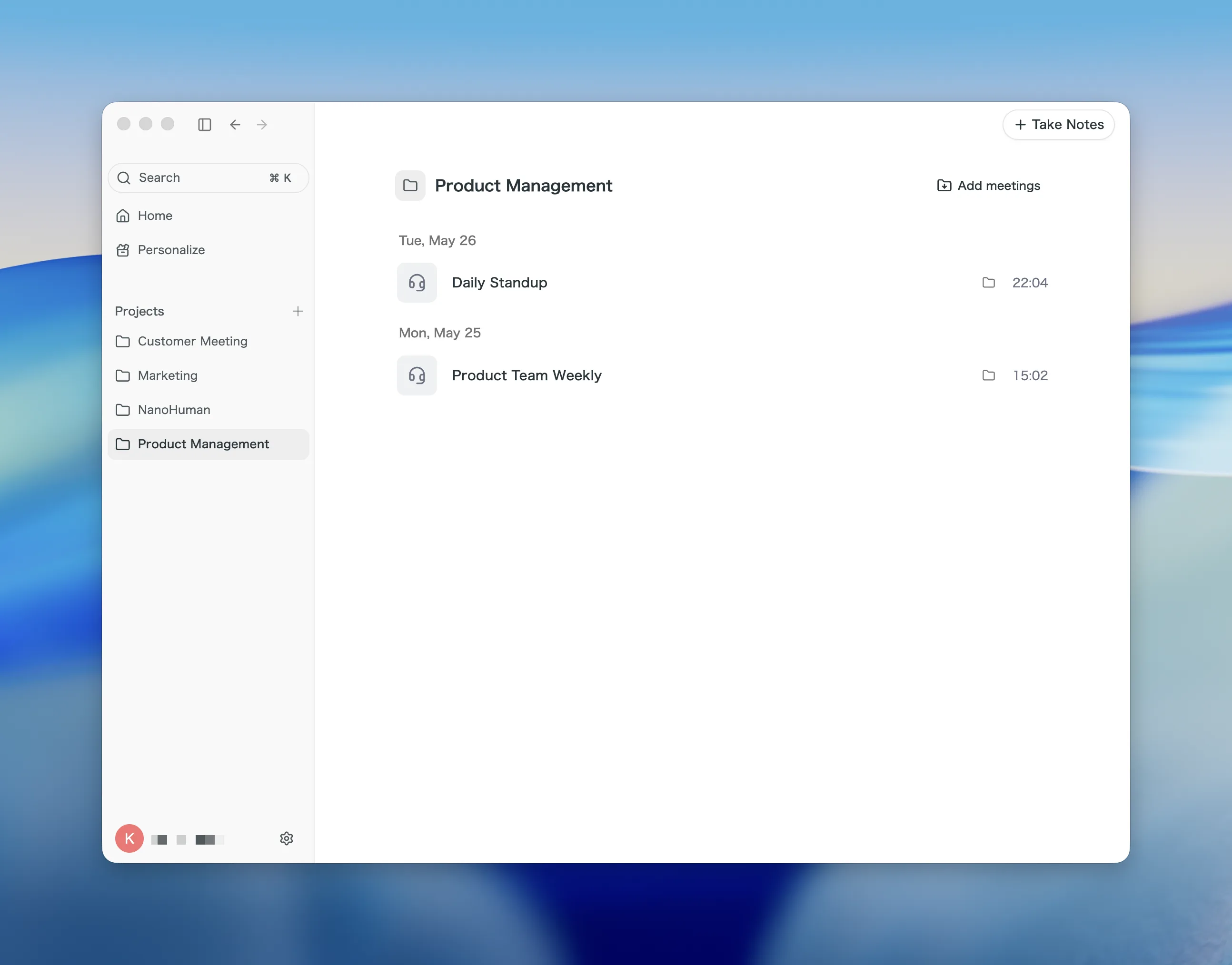
Group meetings by initiative with Projects
Until now, meetings simply sat in one flat list. With the new Projects feature, you can group meetings by initiative, client, or theme.
Organizing your past meetings into a clear list makes them much easier to review.
Highlights
- Create and edit projects: Give a project a name and description, and edit it anytime.
- Assign meetings: Pick which project a meeting belongs to with one click from the meeting detail view.
- Bulk-import past meetings: On top of keyword search, AI suggests past meetings that look related to the project name. Check them off and import up to 50 at once.
Use cases
- Create a project per client and gather everything from sales calls to recurring syncs in one place.
- Bundle meetings by active initiative so reviews and handoffs go smoothly.
- Bulk-import related past meetings to assemble the full context of a project at once.
Boost transcription accuracy with a Personalized Dictionary
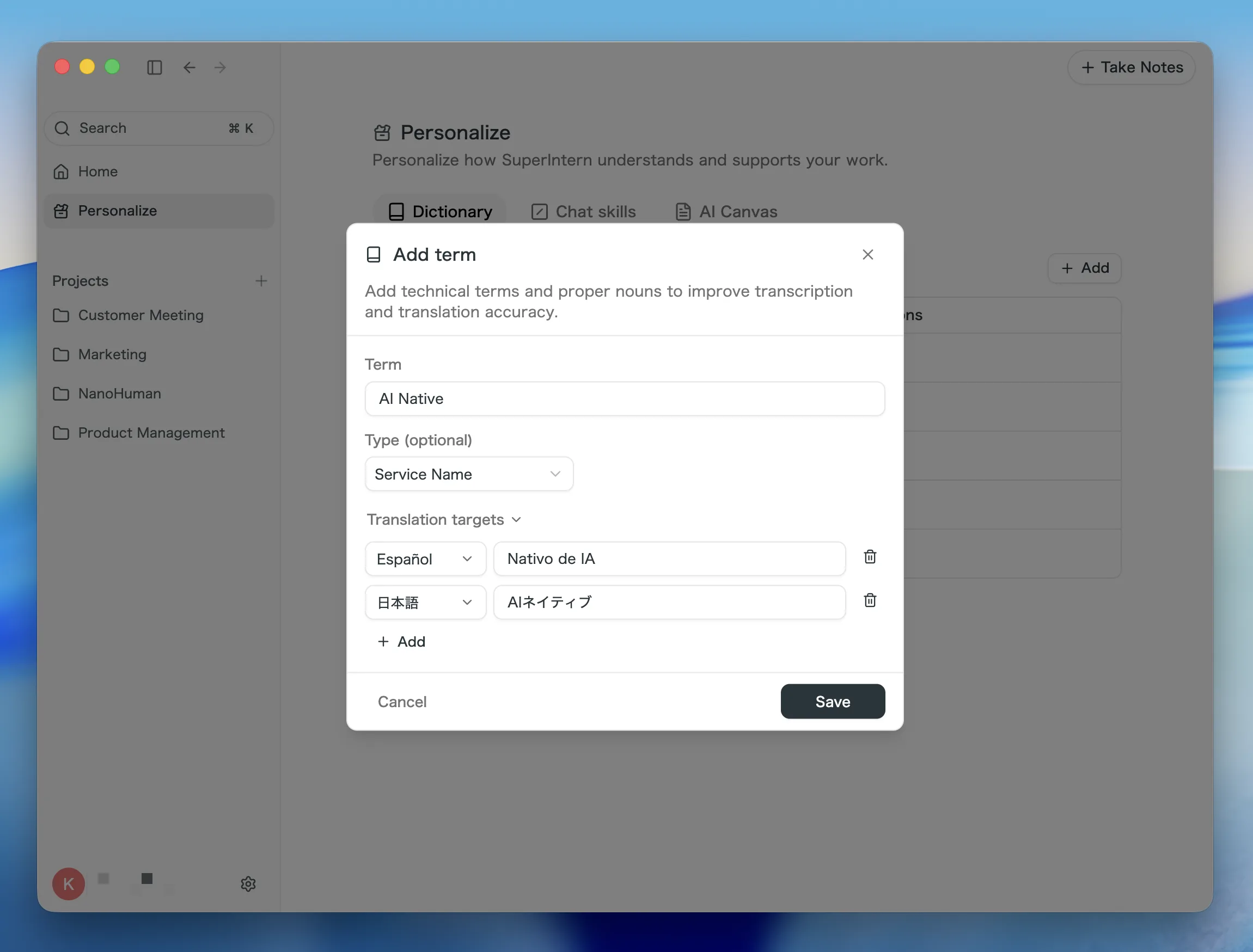
You can now register the words that generic speech recognition tends to get wrong: company names, people's names, product names, and industry jargon.
Registered words are passed to the transcription engine as hints, so the same proper nouns get recognized correctly meeting after meeting.
Highlights
- Register proper nouns in bulk: Add people, organizations, and service names, each with an optional category.
- Add translations too: Set a translation per language for each word, so terms stay consistent even in mixed-language meetings.
Use cases
- Register your own service and product names to eliminate inconsistent spellings in your minutes.
- Add the names of recurring attendees and partner companies to stabilize every transcription.
- Keep proper nouns and their translations aligned in mixed Japanese/English meetings.
Jump from the summary to the exact moment with Timestamps
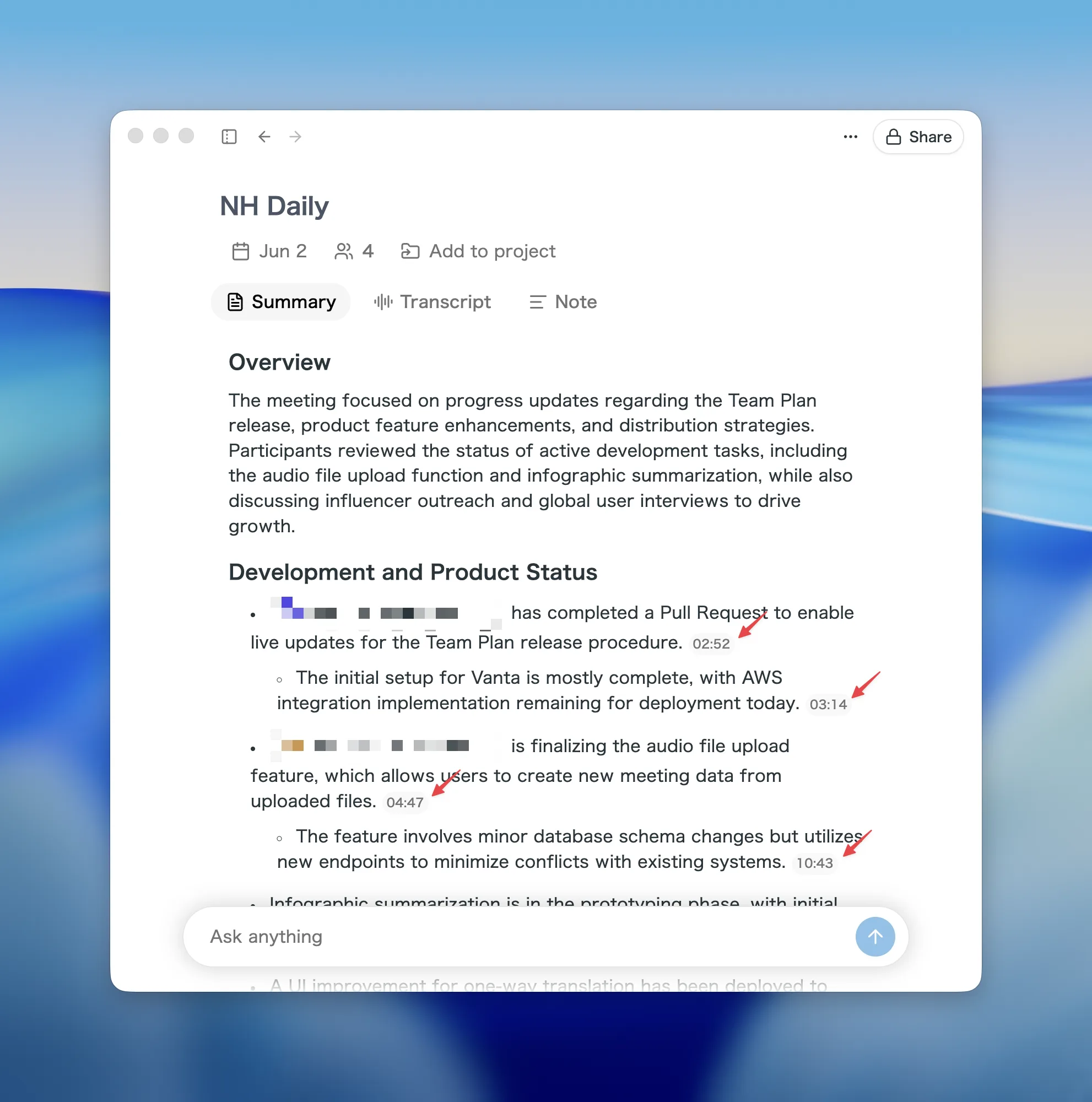
Summaries and notes now embed clickable timestamps automatically.
Wondering "how did we actually arrive at that decision?" You can jump straight to that part of the conversation.
Highlights
- Click to jump to the moment: Tap a timestamp to jump to that exact point in the transcript.
- Hover to preview: Hover over a timestamp to see what was said at that moment, split by speaker.
- Move between summary and transcript instantly: Grasp the whole picture from the summary, then dig into just the parts you care about.
Choose your AI output language
You can now choose the language for AI-generated outputs such as summaries and notes.
- Automatic detection: Pick "Automatic" and the output language is detected from the meeting content.
- 30+ languages including Chinese: A wide range of languages is supported, including Simplified and Traditional Chinese.
- Easy to set: Change it anytime from the language section in Settings.
Even on teams with different native languages, everyone can receive the minutes in a language they find easy to read.
A more capable AI chat
We strengthened the AI chat you use during and after meetings so it fits your own workflow better.

- Skills: Save the instructions you use often as "Skills" and call them up with one click. This replaces the old fixed quick actions with your own reusable prompts.
- Follow-up suggestions: After the AI answers, it suggests good follow-up questions to ask next.
- Stop with Escape: Press Escape to stop a response while it is still being generated.

Pause your recording
You can now pause and resume a recording from the control bar.
Pause during small talk, breaks, or sensitive conversations you would rather not capture, and keep only what matters.
How to Update
For Mac users
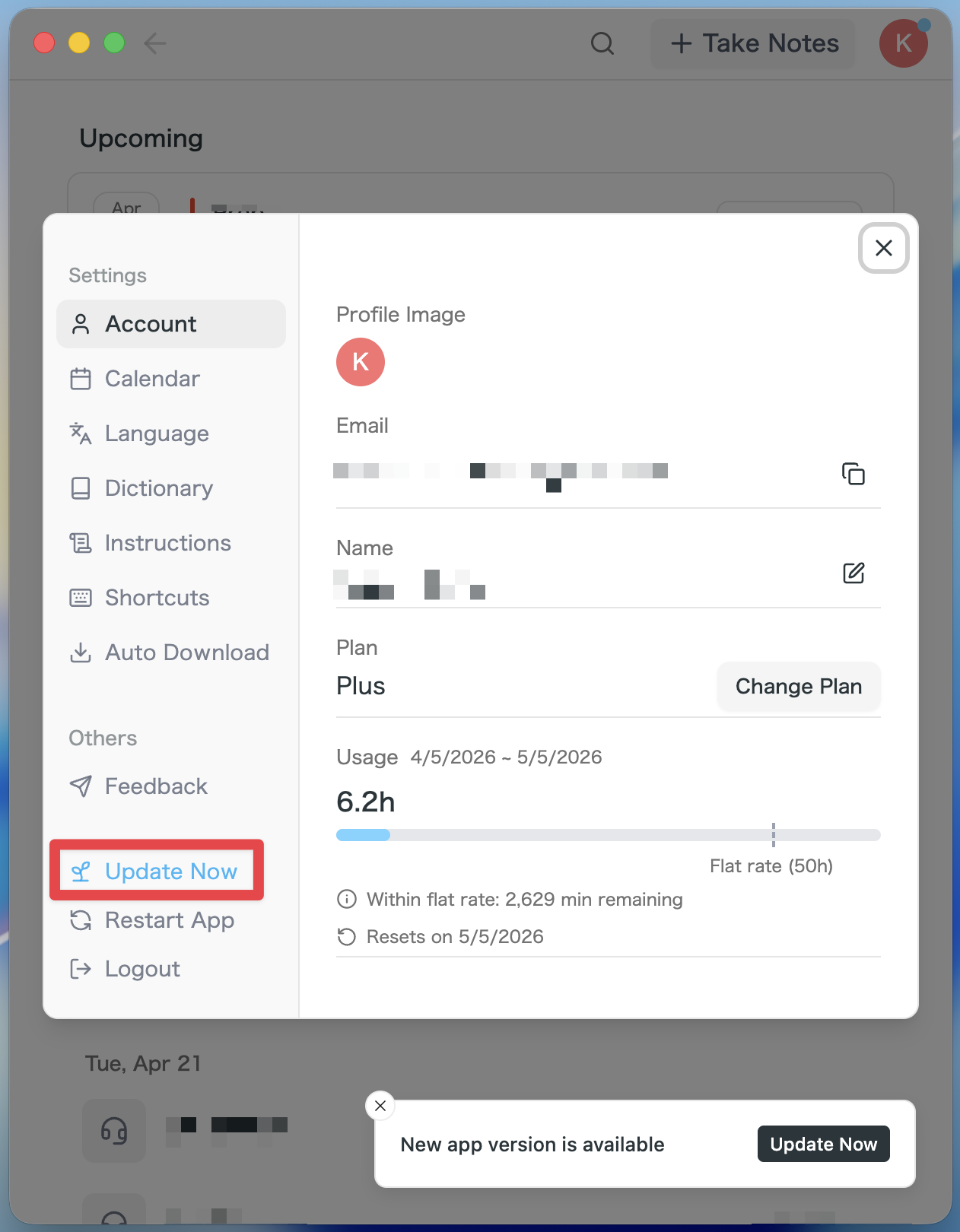
- If an update is available, the latest version is downloaded automatically after you launch the app.
- The Update Now button appears in the sidebar. Click it.
For Windows users
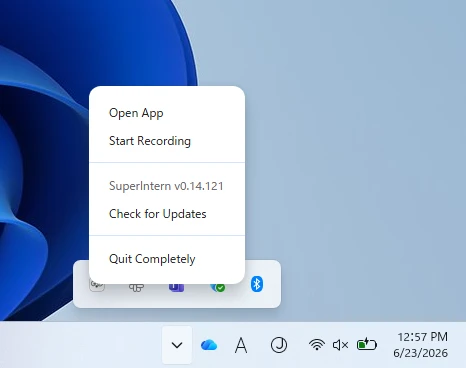
- Open the system tray at the bottom-right of your screen and right-click the SuperIntern app icon.
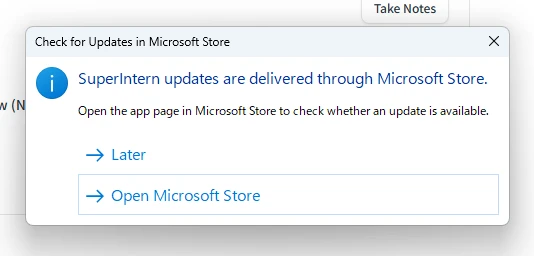
- Click Check for Updates.
- When the popup appears, click Open Microsoft Store.
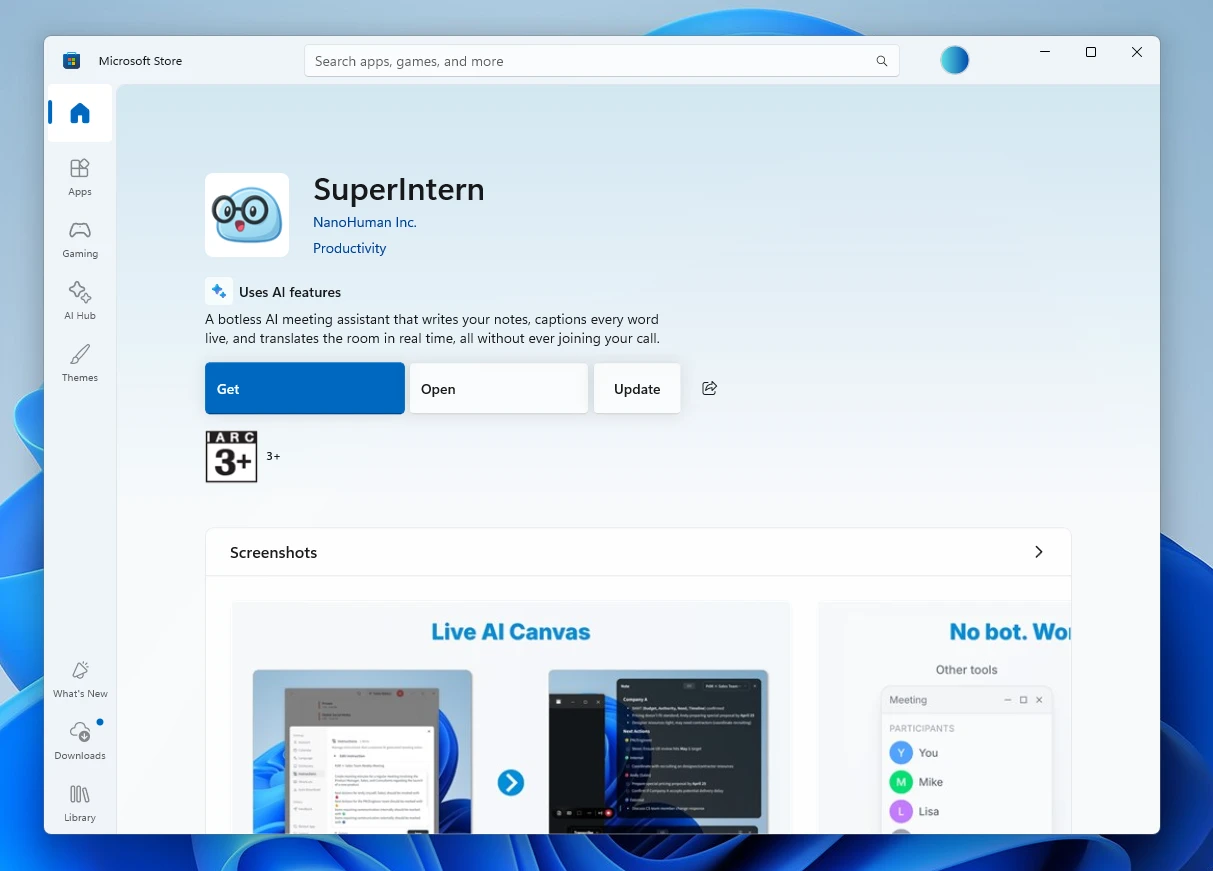
- Once Microsoft Store opens, click Update.
Since v0.14, SuperIntern has kept evolving around two axes: organizing your meetings (Projects) and getting them right (the Personalized Dictionary).
Give the new features a try and let us know what you think!
Try SuperIntern for free here!