
Turn Meeting Action Items into Linear Issues Automatically with SuperIntern MCP

Most meetings end with someone saying "I'll file an issue for that." Then the actual filing happens later, by hand.
You open the notes, copy the action items out one at a time, create each issue in Linear, tidy the title, set an assignee and a priority, and rewrite the context so someone who wasn't there can follow it. At two or three minutes per item and four or five items per sync, that's roughly fifteen minutes after every meeting. On a busy day it goes worse: an item gets filed twice, or not at all. The meeting lives in SuperIntern and the work lives in Linear, and until now a person has had to carry things from one to the other.
This guide connects SuperIntern's MCP and Linear's MCP to an AI agent (Claude, ChatGPT) so that turning meeting decisions into Linear issues, including a duplicate check, takes a single prompt.
⚠️ This article was independently compiled based on publicly available information and user feedback as of July 2026.
Table of contents
- What we're building: before / after
- How it works: three roles
- Setup
- Demo 1: File all action items right after a meeting
- Demo 2: Push sprint planning decisions into your cycle
- Demo 3: A weekly sweep for tasks that only exist out loud
- Tips and caveats
- Going further: the same pattern, other tools
- FAQ
What we're building: before / after
Before: After each meeting, someone files issues in Linear by hand with the notes open in another window. Whether an issue already exists depends on who remembers. In a busy week the filing doesn't happen, and the next meeting opens with "whatever happened to that?"
After: You ask your agent once ("file the action items from today's sync in Linear"). It pulls the tasks from the meeting summary, checks them against existing issues, and files only the new ones, with owners and priorities set.
Part of why this is easy is that SuperIntern is a botless desktop meeting assistant. No bot joins your call, and transcripts and AI summaries build up in the background without anyone touching anything during the meeting. By the time the call ends, the meeting data is already there. The only step left is moving it into your task tracker, and that's the step you hand to the agent.

How it works: three roles
Three pieces are involved, and each does one job.
| Role | Player | What it does |
|---|---|---|
| Provide meeting data | SuperIntern MCP | Serves transcripts, live transcripts, AI summaries, and meeting notes, strictly read-only |
| Judge and write | AI agent (Claude, ChatGPT) | Reads the data, extracts action items, checks duplicates, drafts issue descriptions |
| Take action | Linear (MCP) | Creates and updates issues, adds comments, searches existing issues |
MCP (Model Context Protocol) is an open standard for connecting AI assistants to outside tools. SuperIntern's MCP gives AI clients read-only access to your meeting data, and Linear's official MCP server handles searching, creating, and updating issues. So the issues in Linear are filed by your AI agent, not by SuperIntern. The agent can't change anything in SuperIntern, and it only sees meetings you already have access to there. Every write lands in Linear, which means you can experiment freely without worrying about your meeting notes.
Setup
You'll connect two services to your AI agent, SuperIntern and Linear. SuperIntern is listed in both Claude's connector directory and ChatGPT's plugin directory, so on that side you just search for it; there's no URL or API key to paste. Linear is different. Claude connects to Linear the same way, through its connector directory, but ChatGPT's Linear plugin can only read and search issues, so creating or updating issues from ChatGPT requires turning on developer mode and adding Linear's official MCP server. With that in place, the prompts below work the same in either agent, so pick the one your team already uses.
1. Connect SuperIntern
- Claude: Open Settings, go to Connectors under Customize, search for "SuperIntern", and select it. You can also open SuperIntern in Claude's connector directory directly. Adding connectors is available on Claude's paid plans.
- ChatGPT: Open Plugins in the sidebar, search for "superintern", open SuperIntern, and click Install plugin. The SuperIntern plugin page takes you there directly. The Codex app connects the same way.
Either way, a SuperIntern sign-in page opens where you log in and grant access. Our MCP setup guide covers the SuperIntern-side requirements (personal workspaces need the Plus plan or above, and on Enterprise an admin has to enable MCP access) along with setup for Claude Code, Cursor, and other clients.
2. Connect Linear
Linear ships an official MCP server. How you connect to it depends on the agent.
- Claude: Linear's official connector is in Claude's connector directory. On the same Connectors screen, search for "Linear", connect it, and approve access to your Linear workspace. Claude can then search, create, and update issues.
- ChatGPT: The Linear app under Plugins is read/search-only. It lets ChatGPT look up existing issues, but it can't create or update them. To do that, turn on developer mode (Plus, Pro, Business, Enterprise, and Edu plans, on the web) and add Linear's official MCP server as a connector, using the endpoint below. ChatGPT will ask you to confirm before each write.
For Claude Code and other MCP clients, register Linear's official MCP server directly at https://mcp.linear.app/mcp:
https://mcp.linear.app/mcp
Linear's official docs have step-by-step instructions for Claude Code, Cursor, Codex, and other clients.
To confirm both connections work, ask:
List my 3 most recent SuperIntern meetings and 3 Linear issues assigned to me
If you get both lists back, you're set up.
Demo 1: File all action items right after a meeting
The most common case is filing everything right after a sync or kickoff. The important part of the prompt is the duplicate check against existing issues between extracting the tasks and filing them. It's the step people skip when they're in a hurry, and the one an agent does consistently.
Get the AI summary of today's "Product Sync" and extract the action items.
For each one, check whether it duplicates an existing issue in the Product team
in Linear, and file only the new ones as issues.
Start each title with a verb, include the decision context and the source
meeting name in the description, and set assignees and priorities based
on the summary.
The agent reads the summary, searches Linear, and reports back with something like this.
Created 4 issues in the Product team.
- "Start design work on onboarding flow B": Sara / High
- "Draft the audit-log export API spec": Ken / Medium
- "Compile competitor research on the pricing change": Mia / Medium
- "Fix the SSO settings error message copy": unassigned / Low
Note: "Improve mobile notifications" duplicated existing issue PRO-198, so instead of filing it I added the discussion from the meeting as a comment on PRO-198.
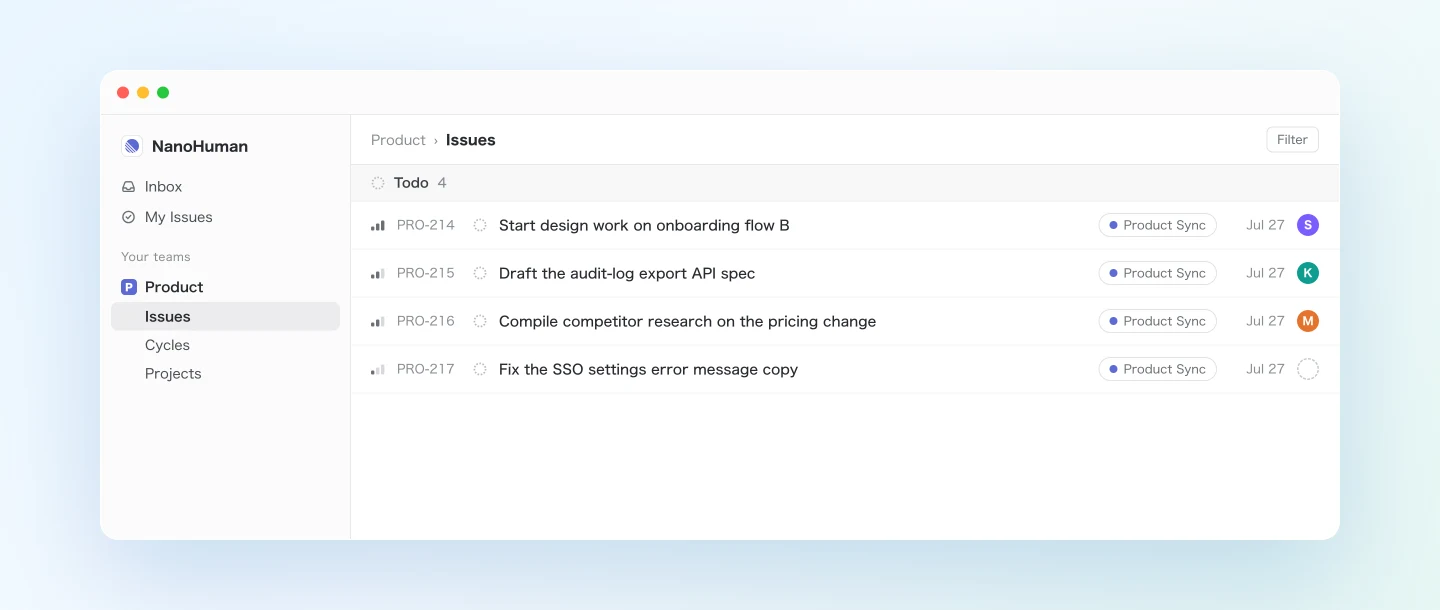
Each description explains why the task exists and names the meeting it came from, so when someone asks about the background a month later, the answer is in the issue. SuperIntern's AI summaries already list action items in a consistent structure, which keeps the extraction accurate from one meeting to the next.
Demo 2: Push sprint planning decisions into your cycle
A planning meeting produces two things worth keeping, the scope you agreed on and the reasons some work got pushed out. Both belong in Linear, and copying either one over by hand is tedious.
Get the transcript of yesterday's "Sprint Planning".
Turn the items we agreed to take on this cycle into Linear issues and assign
them to the current cycle. If an issue already exists, don't create a new one,
just assign it to the cycle. For items we deferred, add the reason for the
deferral as a comment on the matching existing issue.
This prompt asks for the transcript rather than the summary. In planning, the details of why something was deferred matter, and a summary tends to flatten them. Working from the full conversation, the agent can record the actual reasons, and conditions someone said out loud ("once the dependency on X clears") end up word for word in the issue comments.
Demo 3: A weekly sweep for tasks that only exist out loud
Bugs and improvement ideas come up in meetings all the time, and many of them never make it into a ticket. A weekly sweep catches them. Because the agent can read several meetings in one request through MCP, this takes one prompt instead of an afternoon of rereading notes.
Get all of this week's meetings in the "Product Team" project and list every
bug or improvement request that was mentioned out loud.
For anything matching an existing Linear issue, add the meeting context as
a comment. For anything not filed anywhere, show me a draft list of new
issues first, before creating them.
Here the agent is asked to show drafts before filing anything. A sweep across a whole week picks up a lot, including passing remarks nobody meant as a request, so it's safer to review the list first and then reply with something like "file these two." If you run it every Friday, far fewer tasks get lost to "I mentioned it in the meeting."
Tips and caveats
Start with draft review. For the first few runs, add "show me the list before filing" so you can see how the agent splits and phrases tasks. Once you're happy with the output, save the prompt as a snippet and reuse it as is.
Name the team and project. Phrases like "in the Product team" or "in the current cycle" keep issues from landing in the wrong place. The larger your Linear workspace, the more this matters.
Put your issue conventions in the prompt. If your team starts titles with a verb or splits anything bigger than a person-week, say so. The agent follows those rules, and the issues read like the ones your team writes by hand.
Keep the duplicate check. A single line, "search existing issues first," prevents most double filing, and the agent searches more thoroughly than most people bother to.
Tune transcription in SuperIntern. Assignee matching depends on names and feature terms being transcribed correctly. Add your teammates' names and common product terms to SuperIntern's custom dictionary.
Writes only happen in Linear. Nothing in SuperIntern changes through MCP. If a filed issue is wrong, edit or delete it in Linear, so a mistake costs very little.
Going further: the same pattern, other tools
SuperIntern MCP supplies the meeting data, the agent decides what to do with it, and another tool receives the result. That pattern isn't specific to Linear.
- Slack: post the list of newly filed issues to a team channel. The Slack side is covered in the previous article in this series
- Other trackers: Jira and GitHub Issues follow the same flow through their MCP servers or connectors, and the prompts above need only small changes
- All the way to code: with SuperIntern MCP and Linear MCP both connected to Claude Code, you can file the issues from a meeting and start implementing them in the same session
Later articles in this series will cover more of these combinations, one tool at a time, with the prompts we actually use.
FAQ
Can I use SuperIntern MCP on the free plan?
No. Personal workspaces require the Plus plan or higher. Team plan workspaces can use it as is, and on Enterprise it works once an admin turns on "MCP access" in workspace settings.
Does SuperIntern create the issues in Linear?
No. Your AI agent (Claude or ChatGPT) creates and updates issues using Linear's integration. SuperIntern MCP only provides meeting data read-only; SuperIntern itself never writes to external tools.
Can the AI modify my meeting notes or transcripts?
No. Every SuperIntern MCP tool is read-only; no create, edit, or delete operations exist. Writes happen only on the Linear side.
What if it floods Linear with wrong issues?
Use the draft-review approach from the tips section, and nothing is created until you approve the list. If an unwanted issue does get filed, edit or delete it in Linear. The source data in SuperIntern stays as it was.
Does this work with Jira or GitHub Issues?
Yes, the approach is the same. If the tool has an MCP server or a connector for your AI client, the extract-and-file flow works the same way. Check your client's list of available integrations.
Which AI agents does this work with?
Claude and ChatGPT both work, and SuperIntern is listed in both official directories. For Linear, Claude's connector can search, create, and update issues. ChatGPT's Linear plugin can only search and reference issues, so to create or update them from ChatGPT you need to turn on developer mode and add Linear's official MCP server as a connector. SuperIntern MCP and Linear's MCP server also work with other MCP clients such as Claude Code, Codex, and Cursor.
SuperIntern already captures your meetings without any effort on your part. With MCP and Linear connected, turning them into tracked work can be just as hands-off.