
[Case Study] Using an AI Agent Like a Secretary: How an Engineer-Founder Plans the Day from Meeting Notes with SuperIntern MCP
![[Case Study] Using an AI Agent Like a Secretary: How an Engineer-Founder Plans the Day from Meeting Notes with SuperIntern MCP](/_next/image?url=%2Fblog%2F2026-superintern-mcp-structured-daily-planning%2Fcover.webp&w=3840&q=75&dpl=dpl_62JAwakpJLWZnBCkMP4Hhb1bSZ98)
A day that mixes coding, sales calls, and hiring interviews is hard to plan. Each meeting adds a few more commitments, and each call booked through a scheduling link can wreck the plan you made that morning.
One SuperIntern user, an engineer turned startup founder, now hands that planning to an AI agent. The agent is "dots", the always-on agent OpenAI announced in September 2026. The founder connected dots to SuperIntern, Gmail, Slack, Google Calendar, and the daily planner Structured, and the agent pulls tasks out of meeting notes and lays out the day.
The sections below follow the information from meeting notes to a finished schedule.
⚠️ This article was independently compiled based on publicly available information and user feedback as of October 2026.
Table of Contents
- The setup at a glance
- Step 1: Let the agent learn the state of each project from meeting notes
- Step 2: Carve out tasks and collect them in the Inbox with deadlines
- Step 3: Separate fixed from flexible and fill the free time
- Step 4: When an outside booking lands, rebuild only the flexible parts
- What changed
- How to try the same setup
- What to watch out for
- FAQ
The setup at a glance
The founder separates the places information comes from from the place the plan lives.
| Role | Connected tool | What it is used for |
|---|---|---|
| Meeting record | SuperIntern MCP | The history of each project, decisions made in meetings, tasks the founder took on |
| Email and chat | Gmail, Slack | Requests that arrive outside meetings, scheduling messages |
| Fixed schedule | Google Calendar | Meetings and calls with set times |
| Daily planner | Structured | The task Inbox and the day's timeline |
| Judgment and action | dots (OpenAI's agent) | Reads everything above, carves out tasks, builds the plan |
SuperIntern is a desktop meeting assistant that works without inviting a bot to the call. It produces transcripts and AI summaries on any meeting platform and in person. SuperIntern MCP is how that meeting data reaches an AI agent, read-only. The agent can only see meetings the user can see, and it cannot change any meeting data.
In Structured, tasks without a date or time sit in the Inbox, and tasks with a time sit on the timeline. Through Structured's MCP server, an agent can read the schedule and Inbox and create, reschedule, and complete tasks. Structured Pro can also import events from external calendars such as Google Calendar, so meetings and tasks show up on one screen.
dots is an agent that keeps running in the background, available on ChatGPT Pro, Business Premium, and Enterprise. It uses the same plugins as ChatGPT, and you can set rules for what it may do without asking.

Step 1: Let the agent learn the state of each project from meeting notes
The founder's first step had nothing to do with tasks. It was to give the agent the big picture. Asked cold to "plan my day," an agent does not know which project is urgent or who is waiting on whom, so the founder had it read past meetings in SuperIntern and summarize where each project stands.
Read my SuperIntern meetings from the last month and, for each
active project, summarize:
- Who it is with (company or internal team) and what it is for
- What has been decided so far
- What is on me, and what I am waiting on others for
- The next deadline or any date I committed to
If something is unclear, write "unknown" instead of guessing.
The agent reads the meetings and returns something like this:
I grouped your work into 4 active projects.
Project Status Ball is with Next deadline Acme rollout Payments API spec is final. Waiting on the pricing-page estimate You (send estimate) Today New onboarding Screens done. Test cases not written yet You (test cases) Friday Engineering hiring One final interview done You (feedback) Wednesday Next quarter's budget Direction agreed. No numbers yet You Next Tuesday
The founder says the agent understood the projects far better after this step. Later prompts could say "the Acme thing" and leave it there.
Step 2: Carve out tasks and collect them in the Inbox with deadlines
With that context in place, the agent can start pulling out tasks. Whatever the founder took on in meetings goes into the Structured Inbox with a deadline and a rough duration. Gmail and Slack are read as well, so requests that arrive outside meetings get picked up too.
From yesterday's and today's SuperIntern meetings, pull out the tasks
I took on. Include requests sent to me in Gmail and Slack.
Give each a deadline, a rough duration, and the source (the quote or
message). Propose adding them to my Structured Inbox with no time set.
Leave out anything without a clear owner and list it separately so I
can confirm.
The meeting record keeps who agreed to do what and by when, so tasks arrive with real deadlines. Topics that ended without a clear owner are listed for the founder to confirm before anything is added.
Step 3: Separate fixed from flexible and fill the free time
Next, the agent places the Inbox tasks into the day's free time, highest priority first. Every item carries a fixed or flexible flag. Meetings and calls that cannot move are fixed, and the work blocks the agent places are flexible.
Treat today's Google Calendar events as fixed and place the tasks
from my Structured Inbox into my free time.
- Priority: due today > blocking someone else > everything else
- Mark every task you place as "flexible"
- Leave 15 minutes after each meeting
- Anything that doesn't fit today stays in the Inbox
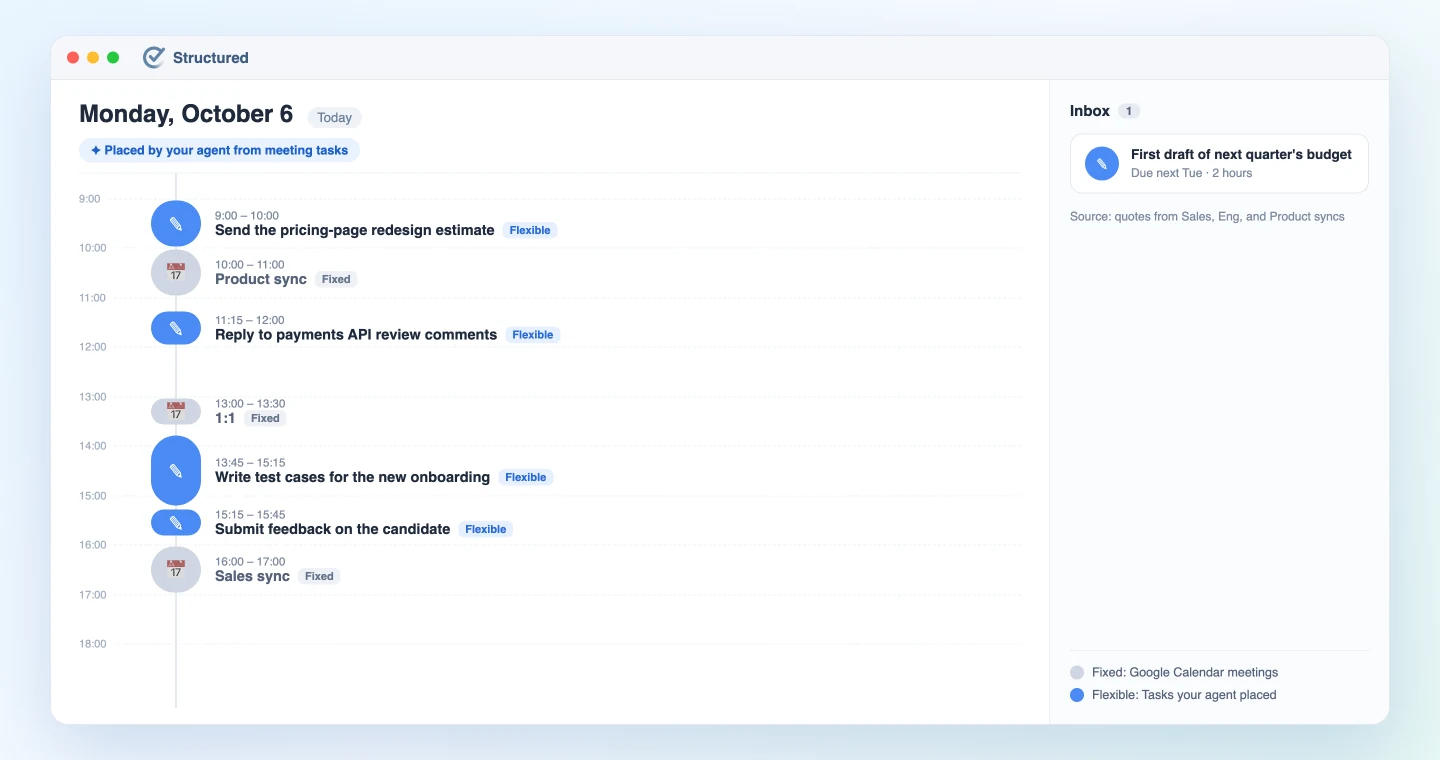
The agent lays out the day:
You have 3 meetings today (10:00 to 11:00, 13:00 to 13:30, 16:00 to 17:00). I placed these tasks in the gaps:
Time Task Due 9:00 to 10:00 Send the pricing-page redesign estimate Today 11:15 to 12:00 Reply to payments API review comments Today 13:45 to 15:15 Write test cases for the new onboarding Friday 15:15 to 15:45 Submit feedback on the candidate Wednesday The first draft of next quarter's budget (due next Tuesday, about 2 hours) stays in the Inbox.
Step 4: When an outside booking lands, rebuild only the flexible parts
This is the step where the agent works most like a secretary. When someone outside books a call, say through a scheduling link, and it overlaps a flexible task, the agent shifts the affected tasks and rebuilds the day. Fixed items stay where they are.
Since dots keeps running in the background, it can rebuild the plan as soon as the calendar changes. The founder's rules look like this:
When a new event appears in Google Calendar and overlaps a flexible
task in Structured, rebuild that day's plan.
- Never move fixed items
- Put tasks due today back into today's free time first
- Send anything that no longer fits back to the Inbox
- After rebuilding, post the before and after to me in Slack
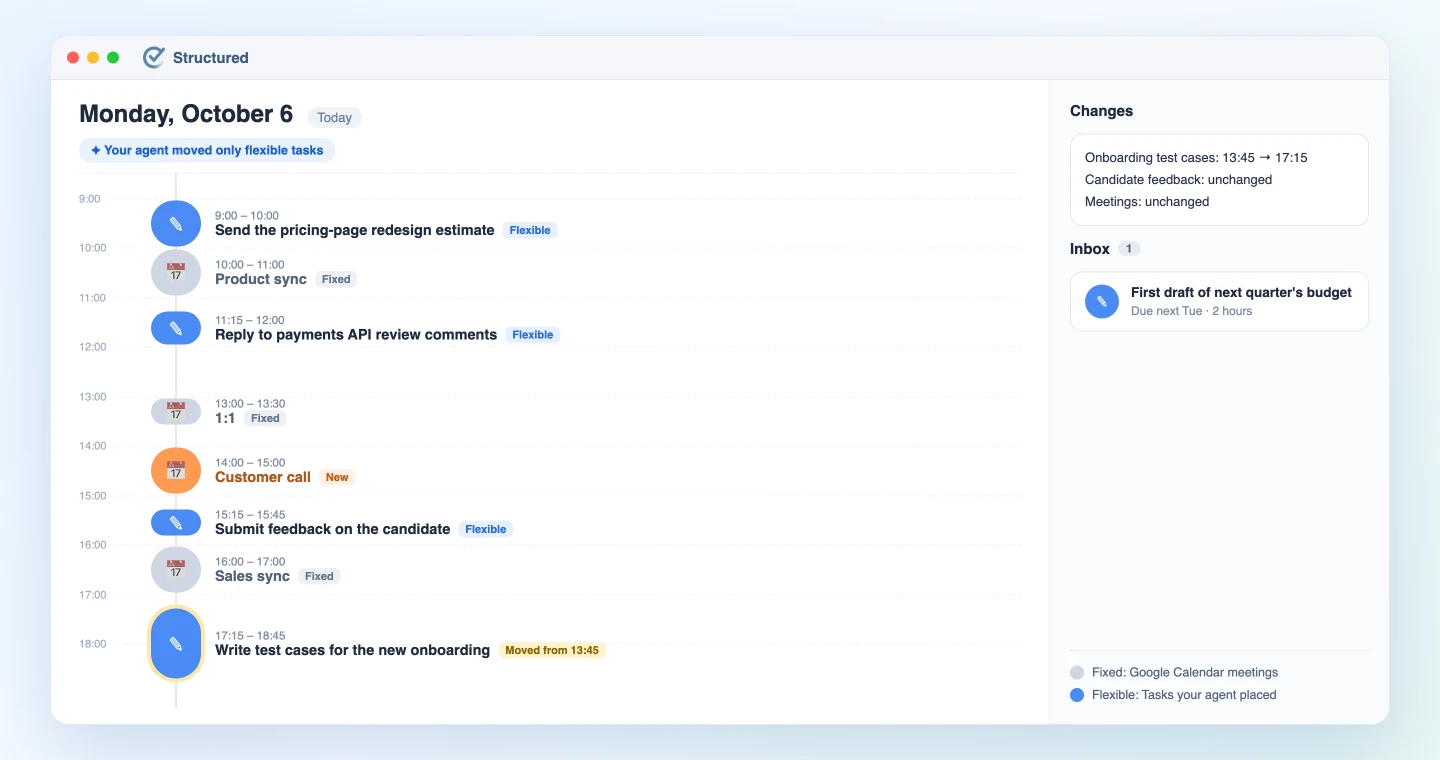
For example, when a customer call lands at 14:00 to 15:00, the test cases planned for 13:45 move to 17:15. The candidate feedback, due sooner, stays where it was.
What changed
This is what the founder reported.
- The morning planning session is gone. The plan is built from meeting times and task deadlines.
- Commitments made in meetings reach the schedule. Even a spoken "I'll do it" is picked up from the meeting record and lands with a deadline.
- A broken plan gets rebuilt. Every item is fixed or flexible, so the agent knows what it may move when a booking comes in.
- Instructions are shorter. The agent learned the projects up front, so "prioritize the Acme thing" is enough.
All of this rests on the meetings being on record. How well the agent understands a project depends on how much of the work SuperIntern has captured.
How to try the same setup
You can get close without dots by connecting the same tools to Claude or ChatGPT and sending a prompt each morning. The only real difference is Step 4: with dots the rebuild can run on its own, and otherwise you ask for it.
1. Connect SuperIntern MCP
- ChatGPT (including dots): Open Plugins in the sidebar, search for "superintern", open SuperIntern, and click Install plugin. The SuperIntern plugin page takes you there directly.
- Claude: Open Settings, go to Connectors under Customize, search for "SuperIntern", and select it. You can also open SuperIntern in Claude's connector directory directly. Adding connectors is available on Claude's paid plans.
Personal workspaces need the Plus plan or above; Enterprise workspaces need an admin to enable MCP access. See our MCP setup guide for details.
2. Connect Gmail, Slack, and Google Calendar
Search for each tool by name under Plugins in ChatGPT or Connectors in Claude. In this setup, all three are only read.
3. Connect Structured
- ChatGPT (including dots): Search for "Structured" or open Structured's listing, click Connect, and sign in with your Structured Cloud account.
- Claude: Structured is not in Claude's connector directory, so follow Structured's help article and choose Add custom connector on the Connectors screen. Use the endpoint below as the remote MCP server URL and
acd1a0cb-ada5-44ef-90bb-104c2aae541aas the OAuth Client ID.
https://mcp.structured.app/mcp
Structured's MCP features are free; recurring tasks and external calendar import require Structured Pro. See Structured's help article for details.
4. If you use dots
dots is available on ChatGPT Pro, Business Premium, and Enterprise (as of October 2026), and you set it up from the ChatGPT desktop app or the web. If you hand it rebuilds like Step 4, decide in advance what it may do without approval, for example only moving flexible tasks in Structured. Availability and terms may change, so check OpenAI's latest information.
What to watch out for
Keep the no-approval zone small
If the agent rebuilds your day, limit what it may move to flexible tasks in Structured. It has no need to write to your calendar or send email.
Refresh the project context now and then
Projects change daily, so rerun the Step 1 summary about once a week to keep the agent's picture current.
Keep sources traceable
Have each task carry the meeting quote or message it came from, so you can check that you really took it on.
Know what the agent can read
SuperIntern MCP only sees meetings you can access, read-only. Gmail and Slack are limited to what your own connected account can see.
FAQ
Q. Do I need dots for this?
A. No. With the same tools connected to Claude or ChatGPT, Steps 1 to 3 work with a morning prompt. For Step 4, you ask for the rebuild yourself when a meeting lands.
Q. Does SuperIntern write to Structured or my calendar?
A. No. The agent does the writing. SuperIntern MCP provides meeting data read-only, and SuperIntern itself never writes to other tools.
Q. Can I use SuperIntern MCP on the free plan?
A. Personal workspaces need the Plus plan or above. Team plan workspaces can use it as-is. On Enterprise, an admin must enable "MCP access" in the workspace settings.
Q. Does this work with planners other than Structured?
A. Any tool whose MCP lets an agent create tasks and change their times can follow the same approach. If you prefer a task list, see the Todoist guide.
Q. Is it worth it if I don't have many meetings?
A. The more decisions are made in meetings, the more the agent has to work with. With fewer meetings, more of your tasks will come from Gmail and Slack.
Start by having your agent read your SuperIntern meetings and summarize where each project stands. When that summary matches your own sense of things, handing over the daily plan is a small next step.