
Get Everything You Promised in Meetings into Todoist Automatically with SuperIntern MCP

Think about the first few minutes after a meeting ends.
You have another call coming up, so you jot down what you just agreed to on a notepad or in a draft message: "fix the numbers in the deck," "send Acme three time slots," "check with Sara about the export bug." That evening you open Todoist and retype the notes one by one. One commitment never made it onto the notepad in the first place, and you only find out a few days later, when someone asks how it's going.
That's not a discipline problem. In a meeting, your attention belongs to the conversation, and note-taking is the first thing to slip. The record you need already exists, though. Who committed to what, and by when, is sitting in your SuperIntern transcript and AI summary. This guide connects SuperIntern's MCP and Todoist to an AI agent such as Claude or ChatGPT, so that moving your own commitments into Todoist takes a single prompt.
⚠️ This article is an independent write-up based on public information and user feedback as of September 2026.
Table of Contents
- Today's Goal: Before / After
- How It Works: Three Roles
- Setup
- Demo 1: Capture Your Tasks Right After a Meeting
- Demo 2: The End-of-Day Sweep
- Demo 3: A Weekly Review That Checks Promises Against Reality
- Tips and Caveats
- Going Further: Same Pattern, Different Tools
- FAQ
Today's Goal: Before / After
Before: After every meeting, you rebuild your commitments from memory and scraps of notes, then retype them into Todoist. On busy days the retyping gets pushed to tomorrow, and by tomorrow Todoist has no trace of today's meetings. Most of the time, you learn about a dropped commitment from the person who was waiting on it.
After: When a meeting ends, you ask your agent to pull your commitments into Todoist. The agent reads the AI summary and transcript from SuperIntern, picks out only the items you personally took on, and shows you a proposed list with due dates. You look it over, approve it, and the tasks appear in Todoist. Before you log off, one more prompt goes through every meeting you had that day and catches anything you forgot to capture.
This works because SuperIntern is a botless desktop meeting assistant. Nothing joins your calls as a bot, so transcripts and AI summaries build up on their own across every meeting platform, and for in-person conversations as well. The moment you said "I'll take that one" is on record, whether or not you thought of it as a task at the time.

How It Works: Three Roles
The workflow splits into three jobs, each handled by a different piece.
| Role | Player | What it does |
|---|---|---|
| Provide meeting data | SuperIntern MCP | Serves transcripts, live transcripts, AI summaries, and meeting notes, strictly read-only |
| Judge and organize | AI agent (Claude, ChatGPT) | Reads the discussion, identifies what you personally committed to, and drafts task proposals |
| Execute the action | Todoist (connector/MCP) | Creates and updates tasks in your own Todoist account |
MCP (Model Context Protocol) is an open standard for connecting AI assistants to external tools safely. SuperIntern's MCP gives the AI agent read-only access to your meeting data. On the Todoist side, Todoist's official app can read, create, and update tasks and projects, which covers renaming, rescheduling, and moving items between projects.
So the writing into Todoist is done by your AI agent, never by SuperIntern. The agent can't change anything in SuperIntern, and it only sees meetings you already have access to. Every task it creates goes into your own Todoist account and nowhere else.
Setup
You need two connections, and neither one asks for an API key. Use whichever agent your team already works in; the prompts in this guide behave the same in Claude and ChatGPT.
1. Connect SuperIntern
- Claude: Open Settings, go to Connectors under Customize, search for "SuperIntern", and select it. You can also open SuperIntern in Claude's connector directory directly. Adding connectors requires a paid Claude plan.
- ChatGPT: Open Plugins in the sidebar, search for "superintern", open SuperIntern, and click Install plugin. The SuperIntern plugin page takes you there directly. The Codex app connects the same way.
Either way, a SuperIntern login screen opens. Sign in and grant access. Our MCP setup guide covers plan requirements (personal workspaces need Plus or above, and on Enterprise an admin has to enable MCP access) along with setup for other clients such as Claude Code and Cursor.
2. Connect Todoist
Doist publishes an official Todoist app for both agents.
- Claude: In the same Connectors screen, search for "Todoist," connect it, and approve the OAuth login.
- ChatGPT: In Plugins, search for "Todoist," open it, click Install plugin, and approve the OAuth login.
In Claude Code, register Todoist's official MCP server directly:
claude mcp add --transport http todoist https://ai.todoist.net/mcp
The first time a Todoist tool runs, your browser opens so you can sign in with OAuth. Todoist's help center says the app works on every Todoist plan (Beginner, Pro, and Business).
To check that both connections work, ask:
Show me my three most recent SuperIntern meetings and my Todoist tasks for today
If you get both answers back, you're set.
Demo 1: Capture Your Tasks Right After a Meeting
The best time to run this is the minute a meeting ends. Rather than relying on memory, you pull your commitments straight from the record. One habit matters more than anything else here: have the agent show you a list before it creates anything.
Get the AI summary and transcript of the product sync that just ended,
and extract only the tasks I committed to. Before creating anything
in Todoist, show me a list first:
- Task names short, starting with a verb
- Include a due date if one was mentioned (write "no due date" if not)
- Quote the statement each task is based on
Leave out anything other people took on. Once I approve, add them
to my "Work" project with due dates.
The agent reads the summary and transcript and comes back with something like this:
I found 3 tasks you committed to in the product sync.
- Revise the onboarding screen copy (due: Wed, Sep 9). Basis: "I'll fix the copy on my end by Wednesday."
- Send Acme three scheduling options (due: Mon, Sep 7). Basis: "I'll send over some times by tomorrow."
- Ask Ken to pull the usage numbers (no due date). Basis: "I'll ask Ken about the usage report."
Add these 3 to your "Work" project? No due date was mentioned for the third one, so let me know if you want to set one.
Reply "make the third one Friday, go ahead," and all three show up in Todoist with due dates, without any retyping that evening.
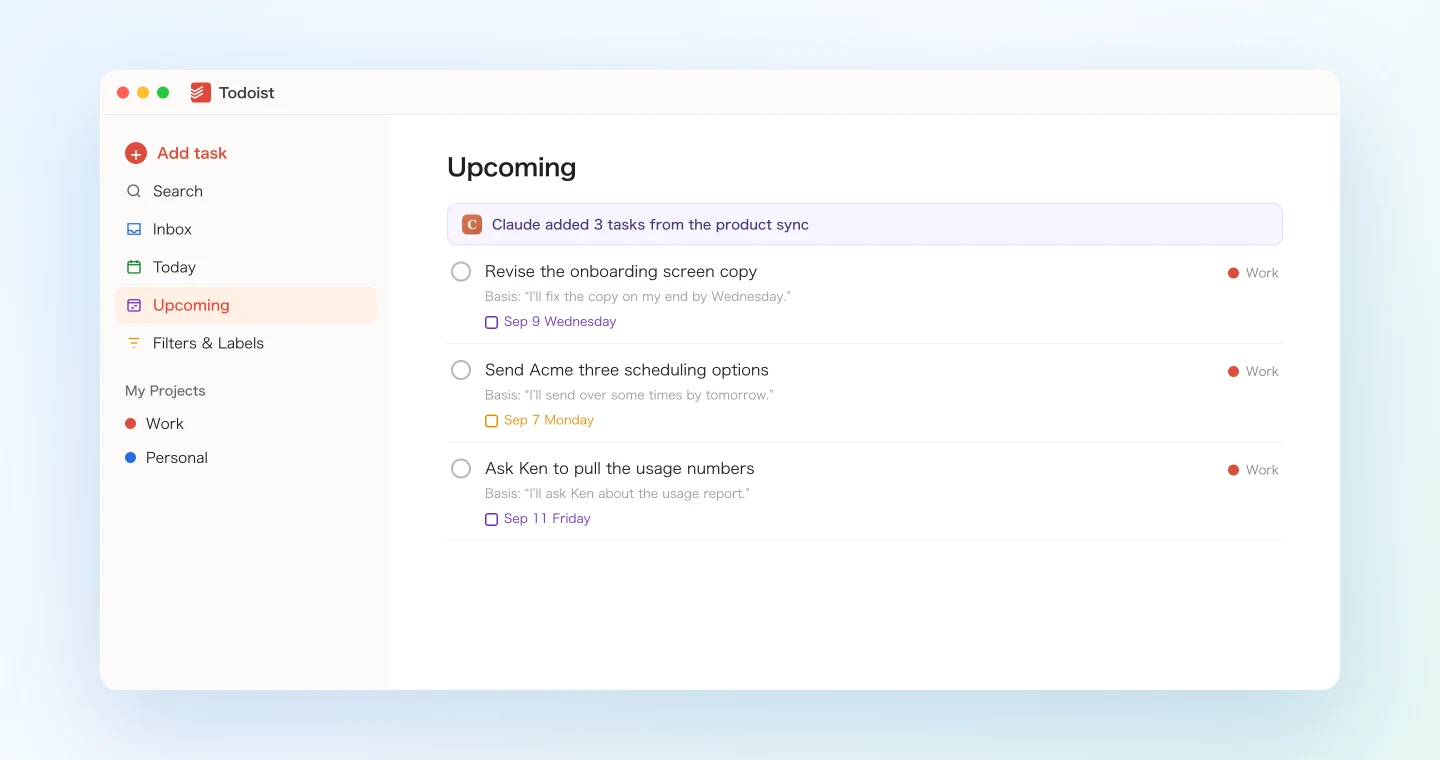
The quoted statements are there for a reason. Left alone, an AI extracting tasks will grab every "maybe we should" from the discussion. With the source line next to each item, you can see at a glance whether it's something you actually promised.
Demo 2: The End-of-Day Sweep
Some days you won't get to the capture step after every meeting. Since SuperIntern has all of the day's meetings on record, one prompt before you log off covers the gaps.
List all my meetings from today, and from each AI summary extract
everything I said I would do. Cross-check against my current Todoist
tasks and show me only the items that are not in there yet.
Once I approve, add them to my inbox, and note in each task's
description which meeting it came from.
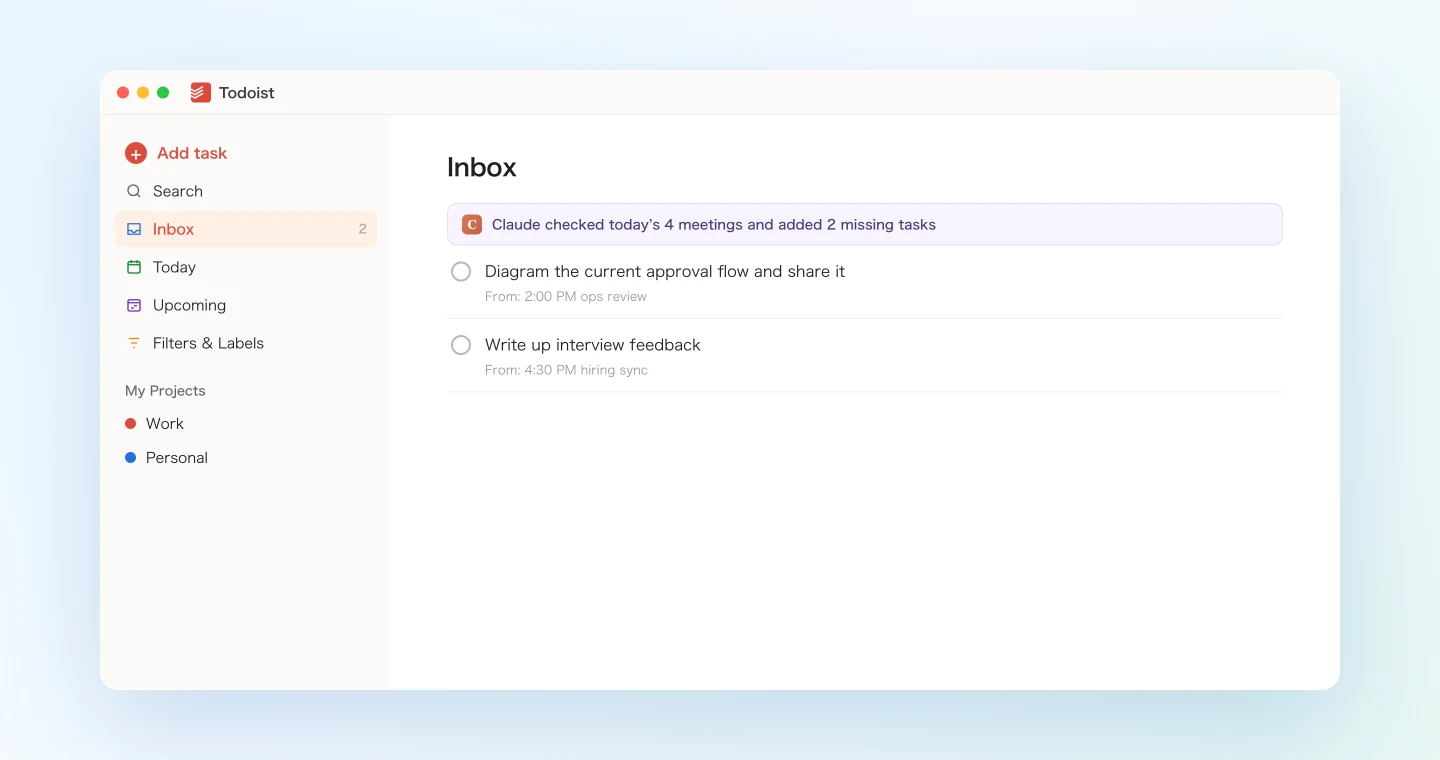
The agent goes through the day's meetings and proposes only what's missing.
I checked your 4 meetings today. 2 items are not in Todoist yet.
- Diagram the current approval flow and share it (from: 2:00 PM ops review)
- Write up interview feedback (from: 4:30 PM hiring sync)
"Send Acme three scheduling options" was already tracked, so I left it out. Add these 2 to your inbox?
Each task's description names the meeting it came from, so when you open Todoist the next morning and find a terse task you don't recognize, you can trace it back to the conversation.
Demo 3: A Weekly Review That Checks Promises Against Reality
MCP is especially good at working across many meetings at once. On Friday, you can base your weekly review on the actual record of what you promised, not on what you happen to remember.
Go through this week's meeting summaries and list every commitment
I made. Cross-check against my completed and open Todoist tasks,
and sort into three buckets:
1) Promised in a meeting but missing from Todoist (with proposed entries)
2) In Todoist but overdue (with a realistic reschedule suggestion)
3) Completed this week
Only apply changes I approve.
What you said you'd do and what you actually did end up side by side in one list. Bucket 3 is a ready-made starting point for a weekly report. And since the agent has the meeting context, it suggests new dates like "before Wednesday's sync" instead of pushing everything to tomorrow.
Tips and Caveats
Make "propose first, create after approval" the default. Every prompt in this guide includes a review step on purpose. Tasks are easy to delete, but reviewing first means Todoist never fills up with guesses you didn't sign off on, and you catch misreadings while the meeting is still fresh. Once you trust the output for a particular recurring meeting, you can let the agent create tasks directly for that one.
Capture only your own tasks. Spell it out in the prompt ("only what I committed to, leave out other people's items"). Without that line, every action item from the meeting ends up in your personal Todoist. Team-wide work belongs in an issue tracker, which is what the Linear pattern below is for.
Don't leave tasks undated. Tasks without a due date sink to the bottom in Todoist like anywhere else. Demo 1 asks the agent to write "no due date" when none was mentioned, which forces you to pick one at approval time, while you still remember the context.
Check high-stakes commitments against the transcript. When a promise involves money or a customer, add "quote the exact statement each task is based on" to the prompt. That way you're checking against the original wording rather than a summary's paraphrase.
Everything stays in your own accounts. Tasks go into your Todoist, and SuperIntern MCP only reads meetings you can already access. Nothing gets shared with your manager or team automatically.
Help the transcription. Extraction is only as good as the transcript. If names, project names, and internal jargon come through correctly, the task list will too, so add terms you use often to SuperIntern's custom dictionary.
Going Further: Same Pattern, Different Tools
SuperIntern MCP supplies the meeting data, the AI agent decides what matters, and a third tool carries out the action. Swap in a different third tool and the same setup still works.
- Linear: for commitments the team should track as issues, not personal to-dos. Covered in the Linear guide
- Google Calendar: when the follow-up is a meeting or a time block rather than a task. Covered in the Google Calendar guide
- Gmail: when the commitment is "reply to that email," down to the draft. Covered in the Gmail guide
A good rule of thumb is that work the team tracks goes to Linear, and work only you track goes to Todoist. A single prompt can do both from the same meeting.
FAQ
Q. Does SuperIntern MCP work on the free plan?
A. No. Personal workspaces need the Plus plan or above. Team plan workspaces can use it without any extra setup. On Enterprise, an admin needs to turn on "MCP access" in workspace settings first.
Q. Does SuperIntern write tasks into my Todoist?
A. No. Your AI agent (Claude or ChatGPT) creates and updates the tasks through Todoist's integration. SuperIntern MCP only provides meeting data, read-only, and SuperIntern itself never writes to external tools.
Q. Can the AI modify my meeting notes or transcripts?
A. No. Every SuperIntern MCP tool is read-only, and there are no create, edit, or delete operations at all. The only writes happen in Todoist, inside your own account.
Q. Which Todoist plan do I need?
A. Todoist's help center says the official app works on all plans, including the free Beginner tier. On the Claude side, adding connectors requires a paid Claude plan (Pro or above).
Q. What if a wrong task gets created?
A. You can edit or delete it in Todoist as usual, or just tell your agent "delete that third one." If you keep the approval step from this guide's prompts, you'll usually catch mistakes before anything is created.
Q. My team already uses Linear or Jira. Is there a point to the Todoist workflow?
A. Yes. Issue trackers hold the work your team tracks, but small personal promises like "ping Sara" or "fix that typo in the deck" tend to slip through. That gap is what personal task management is for, and this workflow fills it for you.
Q. Which AI agents does this work with?
A. Claude and ChatGPT both work, and SuperIntern and Todoist are each listed in both official directories. SuperIntern MCP also works with MCP-capable clients such as Claude Code, Codex, and Cursor. Todoist's integration works in Claude Code and other MCP clients too, through its remote MCP server at https://ai.todoist.net/mcp.
SuperIntern has already heard and recorded everything you committed to. The only step left is having your agent carry it into Todoist.