
How to Search Across Meetings with Chat and Put the Results to Work [SuperIntern]
![How to Search Across Meetings with Chat and Put the Results to Work [SuperIntern]](/_next/image?url=%2Fblog%2Fchat-across-meetings-guide%2Fen%2Fcover.webp&w=3840&q=75&dpl=dpl_DXTXto3WhkFSYUyDAYQTnYxXVh1n)
With SuperIntern chat, you can ask questions based on your recorded meetings and get first drafts of documents. Its strength is that it gathers information not from one meeting but across several past meetings.
This article explains the two chats you use after a meeting, and how to use skills to call up your frequent requests quickly.
⚠️ This article reflects SuperIntern's behavior as of October 2026. Screens and specifications may change.
1. Search across meetings with "Chat" in the sidebar
In the desktop app sidebar, open "Chat" to ask questions that are not limited to a particular meeting. SuperIntern finds the meetings relevant to your question and answers based on their content.
For example, you can use it like this:
- "Summarize this week's meetings"
- "Organize how the deal with Customer A has progressed, in chronological order"
- "List what we decided in last month's weekly sync, with the owners"
- "Tell me which questions candidates asked most often in hiring interviews"
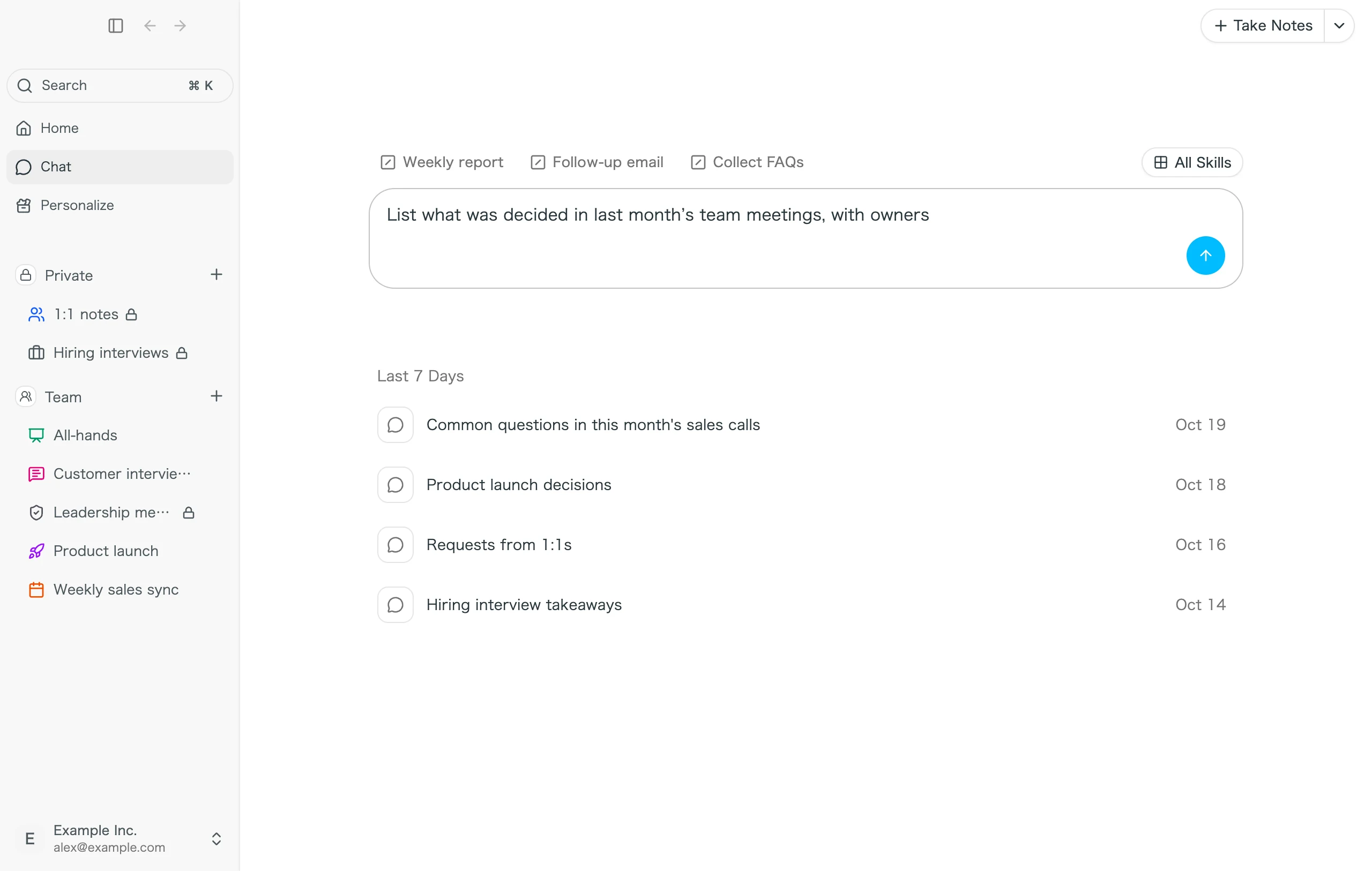
If you have connected Slack, Notion, and Linear, you can post what you compiled straight to Slack or turn it into a Notion page. For setup, see How to Automate Work with Slack, Notion, Linear, and MCP.
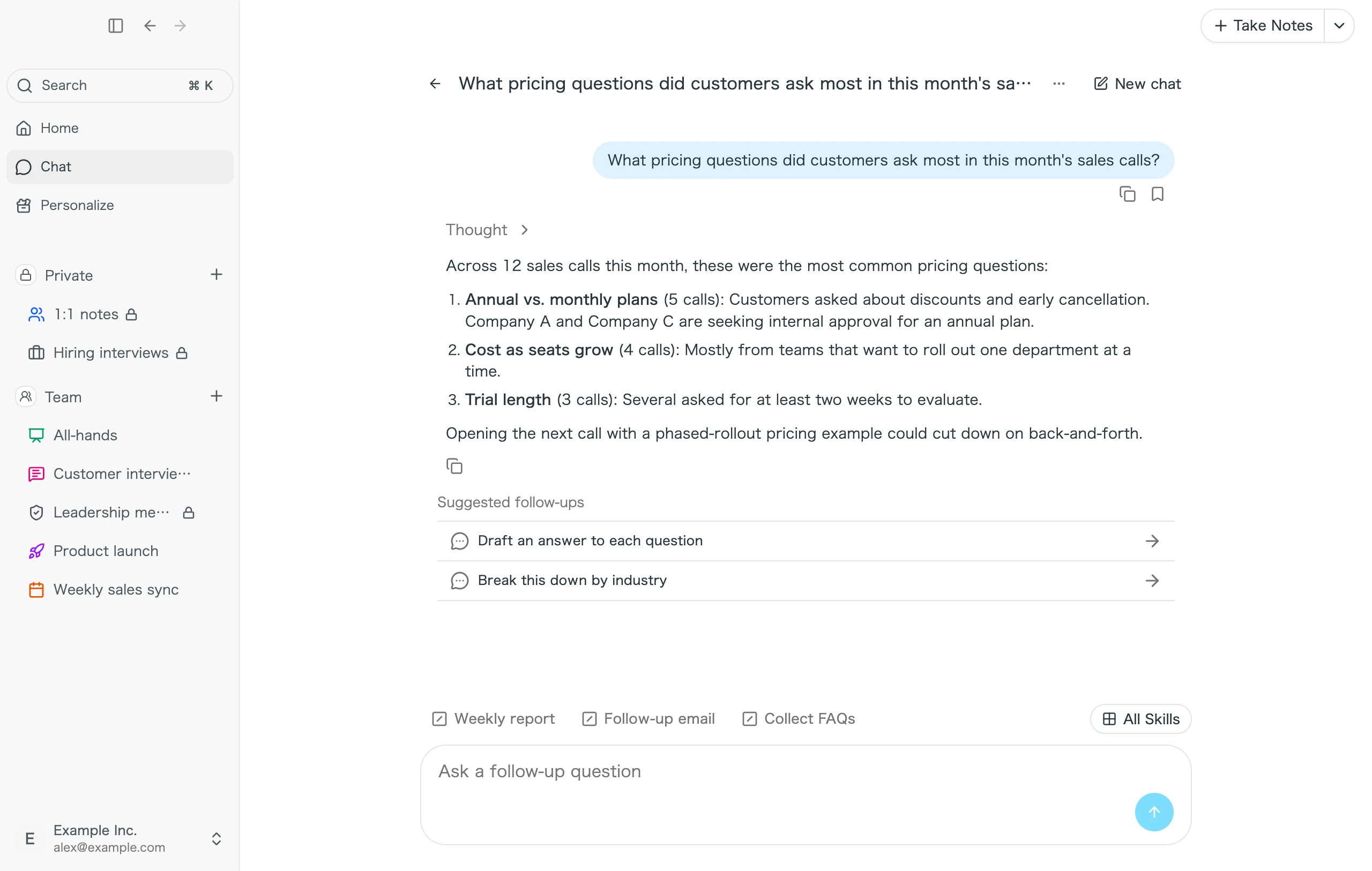
Which meetings are searched
Chat can refer only to meetings you are allowed to see in the workspace you have selected.
- Meetings in your own Private space
- Meetings in the Team space
- Meetings in restricted projects you are a member of
Meetings in other members' Private spaces, and meetings in restricted projects you do not belong to, are not used in answers. Meetings whose summary has not been created yet are also not searched.
Past chats are listed by date, such as "Today," "Yesterday," and "Last 7 Days," and you can pick up where you left off.
2. Dig into one meeting with the chat on the meeting detail screen
The meeting detail screen has a chat too. It answers using the full transcript and the summary of that meeting.
- "List the concerns raised in this meeting in order of priority"
- "Draft a thank-you email for the customer"
- "Pull out only what Alex said"
Anyone who can view the meeting can use it, which is handy when a member who did not attend wants to review a meeting shared in the Team space later.
3. Register frequently used requests as skills
If you write the same request every time, register it as a skill. Then you can send it by clicking the button shown above the chat input field.
Register a skill
Register one in any of these ways:
- Click "Add" on the "Chat skills" tab under "Personalize"
- Register it from "Create skill" in the chat
- Register a request that worked well from "Save as Skill" on that message
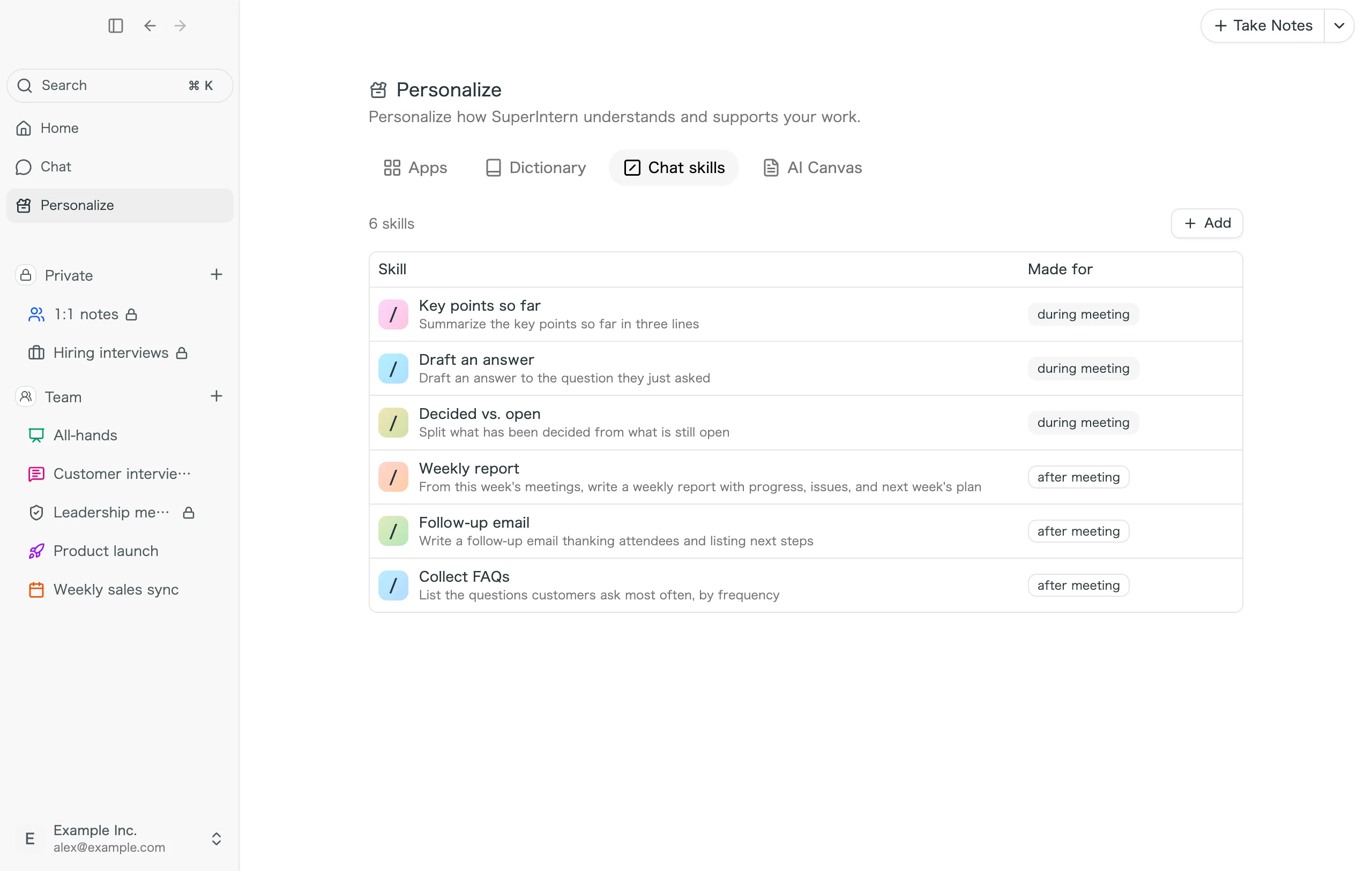
When you register, enter a skill name and the content to send (the prompt), and choose what it is made for.
| Made for | Where it appears |
|---|---|
| During meeting | The in-meeting chat |
| After meeting | The chat on the meeting detail screen and "Chat" in the sidebar |
Use a skill
Click a skill listed above the chat input field, and the registered content is sent as it is. Skills are personal and are not shown to other members.
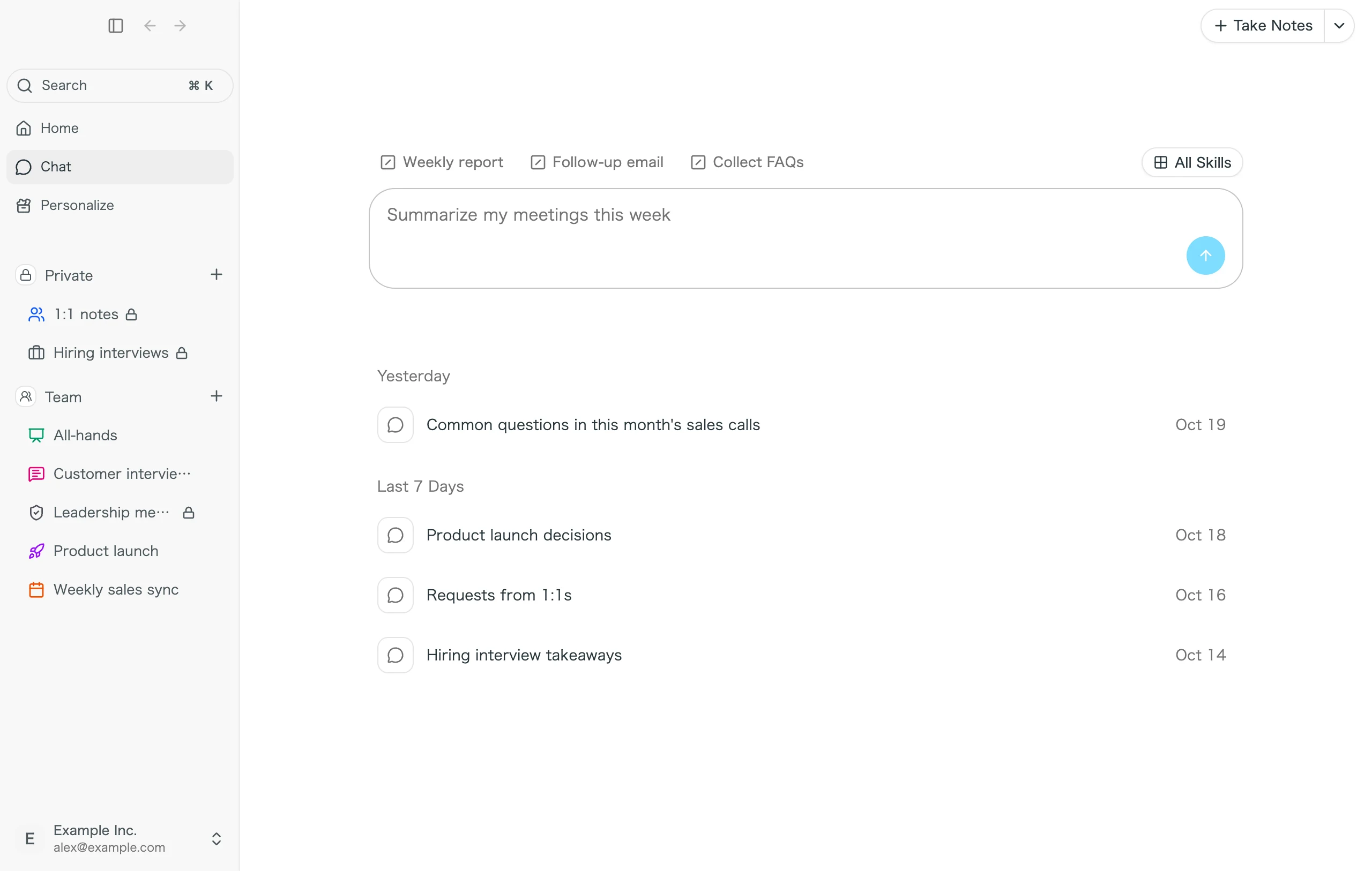
Here are some skills worth registering:
- "Weekly report": From this week's meetings, summarize what was decided, what is moving forward, and what the issues are, in report form
- "Follow-up email": From the content of a meeting, write an email to the customer that thanks them and states the next steps
- "Create issues": Turn the tasks decided in a meeting into Linear issues
FAQ
Can other members see my chats?
No. Chat history is saved per user and per workspace, and other members cannot see it.
A meeting I just recorded does not show up in chat answers.
Chat searches only meetings whose summary has been created. Once the summary is ready, ask again.
For tips on getting your team started with SuperIntern, see Getting Started with SuperIntern as a Team.