
How to Automate Work with Slack, Notion, Linear, and MCP [SuperIntern]
![How to Automate Work with Slack, Notion, Linear, and MCP [SuperIntern]](/_next/image?url=%2Fblog%2Fapp-connectors-guide%2Fen%2Fcover.webp&w=3840&q=75&dpl=dpl_DXTXto3WhkFSYUyDAYQTnYxXVh1n)
SuperIntern chat can connect to Slack, Notion, and Linear. Based on what was said in a meeting, you can post to Slack, create a Notion page, or create a Linear issue from chat.
With MCP, you can also read your SuperIntern meeting data from the AI tools you already use, such as Claude and ChatGPT.
This article explains how to set up and use external app connections and MCP.
⚠️ This article reflects SuperIntern's behavior as of October 2026. Screens and specifications may change. We will keep adding apps you can connect.
Before you start: an admin setting may be required
| Plan | External app connections | MCP |
|---|---|---|
| Team plan | Available by default. An admin may have restricted connections | Available |
| Enterprise plan | Not available until an admin turns on "Agent external app access" | Not available until an admin turns on "MCP access" |
On the Enterprise plan, first ask your workspace admin to change the setting. The admin steps are covered in the SuperIntern Workspace Admin Guide.
1. What you can do with external app connections
Just ask in chat, and the content of a meeting is carried over to each app.
| App | Main things you can do | Example request |
|---|---|---|
| Slack | Read channels and messages, send messages, create and edit Canvases, set reminders | "Post today's weekly sync decisions to the #project channel" |
| Notion | Read pages and databases you have shared, create and edit pages and rows | "Add the minutes of this sales call to the customer page" |
| Linear | Read issues, projects, and documents, create and edit issues, post comments | "Turn the three tasks decided in the meeting into issues" |
You can use external app connections in chat in these places:
- "Chat" in the sidebar
- The chat on the meeting detail screen
- The in-meeting chat (you need to connect beforehand)
For how to use chat, see How to Search Across Meetings with Chat and Put the Results to Work and In-Meeting AI Chat, and Summaries and Notes After the Meeting.
2. Connect an app
- In the desktop app sidebar, open "Personalize" and select the "Apps" tab.
- Under "Available", choose the app you want to connect.
- Your browser opens. Log in to that app and allow the connection.
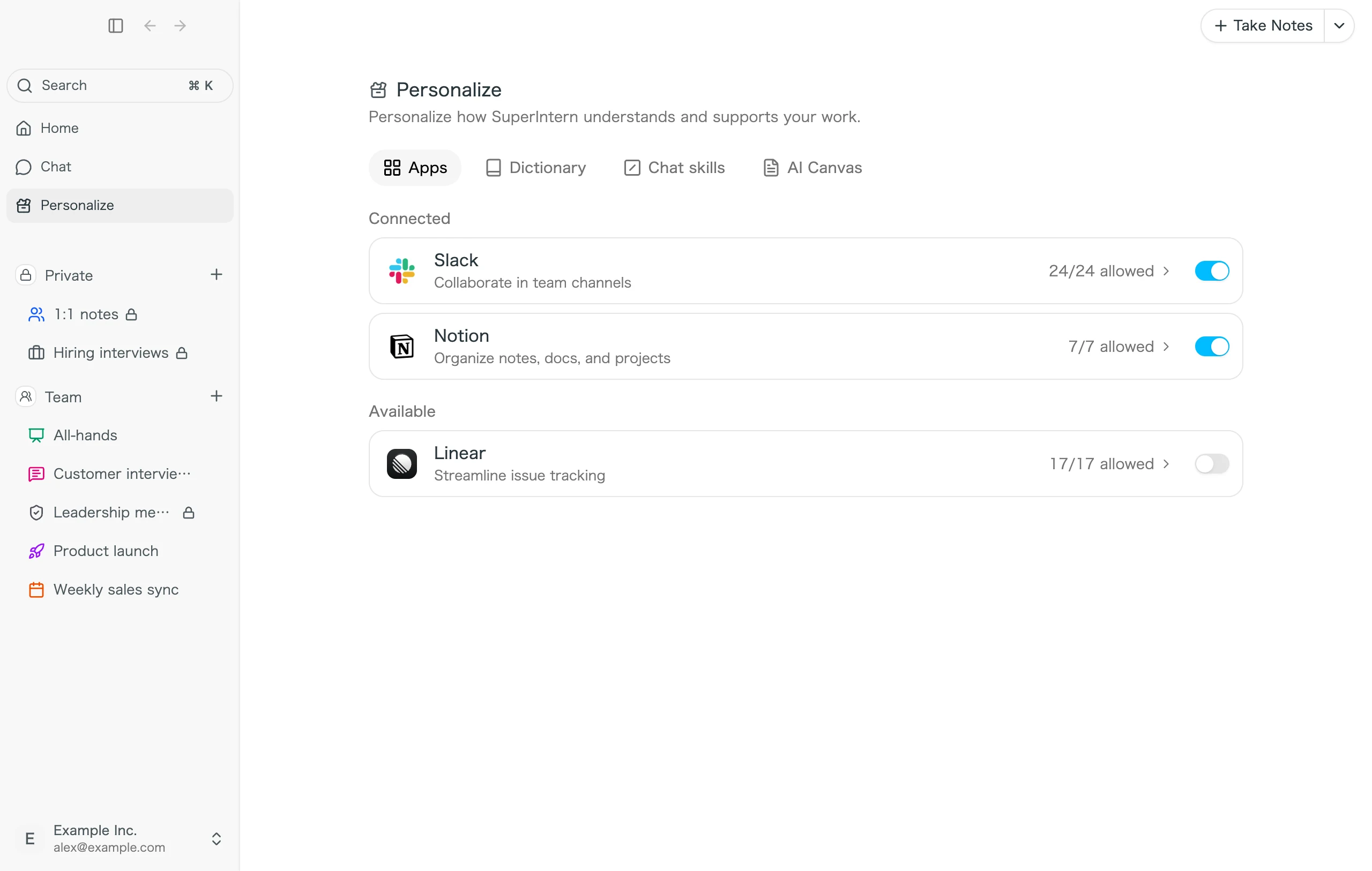
Connections are made per user and per workspace. For Notion, SuperIntern can read and write only the pages you shared when you connected.
When chat needs an app you have not connected yet, a "Connect" prompt appears in the chat. You can connect from there too (except in the in-meeting chat).
3. Choose which actions to allow
Select a connected app on the "Apps" tab to set, one by one, the actions SuperIntern is allowed to take in that app. You can also set them together by type, "Read" or "Write".
| Setting | Behavior |
|---|---|
| Always allow | Runs without asking |
| Auto-review | Asks for confirmation only when an operation may be unsafe |
| Needs approval | Asks for confirmation every time before running |
| Don’t allow | This action is never run |
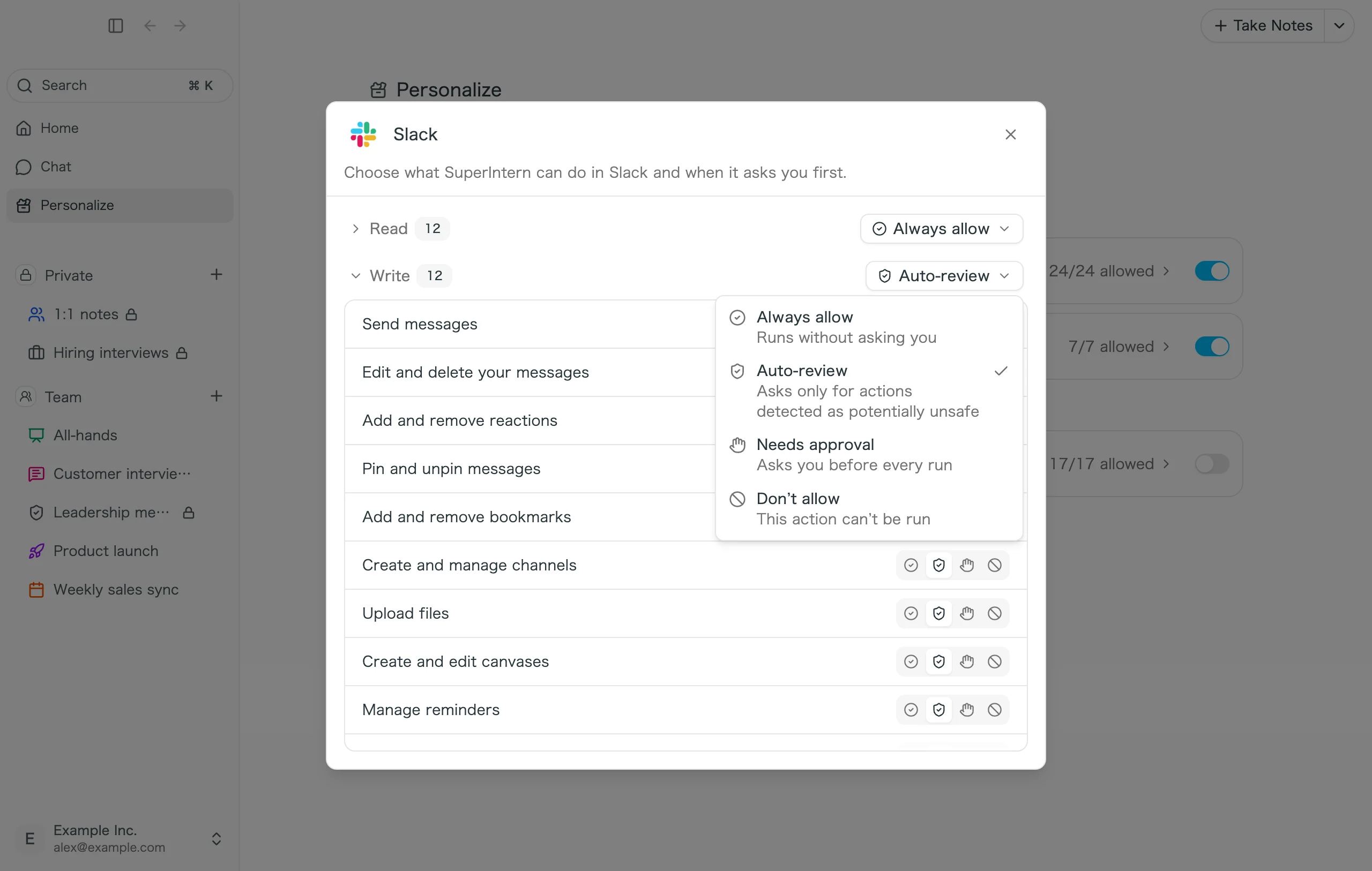
By default, reading is "Always allow" and writing is "Auto-review". If you want to check things like message sending yourself every time, change writing to "Needs approval". Operations that need confirmation appear in chat as "Approve" and "Deny" buttons.
If an admin has set limits for the whole workspace, you can change settings only within those limits.
4. Use your meeting data from Claude and ChatGPT with MCP
With MCP, AI tools such as Claude, ChatGPT, Claude Code, Codex, and Cursor can read your SuperIntern meeting transcripts, minutes, and notes in read-only mode. You can finish a request like "Write a weekly report based on last week's meetings" inside the AI tool you already use.
- In the desktop app, open "MCP" in "Settings".
- For Claude and ChatGPT, add them from "One-click setup".
- For Claude Code, Cursor, and others, copy the "MCP server URL" shown under "Other tools" and register it in each tool.
For detailed setup steps for each tool, see Connect Your Meeting Data to Claude, ChatGPT, and Cursor with SuperIntern's MCP [Setup Guide].
FAQ
I see "Your workspace admin doesn’t allow connecting this app."
An admin has turned off connections to that app for the whole workspace. If you want to use it, talk to your admin.
MCP does not appear in Settings.
On the Enterprise plan, it does not appear unless an admin has turned on "MCP access". Ask your admin to change the setting.
Is the data from an app I connected used by other members?
No. Connections are made per user, and other members' chats never use your connection.
For tips on getting your team started with SuperIntern, see Getting Started with SuperIntern as a Team.