
Getting Started with SuperIntern as a Team: 6 Essentials After Rollout
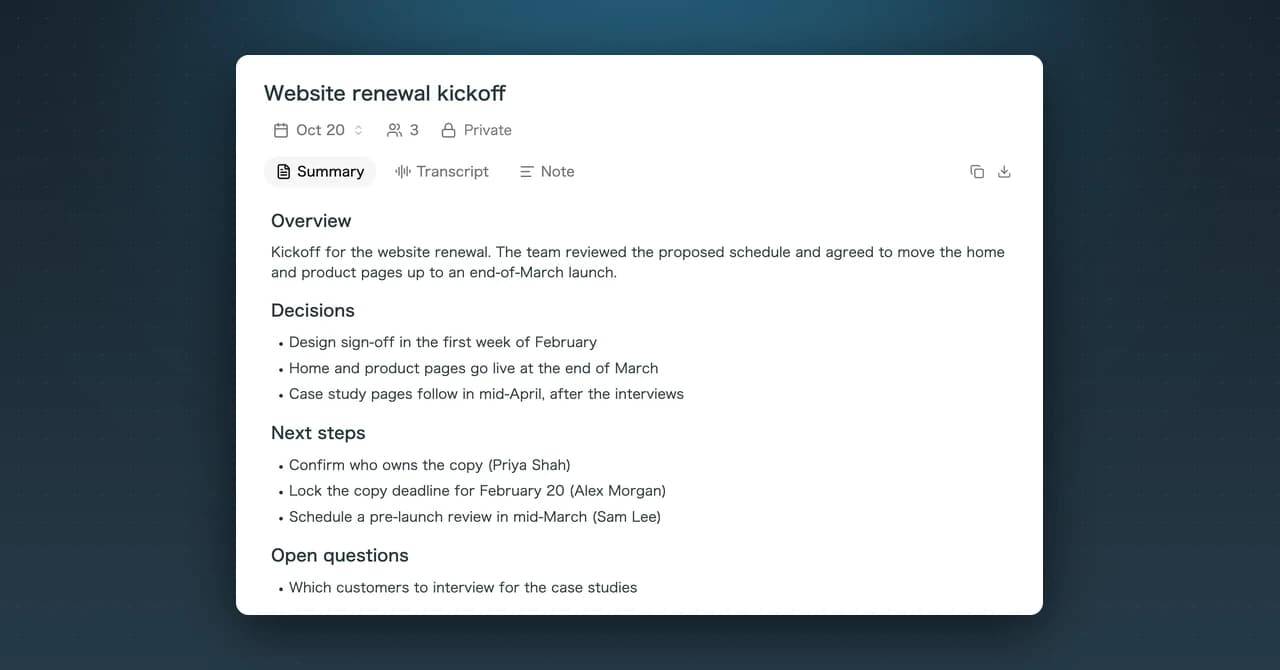
Once your team has rolled out SuperIntern, there are six things to get right first.
This page gives you the key point of each one. For step-by-step instructions, follow the links to the individual guides.
⚠️ This article reflects SuperIntern's behavior as of October 2026. Screens and specifications may change.
Table of Contents
- Record work meetings in your company workspace
- Save meetings to Private and share through projects
- Use captions, translation, and AI chat during meetings
- After the meeting, use chat across meetings
- Settings to configure first
- For admins
1. Record work meetings in your company workspace
When your company invites you, you can switch between your personal workspace and the company workspace. Your company's contract and admin controls apply only to the company workspace. Always select the company workspace before you record a work meeting.
To switch, use "Select Workspace" at the bottom left of the sidebar in the desktop app, or at the top of the sidebar in the web app.
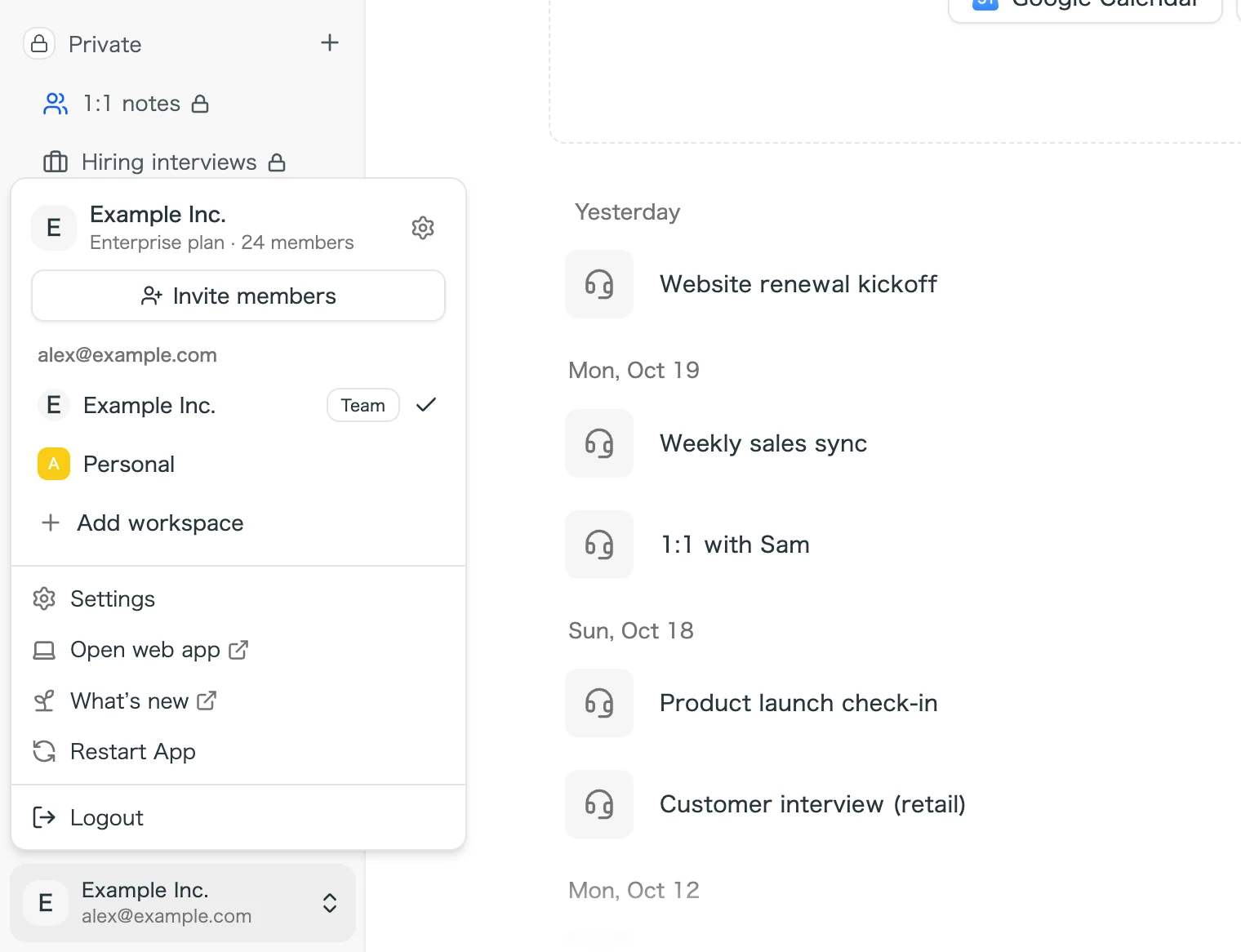
You can move meetings you recorded earlier in your personal workspace to the company workspace in bulk.
- How to accept an invitation: How to Get Started with the SuperIntern Team Plan: From Workspace Creation to Inviting and Joining Members
- How to move past meetings: How to Move Meetings from Your Personal Workspace to a Team Workspace
2. Save meetings to Private and share through projects
A recorded meeting is first saved to your Private space, which only you can see. Workspace admins cannot see its contents either. You move only the meetings you want to share into the Team space.
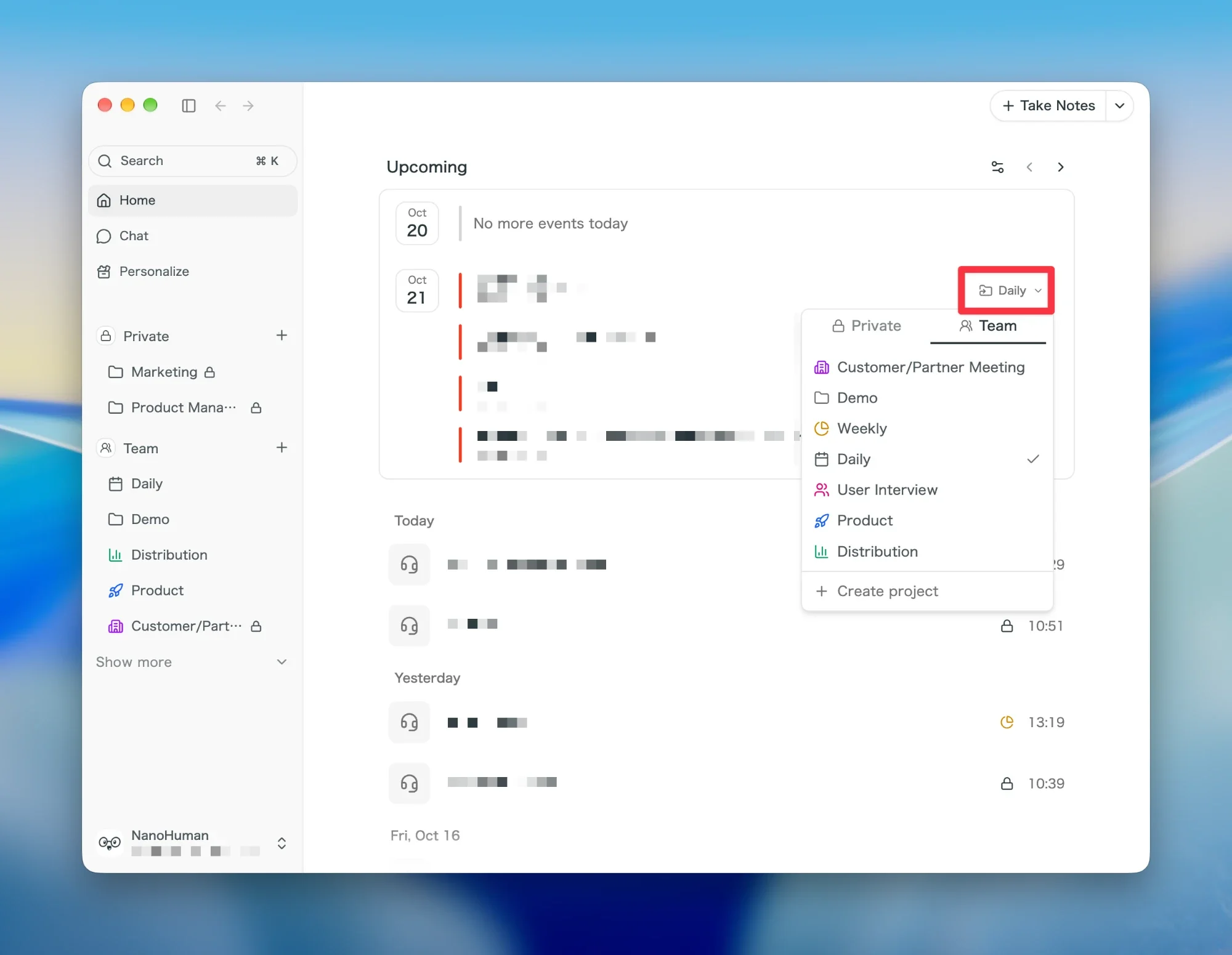
In the Team space, you can create projects for each department or recurring meeting. To share with only some members, use a restricted project.
For meetings with a fixed audience, such as a weekly sync, assign a project to the calendar event in advance. The meeting you record is then added to that project automatically.
- Detailed steps and permissions: How to Use the SuperIntern Team Plan: Sharing Meetings, Projects, and Permissions
3. Use captions, translation, and AI chat during meetings
While you record, you can follow what is being said in captions and show it translated into another language in real time. Screens shared in Google Meet, Teams, Zoom, and Webex in the browser are recorded along with the conversation.
AI chat answers with what is being said right now in mind. Ask things like "Summarize the points so far" or "Draft an answer to the question they just asked," without pausing the meeting.
When the meeting ends, a summary is created automatically. You can set the shape of the note created during the meeting on the "AI Canvas" tab under "Personalize".
- Captions, translation, and recording shared screens: Live Captions, Real-Time Translation, and Shared Screen Capture in Meetings
- AI chat, summaries, and notes: In-Meeting AI Chat, and Summaries and Notes After the Meeting
4. After the meeting, use chat across meetings
In "Chat" in the sidebar, you can get answers drawn from several past meetings. Just ask, for example, "Summarize how the deal with Customer A has progressed" or "List what we decided in last month's weekly sync," and the answer is based on the relevant meetings. You can save requests you use often as skills.
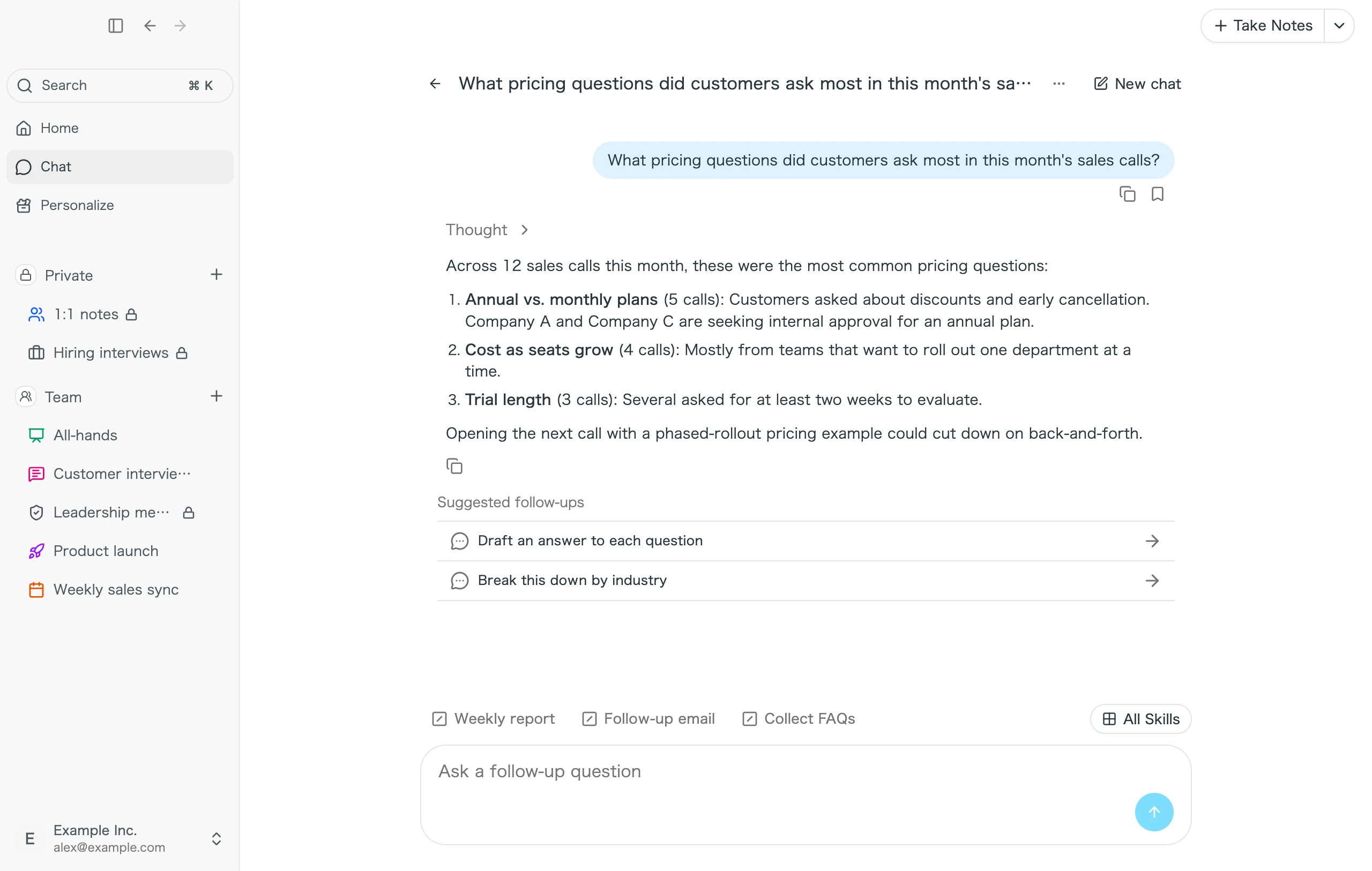
If you connect Slack, Notion, and Linear, you can post meeting notes to Slack or turn decided tasks into Linear issues from chat. From AI tools such as Claude and ChatGPT, you can read your meeting data through MCP.
⚠️ On the Enterprise plan, external app connections and MCP are not available until an admin turns them on. We will keep adding apps you can connect.
- Chat and skills: How to Search Across Meetings with Chat and Put the Results to Work
- External app connections and MCP: How to Automate Work with Slack, Notion, Linear, and MCP
5. Settings to configure first
Set up these four first to make daily recording more convenient.
| Setting | Where | What it does |
|---|---|---|
| Calendar | Settings > Calendar | Shows your Google Calendar and Outlook Calendar events on Home, so you can start recording from an event |
| Notifications | Settings > Notifications | Choose how many minutes before an event to notify you, and, for each app, whether to notify you or start and stop recording automatically when a meeting starts or ends |
| Dictionary | Personalize > Dictionary | Register up to 100 terms such as company names, product names, and people's names to improve transcription and translation accuracy. You can also specify how each term is written in translations |
| Rewind | Settings > Rewind | Replay an in-person conversation you did not start recording, and turn only the parts you need into meeting notes. Audio stays on your PC until you upload it |
For an audio file you have already recorded (aac, flac, mp3, wav, or m4a, up to 5 hours), open the menu next to "Take Notes" on Home and choose "Upload audio file" to create a transcript and summary.
6. For admins
Workspace admins invite members, restrict external app connections, and configure security in the workspace settings of the web app. On the Enterprise plan, you also set up SSO, MCP access, and external app access there.
- Admin settings: SuperIntern Workspace Admin Guide
If you need help, contact contact@nanohuman.co.jp. You can check service status on the status page.