
Live Captions, Real-Time Translation, and Shared Screen Capture in Meetings [SuperIntern]
![Live Captions, Real-Time Translation, and Shared Screen Capture in Meetings [SuperIntern]](/_next/image?url=%2Fblog%2Flive-caption-translation-guide%2Fen%2Fcover.webp&w=3840&q=75&dpl=dpl_DXTXto3WhkFSYUyDAYQTnYxXVh1n)
In the SuperIntern desktop app, you can follow what is being said as captions while you record, and show it translated into another language. Shared screens can be recorded along with the conversation.
This article covers four features you can use during a meeting:
- Show captions
- Translate in real time
- Record shared screens
- Hide the app while sharing your screen (Stealth mode)
⚠️ This article reflects SuperIntern's behavior as of October 2026. Screens and specifications may change.
1. Show captions
When you start recording, a control bar appears on screen. Click the "Caption" button on the control bar, and what is being said appears in the caption window.
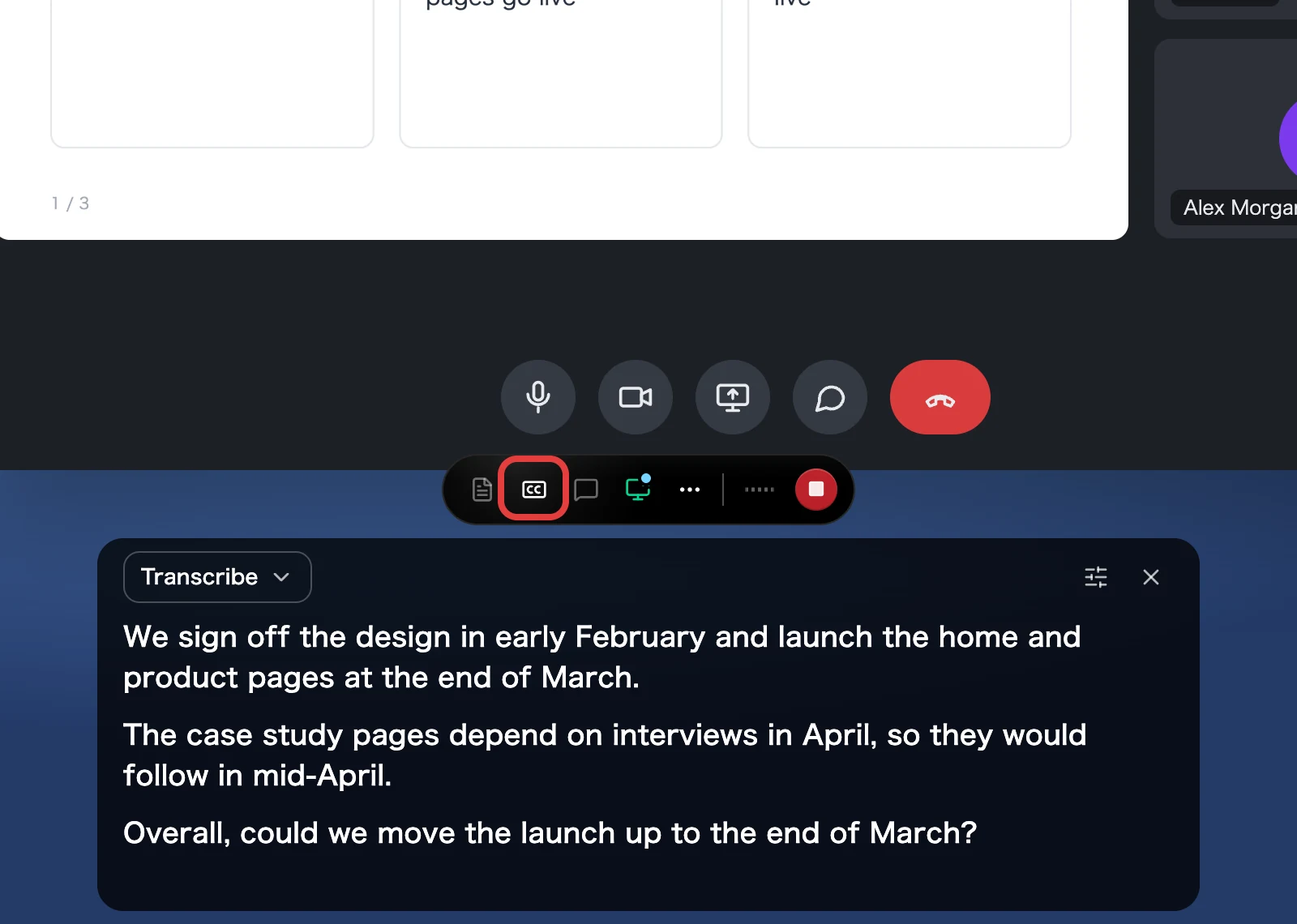
- Whether the caption, note, and chat windows are open carries over to your next recording.
- Under "Shortcuts" in "Settings", you can register keys that toggle the caption, note, and chat windows. None are registered by default, so set them up if you use these often.
2. Translate in real time
In the mode selector of the caption window, choose from three display modes.
| Mode | What is shown | Best for |
|---|---|---|
| Transcribe | Shows speech in the language it was spoken | Meetings where everyone speaks the same language |
| One-way Translation | Detects the spoken language automatically and translates it into the language you choose | Following speakers of another language in your own language |
| Two-way Translation | Translates between two languages you choose and shows them side by side | Meetings that mix two languages, such as Japanese and English |
- For One-way Translation, you can choose the target language from 60 languages. The default is the "AI Output" language under "General" in "Settings".
- For Two-way Translation, you choose two languages. The last pair you used is applied automatically in your next meeting. Use "Swap displayed languages" to switch the left and right columns.
- If company names, product names, or people's names are not translated consistently, register them in "Dictionary" under "Personalize" and specify how each should be written in each language. That spelling is used when translating.
Adjust the display for readability
Use "Display Settings" in the caption window to make the text easier to read.
| Option | Choices |
|---|---|
| Text | S / M / L / XL |
| Weight | Light / Bold |
| Original text | When on, the original speech is shown along with the translation (One-way Translation only) |
| Split | Place the original and the translation side by side or stacked |
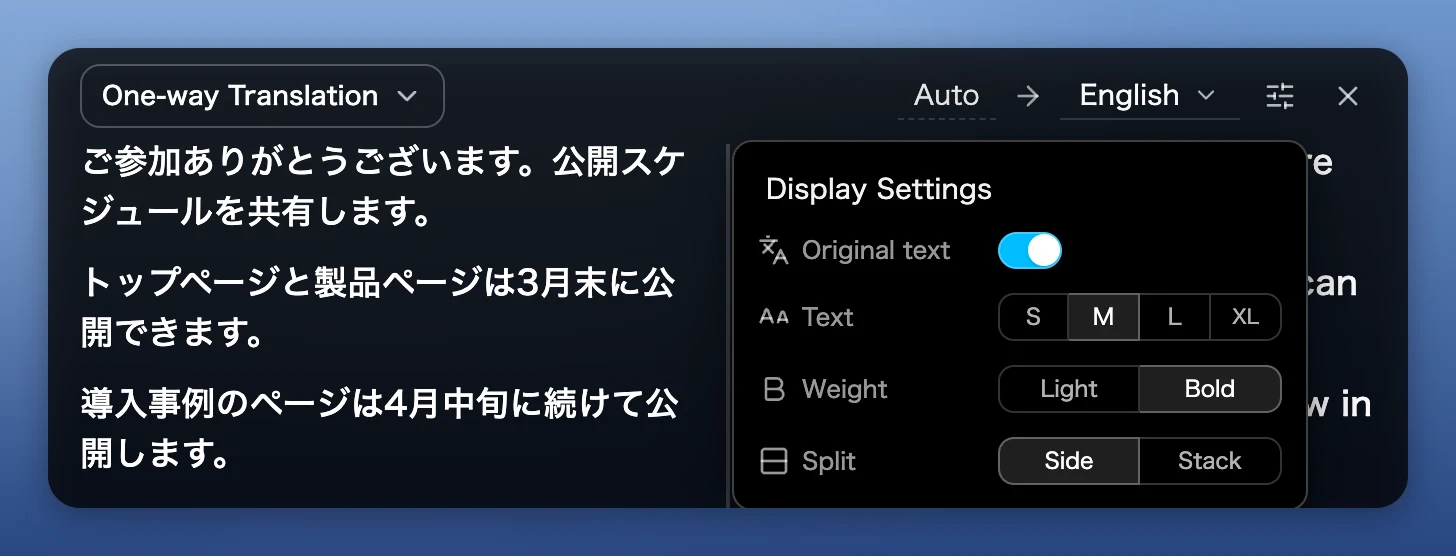
To set how transparent the windows are, use "Opacity" in the "Settings" (…) menu on the control bar. You can choose from five levels. Opacity applies to the caption, note, and chat windows alike.
3. Record shared screens
When a screen is shared in Google Meet, Teams, Zoom, or Webex in the browser, SuperIntern captures the shared screen automatically while you record and keeps it with the conversation. You can look back at presentation slides and demos and compare them with what was said.
- You need the SuperIntern browser extension. Supported browsers are Chrome, Edge, Dia, and Aside (Safari is not supported).
- Screens shared in the desktop apps of those services are not recorded.
- SuperIntern captures when the screen changes and keeps only the screens worth looking back at.
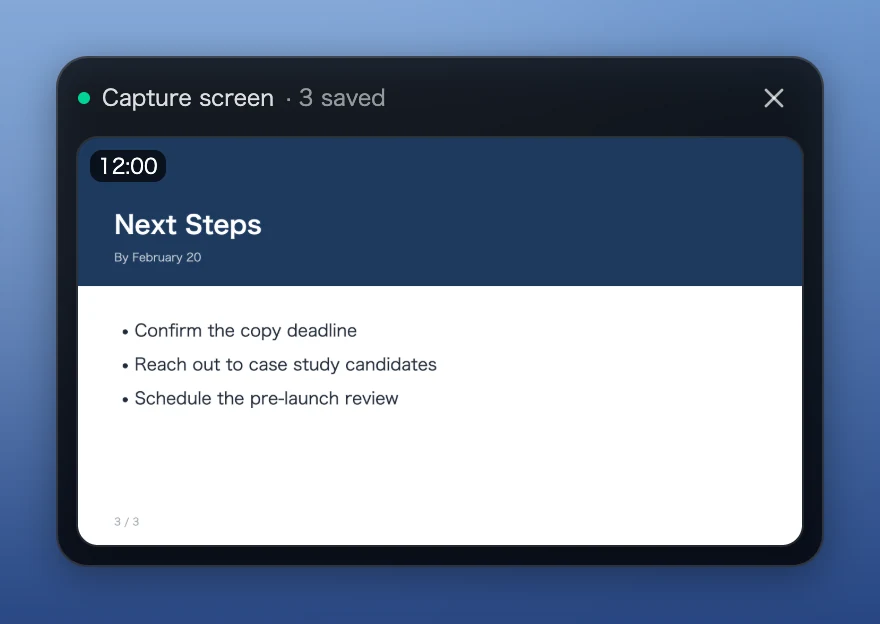
While recording, you can check how many captures have been saved from "Open Capture Screen" on the control bar. If you have not installed the extension yet, you can add it from there.
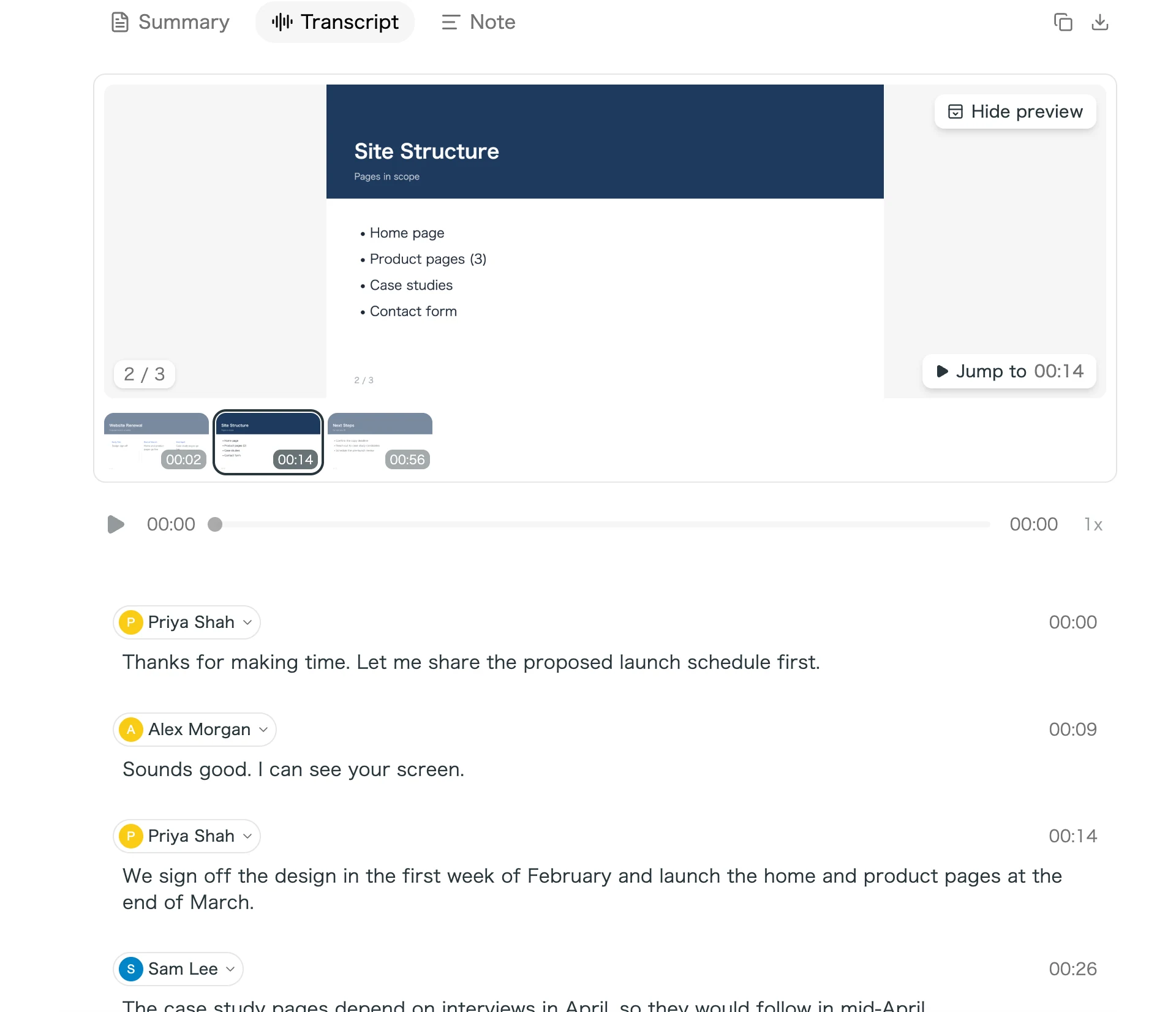
After the meeting, open "Shared screen" in the "Transcript" tab of the meeting detail screen to view the screens in sync with the playback position. You can also copy or download the images.
4. Hide the app while sharing your screen (Stealth mode)
If you do not want others to see the caption or note windows when you share your screen, use Stealth mode.
- Open "Settings" (…) on the control bar.
- Turn on "Stealth mode".
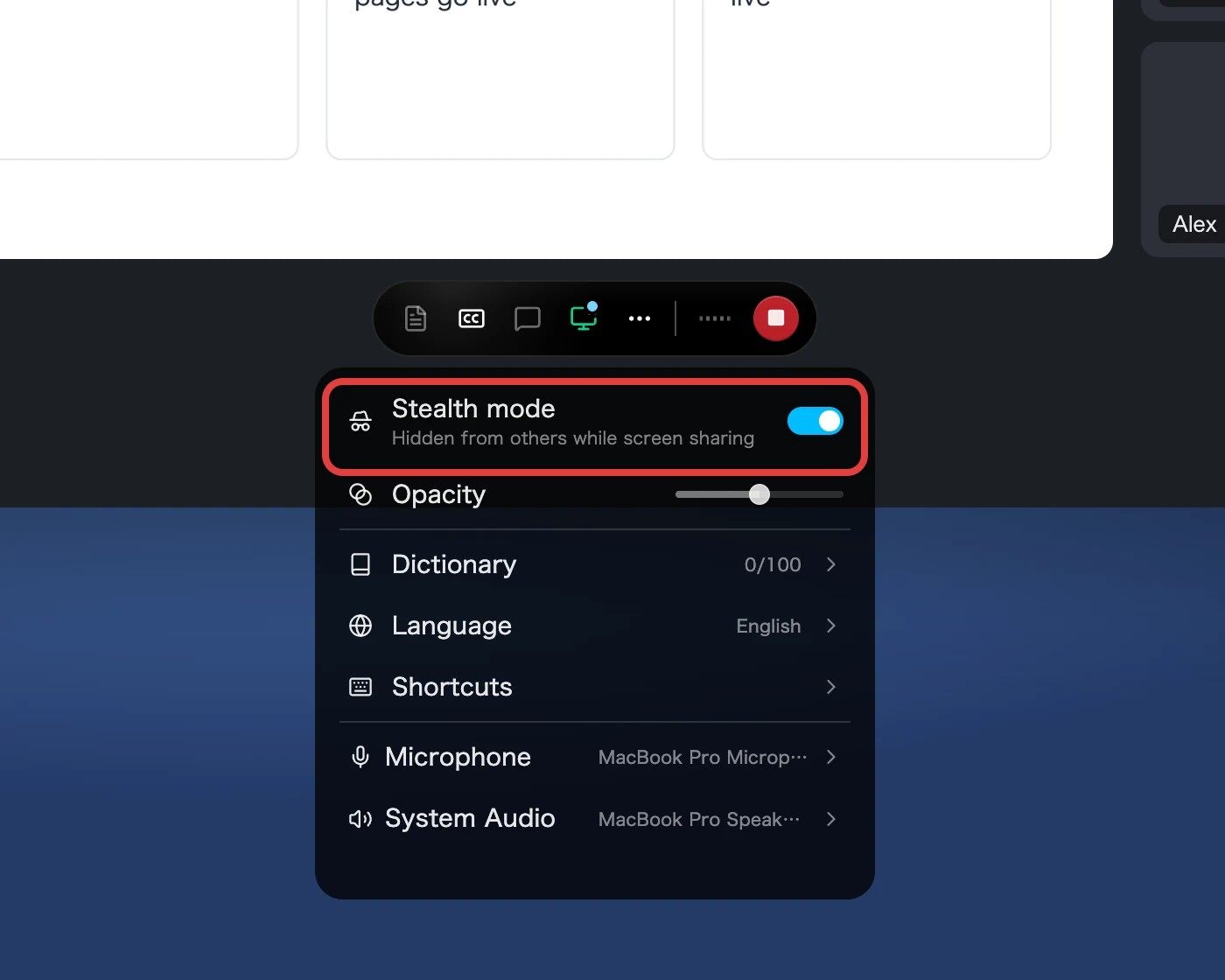
When it is on, the windows shown during recording, such as the control bar, captions, note, and chat, no longer appear in your screen share. The setting carries over to your next recording.
- SuperIntern's main screens (Home and the meeting detail screen) are not covered.
- Depending on the tool or OS you use to share your screen, the windows may still appear. Test it once before an important meeting to be safe.
FAQ
Which plans include translation?
Real-time translation is available on all plans, including the Free plan.
Is the transcript still recorded if I don't show captions?
Yes. The caption window is only for display. Even if it is closed, the meeting is recorded and a transcript and summary are created.
How do I ask the AI a question during a meeting?
Use "Open Chat" on the control bar to ask about the meeting. For details, see In-Meeting AI Chat, and Summaries and Notes After the Meeting.
For tips on getting your team started with SuperIntern, see Getting Started with SuperIntern as a Team.